[2026-10-18] 🛠️ KohakuMossTrainer has been released, offering full fine-tuning and LyCORIS training (including LoRA) for MOSS-Image-Base and MOSS-Image-SFT. It features extensive optimizer support, mixed-precision training (BF16/FP16/FP8/MXFP8/INT8), multi-GPU training (DDP/FSDP/pipeline parallelism), optimized kernels, and CPU offloading, enabling adapter training with as little as 6GB VRAM. It supports Windows, Linux, NVIDIA GPUs (SM70–SM120), and Intel Arc GPUs. See the GitHub repository for details.
MOSS-Image-SFT-DeBand by MATLOWAI provides community LoRAs to reduce vertical color banding in MOSS-Image-SFT, together with ComfyUI preset workflows. See the model card for examples, settings, and the trade-offs between stripe reduction and changes to image details.
MOSS-Image-SFT-8-steps-dmd by lodestones is a community 8-step DMD distillation of MOSS-Image-SFT, with LoRA adapters for ComfyUI. See the model card for the latest checkpoints and usage recommendations.
MOSS-Image-FP16-fixed by KBlueLeaf provides FP16-compatible transformer weights for MOSS-Image-Base and MOSS-Image-SFT, using residual-stream rescaling to improve overflow headroom. Diffusers and ComfyUI formats are available; see the model card for loading instructions and adapter compatibility.
ComfyUI-Spectrum-MOSS by Rkkss adds Spectrum-style hidden-state forecasting to accelerate MOSS-Image sampling in ComfyUI, with manual and experimental adaptive nodes. See the repository for recommended sampling settings and examples.
mossimage.cpp by mossimage-cpp is a native C++/CUDA inference engine for MOSS-Image-Base and MOSS-Image-SFT, with no PyTorch or Python at run time. It plans memory against the GPU it finds and streams the model when it does not fit. See the repository for speed, memory measurements and supported GPUs.
moss-image-layout-editor by moss-image-community is a browser-based visual editor for layout drafts: draw text, object, and character boxes on a canvas, edit their text in place, and copy a prompt compiled the same way as the prompt-enhancer skill's compile_prompt.py (the official test cases are ported and pass). It runs entirely in the browser and makes no generation calls; try the live demo.
User guide
Start with the English user guide or 中文用户指南
for recommended inference settings, prompt examples, layout input formats, and
LoRA training guidance.
ComfyUI
MOSS-Image is supported natively in ComfyUI. Update to ComfyUI master/nightly with MOSS-Image support and install its dependencies, then use the built-in loaders with ComfyUI-format weights. No MOSS-Image plugin is required for this workflow.
The repository plugin remains available for loading a local Hugging Face / Diffusers directory and for existing plugin workflows.
The MOSS-Image Prompt Enhancer turns
image ideas into detailed captions or spatial Layout prompts. It is designed for
GPT-6-family agents with local file and Python tools. The bundled script converts
pixel-coordinate drafts into compact JSON with integer centered coordinates;
it does not call an image-generation service.
Install the skill folder in your agent's skills
directory, then invoke $moss-image-prompt-enhancer with your image idea, desired
caption or Layout output, and any canvas dimensions. Paste the compiled result
into MOSS-Image's positive prompt; for Layout, use the same generation dimensions.
import torch
from diffusers import DiffusionPipeline

pipe = DiffusionPipeline.from_pretrained(
    "OpenMOSS-Team/MOSS-Image-Base",
    custom_pipeline="pipeline_moss_image",
    trust_remote_code=True,
    torch_dtype={"default": torch.bfloat16, "vae": torch.float32},
)
pipe.scheduler = type(pipe.scheduler).from_config(pipe.scheduler.config)
pipe.to("cuda")
image = pipe(
    "A wide view of a refrigerator beside a kitchen counter with a fruit bowl. A small sticky note on the refrigerator door is handwritten in Chinese:“\n记得买牛奶和鸡蛋!\n牛奶两盒,鸡蛋一打。\n顺便带一袋面包。”",
    height=1456,
    width=1456,
    num_inference_steps=50,
    guidance_scale=3.0,
    uncond_skip_layers=[22],
    generator=torch.Generator("cpu").manual_seed(42),
).images[0]
image.save("refrigerator_note.png")
See the user guide for sampling and prompt recommendations.
⚡ Memory and performance
Select Memory mode in Gradio's Advanced settings:
Mode
Behavior
GPU resident
Keep the entire model on GPU
Component
Move model components between CPU and GPU as needed
Sequential · fallback
Lower memory use with slower inference
Low memory
Keep DiT weights in CPU RAM; load text encoder/VAE weights from disk as needed
If GPU memory is insufficient, select Sequential or reduce image size.
For lower GPU and system memory use, select the minimal profile (Low memory mode):
The auto profile selects minimal below 12 GiB of GPU budget. Keep the model files
on an SSD: DiT stays in CPU RAM, while the text encoder and VAE load weights as needed.
Measured peak usage for one 1024×1024 image with 50 steps:
Resource
Peak usage
PyTorch GPU memory allocated / reserved
3.65 / 3.85 GiB
Task system RAM, including file cache
14.00 GiB
Compile DiT is disabled by default and unavailable in Sequential and Low memory modes.
📐 Layout-to-image generation
MOSS-Image uses JSON layout inputs to control text placement and object arrangement
in complex text-to-image compositions. The image below was generated by MOSS-Image
using layout control.
Layouts can also support controlled editing and user-friendly layout tools.
By editing text, element descriptions, and bounding boxes, users can adjust
image content and composition in a structured way.
Paste the layout JSON into Gradio’s Prompt field to specify the scene, text,
objects, and their positions. The following example uses a summary/items layout for a 1024×1024
canvas. Save it as layout.json:
{
  "summary": {
    "meta": ["poster"],
    "canvas": "single",
    "caption": "A minimalist travel poster with a cream background, a blue mountain illustration, and the title EXPLORE at the top."
  },
  "items": [
    {
      "label": "text",
      "caption": "Large dark-blue uppercase title centered at the top.",
      "text": "EXPLORE",
      "bbox": [-416, -384, -288, 384]
    },
    {
      "label": "object",
      "caption": "A flat blue mountain illustration in the lower center.",
      "bbox": [-192, -288, 384, 288]
    }
  ],
  "bbox_coord_space": "abs_centralized",
  "bbox_format": "yxyx"
}
summary.caption describes the overall scene and style.
items describes individual elements: label, caption, and bbox, with
text for the words to render.
bbox_coord_space: "abs_centralized" uses pixel coordinates relative to the
canvas center. On a 1024×1024 canvas, each axis runs from −512 to +512;
x increases to the right and y increases downward. For a canvas of width W
and height H, subtract W/2 from ordinary x coordinates and H/2 from y coordinates.
Keep the coordinates consistent with the requested output dimensions. In Gradio,
paste the JSON into the prompt field and set the matching width and height. With
the Python API, pass json.dumps(layout, ensure_ascii=False) as the prompt string.
🖼️ Showcases
📝 Citation
If you use MOSS-Image in your research, please cite our technical report:














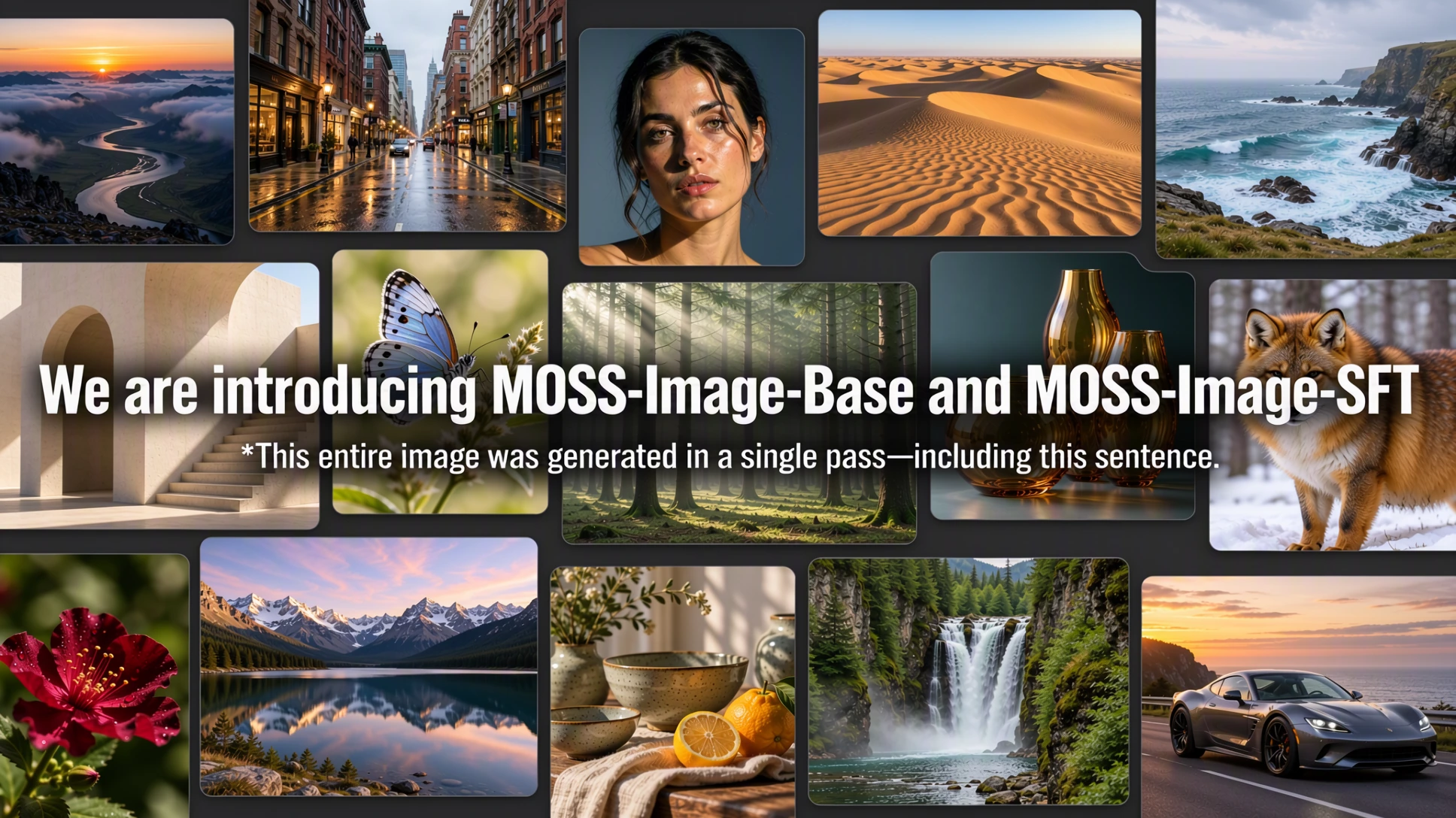
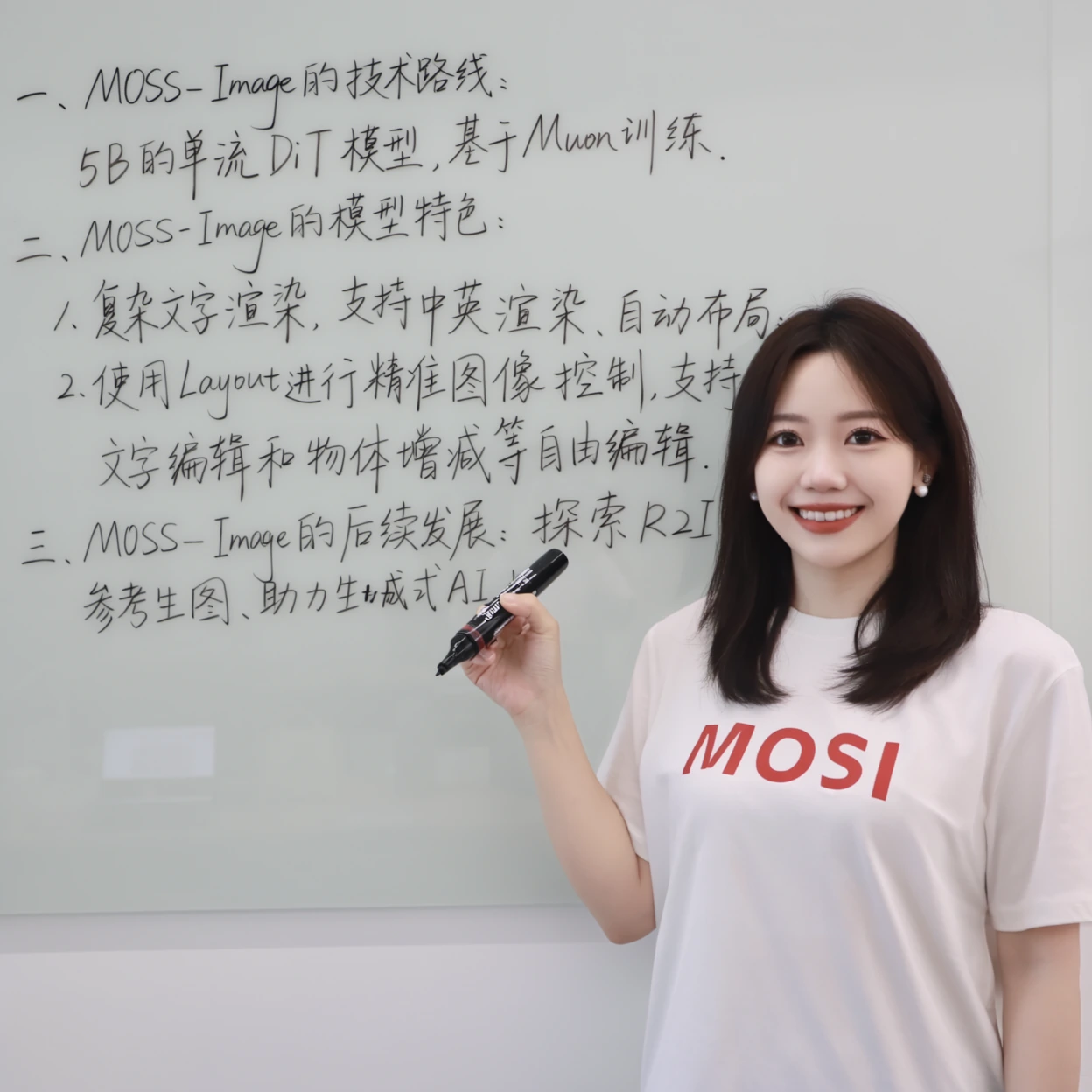
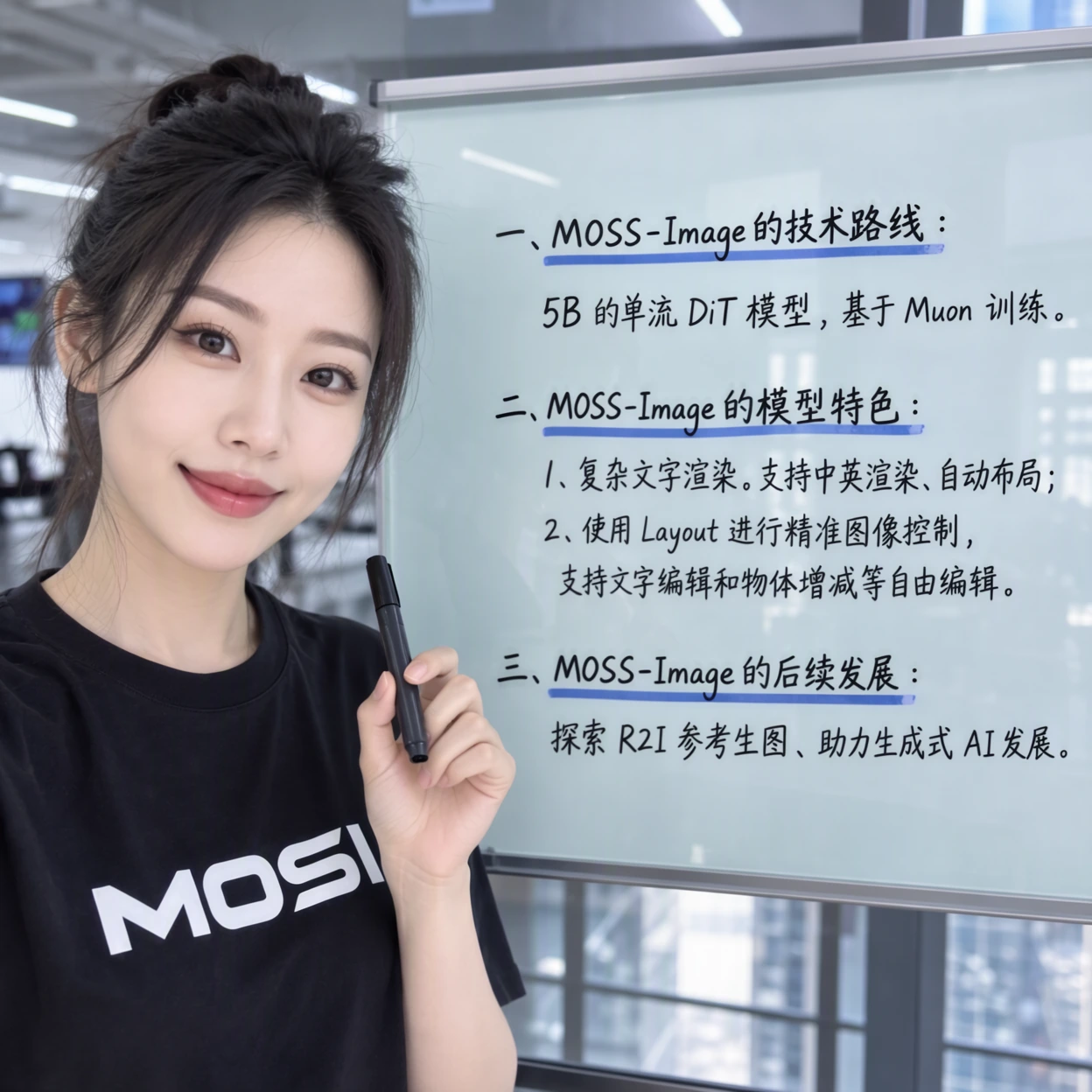

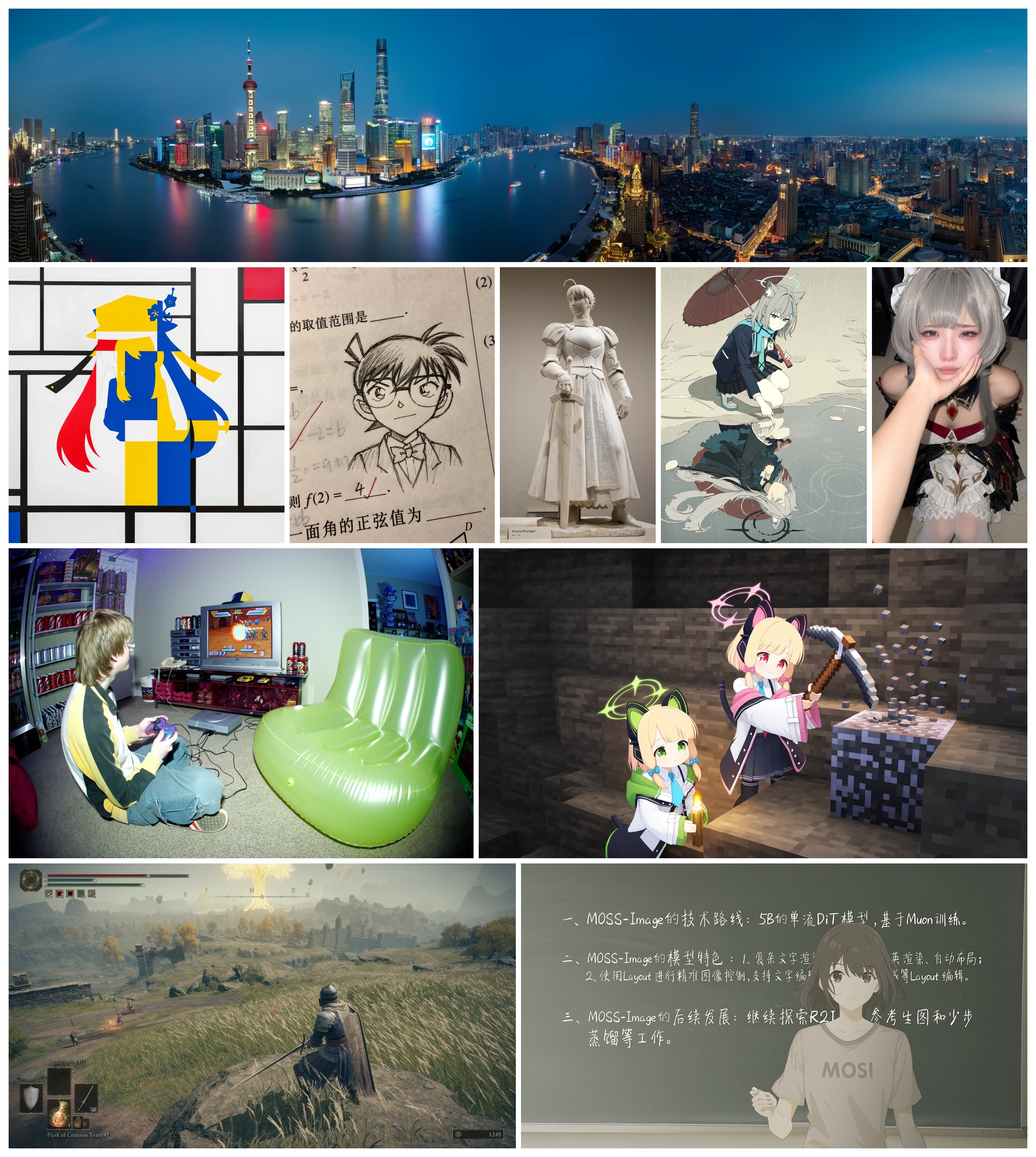
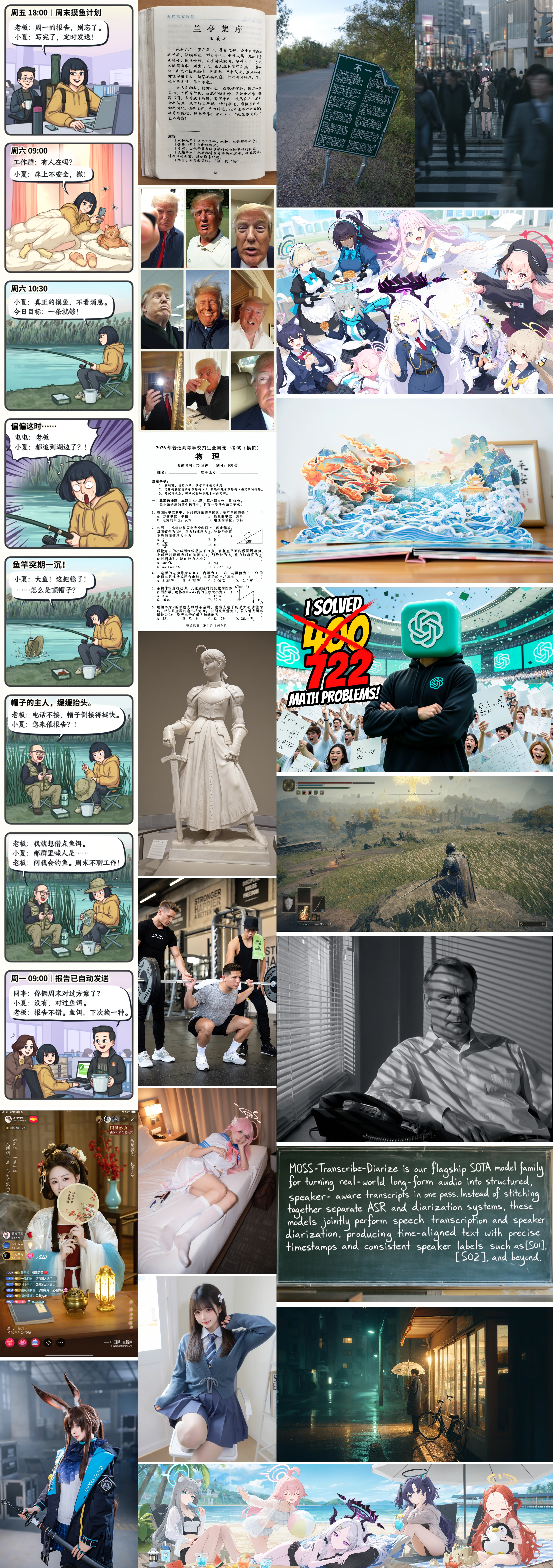

 MOSS-Image 是一个 50 亿参数的文生图扩散 Transformer(DiT)模型,擅长渲染文字,支持用 JSON 控制文字和物体的位置布局,还能高效微调(包括 LoRA),适配自定义任务。