Quick Start
- Download from GitHub Releases
- Run the
.exe directly, no installation required
- Choose the optimizations you want, apply them, and restart your PC when you're ready
[!TIP]
Always create a system restore point before making changes.
[!NOTE]
Want to add your language? See CONTRIBUTING.md (Japanese, Turkish).
What optimizerDuck Does & Why It Matters
Windows works great out of the box. However, a fresh installation also includes background services, telemetry, pre-installed apps, and scheduled tasks that continue running even if you never use them. These consume system resources such as CPU, RAM, disk, and network in the background.
At the same time, many settings that can improve performance, reduce latency, or provide a smoother experience are not enabled by default.
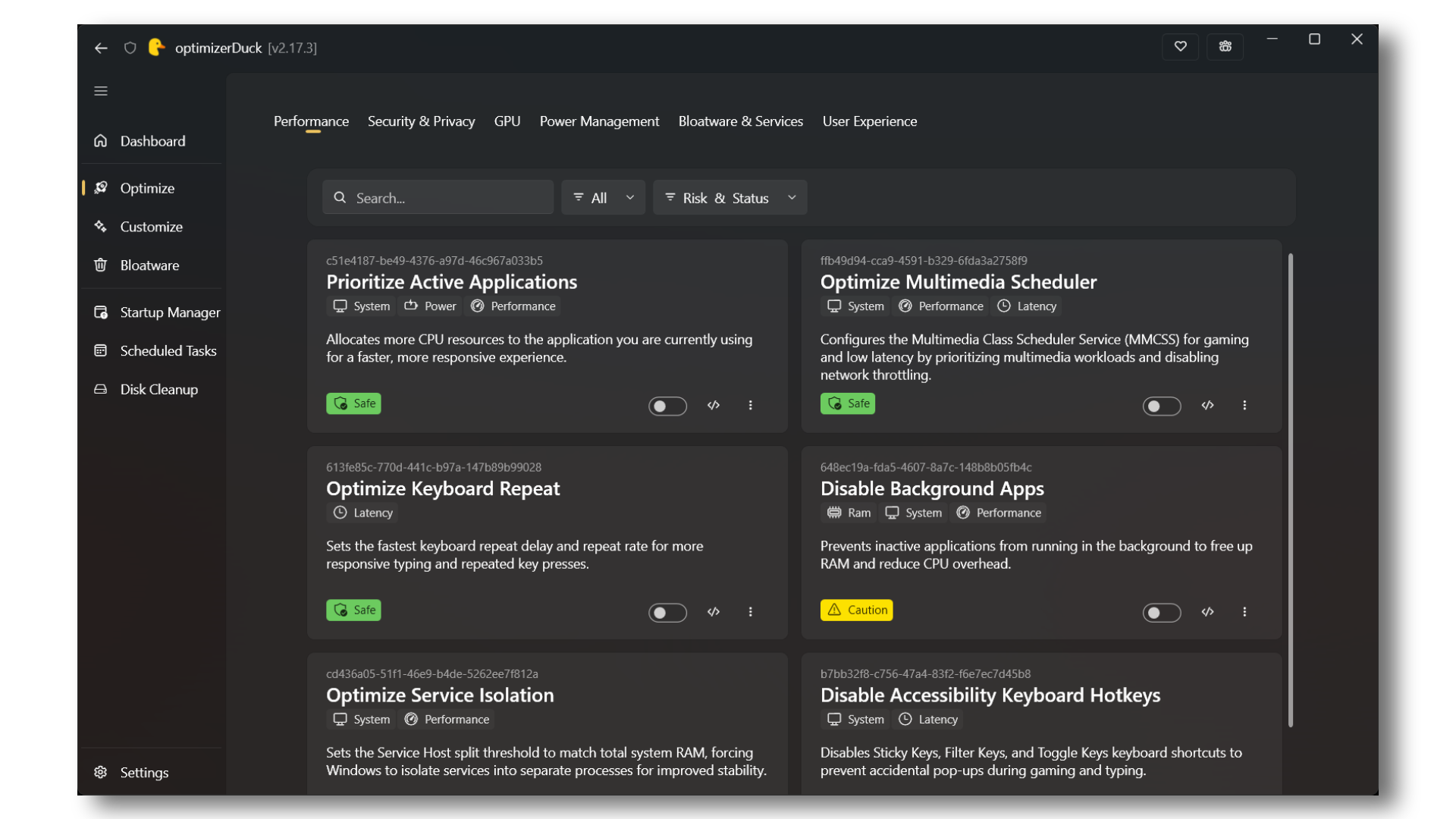
optimizerDuck brings everything together in one place. It helps you optimize Windows, remove unnecessary components, customize system settings, and manage common Windows features without digging through the Registry, Group Policy, or PowerShell.
It also includes built-in management tools, allowing you to see what is running, remove what you don't need, and restore changes whenever necessary.
Why optimize Windows?
System Optimizations
42 tweaks across 7 categories, each with a clear description and risk rating so you know exactly what each change does before applying it.
| Category |
What it covers |
| Performance |
Service host tuning based on your RAM, process priority adjustments, keyboard latency reduction, and multimedia scheduler tweaks for smoother gaming |
| Privacy |
Disable Windows telemetry, error reporting, advertising ID, location tracking, Cortana, Copilot, and content delivery suggestions |
| GPU |
Vendor-specific registry tweaks for AMD, NVIDIA, and Intel GPUs, covering power states, clock gating, and display latency |
| Power |
Disable hibernation and fast startup, turn off USB selective suspend, install a custom high-performance power plan, and disable power throttling |
| Bloatware & Services |
Block OEM app reinstall behavior and fine-tune startup types for 200+ Windows services |
| User Experience |
Remove menu show delays, disable visual effects like taskbar animations and transparency for a snappier feel |
| AI |
Disable Windows Recall snapshots and the Click To Do AI overlay (Windows 11) |
[!NOTE]
The optimizations here are researched from well-known tools with large user bases, nothing is AI-generated or blindly added. Every tweak is chosen for real-world impact.
Customize
44 settings across 4 categories. No need to dig through the registry, just toggles, dropdowns, and number inputs presented in one place:
- Desktop: Show or hide icons (This PC, Recycle Bin, Network, User Files, Control Panel, all desktop icons), remove shortcut arrow overlays
- Preferences: Taskbar alignment, widgets, Task View, End Task and last active click buttons, search box display, clock seconds, dark mode, file extensions, hidden files, clipboard history, compact view, snap assist, item checkboxes, classic context menu, Bing search, toast and sync notifications, system suggestions, window shake, and launching File Explorer to This PC
- Gaming: Game Mode, Game Bar, background recording, mouse acceleration, fullscreen optimizations, hardware-accelerated GPU scheduling
- System: Num Lock on boot, Developer Mode, sideloading trusted apps, long paths, and battery percentage
| Tool |
What it does |
| System Dashboard |
View your CPU, RAM, GPU, storage drives, and OS details in one panel |
| Startup Manager |
See every app and task that launches at boot, toggle them on or off, and open their file location |
| Scheduled Tasks |
Browse, run, stop, enable, disable, or delete Windows scheduled tasks |
| Disk Cleanup |
Scan and clear temp files, system cache, Windows Update leftovers, prefetch, thumbnails, recycle bin, crash dumps, and old Windows installations |
| Bloatware Remover |
Lists all removable AppX packages with risk badges (Safe, Caution, Unknown), so you can pick what to remove |
Why optimize Windows instead of just upgrading your hardware?
The fastest way to improve performance is always upgrading your hardware. A better CPU, GPU, more RAM, or a faster SSD will usually provide much larger improvements than software tweaks alone.
But hardware is only one part of the picture.
Windows is designed for hundreds of millions of PCs with different hardware, workloads, and users. Because of that, Microsoft ships Windows with settings that prioritize compatibility, stability, battery life, and ease of use instead of maximum performance.
As a result, a default Windows installation includes many background services, scheduled tasks, telemetry, power-saving features, and pre-installed apps that many users may never need.
This is especially true after reinstalling Windows. Even after installing all drivers and updates, many useful performance-related settings remain untouched, while unnecessary background components continue running.
Optimizing Windows is simply about reducing unnecessary overhead so your PC can spend more of its resources on what actually matters, whether that's gaming, programming, content creation, or everyday work.
It won't magically double your FPS, but it can reduce background activity, lower system latency, improve responsiveness, and help your hardware perform more consistently.
This is also one reason why many people recommend Linux for better performance and lower system overhead. If you prefer staying on Windows for its software compatibility and familiar experience, optimizerDuck helps you get the best possible experience without switching operating systems.
When should I optimize Windows?
The best time is after setting up a fresh Windows installation.
We recommend this order:
- Install Windows.
- Install all hardware drivers (chipset, GPU, network, audio, etc.).
- Run Windows Update until no more updates are available.
- Install all Optional Updates.
- Open the Microsoft Store and update all built-in applications.
- Install the software and games you normally use.
- Apply your preferred optimizerDuck optimizations.
- Use optimizerDuck's built-in tools to remove unnecessary apps, clean up Windows, and manage startup programs.
Following this order helps avoid Windows or driver updates overwriting your optimizations later.
[!TIP]
Many advanced users choose to temporarily disable automatic Windows Updates after finishing their setup. Large Windows updates may restore default settings, reinstall certain components, or undo some optimizations. If you do this, remember to periodically enable Windows Update again to install important security updates before disabling it again.
[!NOTE]
Every optimization provided by optimizerDuck can also be performed manually. The goal of optimizerDuck is simply to make Windows optimization easier, safer, and more convenient.
Safety
Changing system settings carries risk. optimizerDuck is built around reversibility and user control.
See the Privacy Policy for details on our data practices.
- Automatic backups: Every change writes a revert file to a local folder. You can restore individual tweaks or roll back everything
- One-click revert: Undo any applied optimization from the UI with a single click
- Risk ratings: Each tweak is labeled Safe, Moderate, or Risky based on its potential impact
- No defaults applied: Nothing runs until you select it. The tool does not enable anything on its own
- Restore point prompt: Before your first optimization, the app suggests creating a Windows restore point
FAQ
[!TIP]
Visit our Website FAQ for more questions and answers.
Is optimizerDuck safe to use?
Yes. optimizerDuck is fully open-source (GPL v3), meaning anyone can inspect, audit, or build the source code themselves. Every release is built automatically by GitHub Actions from the public source; no hidden modifications, no unsigned binaries injected after build. If you prefer, you can clone the repo and build the .exe yourself with a single dotnet build.
The app does not collect any telemetry, usage data, or personal information. See the Privacy Policy.
It can help. Every optimization in optimizerDuck is researched from well-known tools, community guides, and hardware vendor recommendations, nothing is AI-generated, blindly added, or made up. Each tweak addresses a real setting that Windows configures conservatively by default (e.g., service host grouping, GPU power states, network throttling, process scheduling).
There are no fake registry hacks here, every change has a documented purpose and real-world impact backed by community testing and vendor documentation.
Why does Windows SmartScreen / Defender flag the download?
optimizerDuck is not code-signed because code signing certificates are expensive for open-source projects. When Windows encounters an unsigned executable downloaded from the internet, SmartScreen displays a warning by default. This is normal and does not mean the file is unsafe.
To bypass, click "More info" > "Run anyway". If you are still concerned:
- Build the
.exe yourself from source
- Submit the binary to online sandboxes like ANY.RUN for independent verification
Can I revert changes if something goes wrong?
Yes. Every optimization creates a revert file before applying. You can undo individual tweaks or roll back everything from the UI with one click. The app also suggests creating a Windows System Restore point before your first optimization.
Does this work on Windows 10 and Windows 11?
Yes. optimizerDuck supports Windows 10 (x64) and Windows 11 (x64).
Do I need administrator rights?
Yes. optimizerDuck modifies system settings and the Windows registry, so it requires administrator privileges to run.
Does optimizerDuck collect my data?
No. The app contains zero telemetry, analytics, or phone-home functionality. It runs entirely offline and does not send any data anywhere.
Why does Task Manager show 100% CPU after applying the power plan? (#29)
A known Task Manager display bug triggered by non-default power plans, it incorrectly reports 100% CPU on some systems while actual load is normal. Visual only, does not affect real performance or cause overheating. If unwanted, simply toggle off this optimization.
Troubleshooting
[!TIP]
Visit our Troubleshooting page for more detailed guidance and known issue workarounds.
The app fails to start or crashes on launch
Make sure you are running as Administrator. optimizerDuck requires elevated privileges. If it still crashes, download the latest version from Releases; an outdated build may be incompatible with your Windows version.
Changes don't seem to take effect after applying
Some optimizations require a system restart to apply fully. If a tweak doesn't appear to work after restarting, try applying it again or check the revert section to verify the change was saved.
Revert file is missing or corrupted
Revert files are stored in %LocalAppData%\optimizerDuck\Revert\. If a f











 一款免费开源的 Windows 优化软件,把性能调优、隐私设置、预装软件清理和系统清理工具集中在一个地方,让你不用再去翻注册表、组策略或 PowerShell。