Win11Debloat



Win11Debloat is a lightweight, easy to use PowerShell script that allows you to quickly declutter and customize your Windows experience, no installation required! You can use it to remove pre-installed apps, disable telemetry, remove intrusive interface elements and much more. No need to painstakingly go through all the settings yourself or remove apps one by one. Win11Debloat makes the process quick and easy!
The script also includes many features that system administrators and power users will enjoy. Such as a powerful command-line interface, support for Windows Audit mode and the ability to make changes to other Windows users. You can also easily export & import your preferred settings, allowing you to quickly apply the same settings on all your systems. Please refer to our wiki for more details.
Did this script help you? Please consider buying me a cup of coffee to support my work

Usage
[!Warning]
Great care went into making sure this script does not unintentionally break any OS functionality, but use at your own risk! If you run into any issues, please report them here.
Quick method
Download & run the script automatically via PowerShell.
- Open PowerShell or Terminal.
- Copy and paste the command below into PowerShell:
& ([scriptblock]::Create((irm "https://debloat.raphi.re/")))
- Wait for the script to automatically download and launch Win11Debloat.
- Carefully read through and follow the on-screen instructions.
This method supports command-line parameters to customize the behaviour of the script. Please click here for more information.
Traditional method
Manually download & run the script.
- Download the latest version of the script, and extract the .ZIP file to your desired location.
- Navigate to the Win11Debloat folder
- Double click the
Run.bat file to start the script. NOTE: If the console window immediately closes and nothing happens, try the advanced method below.
- Accept the Windows UAC prompt to run the script as administrator, this is required for the script to function.
- Carefully read through and follow the on-screen instructions.
Advanced method
Manually download the script & run the script via PowerShell. Recommended for advanced users.
- Download the latest version of the script, and extract the .ZIP file to your desired location.
- Open PowerShell or Terminal as an administrator.
- Temporarily enable PowerShell execution by entering the following command:
Set-ExecutionPolicy Bypass -Scope Process -Force
- In PowerShell, navigate to the directory where the files were extracted. Example:
cd c:\Win11Debloat
- Now run the script by entering the following command:
.\Win11Debloat.ps1
- Carefully read through and follow the on-screen instructions.
This method supports command-line parameters to customize the behaviour of the script. Please click here for more information.
Features
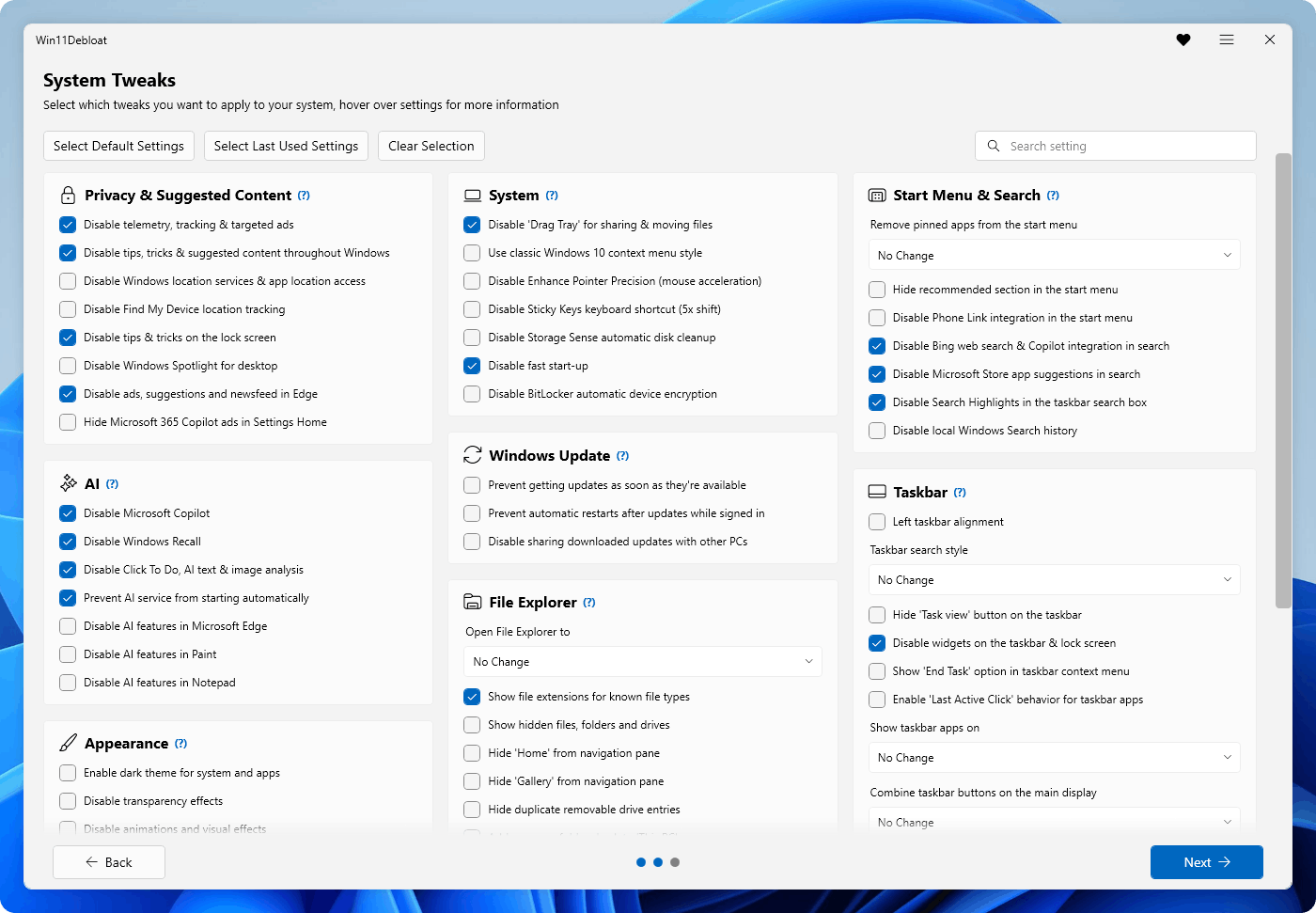
Below is an overview of the key features and functionality offered by Win11Debloat. You can visit the the wiki for more details.
[!Tip]
All of the changes made by Win11Debloat can easily be reverted and almost all of the apps can be reinstalled through the Microsoft Store. You can visit the wiki for more information on reverting changes.
App Removal
- Remove a wide variety of preinstalled apps. Click here for more info.
Privacy & Suggested Content
- Disable telemetry, diagnostic data, activity history, app-launch tracking & targeted ads.
- Disable tips, tricks, suggestions & ads across Windows, the lock screen and Microsoft Edge.
- Disable Windows location services, app location access and Find My Device location tracking.
- Hide Microsoft 365 ads on the Settings 'Home' page, or hide the 'Home' page entirely.
AI Features
- Disable & remove Microsoft Copilot, Windows Recall and Click to Do.
- Prevent AI service (WSAIFabricSvc) from starting automatically.
- Disable AI Features in Edge, Paint and Notepad.
System
- Disable the Drag Tray for sharing & moving files.
- Restore the old Windows 10 style context menu.
- Turn off Enhance Pointer Precision (mouse acceleration).
- Disable the Sticky Keys keyboard shortcut.
- Disable Storage Sense automatic disk cleanup.
- Disable fast start-up to ensure a full shutdown.
- Disable BitLocker automatic device encryption.
- Disable network connectivity during Modern Standby to reduce battery drain.
Windows Update
- Prevent Windows from getting updates as soon as they're available.
- Prevent automatic restarts after updates while signed in.
- Disable sharing of downloaded updates with other PCs, also known as Delivery Optimization.
- Prevent Windows from auto-installing device companion apps, like LG Monitor App, Alienware Command Center and more.
Appearance
- Enable dark mode for system and apps.
- Disable transparency, animations and visual effects.
- Hide the 'Learn about this picture' shortcut for desktop spotlight, or disable the Windows spotlight background option entirely.
- Customize the start menu by removing pinned apps, hiding recommendations, and customizing the 'All Apps' section.
- Disable the Phone Link mobile devices integration in the start menu.
- Disable Bing web search & Copilot integration and Microsoft Store app suggestions in Windows search.
Taskbar
- Change taskbar alignment.
- Customize or hide taskbar buttons like the search bar, taskview and more.
- Disable widgets on the taskbar & lock screen.
- Enable the 'End Task' option in the taskbar right click menu to quickly force-close apps.
- Enable the 'Last Active Click' behavior in the taskbar app area. This allows you to repeatedly click on an application's icon in the taskbar to switch focus between the open windows of that application.
- Customize how app buttons are shown on the taskbar.
File Explorer
- Change the default location that File Explorer opens to.
- Show file extensions for known file types.
- Show hidden files, folders and drives.
- Hide the Home, Gallery or OneDrive section from the File Explorer navigation pane.
- Hide duplicate removable drive entries from the File Explorer navigation pane, so only the entry under 'This PC' remains.
- Add all common folders (Desktop, Downloads, etc.) back to 'This PC' in File Explorer.
- Change drive letter position or visibility in File Explorer.
Multi-tasking
- Disable window snapping.
- Disable Snap Assist and Snap Layout suggestions when dragging or snapping windows.
- Change whether tabs are shown when snapping windows or pressing Alt+Tab.
Optional Windows Features
- Enable Windows Sandbox, a lightweight desktop environment for safely running applications in isolation.
- Enable Windows Subsystem for Linux which allows you to run a Linux environment directly on Windows.
Other
- Disable Xbox Game Bar integration & game/screen recording. This also disables
ms-gamingoverlay/ms-gamebar popups if you uninstall the Xbox Game Bar.
- Disable bloat in Brave browser (AI, Crypto, News, etc.)
Advanced Features
- Ability to apply changes to a different user, instead of the currently logged in user.
- Sysprep mode to apply changes to the Windows Default user profile. Which ensures, all new users will have the changes automatically applied to them.
Contributing
We welcome contributions of all kinds! Please see our Contributing Guidelines for detailed instructions on how to get started and best practices for contributing.
License
Win11Debloat is licensed under the MIT license. See the LICENSE file for more information.

 Win11Debloat 是一个轻量级 PowerShell 脚本,可以移除预装应用、关闭遥测功能,并调整界面,让 Windows 10 和 Windows 11 更简洁,也更容易个性化设置。