



59.5K ·GitHub
Что это такое?
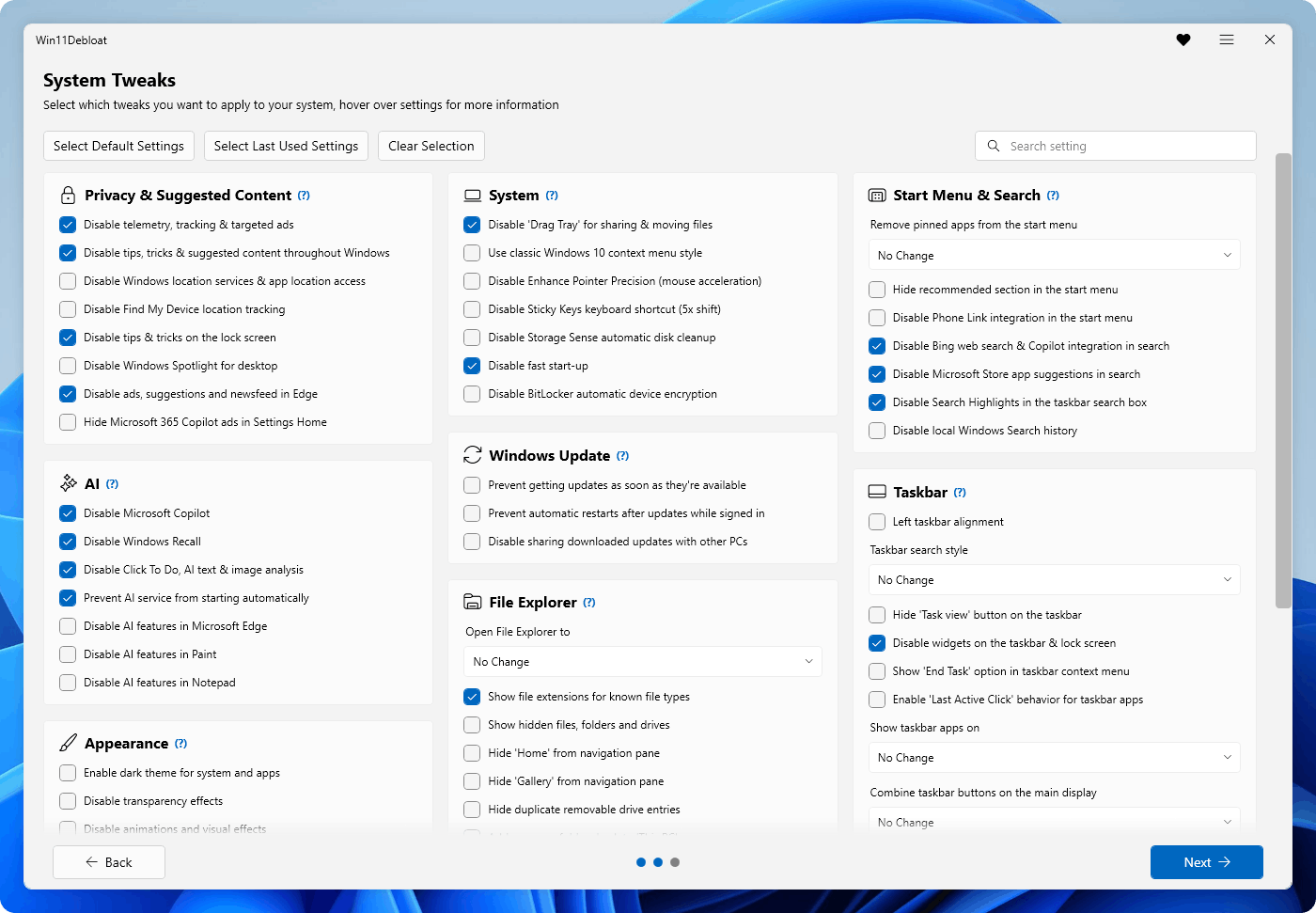
 Win11Debloat — это легковесный скрипт на PowerShell, который удаляет предустановленные приложения, отключает телеметрию и настраивает интерфейс, чтобы очистить и персонализировать Windows 10 и Windows 11.
Win11Debloat — это легковесный скрипт на PowerShell, который удаляет предустановленные приложения, отключает телеметрию и настраивает интерфейс, чтобы очистить и персонализировать Windows 10 и Windows 11.Это приложение с графическим интерфейсом или скрипт для командной строки?Это скрипт на PowerShell с интерактивными запросами на экране, но он также поддерживает параметры командной строки для использования в скриптах без интерактивного режима.
Это скрипт на PowerShell с интерактивными запросами на экране, но он также поддерживает параметры командной строки для использования в скриптах без интерактивного режима.Как его запустить?Самый быстрый способ — открыть PowerShell и выполнить однострочную команду загрузки и запуска. Также можно скачать и распаковать ZIP-архив, затем запустить Run.bat или запустить .ps1 напрямую из PowerShell от имени администратора после разрешения выполнения скриптов.
Самый быстрый способ — открыть PowerShell и выполнить однострочную команду загрузки и запуска. Также можно скачать и распаковать ZIP-архив, затем запустить Run.bat или запустить .ps1 напрямую из PowerShell от имени администратора после разрешения выполнения скриптов.Нужно ли что-то установить перед запуском?Ничего отдельно устанавливать не нужно, достаточно самой Windows и PowerShell. Требуются только права администратора, так как для работы скрипта нужно подтвердить запрос UAC.
Ничего отдельно устанавливать не нужно, достаточно самой Windows и PowerShell. Требуются только права администратора, так как для работы скрипта нужно подтвердить запрос UAC.Это безопасно и можно ли отменить изменения?Автор заявляет, что приложил все усилия, чтобы не нарушить работу системы, но использование на свой страх и риск. Почти все изменения можно откатить, а большую часть удалённых приложений можно переустановить из Microsoft Store.
Автор заявляет, что приложил все усилия, чтобы не нарушить работу системы, но использование на свой страх и риск. Почти все изменения можно откатить, а большую часть удалённых приложений можно переустановить из Microsoft Store.Для кого это предназначено помимо обычных пользователей, которые хотят более чистый рабочий стол?Также это для системных администраторов и опытных пользователей: есть CLI, поддержка режима аудита Windows, режим Sysprep для профилей пользователя по умолчанию и возможность применять изменения к другим учётным записям.
Также это для системных администраторов и опытных пользователей: есть CLI, поддержка режима аудита Windows, режим Sysprep для профилей пользователя по умолчанию и возможность применять изменения к другим учётным записям.Работает ли на Windows 10 или только на Windows 11?Работает и на Windows 10, и на Windows 11.
Работает и на Windows 10, и на Windows 11.Можно ли удалить Copilot и Recall из Windows?Да, можно отключить и удалить Microsoft Copilot, Windows Recall и Click to Do, а также не дать службе ИИ (WSAIFabricSvc) запускаться автоматически. Кроме того, можно отключить функции ИИ в Edge, Paint и Блокноте.
Да, можно отключить и удалить Microsoft Copilot, Windows Recall и Click to Do, а также не дать службе ИИ (WSAIFabricSvc) запускаться автоматически. Кроме того, можно отключить функции ИИ в Edge, Paint и Блокноте.Можно ли применить одни и те же настройки на нескольких компьютерах?Да, можно экспортировать и импортировать свои настройки, чтобы быстро применить одну и ту же конфигурацию на нескольких системах.
Да, можно экспортировать и импортировать свои настройки, чтобы быстро применить одну и ту же конфигурацию на нескольких системах.Затрагивает ли он и панель задач с меню «Пуск»?Да, можно изменить выравнивание панели задач, скрыть кнопки и виджеты на панели задач, включить «Завершение задачи» в контекстном меню и настроить закреплённые приложения и рекомендации в меню «Пуск».
Да, можно изменить выравнивание панели задач, скрыть кнопки и виджеты на панели задач, включить «Завершение задачи» в контекстном меню и настроить закреплённые приложения и рекомендации в меню «Пуск».Может ли он включить дополнительные компоненты Windows, например WSL или Sandbox?Да, можно включить Windows Sandbox для изолированного тестирования приложений и подсистему Windows для Linux (WSL), чтобы запускать среду Linux в Windows.
Да, можно включить Windows Sandbox для изолированного тестирования приложений и подсистему Windows для Linux (WSL), чтобы запускать среду Linux в Windows.What are similar projects?Winhance, Windows10Debloater, optimizer, RemoveWindowsAI, FluentCleaner, MediaCreationTool.bat, winutil, FluentTweaker
Winhance, Windows10Debloater, optimizer, RemoveWindowsAI, FluentCleaner, MediaCreationTool.bat, winutil, FluentTweakerWhich topics is it in?optimize, bloatware, cleanup, windows10, windows11, bloatware-removal, tweaks, windows-tweaker, debloat, registry-tweaks, windows-10, windows-11
optimize, bloatware, cleanup, windows10, windows11, bloatware-removal, tweaks, windows-tweaker, debloat, registry-tweaks, windows-10, windows-11