



59.5K ·GitHub
What is this?
 Win11Debloat is a lightweight PowerShell script that removes pre-installed apps, disables telemetry, and tweaks the interface to declutter and customize Windows 10 and Windows 11.
Win11Debloat is a lightweight PowerShell script that removes pre-installed apps, disables telemetry, and tweaks the interface to declutter and customize Windows 10 and Windows 11.Is this a GUI app or a command-line script?It's a PowerShell script with an interactive on-screen prompt flow, but it also supports command-line parameters for scripted, non-interactive use.
It's a PowerShell script with an interactive on-screen prompt flow, but it also supports command-line parameters for scripted, non-interactive use.How do I run it?The quickest way is to open PowerShell and run the download-and-launch one-liner; alternatively, download and extract the ZIP, then run Run.bat, or run the .ps1 directly from PowerShell as administrator after enabling script execution.
The quickest way is to open PowerShell and run the download-and-launch one-liner; alternatively, download and extract the ZIP, then run Run.bat, or run the .ps1 directly from PowerShell as administrator after enabling script execution.Do I need anything installed before running it?No separate installation is needed beyond Windows itself and PowerShell; you just need admin rights since the UAC prompt must be accepted for the script to work.
No separate installation is needed beyond Windows itself and PowerShell; you just need admin rights since the UAC prompt must be accepted for the script to work.Is it safe to run and can I undo the changes?The author states great care was taken to avoid breaking OS functionality, but it's used at your own risk; almost all changes can be reverted and most removed apps reinstalled from the Microsoft Store.
The author states great care was taken to avoid breaking OS functionality, but it's used at your own risk; almost all changes can be reverted and most removed apps reinstalled from the Microsoft Store.Who is this aimed at besides regular users wanting a cleaner desktop?It also targets system administrators and power users, offering a CLI, Windows Audit mode support, Sysprep mode for default user profiles, and the ability to apply changes to other user accounts.
It also targets system administrators and power users, offering a CLI, Windows Audit mode support, Sysprep mode for default user profiles, and the ability to apply changes to other user accounts.Does it work on Windows 10, or only Windows 11?It works on both Windows 10 and Windows 11.
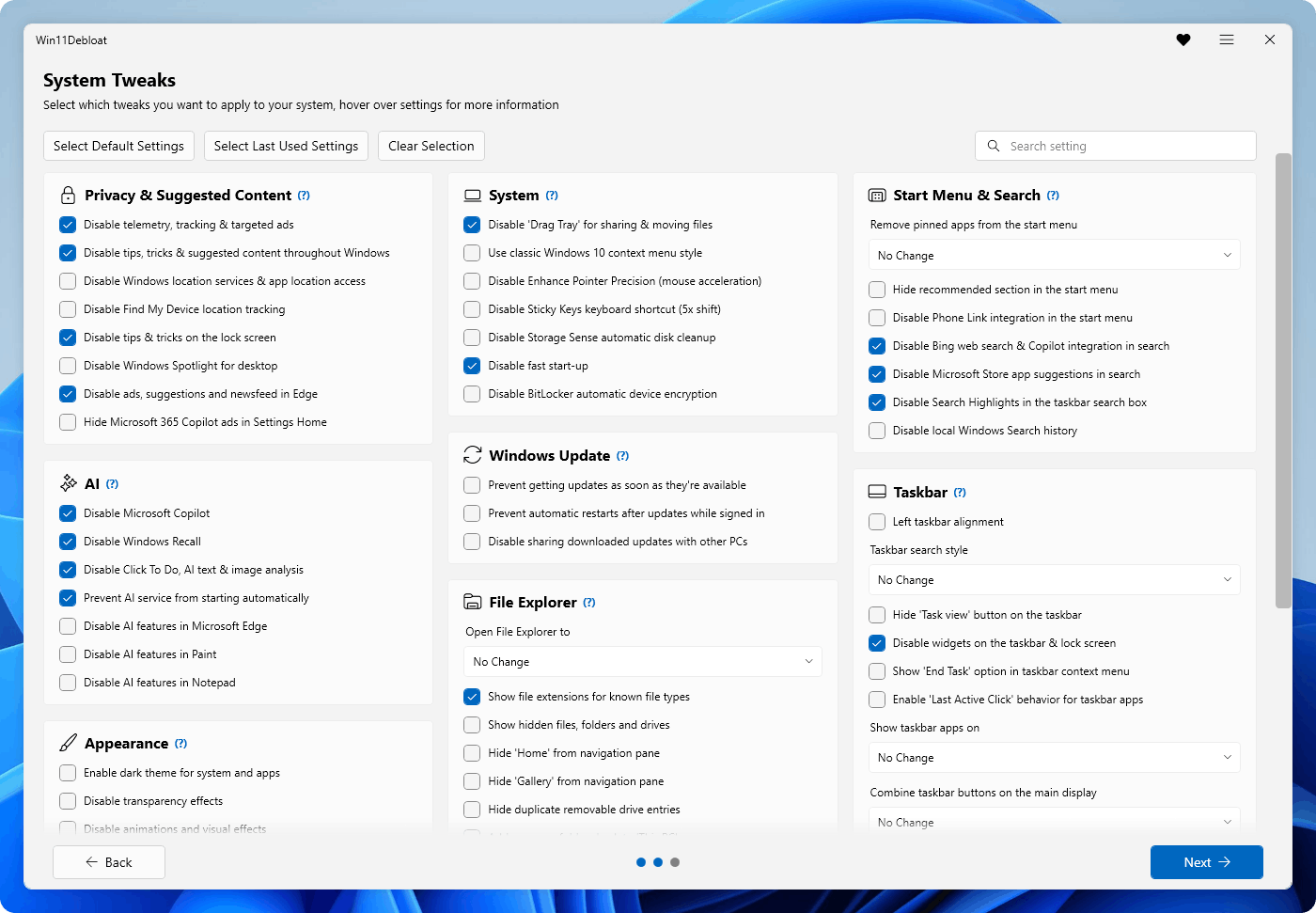
It works on both Windows 10 and Windows 11.Can it remove Windows Copilot and Recall?Yes, it can disable and remove Microsoft Copilot, Windows Recall, Click to Do, and prevent the AI service (WSAIFabricSvc) from auto-starting, as well as disable AI features in Edge, Paint and Notepad.
Yes, it can disable and remove Microsoft Copilot, Windows Recall, Click to Do, and prevent the AI service (WSAIFabricSvc) from auto-starting, as well as disable AI features in Edge, Paint and Notepad.Can I apply the same settings across multiple machines?Yes, you can export and import your preferred settings to quickly apply the same configuration on multiple systems.
Yes, you can export and import your preferred settings to quickly apply the same configuration on multiple systems.Does it touch the taskbar and Start menu too?Yes, it can change taskbar alignment, hide taskbar buttons and widgets, enable End Task from the right-click menu, and customize the Start menu's pinned apps and recommendations.
Yes, it can change taskbar alignment, hide taskbar buttons and widgets, enable End Task from the right-click menu, and customize the Start menu's pinned apps and recommendations.Can it enable optional Windows features like WSL or Sandbox?Yes, it can enable Windows Sandbox for isolated app testing and the Windows Subsystem for Linux to run a Linux environment on Windows.
Yes, it can enable Windows Sandbox for isolated app testing and the Windows Subsystem for Linux to run a Linux environment on Windows.What are similar projects?Winhance, Windows10Debloater, optimizer, RemoveWindowsAI, FluentCleaner, MediaCreationTool.bat, winutil, FluentTweaker
Winhance, Windows10Debloater, optimizer, RemoveWindowsAI, FluentCleaner, MediaCreationTool.bat, winutil, FluentTweakerWhich topics is it in?optimize, bloatware, cleanup, windows10, windows11, bloatware-removal, tweaks, windows-tweaker, debloat, registry-tweaks, windows-10, windows-11
optimize, bloatware, cleanup, windows10, windows11, bloatware-removal, tweaks, windows-tweaker, debloat, registry-tweaks, windows-10, windows-11