





Per app volume, a real system monitor, a better app switcher, window snapping, Dock previews, clipboard history, text snippets, a file shelf, an uninstaller. The utilities Mac users usually buy one by one, together behind a single menu bar icon, with no account, no telemetry and no subscription.
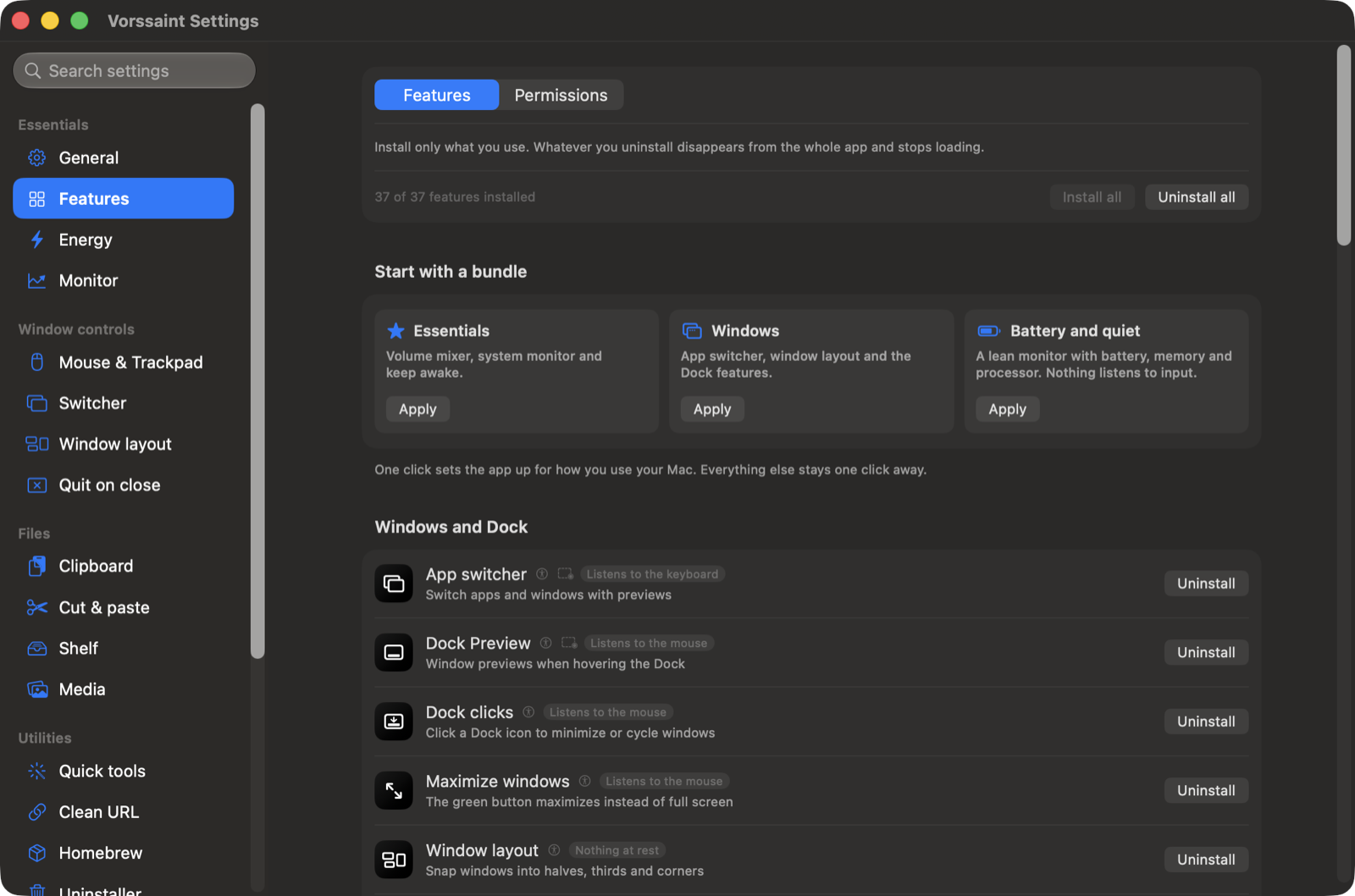
Install only what you use
Choose individual features or start with a preset. Uninstalled features stop loading and disappear from the interface; reinstalling restores their settings. Setup asks only for the permissions your choices need.
Reorder or hide panel sections, choose a compact layout, and export settings to another Mac. The app supports more than a dozen languages.
Everything it does
Sound
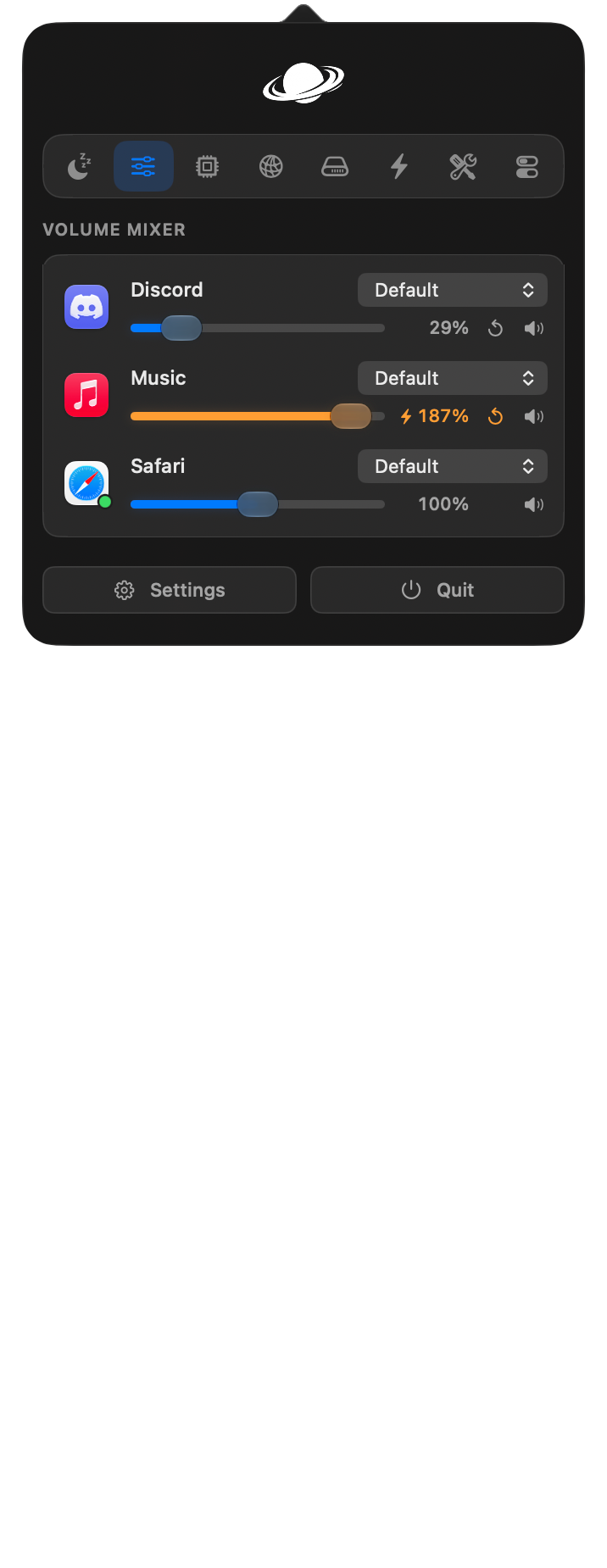
Volume mixer. Set volume per app, boost quiet audio past 100%, and pin or reorder favorites. No audio driver required.
Per app output. Play music through speakers while a call uses your headset.
Output switcher. Switch audio outputs with a shortcut and lower the volume when headphones disconnect.
Microphone tools. Choose a preferred input, adjust its level on supported devices, and mute all microphones with one shortcut.
Music app blocker. Prevent unwanted Music launches after detected playback-button presses. Requires Accessibility.
Know what your Mac is doing
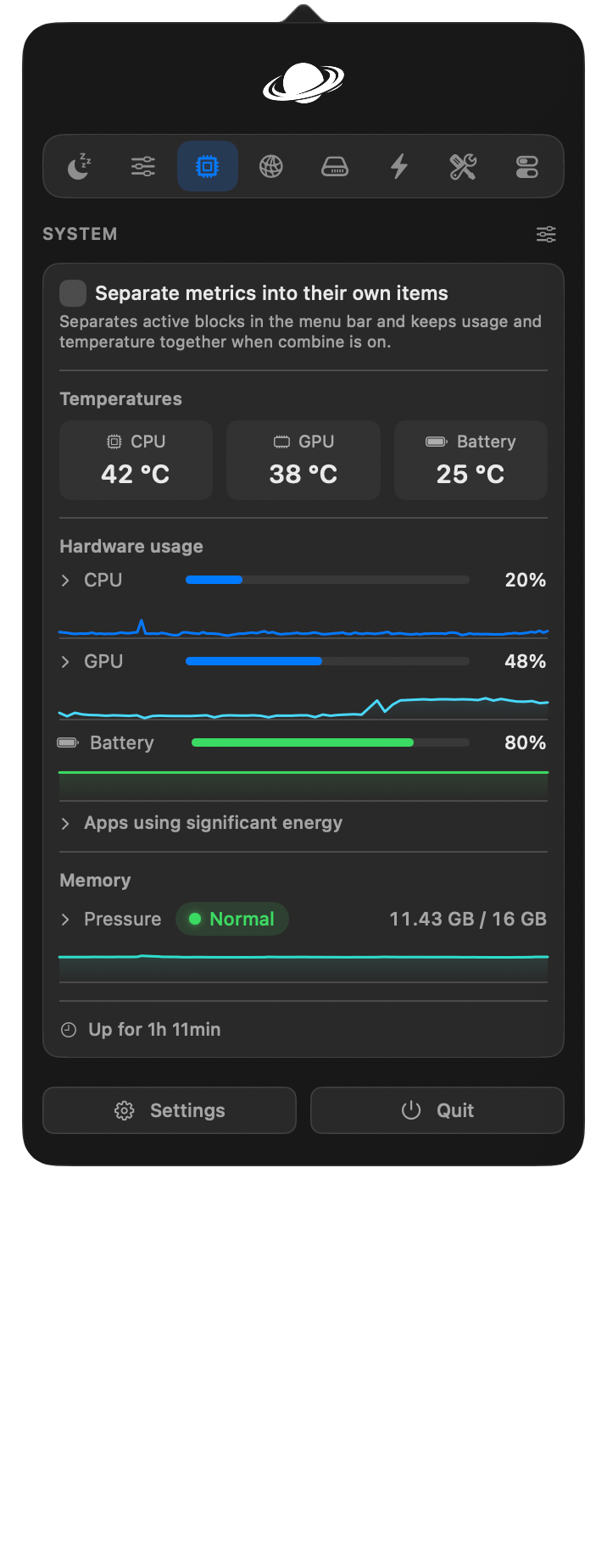
System monitor. CPU, GPU, memory, temperatures, battery health and power use, with history graphs and a view of energy-hungry apps.
Fan Control (beta). Set manual fan speeds or temperature curves and monitor live RPM.
Menu bar readouts. Put your chosen readings, usage bars, battery time or fan speed directly in the menu bar.
Network. See live traffic, session totals and your local IP address, or run a speed test.
Alerts. Get notified about sustained CPU load, high temperatures, memory pressure, low disk space or low battery.
Windows and the Dock
App switcher. Switch between apps and windows with live previews, search and display filters. A simpler mode works without screen capture.
Window layout. Snap windows into layouts, move them between displays and restore earlier positions using shortcuts, screen edges or modifier-drag gestures.
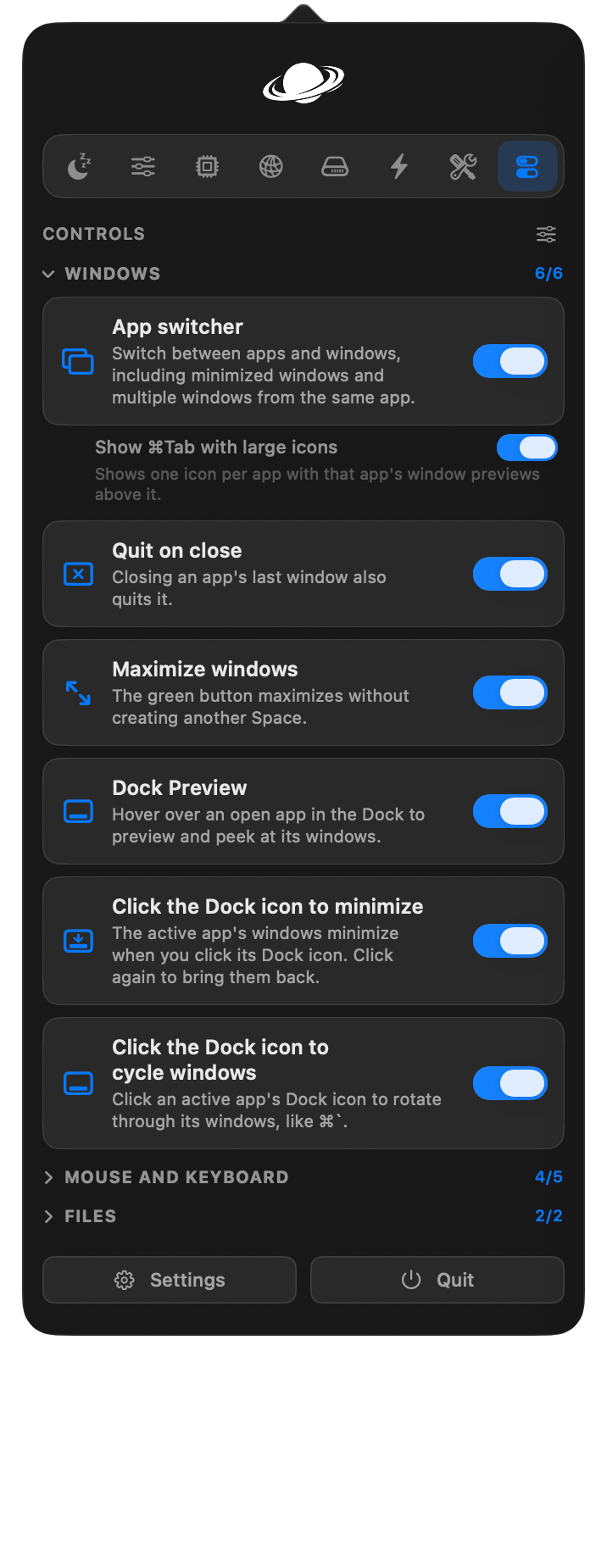
Dock Preview. Hover over Dock icons to preview windows across desktops. Switch, close, move or snap them from the preview.
Dock clicks. Click an active app's Dock icon to minimize, hide or cycle through its windows.
Maximize windows. Use the green button to fill the screen without creating another Space.
Fixed Space order. Keep Spaces in the order you set instead of rearranging them by recent use. Turning it off restores your previous setting.
Quit on close. Quit selected apps when their last window closes.
Quit and close protection. Prevent accidental ⌘Q or ⌘W with a hold, double press or extra modifier, per app.
Keyboard and mouse
Text snippets. Expand short triggers into text with clipboard, date and time variables, or insert snippets from a searchable menu.
Smooth scrolling. Give your mouse wheel a fluid glide with adjustable speed and response.
Pointer acceleration. Disable mouse acceleration and restore your previous setting when turned off.
Linear scrolling. Make every mouse wheel notch scroll the same number of lines, however fast the wheel spins.
Focus follows mouse. Bring the window under the pointer forward after an adjustable pause.
Scroll direction. Invert vertical and horizontal mouse scrolling independently of the trackpad.
Scroll sideways while holding a key. Turn vertical wheel movement into horizontal scrolling while holding a chosen key.
Side buttons. Use mouse Back and Forward buttons in Finder, browsers and compatible apps.
Mouse button shortcuts. Assign keys to extra buttons and side wheels, or use button-drag gestures for Spaces and Mission Control.
Middle click. Turn a three-finger trackpad press into a middle click.
Apps to leave alone. Exclude chosen apps from mouse enhancements.
Extra click filter. Ignore accidental rapid clicks from worn mouse buttons without delaying normal clicks.
Key debounce. Filter repeated letters caused by a worn keyboard.
Super key. Use Caps Lock or a right-side modifier as a shortcut combination, with a separate tap action and app exclusions.
Keyboard shortcuts. Manage feature shortcuts in one place, including optional takeover of supported macOS shortcuts while a feature is active.
Clipboard, files and links
Clipboard history. Search local text, image and file history, pin favorites, preview entries and paste with shortcuts.
Auto clear clipboard. Clear the system clipboard after a delay, sleep or lock, while keeping saved history.
Paste as plain text. Paste without formatting while preserving the original clipboard content.
Shelf. Park files, text and links near your cursor while dragging, then drop or share them later.
Finder shortcuts. Move files with ⌘X and ⌘V, rename with F2, or paste copied images as PNG files.
Clean URL. Remove tracking parameters from links, manually or automatically.
Disk image installer. Install an app from a mounted disk image and eject it, with optional download cleanup.
Everyday tools
Dynamic Island. Keep music, notifications, calendars, timers, downloads and everyday controls around the camera cutout, or a simulated one on other Macs. Customize sections and shortcuts, with optional lyrics, a live equalizer, camera preview and file tools.
AI agents. Follow Claude, Codex, OpenCode and GitHub Copilot in the Dynamic Island: plan limits and when they reset where available, tokens, API value, models, projects and live work, with a notice when a long task finishes. Codex's banked resets can be used from there too. Copilot uses local CLI/app session logs; its token totals update when shutdown metrics arrive, and aggregate API-value estimates use base rates.
Command Bar. Search apps, windows, files, clipboard history, snippets and app menu commands from one field. Calculate, convert units, find emoji or run saved scripts.
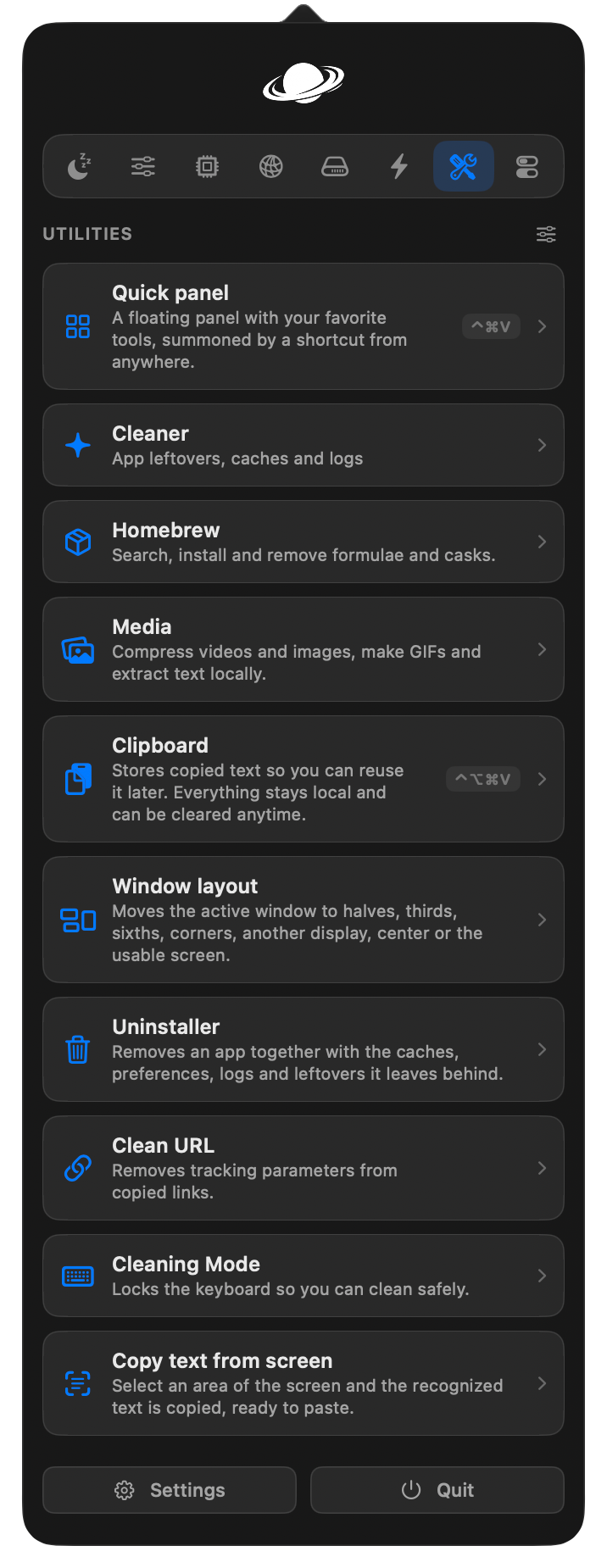
Quick panel. Open a floating palette of favorite tools with ⌃⌘V.
Quick toggles. Switch appearance, hide desktop icons, eject disks, empty the Trash, lock the screen and more.
Radial menu. Open a customizable wheel of apps, files, shortcuts and tools around the pointer, with profiles and submenus.
Scratchpad. Keep autosaved notes in tabs, with Markdown preview and export, in a floating window or Dynamic Island.
Cleaning Mode. Lock keyboard input while cleaning, with a black screen or a small visible indicator.
Capture and create
Screen capture. Switch between screenshots, recording, text recognition and color picking in one selector with a pixel magnifier.
Screenshot. Capture an area, window, screen or scrolling page. Annotate, crop, redact, add backgrounds and watermarks, pin captures, send them through the Share menu or share an expiring link.
Screen recording. Record with separate system-audio and microphone tracks. Trim, cut, add automatic zooms, blur private details and export video or GIFs, or share an expiring link.
Camera preview. Check your camera in a floating mirror or Dynamic Island before a call.
Copy text from screen. Recognize text offline from any screen area, or read a QR code.
Color picker. Copy a screen color as HEX, RGB, HSL or SwiftUI code.
Media tools. Compress and edit videos, batch-convert images, add watermarks, make GIFs and extract text, all locally.
App management
App updates. Check store apps, package-managed apps and supported developer feeds in one list. Install managed updates together or open an app's own updater.
Cleaner. Remove caches, logs and app leftovers, manually or on a schedule.
Messaging downloads. Review, organize or move messaging downloads to the Trash using retention rules.
Uninstaller. Remove apps and review their related caches, preferences and helpers before moving them to the Trash.
Homebrew manager. Search, install and remove formulae and casks without opening a terminal.
Port manager. Find processes listening on network ports and stop them with Kill Process when installed.
Energy and display
Keep awake. Keep your Mac working on a timer, with the lid closed, or while selected apps, power or external displays are present.
Displays. Control individual displays and brightness, with hardware control where supported, half or quarter steps for the brightness keys, optional extra dimming below a monitor's minimum, and software dimming as a fallback.
Extra brightness. Use a MacBook Pro XDR display's HDR headroom to go beyond its normal maximum brightness.
Bluetooth on sleep. Disconnect Bluetooth during sleep and restore it on wake only if Vorssaint turned it off.
Or grab the disk image from the releases page and drag Vorssaint into Applications.
Builds are signed with an Apple Developer ID and notarized, so macOS opens them without a fuss and your permissions survive updates.
Uninstall
With Homebrew:
brew uninstall --cask vorssaint
To remove Vorssaint completely, including its settings and permissions:
./Tools/uninstall.sh
Private by default
Vorssaint is local-first, with no account, analytics or tracking. The network is touched only by things you can see: update checks, the speed test, Homebrew actions, optional online lyric lookup, temporary screenshot or recording links and feedback you explicitly send. The full story is in the privacy notes.
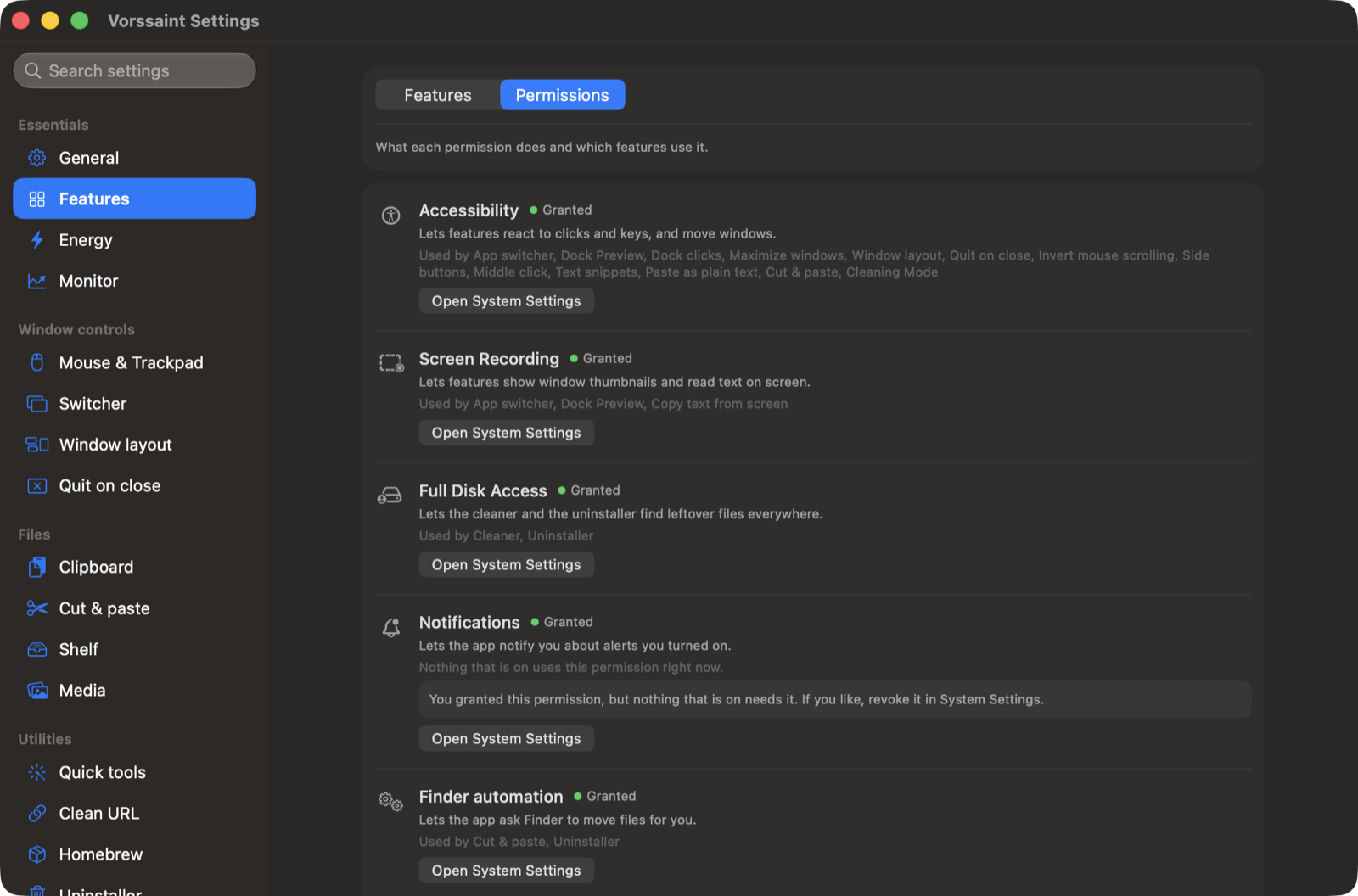
Permissions get the same treatment. Every one is optional, the app explains each in plain words, shows which features actually use it, and even tells you when a permission you granted is no longer needed by anything, with a shortcut to revoke it.
See the permissions guide for which features need access and what remains available without it.
What you need
A Mac with Apple Silicon
macOS 14 Sonoma or newer
Build it yourself
git clone https://github.com/vorssaint/vorssaint-utils.git
cd vorssaint-utils
./build.sh --dev # build the separate Developer variant
./build.sh --dev --install # install and launch it
Xcode Command Line Tools are the only requirement. The contributing guide covers the layout and conventions. Official builds come only from the maintainer: the GPL covers the source, while the Vorssaint name, icon and look are covered by TRADEMARKS.md, so forks need their own identity.
When something misbehaves
See troubleshooting for launch problems, permissions and missing previews, or support for help.
Vorssaint went from first commit to the front of GitHub trending in three days, top of the Swift charts, and issues and pull requests have shaped every release since. Bug reports, feature ideas and translations are all welcome, starting from the contributing guide.
Vorssaint is free and will stay that way. If it earned its place in your menu bar, a star helps other people find it, and a coffee keeps the maintainer awake, with or without the Keep awake feature.
GPL 3.0 or later, copyright 2026 Vorssaint. The license covers the source code; the Vorssaint name, logo and look are covered separately in TRADEMARKS.md.
Что это?Бесплатное приложение с открытым исходным кодом для macOS, которое собирает в одном значке в строке меню утилиты, которые пользователи Mac обычно покупают по отдельности — микшер громкости, монитор системы, переключатель приложений, историю буфера обмена, деинсталлятор и другое.
Это одно приложение или набор отдельных утилит?Одно модульное приложение: вы устанавливаете только нужные функции, а неустановленные не загружаются и исчезают из интерфейса, пока вы их не поставите снова. При настройке запрашиваются только те разрешения, которые нужны выбранным функциям.
Будет ли работать на моём Mac?Нужен Mac на Apple Silicon с macOS 14 Sonoma или новее, так что компьютеры Mac на Intel не подходят. Чтобы собрать приложение самому, достаточно установить Xcode Command Line Tools.
Есть ли что-то сырое или недоделанное?Fan Control прямо помечена как бета. С разрешениями всё сделано бережно: каждое из них необязательно, объясняется простыми словами, а приложение сообщит, когда выданное разрешение больше ничего не использует, и предложит быстрым способом отозвать его.
Что-то из того, что я делаю в приложении, уходит с моего Mac?Приложение работает локально: ни аккаунта, ни аналитики, ни слежки. Сеть задействуют только вещи, которые видны явно — проверка обновлений, тест скорости, действия Homebrew, необязательный поиск текстов песен, временные ссылки для обмена и отзыв, который вы сами отправляете.
Там GPL — могу я сделать форк и выпустить его под тем же названием?Исходный код под GPL-3.0-or-later, приложение бесплатное, но название Vorssaint, логотип и оформление защищены отдельно как товарный знак, поэтому форку понадобится своё собственное имя.
Что оно вообще умеет?Основные группы: громкость и маршрутизация звука по отдельным приложениям, монитор системы с управлением вентиляторами и оповещениями, переключатель приложений с прилипанием окон и превью в Dock, история буфера обмена, текстовые шаблоны и улучшения мыши и клавиатуры, снимок экрана с записью, распознаванием текста (OCR) и пипеткой цвета, а также управление приложениями — деинсталлятор, проверка обновлений, менеджер Homebrew и завершение зависших процессов.
Что за функция Dynamic Island?Она превращает вырез камеры на MacBooks (или смоделированный «остров» на других Mac) в живую область для музыки, уведомлений, календаря, таймеров, загрузок и повседневных переключателей. Разделы и сочетания клавиш настраиваются, есть по желанию тексты песен, живой эквалайзер и предпросмотр камеры.
Что отслеживает функция AI-агентов?Она следит за Claude, Codex, OpenCode и GitHub Copilot в Dynamic Island: лимиты тарифных планов и время их сброса, где это доступно, токены, стоимость API, модели, проекты и текущую работу, а также уведомляет, когда долгая задача завершена. Оттуда же можно использовать накопленные сбросы Codex.
У меня два Mac — придётся всё настраивать дважды?Нет. Можно экспортировать настройки с одного Mac и импортировать на другой, а само приложение переведено более чем на десяток языков.