
Background Music
macOS audio utility
Overview
Auto-pause music
Application volume
Recording system audio
Download
Run / Configure
Build and Install
Uninstall
Troubleshooting
Related Projects
License
Overview
- Automatically pause/unpause your music player when other audio sources are playing/stopped
- Per-application volume control
- Record system audio
- No restart required to install
Note: Background Music is still in alpha.
Auto-pause music
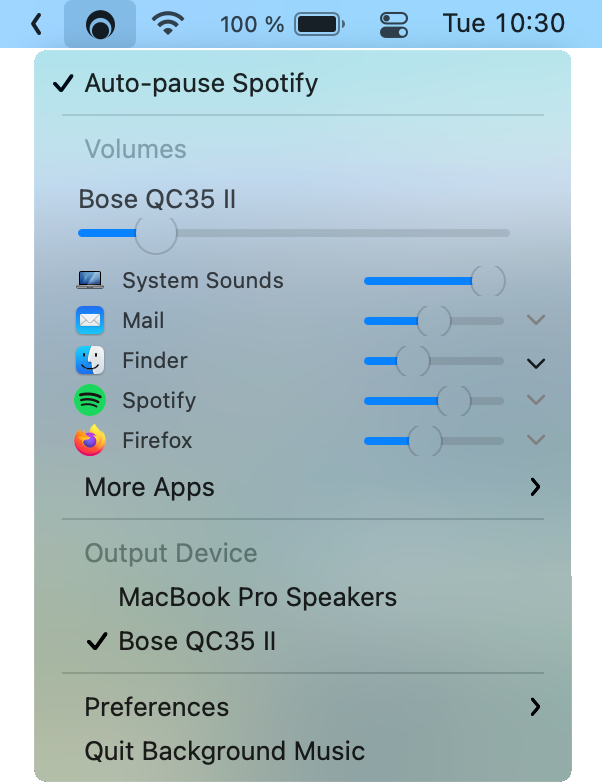
Background Music automatically pauses your music player when a second audio source is playing and unpauses the player when the second source has stopped.
The auto-pause feature currently supports following music players:
Adding support for a new music player is usually straightforward.1 If you don't know how to program, or just don't feel
like it, feel free to create an issue. Otherwise, see
BGMMusicPlayer.h.
Application volume
Background Music provides a volume slider for each application running your system. You can boost quiet applications above their maximum volume.
Recording system audio
You can record system audio with Background Music. With Background Music running, launch QuickTime Player and select File > New Audio Recording (or New Screen Recording, New Movie Recording). Then click the dropdown menu (⌄) next to the record button and select Background Music as the input device.
You can record system audio and a microphone together by creating an aggregate
device that combines your input device (usually Built-in Input) with
the Background Music device. You can create the aggregate device using the Audio MIDI Setup utility under
/Applications/Utilities.
Download
Requires macOS 10.13+.
You can download the current version of Background Music using the following options. We also have snapshot builds.
Option 1
Download version 0.5.0:
 BackgroundMusic-0.5.0.pkg (788 KB)
MD5: 2405d83ac3e2a29fb2c9bf5beb6eaceb
SHA256: c7742b48ac2e9ea955fea66e5c13bb56be5f1487e0b12bad93820984bccb69ef
PGP:
sig,
key (0595DF814E41A6F69334C5E2CAA8D9B8E39EC18C)
Option 2
Install using Homebrew by running the following command in Terminal:
brew install --cask background-music
Just run Applications > Background Music.app! Background Music sets itself as your default output device under
System Settings > Sound when it starts up (and sets it back on Quit).
Launch at Startup (Optional)
Add Background Music to System Settings > General > Login Items.
Installing from Source Code
Background Music usually takes less than a minute to build. You need Xcode version
10 or higher.
Option 1
- Open Terminal.
- Copy and paste the following command into Terminal:
(set -eo pipefail; URL='https://github.com/kyleneideck/BackgroundMusic/archive/master.tar.gz'; \
    cd $(mktemp -d); echo Downloading $URL to $(pwd); curl -qfL# $URL | gzcat - | tar x && \
    /bin/bash BackgroundMusic-master/build_and_install.sh -w && rm -rf BackgroundMusic-master)
More info...
This command uses /bin/bash instead of bash in case someone has a nonstandard Bash in their $PATH. However, it doesn't do this for tar or curl. In addition, build_and_install.sh doesn't call programs by absolute paths. This command also uses gzcat - | tar x instead of tar xz because gzcat will also check the file's integrity (gzip files
include a checksum), and will ensure that a half-downloaded copy of build_and_install.sh doesn't run.
Option 2
- Clone or download the project.
- If the project is in a zip, unzip it.
- Open Terminal and change the directory to the
directory containing the project.
- Run:
/bin/bash build_and_install.sh.
The script restarts the system audio process (coreaudiod) at the end of the installation, so pause any applications
playing audio if you can.
To manually build and install, see MANUAL_INSTALL.md.
Uninstall
To uninstall Background Music from your system, follow these steps:
- Open Terminal.
- To locate
uninstall.sh, run: cd /Applications/Background\ Music.app/Contents/Resources/.
- Run:
bash uninstall.sh.
If you cannot locate uninstall.sh, you can download the project again.
To manually uninstall, see MANUAL_UNINSTALL.md.
Troubleshooting
If Background Music crashes and your audio stops working, open System Settings > Sound and change your
system's default output device to something other than the Background Music device. If it already is, then
change the default device and then change it back again.
Make sure you allow "microphone access" when you first run Background Music. If you denied it, go to
System Settings > Security & Privacy > Privacy > Microphone, find Background Music in the list
and check the box next to it. Background Music doesn't actually listen to your microphone. It needs
the permission because it gets your system audio from its virtual input device, which macOS counts
as a microphone. (We're working on it in #177.)
If the volume slider for an app isn't working, try looking in More Apps for entries like Some App (Helper). For some meeting or video chat apps, you may need to do this to change the current
meeting volume.
Known issues and solutions
Setting an application's volume above 50% can cause clipping.
- Set your volume to its maximum level and lower the volumes of other applications.
Only 2-channel (stereo) audio devices are currently supported for output.
VLC pauses iTunes or Spotify when playing, and stops Background Music from unpausing your music afterward.
- Under VLC's preferences, select Show All. Navigate to Interface > Main interfaces > macosx and change Control external music players to either Do nothing or Pause and resume iTunes/Spotify.
Skype pauses iTunes during calls.
- To disable this, uncheck Pause iTunes during calls on the General tab of Skype's preferences.
Plugging in or unplugging headphones when Background Music isn't running causes silence in the system audio.
- Navigate to System Settings > Sound. Click the Output tab and change your default output device to something other than the Background Music device. Alternatively, press Option + Click on the sound icon within the menu bar to select a different output device. This happens when macOS remembers that the Background Music device was your default audio device the last time you used (or didn't use) headphones.
A Chrome bug stops Chrome from switching to the Background Music device after you open Background Music.
- Chrome's audio will still play, but Background Music won't be aware of it.
Some applications play notification sounds that are only just long enough to trigger an auto-pause.
- Increase the
kPauseDelayNSec constant in BGMAutoPauseMusic.mm. It will increase your music's overlap time over other audio, so don't increase it too much. See #5 for details.
Many other issues are listed in TODO.md and in GitHub
Issues.
- Core Audio User-Space Driver
Examples
The sample code from Apple that BGMDriver is based on.
- Soundflower - "MacOS system extension that allows applications to pass
audio to other applications."
- WavTap - "globally capture whatever your mac is playing—-as simply as a screenshot"
- eqMac, GitHub - "System-wide Audio Equalizer for the Mac"
- llaudio - "An old piece of work to reverse engineer the Mac OSX
user/kernel audio interface. Shows how to read audio straight out of the kernel as you would on Darwin (where most the
OSX goodness is missing)"
- mute.fm, GitHub (Windows) - Auto-pause music
- Jack OS X - "A Jack audio connection kit implementation for Mac OS X"
- PulseAudio OS X - "PulseAudio for Mac OS X"
- Sound Pusher - "Virtual audio device, real-time encoder and SPDIF forwarder for
Mac OS X"
- Zirkonium - "An infrastructure and application for multi-channel sound
spatialization on MacOS X."
- BlackHole - "a modern macOS virtual audio driver that allows applications to pass audio to other applications with zero additional latency."
Non-free
- Audio Hijack, SoundSource - "Capture
Audio From Anywhere on Your Mac", "Get truly powerful control over all the audio on your Mac!"
- Sound Siphon, Sound Control - System/app audio recording, per-app volumes, system audio equaliser
- SoundBunny - "Control application volume independently."
- Boom 2 - "The Best Volume Booster & Equalizer For Mac"
License
Copyright © 2016-2026 Background Music contributors.
Licensed under GPLv2, or any later version.
Background Music includes code from:
[1] However, if the music player doesn't support AppleScript, or doesn't support the events Background
Music needs (isPlaying, isPaused, play and pause), it can take significantly more effort to add. (And in some
cases would require changes to the music player itself.) ↩

 Бесплатная аудиоутилита для macOS, которая делает три вещи: автоматически ставит вашу музыку на паузу, когда начинает звучать другой источник звука, даёт каждому приложению свой отдельный ползунок громкости и позволяет записывать системный звук Mac.