ComfyEz
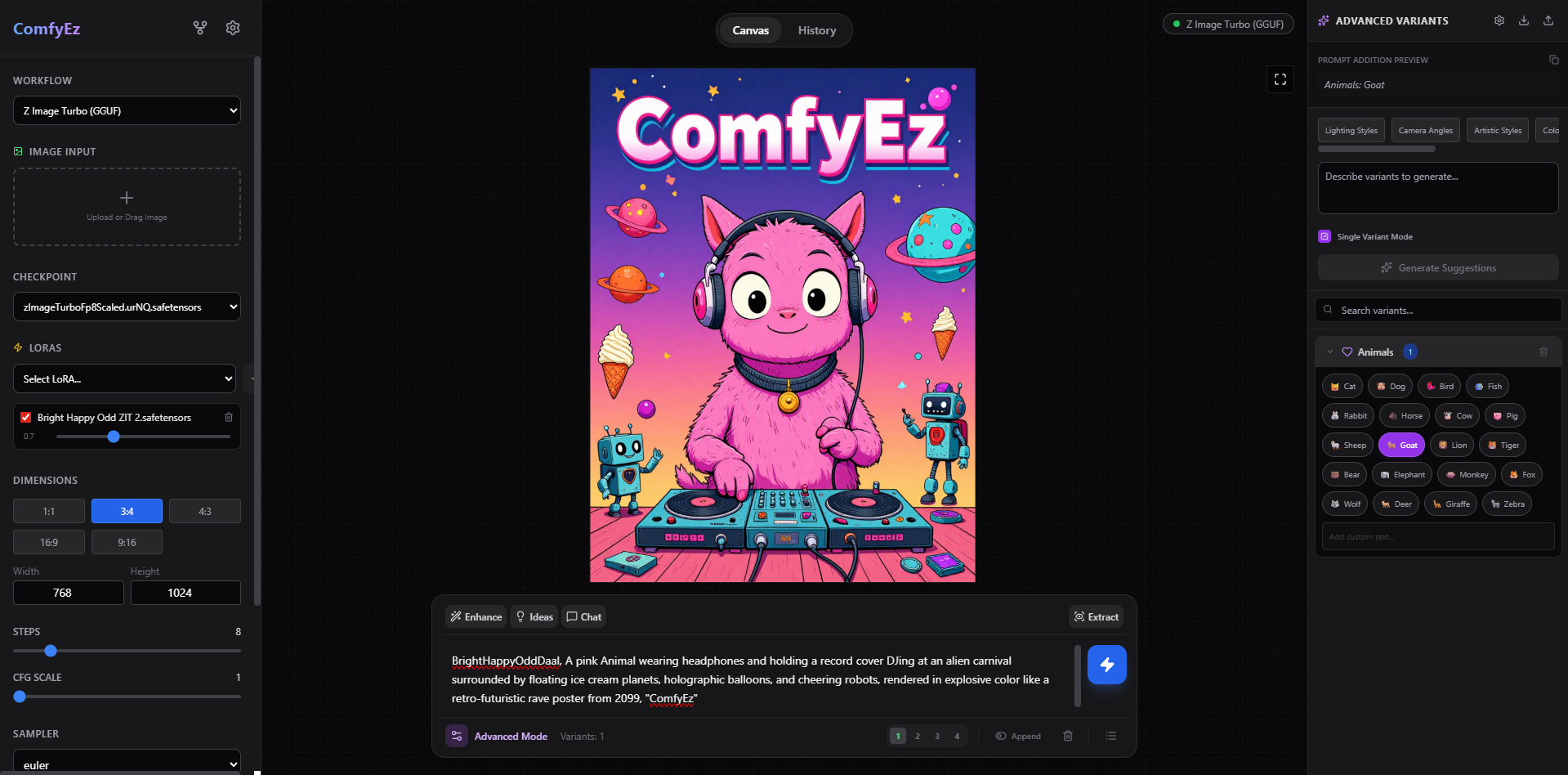
ComfyEz is a modern, feature-rich web interface designed to interact with a local ComfyUI instance.
It abstracts the complex node-based graph into a sleek, professional "Playground" UI (similar to commercial AI generators) while retaining the flexibility of ComfyUI through a powerful Workflow & Node Mapping system. It also integrates LLM capabilities for prompt engineering and complex inpainting tools.
✨ Key Features
🎨 Core Generation
- Sleek Interface: A dark-themed, responsive UI built with React and Tailwind CSS.
- Param Controls: Easy access to Steps, CFG, Sampler, Scheduler, Seed, Dimensions, and Batch Size.
- LoRA Support: Dynamic LoRA loading and stacking. The system automatically chains LoRA nodes (Model/CLIP) sequentially in the backend workflow.
- Upscaling: Toggleable upscaling support (Lanczos, Bicubic, etc.) with custom scale factors.
🧠 Workflow System
- Preset Management: Save, Import, and Export different ComfyUI workflows (JSON).
- Node Mapping Engine: Map UI controls (e.g., "Seed Slider") to specific Node IDs in your workflow JSON without touching code.
- Backwards Compatibility: Works with standard SDXL, SD1.5, Flux, or custom workflows provided they are mapped correctly.
🤖 AI-Powered Prompting (LLM Integration)
Integrates with OpenAI-compatible APIs (OpenRouter, OpenAI, local LLMs) to supercharge creativity:
- Prompt Enhancement: One-click rewrite of prompts with adjustable intensity (Low/Medium/High).
- Prompt Suggestions: Get 3 creative variations based on a simple concept.
- Chat-to-Edit: Conversational interface to modify prompts (e.g., "Make it night time").
- Image-to-Prompt (Vision): Upload an image to extract a detailed prompt using Vision models.
- Variant Generator: Generate categorization matrices (Lighting, Style, Camera) to explore different artistic directions.
🖌️ Advanced Inpainting
A dedicated, fully-featured inpainting editor:
- Brush Controls: Adjustable brush size and feathering (softness).
- Visual Feedback: "Lemon Pattern" overlay to clearly see masked areas against dark images.
- Pan & Zoom: Infinite canvas navigation (Space + Drag).
- Undo/Redo: Full history stack for mask strokes.
- Auto-Injection: Automatically injects "Load Image", "Load Mask", "VAE Encode", and "Set Latent Noise Mask" nodes into workflows that aren't explicitly designed for inpainting.
⚡ Smart Queue & History
- Persistent Queue: The generation queue survives page reloads (stored in IndexedDB).
- Auto-Recovery: Automatically resumes checking status for pending jobs after a browser refresh.
- Batch Management: Reorder, delete, or clear queue items.
- Visual History: Gallery view of all generated images with full metadata.
- "Remix" Capability: Click any history item to instantly restore all parameters, workflows, and seeds used to generate it.
💾 Persistence
- IndexedDB: Stores high-resolution images, generation history, and queue state locally within the browser (no external database required).
- Local Storage: Saves user preferences, API keys (locally only), and active workflow selections.
🛠️ Technology Stack
- Frontend: React 19, TypeScript, Vite
- Styling: Tailwind CSS, Lucide React (Icons)
- State/Logic: Custom Hooks (
useComfy, useWorkflows), Context-free architecture.
- Storage: IndexedDB (via native API), LocalStorage.
- Backend Integration: Direct fetch calls to ComfyUI API (
/prompt, /history, /upload, /object_info).
🚀 Getting Started
Prerequisites
- ComfyUI: You must have ComfyUI running locally.
- Default address:
http://127.0.0.1:8188
- CORS Note: You may need to run ComfyUI with
--enable-cors-header * if accessing from a different origin.
- Bun: You'll need Bun installed.
Installation
Clone the repository:
git clone https://github.com/amirrezasalimi/comfyEz.git
cd comfyEz
Install dependencies:
bun install
Start the development server:
bun dev
⚙️ Configuration
connecting to ComfyUI
- Click the Settings (Gear) icon in the sidebar.
- Set Host URL to your ComfyUI instance (e.g.,
http://127.0.0.1:8188).
Setting up LLM Features
- In Settings, enable LLM Config.
- API Host: Defaults to
https://openrouter.ai/api/v1 (or use https://api.openai.com/v1).
- API Key: Enter your key (stored locally in browser).
- Model: Click "Fetch List" to grab available models or type one manually (e.g.,
google/gemini-2.0-flash, gpt-4o).
🧩 How Workflow Mapping Works
This app allows you to use any ComfyUI workflow by "mapping" generic UI controls to specific Node IDs.
- Open the Workflow Editor (Fork icon in sidebar).
- Import a ComfyUI JSON file (Save as API Format from ComfyUI).
- The JSON Editor on the right shows the raw graph.
- The Mapping Column on the right allows you to select which node corresponds to:
- Prompt Node: Where the positive text goes.
- Model Node: Where the checkpoint is loaded.
- Seed/Steps/CFG: Usually the KSampler node.
- Preview Node: The final image output node.
- Save the preset. The UI will now control that specific workflow.
⌨️ Shortcuts & Tips
- Queue Generation:
Ctrl + Enter (or Cmd + Enter) in the prompt box.
- Inpainting:
Space + Drag: Pan the canvas.Scroll Wheel: Zoom in/out.Ctrl + Z: Undo mask stroke.[ / ]: Decrease/Increase brush size (if implemented) or use UI sliders.
- Drag & Drop: Drop an image onto the sidebar to load it as an Input Image (Img2Img). Drop it onto the Canvas to view it.
🤝 Contributing
Pull requests are welcome. For major changes, please open an issue first to discuss what you would like to change.
🙏 Thanks
Made In AI Studio with Gemini 3
📄 License
MIT

 一个面向本地 ComfyUI 实例的网页界面:它把节点图包装成类似商业 AI 绘图工具的那种美观的 Playground 风格界面,并增加了由大语言模型驱动的提示词工具和一个专用的局部重绘(inpainting)编辑器。