1.9K ·GitHub
What is this?
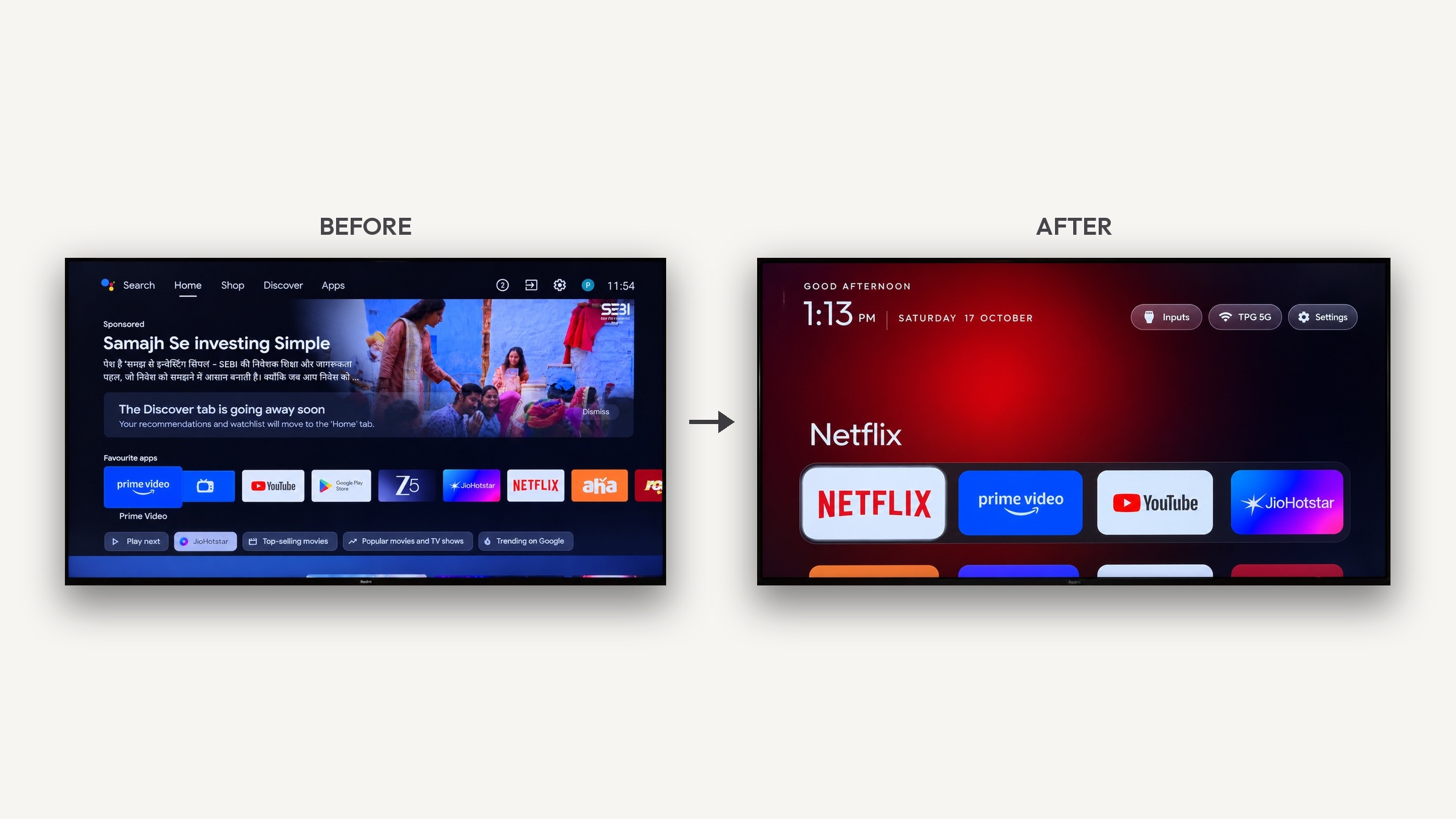
 A toolkit that strips bloatware and ads from any Android TV or Google TV over Wi-Fi (via ADB) and replaces the stock home screen with a clean, Apple TV-style launcher.
A toolkit that strips bloatware and ads from any Android TV or Google TV over Wi-Fi (via ADB) and replaces the stock home screen with a clean, Apple TV-style launcher.Is this an app I install, or a set of scripts and tools?It's both: a set of Python/shell/PowerShell scripts that debloat the TV over ADB, plus a small native Java Android TV launcher app you build and install yourself.
It's both: a set of Python/shell/PowerShell scripts that debloat the TV over ADB, plus a small native Java Android TV launcher app you build and install yourself.How do I actually run this on my TV?Enable USB debugging on the TV (Settings → About → tap Build 7 times → Developer options), then open a coding assistant like Claude Code, paste the prompt from PROMPT.md, fill in your TV model, and follow the on-screen checklist as it backs up, debloats, builds and installs the launcher.
Enable USB debugging on the TV (Settings → About → tap Build 7 times → Developer options), then open a coding assistant like Claude Code, paste the prompt from PROMPT.md, fill in your TV model, and follow the on-screen checklist as it backs up, debloats, builds and installs the launcher.Do I need Claude Code specifically, or any other tools?You need a computer on the same Wi-Fi as the TV and any coding assistant with shell access (Claude Code or similar); the Python ADB tools only need Python 3, and building the launcher needs JDK 17 and Android SDK platform 34.
You need a computer on the same Wi-Fi as the TV and any coding assistant with shell access (Claude Code or similar); the Python ADB tools only need Python 3, and building the launcher needs JDK 17 and Android SDK platform 34.Does this work on any TV brand?Only Android TV / Google TV devices (Xiaomi, TCL, Hisense, Sony, OnePlus, Realme, Nvidia Shield, etc.) are supported; Samsung Tizen, LG webOS and Amazon Fire TV run different systems and can't be debloated or re-launchered this way.
Only Android TV / Google TV devices (Xiaomi, TCL, Hisense, Sony, OnePlus, Realme, Nvidia Shield, etc.) are supported; Samsung Tizen, LG webOS and Amazon Fire TV run different systems and can't be debloated or re-launchered this way.Do I need root access on the TV?No root is needed; everything runs through the standard Android Debug Bridge after you approve one 'allow this computer' prompt on the TV.
No root is needed; everything runs through the standard Android Debug Bridge after you approve one 'allow this computer' prompt on the TV.Can I run the setup from Windows or only macOS/Linux?Yes, there are PowerShell scripts for Windows (working without WSL or Git Bash) alongside the .sh scripts for macOS/Linux, and the install script auto-detects Android Studio's bundled JDK and SDK.
Yes, there are PowerShell scripts for Windows (working without WSL or Git Bash) alongside the .sh scripts for macOS/Linux, and the install script auto-detects Android Studio's bundled JDK and SDK.Does the launcher need an internet connection to work?The launcher itself does no networking — it has no blur, video, or background services, and simply lists and launches apps already installed on the TV.
The launcher itself does no networking — it has no blur, video, or background services, and simply lists and launches apps already installed on the TV.Is it safe, and can it brick the TV?No — nothing is flashed, rooted or deleted; apps are only disabled per-user via pm disable-user, firmware stays untouched, and a restore script (or the TV's own settings) can re-enable everything.
No — nothing is flashed, rooted or deleted; apps are only disabled per-user via pm disable-user, firmware stays untouched, and a restore script (or the TV's own settings) can re-enable everything.Can I get a prebuilt launcher APK instead of building it?No, the project doesn't publish prebuilt binaries; you build the launcher yourself with a one-line gradle command, which takes about a minute.
No, the project doesn't publish prebuilt binaries; you build the launcher yourself with a one-line gradle command, which takes about a minute.Will the streaming apps break after switching launchers?No, streaming apps keep updating through the Play Store as normal; the launcher just lists installed apps and launches them via stable Android intents, without talking to the apps directly.
No, streaming apps keep updating through the Play Store as normal; the launcher just lists installed apps and launches them via stable Android intents, without talking to the apps directly.What does the new launcher actually look like?A pitch-black home screen with a four-app dock, a top shelf showing the focused app's name with an ambient color glow from its artwork, a sliding app grid, frosted Inputs/Wi-Fi/Settings buttons, and an optional drifting Clock screensaver.
A pitch-black home screen with a four-app dock, a top shelf showing the focused app's name with an ambient color glow from its artwork, a sliding app grid, frosted Inputs/Wi-Fi/Settings buttons, and an optional drifting Clock screensaver.What happens to firmware updates after debloating?Most debloat lists disable the manufacturer's update service, so updates only arrive if you manually re-enable it; if one does land and re-enables a package, you just re-run the debloat script.
Most debloat lists disable the manufacturer's update service, so updates only arrive if you manually re-enable it; if one does land and re-enables a package, you just re-run the debloat script.What are similar projects?Shizuku-Next, tiny11builder, DSHA, winutil, Windows10Debloater, RemoveWindowsAI, universal-android-debloater, Winhance
Shizuku-Next, tiny11builder, DSHA, winutil, Windows10Debloater, RemoveWindowsAI, universal-android-debloater, WinhanceWhich topics is it in?xiaomi, debloat, adb, android-tv, launcher, script, powershell, android-app, shell, customization, utility, java
xiaomi, debloat, adb, android-tv, launcher, script, powershell, android-app, shell, customization, utility, java