BlackHole: Audio Loopback Driver





BlackHole is a modern macOS virtual audio loopback driver that allows applications to pass audio to other applications with zero additional latency.
Recall.ai - API for desktop recording
If you’re looking for a desktop recording API, consider checking out Recall.ai, an API that records video, audio, and transcripts from Zoom, Google Meet, Microsoft Teams, in-person meetings, and more.
To sponsor this project visit https://github.com/sponsors/ExistentialAudio
Table of Contents
Features
- Builds 2, 16, 64, 128, and 256 audio channels versions
- Customizable channel count, latency, hidden devices
- Customizable mirror device to allow for a hidden input or output
- Supports 8kHz, 16kHz, 44.1kHz, 48kHz, 88.2kHz, 96kHz, 176.4kHz, 192kHz, 352.8kHz, 384kHz, 705.6kHz and 768kHz sample rates
- Zero additional driver latency
- Compatible with macOS 10.10 Yosemite and newer
- Builds for Intel and Apple Silicon
- No kernel extensions or modifications to system security necessary
Installation Instructions
Option 1: Download Installer
- Download the latest installer
- Close all running audio applications
- Open and install package
- Restart your system when prompted
Option 2: Install via Homebrew
- 2ch:
brew install blackhole-2ch
- 16ch:
brew install blackhole-16ch
- 64ch:
brew install blackhole-64ch
Uninstallation Instructions
Option 1: Use Uninstaller
Option 2: Manually Uninstall
Delete the BlackHole driver with the terminal command:
rm -R /Library/Audio/Plug-Ins/HAL/BlackHoleXch.driver
Be sure to replace X with either 2, 16, or 64.
Note that the directory is the root /Library not /Users/user/Library.
Restart CoreAudio with the terminal command:
sudo killall -9 coreaudiod
For more specific details visit the Wiki.
User Guides
Logic Pro X
GarageBand
Audacity
Reaper
Record System Audio
- Setup Multi-Output Device
- In
Audio MIDI Setup → Audio Devices right-click on the newly created Multi-Output and select "Use This Device For Sound Output"
- Open digital audio workstation (DAW) such as GarageBand and set input device to "BlackHole"
- Set track to input from channel 1-2
- Play audio from another application and monitor or record in your DAW
Route Audio Between Applications
- Set output driver to "BlackHole" in sending application
- Output audio to any channel
- Open receiving application and set input device to "BlackHole"
- Input audio from the corresponding output channels
Developer Guides
A license is required for all non-GPLv3 projects
Please support our hard work and continued development. To request a license contact Existential Audio.
Build & Install
After building, to install BlackHole:
- Copy or move the built
BlackHoleXch.driver bundle to /Library/Audio/Plug-Ins/HAL
- Restart CoreAudio using
sudo killall -9 coreaudiod
Customizing BlackHole
The following pre-compiler constants may be used to easily customize a build of BlackHole.
kDriver_Name
kPlugIn_BundleID
kPlugIn_Icon

kDevice_Name
kDevice_IsHidden
kDevice_HasInput
kDevice_HasOutput

kDevice2_Name
kDevice2_IsHidden
kDevice2_HasInput
kDevice2_HasOutput

kLatency_Frame_Size
kNumber_Of_Channels
kSampleRates
They can be specified at build time with xcodebuild using GCC_PREPROCESSOR_DEFINITIONS.
Example:
xcodebuild \
  -project BlackHole.xcodeproj \
  GCC_PREPROCESSOR_DEFINITIONS='$GCC_PREPROCESSOR_DEFINITIONS kSomeConstant=value'
Be sure to escape any quotation marks when using strings.
Renaming BlackHole
To customize BlackHole it is required to change the following constants.
kDriver_NamekPlugIn_BundleID (note that this must match the target bundleID)kPlugIn_Icon
These can specified as pre-compiler constants using xcodebuild.
driverName="BlackHole"
bundleID="audio.existential.BlackHole"
icon="BlackHole.icns"

xcodebuild \
  -project BlackHole.xcodeproj \
  -configuration Release \
  PRODUCT_BUNDLE_IDENTIFIER=$bundleID \
  GCC_PREPROCESSOR_DEFINITIONS='$GCC_PREPROCESSOR_DEFINITIONS
  kDriver_Name=\"'$driverName'\"
  kPlugIn_BundleID=\"'$bundleID'\"
  kPlugIn_Icon=\"'$icon'\"'
Customizing Channels, Latency, and Sample Rates
kNumber_Of_Channels is used to set the number of channels. Be careful when specifying high channel counts. Although BlackHole is designed to be extremely efficient at higher channel counts it's possible that your computer might not be able to keep up. Sample rates play a role as well. Don't use high sample rates with a high number of channels. Some applications don't know how to handle high channel counts. Proceed with caution.
kLatency_Frame_Size is how much time in frames that the driver has to process incoming and outgoing audio. It can be used to delay the audio inside of BlackHole up to a maximum of 65536 frames. This may be helpful if using BlackHole with a high channel count.
kSampleRates set the sample rate or sample rates of the audio device. If using multiple sample rates separate each with a comma (,). For example: kSampleRates='44100,48000'.
Mirror Device
By default BlackHole has a hidden mirrored audio device. The devices may be customized using the following constants.
// Original Device
kDevice_IsHidden
kDevice_HasInput
kDevice_HasOutput

// Mirrored Device
kDevice2_IsHidden
kDevice2_HasInput
kDevice2_HasOutput
When all are set to true a 2nd BlackHole will show up that works exactly the same. The inputs and outputs are mirrored so the outputs from both devices go to the inputs of both devices.
This is useful if you need a separate device for input and output.
Example
// Original Device
kDevice_IsHidden=false
kDevice_HasInput=true
kDevice_HasOutput=false

// Mirrored Device
kDevice2_IsHidden=false
kDevice2_HasInput=false
kDevice2_HasOutput=true
In this situation we have two BlackHole devices. One will have inputs only and the other will have outputs only.
One way to use this in projects is to hide the mirrored device and use it behind the scenes. That way the user will see an input only device while routing audio through to the output behind them scenes.
Hidden audio devices can be accessed using kAudioHardwarePropertyTranslateUIDToDevice.
Continuous Integration / Continuous Deployment
BlackHole can be integrated into your CI/CD. Take a look at the create_installer.sh shell script to see how the installer is built, signed and notarized.
Feature Requests
If you are interested in any of the following features please leave a comment in the linked issue. To request a features not listed please create a new issue.
FAQ
Why isn't BlackHole showing up in the Applications folder?
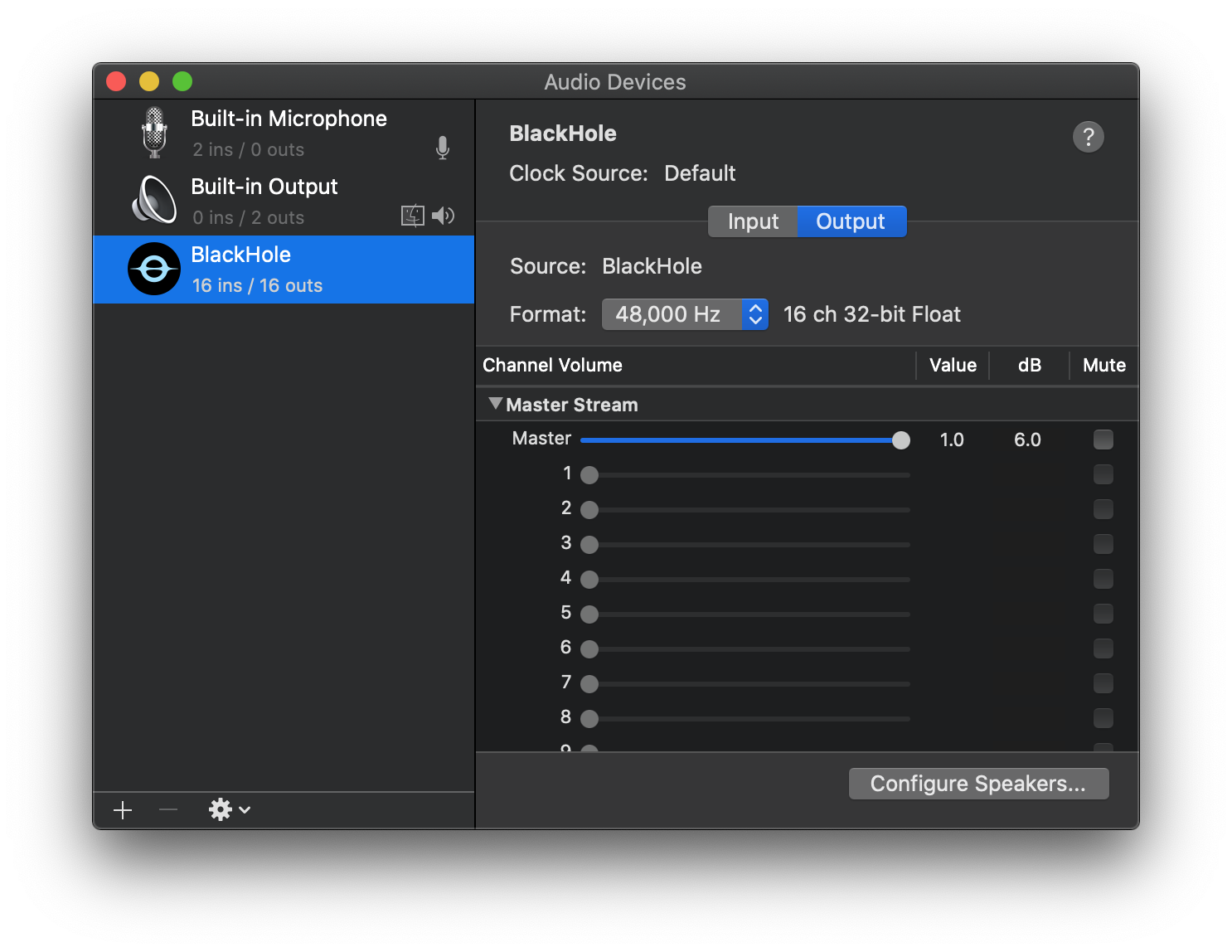
BlackHole is a virtual audio loopback driver. It only shows up in Audio MIDI Setup, Sound Preferences, or other audio applications.
How can I listen to the audio and use BlackHole at the same time?
See Setup a Multi-Output Device.
What bit depth does BlackHole use, and can I change it?
BlackHole uses 32-bit float bit depth since macOS Core Audio natively uses 32-bit at the system level. This provides the broadest compatibility and greatest audio headroom.
This format is lossless for up to 24-bit integer. All applications should be able to playback and record audio, and do not require adjusting bit depth at the BlackHole driver level.
How can I change the volume of a Multi-Output device?
Unfortunately macOS does not support changing the volume of a Multi-Output device but you can set the volume of individual devices in Audio MIDI Setup.
Why is nothing playing through BlackHole?
Check System Preferences → Security & Privacy → Privacy → Microphone to make sure your digital audio workstation (DAW) application has microphone access.
Check that the volume is all the way up on BlackHole input and output in Audio MIDI Setup.
If you are using a multi-output device, due to issues with macOS the Built-in Output must be enabled and listed as the top device in the Multi-Output. See here for details.
Why is audio glitching after X minutes when using a multi-output or an aggregate?
- You need to enable drift correction for all devices except the Clock Source also known as Master Device or Primary Device.
Why is the Installer failing?
- Certain versions of macOS have a known issue where install packages may fail to install when the install package is located in certain folders. If you downloaded the .pkg file to your Downloads folder, try moving it to the Desktop and open the .pkg again (or vice-versa).
What Apps Don't Work with Multi-Outputs?
Unfortunately multi-outputs can be buggy and some apps won't work with them at all. Here is a list of known ones. If additional incompatible applications are found, please report them by opening an issue.
- Apple Podcasts
- Apple Messages
- HDHomeRun
AirPods with an Aggregate/Multi-Output is not working.
The microphone from AirPods runs at a lower sample rate which means it should not be used as the primary/clock device in an Aggregate or Multi-Output device. The solution is to use your built-in speakers (and just mute them) or BlackHole 2ch as the primary/clock device. BlackHole 16ch will not work as the primary since the primary needs to have 2ch.
Read this discussion for more details.
Can I integrate BlackHole into my app?
BlackHole is licensed under GPL-3.0. You can use BlackHole as long as your app is also licensed as GPL-3.0. For all other applications please contact Existential Audio directly.
Links and Resources
A small tool for changing sound volume even for aggregate devices cause native sound volume controller can't change volume of aggregate devices
Background Music, a macOS audio utility: automatically pause your music, set individual apps' volumes and record system audio.

 一个 macOS 虚拟音频内录(loopback)驱动:它会创建一个音频设备,让一个应用把自己的声音传给另一个应用,没有任何额外延迟。