dive





A tool for exploring a Docker image, layer contents, and discovering ways to shrink the size of your Docker/OCI image.
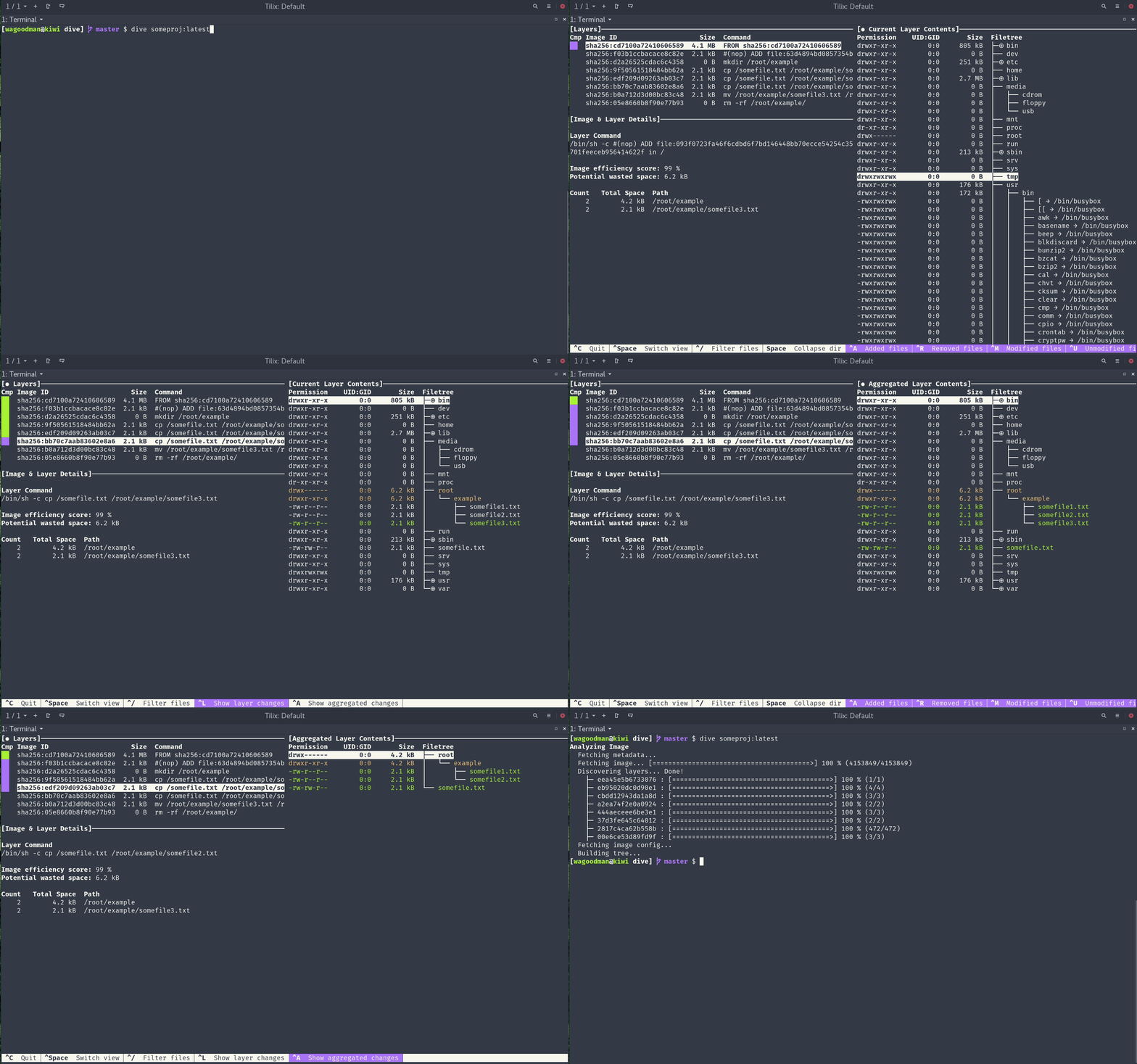
To analyze a Docker image simply run dive with an image tag/id/digest:
dive <your-image-tag>
or you can dive with Docker directly:
alias dive="docker run -ti --rm  -v /var/run/docker.sock:/var/run/docker.sock docker.io/wagoodman/dive"
dive <your-image-tag>

# for example
dive nginx:latest
or if you want to build your image then jump straight into analyzing it:
dive build -t <some-tag> .
Building on macOS (supporting only the Docker container engine):
docker run --rm -it \
      -v /var/run/docker.sock:/var/run/docker.sock \
      -v  "$(pwd)":"$(pwd)" \
      -w "$(pwd)" \
      -v "$HOME/.dive.yaml":"$HOME/.dive.yaml" \
      docker.io/wagoodman/dive:latest build -t <some-tag> .
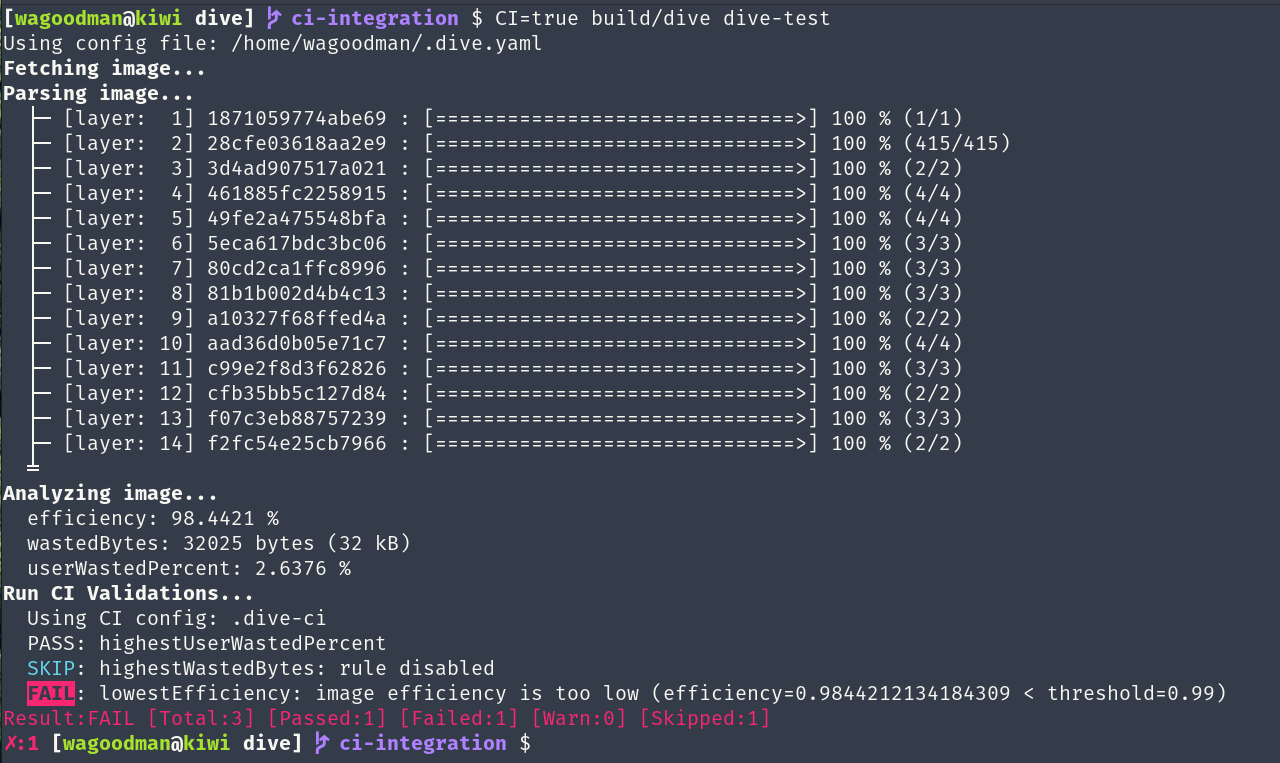
Additionally you can run this in your CI pipeline to ensure you're keeping wasted space to a minimum (this skips the UI):
CI=true dive <your-image>
This is beta quality! Feel free to submit an issue if you want a new feature or find a bug :)
Basic Features
Show Docker image contents broken down by layer
As you select a layer on the left, you are shown the contents of that layer combined with all previous layers on the right. Also, you can fully explore the file tree with the arrow keys.
Indicate what's changed in each layer
Files that have changed, been modified, added, or removed are indicated in the file tree. This can be adjusted to show changes for a specific layer, or aggregated changes up to this layer.
Estimate "image efficiency"
The lower left pane shows basic layer info and an experimental metric that will guess how much wasted space your image contains. This might be from duplicating files across layers, moving files across layers, or not fully removing files. Both a percentage "score" and total wasted file space is provided.
Quick build/analysis cycles
You can build a Docker image and do an immediate analysis with one command:
dive build -t some-tag .
You only need to replace your docker build command with the same dive build
command.
CI Integration
Analyze an image and get a pass/fail result based on the image efficiency and wasted space. Simply set CI=true in the environment when invoking any valid dive command.
Multiple Image Sources and Container Engines Supported
With the --source option, you can select where to fetch the container image from:
dive <your-image> --source <source>
or
dive <source>://<your-image>
With valid source options as such:
docker: Docker engine (the default option)docker-archive: A Docker Tar Archive from diskpodman: Podman engine (linux only)
Installation
Ubuntu/Debian
Using debs:
DIVE_VERSION=$(curl -sL "https://api.github.com/repos/wagoodman/dive/releases/latest" | grep '"tag_name":' | sed -E 's/.*"v([^"]+)".*/\1/')
curl -fOL "https://github.com/wagoodman/dive/releases/download/v${DIVE_VERSION}/dive_${DIVE_VERSION}_linux_amd64.deb"
sudo apt install ./dive_${DIVE_VERSION}_linux_amd64.deb
Using snap:
sudo snap install docker
sudo snap install dive
sudo snap connect dive:docker-executables docker:docker-executables
sudo snap connect dive:docker-daemon docker:docker-daemon
[!CAUTION]
The Snap method is not recommended if you installed Docker via apt-get, since it might break your existing Docker daemon.
See also: https://github.com/wagoodman/dive/issues/546
RHEL/Centos
DIVE_VERSION=$(curl -sL "https://api.github.com/repos/wagoodman/dive/releases/latest" | grep '"tag_name":' | sed -E 's/.*"v([^"]+)".*/\1/')
curl -fOL "https://github.com/wagoodman/dive/releases/download/v${DIVE_VERSION}/dive_${DIVE_VERSION}_linux_amd64.rpm"
rpm -i dive_${DIVE_VERSION}_linux_amd64.rpm
Arch Linux
Available in the extra repository and can be installed via pacman:
pacman -S dive
Mac
If you use Homebrew:
brew install dive
If you use MacPorts:
sudo port install dive
Or download the latest Darwin build from the releases page.
Windows
If you use Chocolatey
choco install dive
If you use scoop
scoop install main/dive
If you use winget:
winget install --id wagoodman.dive
Or download the latest Windows build from the releases page.
Go tools
Requires Go version 1.10 or higher.
go install github.com/wagoodman/dive@latest
Note: installing in this way you will not see a proper version when running dive -v.
Nix/NixOS
On NixOS:
nix-env -iA nixos.dive
On non-NixOS (Linux, Mac)
nix-env -iA nixpkgs.dive
X-CMD
x-cmd is a toolbox for Posix Shell, offering a lightweight package manager built using shell and awk.
x env use dive
Docker
docker pull docker.io/wagoodman/dive
# or alternatively
docker pull ghcr.io/wagoodman/dive
When running you'll need to include the Docker socket file:
docker run --rm -it \
    -v /var/run/docker.sock:/var/run/docker.sock \
    docker.io/wagoodman/dive:latest <dive arguments...>
Docker for Windows (showing PowerShell compatible line breaks; collapse to a single line for Command Prompt compatibility)
docker run --rm -it `
    -v /var/run/docker.sock:/var/run/docker.sock `
    docker.io/wagoodman/dive:latest <dive arguments...>
Note: depending on the version of docker you are running locally you may need to specify the docker API version as an environment variable:
DOCKER_API_VERSION=1.37 dive ...
or if you are running with a docker image:
docker run --rm -it \
    -v /var/run/docker.sock:/var/run/docker.sock \
    -e DOCKER_API_VERSION=1.37 \
    docker.io/wagoodman/dive:latest <dive arguments...>
if you are using an alternative runtime (Colima etc) then you may need to specify the docker host as an environment variable in order to pull local images:
export DOCKER_HOST=$(docker context inspect -f '{{ .Endpoints.docker.Host }}')
CI Integration
When running dive with the environment variable CI=true then the dive UI will be bypassed and will instead analyze your docker image, giving it a pass/fail indication via return code. Currently there are three metrics supported via a .dive-ci file that you can put at the root of your repo:
rules:
  # If the efficiency is measured below X%, mark as failed.
  # Expressed as a ratio between 0-1.
  lowestEfficiency: 0.95

  # If the amount of wasted space is at least X or larger than X, mark as failed.
  # Expressed in B, KB, MB, and GB.
  highestWastedBytes: 20MB

  # If the amount of wasted space makes up for X% or more of the image, mark as failed.
  # Note: the base image layer is NOT included in the total image size.
  # Expressed as a ratio between 0-1; fails if the threshold is met or crossed.
  highestUserWastedPercent: 0.20
You can override the CI config path with the --ci-config option.
KeyBindings
| Key Binding |
Description |
| Ctrl + C or Q |
Exit |
| Tab |
Switch between the layer and filetree views |
| Ctrl + F |
Filter files |
| ESC |
Close filter files |
| PageUp or U |
Scroll up a page |
| PageDown or D |
Scroll down a page |
| Up or K |
Move up one line within a page |
| Down or J |
Move down one line within a page |
| Ctrl + A |
Layer view: see aggregated image modifications |
| Ctrl + L |
Layer view: see current layer modifications |
| Space |
Filetree view: collapse/uncollapse a directory |
| Ctrl + Space |
Filetree view: collapse/uncollapse all directories |
| Ctrl + A |
Filetree view: show/hide added files |
| Ctrl + R |
Filetree view: show/hide removed files |
| Ctrl + M |
Filetree view: show/hide modified files |
| Ctrl + U |
Filetree view: show/hide unmodified files |
| Ctrl + B |
Filetree view: show/hide file attributes |
| PageUp or U |
Filetree view: scroll up a page |
| PageDown or D |
Filetree view: scroll down a page |
UI Configuration
No configuration is necessary, however, you can create a config file and override values:
# supported options are "docker" and "podman"
container-engine: docker
# continue with analysis even if there are errors parsing the image archive
ignore-errors: false
log:
  enabled: true
  path: ./dive.log
  level: info

# Note: you can specify multiple bindings by separating values with a comma.
# Note: UI hinting is derived from the first binding
keybinding:
  # Global bindings
  quit: ctrl+c
  toggle-view: tab
  filter-files: ctrl+f, ctrl+slash
  close-filter-files: esc
  up: up,k
  down: down,j
  left: left,h
  right: right,l

  # Layer view specific bindings
  compare-all: ctrl+a
  compare-layer: ctrl+l

  # File view specific bindings
  toggle-collapse-dir: space
  toggle-collapse-all-dir: ctrl+space
  toggle-added-files: ctrl+a
  toggle-removed-files: ctrl+r
  toggle-modified-files: ctrl+m
  toggle-unmodified-files: ctrl+u
  toggle-filetree-attributes: ctrl+b
  page-up: pgup,u
  page-down: pgdn,d

diff:
  # You can change the default files shown in the filetree (right pane). All diff types are shown by default.
  hide:
    - added
    - removed
    - modified
    - unmodified

filetree:
  # The default directory-collapse state
  collapse-dir: false

  # The percentage of screen width the filetree should take on the screen (must be >0 and <1)
  pane-width: 0.5

  # Show the file attributes next to the filetree
  show-attributes: true

layer:
  # Enable showing all changes from this layer and every previous layer
  show-aggregated-changes: false
dive will search for configs in the following locations:
$XDG_CONFIG_HOME/dive/*.yaml$XDG_CONFIG_DIRS/dive/*.yaml~/.config/dive/*.yaml~/.dive.yaml
.yml can be used instead of .yaml if desired.

 dive 是一个命令行工具,它把 Docker 或 OCI 镜像拆解成各个层,展示每一层的内容,并指出镜像在哪些地方浪费了空间,方便你给镜像瘦身。