
LLPlayer
The media player for language learning.
A video player focused on subtitle-related features such as dual subtitles, AI-generated subtitles, real-time translation, word lookup, and more!
Website ·
Releases
🎬 Demo
https://github.com/user-attachments/assets/05a7b451-ee3b-489f-aac9-f1670ed76e71
TED Talk - The mind behind Linux
✨ Features
LLPlayer has many features for language learning that are not available in normal video players.
- Dual Subtitles: Two subtitles can be displayed simultaneously. Both text subtitles and bitmap subtitles are supported.
- AI-generated subtitles (ASR): Real-time automatic subtitle generation from any video and audio, powered by OpenAI Whisper. two engines whisper.cpp and faster-whisper are supported.
- Real-time Translation: Supports many translation engines, such as Google, DeepL, Ollama, LM Studio, OpenAI.
- Context-aware Translation: Highly accurate translation by recognizing the context of subtitles using LLM.
- Real-time OCR subtitles: Can convert bitmap subtitles to text subtitles in real time, powered by Tesseract OCR and Microsoft OCR.
- Subtitles Sidebar: Both text and bitmap are supported. Seek and word lookup available. Also supports incremental subtitle search.
- Instant word lookup: Word lookup and browser searches can be performed on subtitle text.
- Customizable Browser Search: Browser searches can be performed from the context menu of a word, and the search site can be completely customized.
- Plays online videos: With yt-dlp integration, any online video can be played back in real time, with AI subtitle generation, word lookups!
- Flexible Subtitles Size/Placement Settings: The size and position of the dual subtitles can be adjusted very flexibly.
- Subtitles Seeking for any format: Any subtitle format can be used for subtitle seek.
- Built-in Subtitles Downloader: Supports opensubtitles.org
- Integrate with browser extensions: Can work with any browser extensions, such as Yomitan and 10ten.
- Customizable Dark Theme: The theme is based on black and can be customized.
- Fully Customizable Shortcuts: All keyboard shortcuts are fully customizable. The same action can be assigned to multiple keys!
- Built-in Cheat Sheet: You can find out how to use the application in the application itself.
- Free, Open Source, Written in C#: Written in C#/WPF, not C, so customization is super easy!
🖼️ Screenshot
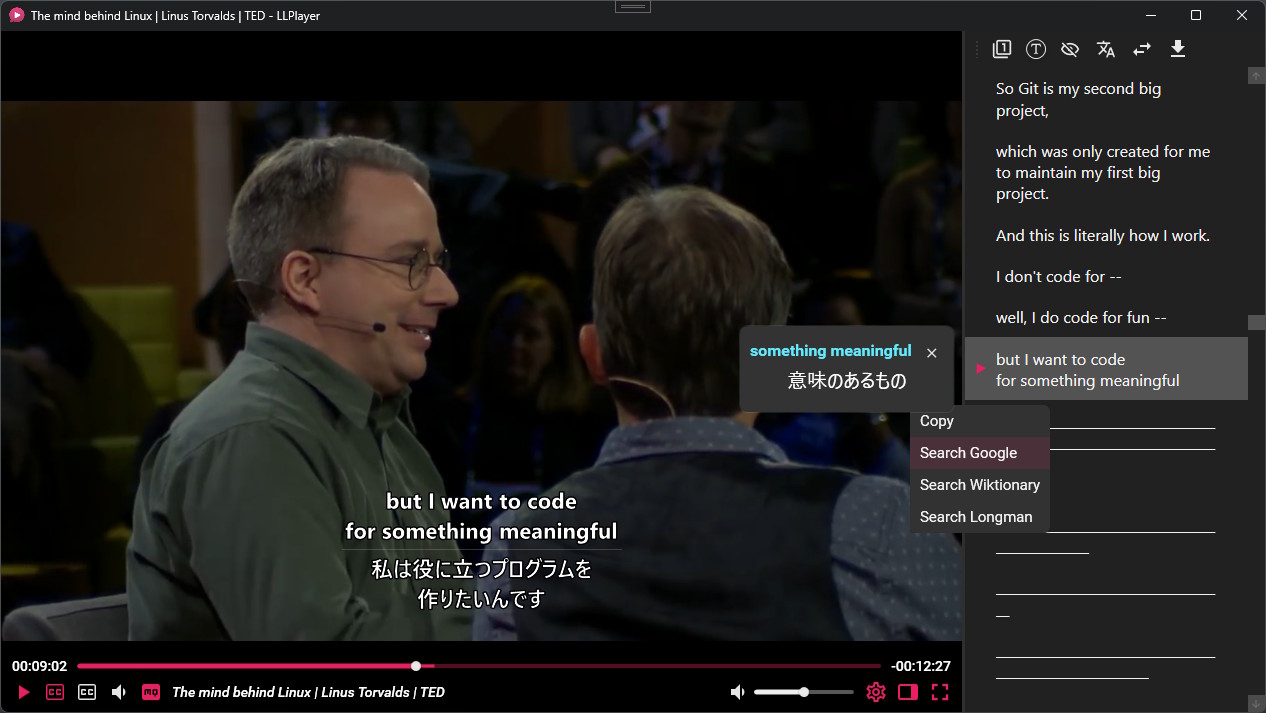
TED Talk - The mind behind Linux
✅ Requirements
[OS]
- Windows 10 x64, Version 1903 later
- Windows 11 x64
[Pre-requisites]
[For Nvidia User (RTX GPU)]
- Note: Having CUDA driver will make the generating of subtitles faster
CUDA Toolkit
🚀 Getting Started
Download builds from release
Launch LLPlayer
Please open LLPlayer.exe.
- Open Settings
Press CTRL+. or click the settings icon on the seek bar to open the settings window.
- Download Whisper Model for ASR
From Subtitles > ASR section, please download Whisper's models for whisper.cpp.
You can choose from a variety of models, the larger the size, the higher the load and accuracy.
Note that models with En endings are only available in English.
Audio Language allows you to manually set the language of the video (audio). The default is auto-detection.
If you want to use the faster-whisper engine instead of whisper.cpp, please download the engine instead of models from the settings.
With faster-whisper, selected model is automatically downloaded the first time, so no prior download is required.
A description of each engine can be found here.
- Set Translation Target Language
To use the translation function, please set your native language. This is called the target language.
The source language is detected automatically.
From Subtitles > Translate section, please set the Target Language at the top.
The default translation engine is GoogleV1.
If you want to use another translation engine, you will need to configure it in settings. You will find detail information in here.
- Play any videos with subtitles!
You can play it from the context menu or by dropping the video.
For online videos, you can also play it by pasting the URL with CTRL+V or from context menu.
There are two CC buttons on the bottom seek bar.
The left is the primary subtitle and the right is the secondary subtitle.
Please set your learning language for the primary subtitle and your native language for the secondary subtitle.
Adding external subtitles is done in the same way as for videos, either by dragging or from the context menu.
- Open CheatSheet
You can open a built-in CheatSheet by pressing F1 or from ContextMenu.
All keyboard and mouse controls are explained.
Keyboard controls are fully customizable from the settings.
❤️ Development Status
Status: Beta
It has not yet been tested by enough users and may be unstable.
Significant changes may be made to the UI and settings.
I will actively make breaking changes during version 0.X.X.
(Configuration files may not be backward compatible when updated.)
🔨 Build
- Clone the Repository
$ git clone [email protected]:umlx5h/LLPlayer.git
- Open Project
Install Visual Studio or JetBrains Rider and open the following slnx file.
$ ./LLPlayer.slnx
- Build
Select LLPlayer project and then build and run.
🚩 Roadmaps
Guiding Principles for LLPlayer
- Be a specialized player for language learning, not a general-purpose player
- So not to be a replacement for mpv or VLC
- Support as many languages as possible
- Provide some language-specific features as well
Now
Improve core functionality
ASR
- Enable ASR subtitles with dual subtitles (one of them as translation)
- Pause and resume
Subtitles
Stabilization of the application
Allow customizable mouse shortcuts
Documentation / More Help
Later
- Support for dictionary API or for specific languages (English, Japanese, ...)
- Dedicated support for Japanese for watching anime.
- Text-to-Speech integration
- More translation engine such as local LLM
Future
- Cross-Platform Support using Avalonia (Linux / Mac)
- Context-Aware Translation
- Word Management (reference to LingQ, Language Reactor)
- Anki Integration
🤝 Contribution
Contributions are welcome!
If you want to improve the core of the video player other than UI and language functions,
LLPlayer uses Flyleaf as a core player library, so if you submit it there, I will actively incorporate the changes into the LLPlayer side.
https://github.com/SuRGeoNix/Flyleaf
For more information for developers, please check the following page.
https://github.com/umlx5h/LLPlayer/wiki/For-Developers

Please read CONTRIBUTING.md before submitting a pull request.
🙏 Special Thanks
LLPlayer would not exist without the following!
For Libraries
In implementing LLPlayer, I used the Flyleaf .NET library instead of libmpv or libVLC, and I think it was the right decision!
The simplicity of the library makes it easy to modify, and development productivity is very high using C#/.NET and Visual Studio.
With libmpv and libVLC, modifications on the library side would be super difficult.
The author has been very helpful in answering beginner questions and responding very quickly.
Flyleaf comes with a sample WPF player, and I used quite a bit. Thank you very much.
Subtitle generation is achived by OpenAI Whisper, whisper.cpp and its binding whisper.net.
LLPlayer simply uses these libraries to generate subtitles.
Thank you for providing this for free!
For Apps
Browser Extension for Netflix.
LLPlayer is mainly inspired by this with its functionality and interface.
(Not enough functionality yet, though).
❓ FAQ
Q: Does ASR or OCR or translation require network communication?
ASR (auto-generated subtitles) and OCR subtitles are all performed locally.
Therefore, no network communication occurs at all.
However, the model needs to be downloaded only once for the first time, and this is the only place where network communication occurs.
Translation works locally if you choose Ollama or LM Studio API.
Your privacy is fully guaranteed because it is free and OSS.
Q: How can I speed up the ASR? (whisper.cpp)
By default, only the CPU is used to generate subtitles.
Setting Threads to 2 or more from the ASR settings may improve performance.
Note that setting it above the number of CPU threads is meaningless.
If your machine is equipped with a NVIDIA or AMD GPU, you can expect even faster generation by enabling CUDA or Vulkan from the Hardware Options in the ASR settings.
Certain runtimes may require a toolkit to be installed in advance. See the link below for details.
https://github.com/sandrohanea/whisper.net?tab=readme-ov-file#runtimes-description
The available ones will be used in order of priority from the top. Note that changing the hardware options settings will require a restart.
Q: What if I want to look up a dictionary from a word?
You can translate words, but cannot currently look up dictionaries.
I plan to support the dictionary API in the future, but is not currently supported because it is difficult to support a lot of languages.
Instead, you can copy selected words to the clipboard.
Certain dictionary tools can monitor the clipboard and search for words.
For English-English dictionaries, LDOCE5 Viewer X is highly recommended.
Q: Can I use browser extensions such as Yomitan or 10ten?
Currently not available within the video player, but you can send subtitle text to your browser via the clipboard.
Thus, you can check the meaning of words with any browser extension such as Yomitan, 10ten.
A little preparation is required, please check following page.
https://github.com/umlx5h/LLPlayer/wiki/Browser-Extensions-Integration
Q: How do I update yt-dlp.exe?
yt-dlp.exe is located in the following path.
Plugins/YoutubeDL/yt-dlp.exe
You can download latest version executable from the following.
https://github.com/yt-dlp/yt-dlp/releases/
If you want to update, please download and copy it to the specified path.
Q: What is the difference between VLC and LLPlayer?
VLC is a general-purpose media player.
In contrast, LLPlayer has many useful features especially for language learning.
|
VLC |
LLPlayer |
| Cross-Platform (Win, Linux, Mac) |
✔️ |
❌ |
| Auto-generated subtitles |
not yet (whisper.cpp) |
✔️ (whisper.cpp, faster-whisper) |
| Real-time translation |
not yet |
✔️ |
| Local translation |
not yet (SeamlessM4t?) |
✔️ (Ollama, LM Studio) |
| Online translation |
❌ |
✔️ (Google, DeepL, OpenAI) |
| Context-aware translation |
❌ |
✔️ (by LLM) |
| Word Translation |
❌ |
✔️ |
| Word Search |
❌ |
✔️ |
| Subtitle Sidebar |
❌ |
✔️ |
| Incremental Subtitle Search |
❌ |
✔️ |
| Subtitle Seeking |
❌ |
✔️ |
| Dual Subtitles |
✔️ (awkward to use) |
✔️ |
Laziness is the main reason. Generating subtitles in advance is quite tedious, especially for online video.
ASR and translation can be performed from any playback position, so even if you only want to watch a portion of the video with subtitles, you can do so without waiting at all.
In addition, advances in software and hardware allow for maximum accuracy in ASR and translation.
📝 LICENSE
This project is licensed under the GPL-3.0 license.

 一款免费、开源的 Windows 视频播放器,专为语言学习设计,支持双语字幕、通过 Whisper 自动生成字幕、实时翻译和单词查询。