WhatThePort
Every dev server on your Mac, in the menu bar.
What it is, what branch it’s on, which agent started it, and what it’s costing you. Stop the ones you forgot about in one click.
Download for macOS · Try the interactive demo · Guides · Build from source
Free and open source · macOS 14 or later · No account
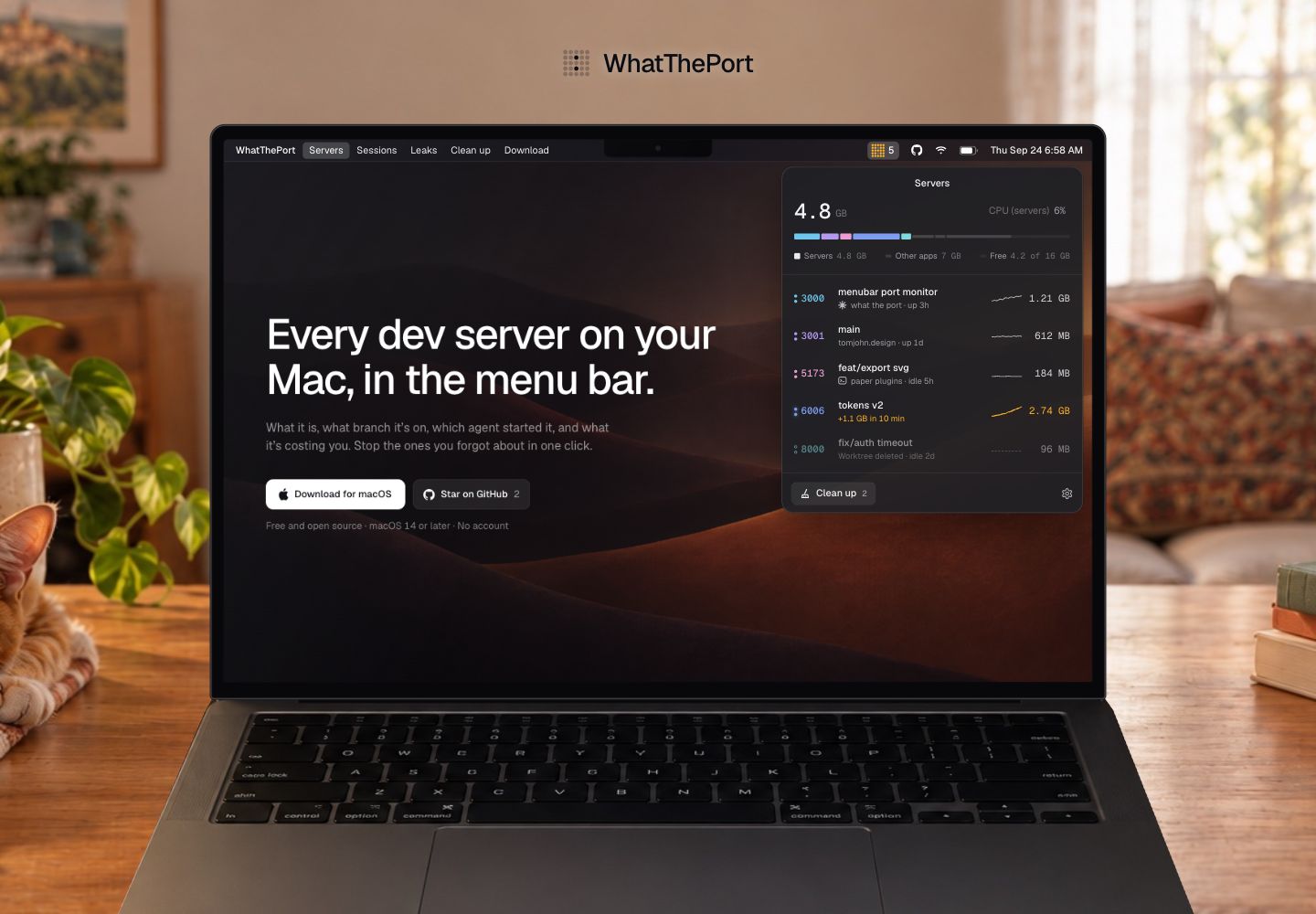
Know what’s running
WhatThePort is a native Swift app that lives in your menu bar, with no Dock icon. Press ⌥⌘P to see your local development servers: project names, ports, git branches, uptime, and resource use. Open a server in your browser, inspect its processes, or stop and restart it without hunting through terminals.
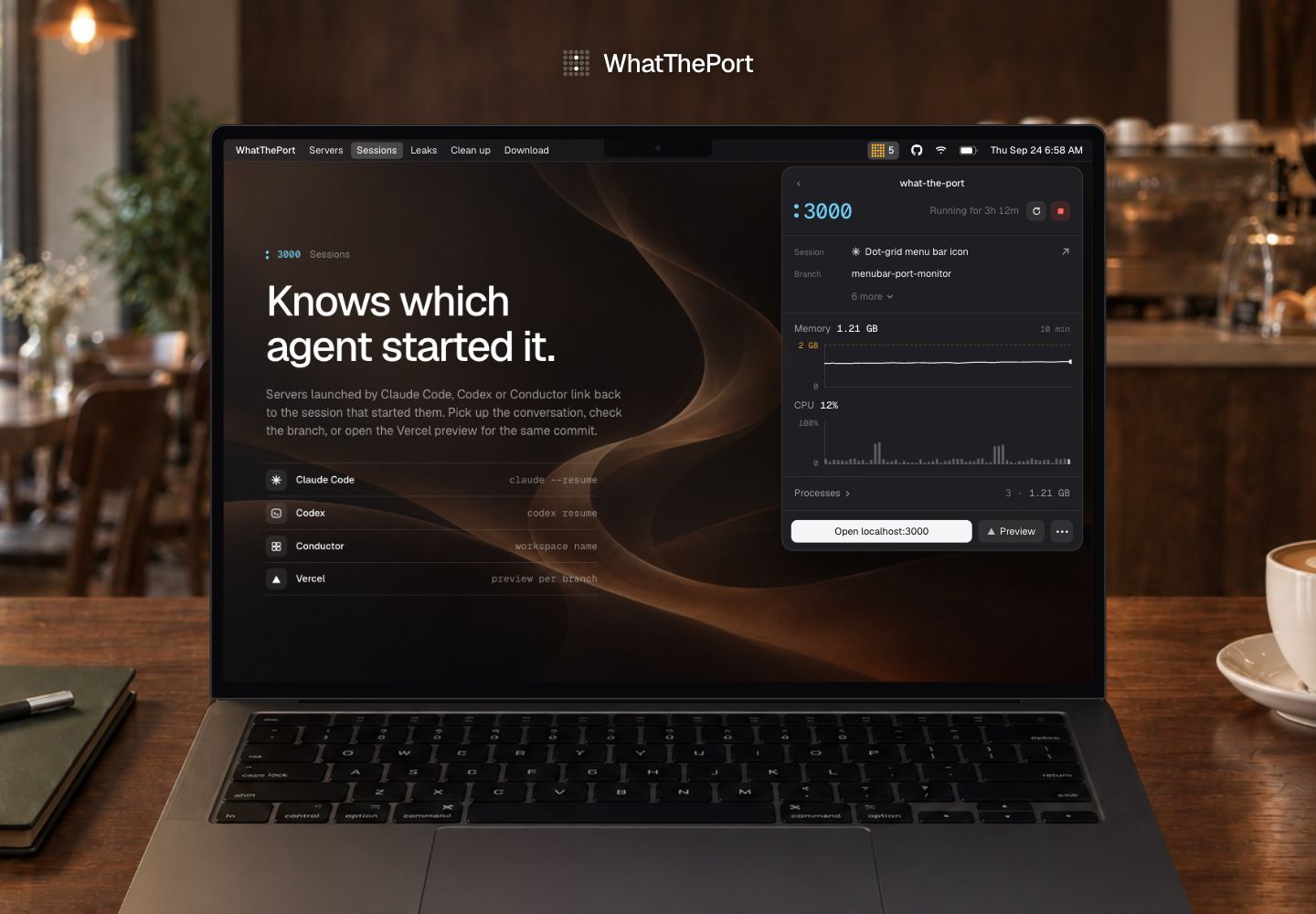
Knows which agent started it
Servers launched by Claude Code, Codex, Conductor, or Pane link back to the session that started them. Pick up the conversation, jump to the Pane terminal, check the branch, or open a Vercel preview. Optional pull request links use the GitHub CLI you’re already signed in to.
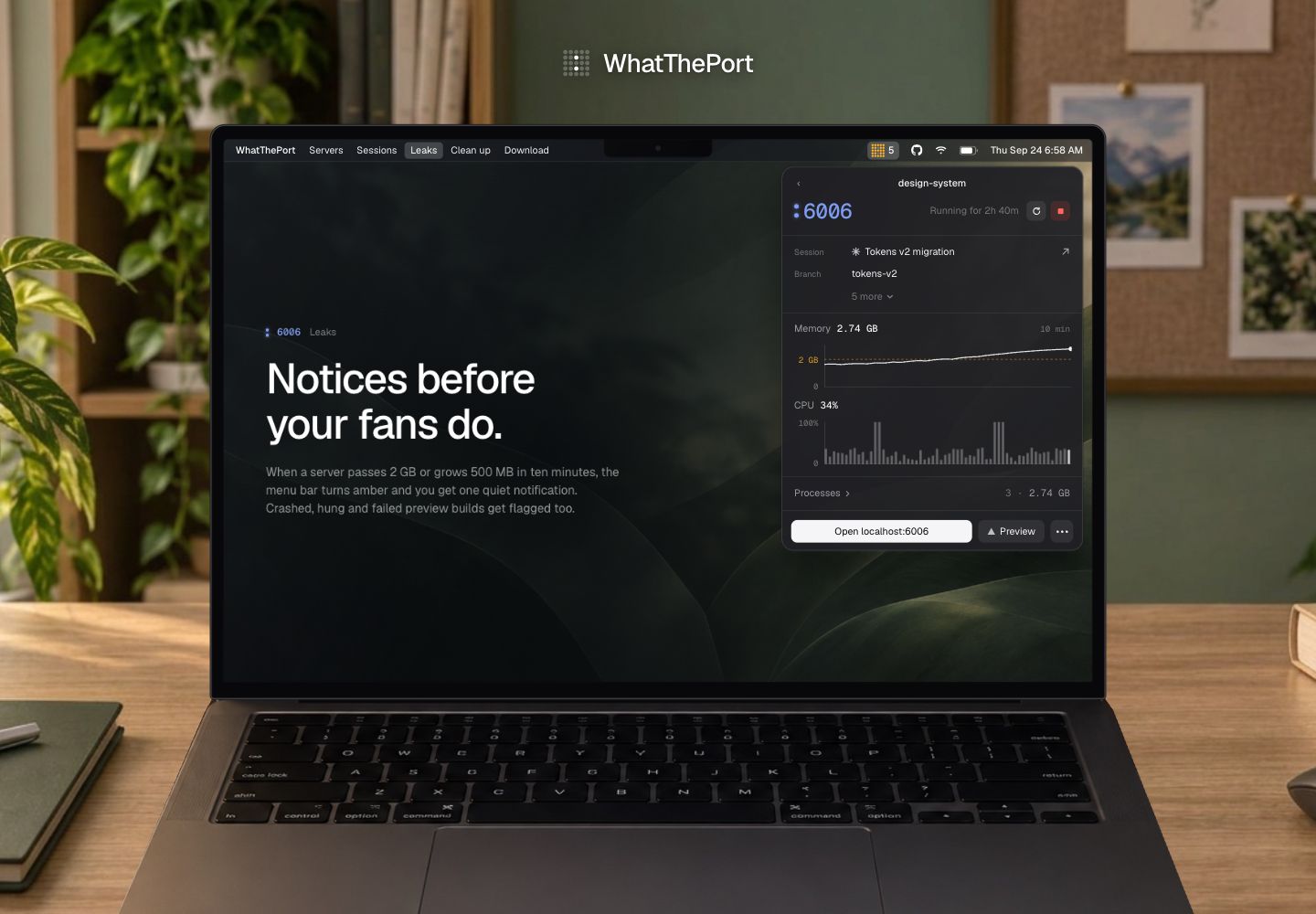
Notices before your fans do
When a server passes the default 2 GB memory threshold or grows more than 500 MB in ten minutes, WhatThePort turns its menu bar amber and sends a notification. Port colors stay consistent, while amber memory readings flag servers needing attention. Ten minutes of memory and CPU history show what’s happening across the server’s own process tree. Adjust thresholds and snooze alerts in Settings.
Stops the ones you forgot
Clean up adds checkboxes to the server list and preselects servers from deleted worktrees or idle for hours. Tick the ones to go and WhatThePort stops each server’s own process tree. Database processes such as Postgres and Redis are protected by default.
Choose Off, Ask, or Automatic cleanup in Settings. Leaking servers are never stopped automatically.
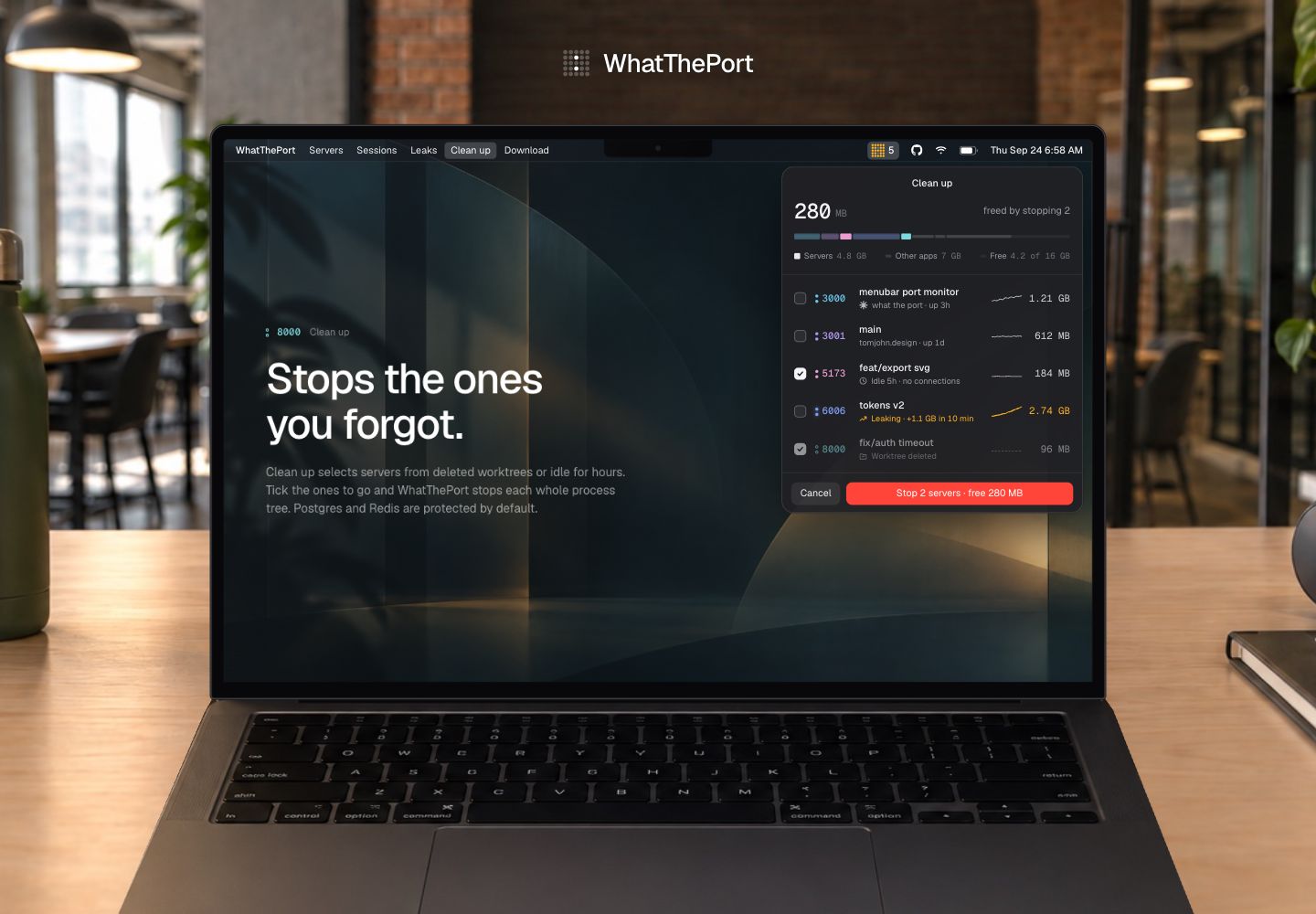
Screenshots from the marketing site’s interactive demo, using sample server data.
Get started
- Download WhatThePort and open it.
- Drag WhatThePort onto the Applications shortcut beside it, then open it from Applications.
- Start a development server, then click the dot grid in your menu bar or press ⌥⌘P.
The prebuilt download is for Apple Silicon Macs running macOS 14 or later. To compile the app yourself, you’ll also need Swift 5.9+.
Features
- Every dev server at a glance - Port, project, git branch, uptime and memory for each server, with stable port colors and a whole-Mac memory bar for servers, other apps, and free RAM
- Knows what started it - Links servers to the Claude Code, Codex, Conductor or Pane session that launched them
- Resource charts - 10 minutes of memory and CPU history per server, summed across its own process tree
- Leak detection - Servers over 2 GB, or growing fast, turn amber in the list and the menu bar
- Clean up - Find servers from deleted worktrees or that have gone idle, and stop them in bulk
- Stop and restart - Stops the server’s own process tree; restart reruns the original command in the same folder
- Alerts - Notifications with Details, Stop and Snooze when a server passes your memory threshold or starts leaking
- Automatic clean up (optional) - Off, Ask or Automatic; leaking servers are never stopped automatically
- Previews and pull requests (optional) - A Vercel preview button and the branch's pull request, via the GitHub CLI you're already signed in to
- Automatic updates - Signed updates download in the background and install when you quit; controls and manual checks in Settings → About
- Global shortcut - ⌥⌘P opens the popover
- Terminal UI -
wtp shows the same servers, details and Clean up in your terminal
- Light and dark mode - Follows your Mac’s appearance, with matching port numbers and colon colors
Usage
WhatThePort lives in the menu bar as a small dot grid. Click it to see every server:
- Hover a row to open it in the browser or stop it
- Click a row for details: session, branch, folder, command, charts and processes
- Click Clean up to tick the servers you want gone and stop them together
Right-click the dot grid to open a server in the browser, open Settings, check for updates, send feedback or quit.
Can't see the dot grid? The menu bar hides icons that don't fit: click » at its edge on macOS 27, or check System Settings → Menu Bar. Opening WhatThePort again from Finder or Spotlight shows the popover, or Settings when the icon is hidden.
In the terminal
wtp opens the same server list in your terminal, using the app's scanner and settings. Onboarding offers to install it, or click Install… in Settings → General → Terminal. That links /usr/local/bin/wtp to the app, asking for your password if the folder needs it, and keeps working through updates. To link it yourself:
sudo mkdir -p /usr/local/bin
sudo ln -sf /Applications/WhatThePort.app/Contents/MacOS/WhatThePort /usr/local/bin/wtp
↑ ↓ to select, ⏎ for details, space for an Actions menu (open, restart, stop, resume the agent session, editor, copy), c for Clean up, ? for every key- Every action also has its own key, such as
o to open, r to restart and s to stop; in details, i shows more info and p shows processes
- Click rows and scroll with the mouse
wtp list prints the servers and exits; wtp list --json prints them as JSON for scripts and agents
wtp follows your terminal's colors and leaves notifications and automatic clean up to the menu bar app. Memory and CPU charts fill in while it runs. From source, run swift run WhatThePort --tui.
To check the UI without the menu bar, WhatThePort --snapshot <dir> renders each view with live data to PNG.
Add --appearance light or --appearance dark to check a specific appearance without changing your Mac’s settings.
To render the onboarding loading, success, missing-tool, and approval states without changing macOS permissions or login items, run WhatThePort --snapshot-onboarding <dir>.
Interface language
The native app supports English, German, French, Spanish, Simplified Chinese, Hebrew, Japanese and Ukrainian. Choose your language on the first onboarding screen or in Settings → General → Language. Changes apply immediately. System default follows your Mac’s preferred languages, falling back to English. Hebrew uses a right-to-left layout.
wtp language shows the app preference; wtp language ja sets it and wtp language system restores the system default. The terminal’s ? screen also shows App language. The TUI, command help and JSON remain English, and project names, paths and commands stay unchanged.
Preview all eight languages or read Localization for translation and build details.
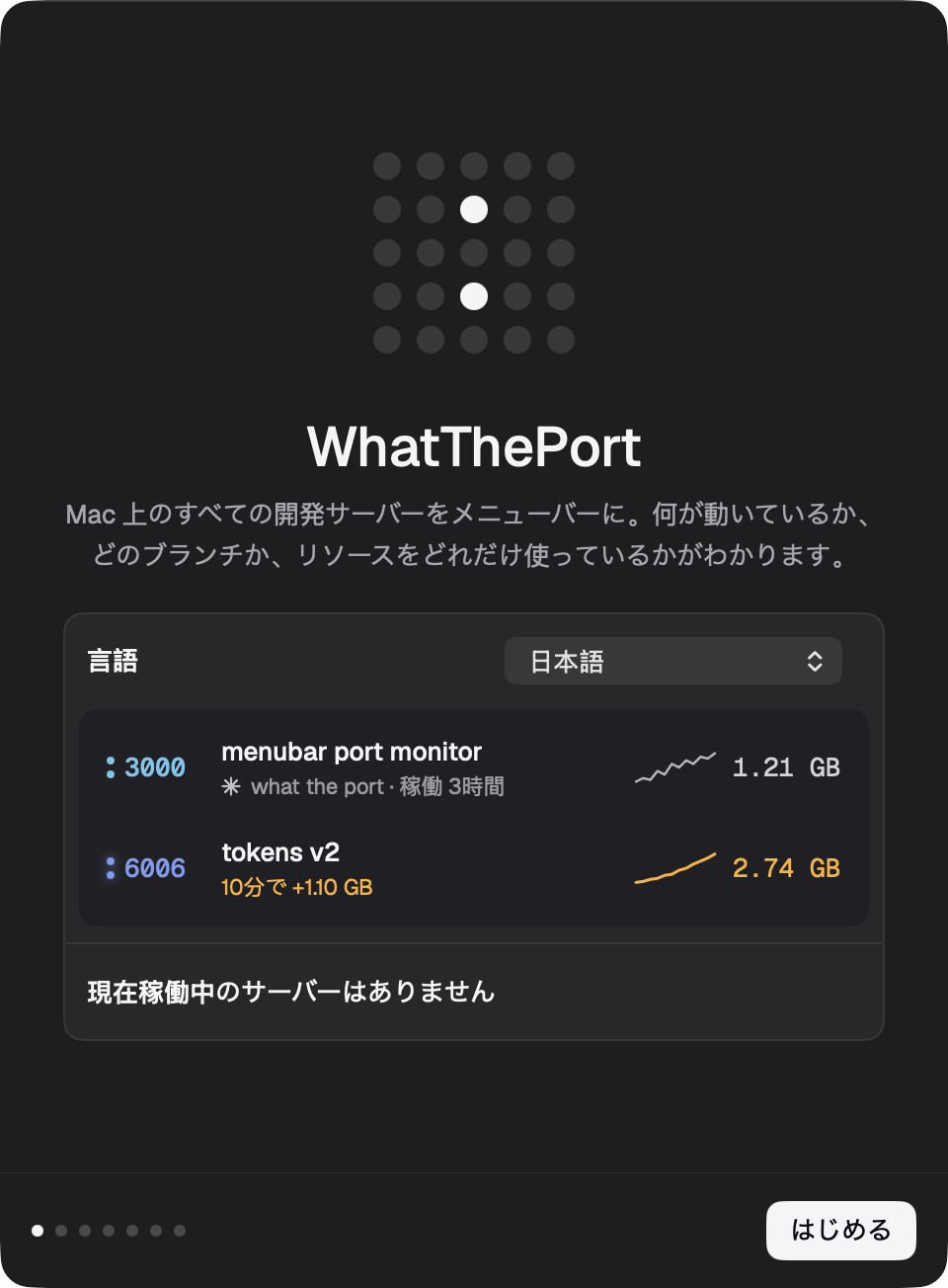
Settings
Open Settings from the gear in the popover (⌘,):
- General - Language, launch at login, menu bar icon style, editor, global shortcut, the
wtp terminal command, scan interval, anonymous usage sharing
- Alerts - Memory threshold, leak warnings, snooze length, start/stop notifications
- Clean up - Off / Ask / Automatic, what counts as idle or stale, protected processes, force-quit delay
- Ports & processes - Port range and which processes count as dev servers
- Integrations - Claude Code, Codex, Conductor and Pane session links, branch names, Vercel previews and pull requests
- About - Version, update controls, bug reports or feature requests as GitHub issues with your app and macOS versions filled in, and a tip jar
How It Works
WhatThePort reads listening TCP sockets with lsof, then inspects each server's process tree directly through libproc and sysctl: memory footprint, CPU time, working directory, arguments and environment. From the working directory it finds the project manifest, framework and git branch. Session links come from environment variables that Claude Code and Conductor pass to the commands they run, and from Codex's session files. It rescans every 2 seconds. In monorepos, sibling servers stay separate from their shared task runner. When one process serves several ports, each row shows its server’s usage; totals count each process once, and the memory bar divides shared usage between those ports. Stopping or restarting that process affects all ports it serves.
Privacy
There's no account and no analytics SDK. Everything the app shows comes from your Mac and stays there. It only goes online to:
- Check for updates - Sparkle fetches the update feed from whattheport.dev about once a day.
- Share anonymous usage - Once a day, the app requests
whattheport.dev/usage/<feature> for each feature you used, such as /usage/stop or /usage/clean-up, plus /usage/active to say it ran. That's the whole report: no body, cookies or identifier, and nothing about your servers, projects, files or Mac. The app's user agent is just WhatThePort/<version>. The site only counts these requests. Like any web request, the host (Vercel) sees the connection's IP address in its standard logs; the counts don't use it. Onboarding asks before anything is sent, and you can turn it off in Settings → General → Privacy. See Usage.swift for the full list.
- Look up previews and pull requests (off by default) - Uses the GitHub CLI you're already signed in to.
The website uses cookieless Vercel Web Analytics to count visits and download clicks.
Building
cd WhatThePort
swift build
To build the app bundle:
./build-app.sh
open .build/WhatThePort.app
For updater-enabled releases, see Automatic updates and release setup. The release script packages the app as a notarized disk image and generates a signed update feed for the website.
To package a local build as the download's disk image, run ./make-dmg.sh after ./build-app.sh.
Automatic deployment
Every push to main, including a merged pull request, runs
Rebuild and deploy site and app. It builds the
Apple Silicon Mac app on macOS, verifies its ad-hoc signature, and packages it as
WhatThePort.dmg (make-dmg.sh): the app beside an
Applications shortcut, on a background designed in Paper
(WhatThePort/dmg/). A Linux job then puts that artifact at public/WhatThePort.dmg,
builds the Next.js site, and deploys both together to production on Vercel. A
failed app or site build stops deployment.
The download is never checked in, so the site always serves the latest release.
Production builds fail unless public/WhatThePort.dmg is a disk image and any
update feed is for this commit's build (scripts/check-download.mjs). Local dev
and preview deployments don't have the file, so they redirect downloads to
production.
Configure these GitHub Actions repository secrets under
Settings → Secrets and variables → Actions before merging this workflow:
VERCEL_TOKEN: a Vercel access token with access to the production project.VERCEL_ORG_ID: the production project's orgId from .vercel/project.json.VERCEL_PROJECT_ID: its projectId from .vercel/project.json.
Run vercel link locally to obtain the project IDs. Keep tokens and the generated
.vercel directory out of Git.
The app's tip jar opens whattheport.dev/tip, which redirects to the TIP_URL
environment variable, so the payment page can change without an app update. Create
a Stripe Payment Link and set its
type to Customers choose what to pay (not a product price), then add it to the Vercel project's production
environment with vercel env add TIP_URL production. Production builds fail
without it (scripts/check-tip.mjs); local dev and
previews redirect /tip to production.
vercel.json disables Vercel's automatic Git deployments for main, so only this
workflow publishes production with the freshly built app. Other branches retain
Vercel's normal preview deployments. To retry production,
use Actions → Rebuild and deploy site and app → Run workflow with main
selected. Production runs are serialized; GitHub may replace a pending run with
a newer one when several merges arrive during an active deployment.
Until its signing secrets are configured, the workflow uses ad-hoc signing and
builds without an update feed. Once they are, it signs with Developer ID,
notarizes the app, and publishes a signed Sparkle feed under /updates/. See
Release from GitHub Actions.
About
Made by Tomjohn. Explore the interactive demo, read the guides to ports, dev servers and coding agents on macOS, or browse the source to see how it works. Agents can read the site as Markdown from /llms.txt. If WhatThePort saves you time, buy me a coffee.
License
MIT

 WhatThePort is a native Swift menu bar app for macOS that shows every local development server running on your Mac: project name, port, git branch, uptime, and resource use, so you can open, restart, or stop them without hunting through terminal windows.