disktree
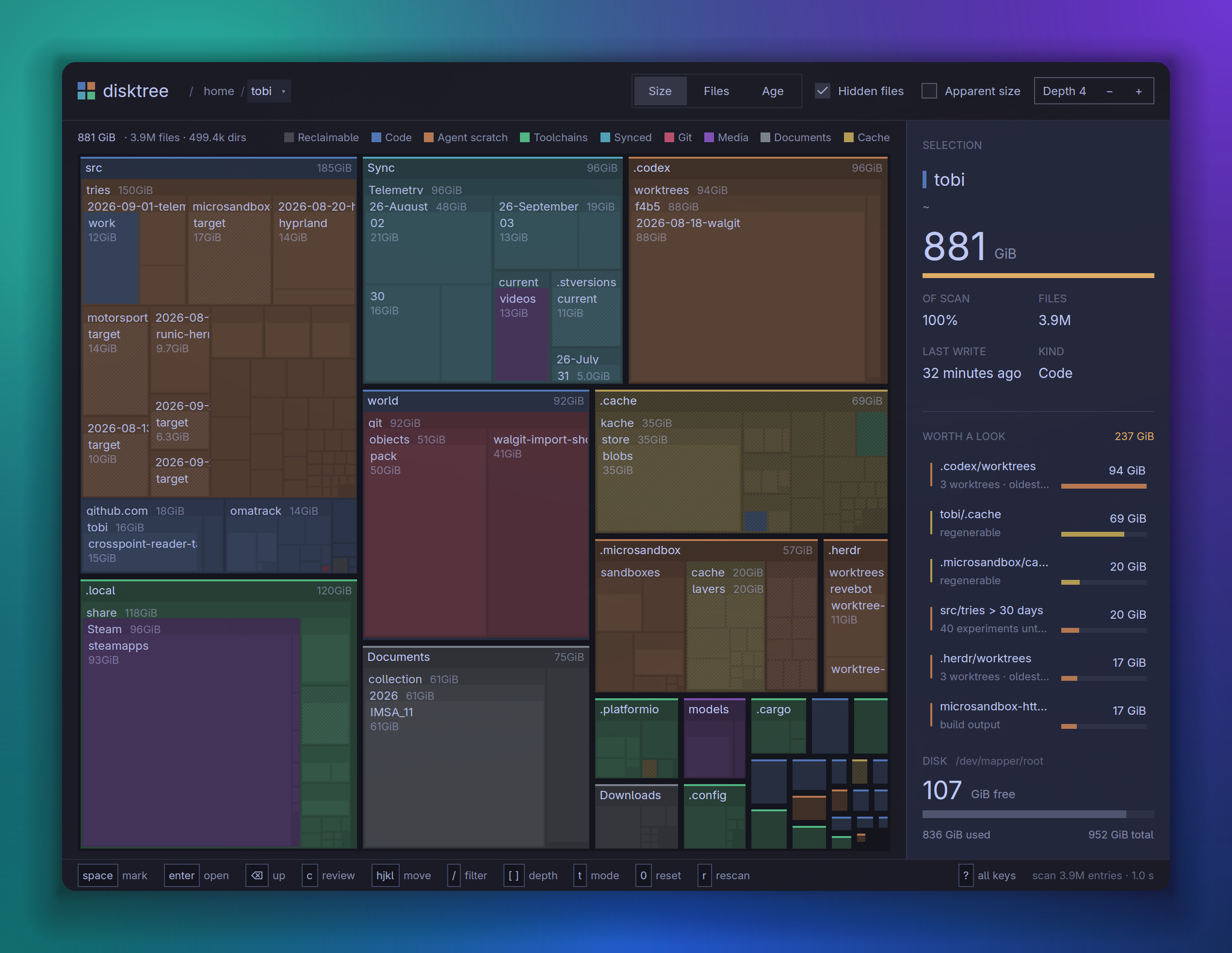
Find what is filling a disk, mark what should go, and remove it — with the
volume's free space in view the whole time.
disktree is a treemap for Omarchy. It scans your home directory by default,
draws every directory as a nested mosaic sized by what it really costs on disk,
and lets you walk into it with the keyboard or the mouse. Mark as much as you
like; nothing happens until you review the list and commit, and the permanent
path always asks first.
Built with GPUI through
gpui-omarchy, so it follows your
Omarchy theme and behaves like the rest of the desktop.
Install
Download disktree-*-x86_64-linux.tar.gz (aarch64-linux on ARM) from the
latest release, unpack
it, and run ./install.sh inside (or just copy disktree onto your
PATH). Or build it:
git clone https://github.com/tobi/disktree
cd disktree
make install
make install builds a release binary and puts three things under ~/.local
(no root needed):
~/.local/bin/disktree- a desktop entry, so disktree is in the launcher and in a file manager's
Open with for a directory (it adds a handler; it never becomes the
default)
- an icon
sudo make install PREFIX=/usr/local installs system-wide; make uninstall
removes exactly what was installed.
You need Rust 1.97 or newer and a Wayland or X11 session with a GPU that GPUI
can drive (Vulkan). Distributions often package an older Rust;
rustup installs a current one.
macOS
Download disktree-*-aarch64-macos.zip (x86_64-macos for an Intel Mac)
from the latest release,
unzip it, and drag disktree.app into Applications. macOS 11 or newer.
A release that was not signed and notarized is stopped by Gatekeeper: macOS
says it "is damaged and can't be opened" or "cannot be verified". The app is
fine; the browser marked the download as quarantined. Clear the mark once:
xattr -dr com.apple.quarantine /Applications/disktree.app
(Or open it once, then choose Open Anyway in System Settings › Privacy &
Security.)
Or build it, with Rust 1.97 or newer and Xcode or its Command Line Tools.
macOS does not come with Rust; install it with rustup.
make install     # ~/Applications/disktree.app, and ~/.local/bin/disktree
make uninstall
To see everything, give disktree Full Disk Access in System Settings ›
Privacy & Security (the panel offers a button when it is missing), then
reopen it. Without it macOS hides Mail, Messages, Safari, other apps' data
and the Trash, and disktree counts them as unreadable. Started from a
terminal, it is the terminal that needs the access. macOS also asks once
each for Desktop, Documents and Downloads.
What is different from Linux:
- Free space is what
df reports. Finder's figure is larger: it counts
purgeable space (caches and local snapshots macOS will clear on its own).
- Cloned files (copies APFS shares blocks between, as Finder's Duplicate
makes) are each counted in full, so a total can exceed what deleting them
frees.
- Time Machine's local snapshots are not files and do not appear; they
are part of the gap between the scan and the disk's used space.
- Cloud-only folders (iCloud Drive, Dropbox and the like, evicted to the
server) are not opened, so a scan never downloads them.
To sign and notarize a build for others, with a Developer ID certificate in
the keychain and credentials saved by xcrun notarytool store-credentials:
NOTARY_PROFILE=<profile> cargo xtask bundle \
  --sign "Developer ID Application: Name (TEAMID)" --notarize
Windows
On Windows 10 or 11, download disktree-*-x86_64-windows.zip
(aarch64-windows on ARM) from the same release, unpack it anywhere and run
disktree.exe. Or build it with Rust 1.97 or newer, from
rustup, and the MSVC toolchain (Visual Studio Build
Tools, C++ workload):
git clone https://github.com/tobi/disktree
cd disktree
cargo build --release    # target\release\disktree.exe
See On Windows for what differs there.
Use
disktree            # scan the home directory
disktree --disk     # the whole disk it lives on
disktree ~/src      # or any directory
disktree --help     # options: apparent size, follow links, skip hidden, …
The screen
- Top: the trail from
/, then what is measured — Size, Files or
Age, Hidden files, Apparent size, and the depth drawn. In the
tree a crumb goes there, and its ▾ lists its siblings, largest first with
their share and size, to jump sideways (arrows and Enter work too). Above
the scanned root a crumb is dimmer, and clicking it widens the scan to
there (see below).
- Under it: the scan totals, the filter when one is typed, and the legend.
- Mosaic: colour is the kind of data — code, agent scratch,
toolchains, synced files, git, media, documents, caches — at one muted
level, lighter with depth. A diagonal hatch is space that can be had back
(caches, sync history, package stores, build output), independent of
colour. Top-level directories carry a strip of their colour and a name
band; deeper open directories a slim label row. In Age mode colour is
the last write instead, from this week to older.
- Panel: the selection (its size set large, share of the scan, files,
last write, and for a checkout what git says — changes, stashes, unpushed
commits); Worth a look, the largest things that could plausibly go;
what is marked; and the disk, free now and after the marks, with the way
to the review screen. Drag its left edge to resize it; double-click the
edge to reset.
One colour is kept apart: amber marks the selection, the main action, and
what can be had back.
The kinds come from directory names and a few shapes (a bare git repository,
target beside a Cargo.toml). Some of the names are specific to one
machine; see crates/disktree-core/src/classify.rs.
Marking
Space, X, Enter and the arrows act on the tile under the mouse if the mouse
moved last, and on the keyboard selection after you use an arrow or Tab.
A marked tile takes the danger colour, and so does everything inside it:
removing a directory takes its contents with it. Marking a directory absorbs
any marks already inside it, and something inside a marked directory cannot be
marked or kept on its own; its panel offers to unmark the directory instead.
Marking is reversible — press it again — and the saving is never counted twice.
Zooming and going in
Scroll to magnify toward the pointer. The wheel magnifies until the directory
under the pointer fills the view, and the next notch goes into it — one
continuous motion, with the directory's contents growing into place. Scroll the
other way to come back out. Enter goes into the selected directory at any
depth, and Backspace or Escape goes up one level. < and >, beside the
Size / Files / Age switch, go back and forward through the directories visited,
as do alt ← alt → (also ⌘[ ⌘] on macOS) and the mouse's side
buttons. + and - magnify without going in; 0 resets.
Removing
c (or Review…) opens the list of everything marked. Unmark anything
there, then choose:
- Move to trash — the default when a trash is available. On macOS that is
the system Trash, the same move as Finder's (on another disk, that disk's
own Trash; network shares often have none). Elsewhere it is
trash-put
from trash-cli, then gio trash, then a built-in XDG trash. Recoverable
until the trash is emptied, so it commits directly.
- Delete permanently —
rm -rf semantics. It always asks first, in a dialog
that names what goes and how much comes back.
When it finishes, disktree scans again so the numbers on screen match the disk,
and shows how much free space was actually gained.
Keys
| key |
does |
space / x |
mark or unmark the tile you point at |
ctrl-click (⌘-click on macOS) |
mark without moving the selection |
enter |
open that directory, at any depth |
⌫ / esc |
go up one directory |
alt ← alt → |
back and forward through where you have been |
← ↑ ↓ → |
move between tiles at this level |
tab |
next largest sibling |
| scroll |
zoom toward a directory, then go into it |
shift-scroll |
pan the magnified view |
[ ] |
draw fewer or more levels at once |
- = 0 |
magnify, shrink, reset the view |
ctrl = ctrl - ctrl 0 (⌘ on macOS) |
interface zoom |
/ |
filter by name: only matches keep their colour; enter shows only them, esc clears |
c |
review the marked list |
t |
rank by size or by file count |
d |
disk usage or apparent size |
i |
include or skip hidden entries |
r |
scan again |
ctrl o (⌘O on macOS) |
choose another directory to scan |
g |
the whole disk |
p |
show or hide the selection line |
o |
show it in Finder, File Explorer or the file manager |
? |
every key |
q |
quit |
On macOS the menu bar also has ⌘⇧R to show the selection in Finder, ⌘R to
rescan, ⌘[ and ⌘] for back and forward, and ⌘Q, ⌘H and ⌘W (closing the
window quits); other ⌘ chords are left to the system. On Linux and Windows
the same work with ctrl, with F5 to rescan too.
On the review screen: m trash, p permanent, ! unmark all, enter
commits, esc goes back. Or hand the list on instead of acting on it: s
saves it as a text file, one path per line, and a copies a prompt for a
coding agent: free the space by removing what you picked, checking each path
first (git work that exists nowhere else, a tool's own clean command) and
touching nothing else. A name holding a newline is left out of the list and
escaped in the prompt, so it cannot pass for another path.
What it measures
- Disk usage by default:
st_blocks × 512, the number du reports and the
space that actually comes back when a file is deleted. Apparent size (what
ls -l shows) is one toggle away.
- Hardlinks once. Two names for one inode cost one file.
- Hidden entries included, because
~/.cache is often the biggest thing in
a home directory. Symlinks are not followed.
The scan follows dust's approach: one rayon
scope per root, a completion counter per directory so no directory is built
before its last subdirectory lands, and one bottom-up pass that aggregates sizes
and removes duplicate hardlinks.
The whole disk
Click / (or any directory above the scanned root) in the trail, press
g, run disktree --disk, or use the launcher's Scan the whole disk
action. g and --disk scan the disk your home directory lives on — /
on Omarchy and on macOS. On macOS the Data volume's second mount,
/System/Volumes/Data, is skipped: it is /Users, /Applications and the
rest again under other names.
Widening is memoized: the tree already measured is handed to the wider walk
and reused where it is reached, so going from ~ to / reads only what is
outside ~ (on this machine, seconds instead of a full rescan). The current
view stays on screen until the wider tree lands, which then opens with the
directory you came from selected. Going back down is just navigation.
A scan stays on one volume, and a volume is the mount source, not the
device number: btrfs gives each subvolume its own st_dev, so /home,
/var/log and /var/cache/pacman/pkg are included, while /proc,
/sys, /run, tmpfs, /boot, other disks, network shares and automount
points are left out (checked by path, so an automounted NAS is never
mounted just to be measured). Snapshot subvolumes are left out too: their
files share blocks with the live ones, and counting them would count the disk
twice. -X crosses into everything.
Without root, some system directories cannot be read; they are counted as
unreadable in the top bar rather than guessed at.
On Windows
The same program, with Windows' answers to the questions above:
- Disk usage is the allocation NTFS reports for each file: whole
clusters, less for a compressed or sparse file, nothing for one small
enough to live in its file record. It arrives with the directory listing
itself (
FileIdExtdDirectoryInfo), so it costs no more than the walk.
Hardlinks count once on NTFS.
- The whole disk is the drive your profile is on, usually
C:\. A
folder another volume is mounted on is a link, like a junction, and is
not entered, so a scan stays on one volume; -l follows links, and with
them mounted folders.
- Move to trash is the Recycle Bin, through the shell, which asks
before destroying anything it cannot recycle.
- Refused besides the rules below: Windows, Program Files and
ProgramData, what Windows keeps at the top of its drive (System Volume
Information, Recovery, Boot, and the page and hibernation files, which
Settings turns off), and any folder holding your profile, such as
C:\Users. Names compare without regard to case, as Windows compares
them.
- Hidden means a name starting with a dot, or the hidden attribute, so
-H drops AppData as Explorer hides it.
- The theme follows Windows' light or dark setting, since there is no
Omarchy theme to follow. It does on macOS too, and on GNOME and KDE.
What it refuses to do
The removal rules live in crates/disktree-core/src/removal.rs, and each one is
tested:
- only paths under the scanned root can be removed;
- the filesystem root, the scanned root and your home directory are refused;
- a mount point is refused, and so is anything with a mount point inside it,
since removing it would reach into another filesystem; permanent deletion
also stops at a mount boundary rather than descending into one (a btrfs
subvolume that is not mounted goes with its directory, as the scan shows
it);
- a directory holding your home directory or a system tree is refused (on
macOS
/Users is on the same volume as /, and /opt holds
/opt/homebrew);
- system trees (
/usr, /etc, /boot, /var/lib, /nix/store,
/gnu/store, Homebrew's prefix on macOS and Linux, …) are
refused even where permissions would allow it: packages own them, and
pacman, paccache or journalctl --vacuum are the tools;
- a symlink is unlinked, never followed;
- nothing is passed through a shell — a file called
-rf is just a file;
- selecting a checkout never runs a program it names: git is asked with its
fsmonitor, hooks and pager off, and a checkout that defines its own filter
drivers is not asked for its status at all ("changes unknown").
On Hyprland
Hyprland tiles new windows, so disktree opens into whatever tile it is given.
It is designed for a roomy window; float it, or give it a rule. The window
class is disktree.
windowrule = float, class:^(disktree)$
windowrule = size 1400 900, class:^(disktree)$
Develop
make run      # release build, scanning $HOME
make lint     # rustfmt --check, then clippy with every warning an error
make test     # scanner, layout and removal tests, plus window-harness tests
make ci       # lint, then test
The lint gate is strict on purpose: clippy::all and clippy::pedantic are
errors, and every exception is written down with its reason in Cargo.toml.
The window-harness tests draw real frames and press real keys — including one
that marks a directory, confirms the deletion and checks that the files are
gone while their neighbours are not.
| path |
what lives there |
crates/disktree-core |
scanning, the tree, the squarified layout, free space and removal — no UI |
crates/disktree-app/src/state.rs |
every action the interface can take, and the key map |
crates/disktree-app/src/views.rs |
the screens |
crates/disktree-app/src/treemap_view.rs |
painting the mosaic and its labels |
crates/disktree-app/src/ui.rs |
the spacing, type and size scale, in rem |
crates/disktree-app/src/tests.rs |
end-to-end tests through a real window |
packaging/, assets/, Makefile |
the desktop entry, the icon, and install |
The interface follows the
GPUI Kit design guides:
every size is on one rem scale so interface zoom keeps its proportions,
primary is reserved for what Enter does, and the only question the app asks is
the one it cannot take back.
License
MIT

 disktree — это визуализатор treemap для поиска того, чем забит ваш диск: он рисует каждую директорию как вложенную мозаику, размер которой зависит от реально занятого места, позволяет помечать файлы или папки на удаление и всё время держит на виду свободное место всего тома.