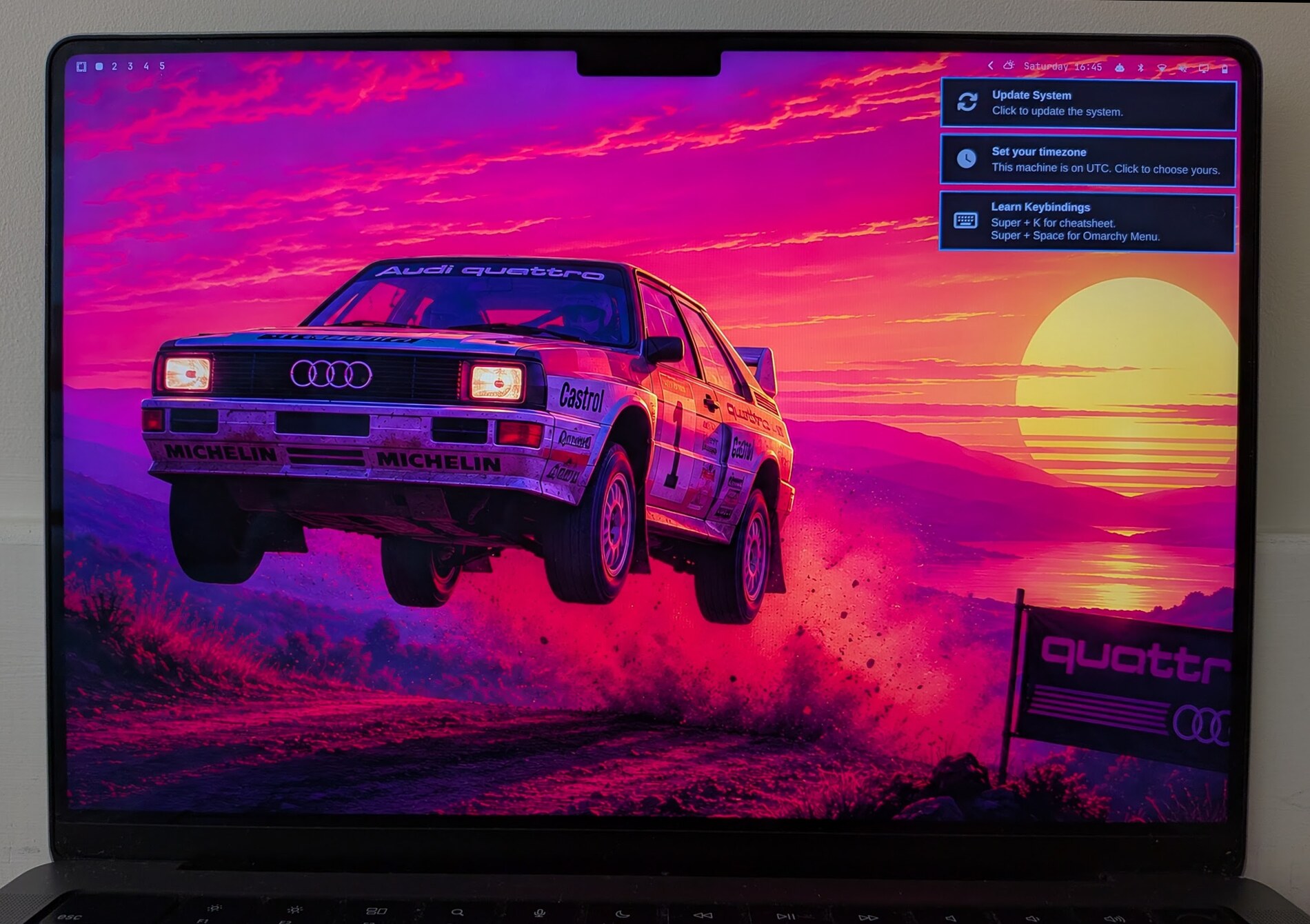
Omarchy Mac
Omarchy 4 on Apple Silicon, alongside macOS: Asahi Alarm + Omarchy, installed
in one command, full-disk encryption included.


Already running Omarchy 3.x? This page is the fresh install — to upgrade in
place, see docs/upgrade-to-quattro.md.
Before you begin
- A recent backup of macOS (Time Machine or similar).
- An Apple Silicon Mac (M1/M2 family). Verify compatibility: https://asahilinux.org/fedora/#device-support
- At least 50 GB free on the internal SSD (100 GB recommended).
- Internet access.
Install
1. Run the Asahi Alarm installer, from macOS Terminal
curl https://asahi-alarm.org/installer-bootstrap.sh | sh
Choose Asahi Alarm Minimal (BTRFS) and allocate at least 50 GB for Linux.
The plain Asahi Alarm Minimal (ext4) works too — the setup below converts
it — but the BTRFS image already has the right shape.
2. Boot into Arch and get online
Log in as root (username: root, password: root) and connect first —
everything from here starts with a download:
nmtui
Choose Activate a connection and connect to a WiFi network. Optionally
Set a system hostname or set it during install below. Choose Quit when done
to return to the prompt.
If nmtui shows an error right after activating the connection, reboot and try
again.
3. One command
Still as root:
curl -fsSL https://raw.githubusercontent.com/omarchy-mac/omarchy-mac/quattro/bin/omarchy-mac-setup | bash
There is nothing to prepare beyond the network: no pacman update, no locale
setup, no user creation. The script installs what it needs, creates your user
and sets up sudo itself. To read it before running it, or to pass options:
curl -LO https://raw.githubusercontent.com/omarchy-mac/omarchy-mac/quattro/bin/omarchy-mac-setup
bash omarchy-mac-setup --no-encrypt
(--repo <owner/repo> installs from a fork the same way. quattro is the
repository's default branch and the script installs from it by default; it
checks the version it is about to install and stops rather than giving you
Omarchy 3 by accident.)
It asks whether to encrypt (yes by default), then for a hostname, username and
password, then carries the machine the rest of the way on its own — moving
/boot onto the EFI partition, encrypting the root, installing Omarchy —
rebooting between steps and resuming itself each time on tty1.
Expect about fifteen minutes, three reboots, and two questions along the way:
- A gum dialog offering to build packages with no known aarch64 build. Say
no.
obs-studio alone compiles for about three hours and then fails an
architecture check. It defaults to no.
- The disk passphrase, chosen at the console on the boot that does the
encryption. That boot rewrites every block of the partition, printing
cryptsetup's own progress as it goes; on an M2 Max it runs at about 1 GiB/s.
It is safe to interrupt: the next boot resumes where it stopped.
Encrypted machines log straight into the desktop afterwards: the passphrase at
boot is the authentication, and a second password immediately after it protects
nothing the first one did not.
Other flags: --no-encrypt skips the encryption and the boot-layout move it
needs, --status reports where a machine has got to, --step <name> re-runs
one step, --abort stops the guided run without undoing anything, and
--keep-root-password leaves root's password as Asahi Alarm shipped it instead
of locking it once your user has sudo.
By hand
Every step the script drives can be run separately. The boot-layout move,
btrfs conversion, snapper snapshots and encryption are covered in
docs/btrfs.md. Once a regular user with sudo exists —
the minimal image ships without git or sudo, so as root first:
pacman -S --needed sudo git — installing Omarchy itself is:
git clone https://github.com/omarchy-mac/omarchy-mac.git ~/.local/share/omarchy
cd ~/.local/share/omarchy
cat version    # 4.x — if this says 3.x you are on the wrong branch
bash install.sh
Mind the branch. A plain clone gets quattro, the default branch and the
Omarchy 4 line. main still carries Omarchy 3.x, and its install.sh installs
Omarchy 3 without saying which generation it is putting on the machine — an
easy hour to lose. cat version is how you check before committing to it.
The install takes under ten minutes on a good connection — most of the default
set comes prebuilt from the aarch64 package repo rather than being compiled
here. A few packages have no ARM build at all and are reported at the end
rather than failing the install; where building one would take hours and still
fail, the installer asks before trying, and OMARCHY_TRY_UNAVAILABLE=1 bash install.sh forces the attempt.
Troubleshooting
SSH stopped working after the install
Asahi Alarm ships openssh enabled — the images are built for headless boards —
and Omarchy's install turns on a default-deny firewall that never opens port 22.
Nothing is uninstalled; the machine simply stops answering, which looks exactly
like sshd having been removed. Turn it back on deliberately:
omarchy-setup-security-sshd
It enables sshd, adds ufw limit 22/tcp, and offers to fetch your public keys
from https://github.com/<user>.keys. The same thing lives in the menu under
Setup → Security → SSH.
The machine boots to grub rescue>
GRUB kept its modules and kernel on the root filesystem, and the root was
encrypted underneath it. See docs/btrfs.md — /boot has to be
the EFI partition before encrypting, which omarchy-system-boot-to-esp
arranges and omarchy-system-btrfs-migrate refuses to proceed without.
Rolling back after a bad update
omarchy snapshot restore works on Apple Silicon. It offers snapper's
snapshots alongside @fresh — the system before Omarchy was installed — and
@factory, the installed system before it was yours, and says what you are
about to restore before doing anything. /boot is the EFI partition and sits
outside every snapshot; the tool warns when the restored root has no modules
for the running kernel.
Mirrors are slow or failing
Run bash fix-mirrors.sh from the repository root and retry.
The update stops on libaquamarine.so and cannot be repeated past it
An install made before the ARM package sources policy cannot upgrade its way to
it, because the update aborts before the package carrying it can be replaced.
Run the recovery and log out and back in afterwards:
curl -fsSL https://raw.githubusercontent.com/omarchy-mac/omarchy-mac/quattro/fix-arm-packages.sh | bash
See docs/arm-package-sources.md for what it changes and how to pass --dry-run or --no-snapshot to the piped script.
Removal (uninstall)
There is no automatic uninstaller. Removal is done from macOS by deleting the
Linux partitions and growing the macOS container back over them. Follow the
Asahi Linux partitioning cheatsheet
exactly — it identifies which partitions are Asahi's and which are macOS's own,
and the wrong diskutil target can take macOS with it. If unsure, open an
issue.
Support
Consider supporting the project: 
More documentation
External resources
Acknowledgements
Thanks to Asahi Linux and Asahi Alarm for enabling Linux on Apple Silicon, and to DHH for creating Omarchy.
If this guide helped you, please star the repository and share feedback in issues or discussions. If you enjoy Omarchy Mac, please share your experience on Twitter/X by tagging @OmarchyMac.
Omarchy Mac Contributors
Partial contributor list:

 一套为 Apple Silicon Mac(M1/M2 系列)量身打造的 Arch Linux + Hyprland 桌面环境,基于 Asahi Alarm 与 macOS 并排安装,一条命令即可完成——还自带全盘加密。