Meeting Recorder
A meeting recorder for Omarchy. It records your microphone and the computer audio as two tracks, and when you stop you get a transcript with speakers, chapters and a player. You can also drop in a recording you already have. Everything is transcribed on your own machine.
No bot joins your call, and no audio leaves your computer. It works with any meeting app, because it simply listens to what your computer plays and what you say.
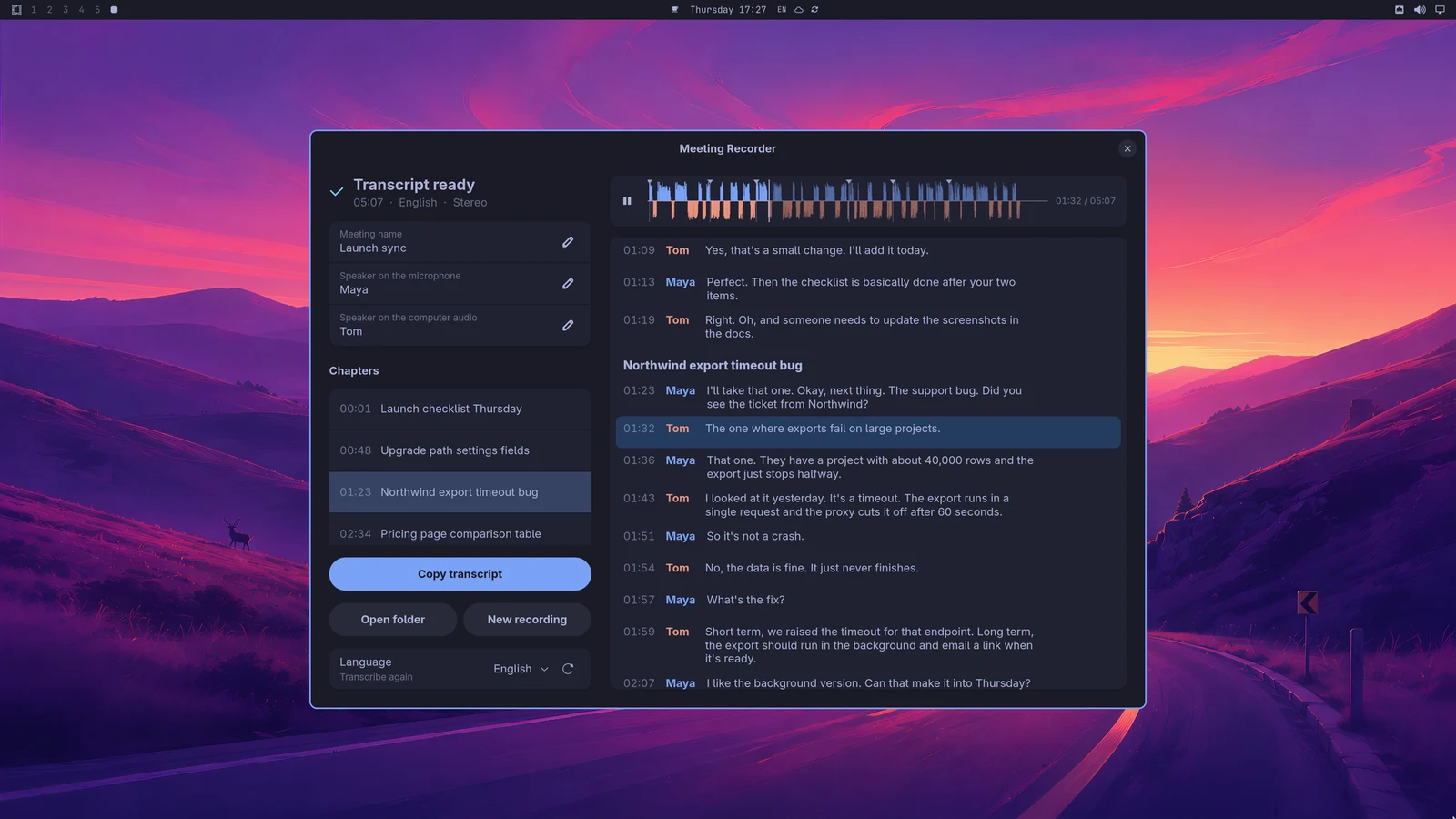
Open the app, check that both meters move, and press Start recording. When you stop, whisper.cpp transcribes the meeting while a 90s animation keeps you company. You get the transcript with who said what, a player to listen back from any line, and chapters written by the coding agent you already use. Everything takes the colours of your Omarchy theme.
Built for Omarchy on Hyprland (GTK 4 and libadwaita, written in Rust).
Install
Meeting Recorder is in the Omarchy package repository:
yay -S omarchy-meeting-recorder
For now it is in the edge channel, so this works if you run Omarchy's edge packages; everyone else gets it with the next Omarchy release. Until then, this one line builds the same pacman package from the PKGBUILD in this repository (install.sh is ten lines, read it first if you like):
curl -fsSL https://raw.githubusercontent.com/jankeesvw/omarchy-meeting-recorder/main/install.sh | bash
Either way sudo pacman -R omarchy-meeting-recorder-bin removes it again.
Then open Meeting Recorder from the launcher. The first transcription downloads the whisper model (about 1.6 GB, once), and the app shows you how far along it is. It offers to put a live waveform in your bar the first time, and the package prints the Hyprland rules for a floating window (also below).
Prefer to build it yourself? See Build from source, or grab the binary from the latest release.
What it does
Checks the sound before you start
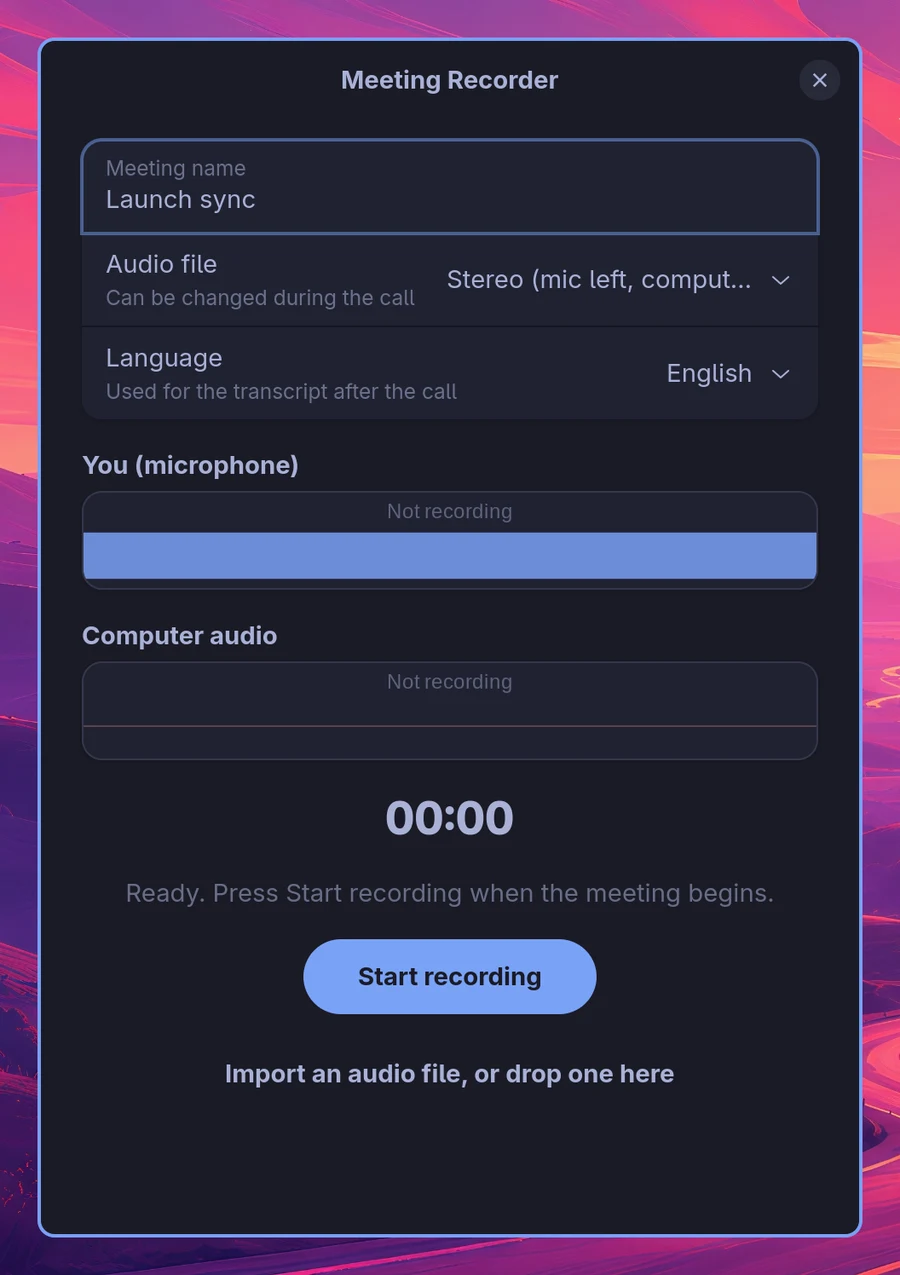
The app opens ready, not recording. The two meters are live from the start, a still line that thickens as sound comes in, so you can see that both your microphone and the computer audio arrive before the meeting begins. Type a name if you like (otherwise it becomes "Meeting 14:30"), pick the audio format and the transcript language, and press Start recording.
Records both sides of the call
Your microphone and whatever your computer plays are recorded as two separate tracks. The name, the audio format and the language can all still be changed during the call.
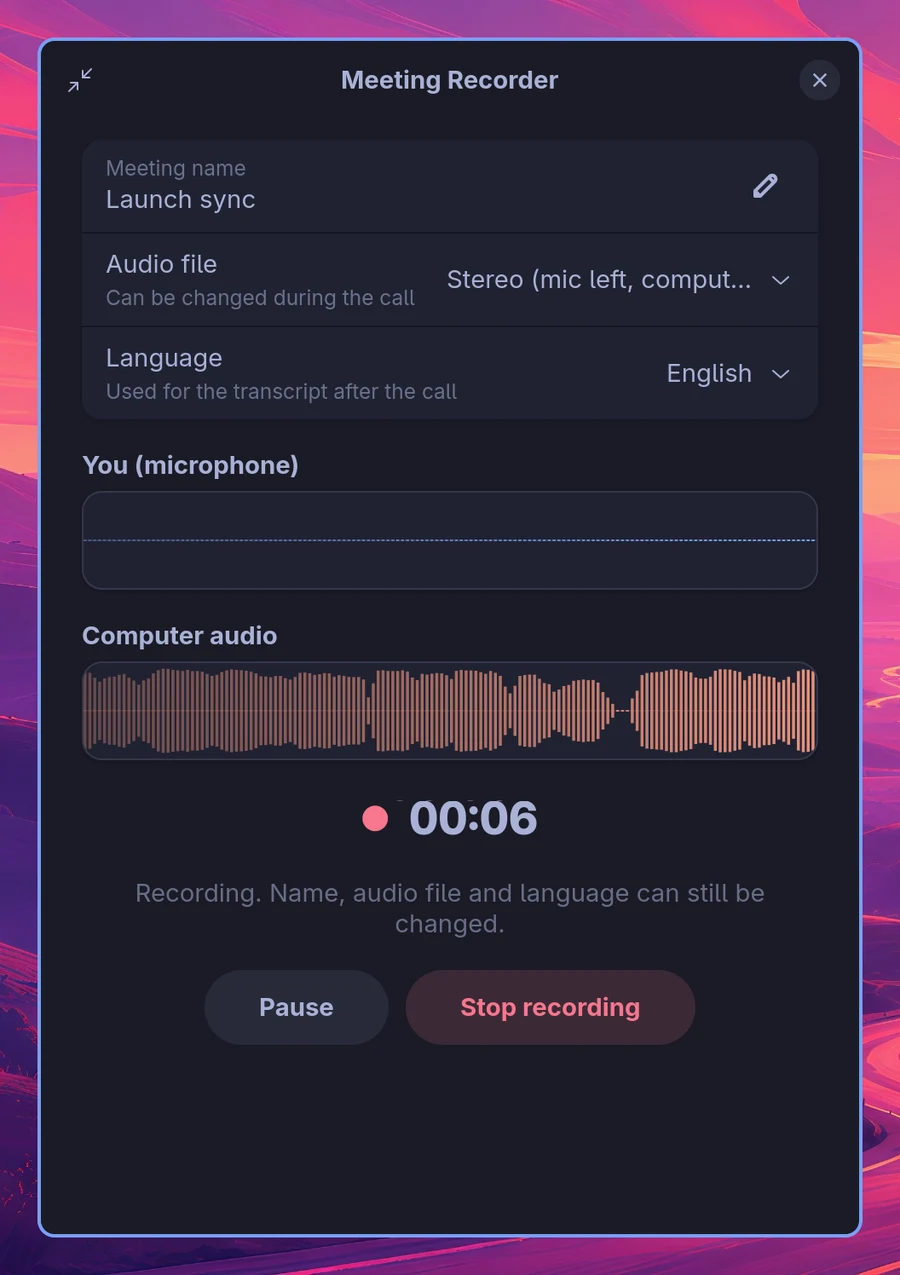
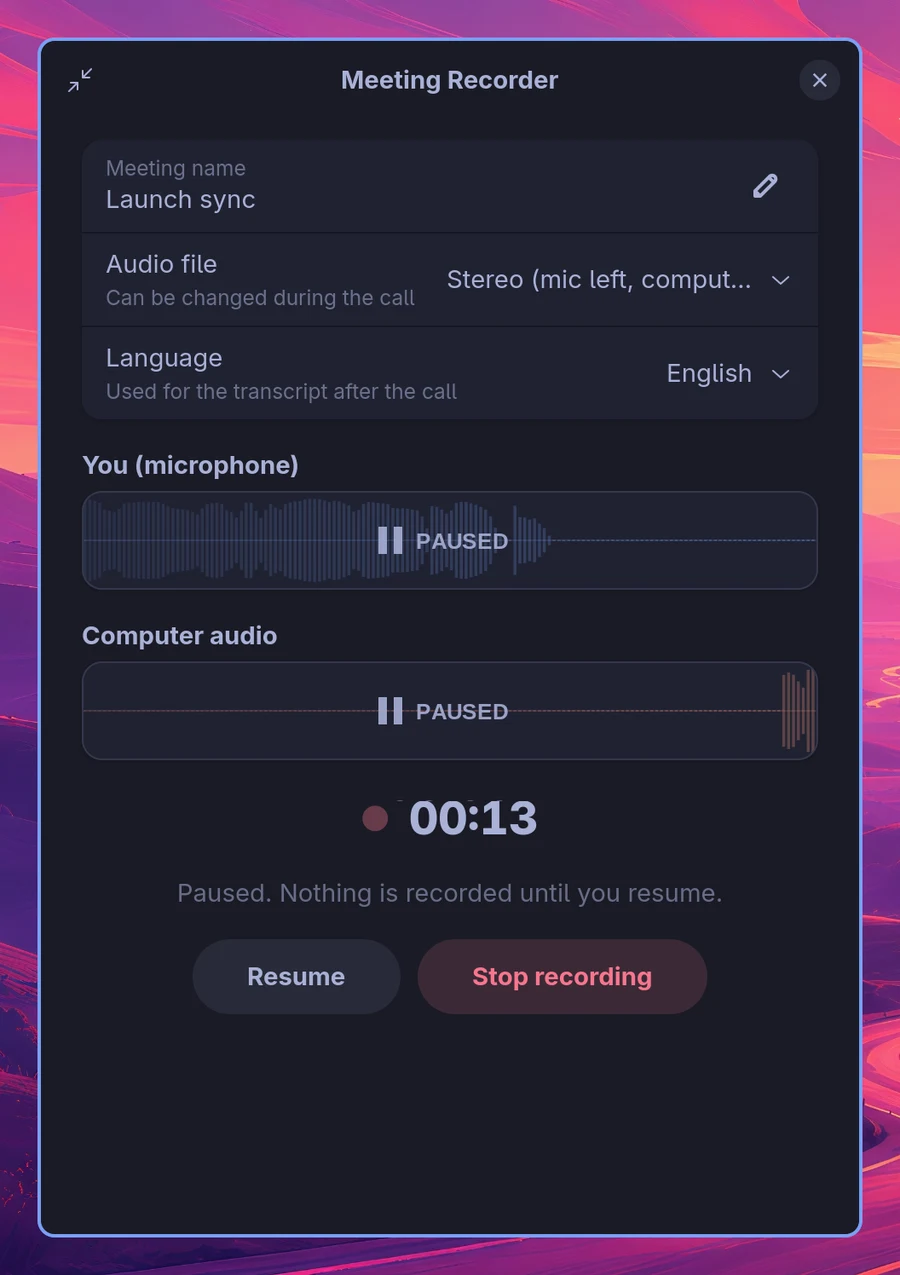
Pause freezes both waves under a "❚❚ PAUSED" sign and stops the clock; nothing is written to either track until you press Resume.
Stays out of the way
Press Ctrl+M, or the button in the header bar, and the window shrinks to a strip with only the clock and the two waves. Drag the strip anywhere; the small button on its right, or Ctrl+M again, brings the full window back.
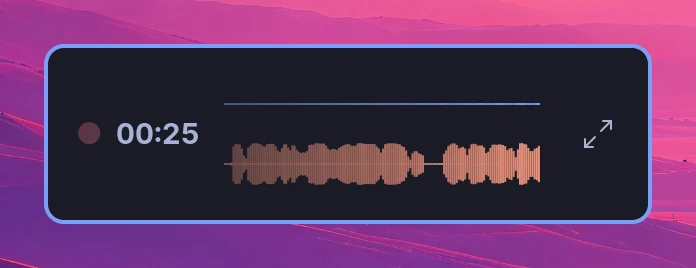
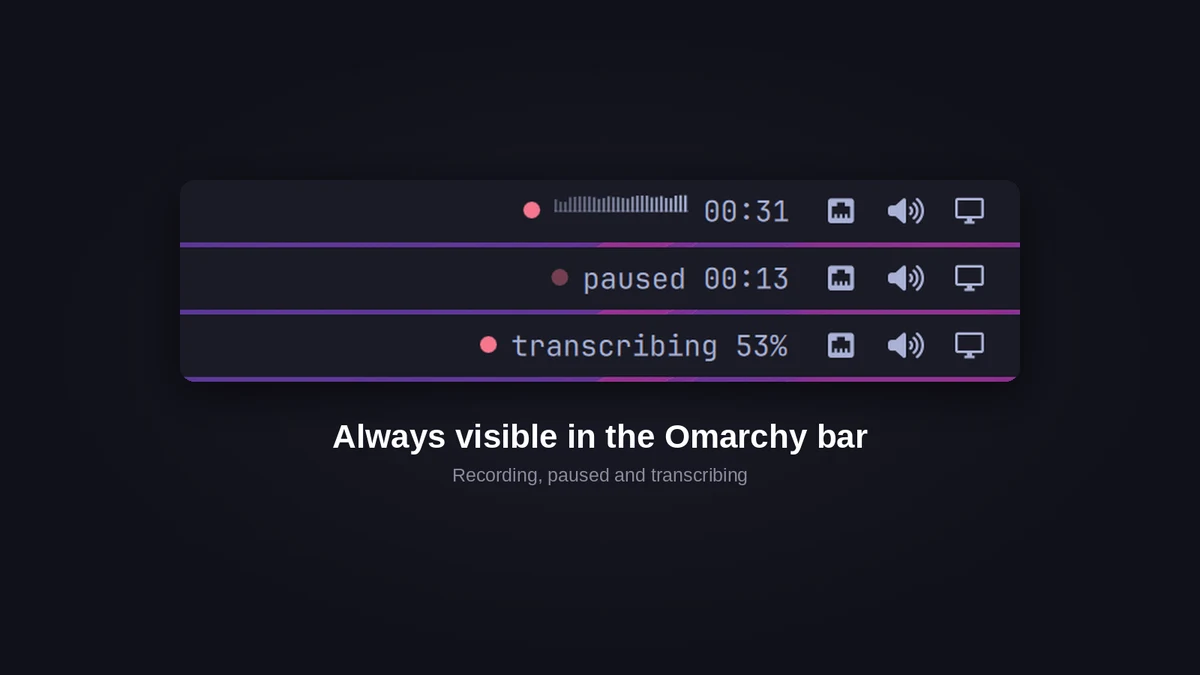
The bar widget shows the same while you record: a pulsing dot, a small waveform with the mic above the line and the computer audio below it, and the time. Paused it says "paused 01:23", and while the meeting is transcribed it shows the progress. Clicking it brings the recorder window back.
Transcribes on your own machine

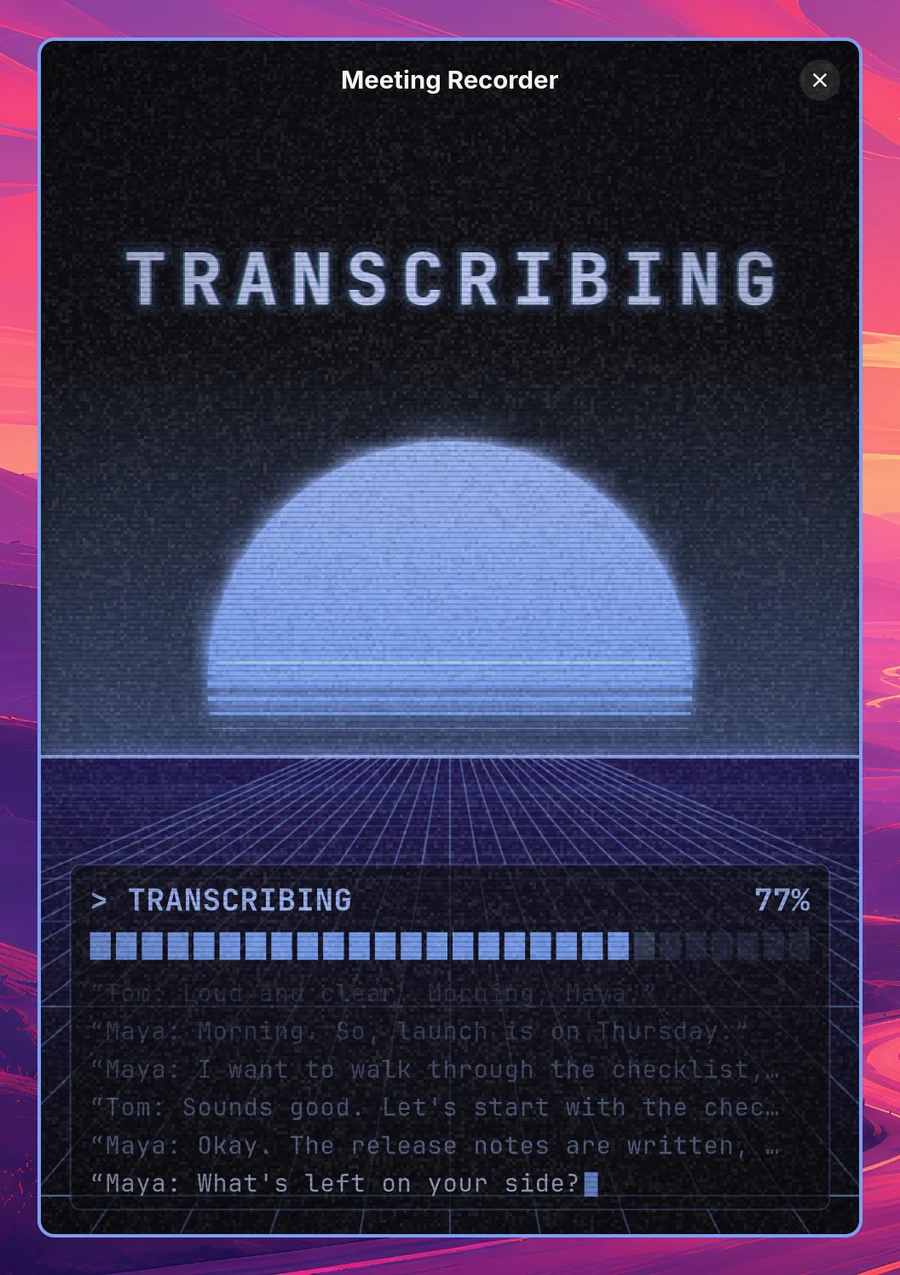
When you stop, the window switches straight to the transcribing animation: it saves the audio, then whisper-rs transcribes the meeting, and the lines type themselves out with the speakers' names as they are recognised. It ends on 100% and DONE, and stays at least ten seconds, also for a short recording. Nothing is sent anywhere.
Imports any recording
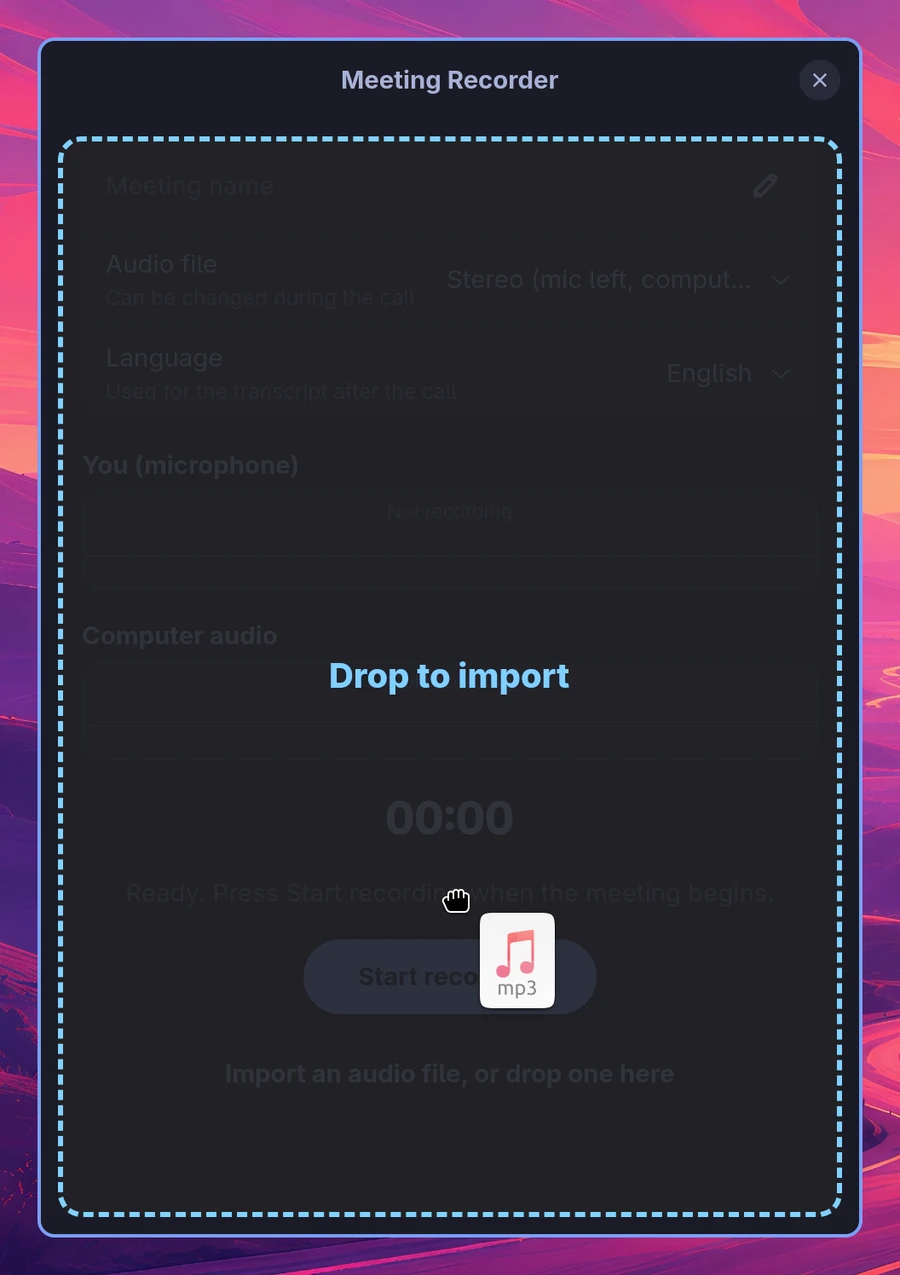
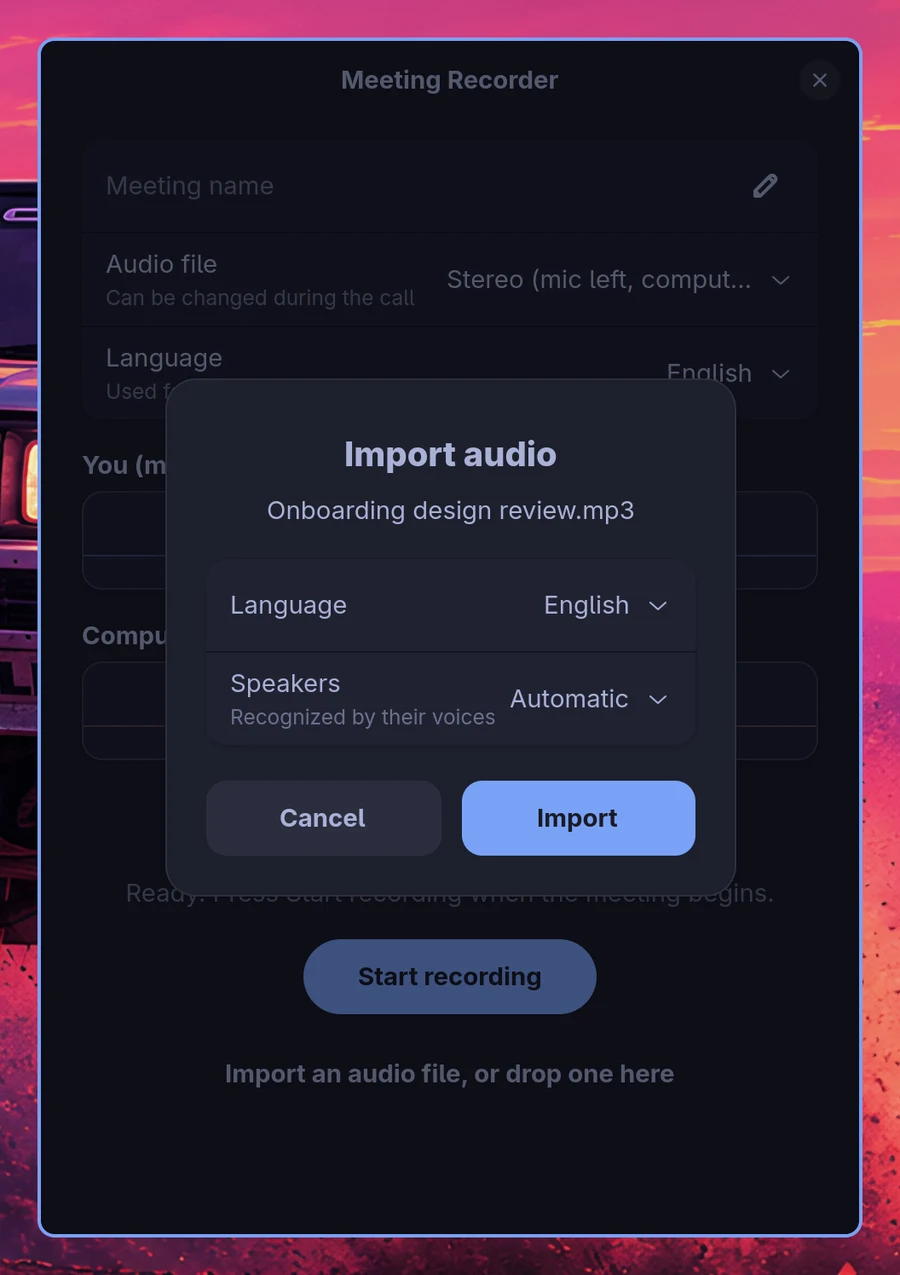
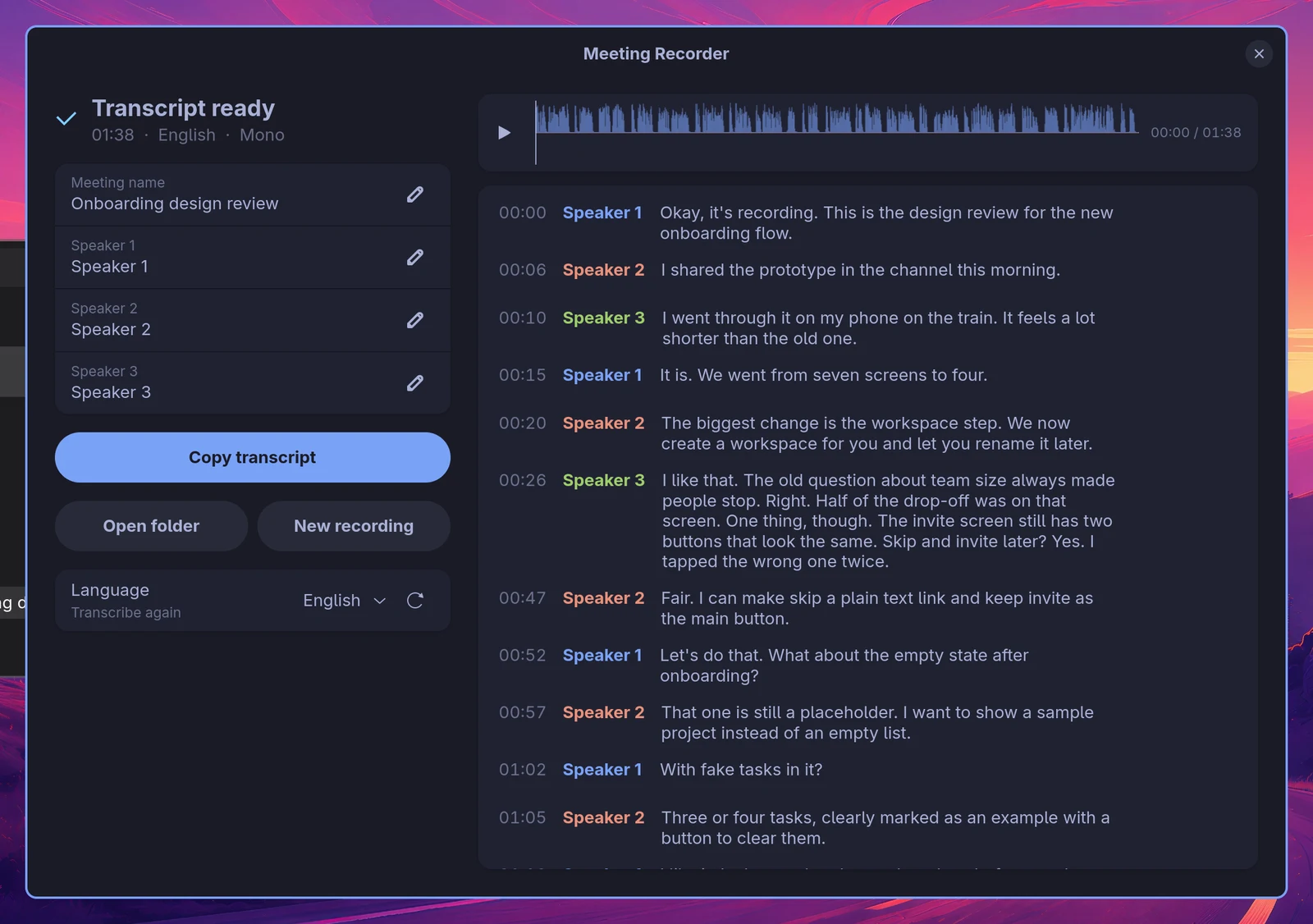
Drop an audio file on the window, or click Import an audio file: a phone memo, a call you recorded elsewhere, anything ffmpeg can read. Pick the language and how many people speak, or leave Speakers on Automatic, and the file is transcribed the same way. Since one file has no second track, the voices themselves are told apart, and each speaker gets a colour from your theme.
Gives you a transcript you can listen to
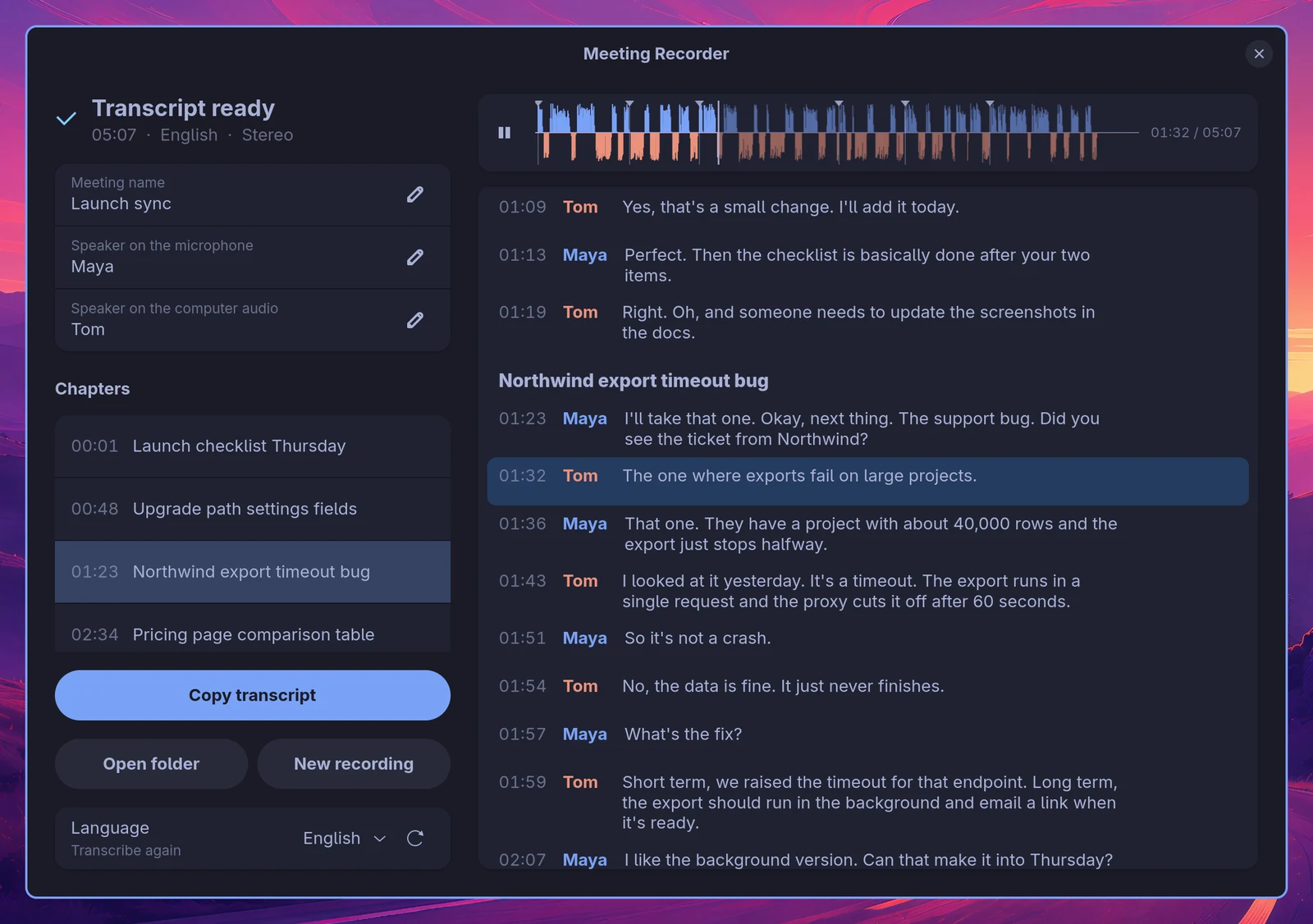
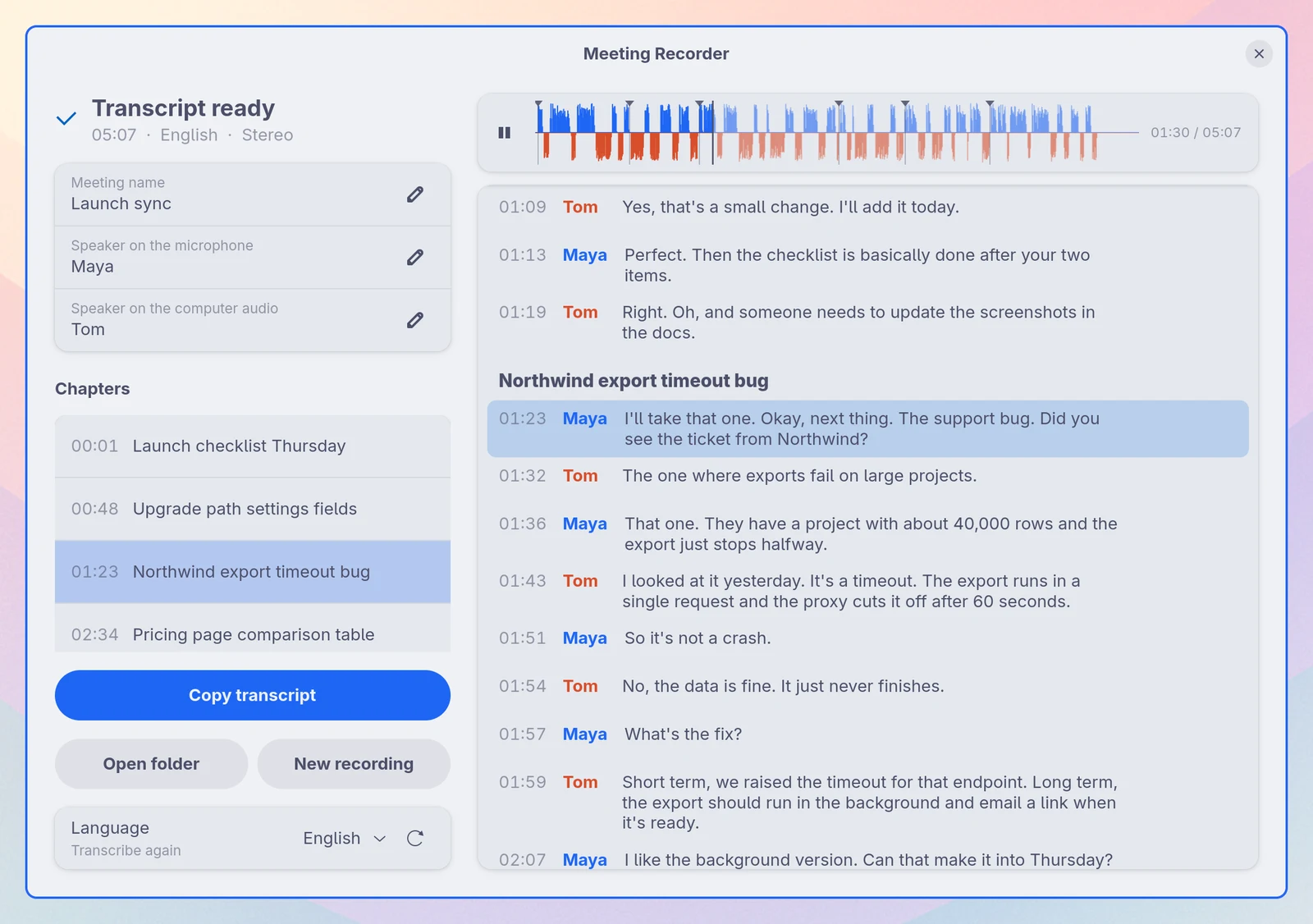

The done screen puts the transcript on the right: the time, the speaker and the text in their own columns, one paragraph per turn. Above it sits a player with a waveform of both sides, your side above the line and the other side below it. Click or drag in the waveform to seek, or click any line to play from there. The line that is playing is highlighted and the transcript scrolls along.
On the left: the meeting name and one row per speaker, which you can rename at any time (the folder, the transcript and the manifest follow, and your own name is remembered for next time), the chapters, Copy transcript (also Enter), Open folder, New recording, and the language to transcribe again in.
Lets you fix it where you read it
Hover a line and three buttons appear: edit the text in place, give the line to the next speaker, or delete it. A deleted line comes back with Undo.
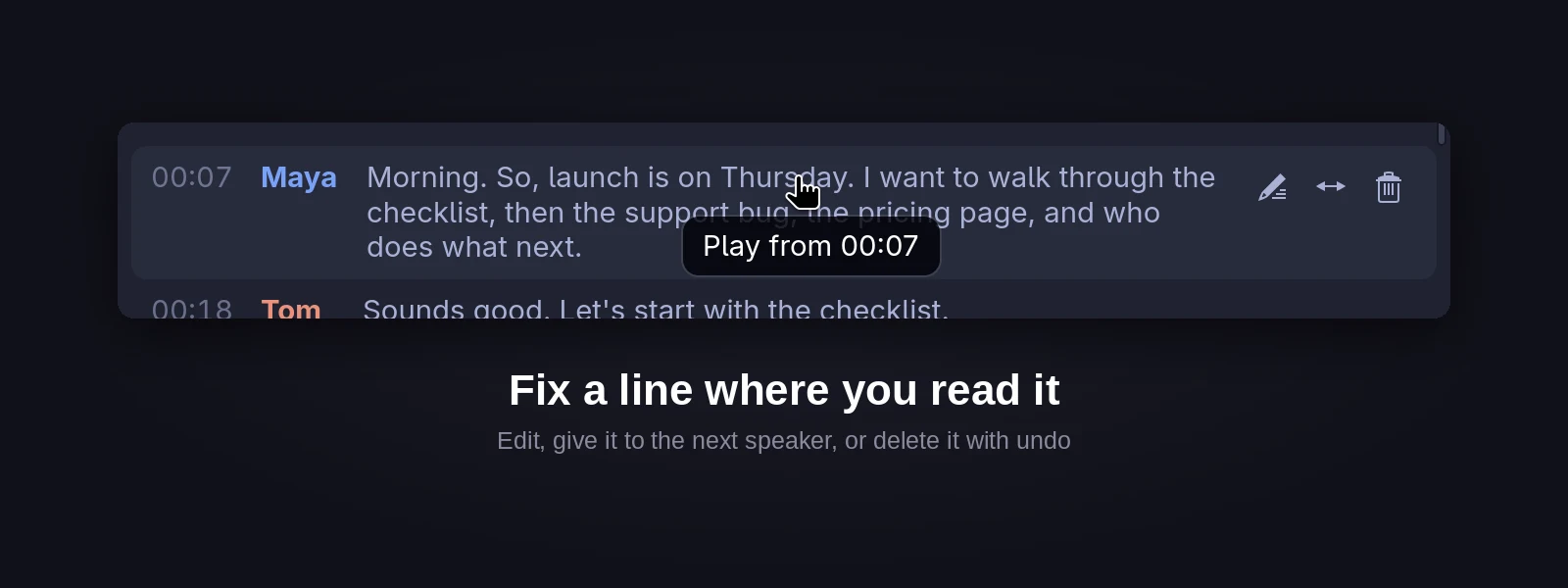
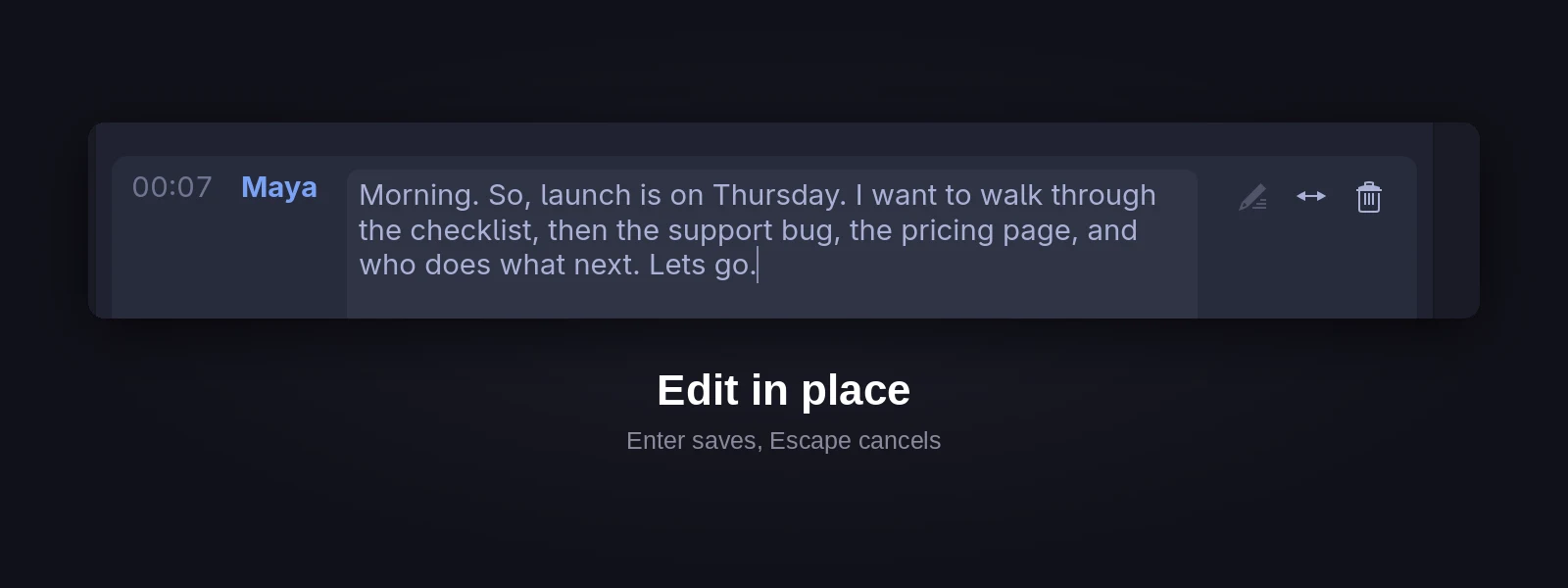
Chapters by your default agent
When Omarchy has a default coding agent set (omarchy default agent, for instance Claude Code or Codex) and the meeting is three minutes or longer, the agent divides the transcript into chapters once it is done. They show up as a list on the left, as headings in the transcript and as markers on the waveform (hover for the title), and transcript.md gets a ## Chapters list at the top, so a copied transcript carries them too. The Chapters header on the done page makes them again.
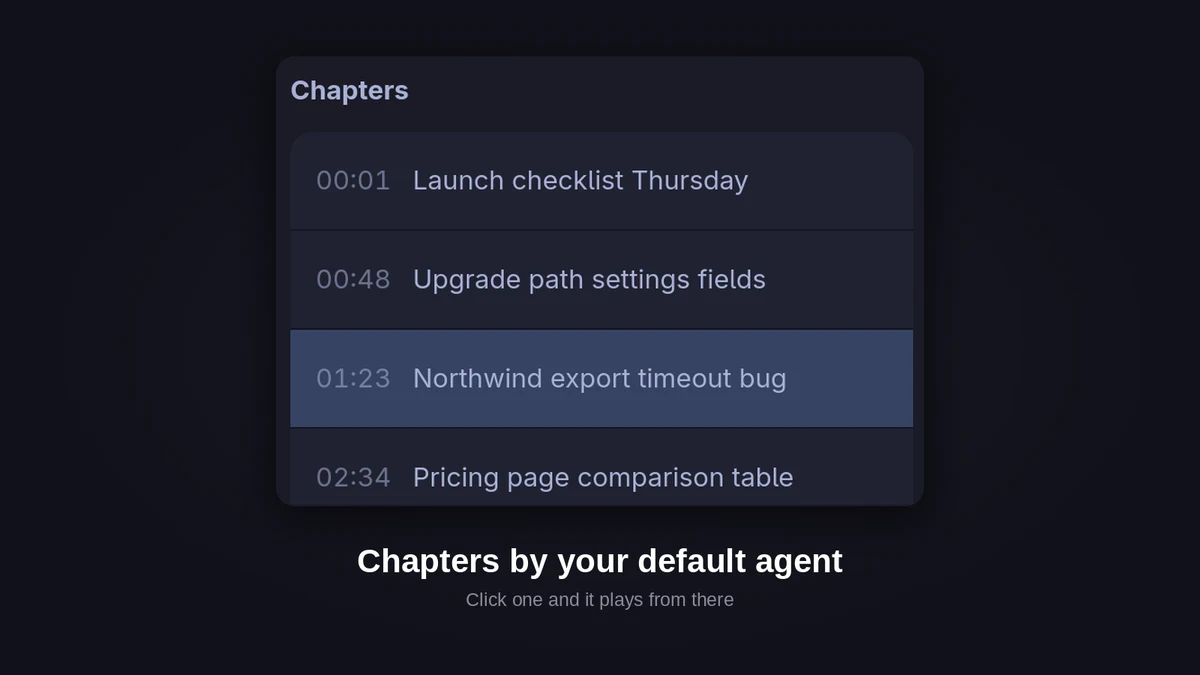
Chapters are an extra, not a requirement: without an agent the button is simply not there and everything else works the same. The agent runs without any tools. It gets the transcript and the instructions, and can only answer with text.
Runs your own actions
Put a few scripts of your own under Actions on the done page: store the transcript in your notes, publish it, mail it around. They go in ~/.config/omarchy-meeting-recorder/config.toml, each with a name for the menu and a command. Until there is one, the button is Add actions… and explains how. See Actions.
Wears your Omarchy theme
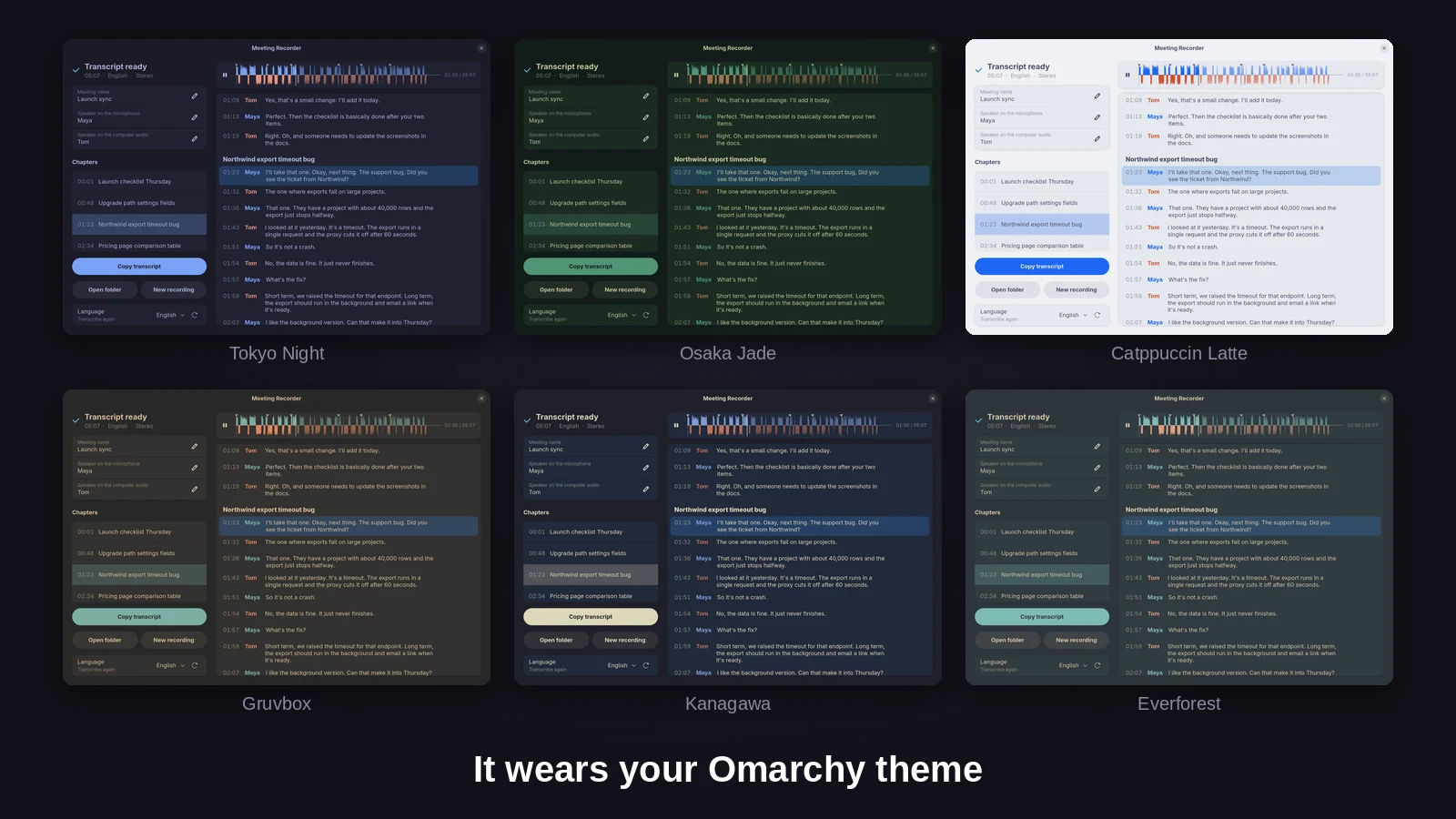
The app reads the palette of the current theme (colors.toml): the background, the accent, and the theme's own colours for the speakers, the waves and the animation. Switch themes while it is open and it follows.
Keeps your recording safe
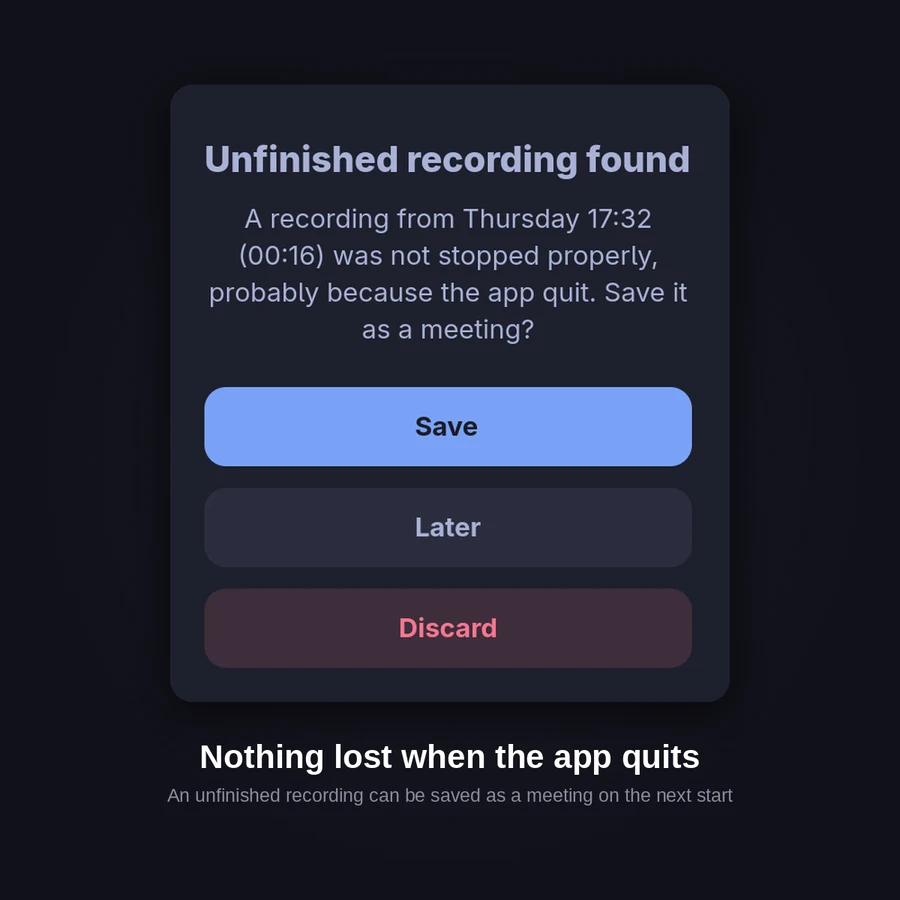
If the app quits while it records (a crash, a logout, a power cut), the next start finds the unfinished recording and offers to save it as a meeting, keep it for later, or discard it.
Handy to know
- Keyboard. Ctrl+M switches between the full window and the compact strip. Ctrl+N opens another window. On the done page Enter copies the transcript. Ctrl+W closes the window and Ctrl+Q all of them, and they ask first while recording or transcribing.
- The name stays editable all the time. After the transcript is done, changing it (Enter, or leaving the field) renames the meeting folder and the heading in the transcript.
- Closing while recording or transcribing asks first. You can stop and close, let the transcription finish in the background and quit afterwards, or cancel the transcription; the audio is kept either way.
- Opening a meeting later. Double-click its
.meeting-recorder file, or run omarchy-meeting-recorder <folder>. It opens on the done page with the settings it was made with. When the window is busy recording or transcribing, the meeting opens in a window of its own.
- More than one window. Ctrl+N,
omarchy-meeting-recorder new-window or New Window in the launcher opens another one, to read an older meeting or start the next while the last one is still transcribing. Every window shows its own meeting; one records at a time. The bar widget and the keybindings follow the window that is recording, else the one transcribing.
- Keybindings.
omarchy-meeting-recorder start, pause, stop and compact control the running app, so you can bind them to keys in Hyprland.
What it writes to disk
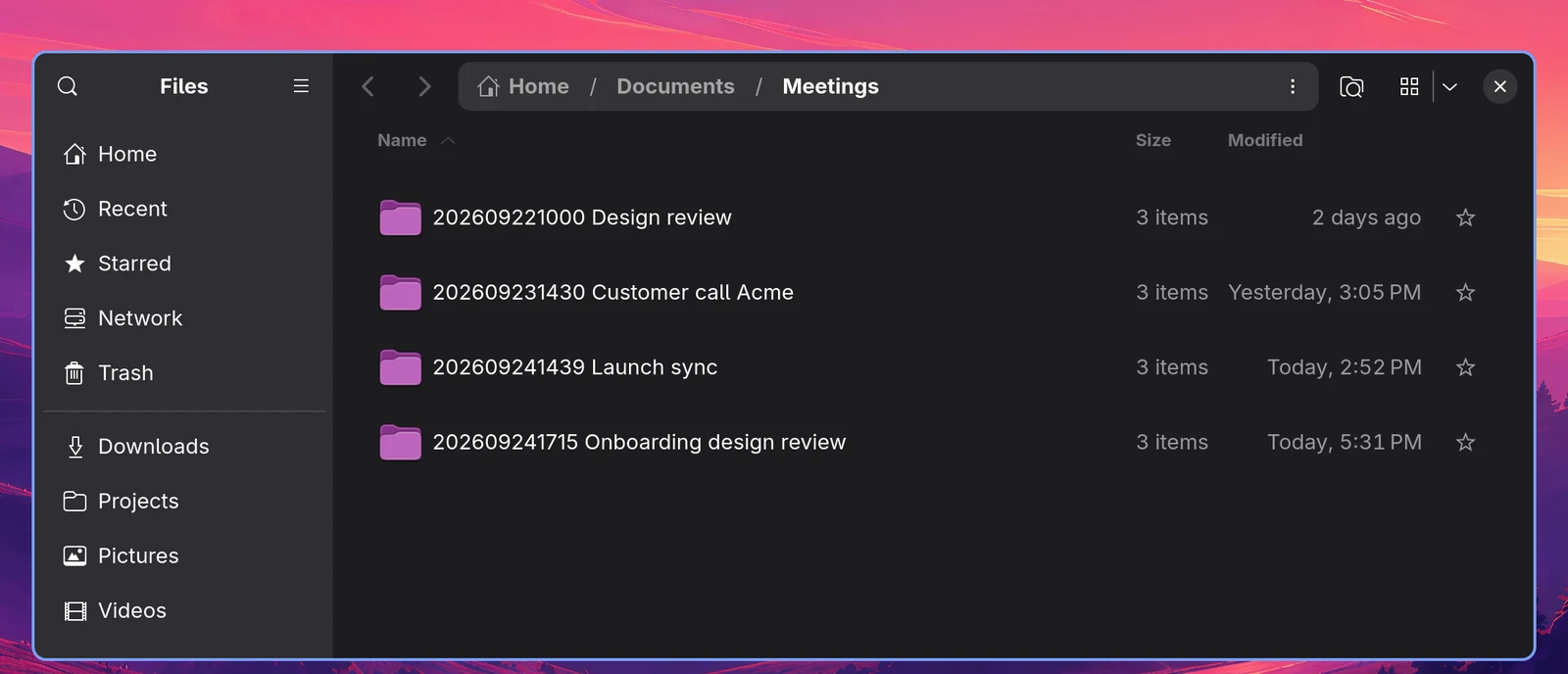
Every meeting is a plain folder in ~/Documents/Meetings, named <YYYYMMDDHHMM> <name>, so they sort by date:
Inside, the audio in the format you picked, the transcript, a .meeting-recorder file that opens the meeting in the app when you double-click it, and (hidden) .tracks, the two separate tracks the app keeps so it can transcribe the meeting again:
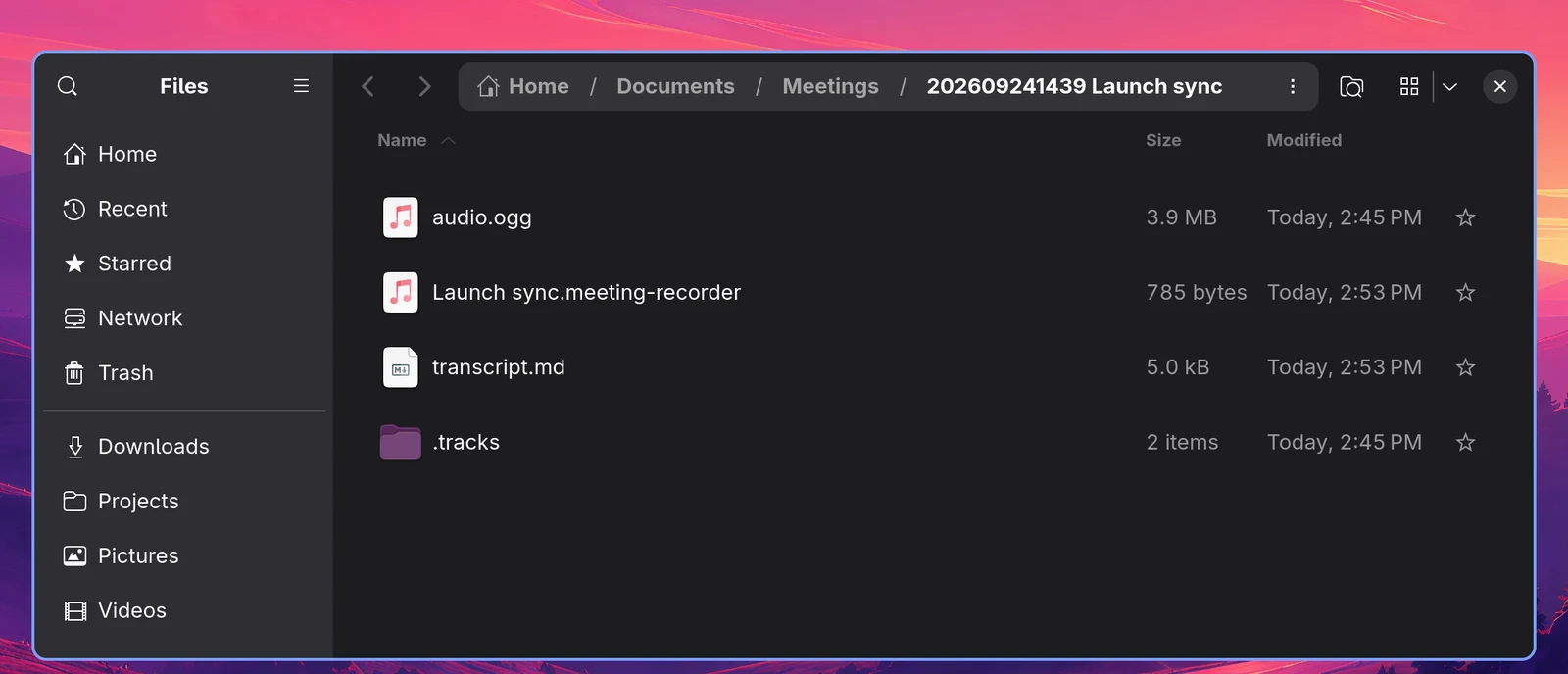
<name>.meeting-recorder, a small JSON file with the title, start time, duration, audio format, language, speaker names, the model that transcribed it and the chapters. It has its own MIME type (application/x-omarchy-meeting), so double-clicking it opens the meeting in the app on the done page, with the settings the meeting was made with. The folder itself stays a plain folder.transcript.md, with the speaker and a timestamp on every line (and the chapters, when there are any)- the audio in the format you picked:
- Mono:
audio.ogg, mic and computer audio mixed
- Stereo:
audio.ogg, mic on the left channel, computer audio on the right
- Separate files:
mic.ogg and computer.ogg
.tracks/mic.ogg and .tracks/computer.ogg, a hidden copy of both tracks in mono. This is what Transcribe again uses, so the speakers stay apart whatever audio format you chose. Delete the directory if you do not need that.- For an imported file:
audio.ogg, the transcript and the .meeting-recorder file; the original file is left where it was.
Both tracks are always recorded separately, and each is levelled to the same speech loudness when it is saved, so a quiet microphone and a loud call end up equally easy to hear. The format can be switched until the moment you press stop.
How it works
- Recording. The mic (
@DEFAULT_SOURCE@) and the monitor of the default output (@DEFAULT_MONITOR@) are captured with parec. Because it follows the default output, switching to a headset during a call keeps working. ffmpeg encodes the audio to Opus when you stop.
- Transcription. After the call both tracks are mixed and transcribed in one pass with whisper-rs, using the
large-v3-turbo model unless you pick another, so there is a single timeline. Long silences are skipped, which keeps whisper from inventing text in them, and word times come from whisper's attention alignment (DTW).
- Who said what. The mic and the computer audio are transcribed one at a time, so the side of each line is simply its track, and two people talking at once, or someone talking over music, are both kept. Through speakers the other side leaks into your mic; the app leaves out what is only that echo. When several voices share one side, a colleague next to you or three people on the other end, they are told apart as well (see below): "You 1", "You 2" and "Remote 1", "Remote 2" and so on, each with its own name field.
- Imported files. A single audio file has no second track to tell the speakers apart, so the voices themselves are told apart with NVIDIA's Nemotron 3 Diarization, run locally through ONNX Runtime. It follows up to eight speakers, also when they talk at the same time, and numbers them "Speaker 1", "Speaker 2" and so on in the order they first speak. The number of speakers is found automatically (voices heard for only a few seconds are folded into the nearest real speaker) or can be fixed. A sentence always goes to one speaker as a whole. Similar voices and fast back-and-forth can still land on the wrong speaker, which the swap-speaker button fixes per line.
- Chapters. The recorder runs
omarchy-default-agent's agent headless and with every tool switched off, in an empty working directory, bounded in time and size. Agents that cannot run without tools are not used.
- Playback.
ffmpeg decodes into pacat, so playing a meeting back needs nothing beyond what recording already uses.
- Crash recovery. While recording, both tracks are written to a cache directory as they come in. A recording that was not stopped properly is still there on the next start.
- The bar widget. The app serves its live state on a Unix socket in
$XDG_RUNTIME_DIR. omarchy-meeting-recorder watch relays it as NDJSON, which is what the widget reads.
The model
The default is whisper's large-v3-turbo. To use another, set it in ~/.config/omarchy-meeting-recorder/config.toml:
model = "small" # tiny, tiny.en, base, base.en, small, small.en, medium, medium.en, large-v3, large-v3-turbo, or a path to a .bin file
The command-line transcribe and transcribe-file take --model instead. When the configured model is not on disk yet, the start screen says so, with its size, and a Download button:
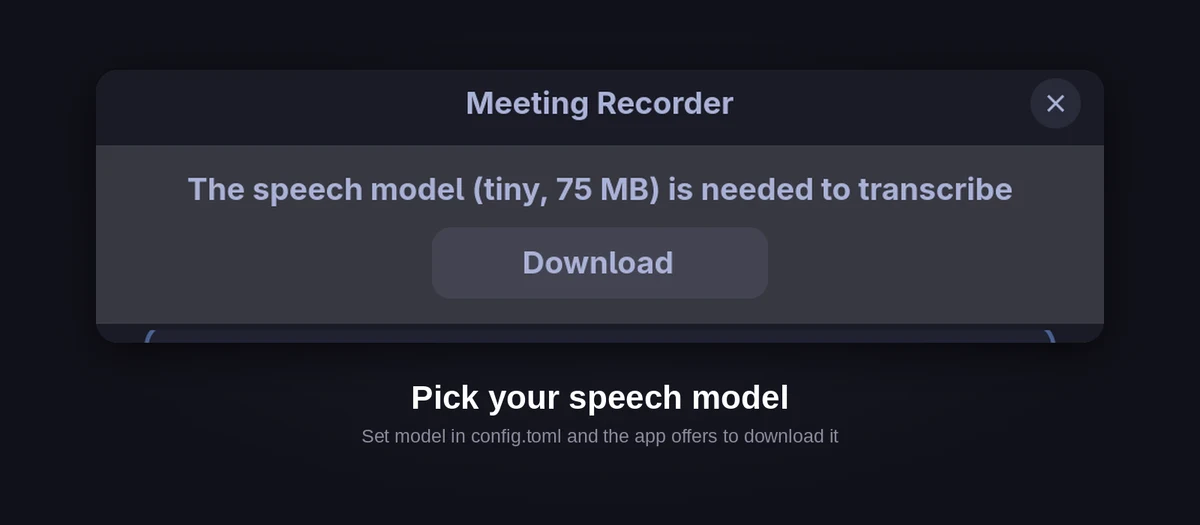
The app looks for ggml-<model>.bin, for instance ggml-large-v3-turbo.bin, in ~/.local/share/omarchy-meeting-recorder/models/. If you use voxtype and it already downloaded that model to ~/.local/share/voxtype/models/, that copy is used. Otherwise it is downloaded (about 1.6 GB for large-v3-turbo) from Hugging Face. Finding speakers downloads the speaker model on first use (about 120 MB) to nemotron-3-diarization/ in the same directory: the int8 ONNX export of Nemotron 3 Diarization from the Hugging Face ONNX community, pinned to one revision. The model is NVIDIA's, under the OpenMDW license. ONNX Runtime is compiled into the binary, so nothing else is needed at runtime.
Actions
Your own scripts, picked from the Actions menu on the done page: store the transcript in Obsidian, publish it, mail it around. Each is a name and a command in ~/.config/omarchy-meeting-recorder/config.toml; the command gets the meeting folder and the meeting's details, and what it prints last shows up in the app, with an Open button for a link.
docs/actions.md explains it all, with two complete examples (Store transcript in Obsidian, and Publish as public transcript, where your default agent writes the summary) and a section for your agent, so you can ask it to write actions for you.
Testing
bench/ holds a small test suite: recordings of calls with people talking at once, echo through speakers, two people at one mic, music in the background and silence, plus a real meeting from the AMI corpus. bench/run.py runs the app over them and scores the transcript and the speakers; CI runs it on every pull request and posts the scores there. See bench/README.md.
Privacy
The audio, the transcript and everything else stay on your computer. The only thing that leaves it is the transcript text for the chapters, and only when you have set a default agent: it goes to that agent's service, the one you already chose and pay for. No agent, no chapters, nothing sent. Actions are yours: they send whatever your scripts send, and only when you pick one.
Requirements
- PipeWire with
parec and pacat (both from libpulse), for recording and for playing a meeting back
ffmpeg with libopus- GTK 4 and libadwaita 1.6 or newer
- Rust, CMake, Vulkan headers and
glslc, to build it (whisper.cpp is compiled along)
- Vulkan loader at runtime; a compatible Vulkan GPU driver enables accelerated transcription
- Optional: a default agent in Omarchy for chapters
Build from source
cargo build --release
ln -s "$PWD/target/release/omarchy-meeting-recorder" ~/.local/bin/omarchy-meeting-recorder
ln -s "$PWD/data/omarchy-meeting-recorder.desktop" ~/.local/share/applications/
mkdir -p ~/.local/share/mime/packages
ln -s "$PWD/data/omarchy-meeting-recorder.xml" ~/.local/share/mime/packages/
update-mime-database ~/.local/share/mime
xdg-mime default omarchy-meeting-recorder.desktop application/x-omarchy-meeting
The last three lines register the .meeting-recorder file type, so a double-click opens the meeting in the app. File managers that go through GIO (Nautilus) pick that up right away; restart Nautilus if it still opens the file as text. xdg-open, which most launchers and terminals use on Hyprland, looks at the contents with file instead and sees JSON, so it opens the file in your text editor. Install perl-file-mimeinfo (yay -S perl-file-mimeinfo) and xdg-open goes by the registered type too.
The default build includes whisper.cpp's Vulkan backend and uses a compatible GPU when available. With no usable GPU it falls back to the CPU. GPU support accelerates speech-to-text; speaker identification still runs on the CPU. Processing time depends on the model, audio and hardware, and can be substantial for long recordings on CPU.
On Arch, the default build needs vulkan-headers and shaderc. The installed binary needs vulkan-icd-loader, plus the Vulkan driver appropriate for your GPU to use acceleration. Existing CPU-only release binaries do not gain GPU support from installing a driver: rebuild or install a release compiled with Vulkan enabled. Restart the recorder after replacing its binary, once any recording or processing has finished.
For a CPU-only binary without Vulkan build or runtime dependencies:
cargo build --release --no-default-features
To check which support was compiled into a binary:
omarchy-meeting-recorder --version
This reports build support, not whether a particular transcription actually ran on a GPU. The vulkan feature remains available explicitly for build scripts using --no-default-features --features vulkan.
The window floats nicely with a Hyprland rule on its class:
o.window("^com\\.jankeesvw\\.OmarchyMeetingRecorder$", { float = true })
o.window("^com\\.jankeesvw\\.OmarchyMeetingRecorder$", { size = { 480, 700 } })
o.window("^com\\.jankeesvw\\.OmarchyMeetingRecorder$", { center = true })
The plugin directory is an Omarchy Quattro bar widget. It stays hidden until a recording starts. Installed as a package, the app offers to add it the first time you open it. From source, link it yourself:
ln -s "$PWD/plugin" ~/.config/omarchy/plugins/jankeesvw.meeting-recorder
omarchy-shell shell rescanPlugins
omarchy plugin enable jankeesvw.meeting-recorder
omarchy bar move jankeesvw.meeting-recorder --section right
The shell discovers plugins asynchronously. If enabling immediately after a rescan says the plugin is not known, wait until omarchy-shell shell listPlugins includes jankeesvw.meeting-recorder, then run:
omarchy plugin enable jankeesvw.meeting-recorder --section right
This also recovers a failed first-start “Add to Bar” attempt in version 1.0.2, which leaves the widget linked but does not offer again on restart.
Command line
| Command |
What it does |
omarchy-meeting-recorder |
Open the recorder, ready to record |
omarchy-meeting-recorder <folder or .meeting-recorder file> |
Open a saved meeting on the done page |
omarchy-meeting-recorder start |
Start recording in the open window, for a keybinding |
omarchy-meeting-recorder pause |
Pause or resume the running recording |
omarchy-meeting-recorder stop |
Stop the running recording |
omarchy-meeting-recorder compact |
Switch the recording window between full and compact |
omarchy-meeting-recorder new-window |
Open another window, or the app when it is not running |
omarchy-meeting-recorder watch |
Stream the recorder state as NDJSON, for the bar widget |
omarchy-meeting-recorder transcribe <mic> <computer> [--language xx] [--model name] |
Transcribe two tracks and print the transcript as Markdown |
omarchy-meeting-recorder transcribe-file <audio> [--speakers N] [--language xx] [--model name] |
Transcribe one file, telling the voices apart, and print the transcript as Markdown |
omarchy-meeting-recorder ask "<prompt>" < text |
Run a prompt over stdin through the default agent, without tools (ask --agent shows which agent that is) |
omarchy-meeting-recorder action "<name>" <meeting folder> |
Run one of your actions on a meeting, as the done page does; without arguments it lists them |
For example:
omarchy-meeting-recorder transcribe mic.ogg computer.ogg --language en > transcript.md
omarchy-meeting-recorder transcribe-file interview.mp3 --speakers 2 > transcript.md
Any format ffmpeg can read works. --language takes auto (the default), en, nl, de, fr, es, it or pt.
The screenshots
The meetings in the screenshots and clips are invented and were voiced with piper. demo/ has the scripts and a step-by-step guide to shoot them again.
License
MIT

 Meeting Recorder is a desktop app for Omarchy that records your microphone and computer audio as two separate tracks, then produces a transcript with speaker labels, chapters and a built-in player.