


Что это такое?
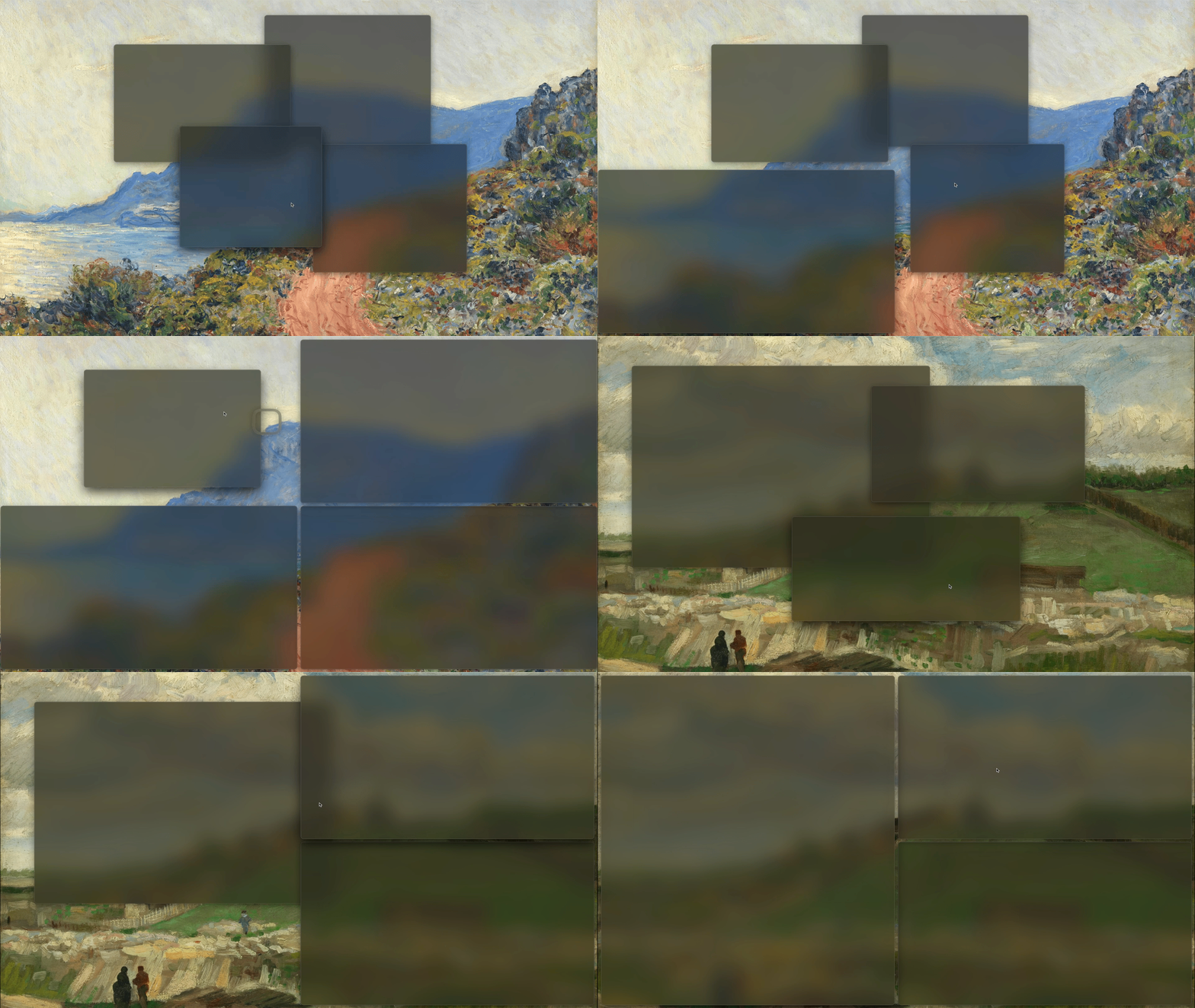
 Loop — это приложение для macOS, которое упрощает управление окнами: перемещать, изменять размер и упорядочивать окна можно с помощью радиального меню, горячих клавиш или жестов мыши.
Loop — это приложение для macOS, которое упрощает управление окнами: перемещать, изменять размер и упорядочивать окна можно с помощью радиального меню, горячих клавиш или жестов мыши.Это оконный менеджер, который заменяет macOS, или он работает вместе с ней?Он работает вместе с macOS как обычное приложение, которое запускается, когда вы удерживаете клавишу, а не является полноценной заменой оконного менеджера вроде Yabai.
Он работает вместе с macOS как обычное приложение, которое запускается, когда вы удерживаете клавишу, а не является полноценной заменой оконного менеджера вроде Yabai.Какая версия macOS мне нужна?Loop требует macOS 13 или новее.
Loop требует macOS 13 или новее.Могу ли я использовать Caps Lock как клавишу запуска?Да, но не напрямую: нужно переназначить Caps Lock на Control в Системных настройках для каждой подключённой клавиатуры или использовать стороннее приложение, например Hyperkey или Karabiner Elements.
Да, но не напрямую: нужно переназначить Caps Lock на Control в Системных настройках для каждой подключённой клавиатуры или использовать стороннее приложение, например Hyperkey или Karabiner Elements.Что именно представляет собой радиальное меню?Это меню, которым управляют мышью или трекпадом: его открывают, удерживая клавишу запуска и двигая курсор в нужную сторону, чтобы переместить или изменить размер окна в этом направлении.
Это меню, которым управляют мышью или трекпадом: его открывают, удерживая клавишу запуска и двигая курсор в нужную сторону, чтобы переместить или изменить размер окна в этом направлении.Что такое Cycles?Cycles позволяют объединять несколько действий с окном: достаточно повторно нажимать одну и ту же комбинацию клавиш или щёлкать левой кнопкой мыши, и каждое повторное действие будет строиться на предыдущем.
Cycles позволяют объединять несколько действий с окном: достаточно повторно нажимать одну и ту же комбинацию клавиш или щёлкать левой кнопкой мыши, и каждое повторное действие будет строиться на предыдущем.Что такое Stash?Stash позволяет прятать окна у края экрана, чтобы освободить рабочее пространство, а затем возвращать их, наведя курсор на край экрана или используя горячую клавишу.
Stash позволяет прятать окна у края экрана, чтобы освободить рабочее пространство, а затем возвращать их, наведя курсор на край экрана или используя горячую клавишу.Чем Loop отличается от Rectangle или Magnet?Loop, как и Rectangle, бесплатный и с открытым исходным кодом, но добавляет настройку оформления, радиальное меню с управлением через клавишу-модификатор и мышь, а также циклы действий, которых нет у большинства платных альтернатив, таких как Magnet, Moom и Swish.
Loop, как и Rectangle, бесплатный и с открытым исходным кодом, но добавляет настройку оформления, радиальное меню с управлением через клавишу-модификатор и мышь, а также циклы действий, которых нет у большинства платных альтернатив, таких как Magnet, Moom и Swish.Можно ли управлять Loop с помощью скриптов?Да, Loop предоставляет URL-схему, поэтому им можно управлять через команды оболочки или AppleScript, в том числе объединяя несколько действий в цепочку.
Да, Loop предоставляет URL-схему, поэтому им можно управлять через команды оболочки или AppleScript, в том числе объединяя несколько действий в цепочку.What are similar projects?DockDoor, tinycast, Sapphire, KiwiDesk, Ice, dimble, WallpaperMachine, glazewm
DockDoor, tinycast, Sapphire, KiwiDesk, Ice, dimble, WallpaperMachine, glazewmWhich topics is it in?window-management, keyboard, menu-bar, swiftui, macos-app, swift, shell, customization, productivity, gui, desktop-app, macos
window-management, keyboard, menu-bar, swiftui, macos-app, swift, shell, customization, productivity, gui, desktop-app, macos