





micro is a terminal-based text editor that aims to be easy to use and intuitive, while also taking advantage of the capabilities
of modern terminals. It comes as a single, batteries-included, static binary with no dependencies; you can download and use it right now!
As its name indicates, micro aims to be somewhat of a successor to the nano editor by being easy to install and use.
It strives to be enjoyable as a full-time editor for people who prefer to work in a terminal, or those who regularly edit files over SSH.
Here is a picture of micro editing its source code.
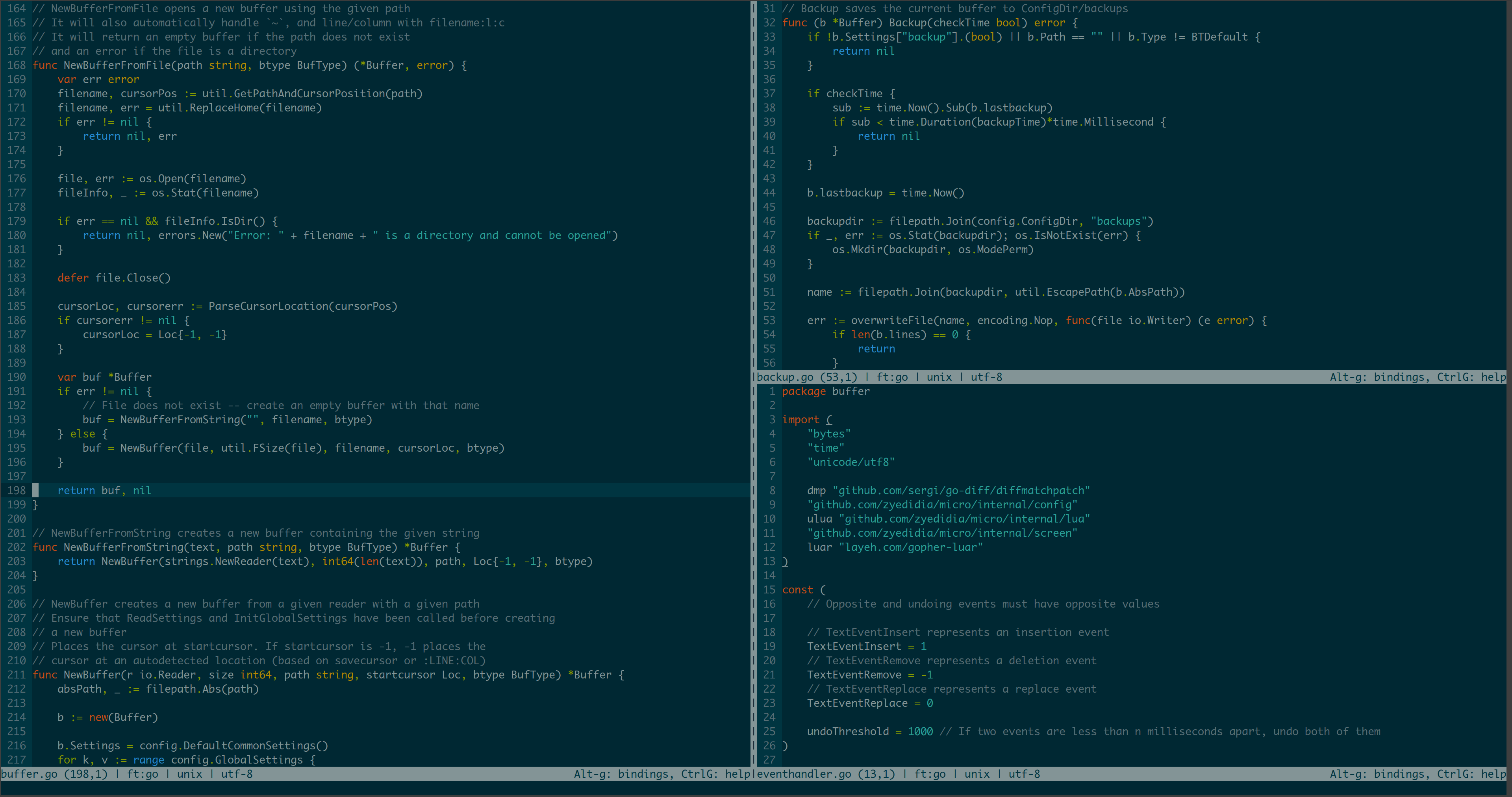
To see more screenshots of micro, showcasing some of the default color schemes, see here.
You can also check out the website for Micro at https://micro-editor.github.io.
Features
- Easy to use and install.
- No dependencies or external files are needed — just the binary you can download further down the page.
- Multiple cursors.
- Common keybindings (Ctrl-s, Ctrl-c, Ctrl-v, Ctrl-z, …).
- Keybindings can be rebound to your liking.
- Sane defaults.
- You shouldn't have to configure much out of the box (and it is extremely easy to configure).
- Splits and tabs.
- nano-like menu to help you remember the keybindings.
- Extremely good mouse support.
- This means mouse dragging to create a selection, double click to select by word, and triple click to select by line.
- Cross-platform (it should work on all the platforms Go runs on).
- Note that while Windows is supported, Mingw/Cygwin is not (see below).
- Plugin system (plugins are written in Lua).
- micro has a built-in plugin manager to automatically install, remove, and update plugins.
- Built-in diff gutter.
- Simple autocompletion.
- Persistent undo.
- Automatic linting and error notifications.
- Syntax highlighting for over 130 languages.
- Color scheme support.
- By default, micro comes with 16, 256, and true color themes.
- True color support.
- Copy and paste with the system clipboard.
- Small and simple.
- Easily configurable.
- Macros.
- Smart highlighting of trailing whitespace and tab vs space errors.
- Common editor features such as undo/redo, line numbers, Unicode support, soft wrapping, …
Installation
To install micro, you can download a prebuilt binary, or you can build it from source.
If you want more information about ways to install micro, see this wiki page.
Use micro -version to get the version information after installing. It is only guaranteed that you are installing the most recent
stable version if you install from the prebuilt binaries, Homebrew, or Snap.
A desktop entry file and man page can be found in the assets/packaging directory.
Pre-built binaries
Pre-built binaries are distributed in releases.
To uninstall micro, simply remove the binary, and the configuration directory at ~/.config/micro.
Third-party quick-install script
curl https://getmic.ro | bash
The script will place the micro binary in the current directory. From there, you can move it to a directory on your path of your choosing (e.g. sudo mv micro /usr/bin). See its GitHub repository for more information.
Eget
With Eget installed, you can easily get a pre-built binary:
eget micro-editor/micro
Use --tag VERSION to download a specific tagged version.
eget --tag nightly micro-editor/micro # download the nightly version (compiled every day at midnight UTC)
eget --tag v2.0.8 micro-editor/micro  # download version 2.0.8 rather than the latest release
You can install micro by adding --to /usr/local/bin to the eget command, or move the binary manually to a directory on your $PATH after the download completes.
See Eget for more information.
Package managers
You can install micro using Homebrew on Mac:
brew install micro
Note for Mac: All micro keybindings use the control or alt (option) key, not the command
key. By default, macOS terminals do not forward alt key events. To fix this, please see
the section on macOS terminals further below.
On Linux, you can install micro through snap
snap install micro --classic
Micro is also available through other package managers on Linux such as dnf, AUR, Nix, and package managers
for other operating systems. These packages are not guaranteed to be up-to-date.
- Linux:
- distro-specific package managers:
dnf install micro (Fedora).apt install micro (Ubuntu and Debian).pacman -S micro (Arch Linux).emerge app-editors/micro (Gentoo).zypper install micro-editor (SUSE)eopkg install micro (Solus).pacstall -I micro (Pacstall).apt-get install micro (ALT Linux)- See wiki for details about CRUX, Termux.
- distro-agnostic package managers:
nix profile install nixpkgs#micro (with Nix and flakes enabled)flox install micro (with Flox)
- Windows: Chocolatey, Scoop and WinGet.
choco install micro.scoop install micro.winget install zyedidia.micro
- OpenBSD: Available in the ports tree and also available as a binary package.
- NetBSD, macOS, Linux, Illumos, etc. with pkgsrc-current:
- macOS: Available in package managers.
sudo port install micro (with MacPorts)brew install micro (with Homebrew)nix profile install nixpkgs#micro (with Nix and flakes enabled)flox install micro (with Flox)
Note for Linux desktop environments:
For interfacing with the local system clipboard, the following tools need to be installed:
- For X11,
xclip or xsel
- For Wayland,
wl-clipboard
Without these tools installed, micro will use an internal clipboard for copy and paste, but it won't be accessible to external applications.
Building from source
If your operating system does not have a binary release, but does run Go, you can build from source.
Make sure that you have Go version 1.19 or greater and Go modules are enabled.
git clone https://github.com/micro-editor/micro
cd micro
make build
sudo mv micro /usr/local/bin # optional
The binary will be placed in the current directory and can be moved to
anywhere you like (for example /usr/local/bin).
The command make install will install the binary to $GOPATH/bin or $GOBIN.
You can install directly with go get (go get github.com/micro-editor/micro/cmd/micro) but this isn't
recommended because it doesn't build micro with version information (necessary for the plugin manager),
and doesn't disable debug mode.
Fully static or dynamically linked binary
By default, the micro binary is linked statically to increase the portability of the prebuilt binaries.
This behavior can simply be overriden by providing CGO_ENABLED=1 to the build target.
CGO_ENABLED=1 make build
Afterwards the micro binary will dynamically link with the present core system libraries.
Note for Mac:
Native macOS builds are done with CGO_ENABLED=1 forced set to support adding the "Information Property List" in the linker step.
macOS terminal
If you are using macOS, you should consider using iTerm2 instead of the default terminal (Terminal.app). The iTerm2 terminal has much better mouse support as well as better handling of key events. For best keybinding behavior, choose xterm defaults under Preferences->Profiles->Keys->Presets..., and select Esc+ for Left Option Key in the same menu. The newest versions also support true color.
If you still insist on using the default Mac terminal, be sure to set Use Option key as Meta key under
Preferences->Profiles->Keyboard to use option as alt.
WSL and Windows Console
If you use micro within WSL, it is highly recommended that you use the Windows
Terminal
instead of the default Windows Console.
If you must use Windows Console for some reason, note that there is a bug in
Windows Console WSL that causes a font change whenever micro tries to access
the external clipboard via powershell. To fix this, use an internal clipboard
with set clipboard internal (though your system clipboard will no longer be
available in micro).
Colors and syntax highlighting
If you open micro and it doesn't seem like syntax highlighting is working, this is probably because
you are using a terminal which does not support 256 color mode. Try changing the color scheme to simple
by pressing Ctrl-e in micro and typing set colorscheme simple.
If you are using the default Ubuntu terminal, to enable 256 color mode make sure your TERM variable is set
to xterm-256color.
Many of the Windows terminals don't support more than 16 colors, which means
that micro's default color scheme won't look very good. You can either set
the color scheme to simple, or download and configure a better terminal emulator
than the Windows default.
Cygwin, Mingw, Plan9
Cygwin, Mingw, and Plan9 are unfortunately not officially supported. In Cygwin and Mingw, micro will often work when run using
the winpty utility:
winpty micro.exe ...
Micro uses the amazing tcell library, but this
means that micro is restricted to the platforms tcell supports. As a result, micro does not support
Plan9 or Cygwin (although this may change in the future). Micro also doesn't support NaCl (which is deprecated anyway).
Usage
Once you have built the editor, start it by running micro path/to/file.txt or micro to open an empty buffer.
micro also supports creating buffers from stdin:
ip a | micro
You can move the cursor around with the arrow keys and mouse.
You can also use the mouse to manipulate the text. Simply clicking and dragging
will select text. You can also double click to enable word selection, and triple
click to enable line selection.
Documentation and Help
micro has a built-in help system which you can access by pressing Ctrl-e and typing help. Additionally, you can
view the help files here:
I also recommend reading the tutorial for
a brief introduction to the more powerful configuration features micro offers.
There is also an unofficial Discord, which you can join at https://discord.gg/nhWR6armnR.
Contributing
If you find any bugs, please report them! I am also happy to accept pull requests from anyone.
You can use the GitHub issue tracker
to report bugs, ask questions, or suggest new features.
For a more informal setting to discuss the editor, you can join the Gitter chat or the Discord. You can also use the Discussions section on GitHub for a forum-like setting or for Q&A.
Sometimes I am unresponsive, and I apologize! If that happens, please ping me.

 micro 是一个基于终端的文本编辑器,追求简单易用、直观上手——有点像 nano 的后继者。它打包成单个静态二进制文件,无论日常在终端里工作还是通过 SSH 使用都很舒服。