Vault Graph
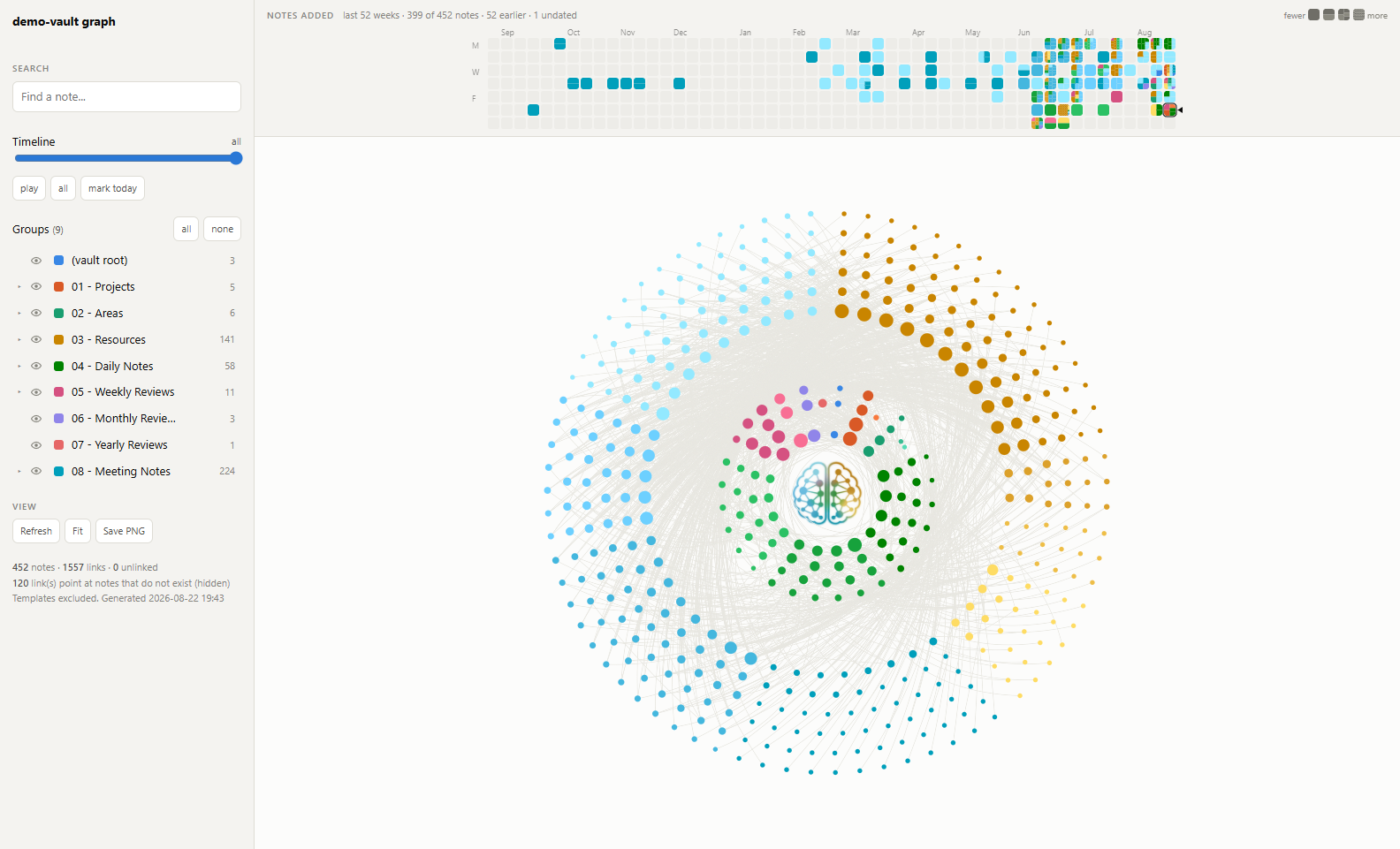
Your whole vault as one disc. Every note is a dot; every top-level folder owns a wedge
of the circle whose angle is its share of the vault. Notes fill concentric rings from the
middle outwards, best-connected first, so the best-connected notes sit near the centre and
leaves land on the rim.
The layout is deterministic, not force-directed. There is no simulation to settle and
no seed to get lucky with: the same vault always draws the same picture, so the shape
becomes something you can learn and recognise rather than a fresh tangle each time.
Ships as an Obsidian plugin and as a standalone HTML exporter — one page, two
mounts, from the same source. The exporter writes a single self-contained offline file with
no server and no network, which is how the graph reaches a phone.
What it does
One wedge per top-level folder, sized by how much of the vault it holds, filled with notes
ringed by how well-connected they are. Click a folder to hide it and the rest re-pack; hover
a note to see its links; search narrows to matching notes; scrub a date ribbon to watch the
vault grow. Follows Obsidian's theme, including a live switch.
The full feature list, one short clip per feature, lives in
docs/features.md — the disc itself, filtering, the heatmap and
timeline, reading a note, the camera, and folder colours, each with what it does and how its
clip gets regenerated.
Install the plugin
From Obsidian — Settings → Community plugins → Browse → "Vault Graph" → Install, then
Enable. Open it from the ribbon icon or the command palette (Vault graph: Open the graph).
Manually — download main.js, manifest.json and styles.css from the
latest release into
<vault>/.obsidian/plugins/vault-graph/, then reload plugins and enable it.
From source — npm install && npm run build, then ./scripts/install-plugin.ps1.
Check what you downloaded, if you like. main.js is a ~390 KB bundle — the page, the
plugin host and the engine, a Sigma.js port — and nothing about downloading a file tells you
where it came from. Every
release asset now carries a GitHub build provenance
attestation,
signed by the workflow that built it — so you can verify it came from this repository at
the tagged commit rather than being assembled by hand: gh attestation verify main.js --repo luke321/vault-graph. Releases published before this landed (1.9.0 and earlier)
have none, because an attestation can only be produced by a workflow and those were
published from a laptop.
It reads your vault through Obsidian's own metadata cache, so it sees the same links
Obsidian does, aliases and frontmatter links included. It builds in about a tenth of a
second on a 450-note vault. Nothing leaves your machine — it makes no network requests,
collects nothing, and needs no account.
What it touches, plainly. A graph of a whole vault has to know what is in the whole
vault, so the plugin enumerates every markdown file (vault.getMarkdownFiles) and reads
their frontmatter and link data from Obsidian’s own metadata cache. It reads note bodies only
to count words (vault.cachedRead), and it writes nothing in your vault — the one file it
writes is its own data.json in its plugin folder, holding the settings below. Obsidian’s
own automated review flags the enumeration, correctly — it is what the plugin is for, and
worth stating rather than leaving to be discovered.
Settings
Settings → Community plugins → Vault Graph.
|
|
| Folder colours |
One row per top-level folder, with the twelve palette slots under it. The slot the folder is currently using is ringed — brightly if you chose it, dimly if it is just the one its position gives it. Click a slot to hold the folder to that colour; Auto hands it back. Setting one folder never changes another, and two folders may share a colour — useful for saying they belong together. A folder's automatic slot is decided by where its notes are filed, not by how many of them are on screen, so a folder never takes another's colour because a filter or a setting emptied the one in front of it. A folder whose wedge is drawing nothing keeps its row, greyed with its count in brackets, rather than dropping out of the legend. |
| Folder visibility |
The eye at the start of each row sets whether that folder is shown by default. The legend's own eye inside the graph is the live filter for this session; this one is what the graph comes back to. Right-click a folder in the graph's own legend for the same setting, one row down from its colour picker — no need to open this tab just to flip it. |
| Unlinked notes join their folder |
On by default: a note with no links takes its own folder's wedge and colour, the same as any other note in it. Turn this off to keep unlinked notes together instead, as one separate population with a flat grey swatch and a parenthesised count. The (unlinked) row in the graph's own legend carries the same toggle either way — it's the very last row in the list (after (vault root), matching where a loose note sits in Obsidian's own file explorer), greyed out while it holds nothing. |
| Colour unlinked notes by folder |
Only has anything to do while the toggle above is off: a note kept in the (unlinked) population can still take its own folder's colour instead of the flat swatch, and the row's own swatch turns into a mix of whatever colours are actually in play. Right-click the (unlinked) row for the same toggle, one row below the one that moves notes out of the group entirely — it only appears there once that one is off, since there's nothing left to recolour once every unlinked note has joined its folder. |
The graph view has a gear in its top-left corner that opens this tab directly, so the
colours are reachable from the thing they colour.
| Include notes that do not exist yet | Wikilinks pointing at a note nobody has written. |
| Include templates | Notes under your template folders. |
| Flatten month folders | Treat 2026-08 and its siblings as one folder rather than a subfolder each. |
| Count words | Sizes each note by its length. The one setting that costs real I/O. |
Colours and visibility repaint the open graph immediately. The other four rebuild it,
because they change what is in it.
Folders are coloured from twelve slots — ten hues and two greys — handed out in folder
order and round again, so a thirteenth folder comes back to the first slot rather than
falling into a grey pile. A saved choice is a slot, not a colour value, so it follows
your Obsidian theme between light and dark.
Folders whose name starts with _ are treated as archives — _ Archives, _old, scratch.
They stay in the graph, but they take no slot in the colour rotation, wear the palette's
darker grey, and start hidden. All three are defaults: pick a colour or click the eye and
your choice wins. It is a rule about folders, not files — _scratch.md is a note like any
other.
Zero network calls, and greppable. Nothing shipped makes a request. The graph store
and the WebGL renderer are the plugin's own code (src/engine/, TypeScript), so there is no
third-party bundle to explain away — though not no third-party code: the renderer is a port of
Sigma.js 3.0.2 under MIT, whose notice ships in every build and is
recorded in src/engine/NOTICE.md — and node scripts/check-network.mjs
is the gate that keeps main.js and the exporter at zero. See
0008-zero-network-calls and
0012-own-graph-store-and-renderer.
Or export a standalone page
The other half of the same source: one HTML file, openable offline on anything with a
browser.
Getting the exporter
Requirements: Node 18 or newer, and one npm ci --omit=dev after cloning. That
installs a single package, esbuild, which bundles the graph engine into the page; nothing
else is downloaded, and the generator itself never touches the network. (Until the engine
replaced the vendored libraries there was no install step at all; the trade is recorded in
0012.)
This is not an app you run — it is a generator. The script reads your vault once and
writes one HTML file. Nothing is listening afterwards; you open that file yourself, in
any browser, like any other file on your disk. Two steps, and the second one is yours.
1. Get it
Clone the repo. (Releases carry only the Obsidian plugin's three files; the exporter is not
packaged separately.)
git clone https://github.com/luke321/vault-graph.git
cd vault-graph
Either way, once:
npm ci --omit=dev # esbuild only; the dev tooling is not needed to generate
2. Generate the file
node src/build-graph.mjs --vault "/path/to/your/vault"
It reads the vault, writes the HTML, prints where it went, and exits:
vault-graph: 449 notes, 1489 links, 0 orphans, 120 unresolved link(s)
wrote /path/to/your/vault/vault-graph.html (732 KB)
3. Open that file
That path in the last line is the graph. Open it however you open any local file —
double-click it, or:
start "path/to/vault-graph.html"      # Windows (cmd)
open "path/to/vault-graph.html"       # macOS
xdg-open "path/to/vault-graph.html"   # Linux
No server, no localhost, no watch mode, and nothing left running when the script exits.
The page is a snapshot of the vault as it was when you generated it: to see notes you
have added since, run step 2 again and reload the tab. (The Refresh button inside the
page returns to your default view and replays the intro — it cannot re-read your vault, because a
file:// page is not allowed to.)
The gear
Top right of the sidebar. It opens the same folder-colour picker the plugin has: one row
per top-level folder, twelve slots each — ten hues and two greys — handed out in folder
order and round again, so a thirteenth folder comes back to the first slot. The slot each
folder is currently using is ringed — brightly if you chose it, dimly if it is just the one
its position gives it, which is also what the Auto button beside it is reporting.
Auto hands a folder back to that positional slot. Setting one folder never changes
another, and two folders may share a colour — useful for saying they belong together.
Hovering a folder in the legend haloes its notes on the disc, so you can find one without
clicking anything. Clicking still pins the highlight and pushes the wedge out.
Each row also starts with an eye that sets whether that folder is shown by default —
the same mark the legend uses, because it is the same question about a different moment.
The legend's eye is the live filter for this session; this one is what the graph comes back
to. Folders whose name starts with _ are archives — no slot in the colour rotation, the
palette's darker grey, and hidden until you say otherwise.
Your choices are remembered in the browser's localStorage, under a key scoped to the
vault name, so regenerating the file keeps them and a graph of a different vault gets its
own. Colours and default visibility are what is kept: highlights and the timeline still
start fresh. Refresh returns to those defaults rather than to "everything visible". If
the browser has site data blocked the picker still works — the choices just do not outlive
the tab.
Read this before sharing the output
The generated HTML contains the structure of your vault in plain text: every note's
title, its path, its folder, its tags, its created/date frontmatter, its word count,
and the link graph between notes.
It does not contain note bodies. Nothing you wrote inside a note is in the file.
That distinction matters the moment you think about sharing. A screenshot is usually fine.
Handing someone the HTML hands them a complete listing of your note titles, which for
most vaults is more revealing than it sounds. The file is designed to live inside your own
vault and sync to your own devices; treat it as private by default.
If you want to show the graph rather than your vault, there are two vaults that are not
yours to show it with.
node scripts/make-demo-vault.mjs --out ./demo-vault        # invented, fixed, two dense years
node scripts/make-mirror-vault.mjs --vault "/path/to/your/vault" --out ./mirror-vault
The demo vault is invented from end to end: eighteen top-level folders, nesting five deep,
and two years of dates dense in every month. It is the same on every machine, which is what
makes a screenshot comparable and a recording reproducible. Every screenshot and the demo clip
in this README were made from it.
The mirror is for bug reports. It reproduces one real vault's shape and none of its
content — same folder tree, same note count per folder, same created dates, same word
counts, and the whole link graph rewritten between renamed notes, so it builds to the same
numbers yours does. If the layout misbehaves on your vault, the shape is the report, and a
generic fixture cannot reproduce a shape it does not have.
Which vault
You can skip --vault entirely. Resolution order, first match wins:
|
source |
| 1 |
--vault <path> — explicit, always wins |
| 2 |
VAULT_GRAPH_VAULT — per-machine override without editing anything |
| 3 |
OBSIDIAN_VAULT — the machine-wide answer other tooling can share |
| 4 |
--vault-name <name> — pick from Obsidian's registry by folder name |
| 5 |
Obsidian's own registry — the only entry, or the one currently open |
| 6 |
walk up for .obsidian — so dropping this folder inside a vault works |
With one registered vault, node src/build-graph.mjs on its own works. With several and
none unambiguously open, it lists them and stops rather than guessing. Errors name which
source supplied a bad path.
Registry: %APPDATA%\obsidian\obsidian.json (Windows),
~/Library/Application Support/obsidian/obsidian.json (macOS),
~/.config/obsidian/obsidian.json (Linux).
Where the output goes
<this repo>/                              source: the page, the exporter, the engine (src/engine)
  └─ .ai-context/                         architecture + decision records
<vault>/vault-graph.html                  build output, opened directly in a browser
                                          ...or anywhere: --out FILE
The default is the vault's root, because that is the one folder every vault has — nothing
about your folder names or numbering is assumed. --out puts the file wherever you like:
node src/build-graph.mjs --out ~/Desktop/my-vault.html
Writing it into the vault is the default for one reason: the vault already syncs to your
phone and your other machines, and one self-contained file rides along for free.
Flags
| Flag |
Effect |
--vault PATH |
which vault to read |
--vault-name NAME |
pick a registered vault by folder name |
--out FILE |
write somewhere else |
--ghosts |
also show [[links]] pointing at notes that don't exist yet |
--templates |
include your template notes (off by default: their placeholder links are fake edges) |
--flat-months |
fold 2026-08 month folders into their parent instead of treating them as a level |
--no-nav |
ignore the daily-note prev/next nav line |
The builder is cross-platform — plain Node, no shell-outs. The scripts/*.ps1 helpers
are Windows-only conveniences, not requirements:
| script |
what it does |
elsewhere |
refresh-graph.ps1 |
rebuild and open |
node src/build-graph.mjs && open <path> |
record-demo.ps1 |
record the demo to mp4 |
not ported — needs avfoundation / x11grab |
make-hero.ps1 |
encode a take as the README hero (animated WebP, 30fps, 700px) |
works anywhere ffmpeg does, if you port the wrapper |
make-logo.ps1 |
rebuild the logo mask from source art |
not ported; assets/ is prebuilt |
scripts/smoke.mjs, scripts/demo.mjs and scripts/make-test-vault.mjs are Node and
should work anywhere Chrome does, though only Windows has been exercised.
How your vault is interpreted
Nothing about a particular vault is hardcoded, but a few conventions are detected — and
knowing them explains the output:
- Top-level folders become wedges, angle proportional to share. Any folder scheme
works; PARA is just what it was built against.
- One level of subfolders is drawn, as tints of the parent's colour. The three largest
get their own tint; the rest share a pooled one.
- Date-named folders (
2026, 2026-06, 2026-Q3, 2026-W34) say when a note was
filed rather than what it is — kept at the first level, ignored deeper down.
- Templates and daily notes come from your
.obsidian config (templates.json,
daily-notes.json, Templater's settings), not from folder names. Rename them freely.
- Links resolve the way Obsidian resolves them — basename, then alias, then full path —
read from both body and frontmatter, so
person: "[[Ada Lovelace]]" counts. Fenced
code blocks are skipped so Dataview queries don't invent edges.
created frontmatter drives the timeline and the heatmap, falling back to date. A
note with neither is always present rather than stranded at one end of the timeline.- The daily-note
[[prev]] | [[next]] nav line does count as links; --no-nav strips
it.
A vault with no subfolders, no dates and no aliases still renders — you just get a simpler
disc.
The page is a snapshot
It cannot regenerate itself. The vault is baked in at build time; there is no server,
no network, and fetch() is blocked on file://, so nothing in the browser can walk your
vault. Re-run the build to make it current.
The in-page Refresh button is not that. It returns to your defaults — clearing
highlights and the timeline, and putting each folder back to the visibility set in the
gear — and replays the intro.
If you have just rebuilt, reload the browser tab.
Optional: the scripted demo
?demo on the URL arms a walkthrough that drives the real controls over Chrome's DevTools
protocol. The storyboard is demoMode() in src/page.js — append beats to it and
nothing else needs changing.
.\scripts\record-demo.ps1 # needs ffmpeg: winget install Gyan.FFmpeg
The visible cursor in a recording (--cursor, which the recorder passes) is drawn inside
the page and moved by eval, in step with the same input dispatched over CDP — not the

 Vault Graph 是一个 Obsidian 社区插件,把你的整个仓库(vault)画成确定性的圆形图:每个笔记是一个点,每个顶层文件夹占据一个扇区,大小按其在仓库中的占比而定,笔记从中心(连接最多)向外缘(叶子)逐环填充。