
Что это?
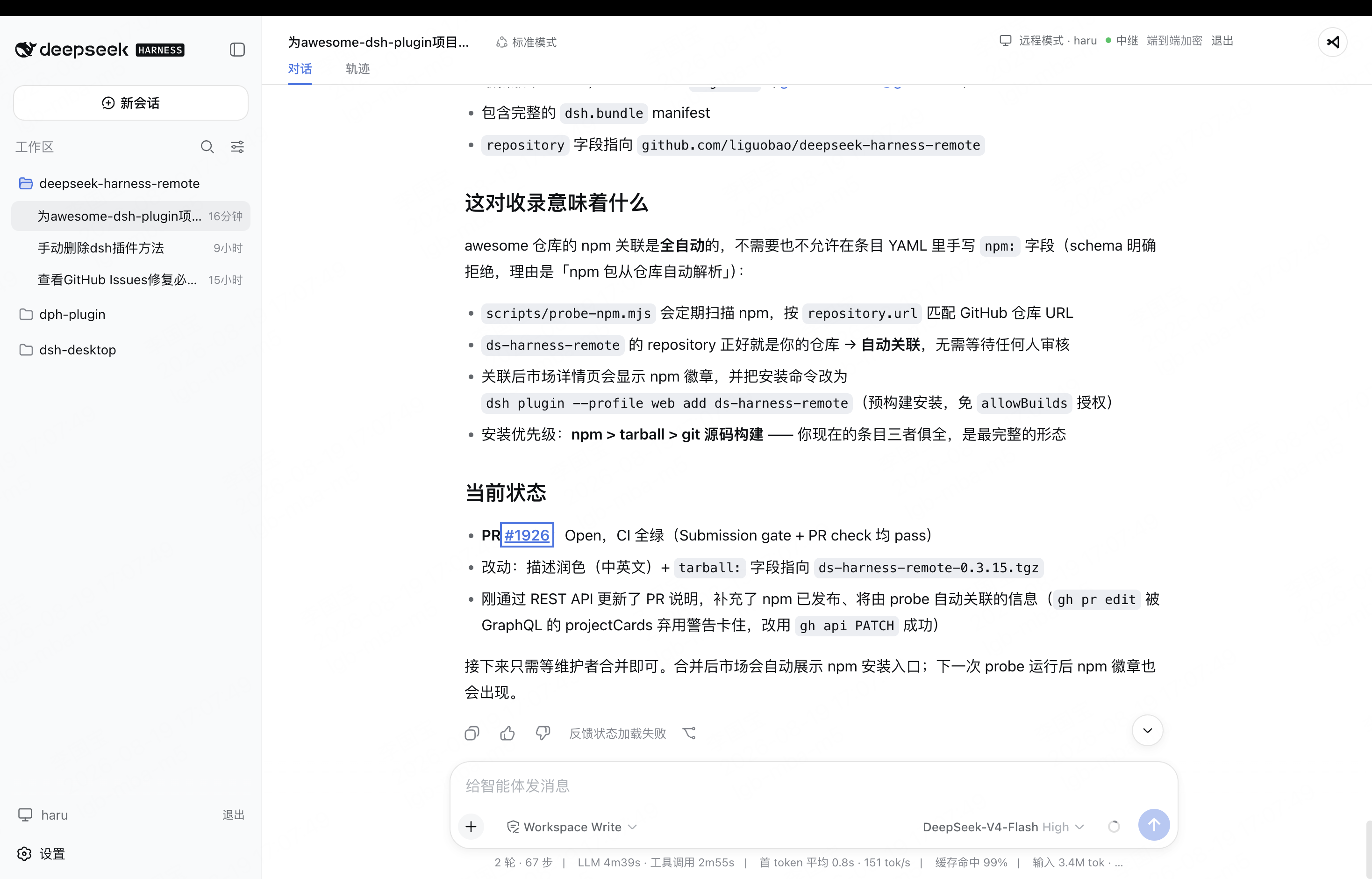
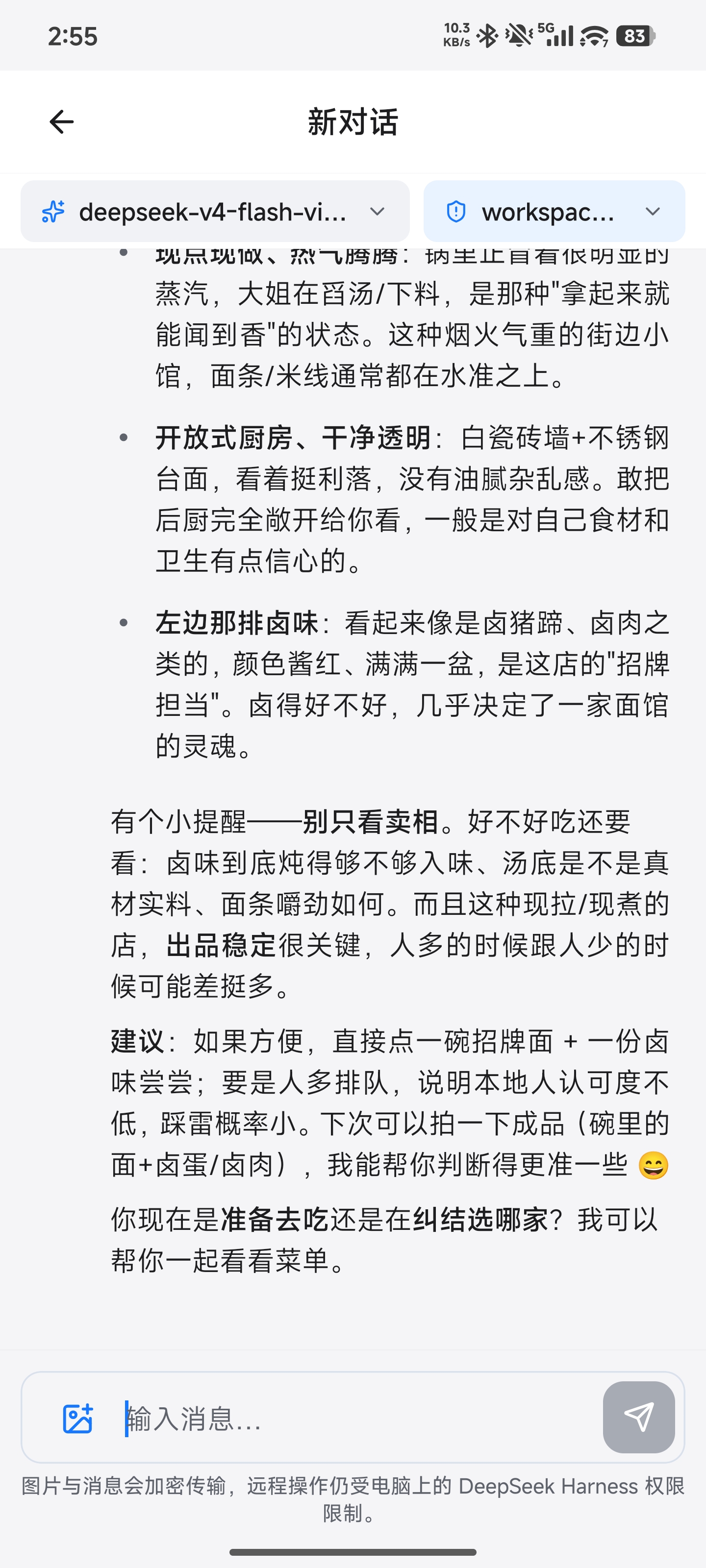
 Плагин удалённого доступа для DeepSeek Harness, позволяющий продолжить активную сессию Harness с другого ПК, Android-устройства или веб-браузера, тогда как сессия, инструменты и рабочее пространство остаются на вашем исходном рабочем компьютере.
Плагин удалённого доступа для DeepSeek Harness, позволяющий продолжить активную сессию Harness с другого ПК, Android-устройства или веб-браузера, тогда как сессия, инструменты и рабочее пространство остаются на вашем исходном рабочем компьютере.Это отдельное приложение или плагин для чего-то другого?Это плагин для системы плагинов DeepSeek Harness (dsh), по умолчанию входящий в комплект DSH Desktop, с сопутствующими клиентами для Android и веба и возможностью работать как Host внутри чисто терминального профиля dsh-TUI.
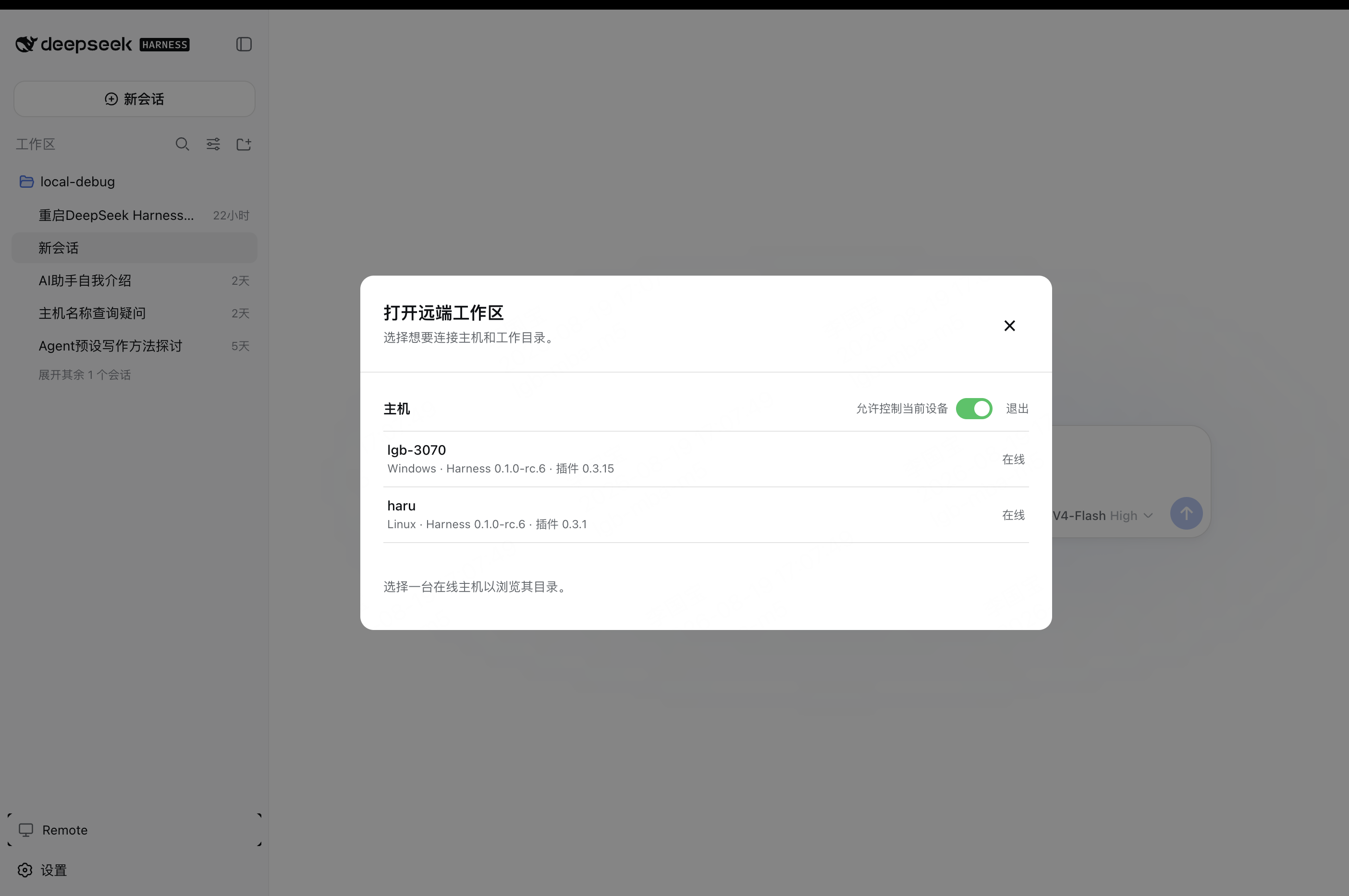
Это плагин для системы плагинов DeepSeek Harness (dsh), по умолчанию входящий в комплект DSH Desktop, с сопутствующими клиентами для Android и веба и возможностью работать как Host внутри чисто терминального профиля dsh-TUI.Как запустить Remote?Установите DSH Desktop на Windows, macOS или Linux (Remote включён по умолчанию) или добавьте точную версию пакета через менеджер плагинов DSH на существующей установке и перезапустите Harness; затем откройте Remote в боковой панели и войдите по QR-коду GitHub или Zhihu.
Установите DSH Desktop на Windows, macOS или Linux (Remote включён по умолчанию) или добавьте точную версию пакета через менеджер плагинов DSH на существующей установке и перезапустите Harness; затем откройте Remote в боковой панели и войдите по QR-коду GitHub или Zhihu.Какая версия Harness нужна для работы?Нужна установка DeepSeek Harness с dsh-v0.1.1-rc.2, dsh-v0.1.2-alpha.1 по rc.1 или dsh-v0.1.5-rc.1, так как Remote опирается на их официальный ApiProxy или Typert Remote Gateway.
Нужна установка DeepSeek Harness с dsh-v0.1.1-rc.2, dsh-v0.1.2-alpha.1 по rc.1 или dsh-v0.1.5-rc.1, так как Remote опирается на их официальный ApiProxy или Typert Remote Gateway.Есть ли нюансы с совместимостью или собственным релеем?Плагин 0.4.1 удалил прежнюю экспериментальную RPC-поверхность без адаптера обратно, поэтому версии клиента и хоста должны совпадать по правильному пути ApiProxy/Gateway; кроме того, сейчас нет варианта self-hosted релея - все ходят через hosted-релей Remote.
Плагин 0.4.1 удалил прежнюю экспериментальную RPC-поверхность без адаптера обратно, поэтому версии клиента и хоста должны совпадать по правильному пути ApiProxy/Gateway; кроме того, сейчас нет варианта self-hosted релея - все ходят через hosted-релей Remote.Может ли сервис-релей читать данные моей сессии?Нет. Трафик зашифрован сквозным образом с фиксированным набором Noise, поэтому релей может маршрутизировать соединения и видеть сетевые метаданные, но не может читать сообщения сессии, промпты, вывод инструментов или содержимое файлов.
Нет. Трафик зашифрован сквозным образом с фиксированным набором Noise, поэтому релей может маршрутизировать соединения и видеть сетевые метаданные, но не может читать сообщения сессии, промпты, вывод инструментов или содержимое файлов.Что именно нельзя делать удалённо из соображений безопасности?Remote не открывает прямой shell, PTY или общий RPC к инструментам; он показывает только выбор рабочего пространства в режиме чтения и ограниченные предпросмотры файлов, которые не могут ничего записывать, удалять, загружать или выполнять.
Remote не открывает прямой shell, PTY или общий RPC к инструментам; он показывает только выбор рабочего пространства в режиме чтения и ограниченные предпросмотры файлов, которые не могут ничего записывать, удалять, загружать или выполнять.Как именно маршрутизируется сетевое соединение?Remote пробует LAN, затем P2P, затем TURN, а если WebRTC не может соединиться, откатывается к зашифрованному WebSocket Relay, и Harness Host никогда не нуждается в публичном слушающем порту.
Remote пробует LAN, затем P2P, затем TURN, а если WebRTC не может соединиться, откатывается к зашифрованному WebSocket Relay, и Harness Host никогда не нуждается в публичном слушающем порту.Что за экспериментальная поддержка Codex?Remote также может показывать проекты Codex с авторизованного Host в обычном выборе рабочих пространств, поддерживая текстовые/графические промпты и управление разрешениями, но это всё ещё помечено как экспериментальное, пока продолжается работа над восстановлением и совместимостью.
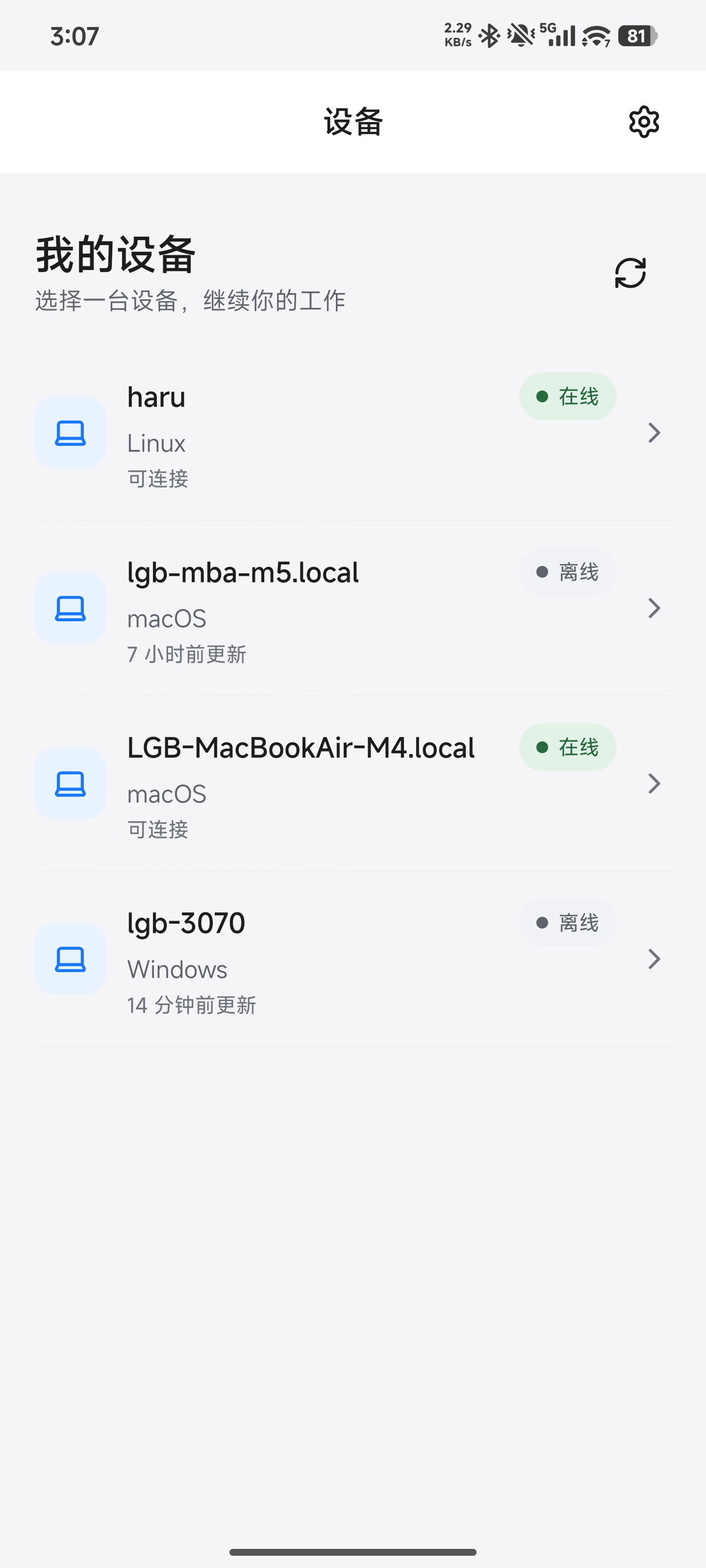
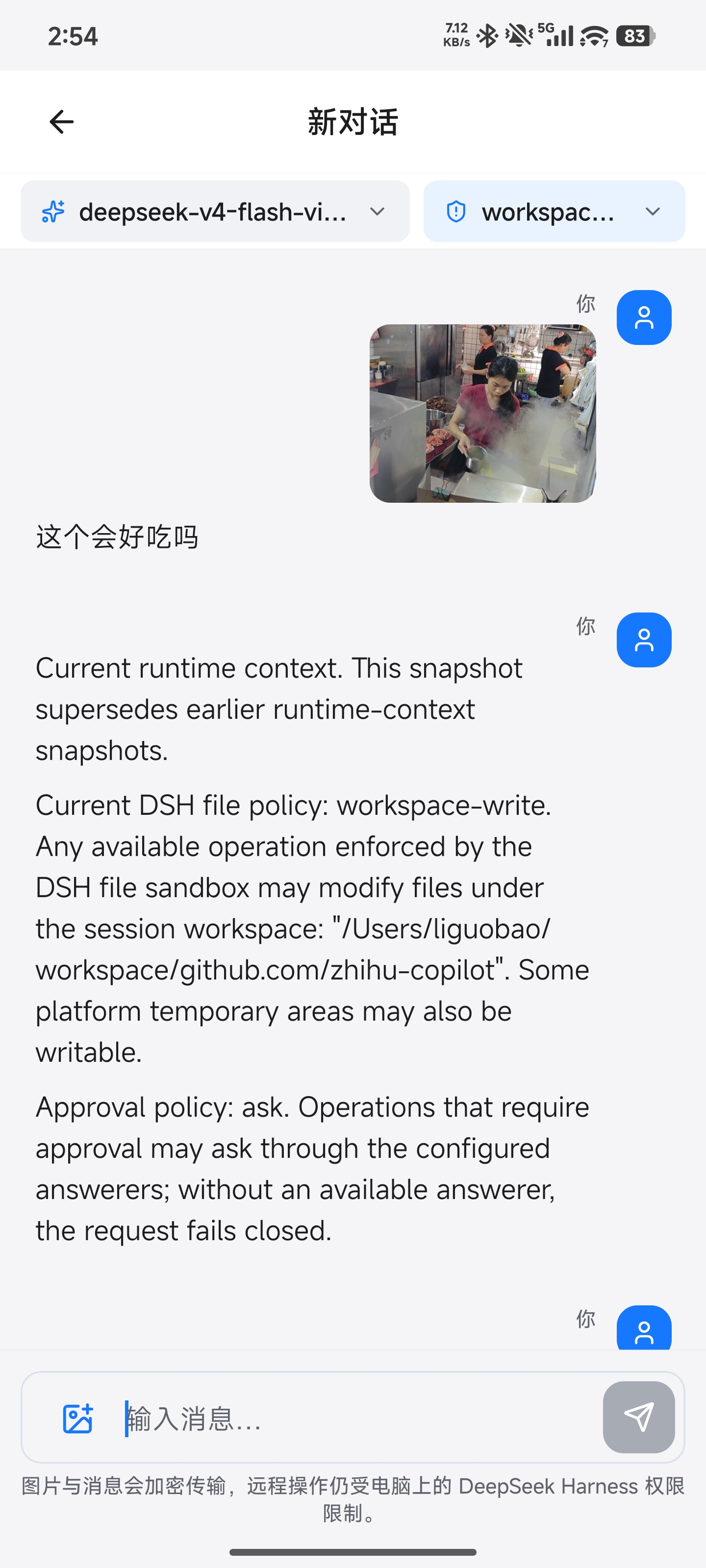
Remote также может показывать проекты Codex с авторизованного Host в обычном выборе рабочих пространств, поддерживая текстовые/графические промпты и управление разрешениями, но это всё ещё помечено как экспериментальное, пока продолжается работа над восстановлением и совместимостью.Что можно делать из Android-приложения?Скачайте APK из GitHub Releases, войдите, выберите онлайн-компьютер и рабочее пространство, затем продолжайте разговор текстовыми или графическими промптами и переключайте модель или уровень рассуждений с панели инструментов.
Скачайте APK из GitHub Releases, войдите, выберите онлайн-компьютер и рабочее пространство, затем продолжайте разговор текстовыми или графическими промптами и переключайте модель или уровень рассуждений с панели инструментов.What are similar projects?dsh-pocket, dsh-remote-web-gateway, WhaleIsle, dsh-mobile, EnvoyMesh, deepseek-harness-desktop, dsh-bridge, bitbang
dsh-pocket, dsh-remote-web-gateway, WhaleIsle, dsh-mobile, EnvoyMesh, deepseek-harness-desktop, dsh-bridge, bitbangWhich topics is it in?remote-desktop, remote-access, qr-code, webrtc, p2p, dsh-plugin, websocket, encryption, deepseek, coding-agent, plugin, android
remote-desktop, remote-access, qr-code, webrtc, p2p, dsh-plugin, websocket, encryption, deepseek, coding-agent, plugin, android