



-brightgreen?style=flat-square&logo=googlecolab&&logoColor=white)
CLIP-as-service is a low-latency high-scalability service for embedding images and text. It can be easily integrated as a microservice into neural search solutions.
⚡ Fast: Serve CLIP models with TensorRT, ONNX runtime and PyTorch w/o JIT with 800QPS[*]. Non-blocking duplex streaming on requests and responses, designed for large data and long-running tasks.
🫐 Elastic: Horizontally scale up and down multiple CLIP models on single GPU, with automatic load balancing.
🐥 Easy-to-use: No learning curve, minimalist design on client and server. Intuitive and consistent API for image and sentence embedding.
👒 Modern: Async client support. Easily switch between gRPC, HTTP, WebSocket protocols with TLS and compression.
🍱 Integration: Smooth integration with neural search ecosystem including Jina and DocArray. Build cross-modal and multi-modal solutions in no time.
[*] with default config (single replica, PyTorch no JIT) on GeForce RTX 3090.
Text & image embedding
| via HTTPS 🔐 |
via gRPC 🔐⚡⚡ |
curl \
-X POST https://<your-inference-address>-http.wolf.jina.ai/post \
-H 'Content-Type: application/json' \
-H 'Authorization: <your access token>' \
-d '{"data":[{"text": "First do it"},
    {"text": "then do it right"},
    {"text": "then do it better"},
    {"uri": "https://picsum.photos/200"}],
    "execEndpoint":"/"}'
|
# pip install clip-client
from clip_client import Client

c = Client(
    'grpcs://<your-inference-address>-grpc.wolf.jina.ai',
    credential={'Authorization': '<your access token>'},
)

r = c.encode(
    [
        'First do it',
        'then do it right',
        'then do it better',
        'https://picsum.photos/200',
    ]
)
print(r)
|
Visual reasoning
There are four basic visual reasoning skills: object recognition, object counting, color recognition, and spatial relation understanding. Let's try some:
You need to install jq (a JSON processor) to prettify the results.
| Image |
via HTTPS 🔐 |

|
curl \
-X POST https://<your-inference-address>-http.wolf.jina.ai/post \
-H 'Content-Type: application/json' \
-H 'Authorization: <your access token>' \
-d '{"data":[{"uri": "https://picsum.photos/id/1/300/300",
"matches": [{"text": "there is a woman in the photo"},
            {"text": "there is a man in the photo"}]}],
            "execEndpoint":"/rank"}' \
| jq ".data[].matches[] | (.text, .scores.clip_score.value)"
gives:
"there is a woman in the photo"
0.626907229423523
"there is a man in the photo"
0.37309277057647705
|

|
curl \
-X POST https://<your-inference-address>-http.wolf.jina.ai/post \
-H 'Content-Type: application/json' \
-H 'Authorization: <your access token>' \
-d '{"data":[{"uri": "https://picsum.photos/id/133/300/300",
"matches": [
{"text": "the blue car is on the left, the red car is on the right"},
{"text": "the blue car is on the right, the red car is on the left"},
{"text": "the blue car is on top of the red car"},
{"text": "the blue car is below the red car"}]}],
"execEndpoint":"/rank"}' \
| jq ".data[].matches[] | (.text, .scores.clip_score.value)"
gives:
"the blue car is on the left, the red car is on the right"
0.5232442617416382
"the blue car is on the right, the red car is on the left"
0.32878655195236206
"the blue car is below the red car"
0.11064132302999496
"the blue car is on top of the red car"
0.03732786327600479
|

|
curl \
-X POST https://<your-inference-address>-http.wolf.jina.ai/post \
-H 'Content-Type: application/json' \
-H 'Authorization: <your access token>' \
-d '{"data":[{"uri": "https://picsum.photos/id/102/300/300",
"matches": [{"text": "this is a photo of one berry"},
            {"text": "this is a photo of two berries"},
            {"text": "this is a photo of three berries"},
            {"text": "this is a photo of four berries"},
            {"text": "this is a photo of five berries"},
            {"text": "this is a photo of six berries"}]}],
            "execEndpoint":"/rank"}' \
| jq ".data[].matches[] | (.text, .scores.clip_score.value)"
gives:
"this is a photo of three berries"
0.48507222533226013
"this is a photo of four berries"
0.2377079576253891
"this is a photo of one berry"
0.11304923892021179
"this is a photo of five berries"
0.0731358453631401
"this is a photo of two berries"
0.05045759305357933
"this is a photo of six berries"
0.04057715833187103
|
Install
CLIP-as-service consists of two Python packages clip-server and clip-client that can be installed independently. Both require Python 3.7+.
Install server
| Pytorch Runtime ⚡ |
ONNX Runtime ⚡⚡ |
TensorRT Runtime ⚡⚡⚡ |
pip install clip-server
|
pip install "clip-server[onnx]"
|
pip install nvidia-pyindex
pip install "clip-server[tensorrt]"
|
You can also host the server on Google Colab, leveraging its free GPU/TPU.
Install client
pip install clip-client
Quick check
You can run a simple connectivity check after install.
| C/S |
Command |
Expect output |
|
Server
|
python -m clip_server
|

|
|
Client
|
from clip_client import Client

c = Client('grpc://0.0.0.0:23456')
c.profile()
|

|
You can change 0.0.0.0 to the intranet or public IP address to test the connectivity over private and public network.
Get Started
Basic usage
- Start the server:
python -m clip_server. Remember its address and port.
- Create a client:
 from clip_client import Client

 c = Client('grpc://0.0.0.0:51000')
- To get sentence embedding:
r = c.encode(['First do it', 'then do it right', 'then do it better'])

print(r.shape)  # [3, 512]
- To get image embedding:
r = c.encode(['apple.png',  # local image
              'https://clip-as-service.jina.ai/_static/favicon.png',  # remote image
              'data:image/gif;base64,R0lGODlhEAAQAMQAAORHHOVSKudfOulrSOp3WOyDZu6QdvCchPGolfO0o/XBs/fNwfjZ0frl3/zy7////wAAAAAAAAAAAAAAAAAAAAAAAAAAAAAAAAAAAAAAAAAAAAAAAAAAAAAAAAAAAAAAACH5BAkAABAALAAAAAAQABAAAAVVICSOZGlCQAosJ6mu7fiyZeKqNKToQGDsM8hBADgUXoGAiqhSvp5QAnQKGIgUhwFUYLCVDFCrKUE1lBavAViFIDlTImbKC5Gm2hB0SlBCBMQiB0UjIQA7'])  # in image URI

print(r.shape)  # [3, 512]
More comprehensive server and client user guides can be found in the docs.
Text-to-image cross-modal search in 10 lines
Let's build a text-to-image search using CLIP-as-service. Namely, a user can input a sentence and the program returns matching images. We'll use the Totally Looks Like dataset and DocArray package. Note that DocArray is included within clip-client as an upstream dependency, so you don't need to install it separately.
Load images
First we load images. You can simply pull them from Jina Cloud:
from docarray import DocumentArray

da = DocumentArray.pull('ttl-original', show_progress=True, local_cache=True)
or download TTL dataset, unzip, load manually
Alternatively, you can go to Totally Looks Like official website, unzip and load images:
from docarray import DocumentArray

da = DocumentArray.from_files(['left/*.jpg', 'right/*.jpg'])
The dataset contains 12,032 images, so it may take a while to pull. Once done, you can visualize it and get the first taste of those images:
da.plot_image_sprites()

Encode images
Start the server with python -m clip_server. Let's say it's at 0.0.0.0:51000 with GRPC protocol (you will get this information after running the server).
Create a Python client script:
from clip_client import Client

c = Client(server='grpc://0.0.0.0:51000')

da = c.encode(da, show_progress=True)
Depending on your GPU and client-server network, it may take a while to embed 12K images. In my case, it took about two minutes.
Download the pre-encoded dataset
If you're impatient or don't have a GPU, waiting can be Hell. In this case, you can simply pull our pre-encoded image dataset:
from docarray import DocumentArray

da = DocumentArray.pull('ttl-embedding', show_progress=True, local_cache=True)
Search via sentence
Let's build a simple prompt to allow a user to type sentence:
while True:
    vec = c.encode([input('sentence> ')])
    r = da.find(query=vec, limit=9)
    r[0].plot_image_sprites()
Showcase
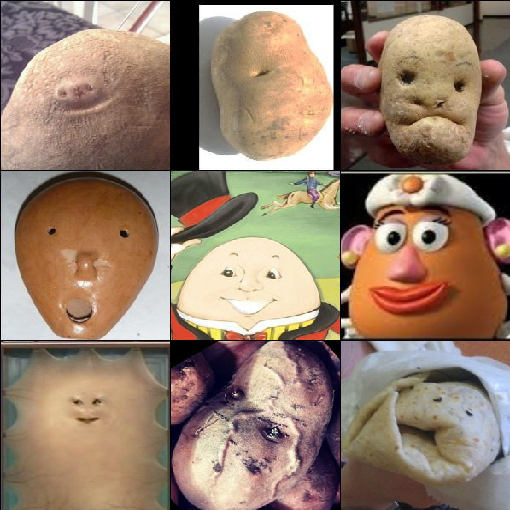
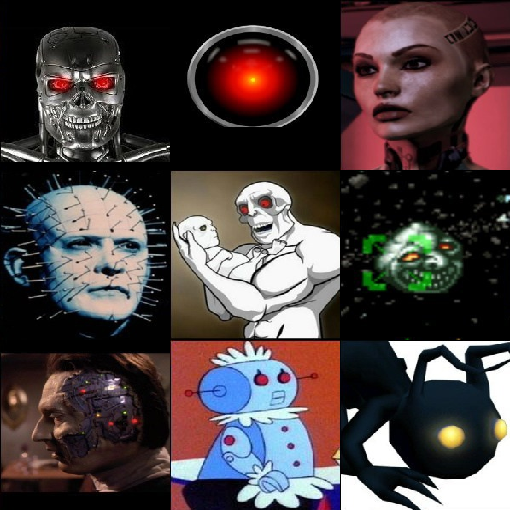
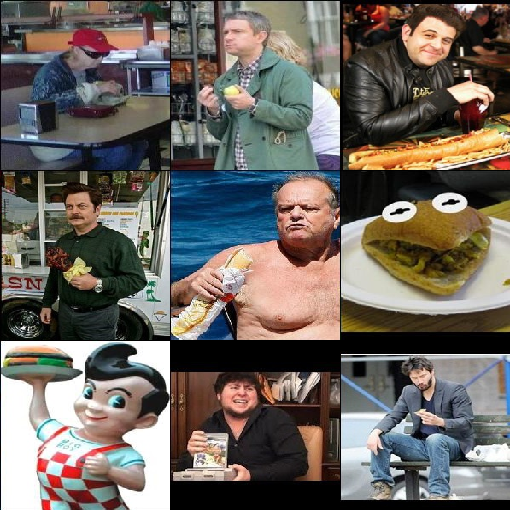
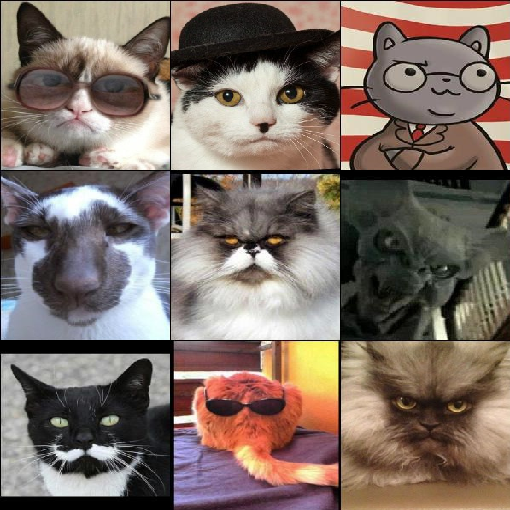
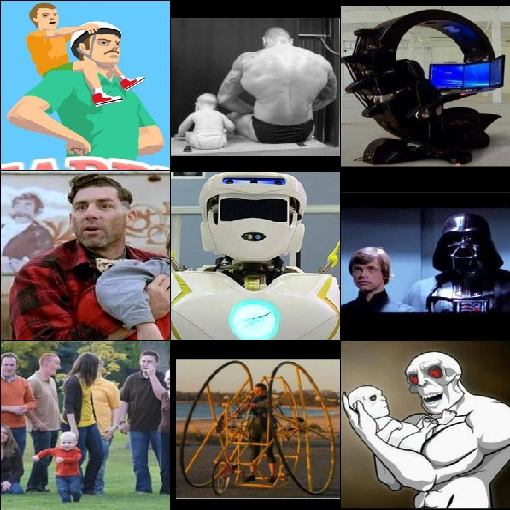
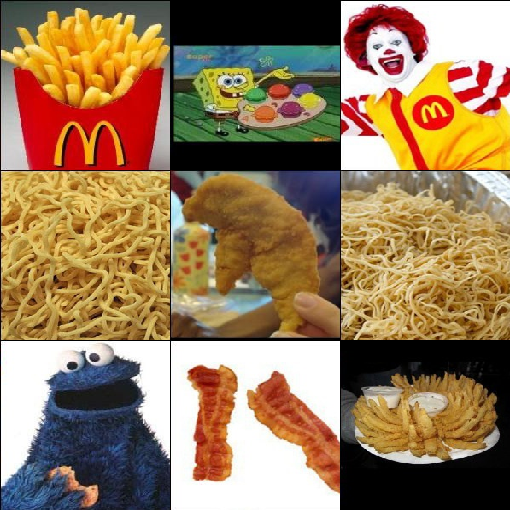
Now you can input arbitrary English sentences and view the top-9 matching images. Search is fast and instinctive. Let's have some fun:
| "a happy potato" |
"a super evil AI" |
"a guy enjoying his burger" |
|
|
|
|
| "professor cat is very serious" |
"an ego engineer lives with parent" |
"there will be no tomorrow so lets eat unhealthy" |
|
|
|
|
Let's save the embedding result for our next example:
da.save_binary('ttl-image')
Image-to-text cross-modal search in 10 Lines
We can also switch the input and output of the last program to achieve image-to-text search. Precisely, given a query image find the sentence that best describes the image.
Let's use all sentences from the book "Pride and Prejudice".
from docarray import Document, DocumentArray

d = Document(uri='https://www.gutenberg.org/files/1342/1342-0.txt').load_uri_to_text()
da = DocumentArray(
    Document(text=s.strip()) for s in d.text.replace('\r\n', '').split('.') if s.strip()
)
Let's look at what we got:
da.summary()
            Documents Summary

  Length                 6403
  Homogenous Documents   True
  Common Attributes      ('id', 'text')

                     Attributes Summary

  Attribute   Data type   #Unique values   Has empty value
 ──────────────────────────────────────────────────────────
  id          ('str',)    6403             False
  text        ('str',)    6030             False
Encode sentences
Now encode these 6,403 sentences, it may take 10 seconds or less depending on your GPU and network:
from clip_client import Client

c = Client('grpc://0.0.0.0:51000')

r = c.encode(da, show_progress=True)
Download the pre-encoded dataset
Again, for people who are impatient or don't have a GPU, we have prepared a pre-encoded text dataset:
from docarray import DocumentArray

da = DocumentArray.pull('ttl-textual', show_progress=True, local_cache=True)
Search via image
Let's load our previously stored image embedding, randomly sample 10 image Documents, then find top-1 nearest neighbour of each.
from docarray import DocumentArray

img_da = DocumentArray.load_binary('ttl-image')

for d in img_da.sample(10):
    print(da.find(d.embedding, limit=1)[0].text)
Showcase
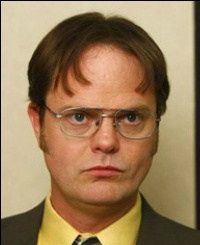
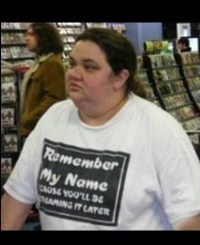
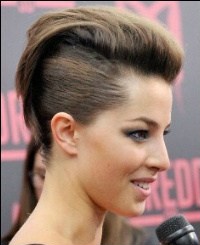
Fun time! Note, unlike the previous example, here the input is an image and the sentence is the output. All sentences come from the book "Pride and Prejudice".
|
|

|
|

|

|
| Besides, there was truth in his looks |
Gardiner smiled |
what’s his name |
By tea time, however, the dose had been enough, and Mr |
You do not look well |
|

|

|
|

|

|
| “A gamester!” she cried |
If you mention my name at the Bell, you will be attended to |
Never mind Miss Lizzy’s hair |
Elizabeth will soon be the wife of Mr |
I saw them the night before last |
Rank image-text matches via CLIP model
From 0.3.0 CLIP-as-service adds a new /rank endpoint that re-ranks cross-modal matches according to their joint likelihood in CLIP model. For example, given an image Document with some predefined sentence matches as below:
from clip_client import Client
from docarray import Document

c = Client(server='grpc://0.0.0.0:51000')
r = c.rank(
    [
        Document(
            uri='.github/README-img/rerank.png',
            matches=[
                Document(text=f'a photo of a {p}')
                for p in (
                    'control room',
                    'lecture room',
                    'conference room',
                    'podium indoor',
                    'television studio',
                )
            ],
        )
    ]
)

print(r['@m', ['text', 'scores__clip_score__value']])
[['a photo of a television studio', 'a photo of a conference room', 'a photo of a lecture room', 'a photo of a control room', 'a photo of a podium indoor'],
[0.9920725226402283, 0.006038925610482693, 0.0009973491542041302, 0.00078492151806131, 0.00010626466246321797]]
One can see now a photo of a television studio is ranked to the top with clip_score score at 0.992. In practice, one can use this endpoint to re-rank the matching result from another search system, for improving the cross-modal se

 CLIP-as-service 是一个低延迟、高扩展性的服务,用 CLIP 模型为图片和文本生成嵌入向量,你可以把它作为微服务接入神经网络搜索或跨模态检索应用。