Omamail
Your mail as a native Omarchy window — not a browser tab.
Omamail is an Omarchy desktop email client: a Quickshell plugin that reads, triages, and answers your mail over the official Gmail API, through Microsoft OAuth for Outlook, over the HEY CLI client 37signals publish, over JMAP, or over IMAP and SMTP for every other mailbox. It runs inside the omarchy-shell process you already have, follows your active theme, and puts an unread count in the bar.
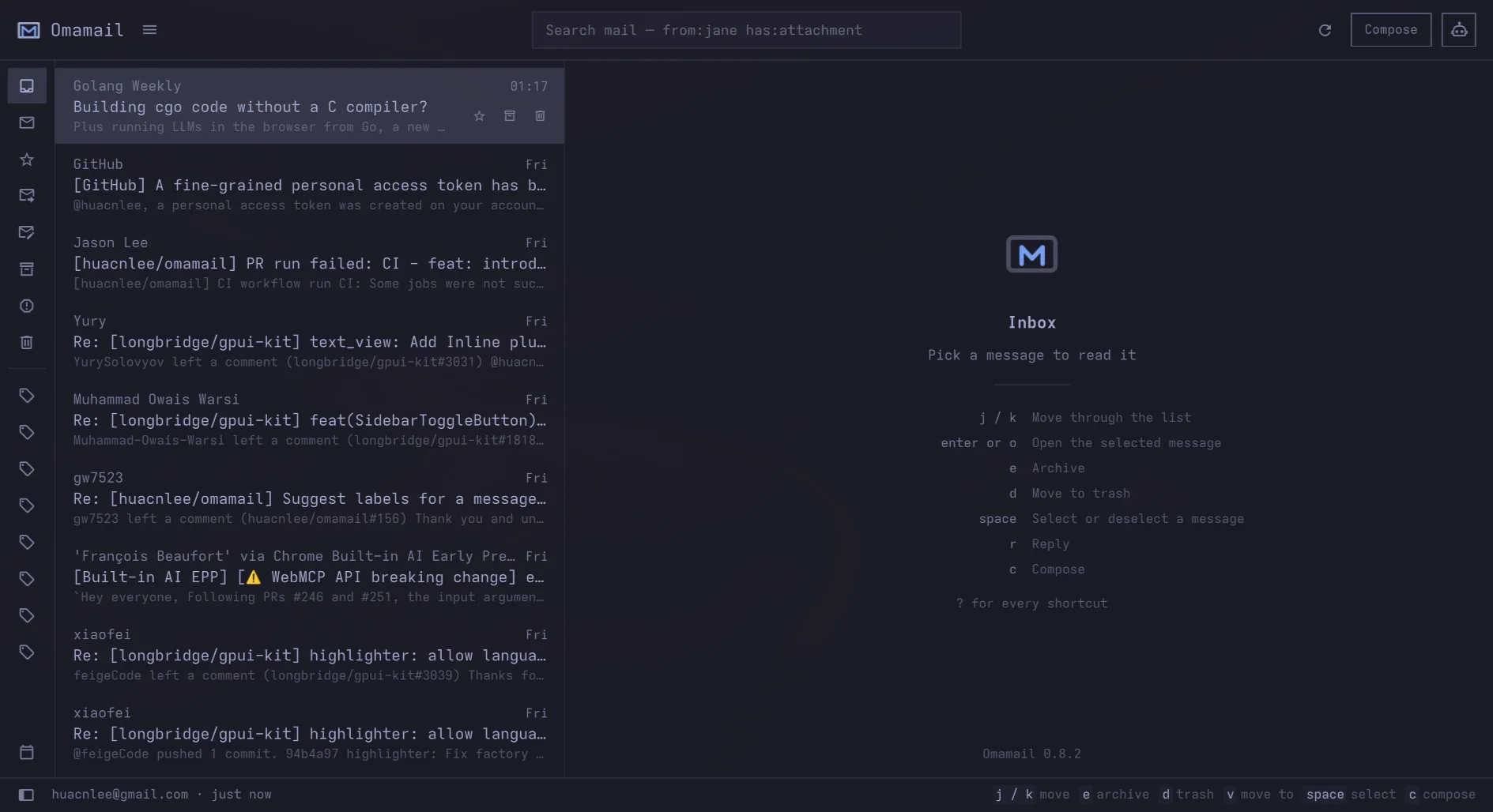
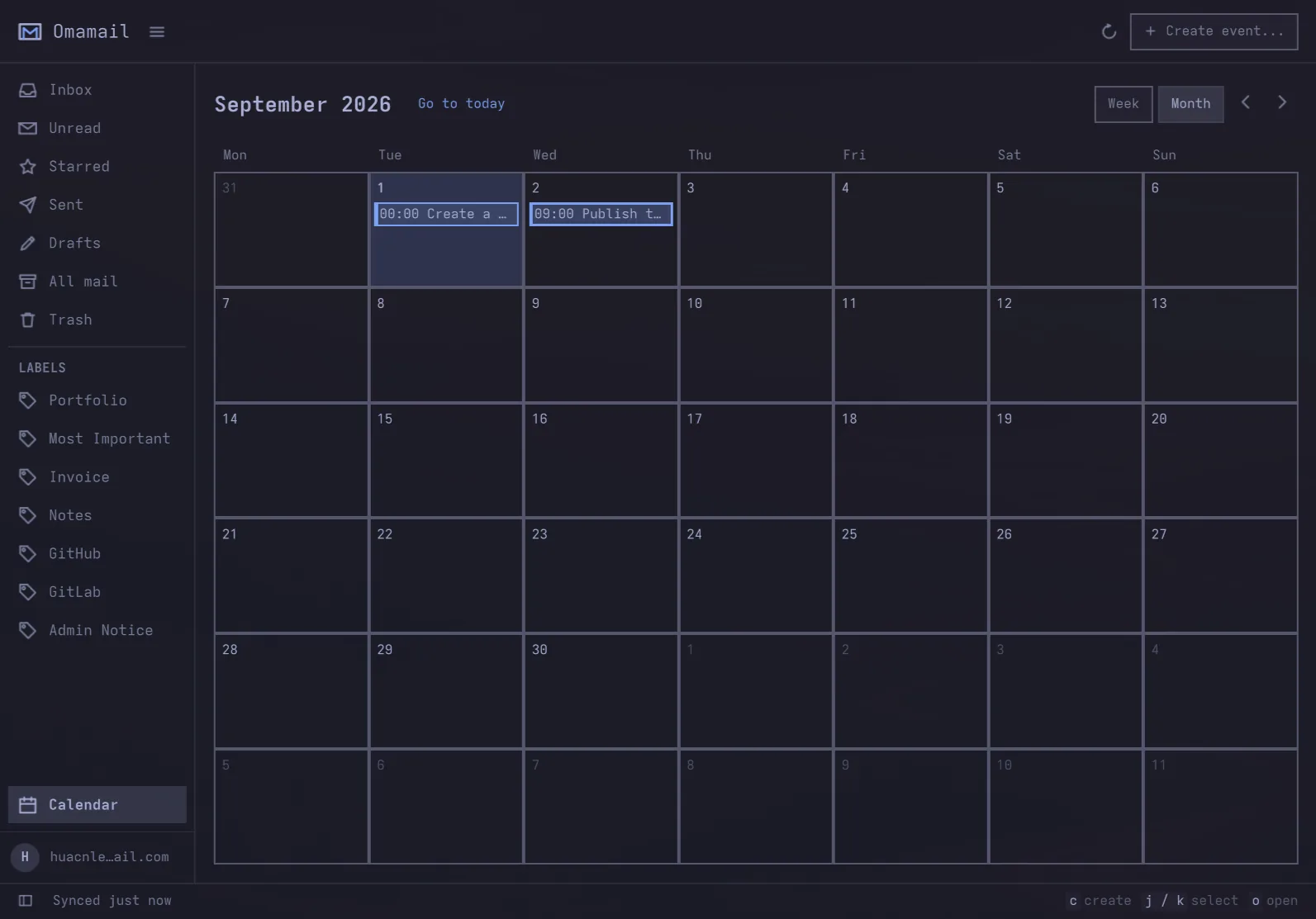
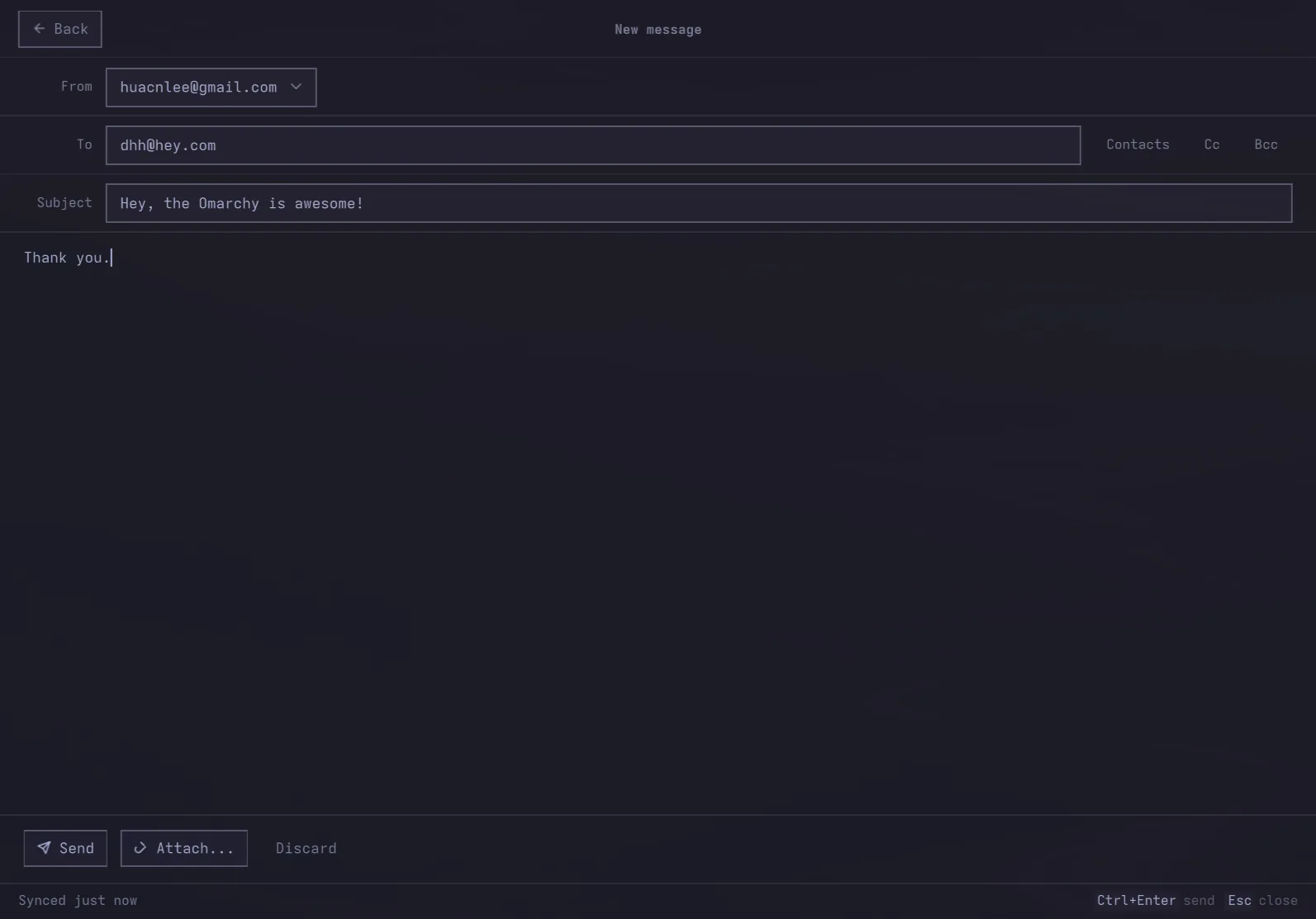
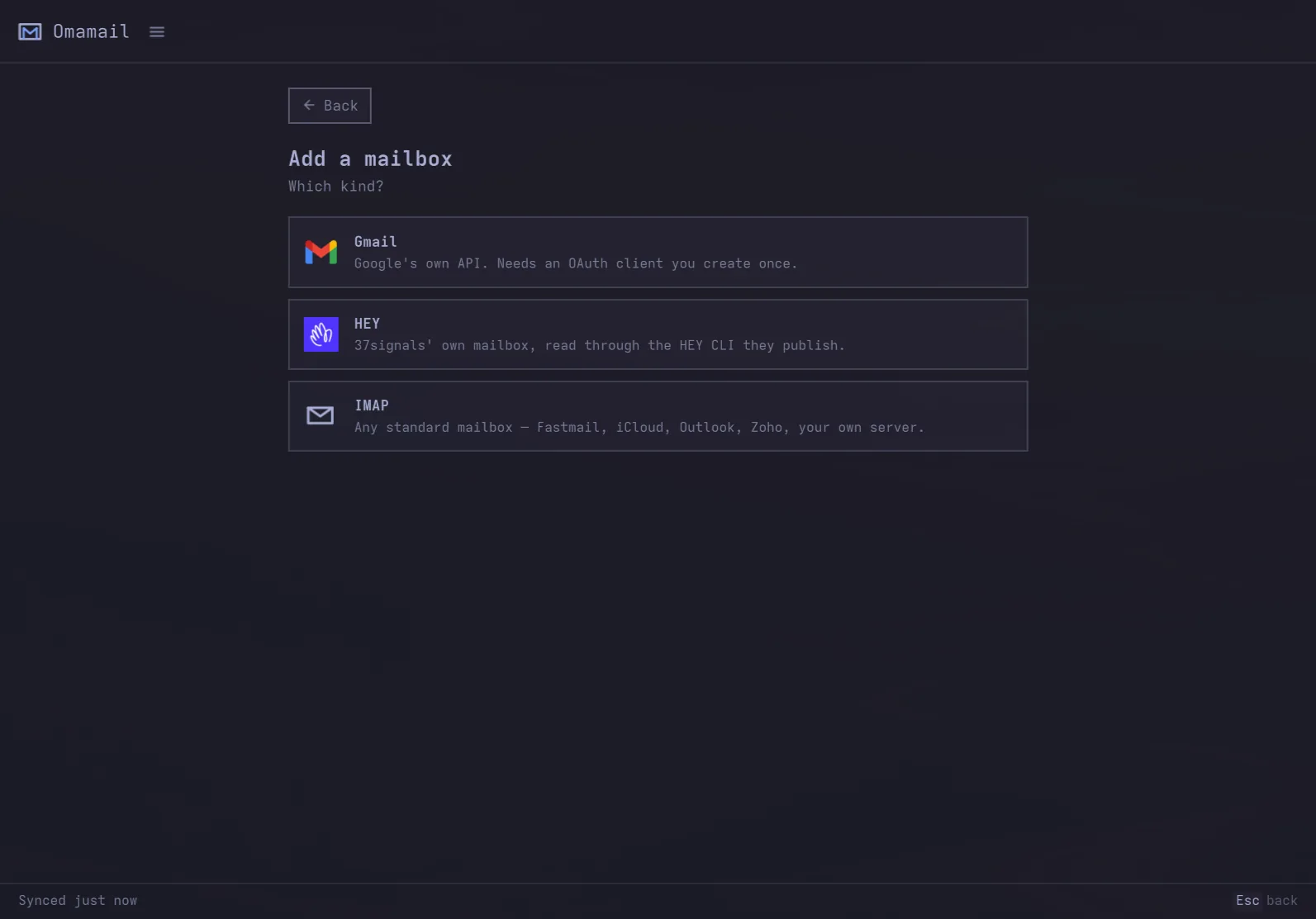
The calendar, a new message, and the question every new mailbox starts with:
And with mini size mode:
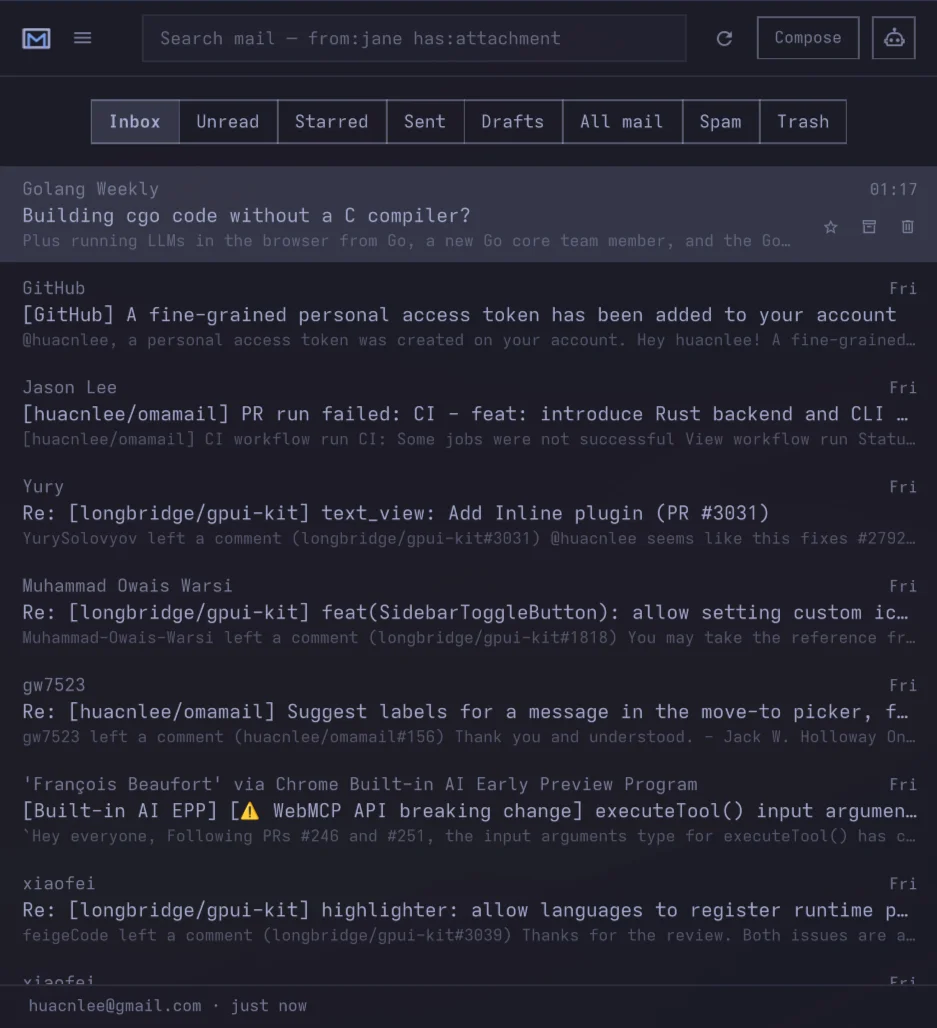
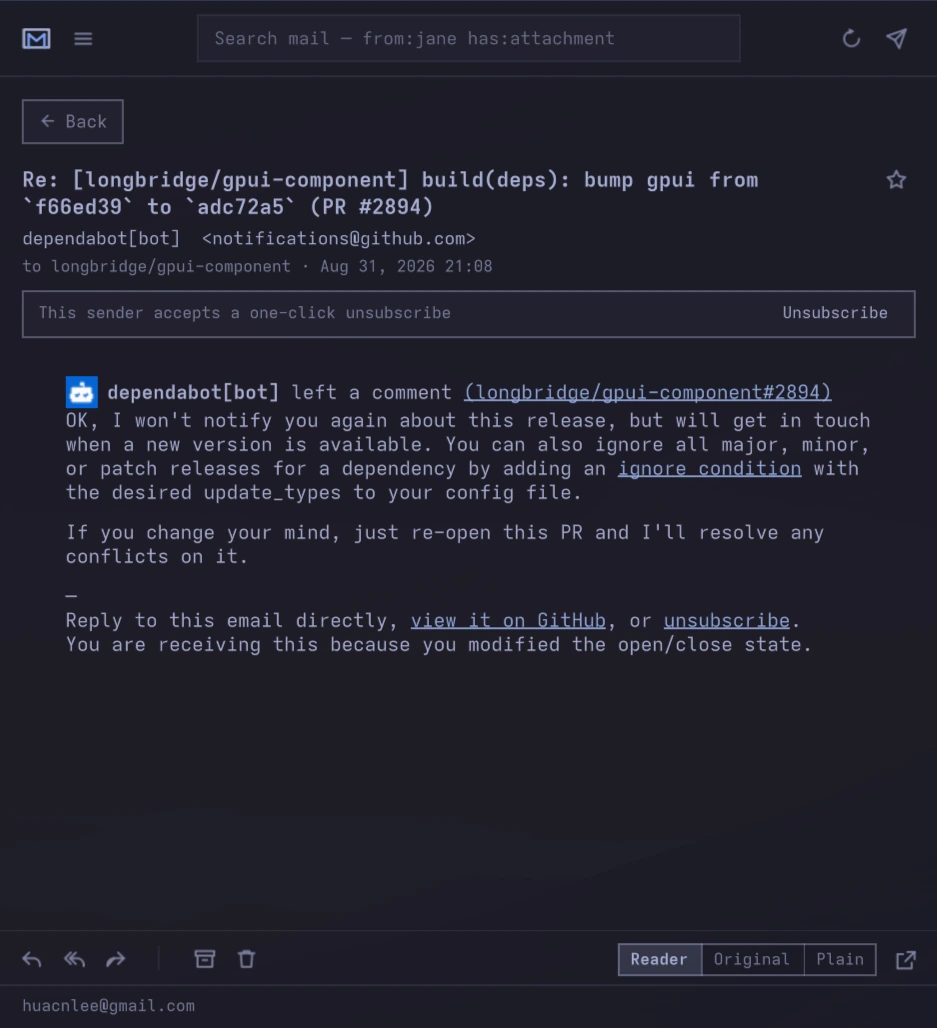
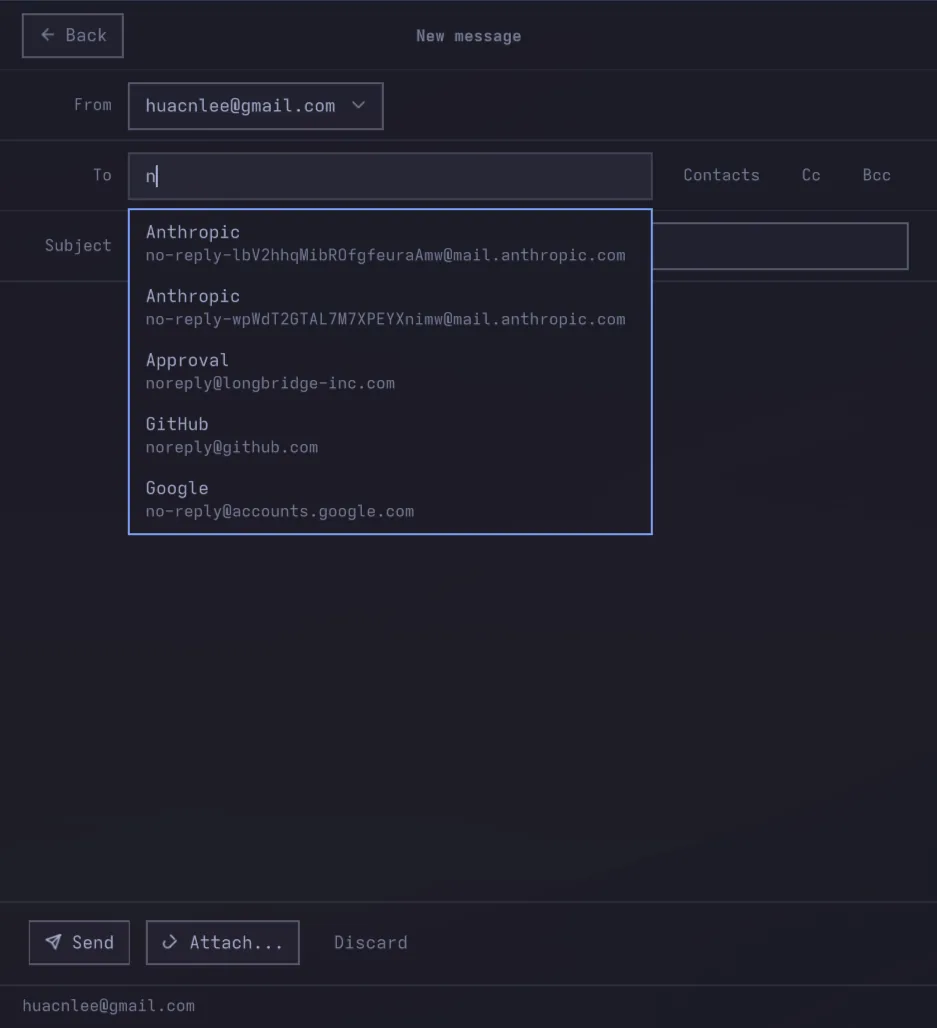
Works with Gmail, HEY, Fastmail, iCloud Mail, Outlook, Yahoo, Zoho, GMX, Proton Mail (through its Bridge), and any server that speaks JMAP or IMAP — including one you run yourself.
Features
- Designed, not assembled. Monospace, square-cornered, and built to sit
inside Omarchy rather than to look like a web app in a window. Three columns
when there is room, one when there is not, and nothing on screen that is not
your mail.
- Gmail, Outlook, HEY, JMAP and IMAP. Sign in to Gmail with Google, to Outlook with Microsoft, to HEY through the HEY CLI that 37signals publish, or add a mailbox on any JMAP or IMAP server with an address and an app password. Several accounts at once, each with its own inbox, cache and unread count.
- Keyboard-first.
j/k to move, e to archive, v to file, s to star, r to
reply, c to compose, Alt+1…0 for the mailboxes — hold Alt and the rail says
which is which — Alt+A to switch account, / to search, ? for the rest.
A key the mailbox has no verb for says so instead of pretending: HEY has
neither an archive nor a star, so e and s name what is missing.
- Always counting. The unread badge keeps working while the window is shut,
for every account, with a desktop notification when new mail lands.
- One window. Read, archive, star, trash, search, and answer without a
second window taking a region of its own.
- Invitations you can answer. A meeting invitation is read out of the
message's own calendar part and drawn as a meeting: when it runs, in your
clock rather than the organiser's, how long for, where, whether it repeats,
and who else has said yes. Yes, Maybe and No answer the
organiser, and a Google Meet link joins in one click. It works on Gmail and
on IMAP alike — the answer is an ordinary reply, which is what every calendar
server is already listening for. Not on HEY:
hey serves a message's text,
not the calendar file beside it, so there is nothing to read the meeting out
of.
- Off a list in one click. A newsletter that supports one-click
unsubscribing is unsubscribed from without leaving the window. One that only
offers an address gets a message; one that only offers a page says so before
it opens your browser. Nothing is ever fetched from a sender's address until
you ask.
- Attachments open or keep. The filename opens one in whatever handles its
type; the arrow beside it saves the file to your download folder and says
where it went. Two messages carrying one name are two files: the second is
numbered rather than landing on top of the first.
- Images stay blocked. Loading a sender's pictures tells them the mail was
read, from which address and when. They load when you ask, for that one
message.
- Right-to-left mail reads right to left. An Arabic, Hebrew or Persian
message lays out from the right — subject, list row, bar preview and body —
and an English one alongside it does not. A reply keeps its direction where
most clients lose it:
Re: is Latin whatever the thread is written in, and
the prefix is set aside before the question is asked rather than answering it.
A sender who states direction only in CSS is understood too, which Qt's own
renderer does not do. Set Message direction to a fixed direction to have
every message read that way instead. The interface itself is unaffected.
- Your theme. Every colour comes from the active Omarchy theme, so the
mailbox changes the moment the desktop does.
- Keyring-backed. Gmail and Outlook refresh tokens and every JMAP and IMAP password live in GNOME Keyring — never in a config file, never on a command line. A HEY mailbox has no credential here at all: the HEY CLI holds its own token, and Omamail only ever asks it whether it is signed in.
What it is
Three parts, one plugin:
- an unread badge in the bar, which keeps counting whether or not the
window is open
- an application window — a real Hyprland window, tiled like any other,
with your mailboxes, the message list, and the reader side by side
- compose and reply inside that same window, because a second window would
take a region of its own under Omarchy's panel mechanism. A
mailto: link
from elsewhere on the desktop opens that same compose form.
Add it to Omarchy
omarchy plugin add https://github.com/huacnlee/omamail.git --enable
Then click the envelope in the bar. To open it from the keyboard, add this to
~/.config/hypr/bindings.lua:
o.bind("SUPER + SHIFT + G", "Omamail", "omarchy shell shell toggle omamail '{}'")
The target is shell, not the plugin id: the window is summoned by the shell,
which is what loads it in the first place. A plugin-scoped target would have to
be registered by code that is only running once the window is already open.
Once the plugin is enabled, Omamail handles mailto: links. Clicking an
address in a browser, a PDF, or a notification opens compose here.
xdg-open mailto:[email protected] is the check.
Requires Omarchy 4, plus socat, secret-tool, openssl, xdg-open, python3 and
curl. Python handles remote images, one-click unsubscribe and attachments; curl handles IMAP, SMTP and CalDAV. A HEY mailbox additionally needs
hey; see below.
Mailboxes it can open
Adding a mailbox asks which kind first, because the four setups have nothing in common.
Gmail signs in with Google directly. Google issues Gmail API access per
project, so this route needs an OAuth client you create once — the setup page
walks through it. In exchange it gets labels, conversations, Gmail's own search
syntax, and a "report spam" that Google actually learns from.
Outlook signs in on Microsoft's own page and uses [Microsoft's supported OAuth route for IMAP and SMTP][microsoft-mail-oauth]. It works with Outlook.com, Hotmail, Live and MSN accounts; Omamail never asks for the Microsoft account password. Until Omamail ships a maintainer-owned public client, the setup page asks for an Application (client) ID from a one-time Microsoft Entra app registration. Make it a public client for personal Microsoft accounts; the sign-in asks for IMAP.AccessAsUser.All, SMTP.Send and offline_access and shows the device code to enter in the Microsoft page it opens.
Before signing in, enable IMAP in Outlook.com: Settings > Mail > Forwarding and IMAP > Let devices and apps use IMAP, then save. Microsoft disables IMAP by default; OAuth consent alone does not enable mailbox access. See Microsoft's IMAP setup instructions.
HEY needs no address and no password. HEY publishes no IMAP, no POP and no
public API, so Omamail reads it through the [HEY CLI][hey-cli] client 37signals
ship for exactly this — which means the sign-in, the token and the keyring entry
it lives in are all hey's, and Omamail never asks for your HEY password.
Install it once:
omarchy-mise-install github:basecamp/hey-cli hey
Recent versions of Omarchy install it for you as a lazy mise tool, so that line
is only for doing it by hand; [37signals' own installer][hey-cli] is the other
route. Either way it lands in ~/.local/bin, which is where Omamail looks when
it is not already on PATH. Then choose HEY on the setup page and press
Sign in to HEY — that opens HEY in your browser, and nothing else is asked
of you.
The rail is HEY's own: Imbox, New for you, Reply Later, Set Aside, The Feed and
Paper Trail. No Sent — HEY's API has one, but hey does not serve it yet:
there is no hey box sent, and search only scopes to the Imbox, the Feed, Paper
Trail and Trash. When the client gains it, it is one more line in the rail.
What HEY does not have, the panel does not offer: no star and no
archive, because HEY moves a thread to one of those boxes instead, and a key
that quietly meant "file this in Paper Trail" would be a promise this could not
keep — e and s say so rather than pretending. Reading, marking read,
replying, searching, labels, trashing and a "report spam" HEY trains its filter
on all work.
Three more differences worth knowing. A HEY row is a conversation, not a
single message. Message bodies read as hey serves them — as the sender's own
HTML where your hey is new enough to hand it over, and as text elsewhere;
Omamail asks for the richer one every time and takes whichever comes back, so
upgrading hey improves it with nothing to change here. And the meeting card,
the one-click unsubscribe, attachments and the Screener are all read out of
parts of a message that hey does not serve, or out of an endpoint it does not
expose — so they stay in HEY's own app, which the setup page links to.
JMAP is an address and an app password or an API token — Fastmail, a Stalwart server of your own, or anything else that speaks the protocol. Discovery starts at https://<your-address-domain>/.well-known/jmap. If your domain does not serve that endpoint, enter the server URL under Server settings. Discovery uses HTTPS and may follow its authenticated redirect; an unsigned DNS SRV record cannot choose where your credential goes. The credential goes to that server and to the addresses inside its session object.
Where a server offers JMAP and IMAP alike, this is the better of the two. A JMAP row is a conversation rather than a single message, and the reader draws a rail of that conversation's other messages down its side — n and p walk it. Mail also arrives when the server sends it rather than when the next check comes round: every signed-in JMAP mailbox holds one event stream open whether or not the window is, so a message that lands on the server is in the list about a second later.
What your particular server does not have, the panel does not offer — and here that is a fact about your account rather than about the protocol. A server with no Archive mailbox has no Archive row and no e; one whose Junk folder trains nothing has no "report spam"; a credential that cannot submit mail makes the mailbox read-only. Each of them says which it is instead of failing after you have pressed it.
IMAP is an address and a password. Fastmail, iCloud, Zoho, GMX, Proton via its Bridge, or a server of your own: the servers are filled in from the address for the ones this knows, and shown behind a disclosure so they can be corrected for the ones it does not. Most providers want an app password rather than the one you sign in to their website with, and the form says so before you find out the hard way.
What IMAP does not have, the panel does not offer: no labels, no server-side
conversations, no "report spam" — moving a message to a Junk folder teaches a
server nothing, and a button that quietly meant that would be a promise this
could not keep. Archive appears only when the server has an archive folder to
move to. Sending goes out over SMTP, or the mailbox is read-only if no SMTP
server is set.
The sent copy is filed by Omamail rather than left to the server: a message handed to SMTP submission lands nowhere on its own. It goes to the server's own Sent folder, named by the server rather than guessed, and arrives already marked read; a server that reports no Sent folder holds no copy, and the status row says so. One thing worth knowing: a Gmail account read over IMAP has Google file its own copy of anything sent through Gmail's SMTP, so those accounts hold two.
To remove it:
omarchy plugin remove omamail
That takes the plugin itself. Nothing it wrote lives inside your Omarchy
config, so removing those is separate and entirely up to you:
secret-tool clear service omamail    # refresh tokens and JMAP and IMAP passwords
hey auth logout                      # the HEY session, if you added one
rm -rf ~/.config/omamail             # the OAuth client and account list
rm -rf ~/.cache/omamail              # cached mail
rm ~/.local/share/applications/omamail.desktop
Signing out from inside the app clears the keyring entry on its own. The plugin
never edits your shell, Hyprland or theme configuration. The keybinding above
and the mailto desktop file are yours to add and yours to remove.
Connecting your mailbox
Gmail has no shared application to sign in through. Google issues API access
per Cloud project, so Omamail signs in with an OAuth client you own.
The window walks you through it in five steps, each with the console page one
click away. It takes about two minutes, once.
The step people skip, and the one that decides whether the sign-in lasts:
press "Publish app" on your own project. A project left in Testing is
issued refresh tokens that expire after seven days, so the app would sign you
out every week. Publishing shows an "unverified app" warning once — expected
for a client you made yourself, since you are the developer and the only user.
If you have the gcloud CLI, scripts/google-cloud-project.sh does the two
steps that have an API — creating the project and enabling Gmail — and opens
the console on the rest with the project already selected. The consent screen
and the client itself are console-only; there is no CLI for them.
Why isn't a client built in? gmail.modify and gmail.send are
restricted scopes. Shipping a client would mean this project completing
Google's OAuth verification first; until then it would be stuck in Testing,
handing every user a seven-day session. The code is ready for one —
Credentials.BUILTIN is a single constant — and your own client always wins
over it.
Using it
Right-click does the rest. On a label in the rail: rename it, make a label beside or beneath it, move it under another, delete it, or watch it for new mail — a watched label counts its unread on every refresh and shows an eye. On the reader's From or To line: copy the address, or search the mailbox for mail from it or to it.
| Key |
What it does |
j / k |
Move down / up |
Enter or o |
Open the selected message |
n / p |
Next / previous message in the conversation |
Esc |
Back to the list; close the window from the list |
e |
Archive |
d |
Move to trash |
s |
Star or unstar |
v |
Move to a label or folder |
Shift+I / Shift+U |
Mark read / unread |
r / a / f |
Reply, reply all, forward |
c |
Compose |
Ctrl+Enter |
Send |
/ |
Search |
Alt+1 … Alt+0 |
The mailbox with that number on the rail |
Alt+A |
Switch account |
Space / x |
Select the message; e, d, s, v, Shift+I, Shift+U then act on every selected one |
Ctrl+A |
Select every message loaded, or none |
Alt+G |
Open AI assistance for the message, selection, or draft in the right dock |
Ctrl+= / Ctrl+- / Ctrl+0 |
Zoom the message body, or reset it |
F5 / Ctrl+R |
Check for mail |
? |
Every shortcut |
To act on several messages, hold Ctrl to replace the row actions with checkboxes, or Ctrl+click a row to select or deselect it without opening it. Checkboxes stay visible while any message is selected; releasing Ctrl with no selection restores the usual actions. Space or x toggles the keyboard cursor's row. Shift+click selects the range from the cursor to an unchecked row, or clears that range when the clicked row is already checked; other selections stay as they are. In the list, Ctrl+A selects every loaded message or clears the selection, and Esc clears an active selection before going back. The status bar shows how many messages are selected; archive, trash, star, move and read/unread actions apply to that selection while the list is visible.
Search paints matching cached rows first and adds server results as they arrive. It takes Gmail's own operator syntax straight through — from:jane, has:attachment, older_than:7d. The Unread mailbox leaves Promotions, Social and Forums out rather than asking for Primary: Gmail's categories do not remove the INBOX label, so an unread filter without that exclusion comes back as the whole promotional backlog rather than the mail you have not read — while one that asks for Primary comes back empty on any account where Gmail is not applying the category labels, which is unread mail with nothing left to say so. Updates stays in, because receipts, deliveries and notifications land there. Right-click any row in the list for archive, trash, spam, star and read/unread without leaving the keyboard cursor behind.
AI assistance uses the default AI selected in Omarchy, with no separate Omamail AI settings. Use the outline AI icon button beside Compose, the message menu, or Alt+G. Type a multiline question or use / for common commands, then Enter to send or Shift+Enter for a new line. The … menu opens new chats and conversation history. Results return to the right dock; draft suggestions can be inserted or replace the body after review. The panel streams the conversation and supports follow-up questions without opening a terminal. The background adapter currently supports Claude. See AI assistance.
A signature is set per mailbox on the settings page, under Writing. It is placed under a new message and above the quoted text in a reply, so a sign-off stays next to the words it signs rather than stranded below a screen of somebody else's message. It is sent exactly as typed — no -- line is added in front of it, because a client that adds one turns a signature into two decisions, and the line is one keystroke away for anybody who wants it. Each mailbox keeps its own: two addresses are two identities, and one sign-off under both is wrong for whichever it was not written for. A saved draft is reopened as it was written, so resuming one never signs it twice.
What it does not do
- No embedded browser. A message opens in a reading view Omamail builds
itself: headings, paragraphs, lists and links in your own type at a readable
measure, with none of the sender's presentation in it. The sender's own
layout is one click away, and that one renders through Qt's own rich text
engine, which handles the HTML-4-and-inline-styles subset that real mail is
written in. A browser engine cannot be embedded in a plugin at all:
QtWebEngineQuick::initialize() has to run before the host process builds
its QGuiApplication, and a plugin loads long after that.
Remote images in a message body are blocked until you ask for them, and asking
covers that one message. Qt

 Omamail 是面向 Omarchy 桌面(基于 Hyprland/Quickshell 构建)的原生电子邮件客户端插件,可以在一个统一主题的窗口中读取、整理并回复来自 Gmail、Outlook、HEY、JMAP 和 IMAP 账户的邮件。