Zerox OCR

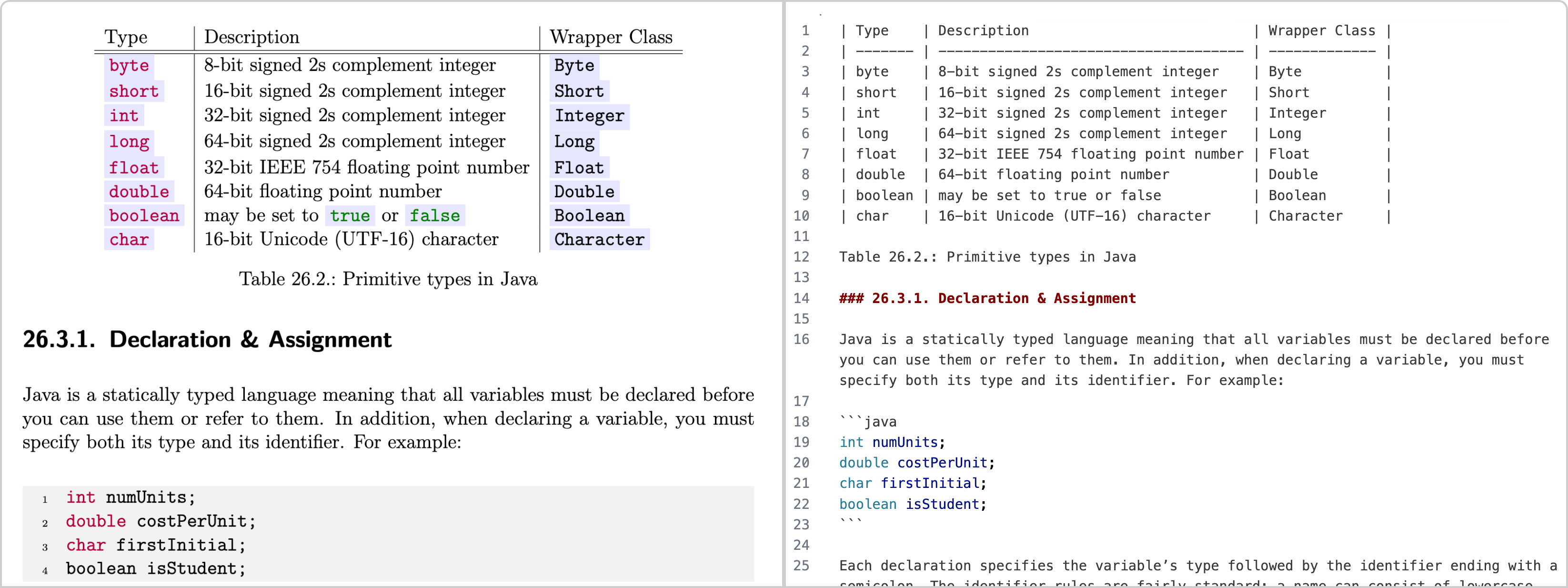
A dead simple way of OCR-ing a document for AI ingestion. Documents are meant to be a visual representation after all. With weird layouts, tables, charts, etc. The vision models just make sense!
The general logic:
- Pass in a file (PDF, DOCX, image, etc.)
- Convert that file into a series of images
- Pass each image to GPT and ask nicely for Markdown
- Aggregate the responses and return Markdown
Try out the hosted version here: https://getomni.ai/ocr-demo
Or visit our full documentation at: https://docs.getomni.ai/zerox
Getting Started
Zerox is available as both a Node and Python package.
| Feature |
Node.js |
Python |
| PDF Processing |
✓ (requires graphicsmagick) |
✓ (requires poppler) |
| Image Processing |
✓ |
✓ |
| OpenAI Support |
✓ |
✓ |
| Azure OpenAI Support |
✓ |
✓ |
| AWS Bedrock Support |
✓ |
✓ |
| Google Gemini Support |
✓ |
✓ |
| Vertex AI Support |
✗ |
✓ |
| Data Extraction |
✓ (schema) |
✗ |
| Per-page Extraction |
✓ (extractPerPage) |
✗ |
| Custom System Prompts |
✗ |
✓ (custom_system_prompt) |
| Maintain Format Option |
✓ (maintainFormat) |
✓ (maintain_format) |
| Async API |
✓ |
✓ |
| Error Handling Modes |
✓ (errorMode) |
✗ |
| Concurrent Processing |
✓ (concurrency) |
✓ (concurrency) |
| Temp Directory Management |
✓ (tempDir) |
✓ (temp_dir) |
| Page Selection |
✓ (pagesToConvertAsImages) |
✓ (select_pages) |
| Orientation Correction |
✓ (correctOrientation) |
✗ |
| Edge Trimming |
✓ (trimEdges) |
✗ |
Node Zerox
(Node.js SDK - supports vision models from different providers like OpenAI, Azure OpenAI, Anthropic, AWS Bedrock, Google Gemini, etc.)
Installation
npm install zerox
Zerox uses graphicsmagick and ghostscript for the PDF => image processing step. These should be pulled automatically, but you may need to manually install.
On linux use:
sudo apt-get update
sudo apt-get install -y graphicsmagick
Usage
With file URL
import { zerox } from "zerox";

const result = await zerox({
  filePath: "https://omni-demo-data.s3.amazonaws.com/test/cs101.pdf",
  credentials: {
    apiKey: process.env.OPENAI_API_KEY,
  },
});
From local path
import { zerox } from "zerox";
import path from "path";

const result = await zerox({
  filePath: path.resolve(__dirname, "./cs101.pdf"),
  credentials: {
    apiKey: process.env.OPENAI_API_KEY,
  },
});
Parameters
const result = await zerox({
  // Required
  filePath: "path/to/file",
  credentials: {
    apiKey: "your-api-key",
    // Additional provider-specific credentials as needed
  },

  // Optional
  cleanup: true, // Clear images from tmp after run
  concurrency: 10, // Number of pages to run at a time
  correctOrientation: true, // True by default, attempts to identify and correct page orientation
  directImageExtraction: false, // Extract data directly from document images instead of the markdown
  errorMode: ErrorMode.IGNORE, // ErrorMode.THROW or ErrorMode.IGNORE, defaults to ErrorMode.IGNORE
  extractionPrompt: "", // LLM instructions for extracting data from document
  extractOnly: false, // Set to true to only extract structured data using a schema
  extractPerPage, // Extract data per page instead of the entire document
  imageDensity: 300, // DPI for image conversion
  imageHeight: 2048, // Maximum height for converted images
  llmParams: {}, // Additional parameters to pass to the LLM
  maintainFormat: false, // Slower but helps maintain consistent formatting
  maxImageSize: 15, // Maximum size of images to compress, defaults to 15MB
  maxRetries: 1, // Number of retries to attempt on a failed page, defaults to 1
  maxTesseractWorkers: -1, // Maximum number of Tesseract workers. Zerox will start with a lower number and only reach maxTesseractWorkers if needed
  model: ModelOptions.OPENAI_GPT_4O, // Model to use (supports various models from different providers)
  modelProvider: ModelProvider.OPENAI, // Choose from OPENAI, BEDROCK, GOOGLE, or AZURE
  outputDir: undefined, // Save combined result.md to a file
  pagesToConvertAsImages: -1, // Page numbers to convert to image as array (e.g. `[1, 2, 3]`) or a number (e.g. `1`). Set to -1 to convert all pages
  prompt: "", // LLM instructions for processing the document
  schema: undefined, // Schema for structured data extraction
  tempDir: "/os/tmp", // Directory to use for temporary files (default: system temp directory)
  trimEdges: true, // True by default, trims pixels from all edges that contain values similar to the given background color, which defaults to that of the top-left pixel
});
The maintainFormat option tries to return the markdown in a consistent format by passing the output of a prior page in as additional context for the next page. This requires the requests to run synchronously, so it's a lot slower. But valuable if your documents have a lot of tabular data, or frequently have tables that cross pages.
Request #1 => page_1_image
Request #2 => page_1_markdown + page_2_image
Request #3 => page_2_markdown + page_3_image
Example Output
{
  completionTime: 10038,
  fileName: 'invoice_36258',
  inputTokens: 25543,
  outputTokens: 210,
  pages: [
    {
      page: 1,
      content: '# INVOICE # 36258\n' +
        '**Date:** Mar 06 2012  \n' +
        '**Ship Mode:** First Class  \n' +
        '**Balance Due:** $50.10  \n' +
        '## Bill To:\n' +
        'Aaron Bergman  \n' +
        '98103, Seattle,  \n' +
        'Washington, United States  \n' +
        '## Ship To:\n' +
        'Aaron Bergman  \n' +
        '98103, Seattle,  \n' +
        'Washington, United States  \n' +
        '\n' +
        '| Item                                       | Quantity | Rate   | Amount  |\n' +
        '|--------------------------------------------|----------|--------|---------|\n' +
        "| Global Push Button Manager's Chair, Indigo | 1        | $48.71 | $48.71  |\n" +
        '| Chairs, Furniture, FUR-CH-4421             |          |        |         |\n' +
        '\n' +
        '**Subtotal:** $48.71  \n' +
        '**Discount (20%):** $9.74  \n' +
        '**Shipping:** $11.13  \n' +
        '**Total:** $50.10  \n' +
        '---\n' +
        '**Notes:**  \n' +
        'Thanks for your business!  \n' +
        '**Terms:**  \n' +
        'Order ID : CA-2012-AB10015140-40974  ',
      contentLength: 747,
    }
  ],
  extracted: null,
  summary: {
    totalPages: 1,
    ocr: {
      failed: 0,
      successful: 1,
    },
    extracted: null,
  },
}
Zerox supports structured data extraction from documents using a schema. This allows you to pull specific information from documents in a structured format instead of getting the full markdown conversion.
Set extractOnly: true and provide a schema to extract structured data. The schema follows the JSON Schema standard.
Use extractPerPage to extract data per page instead of from the whole document at once.
You can also set extractionModel, extractionModelProvider, and extractionCredentials to use a different model for extraction than OCR. By default, the same model is used.
Supported Models
Zerox supports a wide range of models across different providers:
Azure OpenAI
- GPT-4 Vision (gpt-4o)
- GPT-4 Vision Mini (gpt-4o-mini)
- GPT-4.1 (gpt-4.1)
- GPT-4.1 Mini (gpt-4.1-mini)
OpenAI
- GPT-4 Vision (gpt-4o)
- GPT-4 Vision Mini (gpt-4o-mini)
- GPT-4.1 (gpt-4.1)
- GPT-4.1 Mini (gpt-4.1-mini)
AWS Bedrock
- Claude 3 Haiku (2024.03, 2024.10)
- Claude 3 Sonnet (2024.02, 2024.06, 2024.10)
- Claude 3 Opus (2024.02)
Google Gemini
- Gemini 1.5 (Flash, Flash-8B, Pro)
- Gemini 2.0 (Flash, Flash-Lite)
import { zerox } from "zerox";
import { ModelOptions, ModelProvider } from "zerox/node-zerox/dist/types";

// OpenAI
const openaiResult = await zerox({
  filePath: "path/to/file.pdf",
  modelProvider: ModelProvider.OPENAI,
  model: ModelOptions.OPENAI_GPT_4O,
  credentials: {
    apiKey: process.env.OPENAI_API_KEY,
  },
});

// Azure OpenAI
const azureResult = await zerox({
  filePath: "path/to/file.pdf",
  modelProvider: ModelProvider.AZURE,
  model: ModelOptions.OPENAI_GPT_4O,
  credentials: {
    apiKey: process.env.AZURE_API_KEY,
    endpoint: process.env.AZURE_ENDPOINT,
  },
});

// AWS Bedrock
const bedrockResult = await zerox({
  filePath: "path/to/file.pdf",
  modelProvider: ModelProvider.BEDROCK,
  model: ModelOptions.BEDROCK_CLAUDE_3_SONNET_2024_10,
  credentials: {
    accessKeyId: process.env.AWS_ACCESS_KEY_ID,
    secretAccessKey: process.env.AWS_SECRET_ACCESS_KEY,
    region: process.env.AWS_REGION,
  },
});

// Google Gemini
const geminiResult = await zerox({
  filePath: "path/to/file.pdf",
  modelProvider: ModelProvider.GOOGLE,
  model: ModelOptions.GOOGLE_GEMINI_1_5_PRO,
  credentials: {
    apiKey: process.env.GEMINI_API_KEY,
  },
});
Python Zerox
(Python SDK - supports vision models from different providers like OpenAI, Azure OpenAI, Anthropic, AWS Bedrock, etc.)
Installation
- Install poppler on the system, it should be available in path variable. See the pdf2image documentation for instructions by platform.
- Install py-zerox:
pip install py-zerox
The pyzerox.zerox function is an asynchronous API that performs OCR (Optical Character Recognition) to markdown using vision models. It processes PDF files and converts them into markdown format. Make sure to set up the environment variables for the model and the model provider before using this API.
Refer to the LiteLLM Documentation for setting up the environment and passing the correct model name.
Usage
from pyzerox import zerox
import os
import json
import asyncio

### Model Setup (Use only Vision Models) Refer: https://docs.litellm.ai/docs/providers ###

## placeholder for additional model kwargs which might be required for some models
kwargs = {}

## system prompt to use for the vision model
custom_system_prompt = None

# to override
# custom_system_prompt = "For the below PDF page, do something..something..." ## example

###################### Example for OpenAI ######################
model = "gpt-4o-mini" ## openai model
os.environ["OPENAI_API_KEY"] = "" ## your-api-key


###################### Example for Azure OpenAI ######################
model = "azure/gpt-4o-mini" ## "azure/<your_deployment_name>" -> format <provider>/<model>
os.environ["AZURE_API_KEY"] = "" # "your-azure-api-key"
os.environ["AZURE_API_BASE"] = "" # "https://example-endpoint.openai.azure.com"
os.environ["AZURE_API_VERSION"] = "" # "2023-05-15"


###################### Example for Gemini ######################
model = "gemini/gpt-4o-mini" ## "gemini/<gemini_model>" -> format <provider>/<model>
os.environ['GEMINI_API_KEY'] = "" # your-gemini-api-key


###################### Example for Anthropic ######################
model="claude-3-opus-20240229"
os.environ["ANTHROPIC_API_KEY"] = "" # your-anthropic-api-key

###################### Vertex ai ######################
model = "vertex_ai/gemini-1.5-flash-001" ## "vertex_ai/<model_name>" -> format <provider>/<model>
## GET CREDENTIALS
## RUN ##
# !gcloud auth application-default login - run this to add vertex credentials to your env
## OR ##
file_path = 'path/to/vertex_ai_service_account.json'

# Load the JSON file
with open(file_path, 'r') as file:
    vertex_credentials = json.load(file)

# Convert to JSON string
vertex_credentials_json = json.dumps(vertex_credentials)

vertex_credentials=vertex_credentials_json

## extra args
kwargs = {"vertex_credentials": vertex_credentials}

###################### For other providers refer: https://docs.litellm.ai/docs/providers ######################

# Define main async entrypoint
async def main():
    file_path = "https://omni-demo-data.s3.amazonaws.com/test/cs101.pdf" ## local filepath and file URL supported

    ## process only some pages or all
    select_pages = None ## None for all, but could be int or list(int) page numbers (1 indexed)

    output_dir = "./output_test" ## directory to save the consolidated markdown file
    result = await zerox(file_path=file_path, model=model, output_dir=output_dir,
                        custom_system_prompt=custom_system_prompt,select_pages=select_pages, **kwargs)
    return result


# run the main function:
result = asyncio.run(main())

# print markdown result
print(result)
Parameters
async def zerox(
    cleanup: bool = True,
    concurrency: int = 10,
    file_path: Optional[str] = "",
    maintain_format: bool = False,
    model: str = "gpt-4o-mini",
    output_dir: Optional[str] = None,
    temp_dir: Optional[str] = None,
    custom_system_prompt: Optional[str] = None,
    select_pages: Optional[Union[int, Iterable[int]]] = None,
    **kwargs
) -> ZeroxOutput:
  ...
Parameters
- cleanup (bool, optional):
Whether to clean up temporary files after processing. Defaults to True.
- concurrency (int, optional):
The number of concurrent processes to run. Defaults to 10.
- file_path (Optional[str], optional):
The path to the PDF file to process. Defaults to an empty string.
- maintain_format (bool, optional):
Whether to maintain the format from the previous page. Defaults to False.
- model (str, optional):
The model to use for generating completions. Defaults to "gpt-4o-mini".
Refer to LiteLLM Providers for the correct model name, as it may differ depending on the provider.
- output_dir (Optional[str], optional):
The directory to save the markdown output. Defaults to None.
- temp_dir (str, optional):
The directory to store temporary files, defaults to some named folder in system's temp directory. If already exists, the contents will be deleted before Zerox uses it.
- custom_system_prompt (str, optional):
The system prompt to use for the model, this overrides the default system prompt of Zerox.Generally it is not required unless you want some specific behavior. Defaults to None.
- select_pages (Optional[Union[int, Iterable[int]]], optional):
Pages to process, can be a single page number or an iterable of page numbers. Defaults to None
- kwargs (dict, optional):
Additional keyword arguments to pass to the litellm.completion method.
Refer to the LiteLLM Documentation and Completion Input for details.
Returns
- ZeroxOutput:
Contains the markdown content generated by the model and also some metadata (refer below).
Example Output (output from "azure/gpt-4o-mini")
Note the output is manually wrapped for this documentation for better readability.
ZeroxOutput(
    completion_time=9432.975,
    file_name='cs101',
    input_tokens=36877,
    output_tokens=515,
    pages=[
        Page(
            content='| Type    | Description                          | Wrapper Class |\n' +
                    '|---------|--------------------------------------|---------------|\n' +
                    '| byte    | 8-bit signed 2s complement integer   | Byte          |\n' +
                    '| short   | 16-bit signed 2s complement integer  | Short         |\n' +
                    '| int     | 32-bit signed 2s complement integer  | Integer       |\n' +
                    '| long    | 64-bit signed 2s complement integer  | Long          |\n' +
                    '| float   | 32-bit IEEE 754 floating point number| Float         |\n' +
                    '| double  | 64-bit floating point number         | Double        |\n' +
                    '| boolean | may be set to true or false          | Boolean       |\n' +
                    '| char    | 16-bit Unicode (UTF-16) character    | Character     |\n\n' +
                    'Table 26.2.: Primitive types in Java\n\n' +
                    '### 26.3.1. Declaration & Assignment\n\n' +
                    'Java is a statically typed language meaning that all variables must be declared before you can use ' +
                    'them or refer to them. In addition, when declaring a variable, you must specify both its type and ' +
                    'its identifier. For example:\n\n' +
                    '```java\n' +
                    'int numUnits;\n' +
                    'double costPerUnit;\n' +
                    'char firstInitial;\n' +
                    'boolean isStudent;\n' +
                    '```\n\n' +
                    'Each declaration specifies the variable’s type followed by the identifier and ending with a ' +
                    'semicolon. The identifier rules are fairly standard: a name can consist of lowercase and ' +
                    'uppercase alphabetic characters, numbers, and underscores but may not begin with a numeric ' +
                    'character. We adopt the modern camelCasing naming convention for variables in our code. In ' +
                    'general, variables must be assigned a value before you can use them in an expression. You do not ' +
                    'have to immediately assign a value when you declare them (though it is good practice), but some ' +
                    'value must be assigned before they can be used or the compiler will issue an error.\n\n' +
                    'The assignment operator is a single equal sign, `=` and is a right-to-left assignment. That is, ' +
                    'the variable that we wish to assign the value to appears on the left-hand-side while the value ' +
                    '(literal, variable or expression) is on the right-hand-side. Using our variables from before, ' +
                    'we can assign them values:\n\n' +
                    '> 2 Instance variables, that is variables declared as part of an object do have default values. ' +
                    'For objects, the default is `null`, for all numeric types, zero is the default value. For the ' +
                    'boolean type, `false` is the default, and the default char value is `\\0`, the null-terminating ' +
                    'character (zero in the ASCII table).',
            content_length=2333,
            page=1
        )
    ]
)
Supported File Types
We use a combination of libreoffice and graphicsmagick to do document => image conversion. For non-image / non-PDF files, we use libreoffice to convert that file to a PDF, and then to an image.
[
  "pdf", // Portable Document Format
  "doc", // Microsoft Word 97-2003
  "docx", // Microsoft Word 2007-2019
  "odt", // OpenDocument Text
  "ott", // OpenDocument Text Template
  "rtf", // Rich Text Format
  "txt", // Plain Text
  "html", // HTML Document
  "htm", // HTML Document (alternative extension)
  "xml", // XML Document
  "wps", // Microsoft Works Word Processor
  "wpd", // WordPerfect Document
  "xls", // Microsoft Excel 97-2003
  "xlsx", // Microsoft Excel 2007-2019
  "ods", // OpenDocument Spreadsheet
  "ots", // OpenDocument Spreadsheet Template
  "csv", // Comma-Separated Values
  "tsv", // Tab-Separated Values
  "ppt", // Microsoft PowerPoint 97-2003
  "pptx", // Microsoft PowerPoint 2007-2019
  "odp", // OpenDocument Presentation
  "otp", // OpenDocument Presentation Template
];
Credits
License
This project is licensed under the MIT License.

 Zerox — это опенсорсный инструмент для OCR и извлечения данных из документов, работающий на vision-моделях: подаёте PDF, DOCX или картинку — получаете Markdown, а если зададите схему, то и структурированные данные.