
ACE-Step UI
The Ultimate Open Source Suno Alternative
Seamless integration with ACE-Step 1.5 - The Open Source AI Music Generation Model



Demo •
Why ACE-Step •
Features •
Installation •
Usage •
Contributing






🎬 Demo

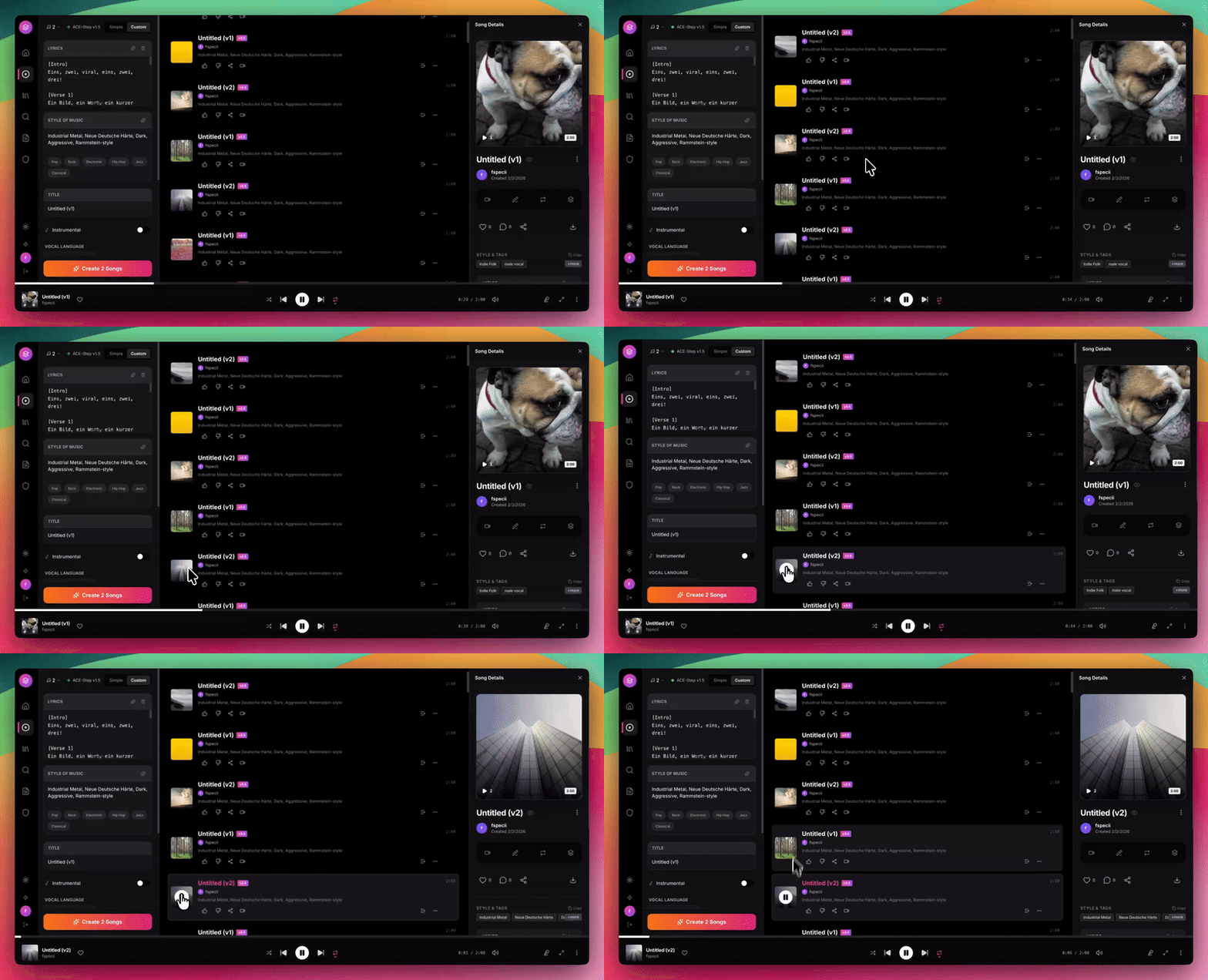
Generate professional AI music with a Spotify-like interface - 100% free and local
🚀 Why ACE-Step UI?
Tired of paying $10+/month for Suno or Udio? ACE-Step 1.5 is the open source Suno killer that runs locally on your own GPU - and ACE-Step UI gives you a beautiful, professional interface to harness its full power.
| Feature |
Suno/Udio |
ACE-Step UI |
| Cost |
$10-50/month |
FREE forever |
| Privacy |
Cloud-based |
100% local |
| Ownership |
Licensed |
You own everything |
| Customization |
Limited |
Full control |
| Queue Limits |
Restricted |
Unlimited |
| Commercial Use |
Expensive tiers |
No restrictions |
What Makes ACE-Step 1.5 Special?
- State-of-the-art quality rivaling commercial services
- Full song generation up to 4+ minutes with vocals
- Runs locally - no internet required after setup
- Open source - inspect, modify, improve
- Active development - constant improvements
✨ Features
🎵 AI Music Generation
| Feature |
Description |
| Full Song Generation |
Create complete songs with vocals and lyrics up to 4+ minutes |
| Instrumental Mode |
Generate instrumental tracks without vocals |
| Custom Mode |
Fine-tune BPM, key, time signature, and duration |
| Style Tags |
Define genre, mood, tempo, and instrumentation |
| Batch Generation |
Generate multiple variations at once |
| AI Enhance |
Enrich genre tags into detailed captions with proper BPM/key/time |
| Thinking Mode |
Let AI reason about structure and generate audio codes |
🎨 Advanced Parameters
| Feature |
Description |
| Reference Audio |
Use any audio file as a style reference |
| Audio Cover |
Transform existing audio with new styles |
| Repainting |
Regenerate specific sections of a track |
| Seed Control |
Reproduce exact generations for consistency |
| Inference Steps |
Control quality vs speed tradeoff |
🎤 Lyrics & Prompts
| Feature |
Description |
| Lyrics Editor |
Write and format lyrics with structure tags |
| Format Assistant |
AI-powered caption and lyrics formatting |
| Prompt Templates |
Quick-start with genre presets |
| Reuse Prompts |
Clone settings from any previous generation |
🎧 Professional Interface
| Feature |
Description |
| Spotify-Inspired UI |
Clean, modern design with dark/light mode |
| Bottom Player |
Full-featured player with waveform and progress |
| Library Management |
Browse, search, and organize all your tracks |
| Likes & Playlists |
Organize favorites into custom playlists |
| Real-time Progress |
Live generation progress with queue position |
| LAN Access |
Use from any device on your local network |
| Feature |
Description |
| Audio Editor |
Trim, fade, and apply effects with AudioMass |
| Stem Extraction |
Separate vocals, drums, bass, and other with Demucs |
| Video Generator |
Create music videos with Pexels backgrounds |
| Gradient Covers |
Beautiful procedural album art (no internet needed) |
💻 Tech Stack
| Layer |
Technologies |
| Frontend |
React 18, TypeScript, TailwindCSS, Vite |
| Backend |
Express.js, SQLite, better-sqlite3 |
| AI Engine |
ACE-Step 1.5 (Gradio API) |
| Audio Tools |
AudioMass, Demucs, FFmpeg |
📋 Requirements
| Requirement |
Specification |
| Node.js |
18 or higher |
| Python |
3.10+ (3.11 recommended) OR Windows Portable Package |
| NVIDIA GPU |
4GB+ VRAM (works without LLM), 12GB+ recommended (with LLM) |
| CUDA |
12.8 (for Windows Portable Package) |
| FFmpeg |
For audio processing |
| uv |
Python package manager (recommended for standard install) |
⚡ Quick Start
🎯 Pinokio - 1-Click Install (Recommended for All Users!)
The easiest way to get ACE-Step UI up and running on any platform — no terminal, no manual setup:

Pinokio handles everything automatically: Python, Node.js, dependencies, model downloads, and launching. Just click install and start making music.
🪟 Windows - One-Click Start (Easiest!)
cd ace-step-ui
start-all.bat
That's it! This starts everything: API + Backend + Frontend in one command.
Note: By default, it looks for ACE-Step in ..\ACE-Step-1.5.
If yours is elsewhere, set ACESTEP_PATH first:
set ACESTEP_PATH=C:\path\to\ACE-Step-1.5
start-all.bat
🪟 Windows - Manual Start
REM 1. Start ACE-Step Gradio (with API endpoints)
cd C:\ACE-Step-1.5
python_embeded\python -m acestep --port 8001 --enable-api --backend pt --server-name 127.0.0.1

REM 2. Start ACE-Step UI (in another terminal)
cd ace-step-ui
start.bat
Linux / macOS - One-Click Start (Easiest!)
cd ace-step-ui
./start-all.sh
That's it! This starts everything: Gradio + Backend + Frontend in one command.
Note: By default, it looks for ACE-Step in ../ACE-Step-1.5.
If yours is elsewhere, set ACESTEP_PATH first:
export ACESTEP_PATH=/path/to/ACE-Step-1.5
./start-all.sh
To stop: ./stop-all.sh
Linux / macOS - Manual Start
# 1. Start ACE-Step Gradio with API (in ACE-Step-1.5 directory)
cd /path/to/ACE-Step-1.5
uv run acestep --port 8001 --enable-api --backend pt --server-name 127.0.0.1

# 2. Start ACE-Step UI (in another terminal)
cd ace-step-ui
./start.sh
Windows (Standard Installation)
REM 1. Start ACE-Step Gradio with API (in ACE-Step-1.5 directory)
cd C:\path\to\ACE-Step-1.5
uv run acestep --port 8001 --enable-api --backend pt --server-name 127.0.0.1

REM 2. Start ACE-Step UI (in another terminal)
cd ace-step-ui
start.bat
Open http://localhost:3000 and start creating!
📦 Installation
1. Install ACE-Step (The AI Engine)
🪟 Windows Portable Package (Recommended for Windows)
The easiest way to get started on Windows! This package includes everything pre-configured:
- Download ACE-Step-1.5.7z (~5GB)
- Extract to
C:\ACE-Step-1.5 (or your preferred location)
- Done! The package includes
python_embeded with all dependencies
✅ Works with 4GB GPU - No LLM installation required
✅ CUDA 12.8 included
✅ Zero setup hassle
Note: Thinking Mode (LLM features) is automatically disabled on GPUs with <12GB VRAM. You can still enable it manually if you have 12GB+.
# Clone ACE-Step 1.5 - the open source Suno alternative
git clone https://github.com/ace-step/ACE-Step-1.5
cd ACE-Step-1.5

# Create virtual environment and install
uv venv
uv pip install -e .

# Models download automatically on first run (~5GB)
cd ..
2. Install ACE-Step UI (This Repository)
Linux / macOS
# Clone the UI
git clone https://github.com/fspecii/ace-step-ui
cd ace-step-ui

# Run setup script (installs all dependencies)
./setup.sh
Windows
REM Clone the UI
git clone https://github.com/fspecii/ace-step-ui
cd ace-step-ui

REM Run setup script (installs all dependencies)
setup.bat
# Install frontend dependencies
npm install

# Install server dependencies
cd server
npm install
cd ..

# Copy environment file
# Linux/macOS:
cp server/.env.example server/.env
# Windows:
copy server\.env.example server\.env
🎮 Usage
Step 1: Start ACE-Step Gradio Server
🪟 Windows Portable Package:
cd C:\ACE-Step-1.5
python_embeded\python -m acestep --port 8001 --enable-api --backend pt --server-name 127.0.0.1
Linux / macOS:
cd /path/to/ACE-Step-1.5
uv run acestep --port 8001 --enable-api --backend pt --server-name 127.0.0.1
Windows (Standard Installation):
cd C:\path\to\ACE-Step-1.5
uv run acestep --port 8001 --enable-api --backend pt --server-name 127.0.0.1
Wait for "API endpoints enabled" before proceeding.
Step 2: Start ACE-Step UI
Linux / macOS:
cd ace-step-ui
./start.sh
Windows:
cd ace-step-ui
start.bat
Step 3: Create Music!
⚙️ Configuration
Edit server/.env:
# Server
PORT=3001

# ACE-Step Gradio URL (must match --port used when starting ACE-Step)
ACESTEP_API_URL=http://localhost:8001

# Database (local-first, no cloud)
DATABASE_PATH=./data/acestep.db

# Optional: Pexels API for video backgrounds
PEXELS_API_KEY=your_key_here
🎼 Generation Modes
Simple Mode
Just describe what you want. ACE-Step handles the rest.
"An upbeat pop song about summer adventures with catchy hooks"
Custom Mode
Full control over every parameter:
| Parameter |
Description |
| Lyrics |
Full lyrics with [Verse], [Chorus] tags |
| Style |
Genre, mood, instruments, tempo |
| Duration |
30-240 seconds |
| BPM |
60-200 beats per minute |
| Key |
Musical key (C major, A minor, etc.) |
AI Enhance & Thinking Mode
| Mode |
What it does |
Speed impact |
| AI Enhance OFF |
Sends your style tags directly to the model |
Fastest |
| AI Enhance ON |
LLM enriches your tags into a detailed caption and generates proper BPM, key, time signature |
+10-20s |
| Thinking Mode |
Full LLM reasoning with audio code generation |
Slowest, best quality |
Tip: If your genre tags (e.g. "pop, rock") produce ballad-like output, turn on AI Enhance for much better genre accuracy. No extra VRAM needed — the LLM runs on CPU with the PT backend.
Batch Size & Bulk Generation
| Setting |
Description |
| Batch Size |
Number of variations generated per job (1-4). Default is 1 for broad GPU compatibility. Higher values generate more variations but use more VRAM. 8GB GPU users should keep this at 1. |
| Bulk Generate |
Queue multiple independent generation jobs (1-10). Each job runs sequentially, so this is safe for any GPU. |
| LM Backend |
Choose between PT (1.6 GB VRAM) and VLLM (9.2 GB VRAM). PT is the default and works on most GPUs. |
Tip: Both batch size and bulk count are remembered in your browser — set them once and they stick for future sessions.
| Tool |
Description |
| 🎚️ Audio Editor |
Cut, trim, fade, and apply effects |
| 🎤 Stem Extraction |
Separate vocals, drums, bass, other |
| 🎬 Video Generator |
Create music videos with stock footage |
| 🎨 Album Art |
Auto-generated gradient covers |
🐛 Troubleshooting
| Issue |
Solution |
| ACE-Step not reachable |
Ensure Gradio server is running with --enable-api flag (see Usage section) |
| CUDA out of memory |
Use --backend pt (default), set batch size to 1, reduce duration, or disable Thinking Mode |
| 4GB GPU - Out of memory |
Use PT backend (default), batch size 1, and keep Thinking Mode OFF. LLM features require 12GB+ |
| Genre always sounds like ballad |
Enable AI Enhance toggle in the Style section — it enriches your tags with proper metadata |
| AttributeError: 'NoneType' |
Update to latest ACE-Step-1.5 (fix merged in PR #109) |
| Songs show 0:00 duration |
Install FFmpeg: sudo apt install ffmpeg (Linux) or download from ffmpeg.org (Windows) |
| LAN access not working |
Check firewall allows ports 3000 and 3001 |
🤝 Contributing
We need your help to make ACE-Step UI even better!
This is a community-driven project and contributions are what make open source amazing. Whether you're fixing bugs, adding features, improving documentation, or sharing ideas - every contribution counts!
Ways to Contribute
- 🐛 Report bugs - Found an issue? Open a GitHub issue
- 💡 Suggest features - Have an idea? We'd love to hear it
- 🔧 Submit PRs - Code contributions are always welcome
- 📖 Improve docs - Help others get started
- ⭐ Star the repo - Show your support!
How to Contribute
- Fork the repository
- Create a feature branch (
git checkout -b feature/amazing-feature)
- Commit your changes (
git commit -m 'Add amazing feature')
- Push to the branch (
git push origin feature/amazing-feature)
- Open a Pull Request
📣 Stay Connected

-Follow_for_Updates-1DA1F2?style=for-the-badge&logo=x&logoColor=white)
Subscribe and follow for:
🎥 Video tutorials and demos
🚀 New feature announcements
💡 Tips and tricks
🎵 AI music generation news
💼 Need a Website Like This?
If you like the engineering and design behind ACE-Step UI and want something similar built for your business, the same team offers professional web development services.
We build:
- 🌐 Custom websites & web apps — Next.js, Astro, WordPress, React
- 🤖 AI integrations & automations — OpenAI, Anthropic, custom LLM workflows
- 📱 Mobile apps — iOS, Android, React Native
- 🎨 UI/UX design tailored to your brand

From the makers of ACE-Step UI — we ship production-grade web experiences.
👤 About the Author
ACE-Step UI is built and maintained by Vali — open-source developer and founder of Web Design Studio London, a specialist web design and development studio serving London businesses and international clients.
Web Design Studio London builds high-performance Next.js websites, ecommerce platforms, and AI-integrated web applications — the same technical approach that powers this project.
If you need a professional website, ecommerce build, or AI integration for your business, visit webdesignstudio.london.
🙏 Credits
- ACE-Step - The revolutionary open source AI music generation model
- AudioMass - Web audio editor
- Demucs - Audio source separation
- Pexels - Stock video backgrounds
📄 License
This project is open source under the MIT License.
⭐ If ACE-Step UI helps you create amazing music, please star this repo! ⭐
Made with ❤️ for the open-source AI music community
Stop paying for Suno. Start creating with ACE-Step.

 ACE-Step UI 是一款免费、开源、可在本地运行的网页界面,用于 ACE-Step 1.5 AI 音乐生成模型,让你无需付费使用 Suno 或 Udio,就能创作带人声或纯音乐的完整歌曲。