video-use
Introducing video-use — edit videos with Claude Code. 100% open source.
Drop raw footage in a folder, chat with Claude Code, get final.mp4 back. Works for any content — talking heads, montages, tutorials, travel, interviews — without presets or menus.
Try video-use in Browser Use Cloud.
What it does
- Cuts out filler words (
umm, uh, false starts) and dead space between takes
- Auto color grades every segment (warm cinematic, neutral punch, or any custom ffmpeg chain)
- 30ms audio fades at every cut so you never hear a pop
- Burns subtitles in your style — 2-word UPPERCASE chunks by default, fully customizable
- Generates animation overlays via HyperFrames, Remotion, Manim, or PIL — spawned in parallel sub-agents, one per animation
- Self-evaluates the rendered output at every cut boundary before showing you anything
- Persists session memory in
project.md so next week's session picks up where you left off
Setup prompt
Paste into Claude Code, Codex, Hermes, Openclaw, or any agent with shell access:
Set up https://github.com/browser-use/video-use for me.

Read install.md first to install this repo, wire up ffmpeg, register the skill with whichever agent you're running under, and set up the ElevenLabs API key — ask me to paste it when you need it. Then read SKILL.md for daily usage, and always read helpers/ because that's where the editing scripts live. After install, don't transcribe anything on your own — just tell me it's ready and wait for me to drop footage into a folder.
The agent handles the clone, dependencies, skill registration, and prompts you once for your ElevenLabs API key (grab one at elevenlabs.io/app/settings/api-keys).
Then point your agent at a folder of raw takes:
cd /path/to/your/videos
claude    # or codex, hermes, etc.
For always-on editing from your own VPS or Telegram, run the agent through Browser Use Box. Watch the 15-second demo.
And in the session:
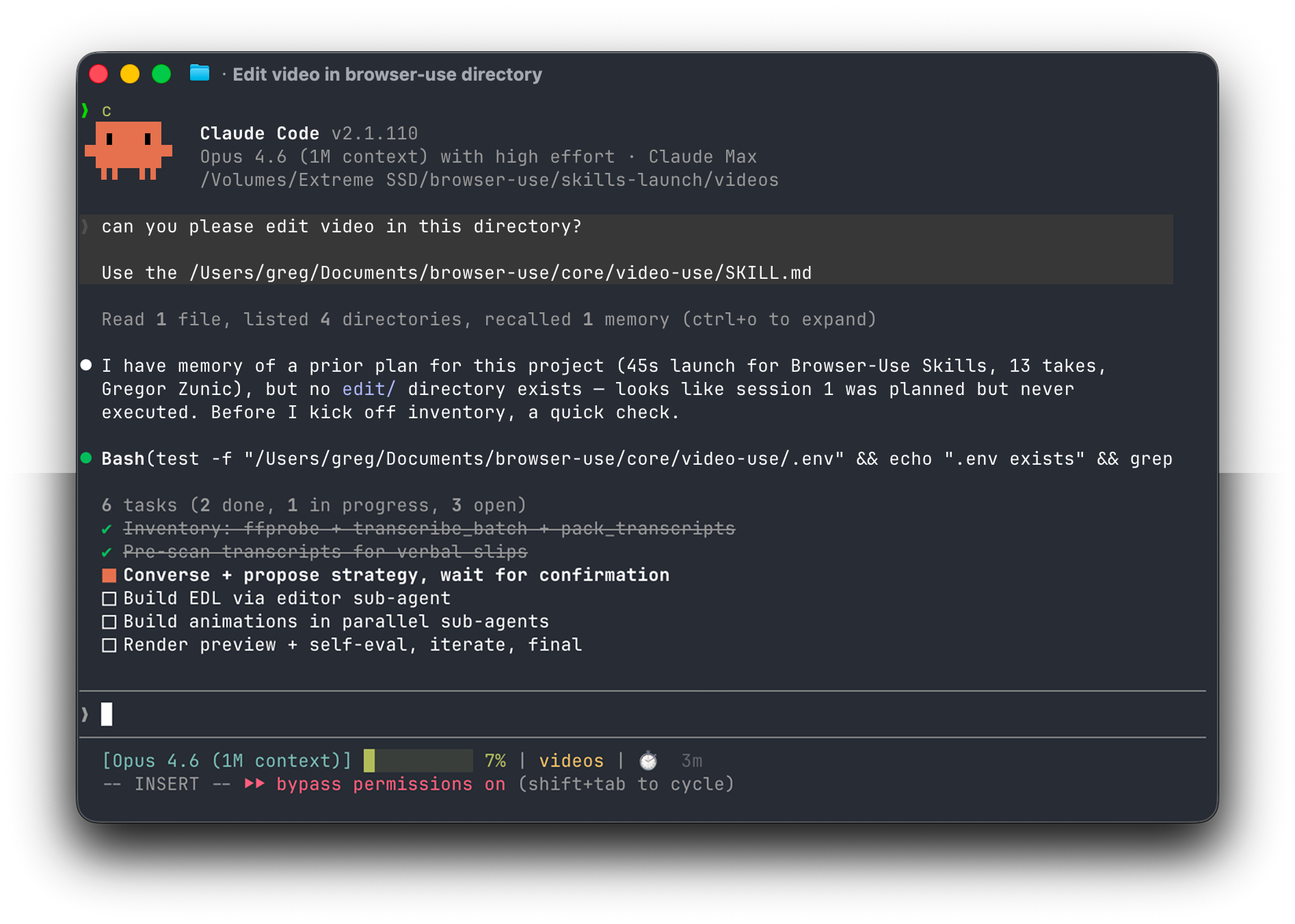
edit these into a launch video
It inventories the sources, proposes a strategy, waits for your OK, then produces edit/final.mp4 next to your sources. All outputs live in <videos_dir>/edit/ — the skill directory stays clean.
Manual install
If you'd rather do it by hand:
# 1. Clone and symlink into your agent's skills directory
git clone https://github.com/browser-use/video-use ~/Developer/video-use
ln -sfn ~/Developer/video-use ~/.claude/skills/video-use        # Claude Code
# ln -sfn ~/Developer/video-use ~/.codex/skills/video-use       # Codex

# 2. Install deps
cd ~/Developer/video-use
uv sync                         # or: pip install -e .
brew install ffmpeg             # required
brew install yt-dlp             # optional, for downloading online sources

# 3. Add your ElevenLabs API key
cp .env.example .env
$EDITOR .env                    # ELEVENLABS_API_KEY=...
How it works
The LLM never watches the video. It reads it — through two layers that together give it everything it needs to cut with word-boundary precision.
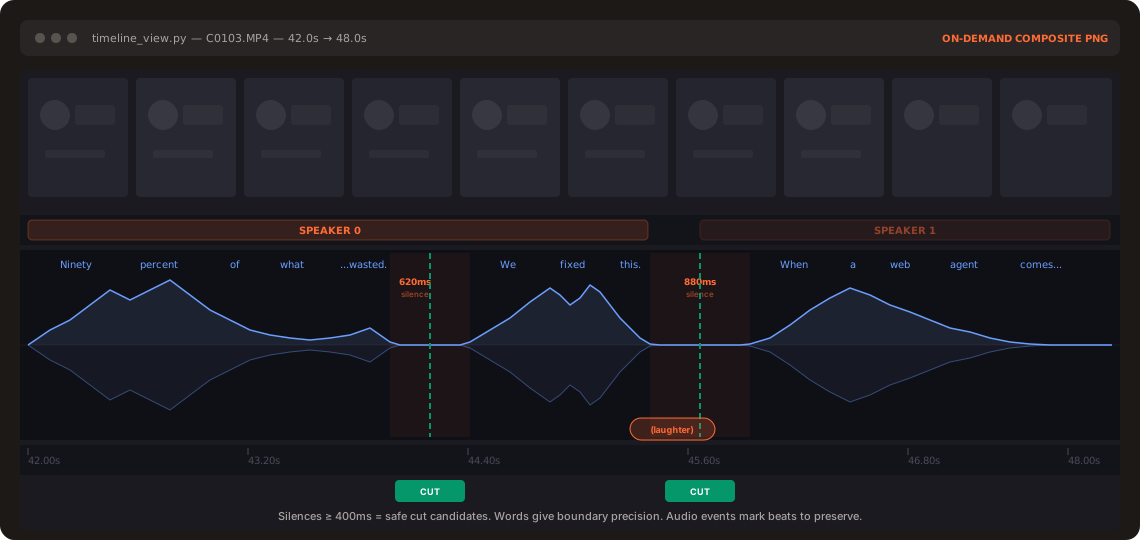
Layer 1 — Audio transcript (always loaded). One ElevenLabs Scribe call per source gives word-level timestamps, speaker diarization, and audio events ((laughter), (applause), (sigh)). All takes pack into a single ~12KB takes_packed.md — the LLM's primary reading view.
## C0103  (duration: 43.0s, 8 phrases)
  [002.52-005.36] S0 Ninety percent of what a web agent does is completely wasted.
  [006.08-006.74] S0 We fixed this.
Layer 2 — Visual composite (on demand). timeline_view produces a filmstrip + waveform + word labels PNG for any time range. Called only at decision points — ambiguous pauses, retake comparisons, cut-point sanity checks.
Naive approach: 30,000 frames × 1,500 tokens = 45M tokens of noise.
Video Use: 12KB text + a handful of PNGs.
Same idea as browser-use giving an LLM a structured DOM instead of a screenshot — but for video.
Pipeline
Transcribe ──> Pack ──> LLM Reasons ──> EDL ──> Render ──> Self-Eval
                                                              │
                                                              └─ issue? fix + re-render (max 3)
The self-eval loop runs timeline_view on the rendered output at every cut boundary — catches visual jumps, audio pops, hidden subtitles. You see the preview only after it passes.
Design principles
- Text + on-demand visuals. No frame-dumping. The transcript is the surface.
- Audio is primary, visuals follow. Cuts come from speech boundaries and silence gaps.
- Ask → confirm → execute → self-eval → persist. Never touch the cut without strategy approval.
- Zero assumptions about content type. Look, ask, then edit.
- 12 hard rules, artistic freedom elsewhere. Production-correctness is non-negotiable. Taste isn't.
See SKILL.md for the full production rules and editing craft.

 video-use 是一个开源的 Claude Code 技能,可以把原始素材变成成品 MP4。通过与编程智能体对话,它能剪掉口头禅和空白片段、为片段调色、烧录字幕,并添加动画。