Welcome to WSL Manager 👋






English | 简体中文 | 繁體中文 | Deutsch | Español | 日本語 | Magyar | Português | Türkçe
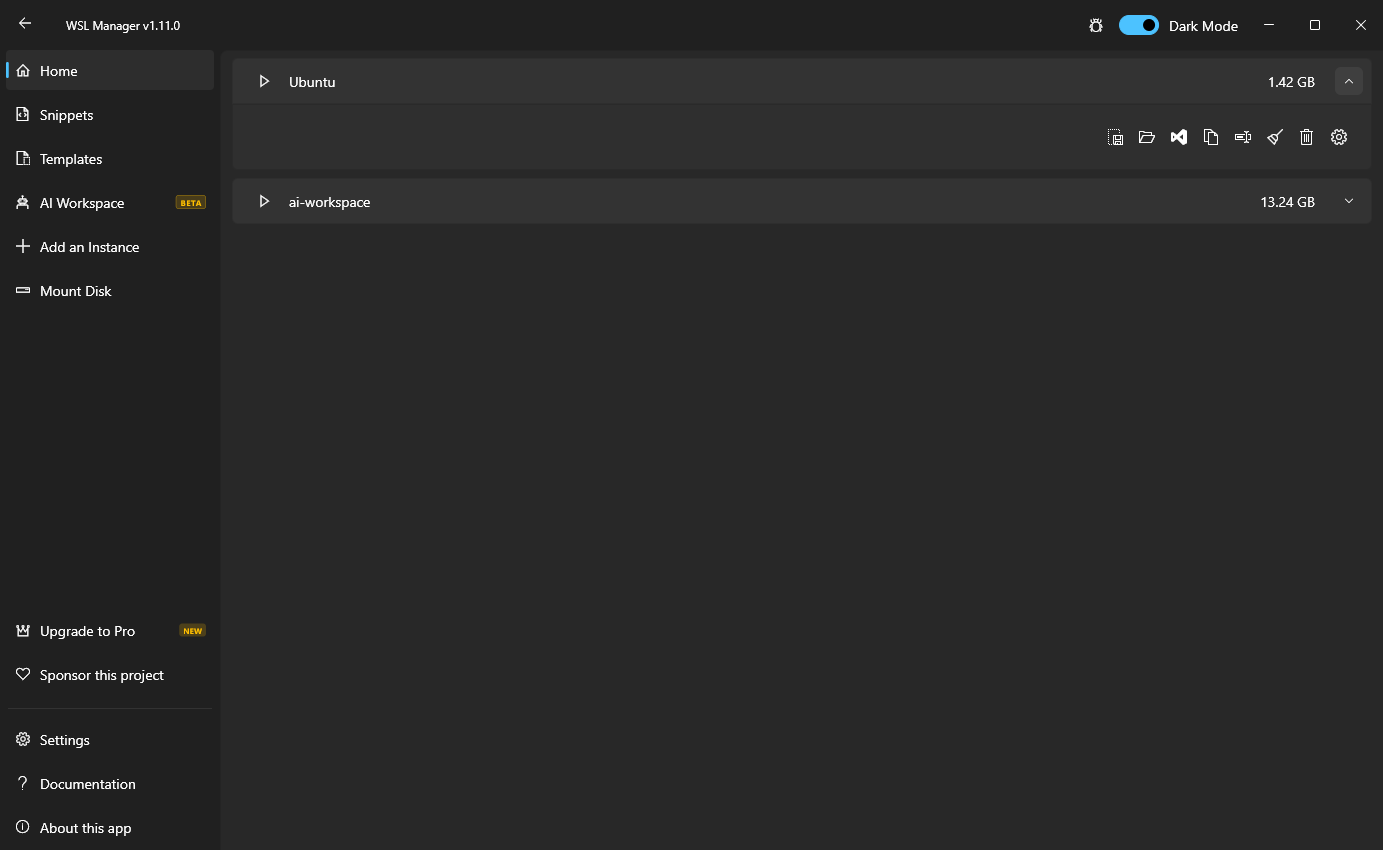
Shown on Windows · the same app runs native VMs on macOS — expand See it on macOS below
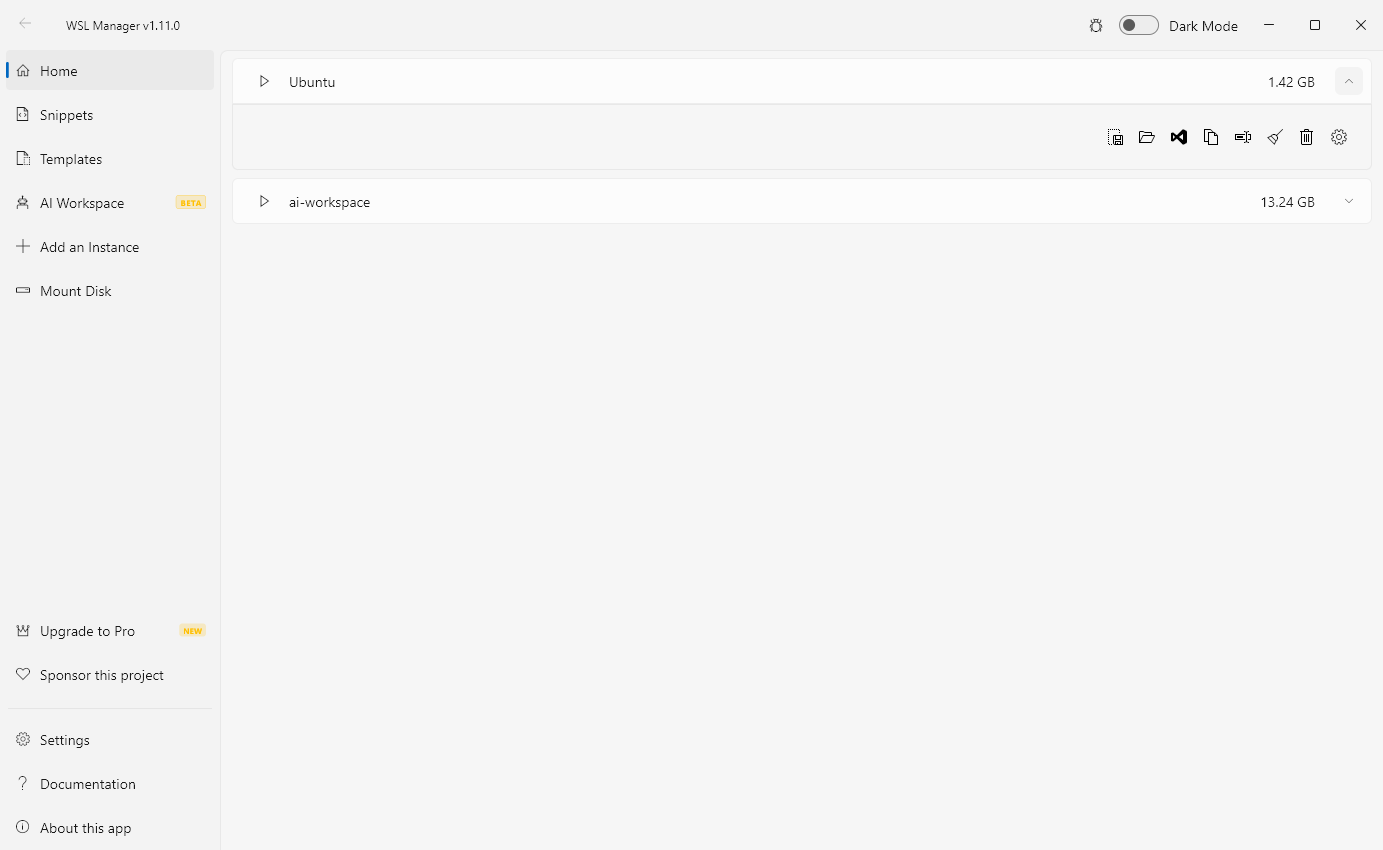
Preview with light theme (Windows)
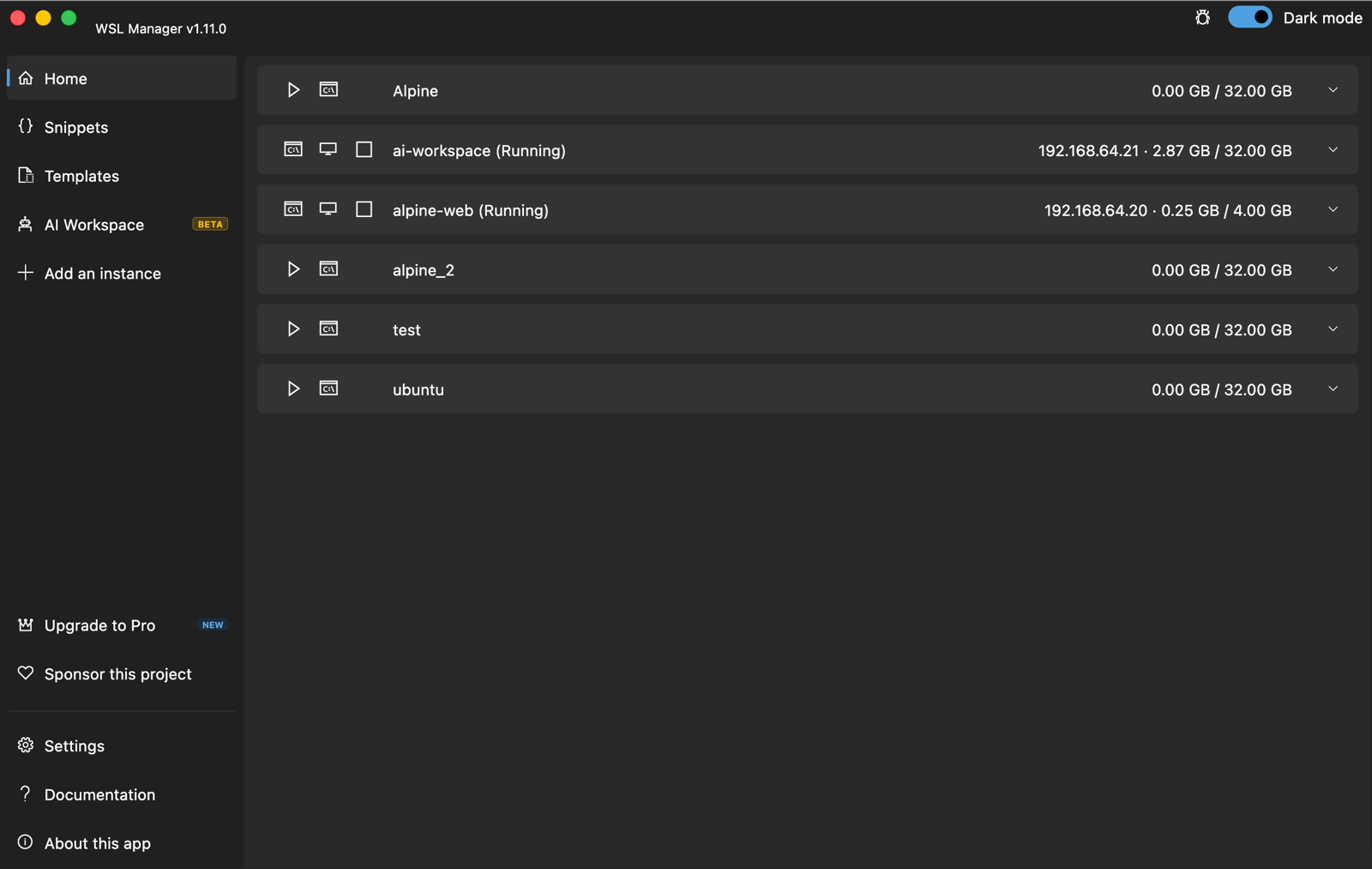
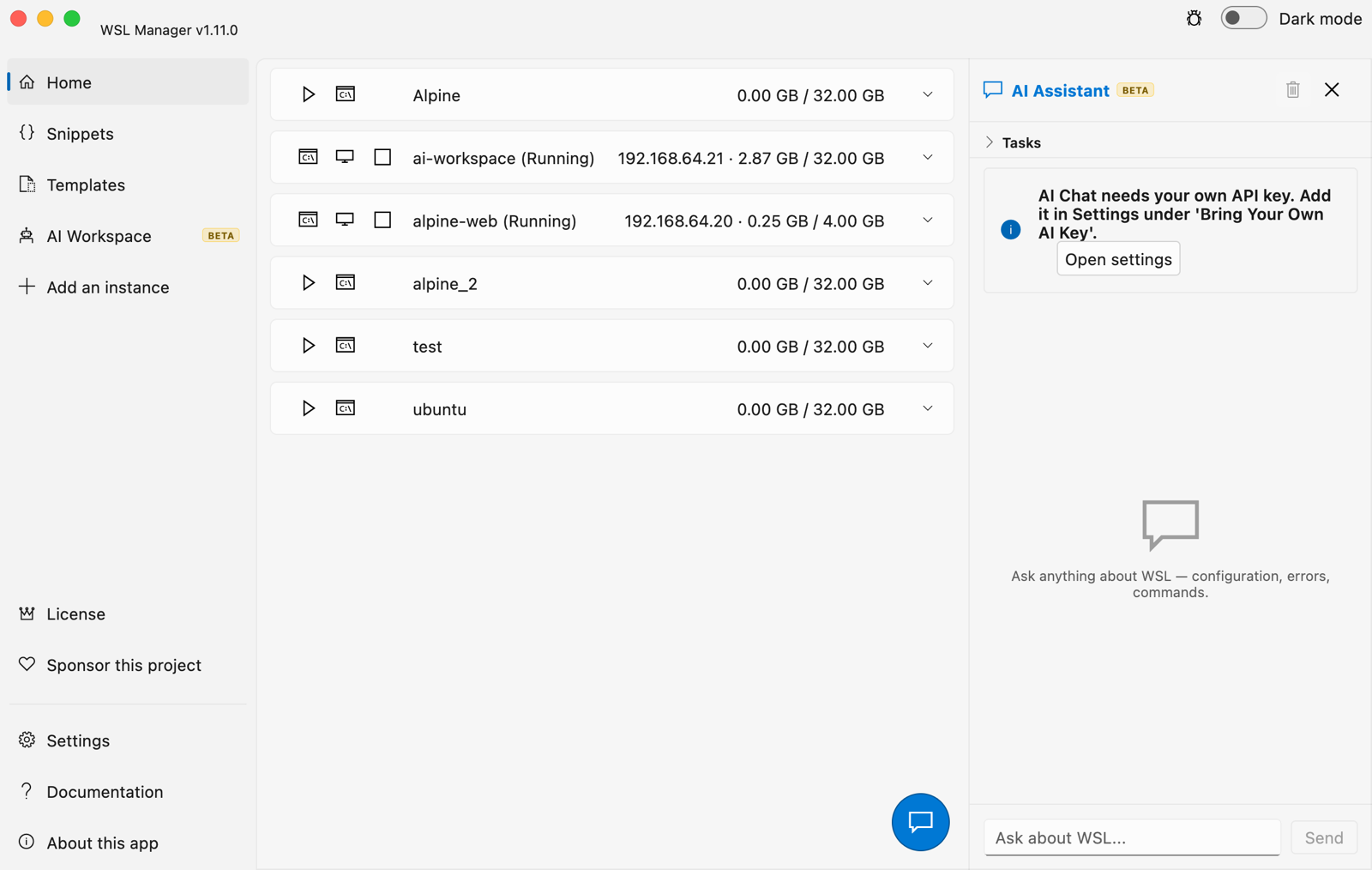
🍎 See it on macOS — native Linux and macOS virtual machines through Apple's Virtualization framework (beta)
WSL Distro Manager is a free, open source GUI for the Windows Subsystem
for Linux — and, on macOS, for native Linux VMs. Install, copy, rename,
move, back up and delete WSL distros without memorising a single wsl.exe
flag — plus templates, saved command snippets, disk mounting, .wslconfig
editing, remote WSL over SSH, and an MCP server that lets AI agents drive
your WSL environment. On a Mac the very same app manages virtual machines
through Apple's Virtualization framework instead.
🚀 Features
Manage distros
- Install from a built-in catalogue, or bring your own rootfs
- Copy, rename, move to another drive, back up and delete instances
- Back every instance up to one folder — with a list of what is in it — and restore them all on another PC
- Compact virtual disks to reclaim space WSL never gives back
- Supports Ubuntu, Debian, Alpine, Kali Linux, openSUSE, SLES and anything else WSL accepts
Get instances running faster
- Use any Docker image as a distro — Docker itself is not required
- Package a configured distro as a portable
.wsl file that installs on any machine (templates are deprecated in favour of these)
- Turnkey Linux and other LXC containers (experimental)
- Snippets: keep your setup commands in the app and run them on any instance
- Point the app at your own repository of rootfs images
- Browse a distro's files and copy the ones you pick into another instance — no share, no mount, no Explorer needed
Configure without editing files by hand
- systemd, automount, default user, start command and start path per distro
- Memory, processors, swap, networking mode, DNS and the rest of
.wslconfig
- Mount a physical disk or a VHD into WSL, with partition and filesystem control
- Share host folders into a distro or VM at a mount point you pick, read-only if you like — the AI Workspace included
Work the way you already do
- Open Windows Terminal, VS Code or Explorer straight inside a distro
- Every instance in the Windows Terminal dropdown, kept current while the app runs — contributed as a fragment of its own, so your Terminal settings are never edited
- Manage WSL on a different Windows machine over SSH
- Sync a distro between two machines on your network
- Reach an instance by name: its hostname is kept in your hosts file, so
ssh ubuntu.wsl keeps working after a reboot
- Keeps itself up to date: the website and GitHub builds download and install new releases themselves (Store installs are updated by the Store)
- Dark and light themes, available in nine languages
On macOS: native virtual machines (beta)
- The same app manages VMs through Apple's Virtualization framework instead of WSL
- Create Linux VMs from an installer ISO, a cloud image or an exported template
- Create macOS guest VMs from a restore image (Apple Silicon)
- Start, stop, clone, export/import and template VMs like distros
- Run commands inside VMs over auto-provisioned SSH (cloud-init), from the GUI, the AI chat or MCP clients
- A terminal on any VM from its row: an SSH session on a Linux or macOS guest, the serial console where Linux has nothing to SSH to
- Your own
~/.ssh key is authorized in every Linux VM (and created if you have none), so plain ssh user@vm-ip works too
- Every VM gets a login password you can read back from its row, for signing in at the VM's own screen
- Set the account every SSH path signs in as from the same row — a macOS guest's name is typed into Setup Assistant, where the app cannot see it
- Build with
scripts/build_macos.sh — bundles the signed vmctl helper
Pro (one-time purchase: a licence key from wslmanager.com/buy, on Windows and macOS alike — never a subscription)
- AI Workspace — run Hermes Agent, OpenClaw, Open WebUI and OpenCode in a dedicated, isolated WSL distro
- One model and endpoint for every AI tool — the assistant's API endpoint, key and model from Settings are what OpenCode, OpenClaw and Hermes use too; set them once, and a tool installed later gets them as well
- AI assistant with tools — the built-in chat can actually operate your WSL: it lists and inspects distros, runs commands, edits config, creates snippets, mounts disks and packages distros through the same tools the MCP server exposes
- Every AI run that changes an instance is saved as a snippet — the commands it ran and what each tool reported, linked from the chat, so you can review it, run it again on a fresh instance or share it
- Sandboxed AI — spin up a throwaway Ubuntu distro and give an AI chat access to only the inside of that sandbox
- Task queue — hand the assistant a checklist and let it work through it, ticking items off as it goes
- MCP server — expose WSL to Claude Desktop, Claude Code, opencode and other MCP clients
- Web dashboard — manage everything from your phone or another computer: scan a QR code, get the whole app in a browser, optionally published beyond your network through a Cloudflare tunnel
The AI features run on credentials you bring — your own OpenAI-compatible
API key. No AI service is hosted or included, there is no quota, and no
requests pass through anyone else's servers. Pro unlocks the features in the
app; it does not buy AI credits. See Free vs Pro.
Why is there a paid tier at all? WSL Manager has been a one-person,
spare-time project since 2021, and every feature above — the free ones
included — was built in evenings and weekends. Managing your distros and VMs
is free and stays free, and the whole app stays open source. Pro is the AI
layer on top, and what it earns is what lets maintenance and new features
become planned, regular work instead of whatever time is left over. Buy it
once, keep it forever, and you are directly funding the next release.
🎁 Launch offer — the first 100 people get Pro for free. Open the checkout
with the code START100 already applied and your licence key is on the next
page: Windows ·
macOS.
One licence per person; once the 100 are gone the code stops working.
🤖 AI assistant & MCP (Pro)
Everything in this section is part of Pro; the free app has none of it.
The AI assistant is an agent, not just a chat box: it is given the same tool
set the MCP server exposes, so when you ask "what distros do I have?" or "install
Ubuntu and set my default user" it calls real tools against your WSL rather than
guessing. Tool calls are shown inline as it works.
Set up the provider in Settings → Bring Your Own AI Key: any
OpenAI-compatible endpoint works (OpenAI, Azure, a LiteLLM proxy, Ollama, LM
Studio, …). Enter the base URL, key and model. The Load model list button
fills an autocomplete from the provider's /models, and Test connection
proves the credentials work before you open the chat.
Don't want any of it? Settings → Bring Your Own AI Key → AI features switches the assistant, the error diagnosis and the AI Workspace off — nothing AI-related is shown, and no workspace environment is set up for you. It is off until you answer: WSL Manager asks once, on the first start after installing or updating, and nothing AI-related runs before that.
Sandboxes (AI Workspace → Add sandbox distro) create a throwaway
instance from any catalog image (newest Ubuntu by default) — a WSL distro on
Windows, a Linux VM seeded from a cloud image on macOS, which is created and
booted for you. Its chat is handed only the sandbox_* tools, which are locked
to that one instance — the model can run anything inside the sandbox and can
never see your host or any other instance. One honest caveat: the sandbox
itself has normal outbound internet access, like any distro or VM. Sandbox chats use the same docked panel
as the assistant (task queue included), their transcripts persist, and the
history button in the chat header switches between the assistant and any
sandbox session.
Task queue — open the Tasks section at the top of the chat, add items, and
press ▶. The assistant works through them with its tools and checks each off as
it finishes; you can keep adding tasks while it runs.
Connecting external AI clients (MCP)
Turn on Settings → MCP Server (Pro). It serves the MCP protocol at
http://127.0.0.1:59133/mcp, loopback-only, guarded by a bearer token shown in
the same panel. The tools cover the full lifecycle — create, import, configure,
run, package and (with a confirm flag) unregister distros, plus snippets, disk
mounting and persistent terminal sessions.
Claude Desktop — click Connect Claude Desktop in the MCP panel. It writes
the entry below into claude_desktop_config.json for you (needs Node.js);
restart Claude Desktop afterwards. To do it by hand, or for any other stdio MCP
client, bridge the HTTP endpoint with mcp-remote:
// claude_desktop_config.json  (%APPDATA%\Claude\)
{
  "mcpServers": {
    "wsl-manager": {
      "command": "npx",
      "args": [
        "-y", "mcp-remote",
        "http://127.0.0.1:59133/mcp",
        "--header", "Authorization:${AUTH_HEADER}"
      ],
      "env": { "AUTH_HEADER": "Bearer <TOKEN FROM THE MCP PANEL>" }
    }
  }
}
Claude Code — same bridge, one command:
claude mcp add wsl-manager -- npx -y mcp-remote http://127.0.0.1:59133/mcp \
  --header "Authorization: Bearer <TOKEN>"
opencode — add it under mcp in your opencode.json (or ~/.config/opencode/opencode.json):
{
  "mcp": {
    "wsl-manager": {
      "type": "local",
      "command": ["npx", "-y", "mcp-remote", "http://127.0.0.1:59133/mcp",
                  "--header", "Authorization: Bearer <TOKEN>"]
    }
  }
}
Any MCP client that speaks streamable HTTP can also point straight at the
endpoint with an Authorization: Bearer <TOKEN> header, skipping mcp-remote.
To reach it from another machine, enable the built-in Cloudflare tunnel
toggle in the same panel and use the public URL it prints.
📱 Web dashboard (Pro)
Turn on Settings → Web Dashboard (Pro) and the app serves a browser
dashboard on port 59134 for every device on your network — Windows and macOS
alike. Scan the QR code the panel shows with your phone (or copy the link) and
you get the whole app in a browser: start, stop, duplicate and delete instances,
run commands, open persistent terminal sessions, run your saved snippets, and
drive every other tool (import, export, packaging, .wslconfig, disks, VM
creation) through generated forms. It is the same tool set the AI assistant
and the MCP server use.
Access is guarded by a token that is part of the link (?token=…), so a
scanned QR code is all a device needs — and regenerating the token in the
panel revokes every link handed out so far. The dashboard binds to all
interfaces on purpose; flip Publish via Cloudflare Tunnel in the same panel
to get a temporary public HTTPS link (the QR code switches to it) when you need
it away from home. Once published, the token is the only thing protecting a
surface that can run commands, so share that link with care.
📦 Install
Microsoft Store
This app is available on the Microsoft Store.
macOS via Homebrew
brew install --cask wsl-manager
Apple silicon, macOS 11 or newer. The cask ships with Homebrew itself, so no tap is needed; brew upgrade --cask wsl-manager picks up new releases.
Direct download
You can get this app with a direct download from the Releases page. Windows ships as a setup .exe, an .msix and a portable .zip; macOS as a .dmg.
Install via Winget
winget install Bostrot.WSLManager
Install via Scoop
scoop install extras/wsl2-distro-manager
Install via Chocolatey
This package is maintained by the community (@mikeee). It is not an official package.
choco install wsl2-distro-manager
Install a nightly build
The latest nightly build is available as an artifact in the "releaser" workflow or via this link.
⚙️ Build
Make sure flutter is installed.
Windows
flutter config --enable-windows-desktop
flutter upgrade

flutter build windows # build it
flutter run -d windows # run it
macOS
VMs are created by vmctl, a small Swift helper that drives
Virtualization.framework — not by the Flutter app itself. The framework only
answers processes carrying the com.apple.security.virtualization entitlement,
and swift build does not add it, so the helper must be built and signed
before the app can start a VM:
flutter config --enable-macos-desktop

# Build + sign vmctl and install it for dev runs. Re-run after any change
# under macos/vmctl/ — `flutter run` never rebuilds the helper.
VMCTL_ONLY=1 scripts/build_macos.sh

flutter run -d macos
Skip that step and the app launches fine, but starting a VM fails with:
VM failed to start: Error Domain=VZErrorDomain Code=2 "The process doesn't
have the "com.apple.security.virtualization" entitlement."
That is the helper missing the entitlement, not the app — Runner's own
entitlements are already correct. The signed helper is installed to
~/Library/Application Support/WSLManager/bin/vmctl, which is where debug runs
look for it; without it they fall back to the unsigned swift build output
under macos/vmctl/.build/, which is what produces the error above.
scripts/build_macos.sh without VMCTL_ONLY does the same signing and then
builds the release app, bundling the signed helper into the bundle's
Contents/Resources/. Building the app itself needs full Xcode.
Author
👤 Eric Trenkel
👥 Contributors

🤝 Contributing
Contributions, issues and feature requests are welcome!
Feel free to check the issues page.
You can also take a look at the contributing guide.
Show your support
Give a ⭐️ if this project helped you!
📝 License
Copyright © 2026 Eric Trenkel.
This project is GPL-3.0 licensed.
Not found what you were looking for? Check out the Wiki

 WSL Manager — бесплатная программа с графическим интерфейсом с открытым исходным кодом для подсистемы Windows для Linux (WSL): она позволяет устанавливать, создавать резервные копии, переносить и настраивать дистрибутивы, не заучивая флаги wsl.exe. На macOS то же приложение управляет ещё и нативными виртуальными машинами Linux и macOS.