What is this?
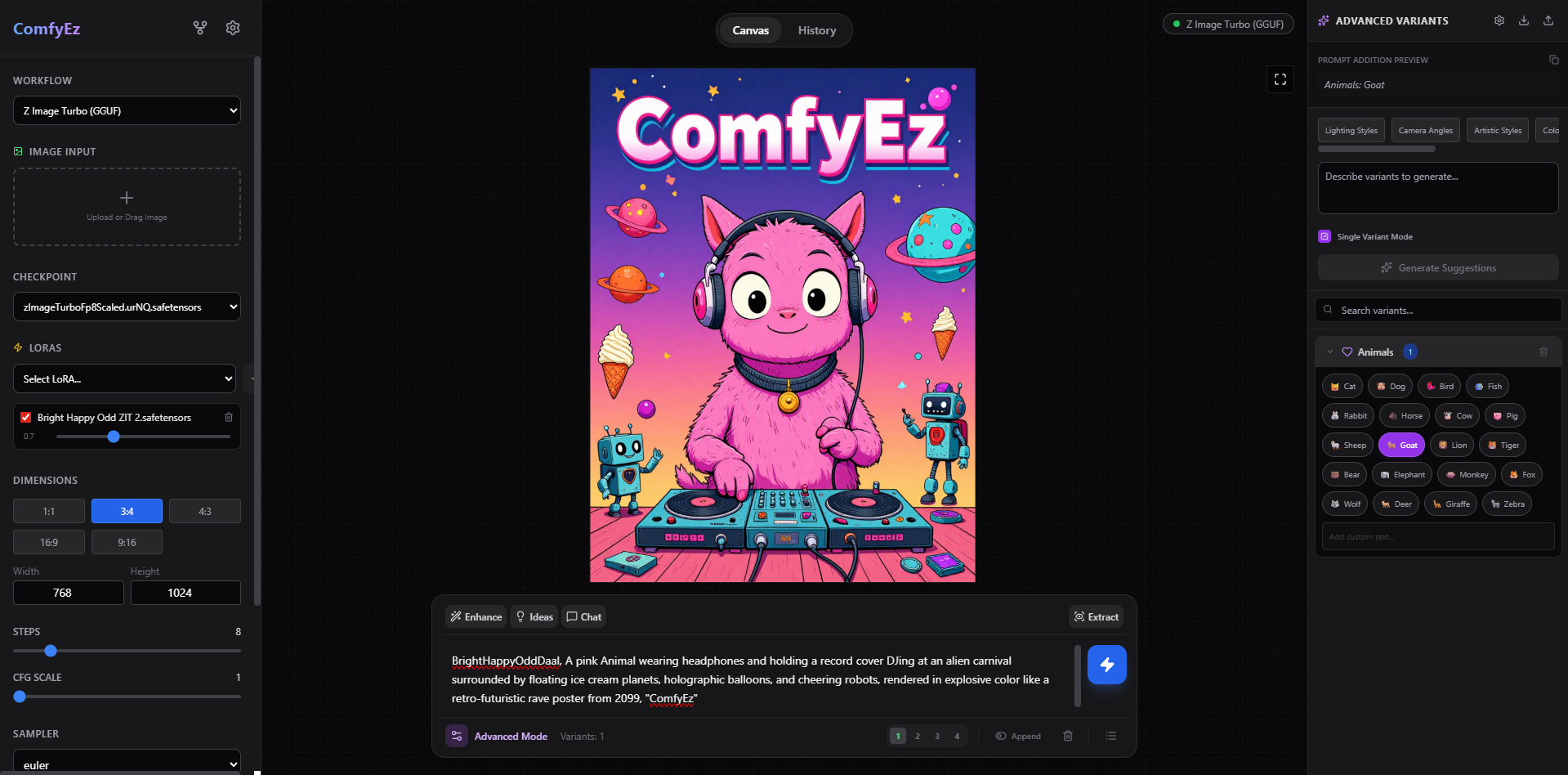
 A web interface for a local ComfyUI instance: it wraps the node graph in a sleek Playground-style UI like commercial AI generators, adding LLM-powered prompt tools and a dedicated inpainting editor.
A web interface for a local ComfyUI instance: it wraps the node graph in a sleek Playground-style UI like commercial AI generators, adding LLM-powered prompt tools and a dedicated inpainting editor.So do I install a desktop app, or how does this fit alongside ComfyUI?It's a standalone React web app you run yourself and open in your browser. There's no backend — it talks to your local ComfyUI directly through its API, and all data stays in the browser.
It's a standalone React web app you run yourself and open in your browser. There's no backend — it talks to your local ComfyUI directly through its API, and all data stays in the browser.How do I get it running?Install Bun, clone the repo, run bun install, then start the dev server. In the app, open Settings (the gear icon) and set the Host URL to your ComfyUI instance.
Install Bun, clone the repo, run bun install, then start the dev server. In the app, open Settings (the gear icon) and set the Host URL to your ComfyUI instance.What needs to be in place before it will work?A locally running ComfyUI (at its default address) and Bun. If you serve the UI from a different origin, start ComfyUI with --enable-cors-header or the browser will block requests.
A locally running ComfyUI (at its default address) and Bun. If you serve the UI from a different origin, start ComfyUI with --enable-cors-header or the browser will block requests.Can I use my existing ComfyUI workflows with it?Yes — import any workflow JSON saved in ComfyUI's API format and map UI controls (prompt, checkpoint, KSampler seed/steps/CFG, preview) to node IDs without touching code. SDXL, SD1.5, Flux, and custom workflows all work once mapped.
Yes — import any workflow JSON saved in ComfyUI's API format and map UI controls (prompt, checkpoint, KSampler seed/steps/CFG, preview) to node IDs without touching code. SDXL, SD1.5, Flux, and custom workflows all work once mapped.Where do my generated images and API keys end up?Nowhere external: images, history, and queue state sit in IndexedDB in your browser, while preferences, workflow picks, and API keys live in localStorage. No external database is involved.
Nowhere external: images, history, and queue state sit in IndexedDB in your browser, while preferences, workflow picks, and API keys live in localStorage. No external database is involved.Will my generation queue survive a page refresh?Yes — the queue persists in IndexedDB across reloads, and after a refresh the app automatically resumes checking status for pending jobs. You can also reorder, delete, or clear queue items.
Yes — the queue persists in IndexedDB across reloads, and after a refresh the app automatically resumes checking status for pending jobs. You can also reorder, delete, or clear queue items.Can I reproduce an image I liked from the history gallery?Yes, via Remix: clicking any history item instantly restores all parameters, workflows, and seeds used to generate it, with full metadata kept per image.
Yes, via Remix: clicking any history item instantly restores all parameters, workflows, and seeds used to generate it, with full metadata kept per image.Does it support stacking multiple LoRAs?Yes — LoRAs load dynamically and can be stacked; the backend automatically chains their Model and CLIP nodes sequentially in the workflow.
Yes — LoRAs load dynamically and can be stacked; the backend automatically chains their Model and CLIP nodes sequentially in the workflow.Can it upscale the output?Yes, upscaling is toggleable, with methods like Lanczos and Bicubic and custom scale factors.
Yes, upscaling is toggleable, with methods like Lanczos and Bicubic and custom scale factors.What are similar projects?InvokeAI, ComfyUI, stable-diffusion-webui, krita-ai-diffusion, locally-uncensored, infinite-canvas, diffusionbee-stable-diffusion-ui, stable-diffusion-webui-colab
InvokeAI, ComfyUI, stable-diffusion-webui, krita-ai-diffusion, locally-uncensored, infinite-canvas, diffusionbee-stable-diffusion-ui, stable-diffusion-webui-colabWhich topics is it in?inpainting, upscaling, comfyui, stable-diffusion, openrouter, lora, workflow, vite, app, openai-compatible, image-generation, prompt-engineering
inpainting, upscaling, comfyui, stable-diffusion, openrouter, lora, workflow, vite, app, openai-compatible, image-generation, prompt-engineering