Noty
Sticky notes that live at the edge of your screen. A native macOS app in Swift,
SwiftUI and AppKit.
No dock icon, no window to manage. Slide the pointer to the right edge and the
deck fans out.
noty-sepia.vercel.app ·
Download the latest DMG
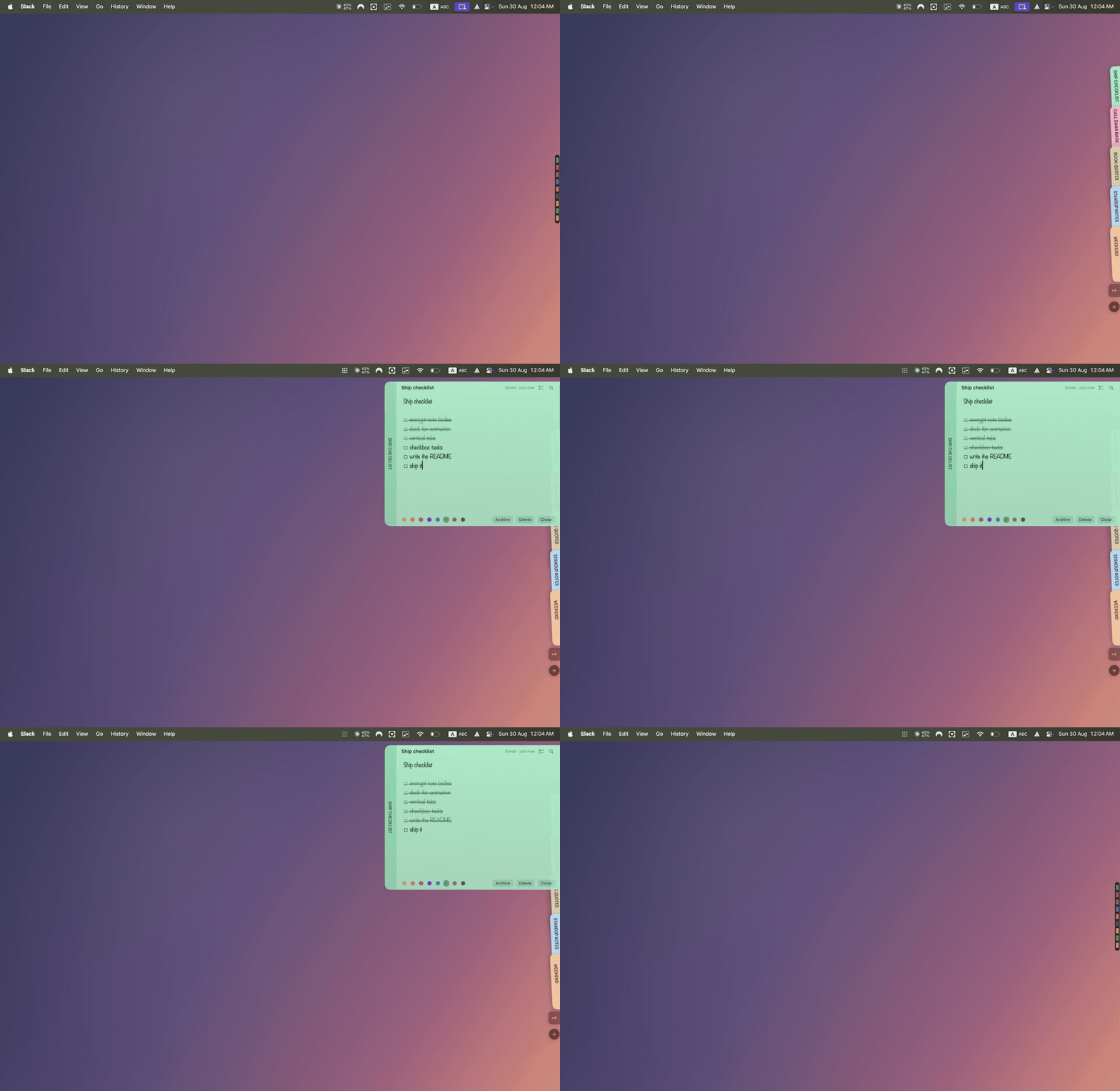
| At rest |
Fanned |
A note pulled open |
 |
 |
 |
Three states, one movement
| State |
What you see |
Trigger |
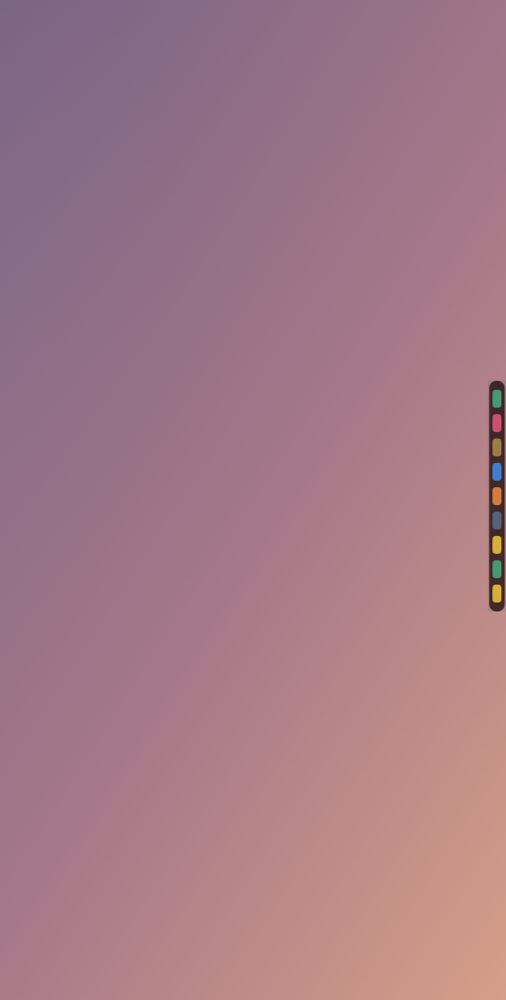
| Rest |
A 12 pt pill on the screen edge — one coloured dash per note |
idle |
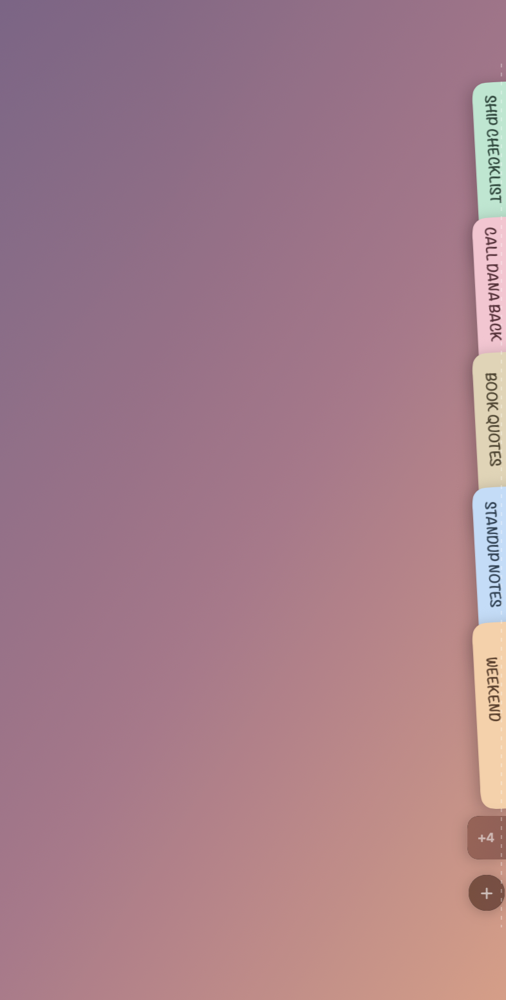
| Fan |
Notes shingle down the edge 45 ms apart as vertical tabs, each keeping its colour and carrying its label turned on its side |
pointer enters the pill |
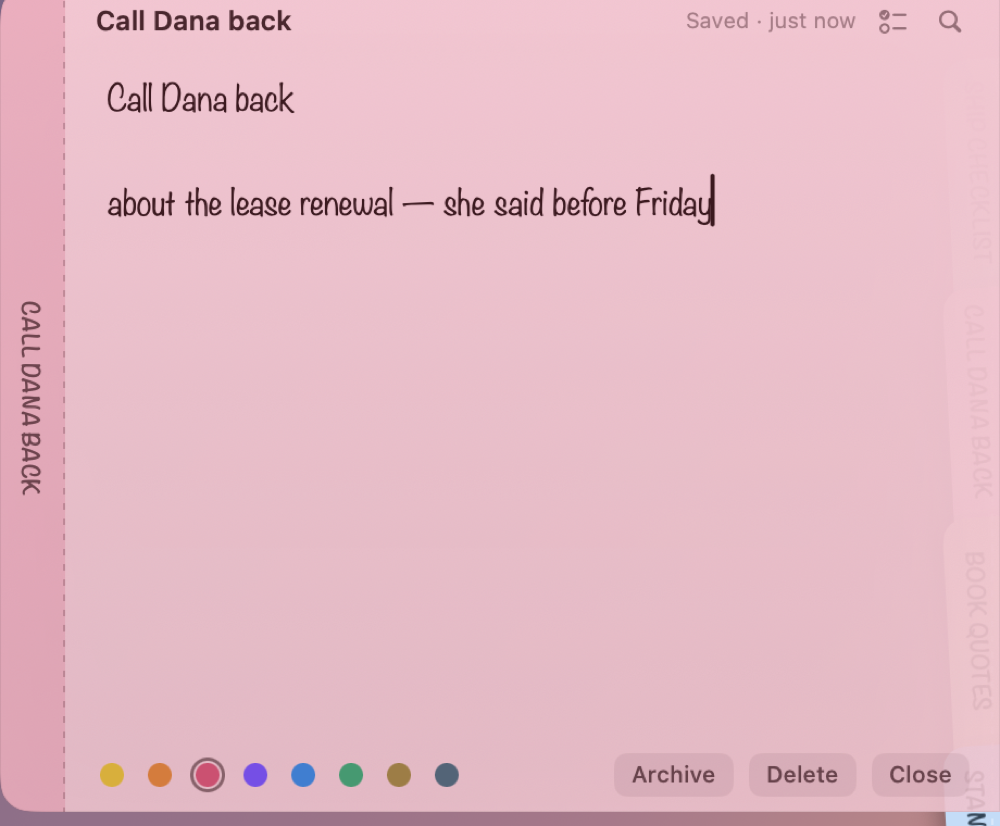
| Expanded |
The note slides clear of the deck at full size, level with its own tab, which stays visible behind it |
click a tab |
The deck shows five notes at a time and puts the rest behind a +N tab, which
opens the full list in a scrolling deck. A + button sits in the bottom corner
while the deck is open.
Tabs shingle: each one is full height but sits only a strip below the one
before, lapping over it like a roof tile. That is what keeps the deck to roughly
half the screen height instead of running its full length. The strip is sized to
the longest title currently on the deck, so labels read in full and ellipsise
cleanly rather than being clipped mid-word.
The fan is only 56 pt wide, so the deck covers almost none of what is behind it.
Two deck styles
Right-click the pill → Deck style:
|
|
| Labelled tabs |
Full-size tabs carrying their titles — the default |
| Colour chips |
Colour only, no labels; the deck shrinks to a row of chips |
The open note carries its own tab along as a left gutter, separated by a dashed
rule, so it reads as growing out of the deck rather than floating beside it.
Deck size scales every metric off one multiplier — tab width, the lap between
tabs, the label type, the chips and the resting pill — so the deck grows without
drifting out of proportion with itself. Settings → Deck → Size (70–180%), or
right-click the pill → Deck size for the four presets.
Keep deck open makes the fan the resting state instead of the pill, so the
tabs and their labels stay on the edge without being hovered first. Off by
default; notes still open, close and idle away exactly as before.
Automation
Noty registers the noty:// URL scheme, so Shortcuts, Raycast, Alfred or a
terminal can talk to it:
open "noty://new?text=Buy%20milk"   # create a note with this text
open "noty://capture"               # open the quick-capture box
open "noty://all"                   # the All Notes window
open "noty://settings"              # Settings
The text only ever becomes note content — nothing in a URL is executed.
Shortcuts
All of these are listed in Settings (⌘,), and the first four can be rebound
there. Global ones are registered through the Carbon hotkey API, so no
Accessibility permission is required:
|
|
⌥⌘N |
new note (opens it straight away) |
⇧⌘Space |
quick capture — jot without opening the editor |
⌥⌘A |
All Notes |
⌥⌘L |
the Archive window |
Inside a note:
|
|
Esc |
close the note, back to the tabs (or dismiss the find bar) |
⌘F |
find in note |
⌘. |
cycle its colour |
⌘T |
turn the current line into a task, or strip the checkbox off |
⌘⌫ |
delete, with ten seconds to undo |
⇧⌘A |
archive the note you are looking at |
| — |
every shortcut here can be rebound in Settings |
⌘P |
pin the note so it stays open |
⌃+ / ⌃- |
bigger / smaller note text |
Standard editing (⌘C / ⌘V / ⌘Z / ⌘A) works everywhere — the app builds a
main menu at launch purely so those key equivalents dispatch, even though an
accessory app draws no menu bar.
Checkbox tasks
Any line can be a task. ⌘T (or the checklist button in a note's header) puts a
checkbox on the current line; click the box to tick it off and the line is
struck through and dimmed. Return carries the list on to the next task, and
Return on an empty task ends the list.
Tasks live inline in the note body as ☐ / ☑ prefixes, so a note stays plain
text. Markdown export writes them as standard - [ ] / - [x] task syntax and
import reads that back. All Notes shows a done/total count per note.
Images
Paste (⌘V with an image on the clipboard), drag an image file in, or
right-click → Insert Image…. The picture renders inline at full width by
default; underneath it the body keeps a one-line token,
. Unlike the other markdown markers the token
never surfaces just because the caret is near — clicking the image parks the
caret right after it, and pressing delete there reveals the token, fully
selected, as a confirmation step: delete again to remove the image, or type,
press Return/Space, paste or click elsewhere to keep it and the picture
comes straight back.
Hover an image for a drag handle at its bottom-right corner; drag to resize,
and the height follows the aspect ratio. The width is written back into the
token —  — so sizes survive restarts and
export/import.
Images live as files under ~/Library/Application Support/Noty/Images/ and
are deleted when the last note referencing them is deleted. .stickies
export archives carry them as base64, so a round-trip keeps every picture.
Everything else
- Archived, not deleted. Archiving pulls a note out of the deck but keeps it
in All Notes → Archive, restorable at any time.
- Quick capture (
⇧⌘Space) — a small floating box from anywhere: type,
hit ↩, and it becomes a note in the deck without opening the editor.
⇧↩ for a new line, esc to cancel, click away to dismiss. A row of
chips picks the destination — a fresh note, or appended to the end of an
existing one (⌘1 for new, ⌘2… for the tabs); the box's paper colour
previews where the text will land.
- All Notes (
⌥⌘A) — one window, search across every note body and title,
with an editable detail pane.
- Bidirectional text — each note can follow its content automatically or be
forced left-to-right or right-to-left from the direction menu in its header.
The choice also applies in the All Notes editor and survives archive exports.
- Multi-display & relocation — show the deck on all displays, only the main
screen, or a specific monitor. Hold
⌥ Option and drag the pill to dock it to
any edge, height, or display. Displays are tracked by CGDirectDisplayID, so
hot-plugging rebuilds the decks with graceful fallback.
- Over full-screen apps — right-click the pill → Show over full-screen apps.
This raises the panel to
.statusBar level; .floating alone does not draw
over a full-screen space.
- Autosave 250 ms after you stop typing, and again on close.
- Settings (
⌘,, the cog under the deck's +, or right-click the pill) —
five tabs. Shortcuts rebinds all twelve. Deck covers style, size, which
display carries it, the edge, how far from it the pointer wakes the deck, and
whether the tabs stay out. Notes has the face, text size, note size and
Markdown. Sync mirrors notes into iCloud Drive (off by default). Updates
shows the version, when it last checked, and checks now.
Everything applies immediately.
- Open on hover. Off by default: turn it on and resting the pointer on a tab
opens that note without a click.
- Tab preview on hover. Rest on any tab to peek at a flyout card showing its
title, checklist progress and content snippet without opening the full note.
Turning on open-on-hover replaces it — the note itself opens instead.
- Markdown as you type.
# headings, **bold**, *italic*, `code`,
~~struck~~, > quotes, - bullets and [links](https://example.com) are
styled in place. Markers are hidden on every line but the one the caret is on,
which shows them dimmed so they can still be edited — the stored text is
exactly what you typed and exports unchanged.
- ⌘-click a link to open it. A plain click still places the caret, since a
note is a thing you edit first. Only
http, https and mailto are ever
made clickable; anything else is styled and inert, so an imported note can
never turn into a launcher.
- Drag to reorder. Drag a tab up or down and the others step aside to show
where it will land.
- Pull a note anywhere. Grab the open note by its tab-gutter and drag it
off the deck — it becomes a floating sticky wherever you drop it, draggable
by its header, across displays, and resizable from any edge or corner. It
remembers the size you stretch it to. Idle a minute and it tucks itself back to
the edge, exactly like a note on the deck. Unpinned it stacks like any
window — other windows can cover it; pin it and it stays on top and never
tucks. One floats
at a time — pulling out a second tucks the first.
- Hide the deck completely. Settings → Deck: nothing shows at rest — no
pill, no dashes. The edge strip still wakes the tabs on hover. Off by
default.
- Pin a note to keep it open. The pin in a note's header (or
⌘P) stops it
being dismissed by anything you did not aim at it — clicking away in another
app, or leaving it idle. Esc and Close still close it. Pinned tabs carry a dot,
and the pin is remembered.
- Closing a note steps back to the deck. Esc, Close, archiving or deleting
leaves the tabs where they were; only moving away from the edge puts the deck
back to sleep. Clicking in another app dismisses the whole thing.
- Tidies itself away. A fan left untouched collapses after 4 seconds; an open
note after a minute idle.
- Export — Markdown (one
.md per note), plain text (one .txt per note),
a single document, or a .stickies archive that preserves colours, archived
state and dates. Import reads .stickies back, and will also take loose
.md / .txt files.
- Sync to iPhone and iPad through iCloud Drive. Settings → Sync. Each note
becomes one Markdown file in iCloud Drive with a small header carrying its
colour, dates and identity; open the folder in Files on the phone and edit
them in any Markdown editor. Edits travel both ways, new files written on the
phone become notes, and deletions propagate. When both sides changed the newer
edit wins and the other version is kept in
Noty/Conflicts/, never discarded.
- Right-click the pill for the full menu: new note, windows, edge side, launch at
login, export, import, quit.
On the phone
Reading needs nothing: tap a file in Files and Quick Look renders the
Markdown. Editing needs an editor that writes in place, because sync reads
the file's own modification date to notice a change. Taio is free and a
good starting point; Runestone (free), Textastic and
Obsidian (Open folder as vault → iCloud Drive/Noty) all edit in place too.
Avoid anything that takes a copy through an "Open in…" share sheet. Saving
then leaves a second file carrying the same noty-id, which is not what you
meant and not something Noty can make sense of. Opening the file from the
editor's own Files browser avoids this.
To write a note on the phone, make an ordinary .md file in the Noty folder —
no header, one line of text is enough. The Mac picks it up on its next pass,
generates an id, writes the header back, and the note joins the deck under the
filename you chose, titled by its first line. Tasks written as - [ ] / - [x]
become ☐ / ☑ on the deck and come back as Markdown. A first line of --- is
safe; it is not mistaken for a header.
Two things worth knowing. The sync engine lives in the Mac app, so a file
written on the phone is picked up when the Mac is running, or next time it
starts. And Noty/Conflicts/ is an archive of versions that lost a conflict —
it is there to be read and pruned by hand, and never syncs back.
Your notes stay on your Mac
- Local SQLite database in
~/Library/Application Support/Noty/.
- Note bodies are encrypted with AES-GCM (CryptoKit, 256-bit). Titles,
colours and timestamps stay in plaintext so lists render without unsealing
every row.
- No account, no server, no analytics, no telemetry, no tracking SDKs.
- One network request, ever: Sparkle fetches the appcast to see whether a
newer version exists. Nothing about your notes is sent — it is a plain GET of
a public XML file. Turn it off with Check automatically in the pill's menu,
and it never fires again.
- iCloud sync is off until you switch it on. With it off, none of the above
changes: nothing is written outside
~/Library/Application Support/Noty/.
Switched on (Settings → Sync), Noty mirrors each note into
~/Library/Mobile Documents/com~apple~CloudDocs/Noty/ as a plain Markdown
file so it can be read on an iPhone or iPad. Those files are not encrypted —
they cannot be, or nothing on the phone could open them. The SQLite database on
this Mac stays AES-GCM encrypted either way. It uses the iCloud Drive folder
macOS already syncs; there is no Noty server, no account and no third party.
- No Accessibility permission, no Screen Recording, no system permissions.
Verify it yourself:
sqlite3 ~/Library/Application\ Support/Noty/notes.db "SELECT hex(substr(body,1,24)) FROM notes;"
strings ~/Library/Application\ Support/Noty/notes.db | grep "some text from a note body"   # finds nothing
Build
Requires the Swift toolchain from Command Line Tools (Xcode is not needed)
and macOS 15+. A local release build produces a universal app; releases ship
one DMG per architecture instead — Noty.dmg for Apple Silicon and
Noty-intel.dmg for Intel, each a third smaller than a universal image, with
its own Sparkle feed (appcast.xml / appcast-intel.xml) baked into the build
so updates stay on the right architecture.
./scripts/fetch-sparkle.sh   # once — pulls the Sparkle binary framework
./build.sh                   # release build → build/Noty.app
./build.sh debug             # fast, unoptimised
./build.sh release run       # build, then relaunch
./scripts/test-editor.sh     # focused editor range/style/input regression checks
open build/Noty.app
build.sh drives swiftc directly over Sources/*.swift for both supported
architectures, combines the resulting binaries with lipo, assembles the
.app bundle around Info.plist, embeds Sparkle, and signs it.
Sparkle is optional. Without Sparkle/Sparkle.framework the app still builds —
Updater.swift compiles to a stub and the update menu says so.
Branches
dev is where work lands — every pull request targets it, and CI builds it.
main is the release branch: merging dev into main is what cuts a
release, so nothing reaches main until it has been tried.
Releasing
git checkout main && git merge --no-ff dev -m "release: 1.2.0"
git push origin main
That fires .github/workflows/release.yml, which builds the app, packages a
DMG, signs it with the EdDSA key, writes appcast.xml, publishes a GitHub
Release and commits the appcast so installed copies can see the update.
The version comes from release: X.Y.Z anywhere in the merge commit
message. Leave it out and the patch is bumped from the newest tag, which is
what a hotfix wants. A version that is already tagged is a no-op, so re-running
the job is safe.
Release notes are written by scripts/make-release-notes.sh from the pull
requests the release actually contains — matched by whether their merge commit
is reachable, not by date, since work merged into dev sits unreleased until
dev lands. Every one of them is listed with a link and its author, on the
release page and in the Sparkle update dialog. Run it yourself to see what the
next release will say:
VERSION=1.2.0 ./scripts/make-release-notes.sh
Work that ships without a pull request of its own being merged — a cherry-pick,
or a branch only part of which was taken — is credited with a trailer on the
commit that takes it, which the same script turns into a Thanks section:
Thanks-to: @handle — what it was for
Documentation, the site, the media and the appcast are excluded from the
trigger, so a README push to main never cuts a release. workflow_dispatch
with a version is the manual escape hatch.
It needs one repository secret, SPARKLE_PRIVATE_KEY — the contents of the
key scripts/fetch-sparkle.sh's toolchain generated. The matching public key is
already in Info.plist as SUPublicEDKey; an update signed by any other key is
refused by the installed app.
To build a DMG by hand:
./build.sh release && ./scripts/make-dmg.sh 1.0.1
Signing note. Sparkle ships signed by its own team, and dyld refuses to load
a framework whose Team ID differs from the process — so build.sh re-signs the
framework (innermost bundle first) with the same identity as the app. Set
CODESIGN_IDENTITY to use a Developer ID instead of an ad-hoc signature.
Layout
Sources/
  Main.swift            @main entry point; NSApplication, accessory policy
  AppDelegate.swift     wiring, actions, main menu
  Core.swift            Paths, AES-GCM Crypto, colour palette, Note model
  Store.swift           SQLite (C API) — schema, load, upsert, delete
  NoteStore.swift       observable model; the single source of truth
  Settings.swift        UserDefaults prefs + launch-at-login
  HotKeys.swift         Carbon global shortcuts (no permissions)
  DeckPanel.swift       geometry, NSPanel subclass, tracking container
  DeckController.swift  one deck per display + the state machine
  DeckViews.swift       pill, fan, tabs, the 45 ms stagger
  NoteEditor.swift      NSTextView bridge, find, 250 ms autosave
  LibraryWindow.swift   All Notes / Archive
  ExportImport.swift    md / txt / single file / .stickies
<<<<<<< HEAD
  NoteDocument.swift    the front-matter markdown form of a note
  CloudFolder.swift     the iCloud Drive folder: paths, names, coordinated I/O
  CloudSyncIndex.swift  what the last sync pass saw
  SyncPlan.swift        pure decision table: notes + files + index → actions
  CloudSync.swift       runs the actions, schedules the passes
=======
  ImageStore.swift      on-disk image files, noty-img:// token helpers
>>>>>>> pr35
  UndoToast.swift       the ten-second undo after a delete
Four details worth knowing if you touch the deck:
- A borderless
.nonactivatingPanel returns false from canBecomeKey, so the
expanded note silently refuses keystrokes unless it is overridden.
- Views default
acceptsFirstMouse to false, so the first click on a tab is
otherwise eaten to activate the panel instead of opening the note — which is
the normal case, since you are always in another app when you reach for the deck.
- The shingle relies on ZStack declaration order, not
zIndex. Adding an
explicit zIndex per tab reordered neighbouring tabs and broke the lap.
rotationEffect is a render transform, not a layout one: a rotated label still
measures at its unrotated width, so a

 Noty is a native macOS sticky-notes app that hides at the edge of your screen as a small pill, fanning out into note tabs when you move the pointer there, instead of sitting in a dock or window.