 TranslationPlugin







Translation plugin for IntelliJ based IDEs/Android Studio.











Features
- Multiple Translation Engines
- Microsoft Translator
- Google Translate
- DeepL Translator
- OpenAI Translator
- Youdao Translate
- Baidu Translate
- Alibaba Translate
- Multiple languages inter-translation
- Text-to-speech
- Microsoft Edge TTS
- Google TTS
- OpenAI TTS
- Document translation
- Automatic word selection
- Automatic word breaks
- Word Book
Compatibility
- Android Studio
- Aqua
- AppCode
- CLion
- DataGrip
- DataSpell
- GoLand
- HUAWEI DevEco Studio
- IntelliJ IDEA Community
- IntelliJ IDEA Ultimate
- MPS
- PhpStorm
- PyCharm Community
- PyCharm Professional
- Rider
- RubyMine
- RustRover
- WebStorm
Installation

Restart the IDE after installation.
Using The Plugin
Sign up for a translation service (optional)
Most translation services require user registration to access their services
(such as OpenAI, DeepL, Youdao Translate, etc.).
Therefore, you may need to create an account, obtain an Authentication Key,
and then bind the Authentication Key within the plugin:Preferences(Settings) >
Tools >
Translation > General > Translation Engine > Configure...
Begin translating
Select a text or hover the mouse over the text > Right-click > Translate
Or use shortcuts for translation, as detailed in Actions.
Replace with Translation
Translate the target text and replace it. If the target language is English, the output has several formats: in
camel case, with a word separator (when the output contains multiple words, the separator can be configured in the
plugin configuration page: Translation Settings > Replace with Translation > Separator)
and in the original format.
Instructions: Select a text or hover the mouse over the text > Right-click > Replace with Translation (Or use shortcuts for translation, as detailed in Actions).
Translate Documentation
Quick Documentation and Inline Documentation can be translated via the context menu or shortcuts (detailed in Actions).
Translation Settings > Other > Automatically translate documentation: When you check this option, the Quick Documentation will be automatically translated when you view it.
Switch engines
Click the engine widget in the status bar or use the shortcut Ctrl + Shift + S
(macOS: Control + Meta + Y) to switch between
the translation engine and the TTS engine quickly.
Actions
Show Translation Dialog...
Open the translation dialog, which appears by default on the toolbar. Default shortcut:
- Windows - Ctrl + Shift + O
- macOS - Control + Meta + I
Translate
Extract words and translate them. If you have already selected a text, extract the words from the portion of the text
you'd like to translate. Otherwise, words are extracted automatically from the maximum range (this extraction can be
configured in Settings). This action is displayed by default in the editor's right-click context menu. Default
shortcut:
- Windows - Ctrl + Shift + Y
- macOS - Control + Meta + U
Translate(Inclusive)
Extract words and translate them. Automatically extract and translate all words from a specific range, ignoring
manually selected text. Default shortcut: (None)
Translate(Exclusive)
Extract words and translate them. Automatically extract the nearest single word, ignoring manually selected text.
Default shortcut: (None)
Replace with Translation
Replace the text with translation. The word extraction method works the same as when translating. Default shortcut:
- Windows - Ctrl + Shift + X
- macOS - Control + Meta + O
Translate Quick Documentation
Quickly display and translate the documentation of the symbol at the caret. When used in the Quick Documentation popup, you can toggle between the translated text and the original. Default shortcut:
- Windows - Ctrl + Shift + Q
- macOS - Control + Q
Translate Inline Documentation
Translate the contents of the editor's inline documentation rendered view. Displayed by default in the context menu of the inline documentation view and available within the inline documentation view. Default shortcut: (None)
Batch Translate Inline Documentation
Batch translate all inline documentation in the editor. Displayed by default on the editor inspections widget toolbar and available in Reader mode. Default shortcut: (None)
Translate Text Component
Translate selected text in some text components (e.g. Quick Docs, popup hints, input boxes...). This does not support
automatic word extraction. Default shortcut (same as translation shortcut):
- Windows - Ctrl + Shift + Y
- macOS - Control + Meta + U
Switch Engine
Quickly switch between translation engine and TTS engine. Default shortcut:
- Windows - Ctrl + Shift + S
- macOS - Control + Meta + Y
Word of the Day
Display the 'Word of the Day' dialog box. Default shortcut: (None)
Other
Translation dialog shortcuts:
- Display the list of source languages - Alt + S
- Display the list of target languages - Alt + T
- Switch between languages - Alt + Shift + S
- Pin/unpin a window - Alt + P
- Play TTS - Alt/Meta/Shift + Enter
- Save to Word Book - Ctrl/Meta + F
- Show history - Ctrl/Meta + H
- Copy translation - Ctrl/Meta + Shift + C
- Clear input - Ctrl/Meta + Shift + BackSpace/Delete
- Expand more translations - Ctrl/Meta + Down
- Hide more translations - Ctrl/Meta + UP
Translation balloon shortcuts:
- Open dialog - Ctrl + Shift + Y / Control + Meta +
U
Quick Documentation window shortcuts:
- Enable/disable automatic translation - Ctrl + Shift + Y / Control
FAQ
If you have any questions, please ask here.
What should I do if there is a network error or the network connection times out?
A:
- Check the network environment and make sure the network is running smoothly.
- Check whether a proxy is preventing the plugin from accessing the translation API.
- Check the IDE proxy configuration to see if that is the cause of the problem.
What should I do if the translated content appears garbled?
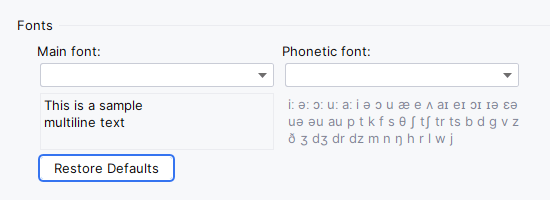
A: Garbled code generally appears when there is a lack of corresponding characters in the font. You can go to
the Settings page of the plugin to modify the font in order to fix the garbled code (as shown below).
What if I can't save the application key?
A: You can try changing the way passwords are saved to In KeePass (Settings > Appearance &
Behavior > System Settings > Passwords). For more details:
- For macOS, please refer to #81
- For Linux, please refer to #115
What if the shortcuts don't work?
A: The shortcut keys are most likely not working because they are being used in other plugins or external
applications. You can reset shortcut keys for the corresponding operations.
Support and Donations
You can contribute and support this project by doing any of the following:
Star the project on GitHub
Give feedback
Commit PR
Contribute your ideas/suggestions
Share the plugin with your friends/colleagues
If you love this plugin, please consider donating. It will inspire me to continue development on the project:
Note
After using Alipay/WeChat to pay for your donation, please provide your name/nickname and website by leaving
a message or via email in the following format:
Name/Nickname [<website>][: message] (website and message are optional.)
Example: Yii.Guxing <github.com/YiiGuxing>: I like the plugin!
If you choose to send an email, please also provide the following information:
Donation Amount: <amount>
Payment Platform: Alipay/WeChat Pay
Payment Number (last 5 digits): <number>
Email address: [email protected] (click to send email)
The name, website and total donation amount you provide will be added to
the donor list.
Thank you for your support!
Contributors
Technology Contributors
The CDN acceleration and security protection for this project are sponsored by Tencent EdgeOne.

Code Contributors
This project exists thanks to all the people who contribute. [Contribute].

Financial Contributors
Become a financial contributor and help us sustain our
community. [Contribute]
Backers
Thank you to all our backers! ❤️ [Become a backer]
Support this project by becoming a sponsor! Your logo will show up here with a link to your
website. [Become a sponsor]





Donors
More donors




 TranslationPlugin 是一款适用于基于 IntelliJ 的 IDE 和 Android Studio 的翻译插件,可让你使用多个翻译引擎,直接在编辑器中翻译文本、文档和代码符号。