



34.5K ·GitHub
What is this?
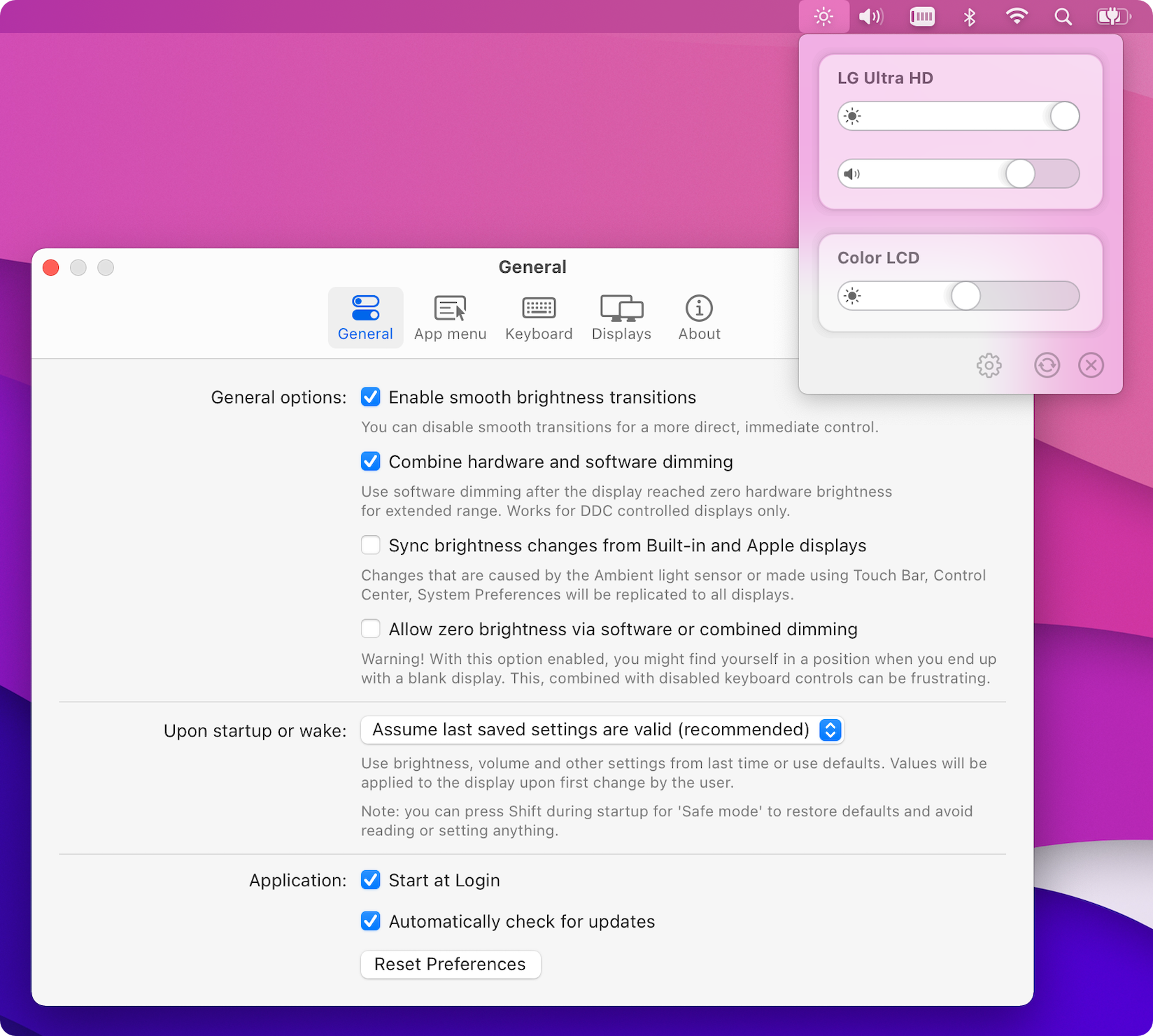
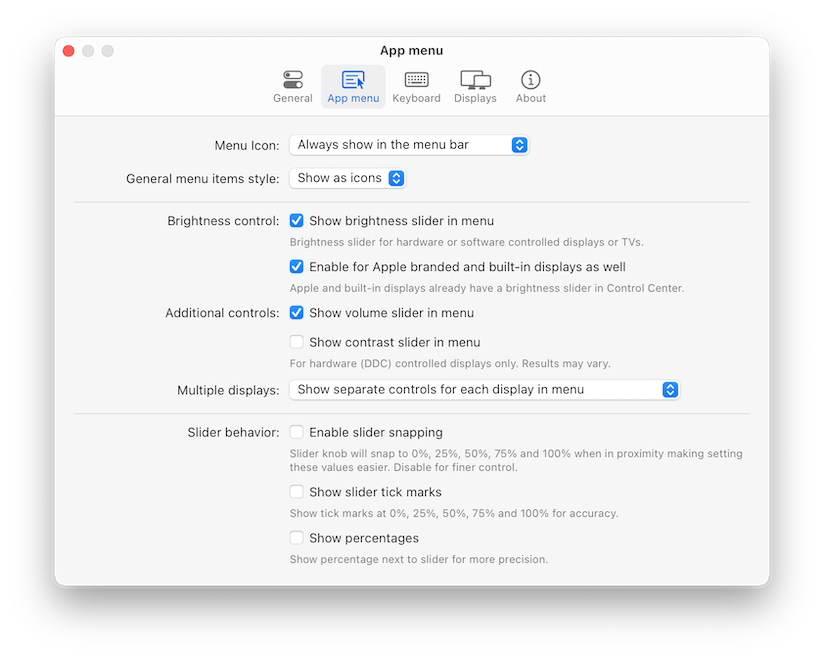
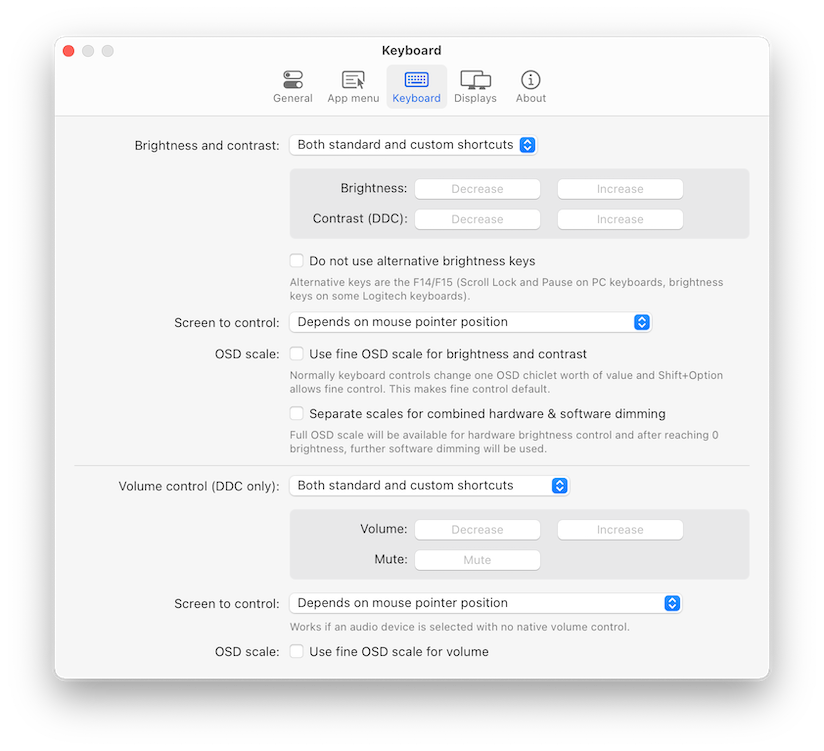
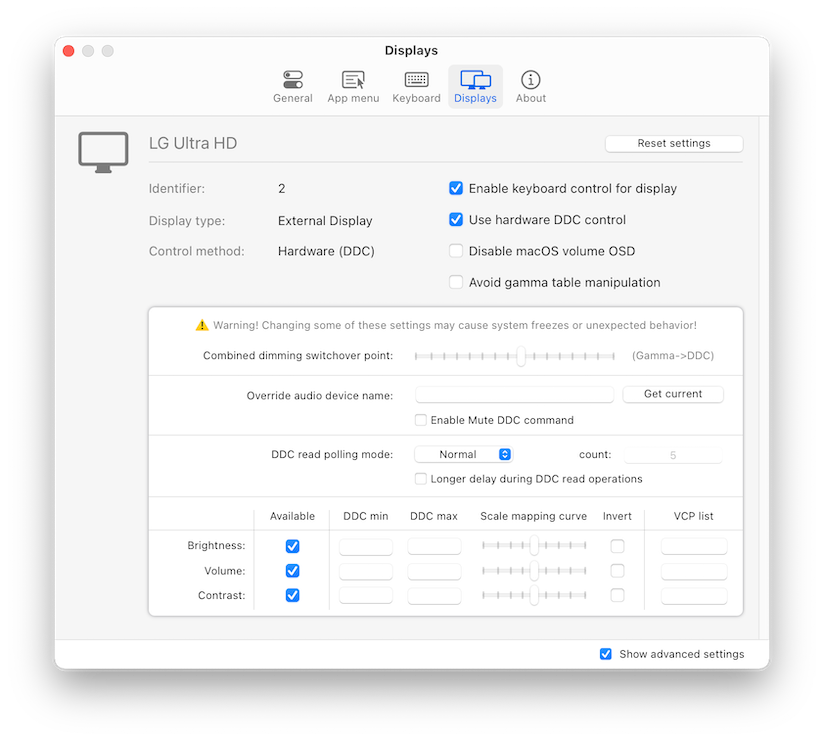
 MonitorControl is a free, open-source macOS app that controls your external display's brightness, volume and contrast as if it were a native Apple Display — via Apple keyboard keys, custom shortcuts or menu bar sliders.
MonitorControl is a free, open-source macOS app that controls your external display's brightness, volume and contrast as if it were a native Apple Display — via Apple keyboard keys, custom shortcuts or menu bar sliders.So it's a Mac app — does it change the monitor's real brightness or just dim the picture in software?It's a menu bar app that sends DDC/CI commands to the monitor over USB-C, DisplayPort, HDMI, DVI or VGA, so changes are real hardware control. Apple and built-in displays use native protocols, and gamma-table or shade software dimming covers the rest.
It's a menu bar app that sends DDC/CI commands to the monitor over USB-C, DisplayPort, HDMI, DVI or VGA, so changes are real hardware control. Apple and built-in displays use native protocols, and gamma-table or shade software dimming covers the rest.How do I install and set it up?Download the latest .dmg from GitHub Releases (or install via Homebrew), copy the app to Applications and launch it. Grant Accessibility access only if you want the native Apple keyboard brightness and media keys to work.
Download the latest .dmg from GitHub Releases (or install via Homebrew), copy the app to Applications and launch it. Grant Accessibility access only if you want the native Apple keyboard brightness and media keys to work.Will it work with my monitor?Most modern LCDs from major manufacturers support hardware control via DDC/CI. LCD and LED televisions usually lack DDC and get software dimming only, and the same goes for displays like EIZO that use a custom protocol.
Most modern LCDs from major manufacturers support hardware control via DDC/CI. LCD and LED televisions usually lack DDC and get software dimming only, and the same goes for displays like EIZO that use a custom protocol.Is it free, or is there a catch?It's completely free and open source under the MIT license. The README points to BetterDisplay if you want advanced extras like XDR/HDR brightness upscaling and support for more Mac models and displays.
It's completely free and open source under the MIT license. The README points to BetterDisplay if you want advanced extras like XDR/HDR brightness upscaling and support for more Mac models and displays.Which macOS versions does it support?Full functionality needs macOS 11 Big Sur or newer, and macOS Sequoia or Tahoe 26 requires v4.3.3 or newer. Avoid v4.2.0: it may crash on Sequoia or Tahoe and won't auto-update, so upgrade manually if you're on it.
Full functionality needs macOS 11 Big Sur or newer, and macOS Sequoia or Tahoe 26 requires v4.3.3 or newer. Avoid v4.2.0: it may crash on Sequoia or Tahoe and won't auto-update, so upgrade manually if you're on it.Does it work over the HDMI port of M1 Macs?No — DDC control over the built-in HDMI port of all M1 Macs, the 2018 Intel Mac mini and the entry-level M2 Mac mini is not supported. Use USB-C instead, or BetterDisplay, which handles full DDC over HDMI on those Macs for free; software dimming still works either way.
No — DDC control over the built-in HDMI port of all M1 Macs, the 2018 Intel Mac mini and the entry-level M2 Mac mini is not supported. Use USB-C instead, or BetterDisplay, which handles full DDC over HDMI on those Macs for free; software dimming still works either way.Can it make the screen darker than the monitor's own minimum brightness?Yes. It seamlessly combines hardware and software dimming to go beyond the panel's minimum brightness, can dim all the way to full black, and animates smooth brightness transitions.
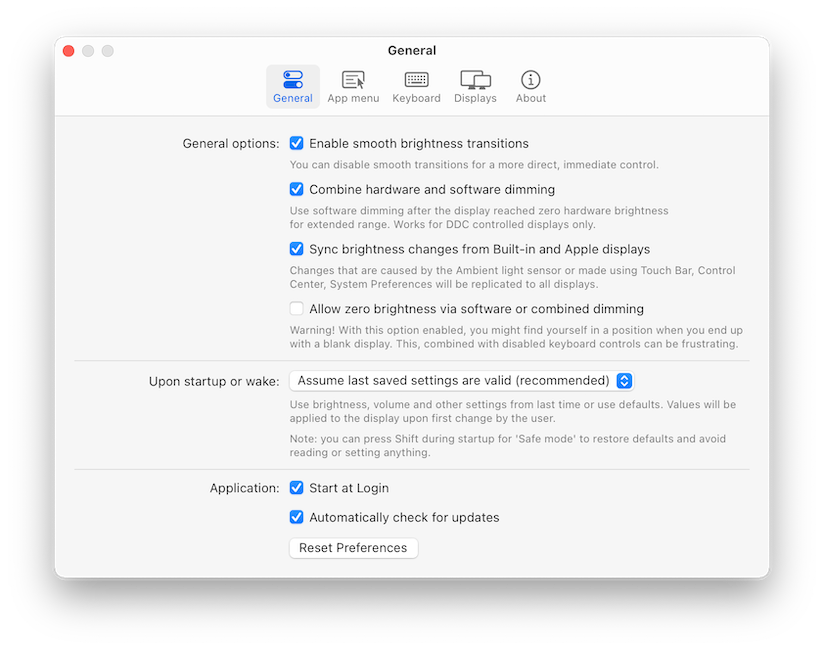
Yes. It seamlessly combines hardware and software dimming to go beyond the panel's minimum brightness, can dim all the way to full black, and animates smooth brightness transitions.I use two monitors — can I control them together?Yes. You can sync all your displays with a single slider or keyboard shortcuts, and brightness changes on built-in or Apple screens (like ambient light sensor adjustments) are replicated to a non-Apple external display.
Yes. You can sync all your displays with a single slider or keyboard shortcuts, and brightness changes on built-in or Apple screens (like ambient light sensor adjustments) are replicated to a non-Apple external display.What are similar projects?BetterDisplay, AirCard-macOS, DockDoor, Doll, pliss, rooms, spectacle, kinesis
BetterDisplay, AirCard-macOS, DockDoor, Doll, pliss, rooms, spectacle, kinesis