









A quick file search and app launcher for Windows with community-made plugins.
Dedicated to making your workflow more seamless. Search everything from applications, files, bookmarks, YouTube, Twitter and more. Flow will continue to evolve, designed to be open and built with the community at heart.
Remember to star it, Flow will love you more :)

📣 Official Channels
⚠️ Only trust official channels for downloads and announcements, and be careful of similar-looking domains.
For installation, use the official methods listed below.
🚗 Getting Started
Installation
Windows 10+ Installer or Portable Version
Winget
winget install "Flow Launcher"
Scoop
scoop install Flow-Launcher
Chocolatey
choco install Flow-Launcher
When installing for the first time Windows may raise an issue about security due to code not being signed, if you downloaded from this repo then you are good to continue the set up.
Or download the early access version.
🎁 Features
Applications & Files

- Search for apps, files or file contents.
- Supports Everything and Windows Index.

- Supports search using environment variable paths.
Web Searches & URLs


Browser Bookmarks

System Commands

Calculator

- Do mathematical calculations and copy the result to clipboard.
Shell Command

- Run batch and PowerShell commands as Administrator or a different user.
- Ctrl+Shift+Enter to Run as Administrator.
Explorer

- Save file or folder locations for quick access.
Windows & Control Panel Settings

- Search for Windows & Control Panel settings.
Dialog Jump

- Search for a file/folder and quickly jump to its path in the Open/Save As dialog window.
- Use Alt+G to quickly jump the Open/Save As dialog window path to the path of the active file manager.
Drag & Drop

- Drag a file/folder to File Explorer, or even Discord.
- Copy/move behavior can be changed via Ctrl or Shift, and the operation is displayed on the mouse cursor.
Priority

- Prioritize the order of each plugin's results.
Preview Panel

- Use F1 to show or hide previews
- Results can preview media files as large images, show an icon and description, or use markdown with code highlighting.
- Show previews by default via Settings (Always Preview).
- Use Ctrl++/- and Ctrl+[/] to adjust search window width and height quickly if the preview area is too narrow.
Customizations

- Window size adjustment, animation, and sound
- Color Scheme (aka Dark Mode)

- There are various themes and you also can make your own.
Date & Time Display In Search Window

- Display date and time in search window.
💬 Languages
- Supports languages from Chinese to Italian and more.
- Supports Pinyin (拼音) search.
- Crowdin support for language translations.
Supported languages
- English
- 中文
- 中文(繁体)
- Українська
- Русский
- Français
- 日本語
- Dutch
- Polski
- Dansk
- de, Deutsch
- ko, 한국어
- Srpski
- Српски
- Português
- Português (Brasil)
- Spanish
- es-419, Spanish (Latin America)
- Italiano
- Norsk Bokmål
- Slovenčina
- Türkçe
- čeština
- اللغة العربية
- Tiếng Việt
- עברית
Portable
- Fully portable.
- Type
flow user data to open your saved user settings folder. They are located at:
- If using roaming:
%APPDATA%\FlowLauncher
- If using portable, by default:
%localappdata%\FlowLauncher\app-<VersionOfYourFlowLauncher>\UserData
- Type
open log location to open your logs folder, they are saved along with your user settings folder.
🎮 Game Mode

- Pause hotkey activation when you are playing games.
- When in search window use Ctrl+F12 to toggle on/off.
- Type
Toggle Game Mode
📦 Plugins
- Support wide range of plugins. Visit here for our plugin portfolio.
- Publish your own plugin to Flow! Create plugins in:


......and more!
🛒 Plugin Store
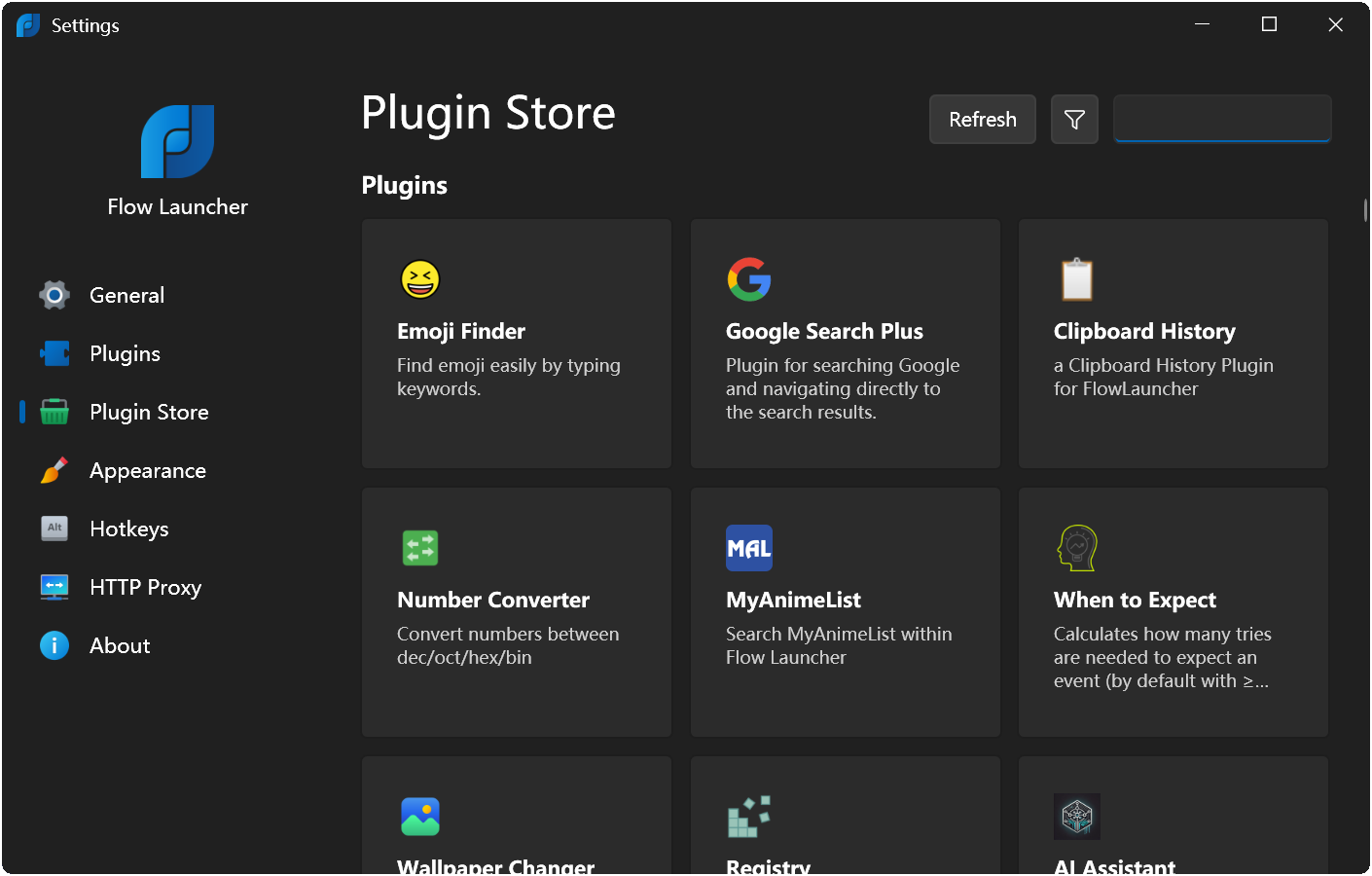
You can view the full plugin list or quickly install a plugin via the Plugin Store menu inside Settings
or type pm install/uninstall/update + the plugin name in the search window,
⌨️ Hotkeys
| Hotkey |
Description |
| Alt+Space |
Open search window (default and configurable) |
| Enter |
Execute |
| Ctrl+Enter |
Open containing folder |
| Ctrl+Shift+Enter |
Run as admin |
| ↑/↓, Shift+Tab/Tab |
Previous / Next result |
| ←/→ |
Back to result / Open Context Menu |
| Ctrl+O , Shift+Enter |
Open Context Menu |
| Ctrl+Tab |
Autocomplete |
| F1 |
Toggle previews |
| Esc |
Back to results / hide search window |
| Ctrl+C |
Copy folder / file |
| Ctrl+Shift+C |
Copy folder / file path |
| Ctrl+I |
Open Flow's settings |
| Ctrl+R |
Run the current query again (refresh results) |
| F5 |
Reload all plugin data |
| Ctrl+F12 |
Toggle Game Mode when in search window |
| Ctrl++,- |
Adjust maximum results shown |
| Ctrl+[,] |
Adjust search window width |
| Ctrl+H |
Open search history |
| Ctrl+Backspace |
Back to previous directory |
| PageUp/PageDown |
Previous / Next Page |
System Command List
| Command |
Description |
| Shutdown |
Shutdown computer |
| Restart |
Restart computer |
| Restart With Advanced Boot Options |
Restart the computer with Advanced Boot option for safe and debugging modes |
| Log Off/Sign Out |
Log off |
| Lock |
Lock computer |
| Sleep |
Put computer to sleep |
| Hibernate |
Hibernate computer |
| Empty Recycle Bin |
Empty recycle bin |
| Open Recycle Bin |
Open recycle bin |
| Exit |
Close Flow Launcher |
| Save Settings |
Save all Flow Launcher settings |
| Restart Flow Launcher |
Restart Flow Launcher |
| Settings |
Tweak this app |
| Reload Plugin Data |
Refreshes plugin data with new content |
| Check For Update |
Check for new Flow Launcher update |
| Open Log Location |
Open Flow Launcher's log location |
| Index Option |
Open Windows Search Index window |
| Flow Launcher Tips |
Visit Flow Launcher's documentation for more help and usage tips |
| Flow Launcher UserData Folder |
Open the location where Flow Launcher's settings are stored |
| Toggle Game Mode |
Toggle Game Mode |
| Set Flow Launcher Theme |
Set the Flow Launcher Theme |
💁♂️ Tips





 Flow Launcher 是一款适用于 Windows 的快速文件搜索和应用启动器,类似于 Alfred 或 Spotlight,并支持社区开发的插件。