video2dlssnr




Disclaimer. video2dlssnr is not affiliated, associated, authorized, endorsed by, or in any way
officially connected with NVIDIA Corporation or any of its subsidiaries or affiliates. All product
and company names are the registered trademarks of their original owners; their use here is for
identification only and does not imply endorsement. Provided as-is, without warranty of any kind.
Licensed under the MIT License; NVIDIA components are subject to NVIDIA's own terms.
NVIDIA DLSS Super Resolution + Neural Rendering (DLSS 5, NGX feature 18) for images and
video on Windows / Direct3D 12. Use it through a UI, as ComfyUI nodes, or from the
command line.
The core is video2dlssnr.exe — pure C++17 + D3D12, no CMake, no vcpkg, no engine — a single
self-contained CLI (files in/out, or raw frames over stdin/stdout) that embeds anywhere. The UI,
the video script and the ComfyUI nodes are thin Python wrappers around it.
Contents
- Requirements
- UI — download, double-click, done
- ComfyUI — the same as custom nodes
- Command line — a plain CLI that embeds anywhere:
video2dlssnr.exe takes files
in / files out or raw frames over stdin/stdout, nr_video.py wraps it for clips
- How it works — the GPU pipeline, motion vectors, scene cuts
- Build
- Layout
Requirements
Barely anything: an NVIDIA RTX GPU on driver 616.56+ and Python 3.
UI
- Download
video2dlssnr_release.zip from the
latest release and unzip it
anywhere.
- Double-click
start.bat. First run creates a virtual environment and installs the Python
deps, then opens the app at http://127.0.0.1:7860 with two tabs, Image and Video.
Drop a file, pick the style / intensity / output size, press Run. Video shows a live progress
line with fps; results land in ui_out\.
Output size is a preset (×1.5 / ×2 / ×3, 720p / 1080p / 1440p / 4K / 5K / 8K — fitted to the
source's aspect, portrait clips get the box turned) or Custom width × height / scale. DLSS SR
preset picks the Super Resolution model for the upscale: Default lets the driver choose (the
newest transformer), the CNN presets E / F give a smoother, calmer result after NR, J / K / L are
the other transformer models. The Encoding
block on the Video tab picks the codec (HEVC / H.264 / AV1 on NVENC, AV1 SVT / ProRes / FFV1
lossless on the CPU), the container (mp4 / mkv / mov / webm), the quality (constant-quality
presets Best … Low, or Custom with an explicit CQ / bitrate), 8 or 10-bit, the NVENC preset and
what to do with the audio (copied unchanged when the container allows). The default — HEVC
10-bit, CQ 19 — gives a 4K clip roughly 15–30 Mbit/s depending on content. If the browser cannot
play the chosen format (HEVC, mkv, ProRes …) the UI shows a small H.264 preview copy; the file it
saved is the one offered for download and the one in ui_out\.
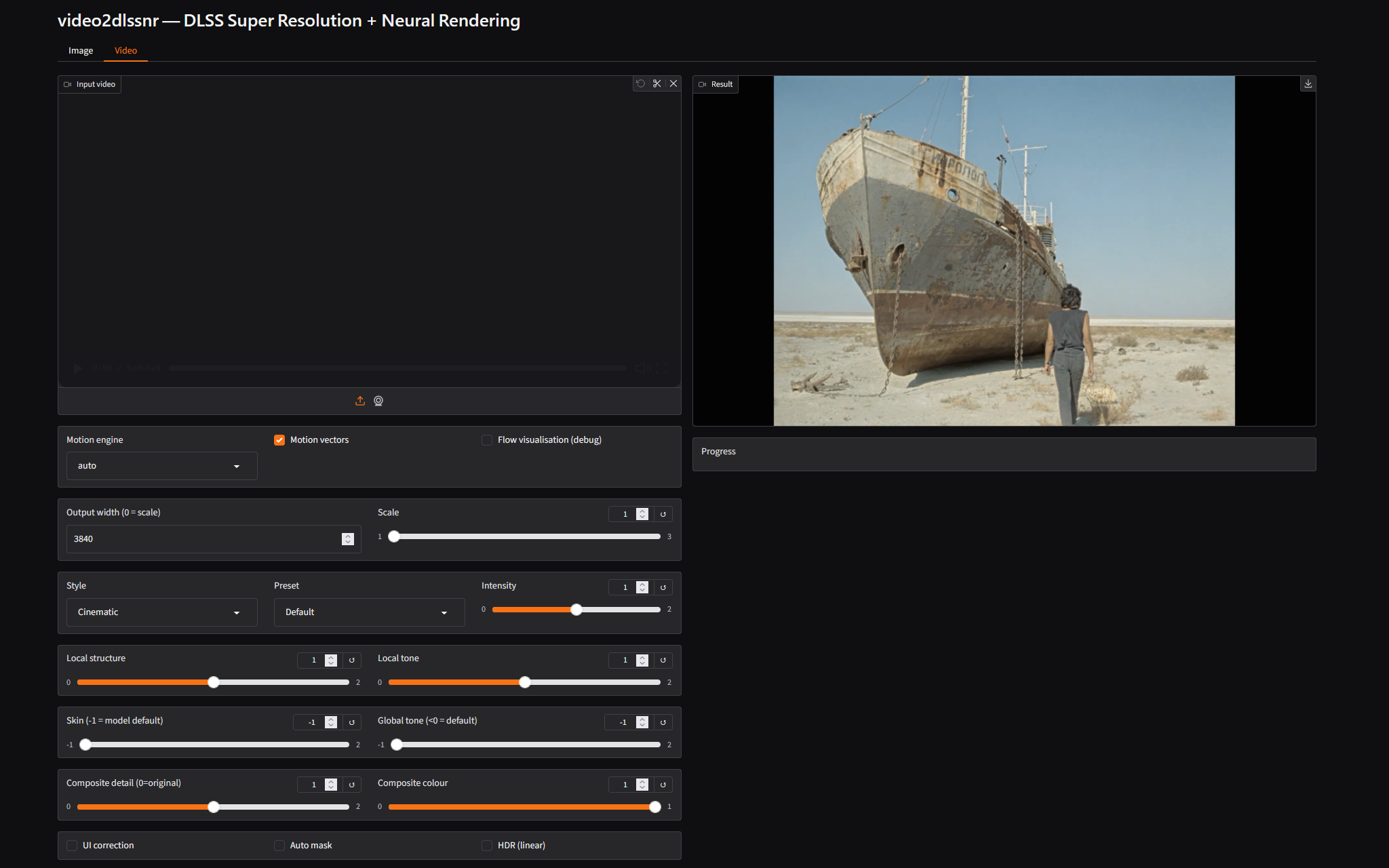
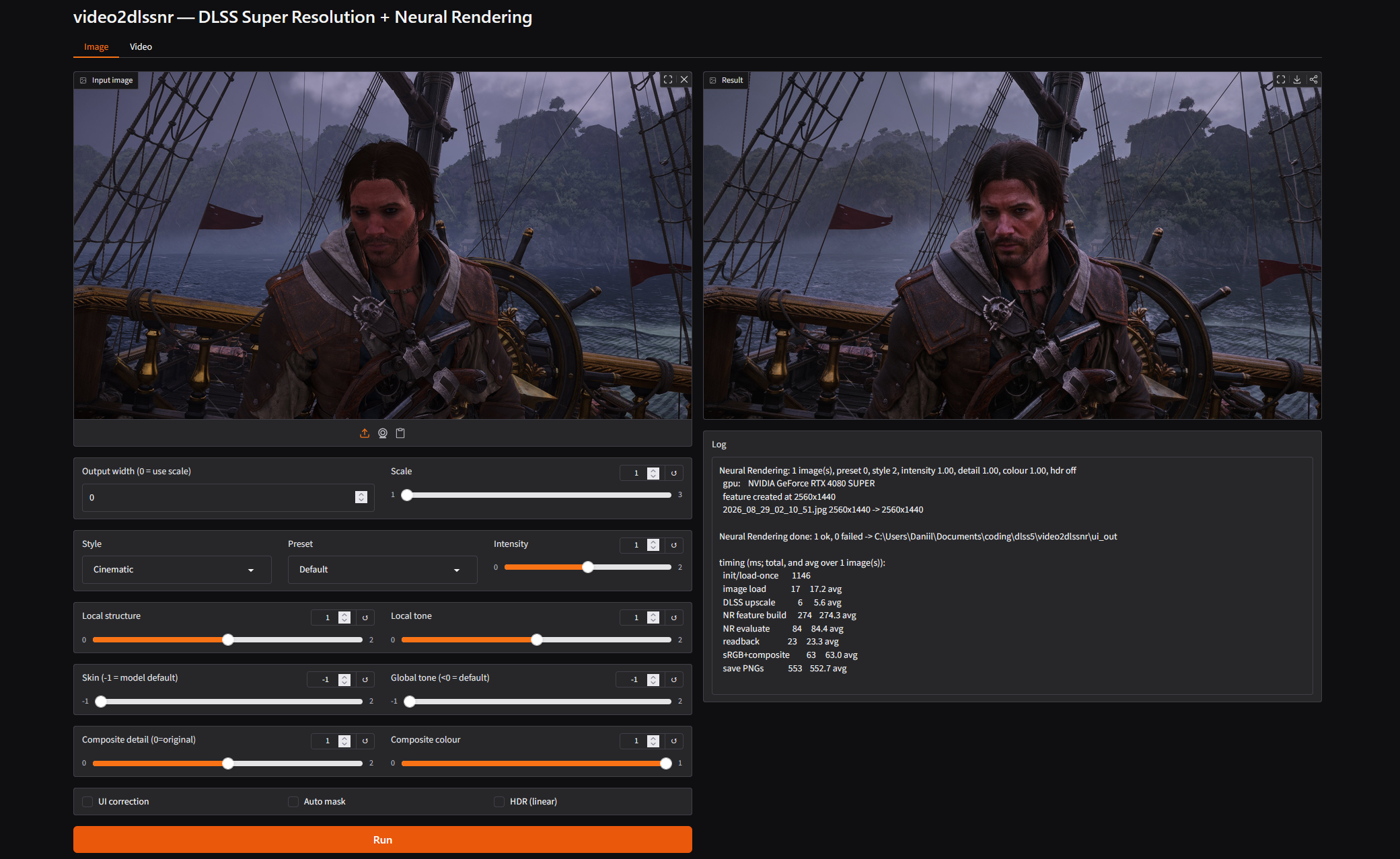
Video — a whole clip: motion engine, upscale factor, every NR knob · Image — a still, input/result side by side (click to enlarge)
ComfyUI
Do not download GitHub's automatically generated Source code.zip — take the ComfyUI asset from
Releases.
Open Releases and download
video2dlssnr-comfyui.zip.
Extract the contained video2dlssnr folder to:
ComfyUI\custom_nodes\video2dlssnr
Restart ComfyUI. The nodes find video2dlssnr.exe in custom_nodes\video2dlssnr\bin\ on
their own; to point them at another copy, set the environment variable VIDEO2DLSSNR_EXE to
its full path. The nodes are under video2dlssnr:
| Node |
In → Out |
What it does |
| DLSS Neural Rendering (Image) |
IMAGE → IMAGE |
each image in the batch on its own (the Image tab) |
| DLSS Neural Rendering (Video) |
VIDEO or IMAGE → IMAGE + VIDEO |
a clip: frames stream through the tool with optical-flow motion vectors for temporal stability (the Video tab). Takes the core Load Video output directly (audio and frame rate are carried over) or an IMAGE batch from VideoHelperSuite, and returns both the frames and a ready VIDEO |
| DLSS NR Runtime Check |
→ STRING |
runs a tiny test job and reports whether Neural Rendering works here, plus the optical-flow backend in use — try it first if something is off |
Typical graphs:
- still: Load Image → DLSS Neural Rendering (Image) → Save Image
- clip, core nodes: Load Video → DLSS Neural Rendering (Video) → Save Video
- clip, VideoHelperSuite: Load Video (Upload) → DLSS Neural Rendering (Video) → Video Combine
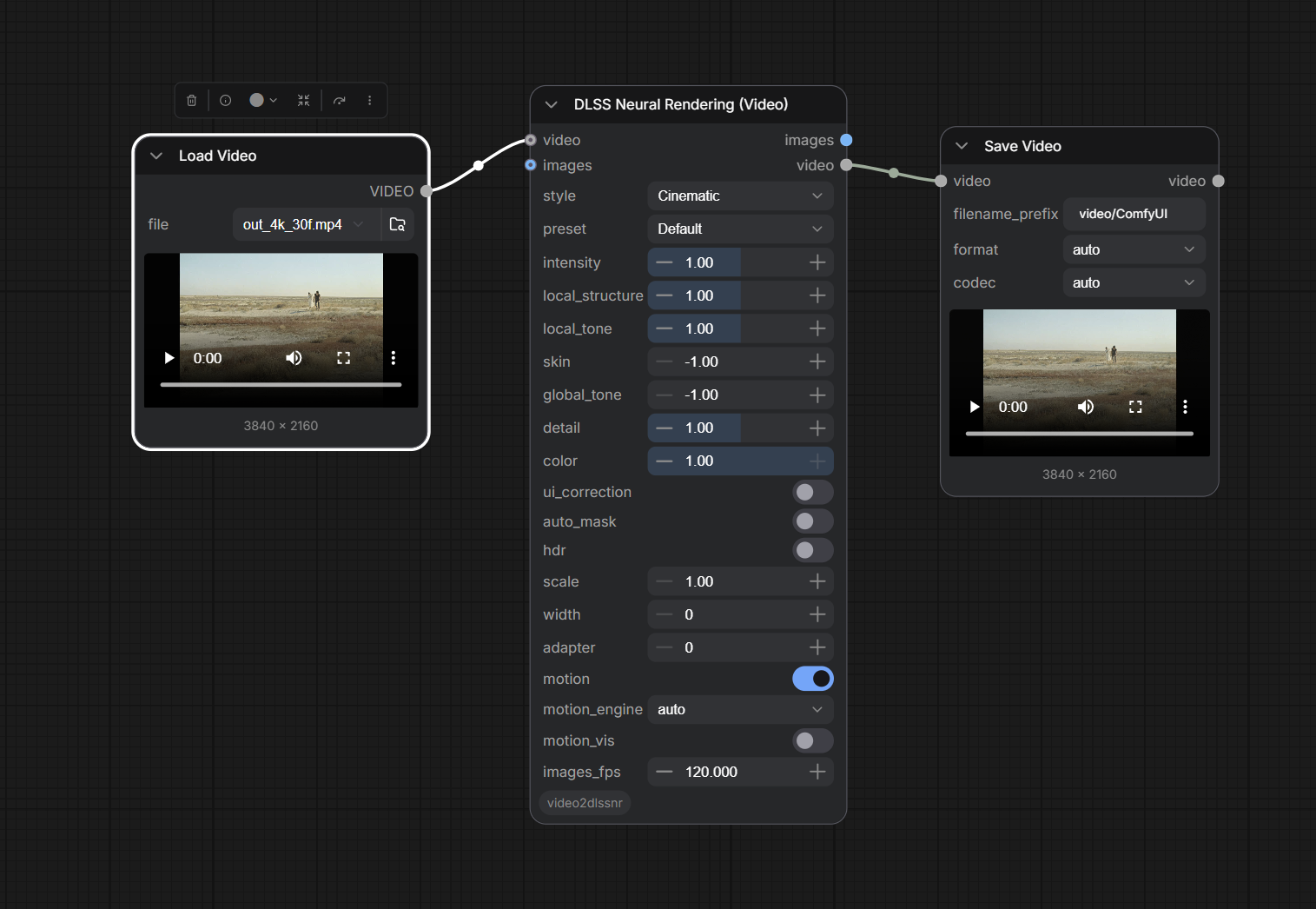
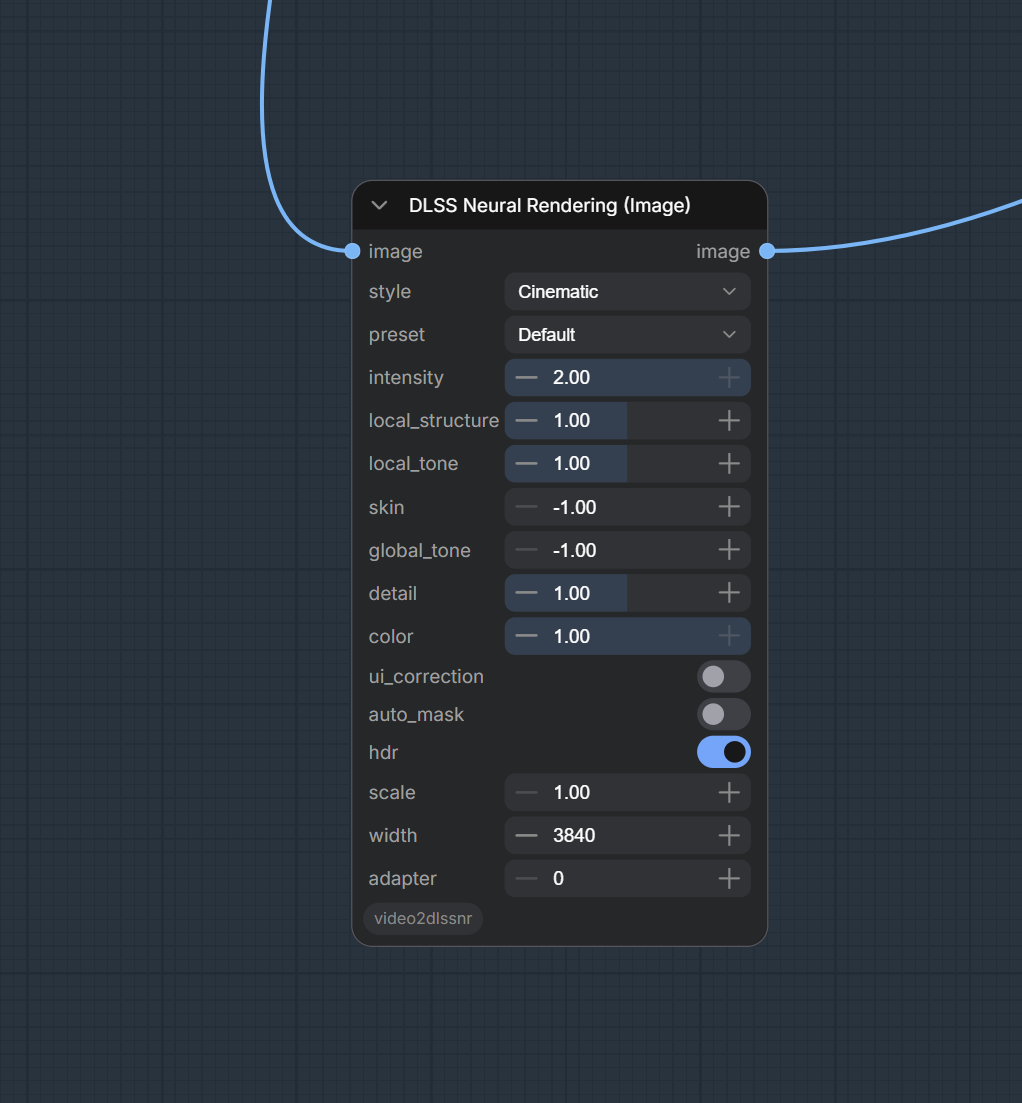
Load Video → DLSS Neural Rendering (Video) → Save Video on a 4K clip · the Image node with its knobs (click to enlarge)
Both processing nodes expose the same knobs as the CLI — style, preset, intensity,
local_structure, local_tone, skin, global_tone, detail, color, ui_correction,
auto_mask, hdr, scale / width / height (one side pins the aspect, both pin the exact size,
0 = use scale) — plus adapter
(which GPU); the Video node adds motion, motion_engine (auto / nvof / lk), motion_vis
and images_fps — frame-rate metadata for the VIDEO output when the input is an IMAGE batch
(it does not add frames; with a VIDEO input the source rate is used). The frame count in equals
the frame count out — to raise the frame rate, chain a frame-interpolation node (e.g. GIMM-VFI,
RIFE) after it.
Frames travel to the tool as raw RGBA over a pipe and come back the same way — no ffmpeg, no temp
files — and a driver hiccup takes down the helper process, not ComfyUI. Nodes need nothing beyond
what ComfyUI already ships (torch, numpy, Pillow).
Command line
video2dlssnr.exe is a self-contained command-line tool with no runtime dependencies beyond the
NVIDIA driver: images go in and out as files, video as raw RGBA frames over stdin/stdout
(--nr-video), progress on stderr. That makes it trivial to embed in any pipeline, script or app —
nr_video.py and the ComfyUI nodes are just two thin wrappers around it.
Images — video2dlssnr.exe
:: Neural Rendering — add detail to an image (native resolution)
out\video2dlssnr.exe --nr-run --in photo.png --out nr_out
:: Neural Rendering + DLSS upscale — 2x, or pin one side and keep aspect
out\video2dlssnr.exe --nr-run --in photo.png --out nr_out --nr-scale 2
out\video2dlssnr.exe --nr-run --in photo.png --out nr_out --nr-width 3840

:: Super Resolution only — upscale an image, try a few presets
out\video2dlssnr.exe --in photo.png --out out --quality quality --preset default,E,K
Each image run writes, into --out: <name>_nr.png (result), and with --nr-orig / --nr-diff
also <name>_orig.png (input at the same size) and <name>_nr_diff.png (error map).
Upscaling runs real DLSS Super Resolution first (input → target), then NR at the target
size — the same order a game uses. --nr-detail 0 returns the input untouched. JPEGs are turned
upright by their EXIF orientation tag first, so phone photos come out the way they were shot.
Video — nr_video.py
nr_video.py is the one entry point for video. It streams a whole clip through the
same DLSS SR + Neural Rendering, keeps every frame on the GPU, and prints a live fps/ETA bar:
ffmpeg (decode) --raw rgba--> video2dlssnr --nr-video --raw rgba--> ffmpeg (NVENC + audio)
Nothing goes back to the CPU between decode and encode — see How it works.
The flags are named exactly like video2dlssnr.exe (--nr-*), so the same knobs carry over.
:: 4K, Cinematic, motion vectors on (default), UI correction off (default)
python nr_video.py --in clip.mp4 --out clip_4k.mp4 ^
    --nr-width 3840 --nr-style 2 --nr-intensity 1.0

:: 2x upscale instead of a fixed width; or fit inside a box keeping the aspect
python nr_video.py --in clip.mp4 --out clip_2x.mp4 --nr-scale 2
python nr_video.py --in clip.mp4 --out clip_uhd.mp4 --nr-fit 3840x2160

:: native resolution, NR only (no upscale)
python nr_video.py --in clip.mov --out clip_nr.mov

:: other formats: the container comes from the extension, the codec from --codec
python nr_video.py --in clip.mp4 --out clip.mkv --codec av1_nvenc --cq 24
python nr_video.py --in clip.mp4 --out clip.mov --codec prores --prores-profile hq
python nr_video.py --in clip.mp4 --out clip_master.mkv --codec ffv1     :: lossless RGB
python nr_video.py --in clip.mp4 --out clip_compat.mp4 --codec h264_nvenc --bit-depth 8

:: debug: write the motion-vector visualisation instead of the NR result
python nr_video.py --in clip.mp4 --out clip_flow.mp4 --nr-motion-vis
Encoding defaults to constant quality (--cq 19, lower = better), 10-bit HEVC (less banding,
better compression; --bit-depth 8 for old players), full colour tagging (bt709, or the source's own
matrix / primaries / transfer carried through) and proper chroma resampling. Give --bitrate to
target a fixed bitrate instead. Audio is copied unchanged whenever the container allows it, else
re-encoded (AAC, or Opus for webm). Sizes smaller than the source are done by ffmpeg after NR
(DLSS only enlarges); above 3× the tool chains DLSS passes.
Progress prints live, e.g. [=====> ] 95/124 (77%) 25.9 fps ETA 00:01, then a final line
with the steady-state GPU fps. ffmpeg / ffprobe are looked up in out\, then on PATH, then a
winget Gyan.FFmpeg install. ProRes is CPU-decoded (NVDEC can't); everything else decodes fine.
| Flag |
Default |
Meaning |
--in <file> |
— |
source clip |
--out <file> |
— |
output clip; .mp4 / .mkv / .mov / .webm picks the container |
--nr-width <px> |
— |
output width, height by aspect (DLSS upscales to it) |
--nr-height <px> |
— |
output height, width by aspect; with --nr-width: the exact size |
--nr-fit <WxH> |
— |
fit inside the box keeping the aspect (portrait sources get it turned) |
--nr-scale <f> |
1.0 |
upscale factor when width/height unset (1.0 = native) |
--nr-sr-preset <p> |
default |
DLSS Super Resolution model for the upscale: default (driver picks per mode), E CNN (DLSS 3.7 default), F CNN (Ultra Performance / DLAA), J DLSS 4 transformer (first), K DLSS 4 transformer (default), L / M DLSS 4.5 transformer (newest); any letter A..O is accepted |
--nr-style <0-2> |
0 |
NR style: 0 Default, 1 Natural, 2 Cinematic |
--nr-preset <0-3> |
0 |
NR render preset |
--nr-intensity <f> |
1.0 |
NR intensity (0–2) |
--nr-local-structure <f> |
1.0 |
local structure strength (0–2) |
--nr-local-tone <f> |
1.0 |
local tone strength (0–2) |
--nr-skin <f> |
-1.0 |
skin structure strength (−1 = model default) |
--nr-global-tone <f> |
-1.0 |
global tone strength (<0 = model default) |
--nr-detail <f> |
1.0 |
composite strength: 0 = original, 1 = full NR |
--nr-color <f> |
1.0 |
0 = keep original hue, 1 = NR colour |
--nr-hdr |
off |
feed linear light instead of the sRGB proxy |
--nr-ui-correction <0|1> |
0 |
NR UI correction (off — no game UI) |
--nr-auto-mask |
off |
NR automatic mask |
--nr-motion <0|1> |
1 |
optical-flow motion vectors for NR (temporal stability) |
--nr-motion-engine <e> |
auto |
flow backend: auto (NVOFA else LK), nvof, lk |
--nr-motion-vis |
off |
output the flow visualisation instead of NR (debug) |
--frames <n> |
all |
cap the number of frames processed |
--adapter <i> |
fastest |
DXGI adapter index (which GPU) |
--codec <name> |
hevc_nvenc |
hevc_nvenc / h264_nvenc / av1_nvenc (GPU); av1_svt (CPU AV1); prores (.mov / .mkv); ffv1 (lossless RGB, .mkv) |
--cq <n> |
19 |
constant-quality target, lower = better: 15 near-transparent, 19 high, 23 medium, 28 small (crf for av1_svt; ignored by prores / ffv1) |
--bitrate <kbps> |
0 |
target bitrate instead of --cq (0 = use --cq) |
--bit-depth <8|10> |
10 |
10 = less banding and better compression; 8 = maximum compatibility (h264_nvenc is always 8) |
--enc-preset <p> |
p5 |
NVENC preset, p1 (fast) .. p7 (quality) |
--multipass <m> |
qres |
NVENC two-pass mode: disabled / qres / fullres |
--sw-preset <n> |
6 |
av1_svt speed preset, 0 (slow) .. 13 (fast) |
--prores-profile <p> |
hq |
proxy / lt / standard / hq / 4444 / 4444xq |
--audio <mode> |
auto |
auto (copy when the container allows, else re-encode) / copy / aac / opus / flac / pcm / none |
--audio-bitrate <kbps> |
192 |
for aac / opus |
--dry-run |
off |
print the decode / tool / encode commands and exit |
All arguments
Common
| Flag |
Default |
Meaning |
--in <path> |
— |
source image, or a folder (Neural Rendering) |
--out <dir> |
out / nr_out |
output directory |
--adapter <i> |
fastest |
DXGI adapter index |
--json <file> |
<out>/results.json |
machine-readable results (SR) |
--verbose, -v |
off |
print the full NGX log |
--debug-layer |
off |
enable the D3D12 debug layer |
--help |
|
full option list |
Neural Rendering
--nr-run selects it. Model parameters are latched when the feature is created:
| Flag |
Range |
Default |
Meaning |
--nr-preset <n> |
0–3 |
0 |
render preset: 0 Default, 1/2/3 Preset 1..3 |
--nr-style <n> |
0–2 |
0 |
0 Default, 1 Natural (gentler, keeps skin tone), 2 Cinematic (less shine) |
--nr-intensity <f> |
0.0–2.0 |
1.0 |
overall detail strength fed to the model |
--nr-local-structure <f> |
0.0–2.0 |
1.0 |
local structure strength |
--nr-local-tone <f> |
0.0–2.0 |
1.0 |
local tone strength |
--nr-skin <f> |
-1.0–2.0 |
model default |
skin structure strength (-1 or below = leave at the model's default) |
--nr-global-tone <f> |
0.0–2.0 |
model default |
global tone strength (below 0 = leave at default) |
--nr-auto-mask |
on/off |
off |
the model's automatic mask |
--nr-ui-correction <0|1> |
0 or 1 |
1 |
UI correction |
Upscaling (DLSS SR does the enlarge, NR the detail):
| Flag |
Range |
Default |
Meaning |
--nr-sr-preset <p> |
default, A..O |
default |
DLSS SR model preset: E/F CNN, J/K DLSS 4 transformer, L/M DLSS 4.5 transformer |
--nr-scale <f> |
~1.0–3.0 |
1.0 |
output = input × f (DLSS SR upscales up to ~3×) |
--nr-width <px> |
≥ input |
— |
set output width, height by aspect |
--nr-height <px> |
≥ input |
— |
set output height, width by aspect |
Composition — how much of the model's output to keep (blended over the original on the CPU):
| Flag |
Range |
Default |
Meaning |
--nr-detail <f> |
0.0–2.0 |
1.0 |
overall strength: 0 = the original, 1 = full NR, >1 exaggerates |
--nr-color <f> |
0.0–1.0 |
1.0 |
0 = keep the original hue (NR luma only), 1 = adopt the model's colour |
--nr-hdr |
on/off |
off |
feed linear light instead of the default sRGB-encoded proxy |
Super Resolution
| Flag |
Default |
Meaning |
--quality <list> |
quality |
dlaa,ultraquality,quality,balanced,performance,ultraperformance or all |
--preset <list> |
default,J,K |
A..O, default, or all |
--frames <n> |
32 |
accumulation passes per run |
--phases <n> |
auto |
jitter sequence length |
--filter <mode> |
point |
downsample filter: point, bilinear, tent, lanczos |
--filter-space <s> |
linear |
linear or display |
--jitter-sign <s> |
auto |
auto, ++, +-, -+, -- |
--hdr |
off |
feed linear colour and set the DLSS HDR flag |
--no-auto-exposure |
off |
supply a constant exposure texture (only affects --hdr) |
--alpha |
off |
enable DLSS alpha upscaling |
--depth <v> |
0.5 |
constant depth written to the depth input |
--png16 |
off |
write 16-bit PNGs |
--save-lr |
off |
also write the low-res input frame |
--no-diff |
off |
skip the diff error map |
--diff-gain <f> |
8 |
error-map amplification |
--metrics-only |
off |
measure without writing images (batch sweeps) |
Diagnostics
| Flag |
Meaning |
--probe-nr |
try to create the NR feature and report where it stops; needs no image |
--probe-sl |
drive Streamline and report whether it sees DLSS-NR as supported |
--nr-in <WxH> / --nr-out <WxH> |
probe input / output size |
--sl-feature <id> |
Streamline feature id to probe (default 1004 = DLSS-NR) |
How it works
Everything runs on the GPU:
ffmpeg decode → DLSS upscale → optical flow (motion vectors) → Neural Rendering → composite → ffmpeg encode (NVENC / CPU)
DLSS SR upscales first (input → target), then Neural Rendering adds detail at the target size — the
same order a game uses. NR is temporal, so per-pixel motion vectors are estimated by optical
flow: hardware NVOFA if present, else a compute-shader Lucas–Kanade fallback
(--nr-motion-engine). A scene-cut check resets history on cuts; --nr-motion-vis dumps the flow
field for debugging. Between decode and encode nothing goes back to the CPU — a compute shader
composites the result over the original and packs the 8-bit frame.
Build
Needs Visual Studio 2022+ with the C++ x64 toolset. No CMake, no vcpkg.
The NGX headers and stb are vendored, but the proprietary NGX import library is not (it is
gitignored). Supply it before building — it is required at link time (the tool resolves the
NVSDK_NGX_D3D12_* symbols from it; at runtime everything goes through the driver's _nvngx.dll):
- Get the DLSS SDK from https://github.com/NVIDIA/DLSS (
lib/Windows_x86_64/x86_64/).
- Copy into
third_party/nvngx/lib/:
nvsdk_ngx_d.lib — needed for the release build,nvsdk_ngx_d_dbg.lib — only for the debug build.
Then run from a normal terminal (build.bat finds the MSVC toolchain via vswhere):
build.bat            :: release
build.bat debug      :: debug
Produces out\video2dlssnr.exe, the forwarder out\nvngx.dll_dlssnr.dll, and the test binary
out\video2dlssnr_tests.exe. (build.bat errors out with missing ...nvsdk_ngx_d.lib if step 2 was
skipped.)
Runtime libraries
The .lib above is only for linking. To actually run the built video2dlssnr.exe, put these
into out\ next to it yourself:
nvngx_dlssnr.dll — DLSS Neural Rendering (feature 18).nvngx_dlss.dll — DLSS Super Resolution (the upscaler).ffmpeg.exe + ffprobe.exe — video only. nr_video.py looks in out\ first, then PATH.
Both NVIDIA DLLs are proprietary and loaded locally, not from the driver store. Get b


 video2dlssnr 把 NVIDIA 的 DLSS 超分辨率和神经渲染(DLSS 5,NGX 特性 18)带到 Windows 上的任意图片和视频,让你像游戏引擎那样放大和增强视频片段或静态图片,可通过桌面界面、ComfyUI 节点或纯命令行工具使用。