ComfyUI-H3-FaceRefine
A ComfyUI custom node set to refine and improve the quality of small faces in MiniMax H3 video.
MiniMax H3 renders faces poorly when the head occupies a small fraction of the frame. This is a property
of head-size-in-frame, not of output resolution, so it persists at 720p and above. These nodes
detect the face on every frame, crop to it so it fills a canvas, let H3 re-generate it, and
composite the result back into the original video.
Modelled on Impact Pack's FaceDetailer,
adapted from stills to video.
Results
Source on the left, refined on the right:

Single frame at full resolution:
| Source |
Refined |
 |
 |
The reason it works is what H3 is handed. Instead of a distant head a few dozen pixels tall, it
gets the face tracked and normalized to fill the canvas:
These two are what to watch for temporal behaviour: the box has to sit still on a moving subject,
or the refined face boils.
What's new in 1.1.0
H3 Load Video + Face Select is new. It loads the video, finds
every face and every hard cut in one pass, and settles which face is the subject before the graph
runs, so the tracker never detects the same video twice. It brings two interactive surfaces with it:
Pick faces, for choosing the subject per shot by eye, and
Preview coordinates, for checking where an X, Y lands.
That node adds one dependency: PySceneDetect
(scenedetect>=0.7), which installs automatically with the pack. It backs
cut_detection = auto (pyscenedetect) on both the new node and H3 Face Track + Crop, finding
the hard cuts in a clip. Cuts matter because a cut renumbers every face and breaks continuity:
with them known, the subject is chosen once per shot and the smoothing, interpolation and
composite fade all run per shot instead of being dragged across the join. It is fed frame by frame
from the decode pass that is already running, so it costs no second decode of the video.
cut_threshold is PySceneDetect's own adaptive default of 3.0.
It is a soft dependency in practice: if it is missing or fails to import, the run does not stop.
The video is treated as a single shot and the report says so — cut detection unavailable, treating the video as one shot.
H3 Per-Frame Denoise now takes and returns MODEL. A per-frame mask
needs two changes to the model rather than the latent, so the node must sit in the model path and
its model output has to reach the guider. Its two strength widgets were renamed
denoise_multiplier_small_face and denoise_multiplier_large_face, which is what they always were.
This breaks workflows saved against 1.0.0. model is a required input, so an old graph fails validation with Required input is missing: model until you route the model through the node and take its model output onward to the guider. Nothing else in this release requires rewiring.
H3 Face Track + Crop gained a frame_count output to wire into the H3
node's length, a face_pick input for the node above, absent_shots for skipping shots the
subject is not in, identity_model for choosing how faces are compared, cut detection, and the
expanded select list below.
select went from two modes to nine. 1.0 offered largest and most_central; there are now
largest_face, smallest_face, left_most, right_most, top_most, bottom_most, centre_most,
closest_to_xy and detector_score, with direction in the name rather than a separate order widget.
Saved workflows migrate on load: largest becomes largest_face, most_central becomes
centre_most.
canvas_width / canvas_height now default to 768, H3's native short edge, rather than 512.
The auto canvas modes now clamp up to a minimum of 512×512. They size the canvas from the
largest crop, and the crop is bounded by the source frame, so on a small face in a low-resolution
clip the canvas used to track the crop down to a couple of hundred pixels — handing H3 the same
small face it renders badly. manual is unaffected and still takes whatever you type.
Installation
Clone into ComfyUI/custom_nodes/:
git clone https://github.com/Carasibana/ComfyUI-H3-FaceRefine.git
Restart ComfyUI. The nodes appear under MiniMax H3/Face Refine.
Requirements
For the nodes themselves:
|
|
| ComfyUI with MiniMax H3 support |
H3's own nodes are core (comfy_extras/nodes_minimax_h3.py), not an add-on, you just need a build recent enough to have them |
| a face detector |
e.g. face_yolov8m.pt in models/ultralytics/bbox/. The one thing you must supply yourself. For anime, use an anime face model instead. The nodes find it there on their own; the example workflows additionally need the folder registration described below, because their stored detector values carry its bbox\ prefix |
Python packages (ultralytics, scipy, insightface, scenedetect) install automatically
from requirements.txt / pyproject.toml. scenedetect is PySceneDetect, used only by
cut_detection; without it cut detection is skipped and the clip is treated as one shot.
A note on onnxruntime. insightface needs it, and this pack deliberately does not pin
a variant. If you install onnxruntime-gpu alongside an existing onnxruntime, the
CPU-only package shadows it, CUDAExecutionProvider disappears, and identity matching
silently runs on CPU. Install one or the other, not both. Check with:
python -c "import onnxruntime; print(onnxruntime.get_available_providers())"
Additionally, to run the example workflows. The first three are needed to queue either template
as shipped; the last two back a node pair that ships muted:
|
|
| ComfyUI-VideoHelperSuite |
Both templates, for the save (VHS_VideoCombine). Auto Select also loads the source with it (VHS_LoadVideoPath); Manual Select loads video with this pack's own H3 Load Video + Face Select instead, so it needs VideoHelperSuite only to save |
| ComfyUI-H3-NativeAudioLock |
Both templates. Supplies MiniMaxH3NativeAudioLock, which drives lipsync. It ships inside that repository under custom_nodes/ComfyUI-H3-NativeAudioLock, so copy that folder into your own ComfyUI/custom_nodes/ |
| ComfyUI-Impact-Pack |
Both templates. Its subpack registers the ultralytics_bbox / ultralytics model folders, and the templates' detector values are stored in that registration's naming — bbox\face_yolov8m.pt and segm\person_yolov8m-seg.pt. Without it those values are not in the dropdown and the prompt fails validation on load. It also supplies SAMLoader if you unmute the SAM mask pair |
| ComfyUI-GGUF |
only if you unmute the GGUF loader pair. Both workflows ship it muted in favour of the stock loaders |
a SAM model in models/sams/ |
only if you unmute the SAM mask pair, alongside Impact Pack above |
Model lookups go through ComfyUI's folder_paths, so anything registered in
extra_model_paths.yaml is found automatically.
Models
| Model |
Goes in |
Source |
face_yolov8m.pt |
models/ultralytics/bbox/ |
Bingsu/adetailer |
person_yolov8m-seg.pt (optional for the nodes, but both templates ship it wired as fallback_detector) |
models/ultralytics/segm/ |
Bingsu/adetailer |
| an anime face detector (optional, anime and other illustration) |
models/ultralytics/bbox/ |
deepghs/anime_face_detection, or Anzhc's face-seg models. face_yolov8m.pt may not find anime faces — see Anime and other non-photographic material |
a CLIP Vision model (optional, only for identity_model = clip_vision) |
models/clip_vision/ |
any CLIP Vision model, wired through a CLIPVisionLoader. You probably already have one for IPAdapter or Redux |
| MiniMax H3 diffusion model |
models/diffusion_models/ |
Comfy-Org/MiniMax-H3 |
| Qwen3-VL text encoder |
models/text_encoders/ |
Comfy-Org/MiniMax-H3 |
minimax_h3_video_vae_fp16.safetensors |
models/vae/ |
Comfy-Org/MiniMax-H3 |
minimax_h3_audio_vae_fp32.safetensors |
models/vae/ |
Comfy-Org/MiniMax-H3 |
| a turbo LoRA (optional, big speed-up) |
models/loras/ |
Kijai/MiniMax-H3_comfy, distilled by lightx2v. The example workflows ship the 8-step v1.0 at strength 1.0, with BasicScheduler set to 8 steps to match — the step count must follow whichever turbo LoRA you load |
sam_vit_b_01ec64.pth (optional, only if you unmute the SAM mask pair) |
models/sams/ |
Meta segment-anything |
InsightFace buffalo_l (optional, crowd tracking on photographed faces) |
models/insightface/ |
downloaded automatically on first use. Backs identity_model = insightface; on illustration use clip_vision or ccip instead |
H3's original weights are MiniMaxAI/MiniMax-H3; the
Comfy-Org repository above is the repackaged form ComfyUI expects. The example workflows load the
model and text encoder through the stock UNETLoader and CLIPLoader. Their stored values name the
specific quantisations the examples were built against, so unless you happen to have those exact
files you will need to re-pick both loaders after opening a template. A GGUF pair
(ComfyUI-GGUF) sits beside them, muted, with a note:
unmute it and mute the stock pair to fit H3 in 12 GB.
Only the face detector is genuinely required by the nodes themselves. Everything else is needed
because the pipeline runs H3, so if you are already generating H3 video you will have it already.
Reading videos from outside ComfyUI
H3 Load Video + Face Select takes a path to any video on your machine, because source footage
usually lives somewhere other than ComfyUI's input folder. Two things follow from that.
Browse uploads; pasting does not. The Browse… button copies the file you pick into
ComfyUI's input folder and refers to it by name from then on, exactly like the stock image
loaders. Pasting a full path instead leaves the file where it is and reads it in place — which is
what you want for a 4 GB clip you would rather not duplicate.
Previews of pasted paths are served by this pack. ComfyUI's own file server only reaches its
input folder, so a pasted path needs a route of its own. That route reads any file with a video
extension that ComfyUI itself can read, named by the request. ComfyUI listens on localhost only
unless you have deliberately changed that, so on a normal single-machine setup this is the same
access you already have.
If ComfyUI is reachable from anywhere else — --listen, a tunnel, a shared box — set this to
confine those routes to ComfyUI's own folder:
| variable |
effect |
H3_FACEREFINE_STRICT_PATHS |
Unset (default): paths anywhere are read. Set to any non-empty value: only paths inside ComfyUI's own folder are read; everything else is refused with a message saying so. |
With it set, use Browse… to bring a video in rather than pasting a path to it.
Setting it, in the launcher you already use:
:: run_nvidia_gpu.bat, before the python line
set H3_FACEREFINE_STRICT_PATHS=1
# PowerShell, for the session
$env:H3_FACEREFINE_STRICT_PATHS = "1"
# Linux / macOS
export H3_FACEREFINE_STRICT_PATHS=1
It is read per request, so it takes effect as soon as ComfyUI restarts with it set.
Quick start
Two example workflows are included, both annotated in-graph. They differ in how the subject
is chosen; everything downstream is identical:
| Template |
Which face gets refined |
Video loaded by |
| H3 Face Refine Auto Select |
a ranking rule, largest_face as shipped |
your own video loader |
| H3 Face Refine Manual Select |
you, in Pick faces, one per shot |
H3 Load Video + Face Select |
Both ship the SAM mask pair present but muted, so neither needs a SAM model to run. Unmute the
pair to swap the rect paste mask for a face-shaped one, and drop feather to 4-8 when you do.
Impact Pack itself is still needed either way — see Requirements — because the
templates' detector values use the model-folder naming its subpack registers.
Both are installed as ComfyUI workflow templates. Open them from
Workflow → Browse Templates once the pack is installed, no file hunting required.
They also live in example_workflows/ if you would rather load the JSON
directly.
Common to both
- Ref image(s) — the same character references you generated the video with.
Ref 1 is the
identity; Ref 2 is optional, for wardrobe or a second look.
- Prompt — the video's own prompt.
That is all either template needs beyond the video. length on the H3 node is already wired from
the track node's frame_count, so it follows whatever clip you load, and width/height are wired
from canvas_w/canvas_h so the crop and the latent cannot disagree.
Audio comes from the source clip. If you have an isolated vocal track for lipsync, unmute the
separate audio loader and wire it in place of the clip's own audio.
Auto Select — a rule picks the face
Point VHS_LoadVideoPath at your video and queue. The tracker detects every face and takes the one
select names — largest_face as shipped, with select_index taking the 2nd, 3rd and so on out of
that ranking. See Choosing which face for the full vocabulary.
The subject is chosen once per shot, not per frame, and continuity follows that same face from
there. If the clip has hard cuts, set cut_detection to auto (pyscenedetect) so each shot chooses again — a cut
renumbers everyone, so a rule can otherwise land on a different person after the join.
Use this when one rule describes your subject for the whole clip: they are the biggest face, or the
only face, or reliably centre frame.
Manual Select — you pick the face
Here H3 Load Video + Face Select replaces the video loader and does the detection itself, handing
the tracker its boxes, its cuts and your choice on face_pick. The tracker never decodes or detects
the clip a second time.
- Point it at your video — Browse… copies a file into ComfyUI's
input, or paste any
absolute path, since source footage usually lives elsewhere.
- Set
cut_detection to auto (pyscenedetect) if the clip has hard cuts, so it is split into shots.
- Click
Pick faces. The dialog scans once, then shows a frame per shot with every face
outlined and numbered. Choose your subject in each one and press Use these — see
Pick faces.
- Queue.
With select on manual the node will not run until a pick exists, so an unanswered graph fails
fast and says so rather than silently refining whoever happens to rank first. The other select
modes work here too if you would rather it choose: identity_reference matches a wired reference
image per shot, and the ranking rules behave exactly as they do on the tracker.
Use this when a rule cannot describe your subject: a crowd, a face that is not the biggest, or a
person who has to be followed across cuts that renumber everyone.
How it fits together
FRONT END, one of the two:
  Auto Select    VHS_LoadVideoPath           -> images, audio
  Manual Select  H3 Load Video + Face Select -> images, audio, face_pick

  images ─────────────────────────────────────────────────────────────┐
     │                                            (face_pick, Manual) │
     ▼                                                                │
  H3 Face Track + Crop                                                │
     ├── canvas_w/h, frame_count ──► MiniMaxH3ReferenceToVideo        │
     │                               (refs + prompt)                  │
     │                                      │ av_latent               │
     ├── crops ──────────────────► H3 Inject Video Latent             │
     │                                      │                         │
     │        UNETLoader ► turbo LoRA ─┐    │                         │
     │                                 ▼    ▼                         │
     │                      MiniMaxH3NativeAudioLock ◄── audio        │
     │                                 │ model + av_latent            │
     ├── transform ──────────► H3 Per-Frame Denoise                   │
     │                            │ model        │ av_latent          │
     │                            ▼              ▼                    │
     │                   BasicGuider     SamplerCustomAdvanced        │
     │                   BasicScheduler           │                   │
     │                                            ▼                   │
     │                                        VAEDecode               │
     │                                            │                   │
     └── transform ──────────► H3 Face Stitch Back ◄──────────────────┘
                                       │
                          original audio ──► save
H3 Per-Frame Denoise sits in the model path, not beside it. It takes MODEL in and returns a
patched MODEL out, and that output must reach BasicGuider and BasicScheduler. Route the
unpatched model straight past it and the mask still applies but the held frames come back nearly
clean instead of at the sampler's current sigma — with no error to tell you.
The transform output is the spine of the whole thing: it records where every crop came from, so
the stitch can put each refined face back exactly where it belongs.
Node reference
H3 Load Video + Face Select
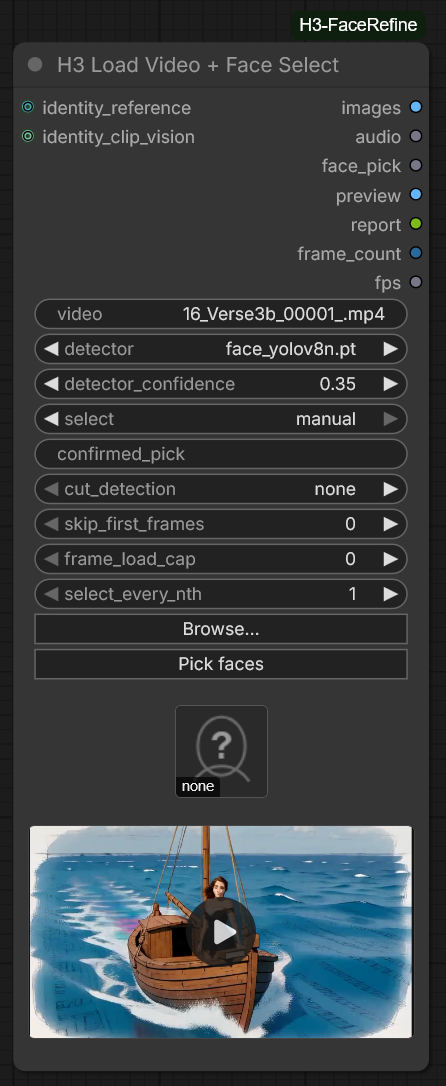
Loads a video, finds every face and every hard cut in one pass, and decides which face is the
subject before the graph runs. Optional: without it the tracker detects and ranks exactly as it
always has.
It replaces th



 Это набор кастомных нод для ComfyUI, исправляющий маленькие размытые лица в сгенерированном MiniMax H3 видео: он отслеживает каждое лицо покадрово, кадрирует его для заполнения холста, позволяет H3 заново отрисовать кадр в деталях и возвращает улучшенное лицо обратно в исходное видео.