Run Windows applications (including Microsoft 365 and Adobe Creative Cloud) on GNU/Linux with KDE Plasma, GNOME or XFCE, integrated seamlessly as if they were native to the OS.
Underlying Mechanism
WinApps works by:
Running Windows in a Docker, Podman or libvirt virtual machine.
Querying Windows for all installed applications.
Creating shortcuts to selected Windows applications on the host GNU/Linux OS.
Using FreeRDP as a backend to seamlessly render Windows applications alongside GNU/Linux applications.
Additional Features
The GNU/Linux /home directory is accessible within Windows via the \\tsclient\home mount.
Integration with Nautilus, allowing you to right-click files to open them with specific Windows applications based on the file MIME type.
The official taskbar widget enables seamless administration of the Windows subsystem and offers an easy way to launch Windows applications.
Microsoft Office links (e.g. ms-word://) from the host system are automatically opened in the Windows subsystem. (Note: You may need to use a User Agent Switcher browser extension and set the User-Agent to Windows, as the Office webapps typically hide the "Open in Desktop App" option for Linux users.)
Supported Applications
WinApps supports ALL Windows applications. Support does not, however, extend to kernel-level anti-cheat systems (e.g. Riot Vanguard).
Universal application support is achieved by:
Scanning Windows for any community tested applications (list below).
Scanning Windows for any other .exe files listed within the Windows Registry.
Community tested applications benefit from high-resolution icons and pre-populated MIME types. This enables file managers to determine which Windows applications should open files based on file extensions. Icons for other detected applications are pulled from .exe files.
Contributing to the list of supported applications is encouraged through submission of pull requests! Please help us grow the WinApps community.
Please note that the provided list of community tested applications is community-driven. As such, some applications may not be tested and verified by the WinApps team.
Windows
(Full RDP Session) Icon in the Public Domain.
Installation
Step 1: Configure a Windows VM
Both Docker and Podman are recommended backends for running the Windows virtual machine, as they facilitate an automated Windows installation process. WinApps is also compatible with libvirt. While this method requires considerably more manual configuration, it also provides greater virtual machine customisation options. All three methods leverage the KVM hypervisor, ensuring excellent virtual machine performance. Ultimately, the choice of backend depends on your specific use case.
[!NOTE]
On Debian 12 ("bookworm"), you need to enable the backports repository for the freerdp3-x11 package to become available.
For instructions, see https://backports.debian.org/Instructions.
[!NOTE]
WinApps requires FreeRDP version 3 or later, the newer, the better. If it is not available in your distribution's packages, try compiling from source according to this guide or grab the package from a third party package manager like Homebrew or Nix.
Alternatively, you can try using the Flatpak. However, this is not recommended as it can cause sandboxing-related issues. If you use Flatpak, run the following command once to allow the use of +home-drive:
Create a configuration file at ~/.config/winapps/winapps.conf containing the following:
##################################
#   WINAPPS CONFIGURATION FILE   #
##################################

# INSTRUCTIONS
# - Leading and trailing whitespace are ignored.
# - Empty lines are ignored.
# - Lines starting with '#' are ignored.
# - All characters following a '#' are ignored.

# [WINDOWS USERNAME]
RDP_USER="MyWindowsUser"

# [WINDOWS PASSWORD]
# NOTES:
# - If using FreeRDP v3.9.0 or greater, you *have* to set a password
# - RDP_ASKPASS is provided as a more secure option to RDP_PASS:
#   - Calls an external command and uses its stdout as the password
#   - The password is not passed on the command line to freerdp, keeping it out of logs
#   - If specified, takes precedence over RDP_PASS
#   - Examples to use this:
#     - RDP_ASKPASS="~/some-custom-command"
#     - RDP_ASKPASS="bash -c 'cat ~/.some-secret-file'"
#     - RDP_ASKPASS="bash -c 'kwallet-query --folder winapps --read-password rdp kdewallet'"
#
RDP_PASS="MyWindowsPassword"
RDP_ASKPASS=""

# [WINDOWS DOMAIN]
# DEFAULT VALUE: '' (BLANK)
RDP_DOMAIN=""

# [WINDOWS IPV4 ADDRESS]
# NOTES:
# - If using 'libvirt', 'RDP_IP' will be determined by WinApps at runtime if left unspecified.
# DEFAULT VALUE:
# - 'docker': '127.0.0.1'
# - 'podman': '127.0.0.1'
# - 'libvirt': '' (BLANK)
RDP_IP="127.0.0.1"

# [RDP PORT]
# NOTES:
# - For Docker and Podman, this is the host port mapped to Windows port 3389.
# - If you changed the host-side RDP port in compose.yaml, set this to match.
# DEFAULT VALUE: '3389'
RDP_PORT="3389"

# [VM NAME]
# NOTES:
# - Only applicable when using 'libvirt'
# - The libvirt VM name must match so that WinApps can determine VM IP, start the VM, etc.
# DEFAULT VALUE: 'RDPWindows'
VM_NAME="RDPWindows"

# [WINAPPS BACKEND]
# DEFAULT VALUE: 'docker'
# VALID VALUES:
# - 'docker'
# - 'podman'
# - 'libvirt'
# - 'manual'
WAFLAVOR="docker"

# [DISPLAY SCALING FACTOR]
# NOTES:
# - If an unsupported value is specified, a warning will be displayed.
# - If an unsupported value is specified, WinApps will use the closest supported value.
# DEFAULT VALUE: '100'
# VALID VALUES:
# - '100'
# - '140'
# - '180'
RDP_SCALE="100"

# [MOUNTING REMOVABLE PATHS FOR FILES]
# NOTES:
# - By default, `udisks` (which you most likely have installed) uses /run/media for mounting removable devices.
#   This improves compatibility with most desktop environments (DEs).
# ATTENTION: The Filesystem Hierarchy Standard (FHS) recommends /media instead. Verify your system's configuration.
# - To manually mount devices, you may optionally use /mnt.
# REFERENCE: https://wiki.archlinux.org/title/Udisks#Mount_to_/media
REMOVABLE_MEDIA="/run/media"

# [ADDITIONAL FREERDP FLAGS & ARGUMENTS]
# NOTES:
# - You can try adding /network:lan to these flags in order to increase performance, however, some users have faced issues with this.
#   If this does not work or if it does not work without the flag, you can try adding /nsc and /gfx.
# DEFAULT VALUE: '/cert:tofu /sound /microphone +home-drive'
# VALID VALUES: See https://github.com/awakecoding/FreeRDP-Manuals/blob/master/User/FreeRDP-User-Manual.markdown
RDP_FLAGS="/cert:tofu /sound /microphone +home-drive"

# [NON FULL WINDOWS RDP FLAGS]
# NOTES:
# - Use these flags to pass specific flags to the freerdp command when you are starting a non-full RDP session (any other command than winapps windows)
# DEFAULT_VALUES: ''
# VALID_VALUES: See https://github.com/awakecoding/FreeRDP-Manuals/blob/master/User/FreeRDP-User-Manual.markdown
RDP_FLAGS_NON_WINDOWS=""

# [FULL WINDOWS RDP FLAGS]
# NOTES:
# - Use these flags to pass specific flags to the freerdp command when you are starting a full RDP session (winapps windows)
# DEFAULT_VALUES: ''
# VALID_VALUES: See https://github.com/awakecoding/FreeRDP-Manuals/blob/master/User/FreeRDP-User-Manual.markdown
RDP_FLAGS_WINDOWS=""

# [DEBUG WINAPPS]
# NOTES:
# - Creates and appends to ~/.local/share/winapps/winapps.log when running WinApps.
# DEFAULT VALUE: 'true'
# VALID VALUES:
# - 'true'
# - 'false'
DEBUG="true"

# [AUTOMATICALLY PAUSE WINDOWS]
# NOTES:
# - This is currently INCOMPATIBLE with 'manual'.
# DEFAULT VALUE: 'off'
# VALID VALUES:
# - 'on'
# - 'off'
AUTOPAUSE="off"

# [AUTOMATICALLY PAUSE WINDOWS TIMEOUT]
# NOTES:
# - This setting determines the duration of inactivity to tolerate before Windows is automatically paused.
# - This setting is ignored if 'AUTOPAUSE' is set to 'off'.
# - The value must be specified in seconds (to the nearest 10 seconds e.g., '30', '40', '50', etc.).
# - For RemoteApp RDP sessions, there is a mandatory 20-second delay, so the minimum value that can be specified here is '20'.
# - Source: https://techcommunity.microsoft.com/t5/security-compliance-and-identity/terminal-services-remoteapp-8482-session-termination-logic/ba-p/246566
# DEFAULT VALUE: '300'
# VALID VALUES: >=20
AUTOPAUSE_TIME="300"

# [FREERDP COMMAND]
# NOTES:
# - WinApps will attempt to automatically detect the correct command to use for your system.
# DEFAULT VALUE: '' (BLANK)
# VALID VALUES: The command required to run FreeRDPv3 on your system (e.g., 'xfreerdp', 'xfreerdp3', etc.).
FREERDP_COMMAND=""

# [TIMEOUTS]
# NOTES:
# - These settings control various timeout durations within the WinApps setup.
# - Increasing the timeouts is only necessary if the corresponding errors occur.
# - Ensure you have followed all the Troubleshooting Tips in the error message first.

# PORT CHECK
# - The maximum time (in seconds) to wait when checking if the RDP port on Windows is open.
# - Corresponding error: "NETWORK CONFIGURATION ERROR" (exit status 13).
# DEFAULT VALUE: '5'
PORT_TIMEOUT="5"

# RDP CONNECTION TEST
# - The maximum time (in seconds) to wait when testing the initial RDP connection to Windows.
# - Corresponding error: "REMOTE DESKTOP PROTOCOL FAILURE" (exit status 14).
# DEFAULT VALUE: '30'
RDP_TIMEOUT="30"

# APPLICATION SCAN
# - The maximum time (in seconds) to wait for the script that scans for installed applications on Windows to complete.
# - Corresponding error: "APPLICATION QUERY FAILURE" (exit status 15).
# DEFAULT VALUE: '60'
APP_SCAN_TIMEOUT="60"

# WINDOWS BOOT
# - The maximum time (in seconds) to wait for the Windows VM to boot if it is not running, before attempting to launch an application.
# DEFAULT VALUE: '120'
BOOT_TIMEOUT="120"

# FREERDP RAIL HIDEF
# - This option controls the value of the `hidef` option passed to the /app parameter of the FreeRDP command.
# - Setting this option to 'off' may resolve window misalignment issues related to maximized windows.
# DEFAULT VALUE: 'on'
HIDEF="on"
[!IMPORTANT]
To safeguard your Windows password, ensure ~/.config/winapps/winapps.conf is accessible only by your user account.
[!IMPORTANT]
RDP_USER and RDP_PASS must correspond to a complete Windows user account and password, such as those created during Windows setup or for a domain user. User/PIN combinations are not valid for RDP access.
[!IMPORTANT]
If you wish to use an alternative WinApps backend (other than Docker), uncomment and change WAFLAVOR="docker" to WAFLAVOR="podman" or WAFLAVOR="libvirt".
Configuration Options Explained
If using a pre-existing Windows RDP server on your LAN, you must use RDP_IP to specify the location of the Windows server. You may also wish to configure a static IP address for this server.
If running a Windows VM using libvirt with NAT enabled, leave RDP_IP commented out and WinApps will auto-detect the local IP address for the VM.
For domain users, you can uncomment and change RDP_DOMAIN.
On high-resolution (UHD) displays, you can set RDP_SCALE to the scale you would like to use (100, 140 or 180).
To add additional flags to the FreeRDP call (e.g. /prevent-session-lock 120), uncomment and use the RDP_FLAGS configuration option.
For multi-monitor setups, you can try adding /multimon to RDP_FLAGS. A FreeRDP bug may result in a black screen however, in which case you should revert this change.
To enable non-English input and seamless language switching, you can try adding /kbd:unicode to RDP_FLAGS. This ensures client inputs are sent as Unicode sequences.
If you enable DEBUG, a log will be created on each application start in ~/.local/share/winapps/winapps.log.
If using a system on which the FreeRDP command is not xfreerdp or xfreerdp3, the correct command can be specified using FREERDP_COMMAND.
Step 4: Test FreeRDP
Test establishing an RDP session by running the following command, replacing the /u:, /p:, and /v: values with the correct values specified in ~/.config/winapps/winapps.conf.
xfreerdp3 /u:"MyWindowsUser" /p:"MyWindowsPassword" /v:127.0.0.1:3389 /cert:tofu

# Or, if you are using Podman
podman unshare --rootless-netns xfreerdp3 /u:"MyWindowsUser" /p:"MyWindowsPassword" /v:127.0.0.1:3389 /cert:tofu

# Or, if you installed FreeRDP using Flatpak
flatpak run --command=xfreerdp com.freerdp.FreeRDP /u:"MyWindowsUser" /p:"MyWindowsPassword" /v:127.0.0.1:3389 /cert:tofu
Please note that the correct FreeRDP command may vary depending on your system (e.g. xfreerdp, xfreerdp3, etc.).
Ensure you use the correct IP address for your Windows instance in the above command.
If prompted within the terminal window, choose to accept the certificate permanently.
If the Windows desktop appears in a FreeRDP window, the configuration was successful and the correct RDP TLS certificate was enrolled on the Linux host. Disconnect from the RDP session and skip the following debugging step.
[DEBUGGING STEP] If an outdated or expired certificate is detected, the FreeRDP command will display output resembling the following. In this case, the old certificate will need to be removed and a new RDP TLS certificate installed.
@@@@@@@@@@@@@@@@@@@@@@@@@@@@@@@@@@@@@@@@@@@@@@@@@@@@@@@@@@@
@           WARNING: CERTIFICATE NAME MISMATCH!           @
@@@@@@@@@@@@@@@@@@@@@@@@@@@@@@@@@@@@@@@@@@@@@@@@@@@@@@@@@@@

The hostname used for this connection (192.168.122.2:3389)
does not match the name given in the certificate:
Common Name (CN):
        RDPWindows
A valid certificate for the wrong name should NOT be trusted!

The host key for 192.168.122.2:3389 has changed

@@@@@@@@@@@@@@@@@@@@@@@@@@@@@@@@@@@@@@@@@@@@@@@@@@@@@@@@@@@
@    WARNING: REMOTE HOST IDENTIFICATION HAS CHANGED!     @
@@@@@@@@@@@@@@@@@@@@@@@@@@@@@@@@@@@@@@@@@@@@@@@@@@@@@@@@@@@

IT IS POSSIBLE THAT SOMEONE IS DOING SOMETHING NASTY!
Someone could be eavesdropping on you right now (man-in-the-middle attack)!
It is also possible that a host key has just been changed.
The fingerprint for the host key sent by the remote host is 8e:b4:d2:8e:4e:14:e7:4e:82:9b:07:5b:e1:68:40:18:bc:db:5f:bc:29:0d:91:83:f9:17:f9:13:e6:51:dc:36
Please contact your system administrator.
Add correct host key in /home/rohanbarar/.config/freerdp/server/192.168.122.2_3389.pem to get rid of this message.
If you experience the above error, delete any old or outdated RDP TLS certificates associated with Windows, as they can prevent FreeRDP from establishing a connection.
These certificates are located within ~/.config/freerdp/server/ and follow the naming format <Windows-VM-IPv4-Address>_<RDP-Port>.pem (e.g., 192.168.122.2_3389.pem, 127.0.0.1_3389.pem, etc.).
If you use FreeRDP for purposes other than WinApps, ensure you only remove certificates related to the relevant Windows VM. If no relevant certificates are found, no action is needed.
Following deletion, re-attempt establishing an RDP session.
Step 5: Run the WinApps Installer
With Windows still powered on, run the WinApps installer.
Once WinApps is installed, a list of additional arguments can be accessed by running winapps-setup --help.
Managing apps post-installation
Redetect and add new apps installed in Windows using the WinApps Install Wizard
The initial setup process will detect any Community Tested Applications and any additionally detected applications and make them available in your Linux application menu. If in the future you install a new application in Windows and want to add it to WinApps, you need to run the winapps-setup again to detect the new application(s).
The setup command has a number of options that can be passed to it:
winapps-setup --help
Usage:
      --user                                        # Install WinApps and selected applications in /home/$(whoami)
      --system                                      # Install WinApps and selected applications in /usr
      --user --setupAllOfficiallySupportedApps      # Install WinApps and all officially supported applications in /home/$(whoami)
      --system --setupAllOfficiallySupportedApps    # Install WinApps and all officially supported applications in /usr
      --user --uninstall                            # Uninstall everything in /home/$(whoami)
      --system --uninstall                          # Uninstall everything in /usr
      --user --add-apps                             # Add new applications to existing installation in /home/$(whoami)
      --system --add-apps                           # Add new applications to existing installation in /usr
      --help                                        # Display this usage message.
To re-run the app detection, run the setup like
winapps-setup --user --add-apps
This will bring up the familiar setup wizard screen and you step through the wizard as above choosing the apps you wish to make available. Note that if your Windows VM is not yet running, the setup will exit and tell you to start the VM first.
Adding Additional Pre-defined Applications
Adding your own applications with custom icons and MIME types to the installer is easy. Simply copy one of the application configurations in the apps folder located within the WinApps repository, and:
Modify the name and variables to reflect the appropriate/desired values for your application.
Replace icon.svg with an SVG for your application (ensuring the icon is appropriately licensed).
Remove and reinstall WinApps.
Submit a pull request to add your application to WinApps as a community tested application once you have tested and verified your configuration (optional, but encouraged).
Running Applications Manually
WinApps offers a manual mode for running applications that were not configured by the WinApps installer. This is completed with the manual flag. Executables that are in the Windows PATH do not require full path definition.
The installer can be run multiple times. To update your installation of WinApps:
Run the WinApps installer to remove WinApps from your system.
Pull the latest changes from the WinApps GitHub repository.
Re-install WinApps using the WinApps installer by running winapps-setup.
WinApps Launcher (Optional)
The WinApps Launcher provides a simple system tray menu that makes it easy to launch your installed Windows applications, open a full desktop RDP session, and control your Windows VM or container. You can start, stop, pause, reboot or hibernate Windows, as well as access your installed applications from a convenient list. This lightweight, optional tool helps streamline your overall WinApps experience.
Installation using Nix
First, follow Step 1 of the normal installation guide to create your VM.
Then, install WinApps according to the following instructions.
After installation, it will be available under winapps, with the installer being available under winapps-setup
and the optional launcher being available under winapps-launcher.
Using standalone Nix
First, make sure Flakes and the nix command are enabled.
In your ~/.config/nix/nix.conf:
它真的什么 Windows 应用都能跑吗?是的——WinApps 支持所有 Windows 应用:像 Office、Adobe CC、Affinity 和 Visual Studio 这类经过社区测试的应用会配有高清图标和预置的 MIME 类型,其他应用则通过注册表自动检测。内核级反作弊软件(如 Riot Vanguard)是例外。
所有东西都留在我的电脑上吗?是的——Windows 运行在你自己的硬件或局域网内某台服务器上的虚拟机里。你的 Windows 密码保存在 winapps.conf 中,文档会指导你把这个文件设置为仅你自己的用户账户可访问。
除了应用窗口本身,它和 Linux 桌面还能集成到什么程度?你的 Linux /home 目录会挂载到 Windows 里面,Nautilus 会获得右键菜单集成,可以根据 MIME 类型用 Windows 应用打开文件;还有一个任务栏小部件用来管理 Windows 子系统;ms-word:// 这类链接也能直接在桌面版 Office 中打开。
我可以不新建虚拟机,直接连接一台现成的 Windows 电脑吗?可以。把 RDPIP 设置为局域网内已有的 Windows 虚拟机或 RDP 服务器即可;如果用的是 NAT 网络的 libvirt 虚拟机,可以不设置 RDPIP,WinApps 会自动检测虚拟机的本地 IP 地址。
WinApps Launcher 是什么?它是一个可选的系统托盘菜单,用来启动你的 Windows 应用、开启完整的桌面 RDP 会话以及控制虚拟机——你可以在里面启动、停止、暂停、重启或休眠 Windows。
如果之后我在 Windows 里新装了一个应用,会发生什么?再运行一次 winapps-setup 就行——向导会重新扫描 Windows,让你选择把哪些应用显示在 Linux 菜单里。执行时 Windows 虚拟机必须处于运行状态。


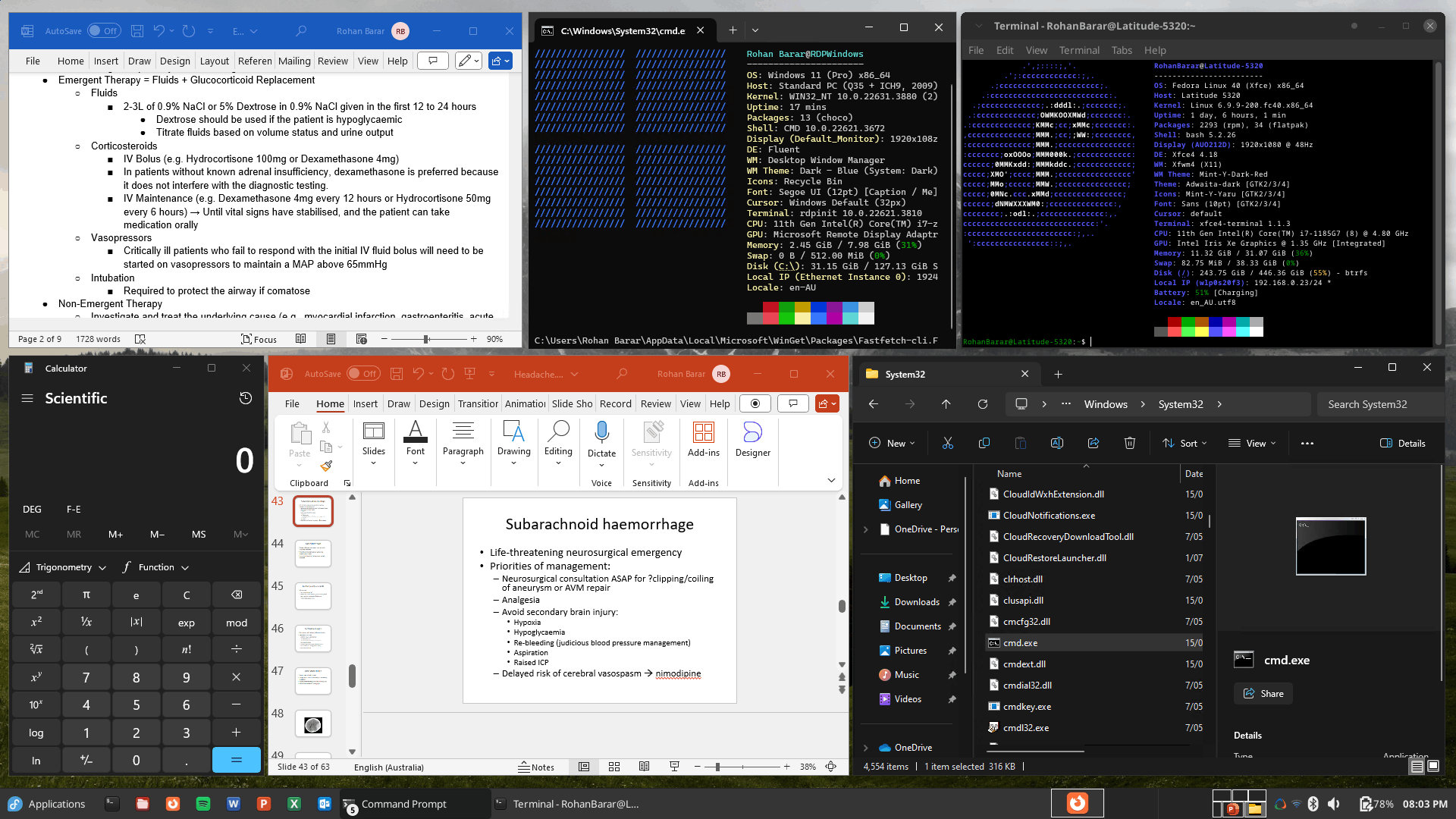
































 WinApps 可以在 GNU/Linux 上运行 Microsoft 365 和 Adobe Creative Cloud 等 Windows 应用,支持 GNOME、KDE Plasma 或 XFCE 桌面环境,让它们看起来就像原生应用一样,应用菜单里还会自动生成对应的快捷方式。