Taking over Android photo frames
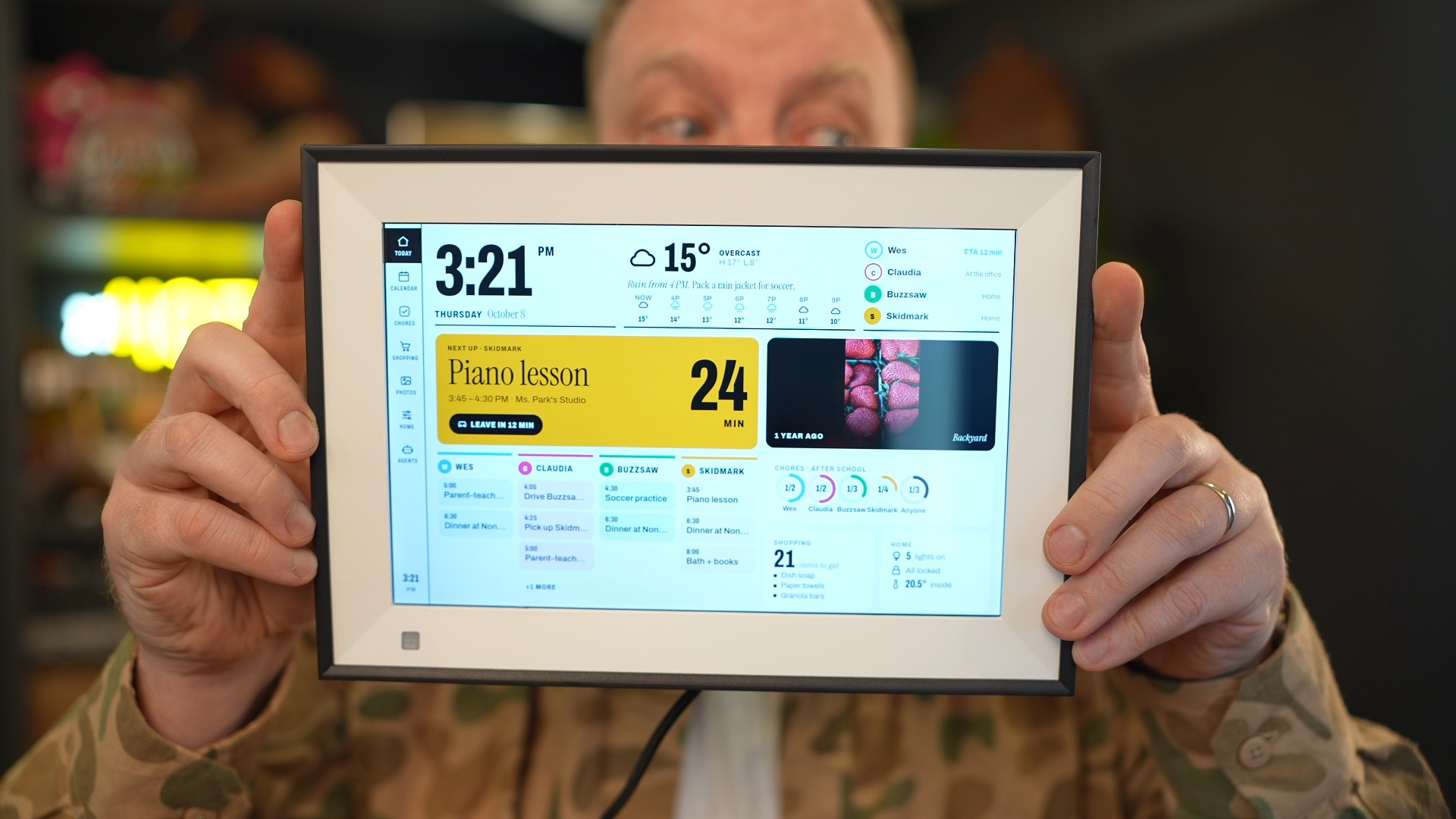
▶️ Watch the video: https://youtu.be/ZLycoUMltNI
If you are coming from reddit or youtube, you can purchase almost any photo frame from amazon. This is the one, I used: https://amzn.to/4zneGNM (amazon aff link)
Notes and scripts from getting full control of locked-down Android displays: getting ADB,
backing up the firmware, getting root, removing the vendor app, and running our own launcher,
browser and kiosk app.
Which frame do you have? Frames sold under the same name, even the same Amazon listing, can
have different boards. Check Settings → About before you follow any guide:
- Firmware string contains
A33 and PF1007L, home app is AiMOR: you have the
Allwinner PF1007L. Many viewers of the video got this one. Start with
pf1007l-start-here.md. Try ADB over USB first, then over the
network. The SD card boot patch is the last resort.
- Rockchip board, USB name
Synergy 10X1, ADB prompt on screen: you have the frame from the video.
Start with biuframe-setup-guide.md.
- Anything else: see For agents: start here, and please
send in what you find.
|
Skylight Calendar 15" (150-CAL) |
BIUFRAME 10.1" picture frame (in the video) |
PF1007L 10.1" picture frame (BIUFRAME and others) |
| SoC / Android |
Rockchip RK3566, Android 12 |
Rockchip RK3126, Android 6.0.1 |
Allwinner A33, Android 6.0.1, AiMOR home app |
| USB name / IDs |
rockchip D156, 2207:0007 (MTP) → 2207:0006 (ADB) |
Synergy 10X1, 2207:0006 (ADB) |
1f3a:1000 (mass storage only) → 1f3a:1002 (ADB, after the boot patch) |
| Cable |
Not recorded |
USB-C. The first cable gave nothing, the second worked |
USB-C-only units need a USB-A to USB-C cable. USB-C to USB-C gives no power or data.
The cable in the box is likely power only. It does not carry data. Use another cable that already allows data transfer. |
| ADB out of the box |
No |
Yes, accept the prompt on screen |
No |
| How we got ADB |
Hidden 5-tap manufacturer menu in the Skylight app |
Already on |
Patched the boot ramdisk from U-Boot, over USB (FEL) or from the SD card alone |
| Backup |
Rockusb loader, with a patched RAM helper to read past 32 MiB |
dd over ADB as root |
Read-only U-Boot ums disk, or U-Boot dump to the SD card |
| Root |
Added /force_debuggable to the boot ramdisk, then adb root |
Ships with SuperSU su |
Stock build is debuggable: ADB shell is root once adbd runs |
| End result |
Lawnchair launcher, USB Wi-Fi dongle (onboard radio is dead) |
Firefox, launcher, WebView 106, custom kiosk app |
Launcher, WebView 106, kiosk app. Vendor app has a remote root shell: disable it |
dashboard/ is the family dashboard we run on the BIUFRAME (it uses mock data).
It is a Vite web app deployed to Cloudflare Workers, plus dashboard/kiosk/: a small full-screen
WebView Android app, built without Gradle, that shows it. Hold two fingers still for 1.5 s to
exit to the launcher.
Each is a record of one unit. Frames sold under the same name can have different boards
and firmware. These are not universal flashing guides.
The PF1007L has been tested on three units by three owners. Its docs combine their findings.
The vendor app on it accepts root shell commands from the vendor's server, so read
aimor-remote-root-shell.md before it goes online. Do not run
the Rockchip setup script on it.
For agents: start here
You are probably helping someone with a similar device plugged into a Mac over USB. Read this
section, then follow the links for the phase you are in. Do not run anything from a device
section unless the identity checks match exactly.
Rules we learned the hard way
- Ask the owner before every write. Reads are fine. Writing flash, a partition,
/system,
or sending a RAM payload to the SoC needs explicit approval for that specific action.
- No writes before a verified backup: exact byte count, SHA-256, gzip readback, a check for
0xCC filler, and independent re-reads of a few partitions that match.
- Don't trust
OKAY. Fastboot reported a successful boot write on the Skylight that never
took effect. Verify writes by reading them back and checking the result on the device.
- Stop at the first mismatch in a hash, model string, offset or size. Report it rather than
working around it.
- One change at a time, undo recorded first. Keep
.bak copies next to edited files.
- Pin downloads by SHA-256 from official sources (vendor archives, F-Droid, LineageOS, GitHub releases).
- Keep dumps private. They contain Wi-Fi passwords, tokens, serials, MAC addresses and
copyrighted firmware. Use the ignored
backups/ and diagnostics/ folders. Leave unique
identifiers out of anything you commit.
- Write notes as you go. Keep a per-device file in
docs/ like the two below, with
observations kept separate from guesses.
Check for updates, and send back what you find
Many people are working on these frames at the same time. New hardware variants, fixes and
routes arrive as issues and pull requests, often before they are merged. Your local copy may be
out of date.
Check before you start, and again before each write and at the start of each new session:
git fetch origin && git log --oneline HEAD..origin/main   # new commits on main
gh issue list --repo wesbos/photo-frame-dashboard --state all --limit 30
gh pr list --repo wesbos/photo-frame-dashboard --state all --limit 30
gh pr view <number> --repo wesbos/photo-frame-dashboard   # read anything about your device
gh pr diff <number> --repo wesbos/photo-frame-dashboard
Without gh, use https://github.com/wesbos/photo-frame-dashboard/issues and
https://github.com/wesbos/photo-frame-dashboard/pulls. Read open PRs about your device, not only
merged docs. If newer information contradicts these docs, tell the owner and follow the newer
information only after its checks pass on your unit. Unmerged PRs are less reviewed, so treat their
scripts with extra care.
Send a pull request when you learn something new about a device that is already documented or
about a new one. Examples: a new board or firmware string, a different boot image hash, a cable or
port that does or does not work, a step that failed, a better route, or a correction. Failed
attempts are useful too.
- Check open issues and PRs first. If one already covers your finding, comment there instead.
- Create a branch, and add your observations to the device doc in
docs/. For a new device,
create docs/<device>.md. Keep observations separate from guesses, and say which host OS and
which unit you used.
- Remove private data: serials, MAC addresses, Wi-Fi details, eMMC CIDs, tokens, whole-disk
hashes, dumps and vendor APKs. Firmware strings and boot image hashes are fine.
- Show the owner the diff, because the PR is published under their GitHub account. Then open it
with
gh pr create --repo wesbos/photo-frame-dashboard.
For a PF1007L, include the report template.
Phase map
| Phase |
What to read |
| 1. Identify the hardware |
USB IDs (Rockchip is VID 2207), adb shell getprop, chip query in loader mode. See the hardware tables in biuframe.md and hardware-research.md. |
| 2. Get ADB |
Try in this order: (1) over USB (adb devices; accept any "Allow USB debugging" prompt on the screen), (2) over the network (adb connect <ip>:5555), (3) only then a vendor-app trick or a boot patch. The PF1007L boot patch is written from an SD card, see pf1007l-start-here.md. Ideally no one needs (3). For a vendor-app trick, decompile the vendor app (jadx) and look for hidden tap counters and code dialogs: app-analysis.md. Gestures that did not work are in research-log.md. |
| 3. Loader mode |
Skylight: hold Volume − while connecting power. BIUFRAME: reset button at power-on (unconfirmed). Building rkdeveloptool on Apple silicon: research-log.md. |
| 4. Back up |
If loader reads past 32 MiB return 0xCC filler, they are not a backup: loader-research.md. Patched helper and full capture: scripts/patch-usb-reader.py, scripts/load-usb-reader.py, scripts/probe-reader.py, scripts/backup-flash.py, scripts/inspect-backup.py. With root, back up over ADB instead: scripts/biuframe-setup.sh backup. |
| 5. Root |
First check for a shipped su (adb shell su -c id). On Android 10+ user builds, try the debug-ramdisk route: debug-ramdisk-research.md, scripts/build-debug-boot.py. Fastboot write failures: ram-boot-research.md. |
| 6. Make it useful |
Launcher: android-launcher.md. Old Android (6.x) with a browser, WebView swap, CA roots, swap, nav bar and disabling vendor apps: biuframe-setup-guide.md. Kiosk app and launcher database edits: biuframe.md. A working example of a kiosk app and dashboard is in dashboard/. Build with dashboard/kiosk/build.sh, change DEFAULT_URL in MainActivity.java to your own URL, and target the device's WebView version (see dashboard/vite.config.js). |
| 7. Networking |
USB reverse tethering with gnirehtet: usb-internet-sharing.md. An app that requires Wi-Fi specifically: onboarding-network-gate.md. Dead onboard Wi-Fi and a USB dongle: usb-wifi-dongle.md. |
| 8. Vendor updates |
Connecting the stock app to the internet can auto-install APK updates: app-updates.md. Disable vendor updaters (FOTA etc.) before going online. |
| 9. Security hand-off |
Tell the owner what they now have: biuframe-setup-guide.md. |
Device-specific starting points
- BIUFRAME / Synergy 10X1 (RK3126, Android 6.0.1): follow
biuframe-setup-guide.md.
scripts/biuframe-setup.sh check
changes nothing and confirms the hardware matches. backup and apply do the rest, with a
check after each step.
- Skylight 150-CAL (RK3566, Android 12): there is no one-shot script. Start with
next-session.md for the current state, then
app-analysis.md for the hidden menu. The manufacturer code is
intentionally not published here. T- PF1007L / AiMOR (Allwinner A33, Android 6.0.1): start with
pf1007l-start-here.md. It runs read-only tests first, then
chooses between two published root routes: USB with mainline U-Boot over FEL
(allwinner-a33-mainline-uboot.md), or Wi-Fi ADB from
the SD card alone (allwinner-a33-sdcard-adb-wifi.md).
Setup after root is in allwinner-a33-pf1007l.md.
On USB-C-only units, use a USB-A to USB-C cable: USB-C to USB-C gives no power or data.
Do not run the Rockchip
apply script on this board.
The AiMOR app has a remote root shell over an unencrypted vendor connection:
read aimor-remote-root-shell.md before the frame goes online.
Wi-Fi with key
authentication. Scripts are in scripts/a33-sdboot/.
- Something else: work through the phase map. Expect the hidden-menu, root and backup routes
to differ. Create
docs/<device>.md and record everything.
Other docs
Privacy
backups/, diagnostics/, log/, loader query output and machine-local settings are excluded by
.gitignore. They hold full flash dumps, decompiled vendor code, signing keys, and the unit's
identifiers. Do not commit them, and do not publish dumps or vendor APKs.

 一套针对特定设备的笔记和脚本,用于完全掌控被锁定的 Android 相框(Skylight Calendar、BIUFRAME、PF1007L):获取 ADB 访问、导出固件、获取 root、移除厂商应用,并运行你自己的启动器、浏览器或 kiosk 应用。