RGB MoCap
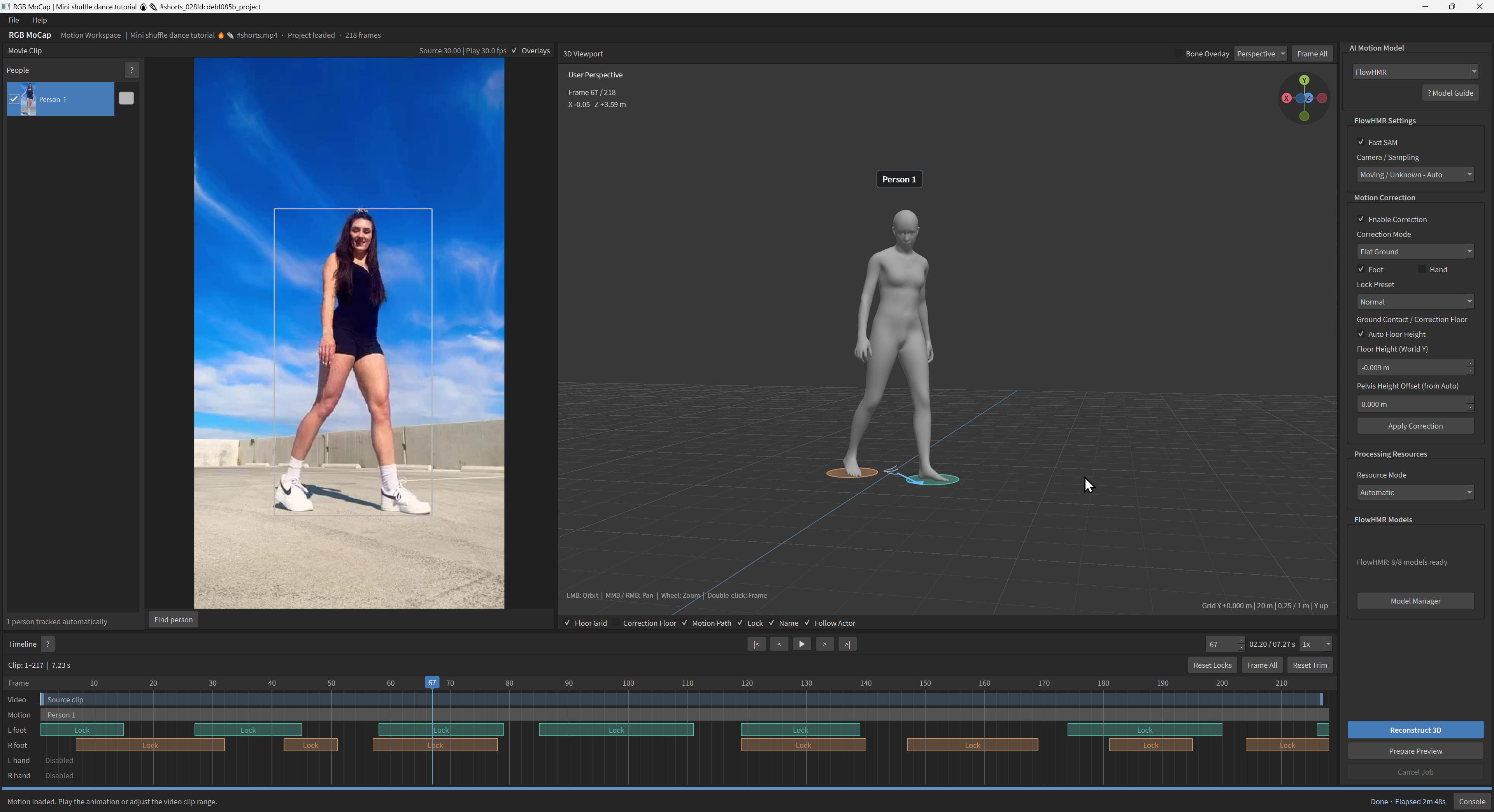
A native Windows app that turns video into editable human animation. Review and
export motion with AI processing running locally.
Sample videos
Motion capture
https://github.com/user-attachments/assets/b948dd8c-43b9-493a-9d7f-2fae0317695e
Download original sample
Character retargeting
https://github.com/user-attachments/assets/1759f1bf-a0d0-409f-84d8-dde9409cfe6f
Download original sample
Multi Cam MoCap
https://github.com/user-attachments/assets/4c0b290b-4a65-4287-8d22-c63c96b3d080
Download original sample
Streaming to Blender
https://github.com/user-attachments/assets/cc0e79bb-ecce-4752-ae14-3b6cea30c810
Download original sample
Install and run
Install Git for Windows. Open Command Prompt
in a writable folder where you want to install RGB MoCap, then clone the repository:
git clone https://github.com/toyxyz/toyxyz_RGBMocap.git
cd toyxyz_RGBMocap
Prepare the runtimes for ExMR, FlowHMR and GVHMR with their supported add-ons,
plus PEAR live-preview support,
Blender, FFmpeg and native motion correction. AI weights and registered body
files are downloaded separately in Model Manager:
install.cmd
Start the app:
RGBMoCap.cmd
Keep the console open while the app runs. Prepare the AI model files separately
using Model Manager; some require account registration and manual download.
To update, close the app and run update.cmd from the same folder. See the
installation guide for disk space, prerequisites
and recovery.
Updates reuse recently verified, unchanged runtimes. If PEAR or camera-alignment
support preparation fails after the base installation succeeds, the base app
remains usable; rerun install.cmd to retry the unavailable support. See
verification and repair.
Optional model runtimes
install.cmd prepares ExMR, FlowHMR, GVHMR and the small shared-runtime support
for PEAR live preview. Install the following only if
you use them, after the base installation:
MAMMA and PromptHMR require Visual Studio 2022 C++ Build Tools, the Windows SDK and
CUDA Toolkit 12.8 for local native builds. Close the app and review the
provider terms before setup. Then reopen it and prepare the selected model's
files in Model Manager. Their optional runtimes do not require each other;
install.cmd and update.cmd do not install them.
GEM-X uses the existing ExMR Python base with its own pinned inference packages.
Run its separate setup after install.cmd, then prepare its public files in
Model Manager. It does not require the C++ build tools or CUDA Toolkit.
PEAR reuses the base shared runtime with a small support overlay prepared by
install.cmd and update.cmd. No separate setup or compiler is required.
Model files are prepared separately.
For optional text-prompt and click-guided Find person tracking on Windows,
run Setup_SAM31.cmd after the base setup. Then choose SAM 3.1 next to
Find person and use Auto Download on its 1.75 GB checkpoint row in
Model Manager. SAM 3.1 uses more VRAM than Default tracking.
Resource Mode > Automatic can offload tracking state and masks to system
RAM when VRAM is tight and retry once after CUDA runs out of memory.
See the SAM 3.1 tracker guide.
Track Face adds CPU face tracking for saved video. The 3D viewport shows
facial landmarks on SMPL-X, SMPL-H and SOMA surfaces. Export Face saves
ARKit-style coefficients alongside the chosen motion as TXT or Unreal Live Link Face CSV.
See Face capture.
Install with an AI agent
After cloning, open this repository folder in a local coding agent such as Codex.
The agent guide covers setup, models, capture, retargeting,
projects and resources. For example, ask:
Help me install and run RGB MoCap on this Windows PC.
Read AGENTS.md and docs/AGENT_GUIDE.md first. Check the GPU and free disk space,
run install.cmd, and launch RGBMoCap.cmd. Help me prepare the ExMR model files.
Preserve existing models, projects and settings, and keep the pinned runtimes.
Tell me when I need to sign in, accept provider terms or download a file manually.
For multi-camera capture, add:
Also enable MAMMA. Follow docs/MAMMA_AGENT_SETUP.md to check the C++/CUDA tools,
run Setup_MAMMA.cmd after the required license review, and verify the native CUDA
modules. Help me prepare its models without changing the other model runtimes.
For PromptHMR instead, add:
Also enable PromptHMR. Follow docs/models/PROMPTHMR.md and docs/AGENT_GUIDE.md.
Check the C++/CUDA tools, run Setup_PromptHMR.cmd after the required license
review, verify its CUDA checks, and help prepare the exact Model Manager files.
Keep other runtimes and existing projects unchanged.
MAMMA's agent setup guide and the
PromptHMR guide include build checks and recovery.
Provider login and license acceptance remain your responsibility;
do not put passwords or account tokens in the agent chat.
Features
- Reconstruct one or several people and preview the body mesh and animation bones.
- Reduce sliding with foot/palm contact correction and editable contact timings.
- Retarget motion to Mixamo FBX, VRM and PMX humanoid characters.
- Export source animation as FBX or BVH (Generic/Blender or 3ds Max Biped), with FBX A/T reference poses, an optional leading reference frame, per-person origin placement and symmetrical rest pose; export characters as FBX with or without meshes,
or PMX character motion as VMD for MMD.
- Export portable Blender projects with source animation, video and saved cameras; MAMMA can include animated body meshes and every camera.
- Export the current take, all takes for checked people, or individual takes. The export dialog shows what to do for each unavailable take. Export guide
- Stream selected people's bones to Blender during playback or scrubbing, then bake their full recorded motion into Blender Actions. Download the Blender add-on ZIP · Installation and controls
- Preview and correct GEM-X's native SOMA motion, retarget to humanoid characters, and export the Native77 skeleton as FBX or BVH. The Blender bundle includes the evaluated surface and input video.
- Save side-by-side input video and the current 3D viewport as MP4 with File > Export Preview... (offline models).
- Inspect source-video/bone alignment in Camera Preview and display saved cameras in 3D, with optional background rotation refinement for FlowHMR/ExMR.
- Save projects with separate results for each AI model.
- Reduce FlowHMR memory use with query-batched attention and optional sparse hand sampling; optional HaMeR refines fingers. See controls and trade-offs and measured time/memory comparisons.
- Track webcam or video input in real time with PEAR's experimental body/finger bone preview; tracking and poses may be unstable.
How it works
- Select an AI model and prepare its files in Model Manager, then use
File > Open Video. For MAMMA, select it before opening synchronized camera
videos; thumbnails switch the preview and one timeline trim applies to all views.
- For ExMR, FlowHMR or GVHMR, optionally use Find person to select people.
Choose Default or use SAM 3.1 for
text prompts and click selection.
PromptHMR tracks people together during reconstruction.
MAMMA detects people during reconstruction; keep VGGT-Omega + GeoCalib (Automatic) and
enter an approximate Reference Height (m), or import camera calibration.
Click Reconstruct 3D.
- Review the motion. For models with Motion Correction, edit contacts if needed
and click Apply Correction.
- Use File > Export... to choose a format supported by the source model, or
import a character, retarget the motion and export it.
PEAR · Live (Experimental) tracks webcam or video input in real time. Tracking
and pose estimates may be unstable. Click Start Live Tracking to attempt camera
alignment and begin the bone preview. If alignment fails, tracking continues from
the selected camera with a warning; camera fusion and aligned foot lock are unavailable.
Recording, offline correction and export are unavailable in this live mode.
See the PEAR guide for its controls.
Supported AI models
In our subjective tests, PromptHMR could improve relative placement and
interactions between multiple people in a single video, but its overall
motion quality was lower than ExMR. It does not support finger tracking.
Requires 64-bit Windows, a compatible NVIDIA GPU/driver and OpenGL 4.3.
Model files are acquired separately; some require registration and license acceptance.
Installed models and runtimes: approximately 77.8 GB (72.5 GiB) for the
six offline models, including supported add-ons, Blender and FFmpeg, when the GEM-X CUDA files can be shared. Based on the measured inventory, excluding
projects, caches or retained downloads; shared files are counted once.
| Configuration |
Runtime |
Models |
Total |
| ExMR + FlowHMR + GVHMR and supported add-ons |
12.35 GiB |
28.89 GiB |
41.23 GiB |
| MAMMA additional files |
6.11 GiB |
3.53 GiB |
9.65 GiB |
| PromptHMR additional files, Fixed Camera |
6.22 GiB |
6.13 GiB |
12.34 GiB |
| GEM-X additional files, with CUDA sharing |
2.13 GiB |
7.11 GiB |
9.24 GiB |
| Six offline models |
26.81 GiB |
45.66 GiB |
72.46 GiB |
| PEAR live preview, additional |
Small support overlay; shared runtime reused |
~2.84 GiB |
~2.85 GiB |
Including PEAR, the estimated combined model/runtime total is about
75.31 GiB (80.9 GB), before the additional space listed below. If GEM-X
cannot share the verified CUDA DLLs, add about 2.95 GiB. GeoCalib weights
(about 0.11 GiB) are shared by MAMMA and PEAR and counted once; both also reuse VGGT. See the
PEAR camera guide.
Optional PromptHMR moving-camera support adds approximately 18.6 MiB of
native modules and 1.55 GiB of weights beyond these totals; see its model guide.
MAMMA, PromptHMR and GEM-X require separate runtime installation. Run
Setup_MAMMA.cmd, Setup_PromptHMR.cmd or Setup_GEMX.cmd after install.cmd, as described
above. They are not installed by install.cmd or
update.cmd; obtain weights separately in Model Manager.
App source, C++/CUDA compiler tools, installation temporary files and saved work
need additional space. These are measured sizes, not a setup free-space guarantee.
See storage and installation details.
Cache and project cleanup: paths and deletion effects.
Resources and speed
Start with Resource Mode > Automatic. It uses the fast supported path when
memory permits and falls back to a supported Low Memory path when needed.
Memory-saving methods depend on the model; Low Memory can trade slower
loading/transfers and more system RAM for lower VRAM use. See each model's guide
for implemented options and limits. Resource Safety, below Resource Mode,
defaults on. Turn it off to bypass low-RAM stopping and the VRAM allocator limit;
Automatic batching and actual allocation-error handling stay active. See the
Resource Safety details.
Short paired tests reduced peak allocated VRAM from 5.68 to 3.87 GiB for ExMR
and 6.10 to 2.77 GiB for FlowHMR. Separate short-clip tests of connected
processing phases cut worker time by 44% for ExMR and 24% for FlowHMR,
with unchanged measured peak VRAM. These are different tests, not full-job
speed guarantees. See resource modes, measured savings and acceleration
for conditions, per-model results, direct-video preprocessing and output differences.
FlowHMR's Adaptive Batching selects 1–16 Fast SAM frames from available memory;
Low Memory uses one. Warm feature tests took 16–23% less time at batch 16 than at
batch 4, with peak allocated VRAM rising from 3.84 to 5.43 GiB. Whole-job gains can
be smaller. Batch selection and OOM retry messages appear in Console and CMD.
Documentation
Original RGB MoCap code and documentation use the MIT License.
Third-party components and model files retain their own licenses.

 一款原生 Windows 应用,可将普通视频转换为可编辑的 3D 人体动画,AI 处理在你自己的电脑上运行。你可以检查动作、修正动作、将其重定向到角色上并导出。