 EverythingToolbar



14.9K ·GitHub
Что это такое?
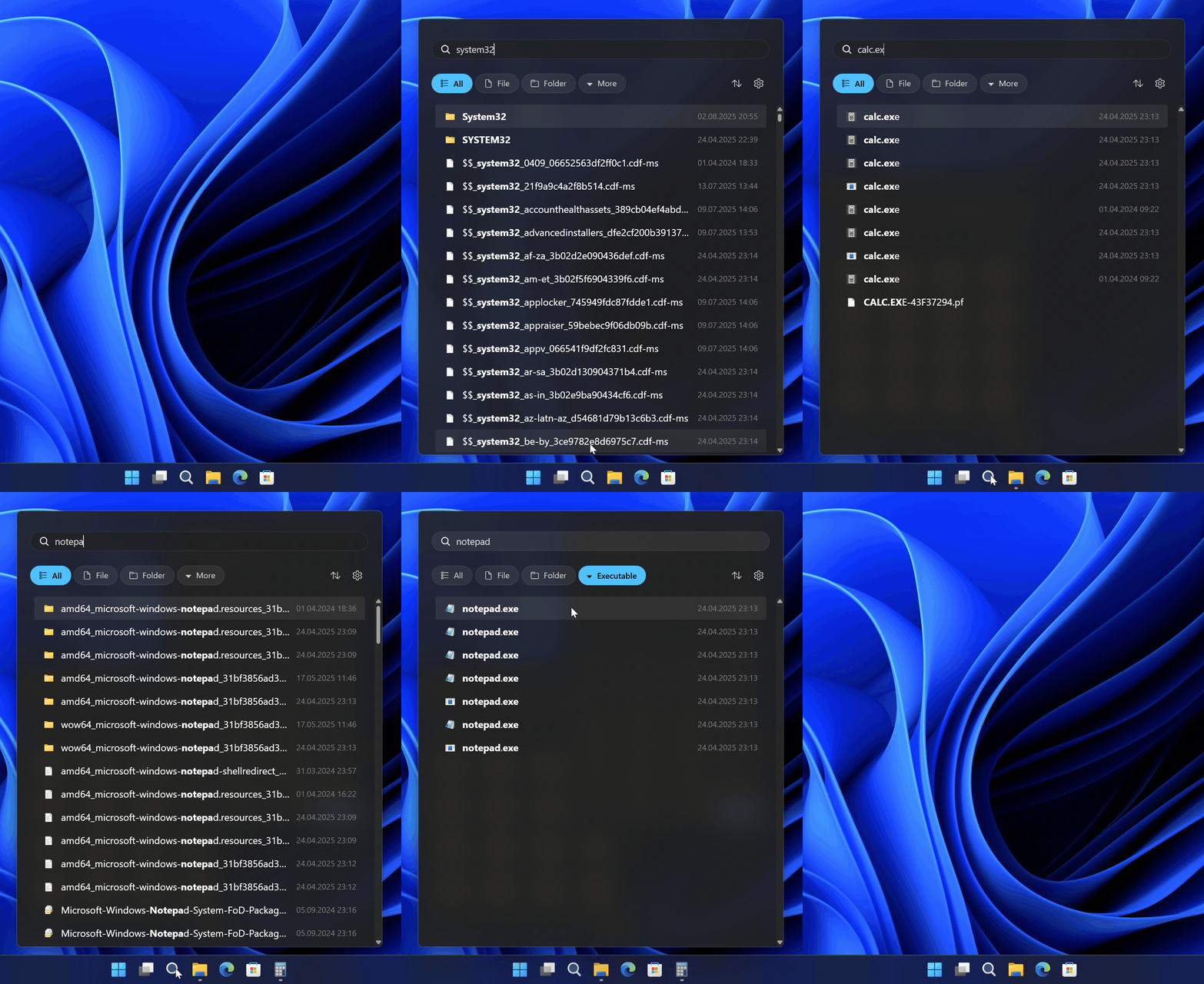
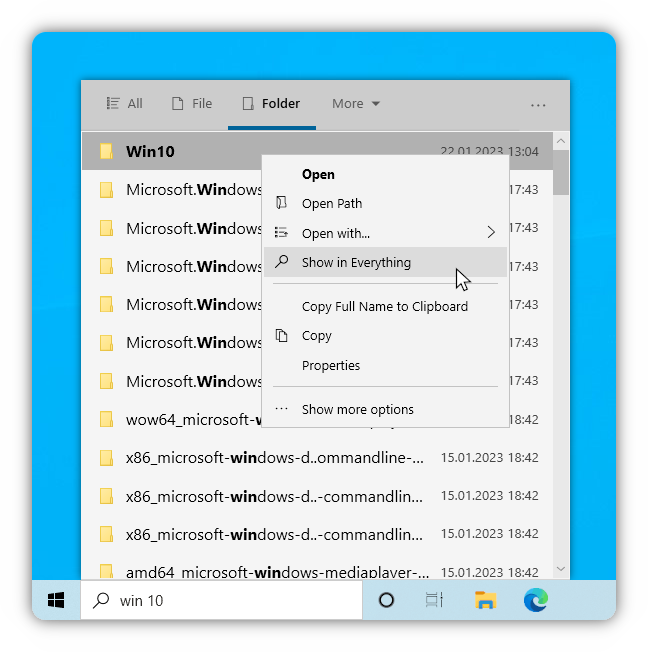
 EverythingToolbar встраивает поисковой движок Everything прямо в панель задач Windows, позволяя мгновенно искать файлы и папки без открытия отдельного приложения.
EverythingToolbar встраивает поисковой движок Everything прямо в панель задач Windows, позволяя мгновенно искать файлы и папки без открытия отдельного приложения.Это самостоятельное приложение или плагин для чего-то другого?Это настольное приложение для Windows, которое требует, чтобы отдельный поисковой движок Everything был установлен и запущен; EverythingToolbar — это лишь интерфейс для панели задач, работающий с ним.
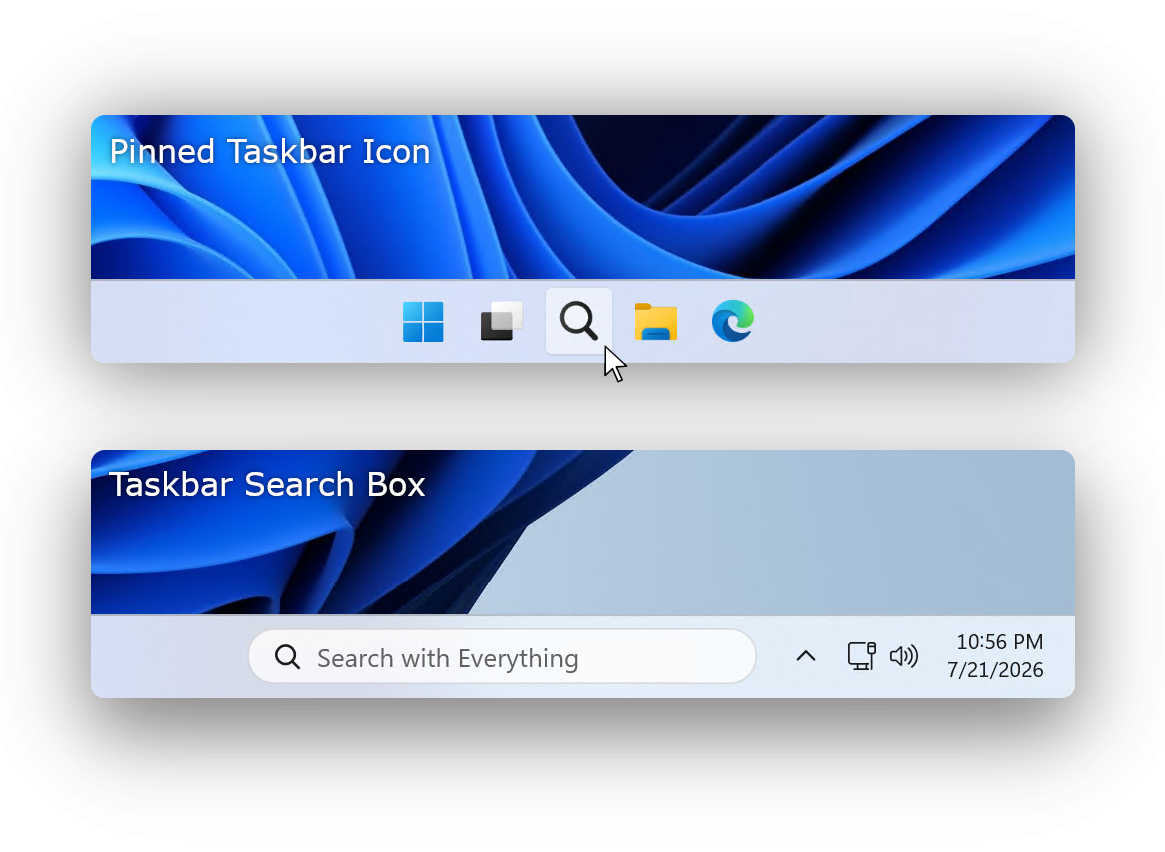
Это настольное приложение для Windows, которое требует, чтобы отдельный поисковой движок Everything был установлен и запущен; EverythingToolbar — это лишь интерфейс для панели задач, работающий с ним.Как установить и настроить?Установите его через установщик из GitHub Releases или с помощью winget (winget install srwi.everythingtoolbar.launcher или ...deskband). Затем в Windows 11 мастер настройки поможет выбрать поле поиска или значок на панели задач, а в Windows 10 его нужно добавить вручную как deskband через контекстное меню «Панели инструментов».
Установите его через установщик из GitHub Releases или с помощью winget (winget install srwi.everythingtoolbar.launcher или ...deskband). Затем в Windows 11 мастер настройки поможет выбрать поле поиска или значок на панели задач, а в Windows 10 его нужно добавить вручную как deskband через контекстное меню «Панели инструментов».Что нужно установить до начала работы?Нужны Windows 10 или 11, .NET Desktop Runtime 8.0 или новее и полная (не Lite) версия Everything 1.4.1 или новее, уже установленная и запущенная.
Нужны Windows 10 или 11, .NET Desktop Runtime 8.0 или новее и полная (не Lite) версия Everything 1.4.1 или новее, уже установленная и запущенная.Поле поиска на панели задач есть и в Windows 10?Нет, встроенное поле поиска на панели задач работает только в Windows 11; пользователям Windows 10 нужно использовать режим deskband, при желании в сочетании с ExplorerPatcher или StartAllBack для более полного опыта.
Нет, встроенное поле поиска на панели задач работает только в Windows 11; пользователям Windows 10 нужно использовать режим deskband, при желании в сочетании с ExplorerPatcher или StartAllBack для более полного опыта.Работает ли он и в Windows 10, и в Windows 11?Да, поддерживаются обе версии, но способ интеграции отличается: в Windows 11 — нативное поле поиска на панели задач, в Windows 10 — панель инструментов deskband.
Да, поддерживаются обе версии, но способ интеграции отличается: в Windows 11 — нативное поле поиска на панели задач, в Windows 10 — панель инструментов deskband.Можно ли просмотреть файлы перед открытием?Да, нажатие пробела показывает предпросмотр выбранного файла с помощью интеграции QuickLook или Seer.
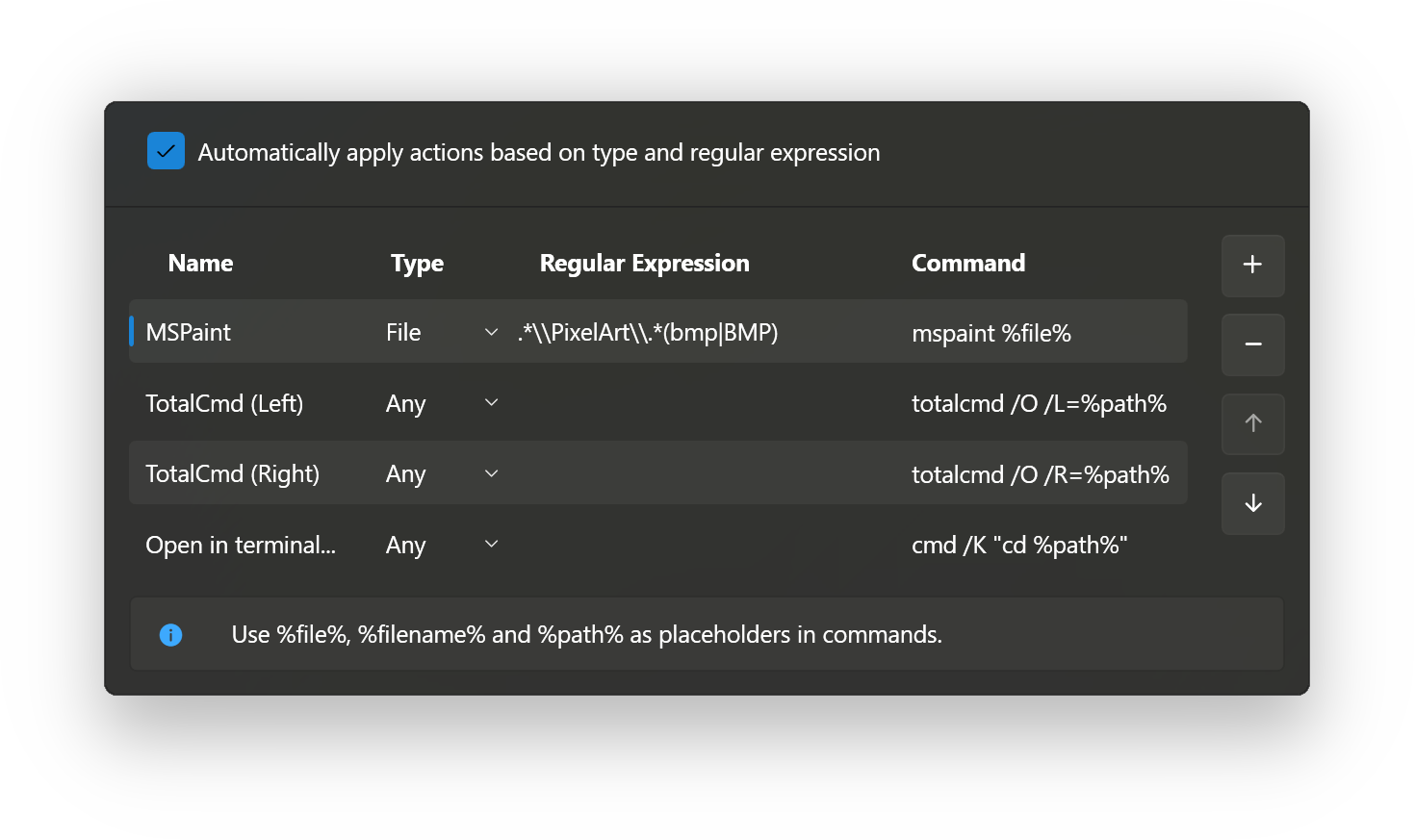
Да, нажатие пробела показывает предпросмотр выбранного файла с помощью интеграции QuickLook или Seer.Можно ли автоматизировать действия с результатами поиска?Да, можно создавать собственные действия «Открыть с помощью» в разделе Настройки → Пользовательские действия и задавать правила на основе регулярных выражений, которые будут запускаться автоматически в зависимости от типа файла.
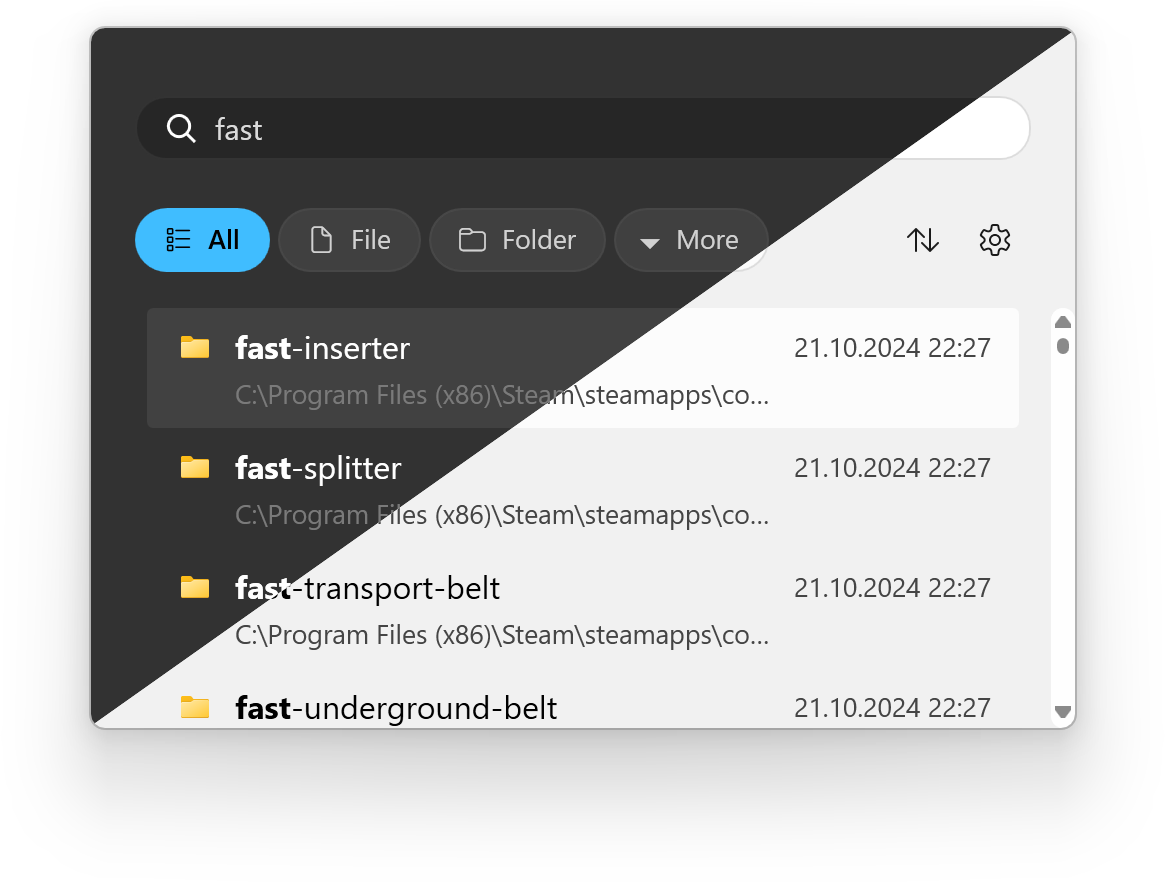
Да, можно создавать собственные действия «Открыть с помощью» в разделе Настройки → Пользовательские действия и задавать правила на основе регулярных выражений, которые будут запускаться автоматически в зависимости от типа файла.Есть ли поддержка тёмной темы?Да, приложение автоматически переключается между светлой и тёмной темой в соответствии с системной темой Windows.
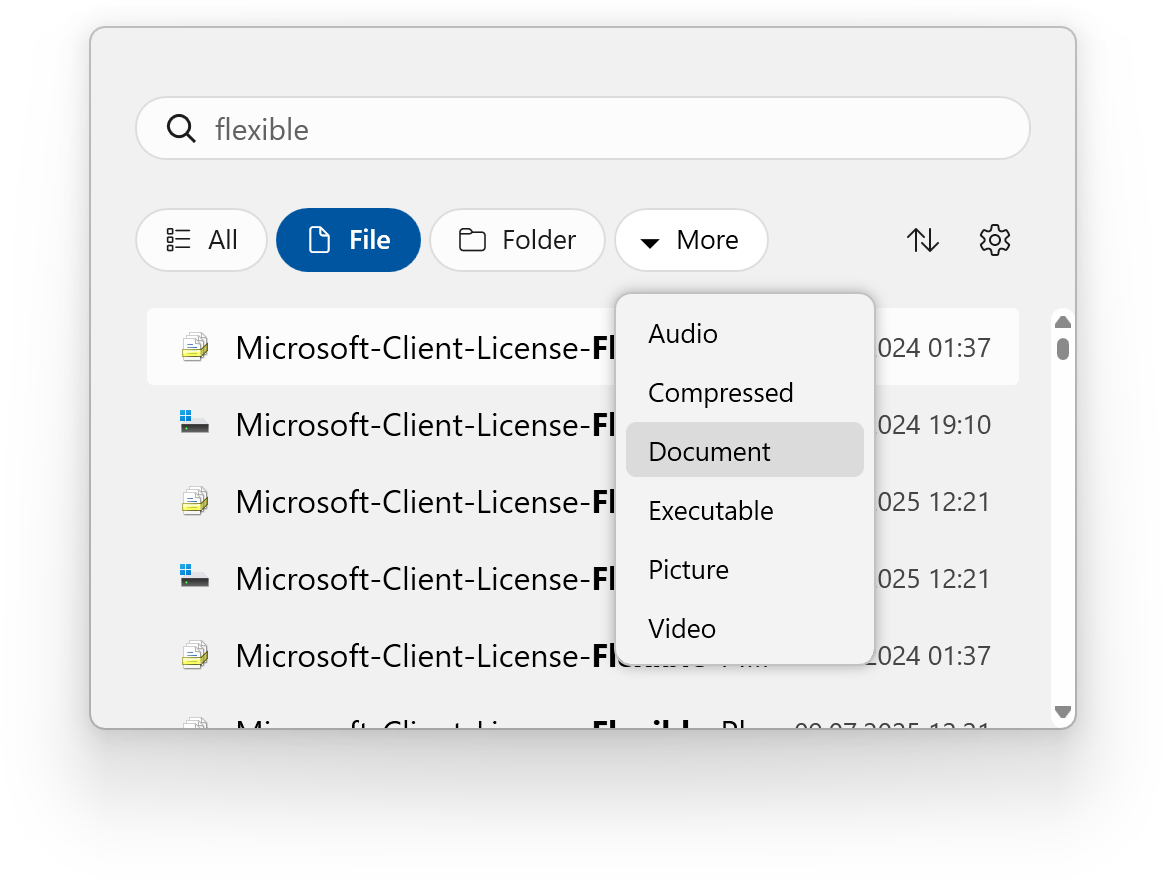
Да, приложение автоматически переключается между светлой и тёмной темой в соответствии с системной темой Windows.Можно ли использовать расширенные фильтры Everything?Да, включение параметра «Использовать фильтры Everything» в настройках фильтров синхронизирует EverythingToolbar с пользовательскими фильтрами Everything для расширенного поиска.
Да, включение параметра «Использовать фильтры Everything» в настройках фильтров синхронизирует EverythingToolbar с пользовательскими фильтрами Everything для расширенного поиска.What are similar projects?Seelen-UI, NanaZip, Playnite, TranslucentTB, UniGetUI, winutil-cn, Files, DevToys
Seelen-UI, NanaZip, Playnite, TranslucentTB, UniGetUI, winutil-cn, Files, DevToysWhich topics is it in?taskbar, winget, wpf, file-manager, search-engine, windows-10, windows-11, search, c#, utility, desktop, productivity
taskbar, winget, wpf, file-manager, search-engine, windows-10, windows-11, search, c#, utility, desktop, productivity