 Windows Package Manager
WinGet Client
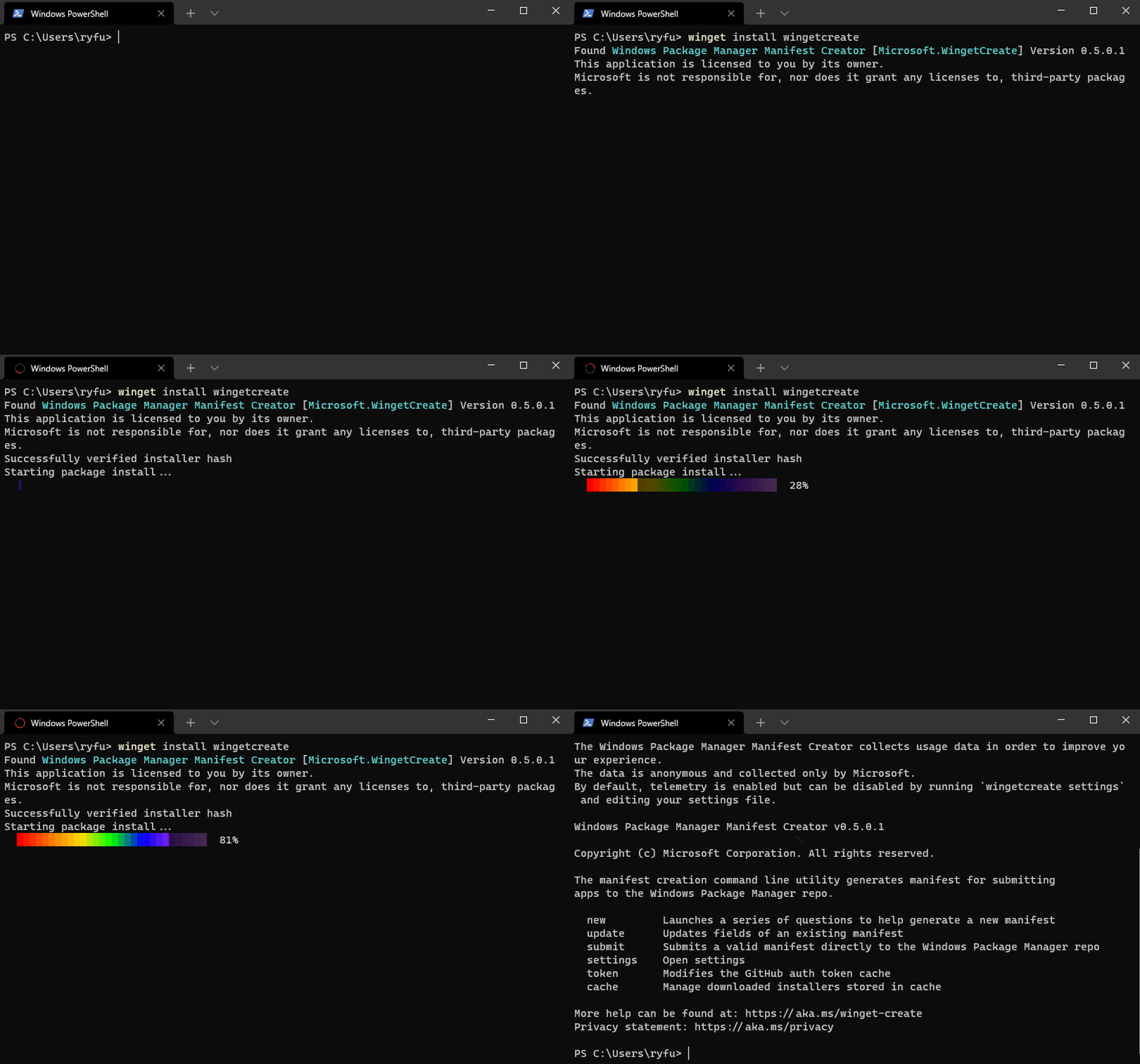
If you are new to the Windows Package Manager, you might want to Explore the Windows Package Manager tool. The client has access to packages from two default sources. The first is "msstore" the Microsoft Store (free Apps rated "e" for everyone). The second is "winget" the WinGet community repository.
[!NOTE]
Group policy may be configured and modify configured sources. Run winget --info to see any configured policies.
Installing The Client
[!NOTE]
The client requires Windows 10 1809 (build 17763), Windows 11, Windows Server 2025, or later at this time. Windows Server 2019 and 2022 can run it experimentally (not supported) by extracting the .msixbundle; see https://github.com/microsoft/winget-cli/issues/4502#issuecomment-4585558561. Due to hard reliances on IsWow64Process2 and MSIX, it cannot be run on Windows Server Core or on Windows versions earlier than Windows 10 1809.
Microsoft Store [Recommended]
The client is distributed within the App Installer package.
Development Releases
There are a few methods to get development releases:
[!NOTE]
If you decide to install the latest release from GitHub, and you have successfully joined the insider program, you will receive updates when the next development release has been published in the Microsoft Store.
Once you have received the updated App Installer from the Microsoft Store you should be able to execute winget features to see experimental features. Some users have reported issues with the client not being on their PATH.
Manually Update
The same Microsoft Store package will be made available via our Releases. Note that installing this package will give you the WinGet client, but it will not enable automatic updates from the Microsoft Store if you have not joined the Windows Package Manager Insider program.
[!NOTE]
You may need to install the VC++ v14 Desktop Framework Package.
This should only be necessary on older builds of Windows 10 and only if you get an error about missing framework packages.
Troubleshooting
Please read our troubleshooting guide.
PowerShell Module
The Microsoft.WinGet.Client PowerShell module provides native cmdlets for interacting with the Windows Package Manager. You can install it from the PowerShell Gallery:
Install-Module -Name Microsoft.WinGet.Client
Example usage:
# Search for a package
Find-WinGetPackage -Query "Visual Studio Code"

# Install a package
Install-WinGetPackage -Id Microsoft.VisualStudioCode

# List installed packages
Get-WinGetPackage

# Update a package
Update-WinGetPackage -Id Microsoft.VisualStudioCode

# Repair the WinGet package manager installation
Repair-WinGetPackageManager
For more information, see the Microsoft.WinGet.Client page on the PowerShell Gallery.
Administrator Considerations
Installer behavior can be different depending on whether you are running WinGet with administrator privileges.
When running WinGet without administrator privileges, some applications may require elevation to install. When the installer runs, Windows will prompt you to elevate. If you choose not to elevate, the application will fail to install.
When running WinGet in an Administrator Command Prompt, you will not see elevation prompts if the application requires it. Always use caution when running your command prompt as an administrator, and only install applications you trust.
Build your own
You can also build the client yourself. While the client should be perfectly functional, we are not ready to provide full support for clients running outside of the official distribution mechanisms yet. Feel free to file an Issue, but know that it may get lower prioritization.
Build Status
)
Windows Package Manager Release Roadmap
The plan for delivering the next Windows Package Manager release is described and included in our discussions, and will be updated as the project proceeds.
Overview of the Windows Package Manager
The Windows Package Manager is a tool designed to help you quickly and easily discover and install those packages that make your PC environment special. By using the Windows Package Manager, from one command, you can install your favorite packages:
winget install <package>
Overview
Client Repository
This winget-cli repository includes the source code designed to build the client. You are encouraged to participate in the development of this client. We have plenty of backlog features in our Issues. You can upvote the ones you want, add more, or even get started on one.
Sources
The client is built around the concept of sources; a set of packages effectively. Sources provide the ability to discover and retrieve the metadata about the packages so that the client can act on it.
Building the client
Please follow our developer guidance to build, run & test the client.
Credit
We would like to thank Keivan Beigi (@kayone) for his work on AppGet which helped us with the initial project direction for Windows Package Manager.
Contributing
This project welcomes contributions and suggestions. Most contributions require you to agree to a
Contributor License Agreement (CLA) declaring that you have the right to, and do, actually grant us the rights to use your contribution. For details, visit https://cla.opensource.microsoft.com. More
information is available in our CONTRIBUTING.md file.
When you submit a pull request, a CLA bot will automatically determine whether you need to provide
a CLA and decorate the PR appropriately (e.g., status check, comment). Simply follow the instructions
provided by the bot. You will only need to do this once across all repos using our CLA.
This project has adopted the Microsoft Open Source Code of Conduct.
For more information, please refer to the Code of Conduct FAQ or
contact [email protected] with any additional questions or comments.
Data/Telemetry
The winget.exe client is instrumented to collect usage and diagnostic (error) data and sends it to Microsoft to help improve the product.
If you build the client yourself the instrumentation will not be enabled and no data will be sent to Microsoft.
The winget.exe client respects machine-wide privacy settings and users can opt out on their device, as documented in the Microsoft Windows privacy statement. In addition, you may also explicitly block telemetry using settings
In short, to opt out, do one of the following:
Windows 11: Go to Start, then select Settings > Privacy & Security > Diagnostics & feedback > Diagnostic data and unselect Send optional diagnostic data.
Windows 10: Go to Start, then select Settings > Privacy > Diagnostics & feedback, and select Required diagnostic data.
See the privacy statement for more details.

 WinGet 是 Windows 程序包管理器的客户端,一个命令行工具,可以帮你快速查找并安装各种软件包,轻松配好你的电脑环境。