 Windows Package Manager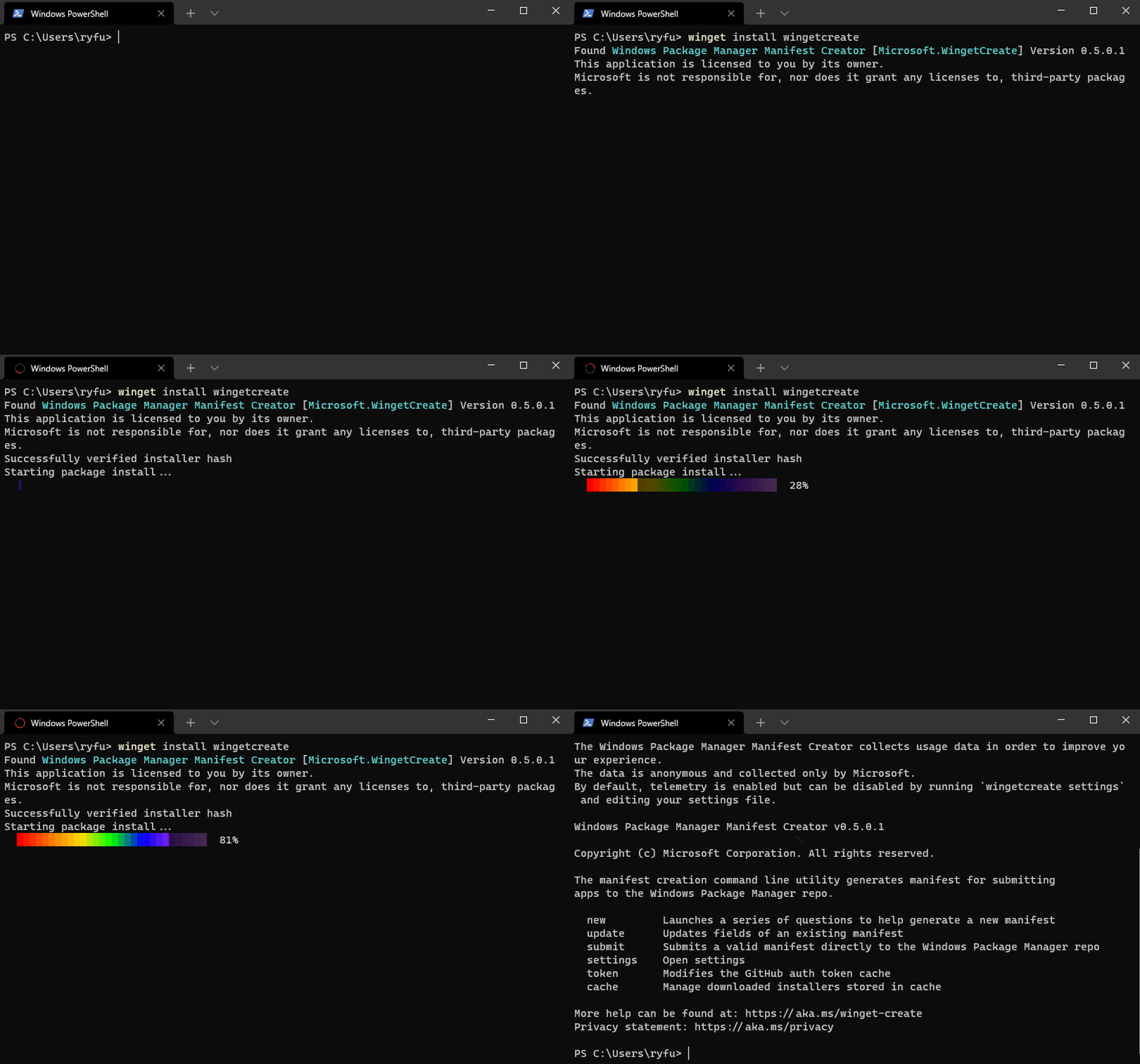
26.5K ·GitHub
Что это такое?
 WinGet — это клиент Windows Package Manager, инструмент для быстрого поиска и установки пакетов, которые делают ваше окружение на ПК особенным, прямо из командной строки.
WinGet — это клиент Windows Package Manager, инструмент для быстрого поиска и установки пакетов, которые делают ваше окружение на ПК особенным, прямо из командной строки.Это только утилита командной строки или есть что-то ещё?Главная часть — это CLI winget.exe, но в проект также входит модуль PowerShell Microsoft.WinGet.Client с нативными командлетами, плюс COM API для управления им из собственного кода.
Главная часть — это CLI winget.exe, но в проект также входит модуль PowerShell Microsoft.WinGet.Client с нативными командлетами, плюс COM API для управления им из собственного кода.Как установить его на свой компьютер?Проще всего: он входит в состав пакета App Installer из Microsoft Store. Сборки для разработчиков можно взять на странице Releases или установить командлетом Repair-WinGetPackageManager с флагом -IncludePrerelease.
Проще всего: он входит в состав пакета App Installer из Microsoft Store. Сборки для разработчиков можно взять на странице Releases или установить командлетом Repair-WinGetPackageManager с флагом -IncludePrerelease.Какие версии Windows его поддерживают?Windows 10 1809 (сборка 17763), Windows 11, а также Windows Server 2025 и новее. На Server 2019 и 2022 он работает только экспериментально; Server Core и любые версии старше 1809 не поддерживаются.
Windows 10 1809 (сборка 17763), Windows 11, а также Windows Server 2025 и новее. На Server 2019 и 2022 он работает только экспериментально; Server Core и любые версии старше 1809 не поддерживаются.Установка всегда проходит гладко или нужны права администратора?Не всегда: некоторые установщики требуют повышения прав. Без прав администратора Windows предложит их повысить, и если отказаться, это приложение не установится; в окне, запущенном от администратора, никаких запросов не будет.
Не всегда: некоторые установщики требуют повышения прав. Без прав администратора Windows предложит их повысить, и если отказаться, это приложение не установится; в окне, запущенном от администратора, никаких запросов не будет.Клиент отправляет данные в Microsoft?Да. Официальный winget.exe собирает данные об использовании и диагностики и отправляет их в Microsoft, следуя настройкам диагностических данных на вашем устройстве, при этом можно отказаться. Клиент, собранный самостоятельно, ничего не отправляет.
Да. Официальный winget.exe собирает данные об использовании и диагностики и отправляет их в Microsoft, следуя настройкам диагностических данных на вашем устройстве, при этом можно отказаться. Клиент, собранный самостоятельно, ничего не отправляет.Откуда вообще берутся пакеты?Есть два источника по умолчанию: 'msstore' — бесплатные приложения из Microsoft Store с рейтингом для всех возрастов, и 'winget' — репозиторий сообщества WinGet. Кроме того, вы можете развернуть собственный приватный источник на базе REST.
Есть два источника по умолчанию: 'msstore' — бесплатные приложения из Microsoft Store с рейтингом для всех возрастов, и 'winget' — репозиторий сообщества WinGet. Кроме того, вы можете развернуть собственный приватный источник на базе REST.Как установить пакет, когда клиент уже настроен?Одной командой: winget install . Поиск и установка любимых пакетов одной командой — основа всего этого инструмента.
Одной командой: winget install . Поиск и установка любимых пакетов одной командой — основа всего этого инструмента.Можно ли автоматизировать его из PowerShell или своего кода?Да. Модуль Microsoft.WinGet.Client устанавливается из PowerShell Gallery и даёт нативные командлеты, а для приложений в проекте также есть COM API.
Да. Модуль Microsoft.WinGet.Client устанавливается из PowerShell Gallery и даёт нативные командлеты, а для приложений в проекте также есть COM API.Что чаще всего идёт не так при установке сборки для разработчиков?Пользователи сообщали, что winget не оказывался в PATH. На старых сборках Windows 10 может понадобиться пакет VC++ v14 Desktop Framework, а для автоматических обновлений из Store нужно вступить в программу Insider.
Пользователи сообщали, что winget не оказывался в PATH. На старых сборках Windows 10 может понадобиться пакет VC++ v14 Desktop Framework, а для автоматических обновлений из Store нужно вступить в программу Insider.What are similar projects?Scoop, edit, winutil-cn, NanaZip, Playnite, coreutils, bashka, homebrew-cask
Scoop, edit, winutil-cn, NanaZip, Playnite, coreutils, bashka, homebrew-caskWhich topics is it in?winget, telemetry, windows-10, windows-11, powershell, foss, microsoft, package-manager, installer, app, cli-tool, c++
winget, telemetry, windows-10, windows-11, powershell, foss, microsoft, package-manager, installer, app, cli-tool, c++