Skill Recorder
Record yourself doing a task once, then turn it into a skill your AI agent can repeat.
Skill Recorder captures a real work session on your screen: the clicks, the app and
window switches, the pages you visit, and (if you want) your spoken narration. It then uses
the GitHub Copilot CLI to reconstruct what you actually did as a clear intent plus
an ordered list of steps. From there, one step turns that single run into something an
agent can reuse:
- a Skill: a
SKILL.md procedure an agent runs on demand, or
- an Automation: the same procedure on a schedule or trigger.
Both prefer the agent's native tools (like the gh CLI or web_fetch) over replaying
UI clicks, and generalize from your one example, so recording yourself submitting one
form can teach the agent to submit all of them.
How it works
- 🔴 Record. Hit record (or
⌘⇧R / Ctrl+Shift+R from anywhere) and just do your
task. Skill Recorder captures your screen and activity locally, in the background.
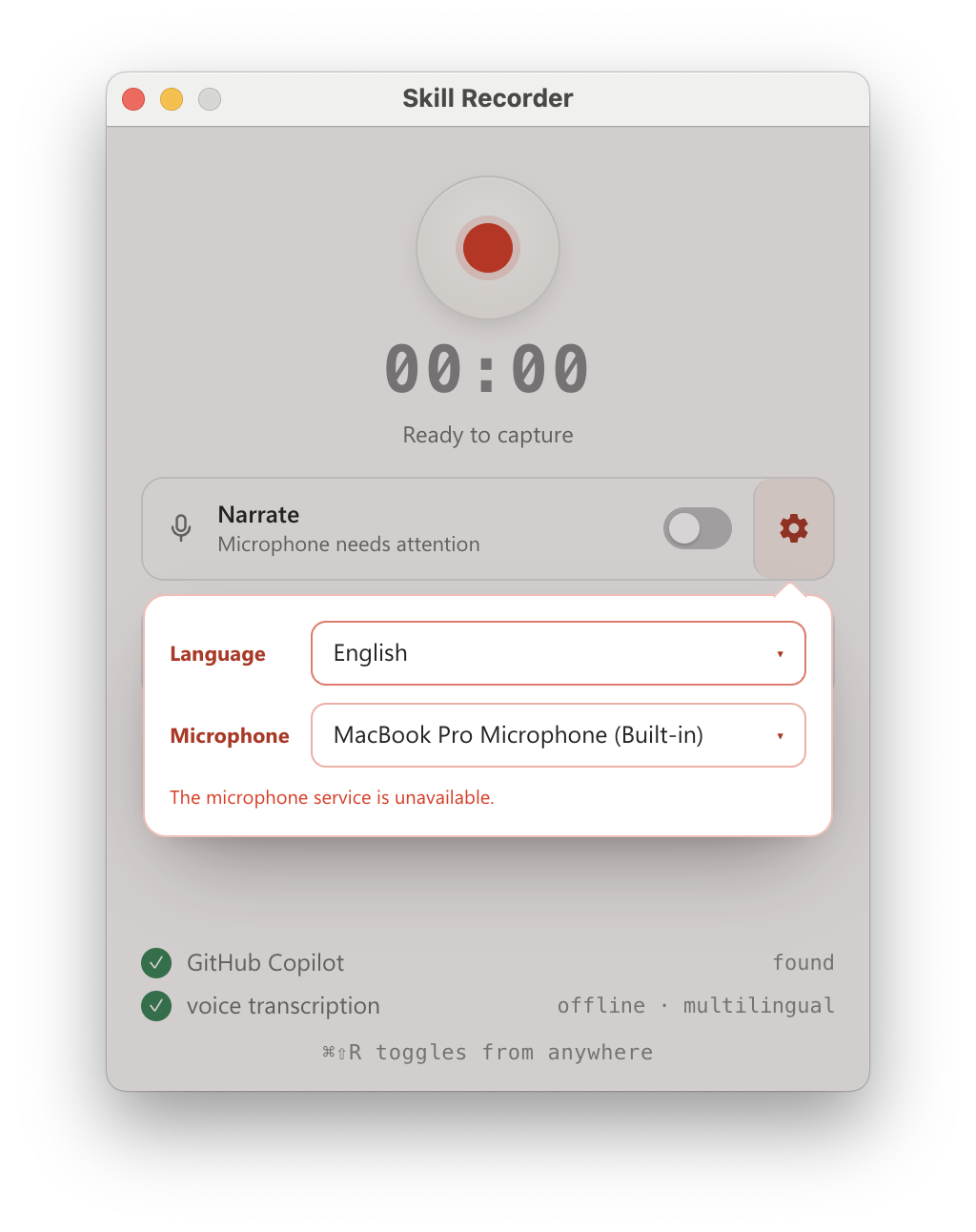
- 🎛️ Control. While recording, a small always-on-top bar shows capture and
microphone state. Mute, unmute, or switch mics on the fly, then finish, or discard
(with a confirmation) if the take didn't go to plan.
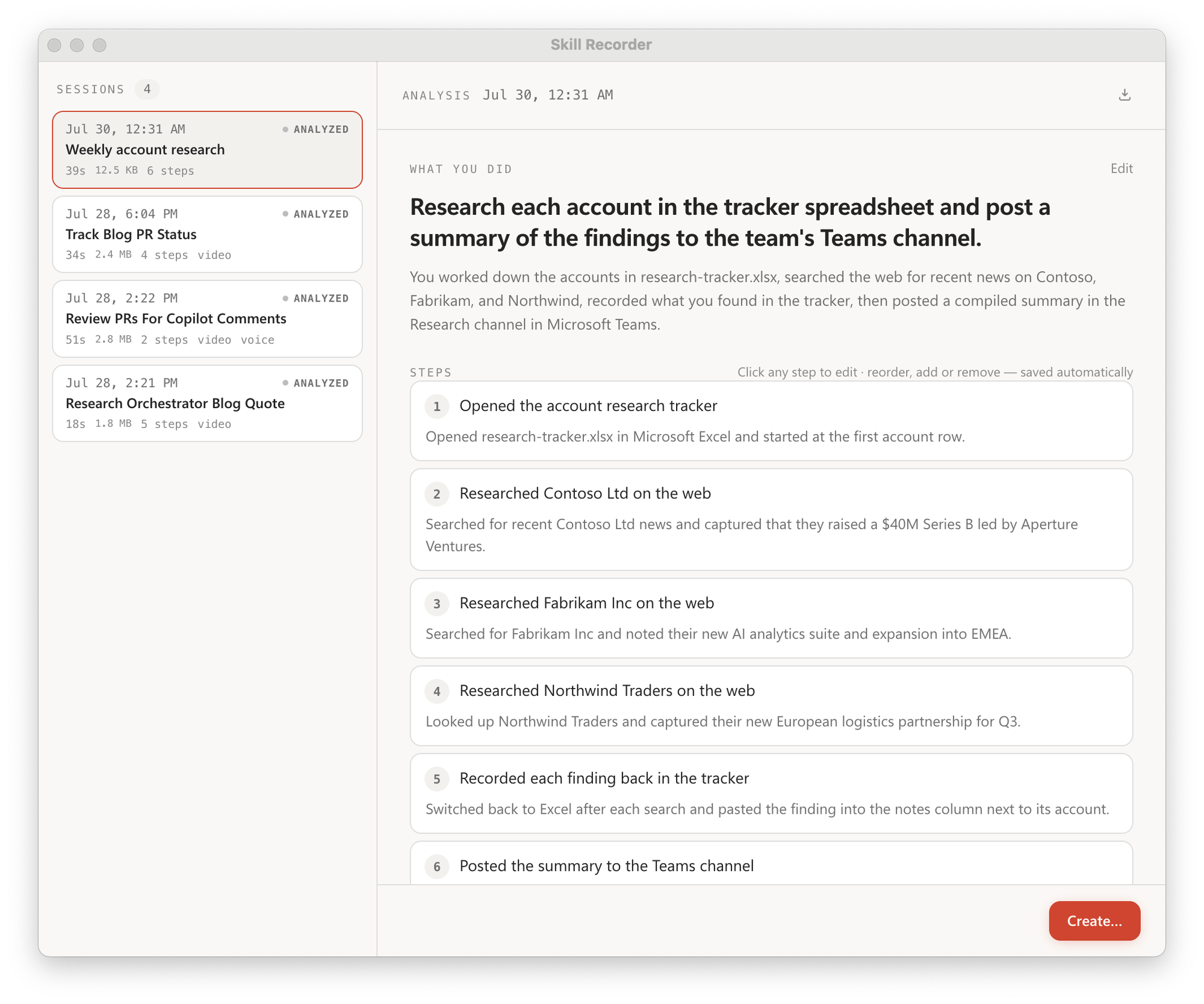
- 🧠 Analyze. Click Analyze and GitHub Copilot reconstructs one overall intent and
an ordered list of steps. Review and edit until it reads right.
- ✨ Create. From an approved analysis, generate a reusable Skill and/or a
scheduled Automation.
Get started
Skill Recorder is published as a source release: one command downloads a pinned Node.js
runtime, builds the exact release commit on your machine, and adds a Skill Recorder (Source)
app you can relaunch anytime. Nothing is installed globally. You'll need a GitHub account with
Copilot access; the Copilot CLI ships with the app.
macOS is the primary target. Windows 11 (x64 and ARM64) is supported too (see
WINDOWS-VALIDATION.md).
Install it
Open the latest release and
copy the command for your platform. Each release pins an exact commit, so the real command looks
like the patterns below with <40-character-release-commit> filled in.
macOS / Ubuntu
commit="<40-character-release-commit>"; curl -fsSL "https://raw.githubusercontent.com/microsoft/skill-recorder/$commit/install.sh" | SKILL_RECORDER_COMMIT="$commit" bash
The commit pins both the downloaded script and the source it builds. To keep the app running
after the terminal closes, add SKILL_RECORDER_DETACHED=1 after the pipe:
commit="<40-character-release-commit>"; curl -fsSL "https://raw.githubusercontent.com/microsoft/skill-recorder/$commit/install.sh" | SKILL_RECORDER_COMMIT="$commit" SKILL_RECORDER_DETACHED=1 bash
On macOS this adds a Skill Recorder (Source) app to ~/Applications (relaunch from Spotlight,
Launchpad, or the Dock). On Ubuntu it adds a matching application entry.
Windows (PowerShell)
$commit="<40-character-release-commit>"; $env:SKILL_RECORDER_COMMIT=$commit; irm "https://raw.githubusercontent.com/microsoft/skill-recorder/$commit/install.ps1" | iex
This adds Skill Recorder (Source) shortcuts to your desktop and Start Menu.
Then record
- Grant Screen Recording. On first launch, macOS asks for Screen Recording permission;
grant it and you're ready to record.
- Record, Analyze, Create. Do your task, then Analyze. The first time you Analyze,
Skill Recorder offers Sign in to Copilot if you aren't signed in yet.
To inspect the script before running it, set install options, update, or uninstall, see
INSTALL.md.
⚠️ Keep secrets out of your recordings. Don't record, type, paste, or narrate
passwords, tokens, API keys, or other confidential info. Choosing Analyze sends
recording data to GitHub's cloud. Skill Recorder reminds you before every recording.
Details in What gets captured.
Everything below is for people who want the details, or want to hack on the code.
What gets captured
Recording, storage, frame extraction, and optional narration transcription all happen
on your computer; nothing leaves while you record. Only when you choose Analyze
does Skill Recorder send the event timeline (window/document titles, URLs, and clipboard
previews), extracted screen images, and narration text to GitHub's cloud for Copilot to
process.
The in-app "Records your screen and activity" panel spells out exactly what's collected:
- Window tracking: active-app / window switches.
- Browser URLs: the page you're on (macOS).
- Screen video: recorded by Chromium; low-rate snapshots are kept only when the
screen changes or a heartbeat is due.
- Clipboard: short previews of copied text that tie steps together.
- Narration (optional): spoken commentary, transcribed on-device in any of
Whisper's 99 supported languages (a one-time ~252 MB model download on first use).
⚠️ Please don't capture secrets. Passwords, access tokens, API keys, credentials, and
other confidential information should never be recorded, typed, pasted, shown, copied,
or narrated during a session.
Develop from source
Requires Node.js 24. After checking out a release revision:
npm ci
npm run compliance:licenses
npm run dev
npm run dev starts Vite and launches the Electron app with hot-reload; ⌘⇧R (macOS) /
Ctrl+Shift+R (Windows) toggles recording from anywhere. Full manual setup, the build and
dist scripts, and the licensing boundary between local source builds and redistributable
packages are in INSTALL.md. Maintainers changing versions, dependencies,
assets, or releases must follow RELEASING.md.
Evals
The Copilot describer and builders have a fixture-based eval suite; see
evals/README.md.
npm run eval            # score the describer against synthetic recordings
npm run eval:builder    # score the skill/automation generalization
Documentation
Security
Please don't report security vulnerabilities through public GitHub issues. See
SECURITY.md for Microsoft's coordinated-disclosure process and reporting
channels.
Support
File bugs and feature requests through
GitHub Issues (search existing issues
first to avoid duplicates). Support is limited to the resources described in
SUPPORT.md.
License
MIT
Contributing
This project welcomes contributions and suggestions. Most contributions require you to agree to a
Contributor License Agreement (CLA) declaring that you have the right to, and actually do, grant us
the rights to use your contribution. For details, visit Contributor License Agreements.
When you submit a pull request, a CLA bot will automatically determine whether you need to provide
a CLA and decorate the PR appropriately (e.g., status check, comment). Simply follow the instructions
provided by the bot. You will only need to do this once across all repos using our CLA.
This project has adopted the Microsoft Open Source Code of Conduct.
For more information see the Code of Conduct FAQ or
contact [email protected] with any additional questions or comments.
Trademarks
This project may contain trademarks or logos for projects, products, or services. Authorized use of Microsoft
trademarks or logos is subject to and must follow
Microsoft's Trademark & Brand Guidelines.
Use of Microsoft trademarks or logos in modified versions of this project must not cause confusion or imply Microsoft sponsorship.
Any use of third-party trademarks or logos are subject to those third-party's policies.

 Skill Recorder 是一款桌面应用,它把你在屏幕上完成一次任务的过程录制下来,然后使用 GitHub Copilot CLI 将这段录制转换成可复用的 Skill 或定时运行的 Automation,供 AI 智能体执行。