4.2K ·GitHub
Что это?
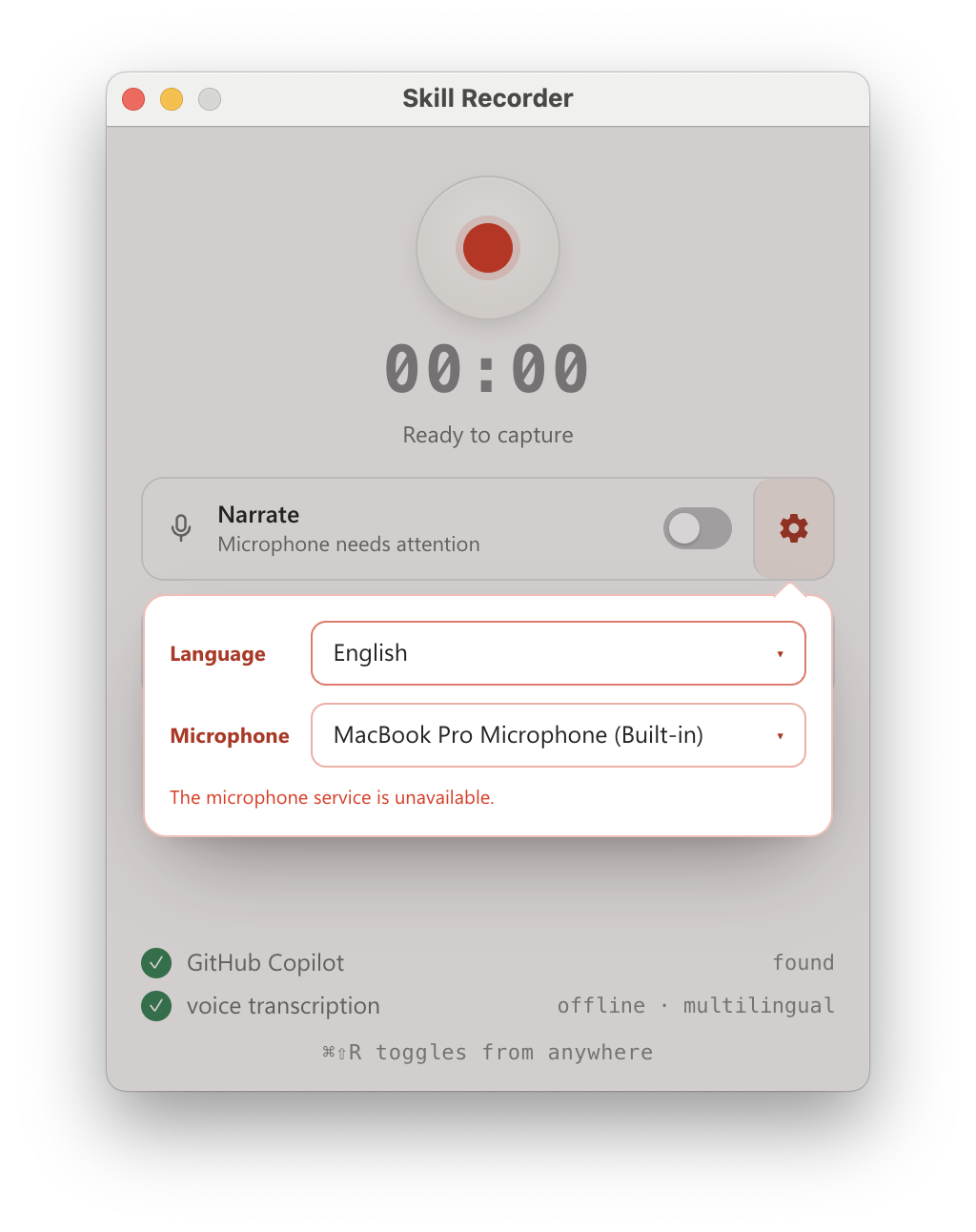
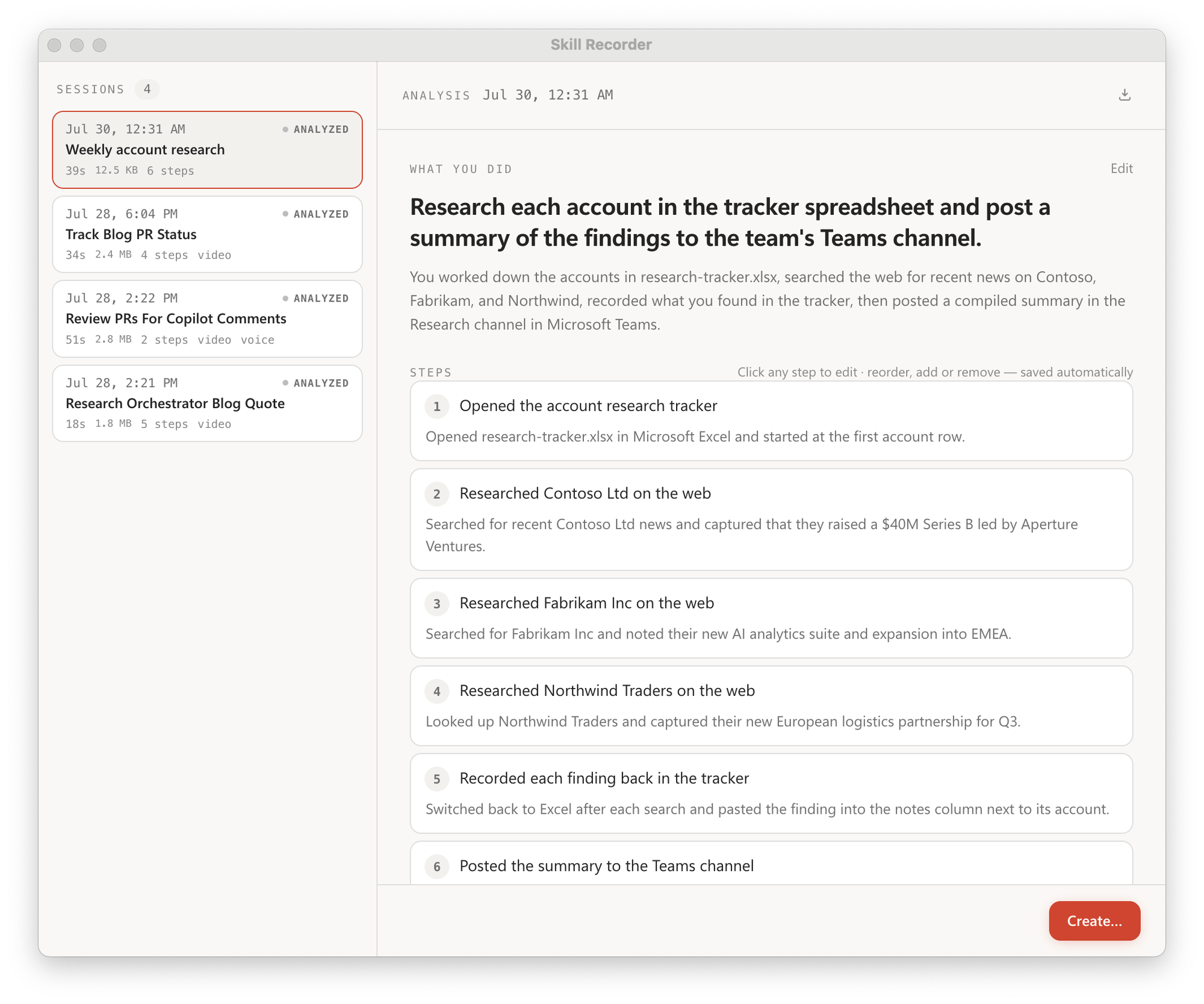
 Skill Recorder — десктоп-приложение, которое записывает, как вы один раз выполняете задачу на экране, а затем с помощью GitHub Copilot CLI превращает запись в переиспользуемый Skill или запланированную Automation, которую может запустить ИИ-агент.
Skill Recorder — десктоп-приложение, которое записывает, как вы один раз выполняете задачу на экране, а затем с помощью GitHub Copilot CLI превращает запись в переиспользуемый Skill или запланированную Automation, которую может запустить ИИ-агент.Это десктоп-приложение или облачный сервис?Это десктоп-приложение на Electron, которое локально записывает ваш экран, переключения окон и (по желанию) голосовые комментарии; в сеть оно обращается только когда вы явно нажмёте Analyze.
Это десктоп-приложение на Electron, которое локально записывает ваш экран, переключения окон и (по желанию) голосовые комментарии; в сеть оно обращается только когда вы явно нажмёте Analyze.Как установить его и начать запись?Откройте последний GitHub-релиз и скопируйте команду установки для своей платформы; она скачает закреплённый рантайм Node.js, соберёт коммит этого релиза на вашей машине и добавит приложение 'Skill Recorder (Source)', которое можно перезапустить. Затем выдайте разрешение Screen Recording и жмите запись.
Откройте последний GitHub-релиз и скопируйте команду установки для своей платформы; она скачает закреплённый рантайм Node.js, соберёт коммит этого релиза на вашей машине и добавит приложение 'Skill Recorder (Source)', которое можно перезапустить. Затем выдайте разрешение Screen Recording и жмите запись.Нужна ли подписка GitHub Copilot для этого?Да, нужен GitHub-аккаунт с доступом к Copilot; сам Copilot CLI идёт в комплекте с приложением, отдельно устанавливать его не нужно.
Да, нужен GitHub-аккаунт с доступом к Copilot; сам Copilot CLI идёт в комплекте с приложением, отдельно устанавливать его не нужно.Что происходит с моей записью, когда я нажимаю Analyze?Нажатие Analyze отправляет таймлайн событий (заголовки окон/документов, URL, фрагменты буфера обмена), извлечённые кадры экрана и текст голосовых комментариев в облако GitHub на обработку Copilot, поэтому никогда не записывайте пароли, токены и другие секреты.
Нажатие Analyze отправляет таймлайн событий (заголовки окон/документов, URL, фрагменты буфера обмена), извлечённые кадры экрана и текст голосовых комментариев в облако GitHub на обработку Copilot, поэтому никогда не записывайте пароли, токены и другие секреты.Он работает и на Windows и на Linux, или только на Mac?Основная платформа — macOS, но Windows 11 (x64 и ARM64) полностью поддерживается, а установочный скрипт также добавляет запись приложения в Ubuntu.
Основная платформа — macOS, но Windows 11 (x64 и ARM64) полностью поддерживается, а установочный скрипт также добавляет запись приложения в Ubuntu.Покидают ли данные с моего экрана компьютер до того, как я решу их проанализировать?Нет, захват, хранение и даже расшифровка голоса происходят полностью на устройстве; данные покидают компьютер только когда вы сами нажмёте Analyze.
Нет, захват, хранение и даже расшифровка голоса происходят полностью на устройстве; данные покидают компьютер только когда вы сами нажмёте Analyze.В чём разница между Skill и Automation здесь?Skill — это процедура в SKILL.md, которую агент запускает по запросу, а Automation запускает ту же восстановленную процедуру по расписанию или триггеру.
Skill — это процедура в SKILL.md, которую агент запускает по запросу, а Automation запускает ту же восстановленную процедуру по расписанию или триггеру.Голосовой комментарий расшифровывается в облаке?Нет, голос расшифровывается на устройстве через Whisper, поддерживается 99 языков, при первом использовании однократно скачивается модель ~252 МБ.
Нет, голос расшифровывается на устройстве через Whisper, поддерживается 99 языков, при первом использовании однократно скачивается модель ~252 МБ.Какие агенты Microsoft реально могут использовать созданные Skills?Созданные Skills и Automations рассчитаны на запуск в Microsoft Autopilots: Scout, Microsoft Copilot Cowork или Copilot Studio.
Созданные Skills и Automations рассчитаны на запуск в Microsoft Autopilots: Scout, Microsoft Copilot Cowork или Copilot Studio.Как начать и остановить запись?Нажмите Cmd+Shift+R на macOS или Ctrl+Shift+R на Windows откуда угодно, либо используйте поверх всех окон панель управления во время записи, чтобы заглушить звук, сменить микрофон, завершить или отменить дубль.
Нажмите Cmd+Shift+R на macOS или Ctrl+Shift+R на Windows откуда угодно, либо используйте поверх всех окон панель управления во время записи, чтобы заглушить звук, сменить микрофон, завершить или отменить дубль.What are similar projects?clawd-on-desk, skills, ClawX, vicoa, brag, awesome-copilot, LobsterAI, pi-gui
clawd-on-desk, skills, ClawX, vicoa, brag, awesome-copilot, LobsterAI, pi-guiWhich topics is it in?screen-recording, copilot, whisper, github-copilot, electron, skill, agent-skills, productivity, react, desktop-app, automation, ai-agents
screen-recording, copilot, whisper, github-copilot, electron, skill, agent-skills, productivity, react, desktop-app, automation, ai-agents