Or, if you have Homebrew installed,
you can run the following command:
brew install --cask mattt/tap/iMCP
When you open the app,
you'll see a
icon in your menu bar.
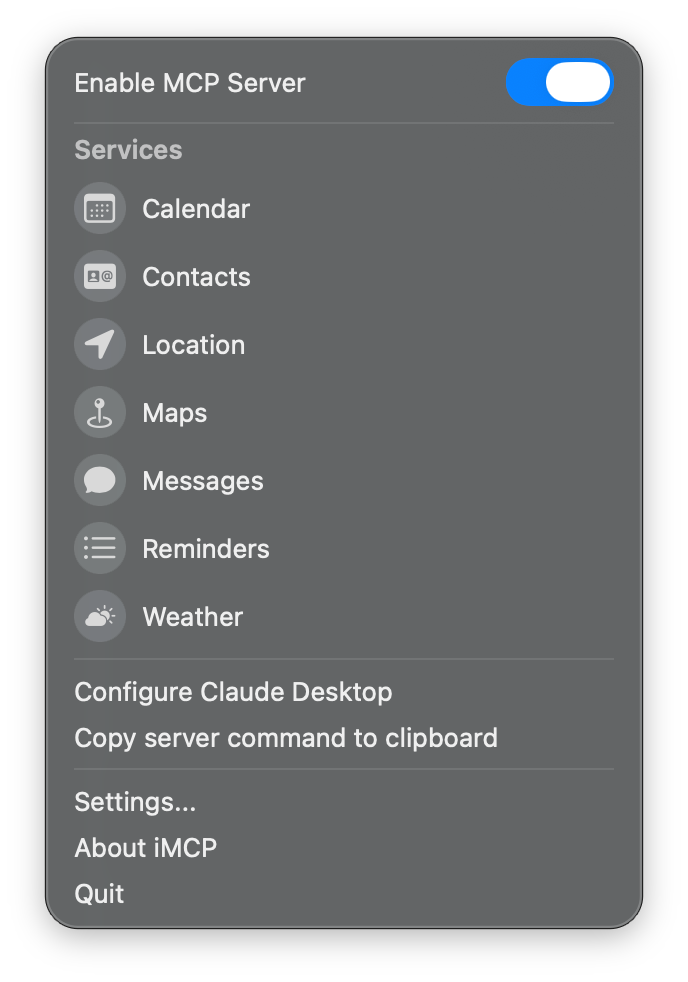
Clicking on this icon reveals the iMCP menu,
which displays all available services.
Initially, all services will appear in gray,
indicating they're inactive.
The blue toggle switch at the top indicates that the MCP server is running
and ready to connect with MCP-compatible clients.
Activate services
To activate a service, click on its icon.
The system will prompt you with a permission dialog.
For example, when activating Calendar access, you'll see a dialog asking "iMCP" Would Like Full Access to Your Calendar.
Click Allow Full Access to continue.
[!IMPORTANT]
iMCP does not collect or store any of your data.
Clients like Claude Desktop do send
your data off device as part of tool calls.
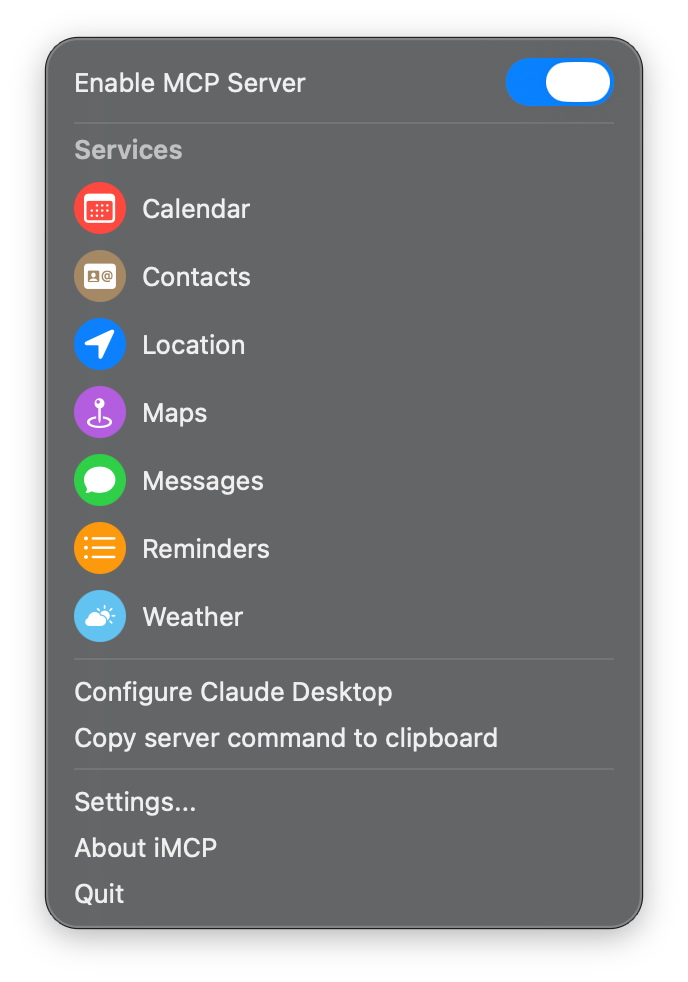
Once activated,
each service icons goes from gray to their distinctive colors —
red for Calendar, green for Messages, blue for Location, and so on.
Repeat this process for all of the capabilities you'd like to enable.
These permissions follow Apple's standard security model,
giving you complete control over what information iMCP can access.
Connect to Claude Desktop
If you don't have Claude Desktop installed,
you can download it here.
Open Claude Desktop and go to "Settings... (⌘,)".
Click on "Developer" in the sidebar of the Settings pane,
and then click on "Edit Config".
This will create a configuration file at
~/Library/Application Support/Claude/claude_desktop_config.json.
To connect iMCP to Claude Desktop,
click
> "Configure Claude Desktop".
This will add or update the MCP server configuration to use the
imcp-server executable bundled in the application.
Other MCP server configurations in the file will be preserved.
You can also configure Claude Desktop manually
Click
> "Copy server command to clipboard".
Then open claude_desktop_config.json in your editor
and enter the following:
Quit and reopen the Claude Desktop app.
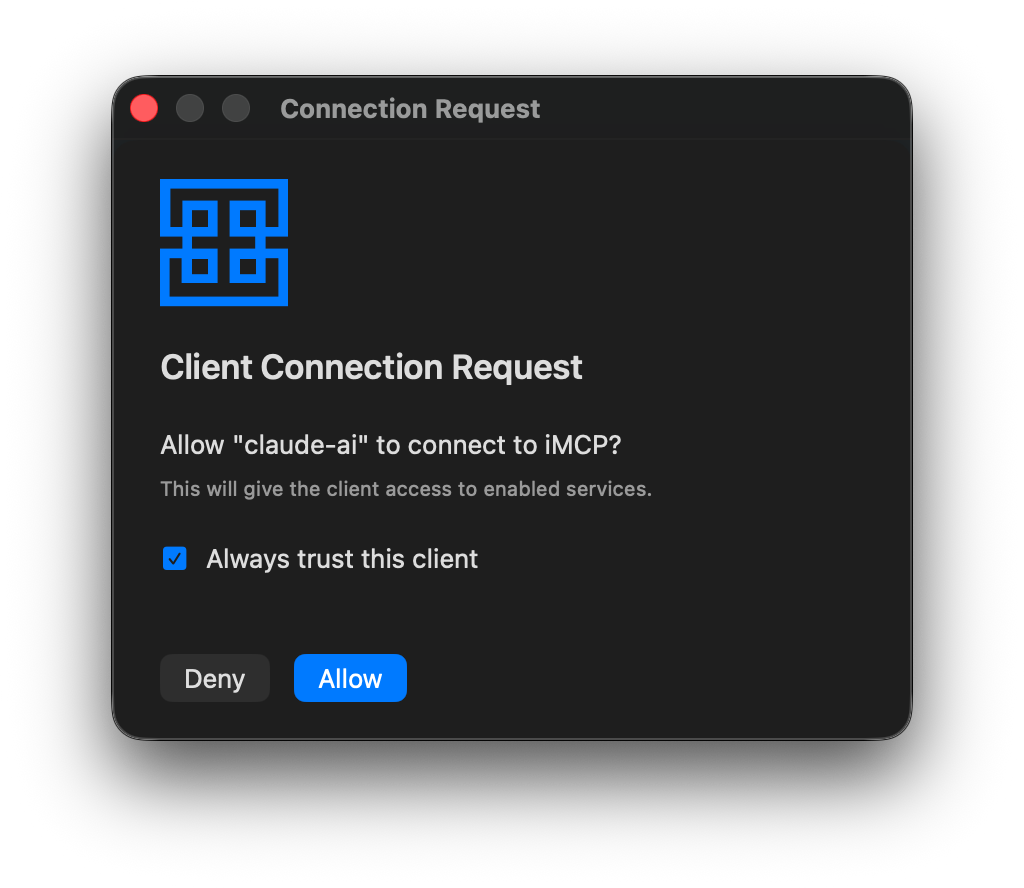
You'll be prompted to approve the connection.
After approving the connection,
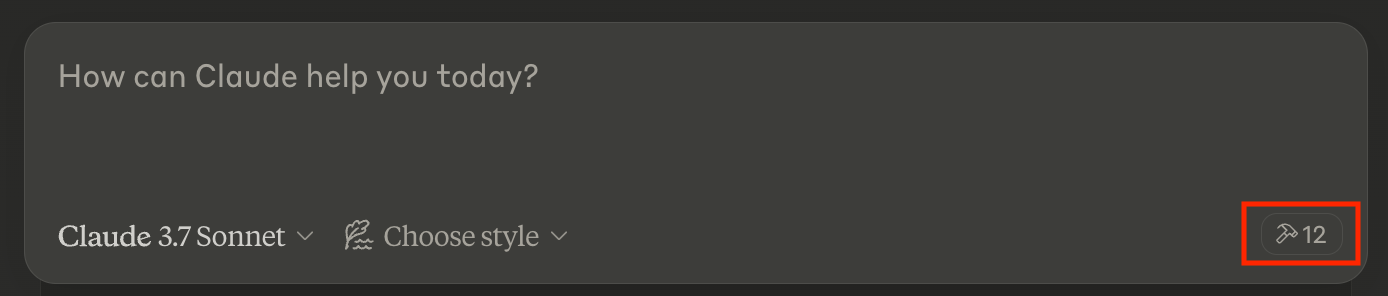
you should now see 🔨12 in the bottom right corner of your chat box.
Click on that to see a list of all the tools made available to Claude
by iMCP.
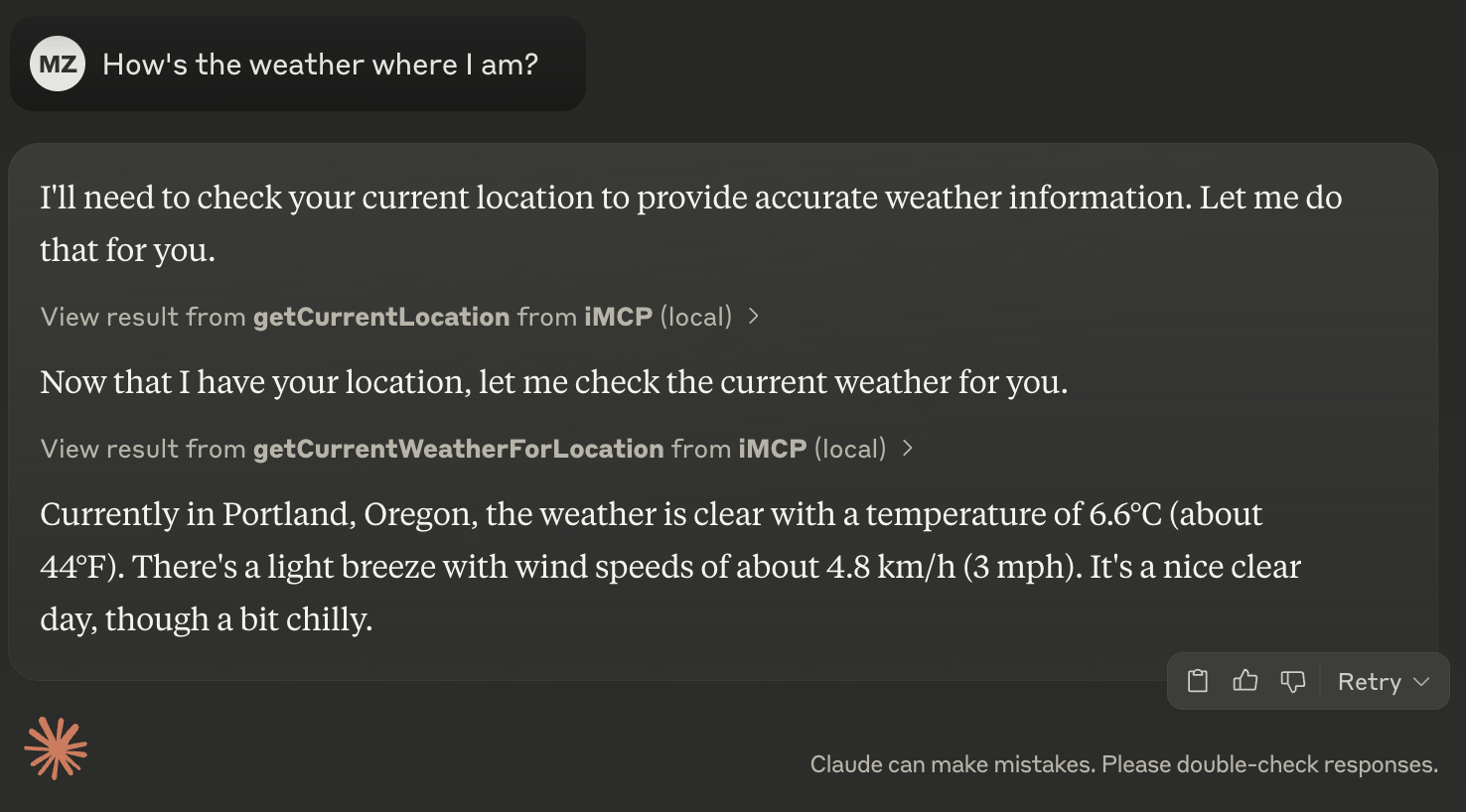
Now you can ask Claude questions that require access to your personal data,
such as:
"How's the weather where I am?"
Claude will use the appropriate tools to retrieve this information,
providing you with accurate, personalized responses
without requiring you to manually share this data during your conversation.
[!NOTE]
When a client first connects, iMCP will show an approval dialog.
Click "Allow" and check "Always trust this client" to avoid repeated prompts.
Technical Details
App & CLI
iMCP is a macOS app that bundles a command-line executable, imcp-server.
iMCP.app provides UI for configuring services and — most importantly —
a means of interacting with macOS system permissions,
so that it can access Contacts, Calendar, and other information.
The app and CLI communicate with each other on the local network
using Bonjour for automatic discovery.
Both advertise a service with type "_mcp._tcp" and domain "local".
Requests from MCP clients are read by the CLI from stdin
and relayed to the app;
responses from the app are received by the CLI and written to stdout.
See StdioProxy
for implementation details.
For this project, we created what became
the official Swift SDK
for Model Context Protocol servers and clients.
The app uses this package to handle proxied requests from MCP clients.
iMessage Database Access
Apple doesn't provide public APIs for accessing your messages.
However, the Messages app on macOS stores data in a SQLite database located at
~/Library/Messages/chat.db.
iMCP runs in App Sandbox,
which limits its access to user data and system resources.
When you go to enable the Messages service,
you'll be prompted to select your ~/Library/Messages folder through the standard file picker.
When you do, macOS adds that folder to the app's sandbox.
NSOpenPanel is magic like that.
The folder matters: chat.db is a WAL-mode database,
and Messages writes every new message to chat.db-wal next to it first,
only folding the log into chat.db at a checkpoint every few MB —
often hours later.
A grant on chat.db alone (what earlier versions asked for)
leaves that log unreadable, so the newest messages were missing until then.
If you granted chat.db with an earlier version, Messages keeps working from the last checkpoint;
switch Messages off and on in the iMCP menu to grant the folder instead.
But opening the iMessage database is just half the battle.
Over the past few years,
Apple has moved away from storing messages in plain text
and instead toward a proprietary typedstream format.
Call history synced from your iPhone lives in a SQLite database at
~/Library/Application Support/CallHistoryDB/CallHistory.storedata.
Recent calls sit in its write-ahead log next to the store file,
so the Phone service asks you to open the CallHistoryDB folder
rather than the file alone.
JSON-LD for Tool Results
The tools provided by iMCP return results as
JSON-LD documents.
For example,
the fetchContacts tool uses the Contacts framework,
which represents people and organizations with the CNContact type.
Here's how an object of that type is encoded as JSON-LD:
Schema.org provides standard vocabularies for
people, postal addresses, events, and many other objects we want to represent.
And JSON-LD is a convenient encoding format for
humans, AI, and conventional software alike.
For this project, we created Ontology:
a Swift package for working with structured data.
It includes convenience initializers for types from Apple frameworks,
such as those returned by iMCP tools.
Debugging
Allowing local network access
imcp-server finds the iMCP app with Bonjour,
so it needs permission to access the local network.
imcp-server has its own entry in
System Settings > Privacy & Security > Local Network,
separate from iMCP and from the app that runs it, such as your terminal.
If that entry is turned off,
imcp-server can't find the app
and reports that Bonjour service discovery timed out.
Using the MCP Inspector
To debug interactions between iMCP and clients,
you can use the inspector tool
(requires Node.js):
Click > "Copy server command to clipboard"
Open a terminal and run the following commands:
# Download and run inspector package on imcp-server
npx @modelcontextprotocol/inspector [paste-copied-command]

# Open inspector web app running locally
open http://127.0.0.1:6274
Inspector lets you see all requests and responses between the client and the iMCP server,
which is helpful for understanding how the protocol works.
Using Companion
Companion is a utility for testing and debugging your MCP servers
(requires macOS 15 or later).
It gives you an easy way to browse and interact with
a server's prompts, resources, and tools.
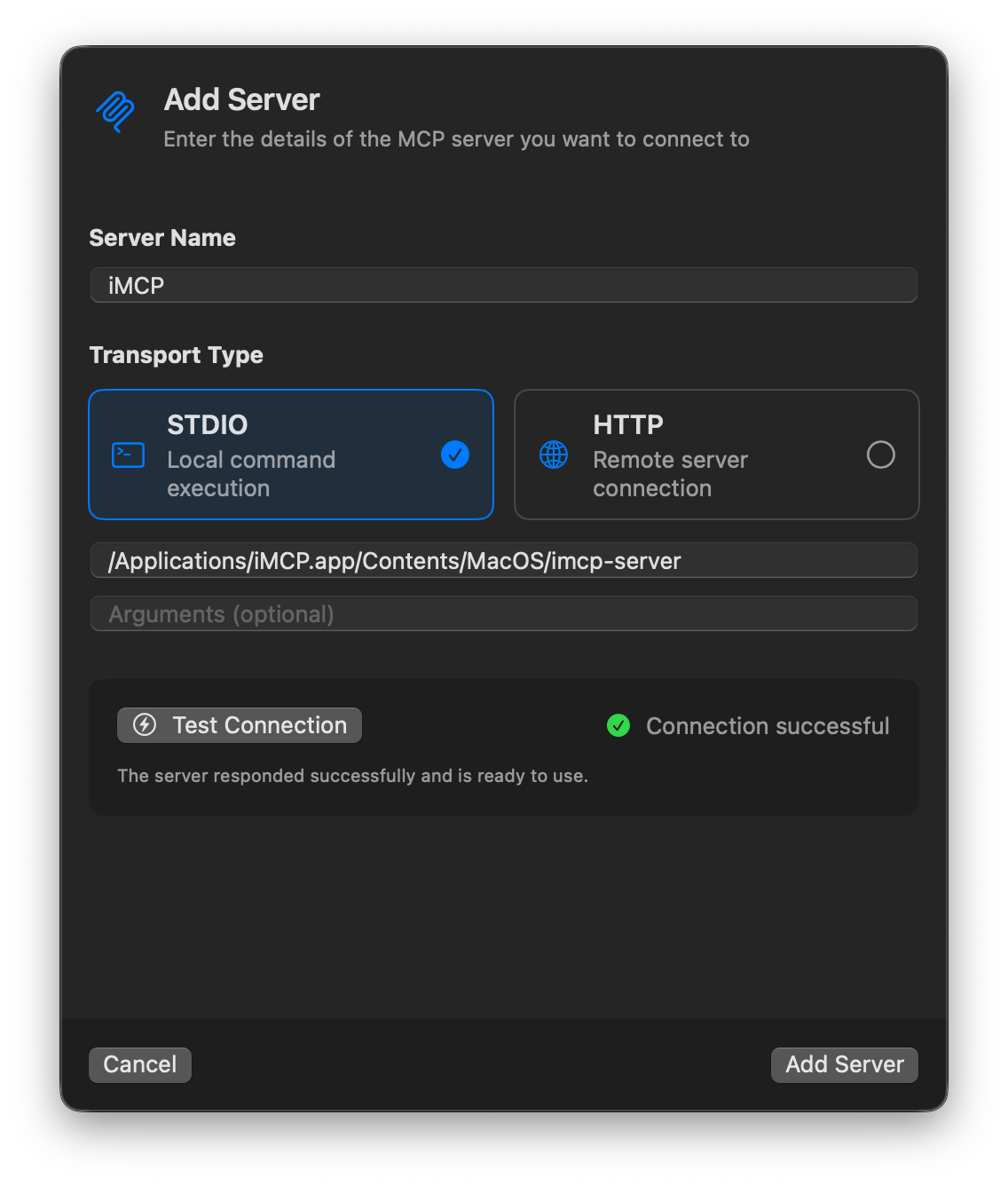
Here's how to connect it to iMCP:










 icon in your menu bar.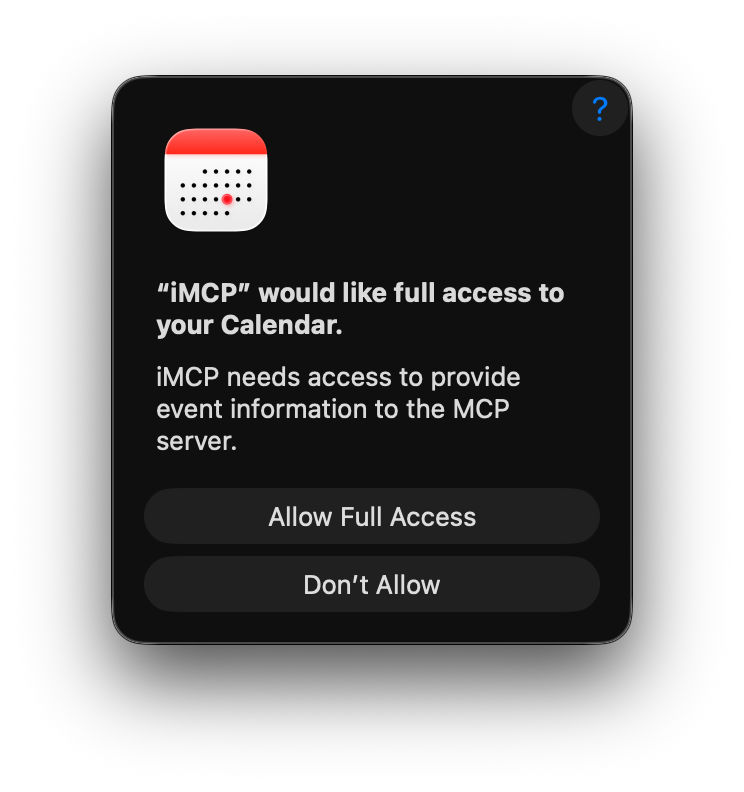


 iMCP 是一个 macOS 应用,把你 Mac 上的个人数据(日历、通讯录、信息、提醒事项、位置、地图、电话、快捷指令、天气)变成一个 MCP 服务器,让 Claude 等 AI 助手可以在你授权的情况下查询。