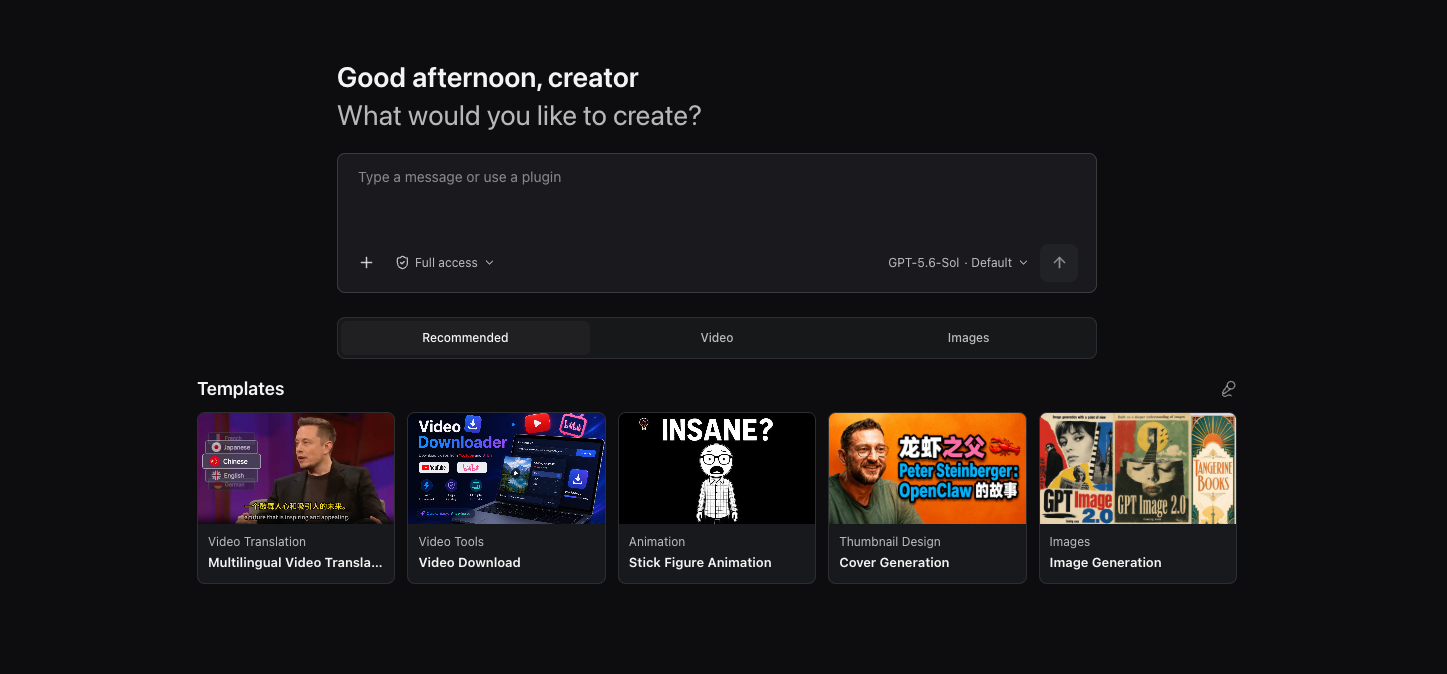
Project Overview
OpenCreator is built for individuals and teams who want to keep creative and development work running locally. Instead of reimplementing an Agent loop, it uses Codex CLI as the execution engine and adds a stable local Runtime, a visual workspace, and a Desktop host around it.
The product brings together two connected workflows:
- AI content creation: use dedicated creator tools for video translation and downloading, image and video generation, voiceovers, article and social post writing, short-video scripting, and stick figure animation.
- General Agent workspace: organize conversations by project, keep Runs working in the background, and manage approvals, attachments, files, Skills, MCP, schedules, notifications, memory, and diagnostics from one place.
Web is the single frontend implementation. Desktop loads the same Web build and adds only capabilities that require the operating system, such as directory selection, window lifecycle, tray behavior, and native notifications. With the same data and content viewport, both platforms share the same general UI and Runtime behavior.
Project Highlights
🤖 Codex Native: Reuse the Codex Agent loop, models, reasoning, tool calls, conversations, Skills, and MCP without maintaining a second execution engine.
🚀 Ready-to-Use Desktop App: Launch OpenCreator directly from the desktop app with Codex CLI included; the local Runtime starts on demand and prepares a default project automatically.
🔄 Managed Runtime Components: Inspect bundled, active, and latest yt-dlp versions, check for updates periodically, and update manually while keeping the current working version available if an update fails.
🎨 Multimodal Creation: Create and manage video, images, audio, subtitles, and documents through one connected workflow.
🔗 Dual-Mode Workflow: Work through either the visual workspace or Agent conversation while one shared state machine keeps steps, progress, and results synchronized.
🕘 Versioning: Every revision creates a new version while preserving earlier settings and outputs for review and comparison.
🧩 Skills and MCP: Browse, install, and invoke Skills while managing MCP through Codex-native configuration.
🧠 Memory: Keep global, project, and thread memory with summaries and reproducible Run input snapshots.
🔐 Local Security: Keep data, attachments, and logs local by default, with approvals and redacted diagnostics.
🌐 Localized Interface: Use the Web or Desktop client in Simplified Chinese, English, or Swedish, with automatic system-language detection or manual selection.
The current release includes ten creator tools. Available models and services depend on your local Codex environment and AI service settings.
Open the Dashboard to write articles, Xiaohongshu posts, or short-video scripts; create stick figure animations; translate or download videos; generate thumbnails, images, or videos; and create voiceovers with Smart Dubbing.
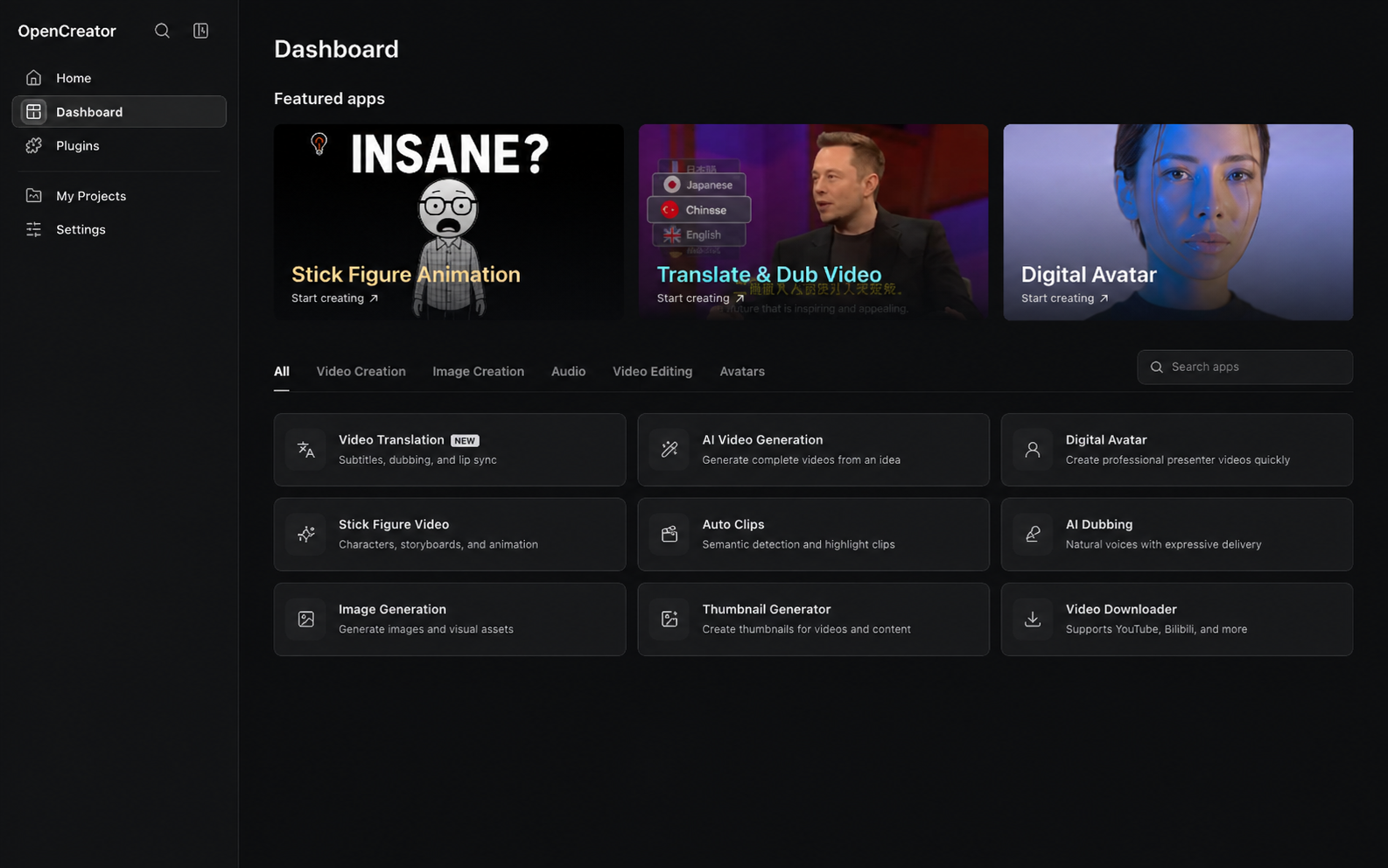
More creator tools are continuously being added.
| Workspace |
Status |
Capabilities |
| Video Translation | ✅ Available | Import local or public videos; transcribe with cloud or local Whisper services; use LLM context for subtitle segmentation, alignment, terminology, and translation; configure bilingual subtitles, dubbing or a custom voice sample, subtitle styles, landscape or portrait composition, and export SRT, audio, or video |
| Video Downloader | ✅ Available | Parse YouTube, Bilibili, and other supported public links, inspect available quality and format options, and download video or audio for later workflows |
| Thumbnail Generator | ✅ Available | Combine a topic, video link, and optional reference image to generate and compare multiple content-thumbnail variations |
| Image Generation | ✅ Available | Generate with GPT Image from a prompt and optional reference image, configure the aspect ratio and output count, then preview and download individual images |
| Article Writer | ✅ Available | Turn a topic, links, videos, or source documents into editable topic options, an outline, and a complete article; add generated images and export Markdown, HTML, or PDF |
| Xiaohongshu Posts | ✅ Available | Generate a complete Xiaohongshu post from a topic or source material, with controls for the target audience, post type, and length, then copy or download the result |
| Short Video Script | ✅ Available | Create a shoot-ready segmented script from a topic or source material, tailored to the audience, platform, duration, and tone, then edit, copy, or download it |
| Stick Figure Animation | ✅ Available | Turn text or YouTube content into narration, voice, consistent-character storyboard visuals, subtitles, and a downloadable stick figure animation |
| Auto Clips | In development | Analyze long videos, identify highlights, and turn selected moments into reusable short clips |
| Smart Dubbing | ✅ Available | Turn scripts into voiceovers with selectable voices, pacing, and emotion controls |
| Video Generation | ✅ Available | Generate videos with Seedance from prompts and reference images, then preview, regenerate, and download each version |
| Digital Avatar | In development | Combine scripts, voice, and avatar presentation to produce talking-head videos |
Conversation and workspace, moving together
Describe tasks naturally, then step into visual tools whenever you need precise control.
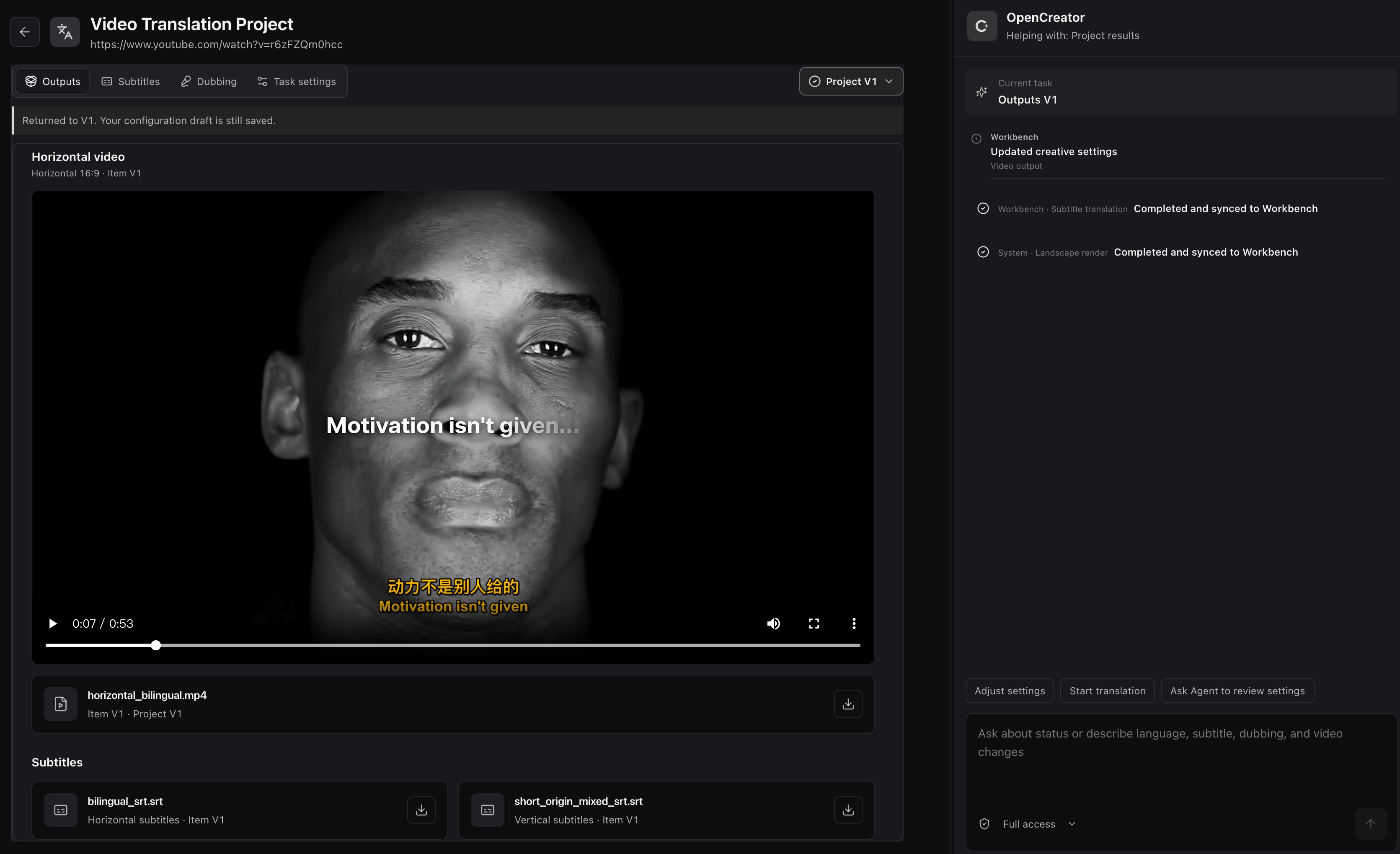
Fine-grained workspace controls
Adjust subtitles, shots, audio, and generation settings precisely.
Flexible conversational edits
Tell the Agent what to change and refine the result in natural language.
Synchronized state
Conversation and workspace share the current task state, so nothing needs repeating.
Independent versions
Each revision creates a separate version without overwriting earlier results or settings.
Models Supported
Language model availability follows the Codex model catalog or your OpenAI-compatible provider. Image, video, voice, and transcription models use the services configured in Settings → AI Services.
Language models

GPT |

DeepSeek |

Qwen |

Kimi |

GLM |

Grok |

Doubao |

ERNIE |

Hunyuan |
|
Image
GPT Image |
Video
Seedance |
Voice and transcription
Whisper |
OpenAI TTS |

MiniMax |

Edge TTS |

Aliyun Speech |
Examples
Video Translation
The public examples below were produced when OpenCreator was still named KrillinAI. They demonstrate the established subtitle alignment, translation, dubbing, and portrait-video workflow that OpenCreator's Video Translation workspace brings into a wider Agent workflow.
The project generated the subtitle file below from a 46-minute local video in one run, without manual subtitle adjustments. The published result shows complete coverage, no overlapping lines, natural segmentation, and high-quality translation.
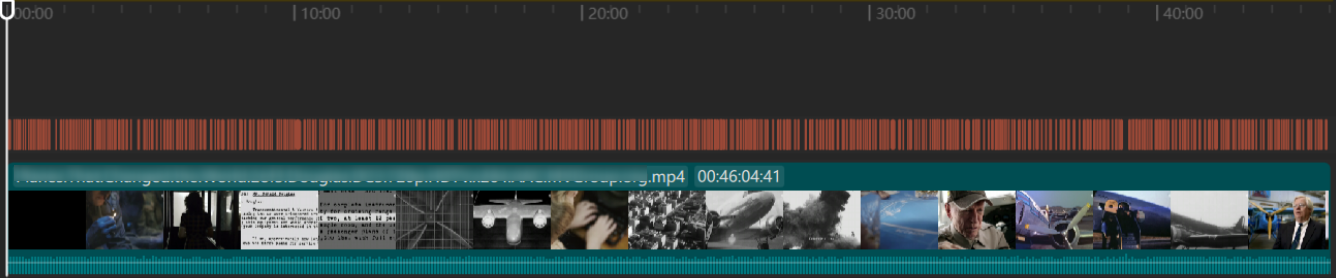
These video examples and the subtitle alignment image were produced while OpenCreator still used the KrillinAI name.
Video Generation
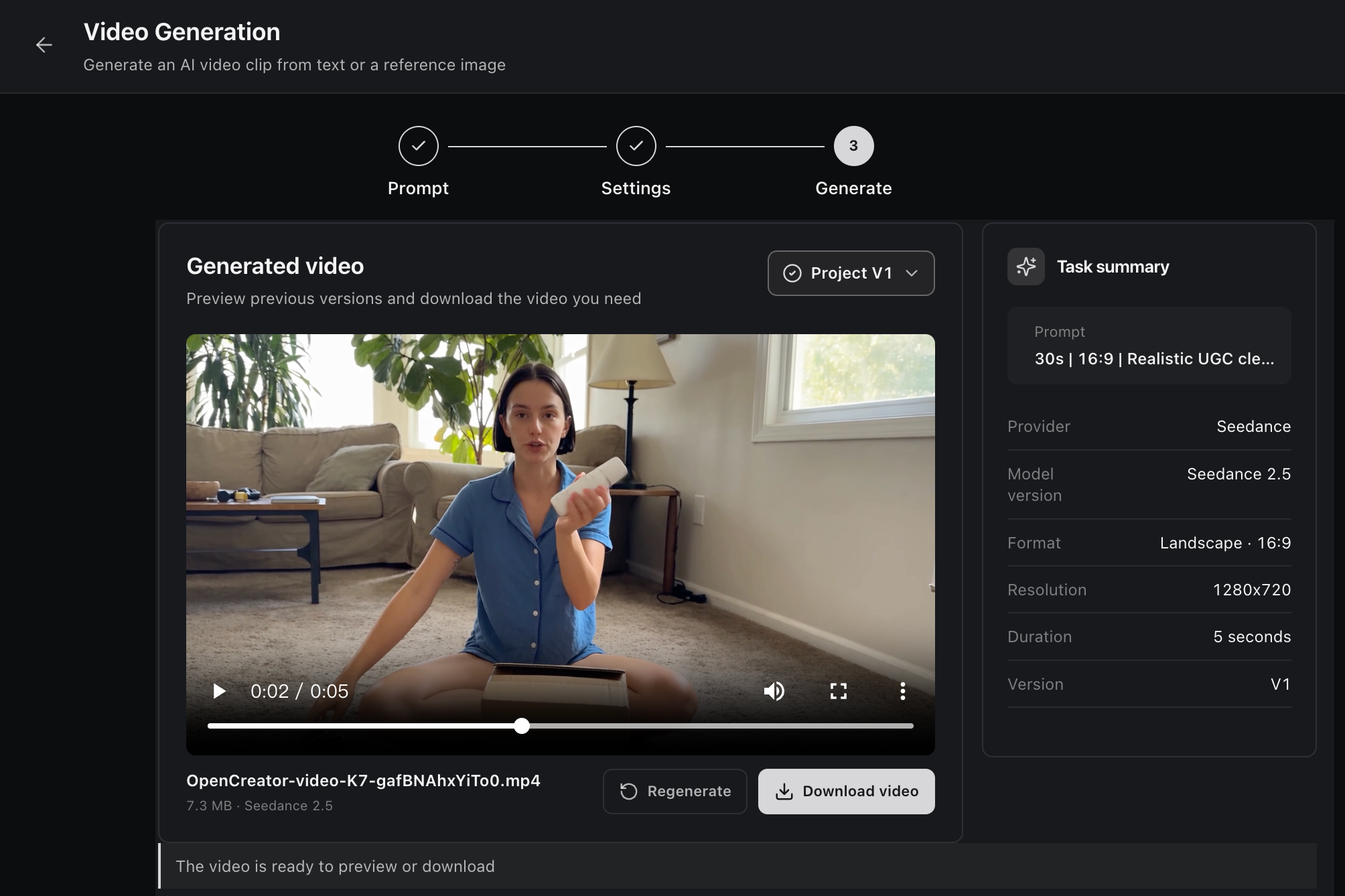
Generate an AI video from a text prompt or reference image with Seedance. Configure the model, aspect ratio, resolution, and duration, then preview, regenerate, or download each version from the project workspace.
Video Downloader
Analyze a public video link, compare the available formats, and download video or audio directly to the project.

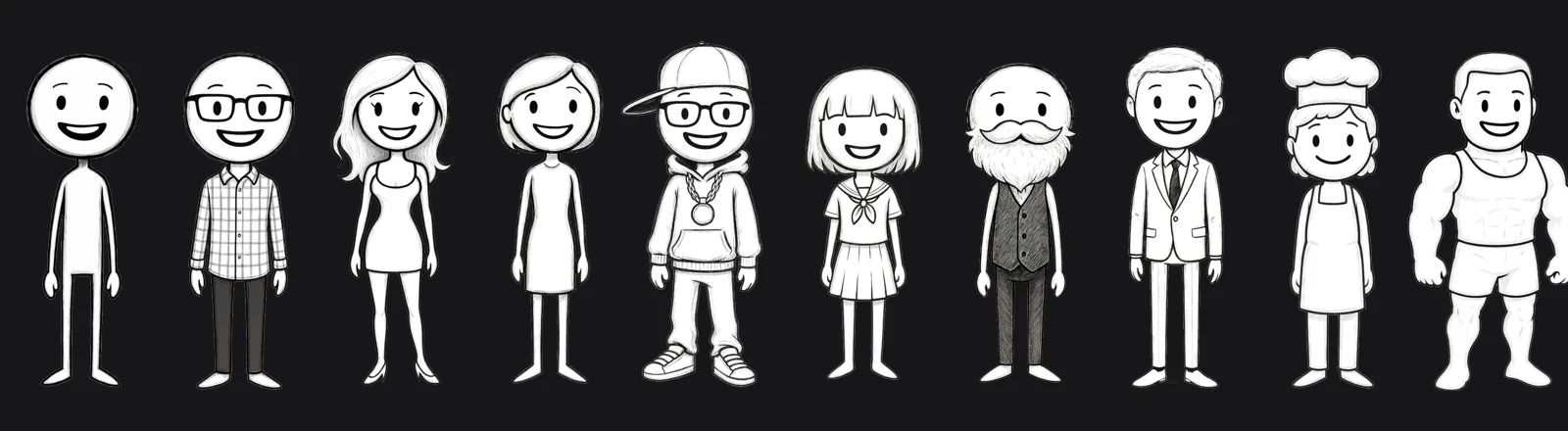
OpenCreator developed this original character collection in collaboration with artist Harbor Hsia, creator of Stickman on Behance. The built-in cast keeps character identities consistent throughout the animation workflow.
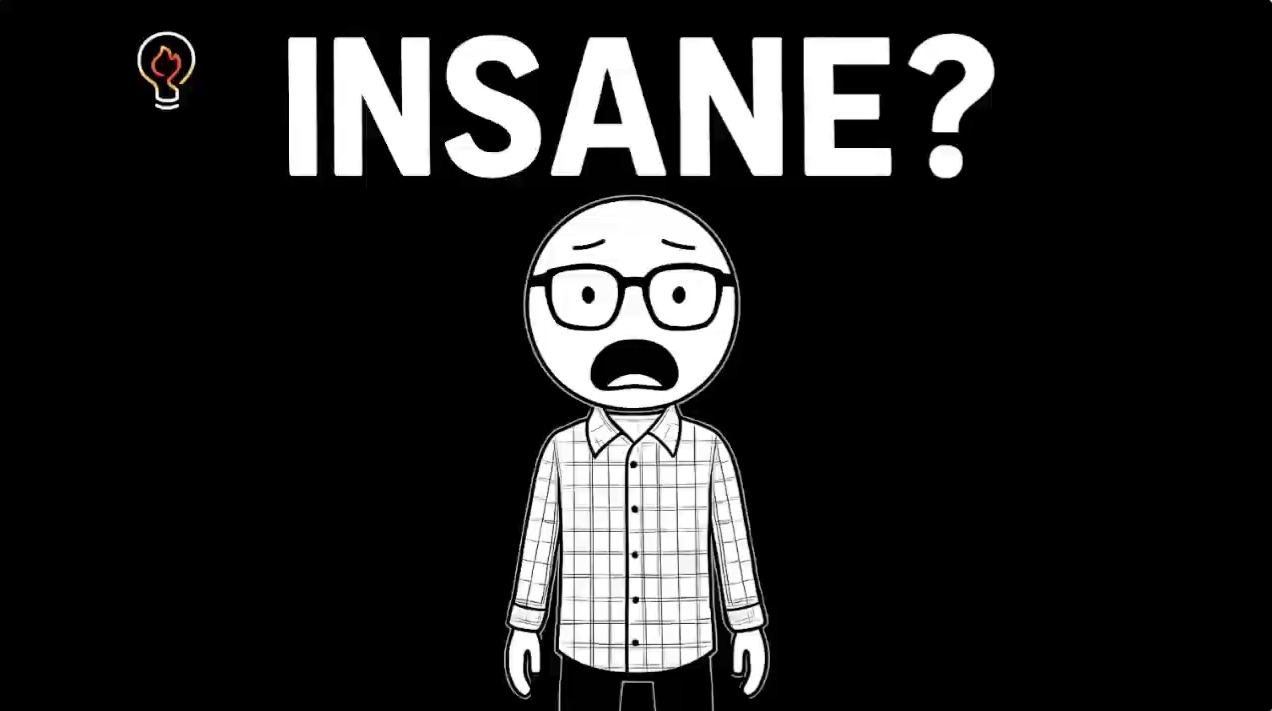
Turn text or YouTube content into a complete animation through a guided workflow for script review, narration, timing, storyboard visuals, subtitles, rendering, and downloadable video output.
Quick Start
Prerequisites
- Node.js 22 or later
- pnpm 9.15.0, pinned through the repository's
packageManager field
- A Codex CLI executable available in your terminal
- A valid Codex CLI login for real model tasks
Check your local environment first:
node --version
pnpm --version
codex --version
Run Web from Source
git clone https://github.com/krillinai/OpenCreator.git
cd OpenCreator
corepack enable
pnpm install
pnpm web:dev
Open http://127.0.0.1:19861/. The development server starts the local daemon on demand and injects a temporary Runtime token through a same-origin proxy, so no connection token needs to be copied manually.
On first launch, the Runtime prepares a default project. The composer is ready as soon as the connection completes. To work on the daemon only:
pnpm daemon:dev
The daemon listens only on a loopback address and prints its connection address and temporary token to stdout once.
Desktop
Desktop and the browser use the same React frontend from apps/web. General project, conversation, task, and settings behavior calls the same Daemon/API. Electron adds only real system paths, window controls, tray behavior, and native notifications.
Development Mode
pnpm desktop:dev
Local Packaging
| Command |
Output |
pnpm desktop:package |
A runnable directory for the current platform, intended for local verification |
pnpm desktop:dist |
An installer for the current platform |
pnpm desktop:release |
The formal release packaging entry point |
pnpm --filter @opencreator/desktop verify:package |
Verification for an existing Desktop package |
pnpm krillinai:package |
Separate KrillinAI Server and CLI archives for the selected platform |
Desktop packaging rebuilds Web from the current workspace, records the commit, dirty state, platform, architecture, and Web hash, and compares apps/web/dist with the resources embedded in the application. Packaging fails if they differ. See the Desktop release runbook for signing, notarization, Windows builds, and release requirements.
Core Workflows
Conversations and Runs
- Select a project or start a new conversation.
- Enter a task and choose the permission level, Profile, model, and reasoning effort.
- While a Run is active, queue follow-up tasks or interrupt it and continue immediately.
- Use the Timeline to inspect reasoning summaries, tool calls, file changes, approvals, and final results.
- Use the task center to track running, completed, failed, and approval-blocked tasks globally.
Skills and MCP
- Browse the Skill marketplace, installation history, and locally available Skills in the plugin center.
- Select a Skill from the composer with
/ or the add menu so the next task follows its workflow.
- MCP management passes through Codex-native commands and configuration instead of maintaining a second execution engine.
- OpenCreator uses the active
$CODEX_HOME by default, so confirm the impact before changing global Skills or MCP configuration.
Schedules and Dedicated Task Threads
- Every schedule owns a persistent, dedicated OpenCreator conversation.
- Automatic triggers, manual runs, and user follow-ups reuse that conversation and run serially with the
queue or skip policy.
- Deleting a schedule archives its dedicated conversation while preserving existing Runs, results, and underlying Codex history.
- Rotating or recovering an underlying Codex thread does not change the OpenCreator task entry or page route.
OpenCreator System Architecture
OpenCreator treats the visual workspace and the Agent conversation as two interfaces to the same creative task, rather than two separate workflows. Each creator workflow is modeled as a state machine: source input, configuration, generation, review, revision, and export become explicit states and events. Workspace actions and conversational commands enter the same state machine, while the current step, configuration, progress, versions, and results are projected back into both interfaces. This keeps the workspace and conversation synchronized without introducing a second source of truth.
Creative work is iterative, so revisions do not overwrite the current result. Each correction or regeneration creates a new version from the existing workflow state, retaining the settings and outputs of earlier versions for review, comparison, and continued refinement.
+-----------------------------+     +------------------------------------+
| Browser Access              |     | Desktop Host                       |
|                             |     | Shared Web build + Electron        |
+--------------+--------------+     +------------------+-----------------+
               |                                       |
               +-------------------+-------------------+
                                   v
+----------------------------------------------------------------------------+
| Creator Experience / apps/web                                              |
| Dashboard / Creator Tools / Agent Conversation / Settings / Files          |







 OpenCreator(原名 KrillinAI)是一款面向创作者的开源 AI 工作台,可将脚本转化为视频、图片、语音、数字人、翻译和剪辑成品,并由智能体(Agents)在同一个工作区中驱动整个创作流程。