






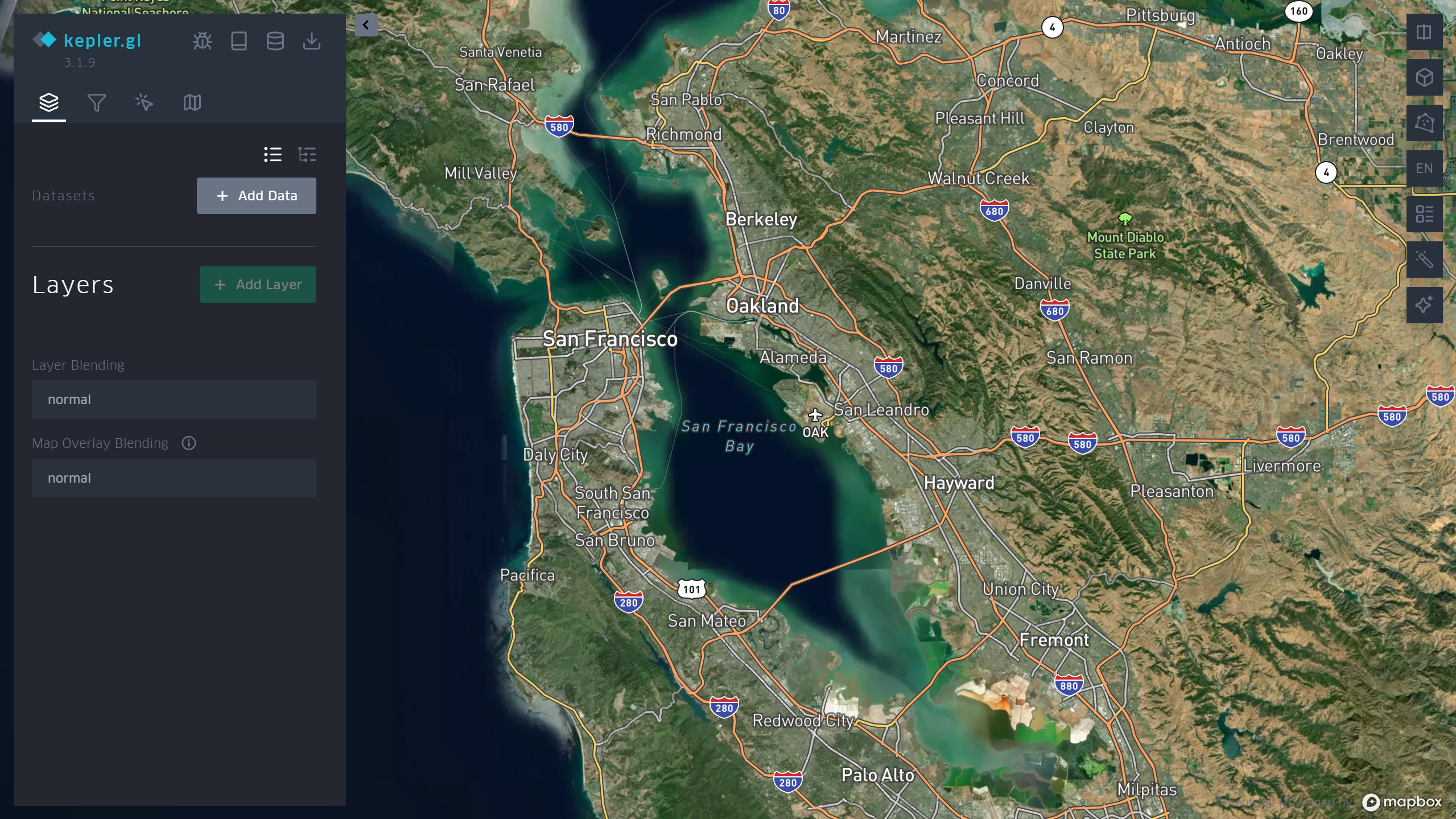
Kepler.gl is a data-agnostic, high-performance web-based application for visual exploration of large-scale geolocation data sets. Built on top of MapLibre GL and deck.gl, kepler.gl can render millions of points representing thousands of trips and perform spatial aggregations on the fly.
Kepler.gl is also a React component that uses Redux to manage its state and data flow. It can be embedded into other React-Redux applications and is highly customizable. For information on how to embed kepler.gl in your app take a look at the documentation.
Links
Env
For developing this repository, use Node 20.19.3 (see .nvmrc): run nvm install and nvm use. Newer Node versions can make yarn install / yarn bootstrap try to compile the gl dev dependency from source; if that fails, see Troubleshooting: gl package install.
When using kepler.gl as a dependency in your own app, use Node 20.19.3 or a supported LTS; older Node versions are not supported or tested.
Install kepler.gl modules
Kepler.gl consists of different modules. Each module can be added to the project like this:
npm install --save @kepler.gl/components
// or
yarn add @kepler.gl/components
kepler.gl is built upon mapbox. You will need a Mapbox Access Token to use it.
If you don't use a module bundler, it's also fine. Kepler.gl npm package includes precompiled production UMD builds in the umd folder.
You can add the script tag to your html file as it follows (latest version of Kepler.gl):
<script src="https://unpkg.com/kepler.gl/umd/keplergl.min.js" />
or if you would like, you can load a specific version:
<script src="https://unpkg.com/[email protected]/umd/keplergl.min.js" />
Develop kepler.gl
Take a look at the development guide to develop kepler.gl locally.
Basic Usage
Here are the basic steps to import kepler.gl into your app. You also take a look at the examples folder. Each example in the folder can be installed and run locally.
1. Mount reducer
Kepler.gl uses Redux to manage its internal state, along with a built-in task middleware to handle async side effects.
You need to add taskMiddleware to your store. The easiest way is via enhanceReduxMiddleware from @kepler.gl/reducers:
import {createStore, combineReducers, applyMiddleware, compose} from 'redux';
import keplerGlReducer, {enhanceReduxMiddleware} from '@kepler.gl/reducers';

const initialState = {};
const reducers = combineReducers({
  // <-- mount kepler.gl reducer in your app
  keplerGl: keplerGlReducer,

  // Your other reducers here
  app: appReducer
});

// using createStore
export default createStore(
  reducer,
  initialState,
  applyMiddleware(
    enhanceReduxMiddleware([
      /* Add other middlewares here */
    ])
  )
);
Or if use enhancer:
// using enhancers
const initialState = {};
const middlewares = enhanceReduxMiddleware([
  // Add other middlewares here
]);
const enhancers = [applyMiddleware(...middlewares)];

export default createStore(reducer, initialState, compose(...enhancers));
If you mount kepler.gl reducer in another address instead of keplerGl, or the kepler.gl reducer is not
mounted at root of your state, you will need to specify the path to it when you mount the component
with the getState prop.
Read more about Reducers.
2. Mount Component
import KeplerGl from '@kepler.gl/components';

const Map = props => (
  <KeplerGl id="foo" width={width} mapboxApiAccessToken={token} height={height} />
);
Props
| Prop Name |
Type |
Default Value |
Description |
id |
String |
map |
The unique identifier for the KeplerGl instance. Required when multiple KeplerGl instances exist. It maps to the state in the reducer (e.g. component with id foo can be found instate.keplerGl.foo). |
mapboxApiAccessToken |
String |
undefined |
API token for Mapbox, used for rendering base maps. Create a free token at Mapbox. |
getState |
Function |
state => state.keplerGl |
Function that specifies the path to the root KeplerGl state in the reducer. |
width |
Number |
800 |
The width of the KeplerGl UI in pixels. |
height |
Number |
800 |
The height of the KeplerGl UI in pixels. |
appName |
String |
Kepler.Gl |
The app name displayed in the side panel header. |
version |
String |
v1.0 |
The version displayed in the side panel header. |
onSaveMap |
Function |
undefined |
A function called when the "Save Map URL" in side panel header is clicked. |
onViewStateChange |
Function |
undefined |
Triggered when the map viewport is updated. Receives viewState parameter with updated values like longitude, latitude, zoom, etc. |
getMapboxRef(mapbox, index) |
Function |
undefined |
Called when KeplerGl adds or removes a MapContainer with an inner Mapbox map. mapbox is a MapRef when added, or null when removed. index is 0 for the first map and 1 for the second map in a split view. |
actions |
Object |
{} |
Custom action creators to override the default KeplerGl action creators. Only use custom action when you want to modify action payload. |
mint |
Boolean |
true |
Determines whether to load a fresh empty state when mounted. When false, the state persists across remounts. Useful for modal use cases. |
theme |
Object/String |
null |
Set to "dark", "light", or "base", or pass a theme object to customize KeplerGl’s style. |
mapboxApiUrl |
String |
https://api.mapbox.com |
The Mapbox API URL if you are using a custom Mapbox tile server. |
mapStylesReplaceDefault |
Boolean |
false |
Set to true to replace default map styles with custom ones. (see mapStyles prop) |
mapStyles |
Array |
[] |
An array of custom map styles for the map style selection panel. Styles replace the default ones if mapStylesReplaceDefault is true. |
initialUiState |
Object |
undefined |
The initial UI state applied to the uiState reducer. |
localeMessages |
Object |
undefined |
Used to modify or add new translations. Read more about Localization. |
Example Custom Map Style
You can supply additional map styles to be displayed in map style selection panel. By default, additional map styles will be added to default map styles. If you pass mapStylesReplaceDefault: true, they will replace the default ones. kepler.gl will attempt to group layers of your style based on its id naming convention and use it to allow toggle visibility of base map layers. Supply your own layerGroups to override default for more accurate layer grouping.
Each mapStyles should has the following properties:
id (String, required) unique string that should not be one of these reserved dark light muted. muted_nightlabel (String, required) name to be displayed in map style selection panelurl (String, required) mapbox style url or a url pointing to the map style json object written in Mapbox GL Style Spec.icon (String, optional) image icon of the style, it can be a url, or an image data urllayerGroups (Array, optional)
const mapStyles = [
  {
    id: 'my_dark_map',
    label: 'Dark Streets 9',
    url: 'mapbox://styles/mapbox/dark-v9',
    icon: `${apiHost}/styles/v1/mapbox/dark-v9/static/-122.3391,37.7922,9.19,0,0/400x300?access_token=${accessToken}&logo=false&attribution=false`,
    layerGroups: [
      {
        slug: 'label',
        filter: ({id}) => id.match(/(?=(label|place-|poi-))/),
        defaultVisibility: true
      },
      {
        slug: '3d building',
        filter: () => false,
        defaultVisibility: false
      }
    ]
  }
];
3. Dispatch custom actions to keplerGl reducer.
One advantage of using the reducer over React component state to handle keplerGl state is the flexibility
to customize its behavior. If you only have one KeplerGl instance in your app or never intend to dispatch actions to KeplerGl from outside the component itself,
you don’t need to worry about forwarding dispatch and can move on to the next section. But life is full of customizations, and we want to make yours as enjoyable as possible.
There are multiple ways to dispatch actions to a specific KeplerGl instance.
- In the root reducer, with reducer updaters.
Each action is mapped to a reducer updater in kepler.gl. You can import the reducer updater corresponding to a specific action, and call it with the previous state and action payload to get the updated state.
e.g. updateVisDataUpdater is the updater for ActionTypes.UPDATE_VIS_DATA (take a look at each reducer reducers/vis-state.js for action to updater mapping).
Here is an example how you can listen to an app action QUERY_SUCCESS and call updateVisDataUpdater to load data into Kepler.Gl.
import {keplerGlReducer, visStateUpdaters} from '@kepler.gl/reducers';

// Root Reducer
const reducers = combineReducers({
  keplerGl: keplerGlReducer,

  app: appReducer
});

const composedReducer = (state, action) => {
  switch (action.type) {
    case 'QUERY_SUCCESS':
      return {
        ...state,
        keplerGl: {
          ...state.keplerGl,

          // 'map' is the id of the keplerGl instance
          map: {
            ...state.keplerGl.map,
            visState: visStateUpdaters.updateVisDataUpdater(state.keplerGl.map.visState, {
              datasets: action.payload
            })
          }
        }
      };
  }
  return reducers(state, action);
};

export default composedReducer;
Read more about using updaters to modify kepler.gl state
You can add a dispatch function to your component that dispatches actions to a specific keplerGl component,
using connect.
// component
import KeplerGl from '@kepler.gl/components';

// action and forward dispatcher
import {toggleFullScreen, forwardTo} from '@kepler.gl/actions';
import {connect} from 'react-redux';

const MapContainer = props => (
  <div>
    <button onClick={() => props.keplerGlDispatch(toggleFullScreen())}/>
    <KeplerGl
      id="foo"
    />
  </div>
)

const mapStateToProps = state => state
const mapDispatchToProps = (dispatch, props) => ({
 dispatch,
 keplerGlDispatch: forwardTo(‘foo’, dispatch)
});

export default connect(
 mapStateToProps,
 mapDispatchToProps
)(MapContainer);
You can also simply wrap an action into a forward action with the wrapTo helper
// component
import KeplerGl from '@kepler.gl/components';

// action and forward dispatcher
import {toggleFullScreen, wrapTo} from '@kepler.gl/actions';

// create a function to wrapper action payload to 'foo'
const wrapToMap = wrapTo('foo');
const MapContainer = ({dispatch}) => (
  <div>
    <button onClick={() => dispatch(wrapToMap(toggleFullScreen())} />
    <KeplerGl
      id="foo"
    />
  </div>
);
Read more about forward dispatching actions
4. Customize style.
Kepler.gl implements css styling using Styled-Components. By using said framework Kepler.gl offers the ability to customize its style/theme using the following approaches:
- Passing a Theme prop
- Styled-Components ThemeProvider
The available properties to customize are listed here theme.
Custom theme example.
Passing a Theme prop.
You can customize Kepler.gl theme by passing a theme props to Kepler.gl react component as it follows:
const white = '#ffffff';
const customTheme = {
  sidePanelBg: white,
  titleTextColor: '#000000',
  sidePanelHeaderBg: '#f7f7F7',
  subtextColorActive: '#2473bd'
};

return (
  <KeplerGl
    mapboxApiAccessToken={MAPBOX_TOKEN}
    id="map"
    width={800}
    height={800}
    theme={customTheme}
  />
);
As you can see the customTheme object defines certain properties which will override Kepler.gl default style rules.
Styled-Components Theme Provider.
In order to customize Kepler.gl theme using ThemeProvider you can simply wrap Kepler.gl using ThemeProvider as it follows:
import {ThemeProvider} from 'styled-components';

const white = '#ffffff';
const customTheme = {
  sidePanelBg: white,
  titleTextColor: '#000000',
  sidePanelHeaderBg: '#f7f7F7',
  subtextColorActive: '#2473bd'
};

return (
  <ThemeProvider theme={customTheme}>
    <KeplerGl mapboxApiAccessToken={MAPBOX_TOKEN} id="map" width={800} height={800} />
  </ThemeProvider>
);
5. Render Custom UI components.
Everyone wants the flexibility to render custom kepler.gl components. Kepler.gl has a dependency injection system that allow you to inject
components to KeplerGl replacing existing ones. All you need to do is to create a component factory for the one you want to replace, import the original component factory
and call injectComponents at the root component of your app where KeplerGl is mounted.
Take a look at examples/demo-app/src/app.tsx and see how it renders a custom side panel header in kepler.gl
import {injectComponents, PanelHeaderFactory} from '@kepler.gl/components';

// define custom header
const CustomHeader = () => <div>My kepler.gl app</div>;
const myCustomHeaderFactory = () => CustomHeader;

// Inject custom header into Kepler.gl, replacing default
const KeplerGl = injectComponents([[PanelHeaderFactory, myCustomHeaderFactory]]);

// render KeplerGl, it will render your custom header instead of the default
const MapContainer = () => (
  <div>
    <KeplerGl id="foo" />
  </div>
);
Using withState helper to add reducer state and actions to customized component as additional props.
import {withState, injectComponents, PanelHeaderFactory} from '@kepler.gl/components';
import {visStateLens} from '@kepler.gl/reducers';

// custom action wrap to mounted instance
const addTodo = text =>
  wrapTo('map', {
    type: 'ADD_TODO',
    text
  });

// define custom header
const CustomHeader = ({visState, addTodo}) => (
  <div onClick={() => addTodo('hello')}>{`${
    Object.keys(visState.datasets).length
  } dataset loaded`}</div>
);

// now CustomHeader will receive `visState` and `addTodo` as additional props.
const myCustomHeaderFactory = () =>
  withState(
    // keplerGl state lenses
    [visStateLens],
    // customMapStateToProps
    headerStateToProps,
    // actions
    {addTodo}
  )(CustomHeader);
Read more about replacing UI component
6. How to add data to map
To interact with a kepler.gl instance and add new data to it, you can dispatch the addDataToMap action from anywhere inside your app. It adds a dataset or multiple datasets to a kepler.gl instance and updates the full configuration (mapState, mapStyle, visState).
Parameters
Kepler.gl provides an easy API KeplerGlSchema.getConfigToSave to generate a json blob of the current kepler instance configuration.
Examples
// app.js
import {addDataToMap} from '@kepler.gl/actions';

const sampleTripData = {
  fields: [
    {name: 'tpep_pickup_datetime', format: 'YYYY-M-D H:m:s', type: 'timestamp'},
    {name: 'pickup_longitude', format: '', type: 'real'},
    {name: 'pickup_latitude', format: '', type: 'real'}
  ],
  rows: [
    ['2015-01-15 19:05:39 +00:00', -73.99389648, 40.75011063],
    ['2015-01-15 19:05:39 +00:00', -73.97642517, 40.73981094],
    ['2015-01-15 19:05:40 +00:00', -73.96870422, 40.75424576]
  ]
};

const sampleConfig = {
  visState: {
    filters: [
      {
        id: 'me',
        dataId: 'test_trip_data',
        name: 'tpep_pickup_datetime',
        type: 'timeRange',
        view: 'enlarged'
      }
    ]
  }
};

this.props.dispatch(
  addDataToMap({
    datasets: {
      info: {
        label: 'Sample Taxi Trips in New York City',
        id: 'test_trip_data'
      },
      data: sampleTripData
    },
    option: {
      centerMap: true,
      readOnly: false
    },
    config: sampleConfig
  })
);
Read more about addDataToMap and Saving and loading maps with schema manager.

 Kepler.gl 是一款基于网页的高性能工具,用于以可视化方式探索大规模地理位置数据集,它基于 MapLibre GL 和 deck.gl 构建。