pdfplumber




Plumb a PDF for detailed information about each text character, rectangle, and line. Plus: Table extraction and visual debugging.
Works best on machine-generated, rather than scanned, PDFs. Built on pdfminer.six.
Currently tested on Python 3.10, 3.11, 3.12, 3.13, 3.14.
Translations of this document are available in: Chinese (by @hbh112233abc).
To report a bug or request a feature, please file an issue. To ask a question or request assistance with a specific PDF, please use the discussions forum.
Table of Contents
Installation
pip install pdfplumber
Command line interface
Basic example
curl "https://raw.githubusercontent.com/jsvine/pdfplumber/stable/examples/pdfs/background-checks.pdf" > background-checks.pdf
pdfplumber background-checks.pdf > background-checks.csv
The output will be a CSV containing info about every character, line, and rectangle in the PDF.
Options
| Argument |
Description |
--format [format] |
csv, json, or text. The csv and json formats return information about each object. Of those two, the json format returns more information; it includes PDF-level and page-level metadata, plus dictionary-nested attributes. The text option returns a plain-text representation of the PDF, using Page.extract_text(layout=True). |
--pages [list of pages] |
A space-delimited, 1-indexed list of pages or hyphenated page ranges. E.g., 1, 11-15, which would return data for pages 1, 11, 12, 13, 14, and 15. |
--types [list of object types to extract] |
Choices are char, rect, line, curve, image, annot, et cetera. Defaults to all available. |
--laparams |
A JSON-formatted string (e.g., '{"detect_vertical": true}') to pass to pdfplumber.open(..., laparams=...). |
--precision [integer] |
The number of decimal places to round floating-point numbers. Defaults to no rounding. |
Python library
Basic example
import pdfplumber

with pdfplumber.open("path/to/file.pdf") as pdf:
    first_page = pdf.pages[0]
    print(first_page.chars[0])
Loading a PDF
To start working with a PDF, call pdfplumber.open(x), where x can be a:
- path to your PDF file
- file object, loaded as bytes
- file-like object, loaded as bytes
The open method returns an instance of the pdfplumber.PDF class.
To load a password-protected PDF, pass the password keyword argument, e.g., pdfplumber.open("file.pdf", password = "test").
To set layout analysis parameters to pdfminer.six's layout engine, pass the laparams keyword argument, e.g., pdfplumber.open("file.pdf", laparams = { "line_overlap": 0.7 }).
To pre-normalize Unicode text, pass unicode_norm=..., where ... is one of the four Unicode normalization forms: "NFC", "NFD", "NFKC", or "NFKD".
Invalid metadata values are treated as a warning by default. If that is not intended, pass strict_metadata=True to the open method and pdfplumber.open will raise an exception if it is unable to parse the metadata.
The pdfplumber.PDF class
The top-level pdfplumber.PDF class represents a single PDF and has two main properties:
| Property |
Description |
.metadata |
A dictionary of metadata key/value pairs, drawn from the PDF's Info trailers. Typically includes "CreationDate," "ModDate," "Producer," et cetera. |
.pages |
A list containing one pdfplumber.Page instance per page loaded. |
... and also has the following method:
| Method |
Description |
.close() |
Calling this method calls Page.close() on each page, and also closes the file stream (except in cases when the stream is external, i.e., already opened and passed directly to pdfplumber). |
The pdfplumber.Page class
The pdfplumber.Page class is at the core of pdfplumber. Most things you'll do with pdfplumber will revolve around this class. It has these main properties:
| Property |
Description |
.page_number |
The sequential page number, starting with 1 for the first page, 2 for the second, and so on. |
.width |
The page's width. |
.height |
The page's height. |
.objects / .chars / .lines / .rects / .curves / .images |
Each of these properties is a list, and each list contains one dictionary for each such object embedded on the page. For more detail, see "Objects" below. |
... and these main methods:
| Method |
Description |
.crop(bounding_box, relative=False, strict=True) |
Returns a version of the page cropped to the bounding box, which should be expressed as 4-tuple with the values (x0, top, x1, bottom). Cropped pages retain objects that fall at least partly within the bounding box. If an object falls only partly within the box, its dimensions are sliced to fit the bounding box. If relative=True, the bounding box is calculated as an offset from the top-left of the page's bounding box, rather than an absolute positioning. (See Issue #245 for a visual example and explanation.) When strict=True (the default), the crop's bounding box must fall entirely within the page's bounding box. |
.within_bbox(bounding_box, relative=False, strict=True) |
Similar to .crop, but only retains objects that fall entirely within the bounding box. |
.outside_bbox(bounding_box, relative=False, strict=True) |
Similar to .crop and .within_bbox, but only retains objects that fall entirely outside the bounding box. |
.filter(test_function) |
Returns a version of the page with only the .objects for which test_function(obj) returns True. |
... and also has the following method:
| Method |
Description |
.close() |
By default, Page objects cache their layout and object information to avoid having to reprocess it. When parsing large PDFs, however, these cached properties can require a lot of memory. You can use this method to flush the cache and release the memory. |
Additional methods are described in the sections below:
Objects
Each instance of pdfplumber.PDF and pdfplumber.Page provides access to several types of PDF objects, all derived from pdfminer.six PDF parsing. The following properties each return a Python list of the matching objects:
.chars, each representing a single text character..lines, each representing a single 1-dimensional line..rects, each representing a single 2-dimensional rectangle..curves, each representing any series of connected points that pdfminer.six does not recognize as a line or rectangle..images, each representing an image..annots, each representing a single PDF annotation (cf. Section 8.4 of the official PDF specification for details).hyperlinks, each representing a single PDF annotation of the subtype Link and having an URI action attribute
Each object is represented as a simple Python dict, with the following properties:
char properties
| Property |
Description |
page_number |
Page number on which this character was found. |
text |
E.g., "z", or "Z" or " ". |
fontname |
Name of the character's font face. |
size |
Font size. |
adv |
Equal to text width * the font size * scaling factor. |
upright |
Whether the character is upright. |
height |
Height of the character. |
width |
Width of the character. |
x0 |
Distance of left side of character from left side of page. |
x1 |
Distance of right side of character from left side of page. |
y0 |
Distance of bottom of character from bottom of page. |
y1 |
Distance of top of character from bottom of page. |
top |
Distance of top of character from top of page. |
bottom |
Distance of bottom of the character from top of page. |
doctop |
Distance of top of character from top of document. |
matrix |
The "current transformation matrix" for this character. (See below for details.) |
mcid |
The marked content section ID for this character if any (otherwise None). Experimental attribute. |
tag |
The marked content section tag for this character if any (otherwise None). Experimental attribute. |
ncs |
TKTK |
stroking_pattern |
TKTK |
non_stroking_pattern |
TKTK |
stroking_color |
The color of the character's outline (i.e., stroke). See docs/colors.md for details. |
non_stroking_color |
The character's interior color. See docs/colors.md for details. |
object_type |
"char" |
Note: A character’s matrix property represents the “current transformation matrix,” as described in Section 4.2.2 of the PDF Reference (6th Ed.). The matrix controls the character’s scale, skew, and positional translation. Rotation is a combination of scale and skew, but in most cases can be considered equal to the x-axis skew. The pdfplumber.ctm submodule defines a class, CTM, that assists with these calculations. For instance:
from pdfplumber.ctm import CTM
my_char = pdf.pages[0].chars[3]
my_char_ctm = CTM(*my_char["matrix"])
my_char_rotation = my_char_ctm.skew_x
line properties
| Property |
Description |
page_number |
Page number on which this line was found. |
height |
Height of line. |
width |
Width of line. |
x0 |
Distance of left-side extremity from left side of page. |
x1 |
Distance of right-side extremity from left side of page. |
y0 |
Distance of bottom extremity from bottom of page. |
y1 |
Distance of top extremity bottom of page. |
top |
Distance of top of line from top of page. |
bottom |
Distance of bottom of the line from top of page. |
doctop |
Distance of top of line from top of document. |
linewidth |
Thickness of line. |
stroking_color |
The color of the line. See docs/colors.md for details. |
non_stroking_color |
The non-stroking color specified for the line’s path. See docs/colors.md for details. |
mcid |
The marked content section ID for this line if any (otherwise None). Experimental attribute. |
tag |
The marked content section tag for this line if any (otherwise None). Experimental attribute. |
object_type |
"line" |
rect properties
| Property |
Description |
page_number |
Page number on which this rectangle was found. |
height |
Height of rectangle. |
width |
Width of rectangle. |
x0 |
Distance of left side of rectangle from left side of page. |
x1 |
Distance of right side of rectangle from left side of page. |
y0 |
Distance of bottom of rectangle from bottom of page. |
y1 |
Distance of top of rectangle from bottom of page. |
top |
Distance of top of rectangle from top of page. |
bottom |
Distance of bottom of the rectangle from top of page. |
doctop |
Distance of top of rectangle from top of document. |
linewidth |
Thickness of line. |
stroking_color |
The color of the rectangle's outline. See docs/colors.md for details. |
non_stroking_color |
The rectangle’s fill color. See docs/colors.md for details. |
mcid |
The marked content section ID for this rect if any (otherwise None). Experimental attribute. |
tag |
The marked content section tag for this rect if any (otherwise None). Experimental attribute. |
object_type |
"rect" |
curve properties
| Property |
Description |
page_number |
Page number on which this curve was found. |
pts |
A list of (x, top) tuples indicating the points on the curve. |
path |
A list of (cmd, *(x, top)) tuples describing the full path description, including (for example) control points used in Bezier curves. |
height |
Height of curve's bounding box. |
width |
Width of curve's bounding box. |
x0 |
Distance of curve's left-most point from left side of page. |
x1 |
Distance of curve's right-most point from left side of the page. |
y0 |
Distance of curve's lowest point from bottom of page. |
y1 |
Distance of curve's highest point from bottom of page. |
top |
Distance of curve's highest point from top of page. |
bottom |
Distance of curve's lowest point from top of page. |
doctop |
Distance of curve's highest point from top of document. |
linewidth |
Thickness of line. |
fill |
Whether the shape defined by the curve's path is filled. |
stroking_color |
The color of the curve's outline. See docs/colors.md for details. |
non_stroking_color |
The curve’s fill color. See docs/colors.md for details. |
dash |
A ([dash_array], dash_phase) tuple describing the curve's dash style. See Table 4.6 of the PDF specification for details. |
mcid |
The marked content section ID for this curve if any (otherwise None). Experimental attribute. |
tag |
The marked content section tag for this curve if any (otherwise None). Experimental attribute. |
object_type |
"curve" |
Derived properties
Additionally, both pdfplumber.PDF and pdfplumber.Page provide access to several derived lists of objects: .rect_edges (which decomposes each rectangle into its four lines), .curve_edges (which does the same for curve objects), and .edges (which combines .rect_edges, .curve_edges, and .lines).
image properties
Note: Although the positioning and characteristics of image objects are available via pdfplumber, this library does not provide direct support for reconstructing image content. For that, please see this suggestion.
| Property |
Description |
page_number |
Page number on which the image was found. |
height |
Height of the image. |
width |
Width of the image. |
x0 |
Distance of left side of the image from left side of page. |
x1 |
Distance of right side of the image from left side of page. |
y0 |
Distance of bottom of the image from bottom of page. |
y1 |
Distance of top of the image from bottom of page. |
top |
Distance of top of the image from top of page. |
bottom |
Distance of bottom of the image from top of page. |
doctop |
Distance of top of rectangle from top of document. |
srcsize |
The image original dimensions, as a (width, height) tuple. |
colorspace |
Color domain of the image (e.g., RGB). |
bits |
The number of bits per color component; e.g., 8 corresponds to 255 possible values for each color component (R, G, and B in an RGB color space). |
stream |
Pixel values of the image, as a pdfminer.pdftypes.PDFStream object. |
imagemask |
A nullable boolean; if True, "specifies that the image data is to be used as a stencil mask for painting in the current color." |
name |
"The name by which this image XObject is referenced in the XObject subdictionary of the current resource dictionary." 🔗 |
mcid |
The marked content section ID for this image if any (otherwise None). Experimental attribute. |
tag |
The marked content section tag for this image if any (otherwise None). Experimental attribute. |
object_type |
"image" |
Obtaining higher-level layout objects via pdfminer.six
If you pass the pdfminer.six-handling laparams parameter to pdfplumber.open(...), then each page's .objects dictionary will also contain pdfminer.six's higher-level layout objects, such as "textboxhorizontal".
Visual debugging
pdfplumber's visual debugging tools can be helpful in understanding the structure of a PDF and the objects that have been extracted from it.
Creating a PageImage with .to_image()
To turn any page (including cropped pages) into an PageImage object, call my_page.to_image(). You can optionally pass one of the following keyword arguments:
resolution: The desired number pixels per inch. Default: 72. Type: int.width: The desired image width in pixels. Default: unset, determined by resolution. Type: int.height: The desired image width in pixels. Default: unset, determined by resolution. Type: int.antialias: Whether to use antialiasing when creating the image. Setting to True creates images with less-jagged text and graphics, but with larger file sizes. Default: False. Type: bool.force_mediabox: Use the page's .mediabox dimensions, rather than the .cropbox dimensions. Default: False. Type: bool.
For instance:
im = my_pdf.pages[0].to_image(resolution=150)
From a script or REPL, im.show() will open the image in your local image viewer. But PageImage objects also play nicely with Jupyter notebooks; they automatically render as cell outputs. For example:
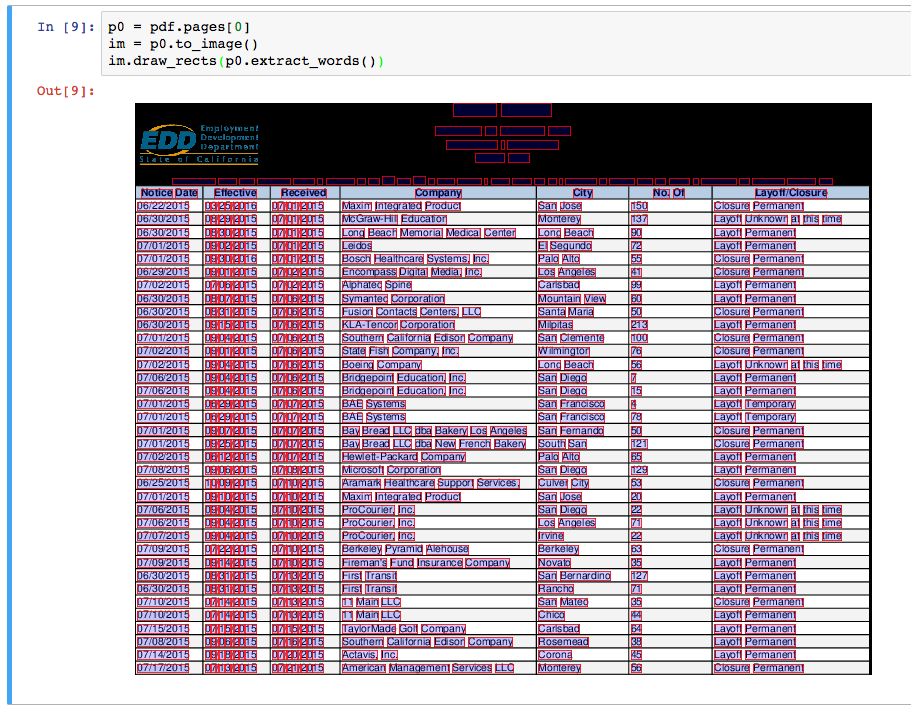
Note: .to_image(...) works as expected with Page.crop(...)/CroppedPage instances, but is unable to incorporate changes made via Page.filter(...)/FilteredPage instances.
Basic PageImage methods
| Method |
Description |
im.reset() |
Clears anything you've drawn so far. |
im.copy() |
Copies the image to a new PageImage object. |
im.show() |
Opens the image in your local image viewer. |
im.save(path_or_fileobject, format="PNG", quantize=True, colors=256, bits=8) |
Saves the annotated image as a PNG file. The default arguments quantize the image to a palette of 256 colors, saving the PNG with 8-bit color depth. You can disable quantization by passing quantize=False or adjust the size of the color palette by passing colors=N. |
Drawing methods
You can pass explicit coordinates or any

 pdfplumber is a Python library that inspects PDFs in detail, exposing each character, line, rectangle, and curve, and makes it easy to extract text and tables from them.