Hermes3D — A 3D Workspace for AI Agents
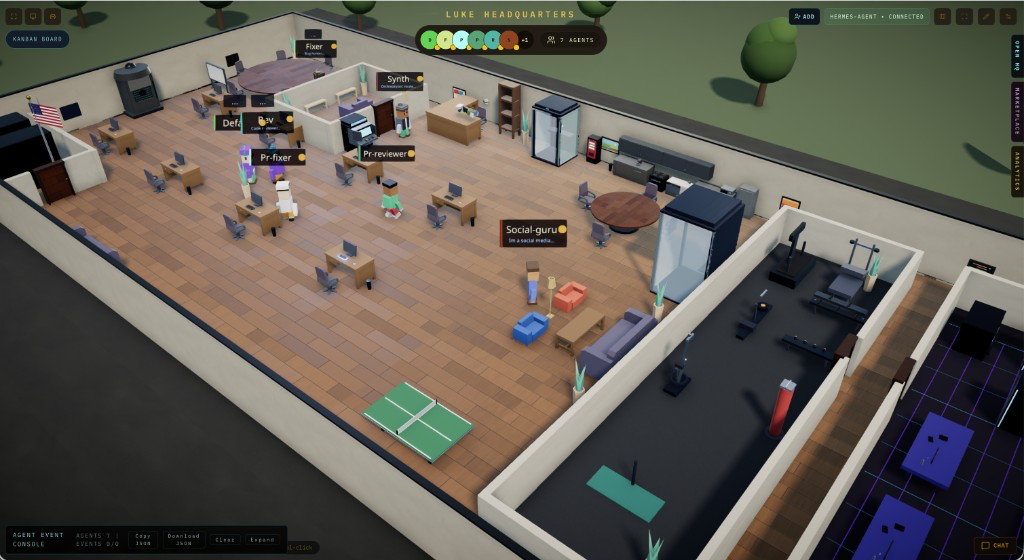
AN OFFICE FOR YOUR AI TEAM!




Hermes3D is a 3D virtual office for AI agents you run on your own infrastructure.
Instead of watching automation through dashboards and logs, you walk through a live 3D office where your agents collaborate, review code, run standups, ship pull requests, and execute tasks side by side. The Gateway is just the control plane — the product is the office.
If you want a personal, self-hosted workspace that turns your AI workforce into something you can actually see, this is it.
Supported runtimes include: Hermes through the bundled gateway adapter, a direct HTTP custom runtime provider for orchestrator-backed stacks, and a built-in demo gateway for office exploration without a real agent framework.
Repository · Vision · Architecture · Tutorial · Getting Started · Runtime Profiles · Multi-Agent Beta · Contributing · Security
Unofficial project. Hermes3D is an independent, community-driven frontend. It is not affiliated with, endorsed by, or maintained by the teams behind the agent backends it connects to.
Built and maintained by LukeTheDev. Follow on X: @iamlukethedev.
What you can do with Hermes3D
- Watch your AI agents work in real time inside a shared 3D office.
- Switch to the 2D pixel office — a Gather-style pixel-art view of the same live agents for low-power machines (Settings → Office renderer, or the
2D button in the office toolbar).
- Run standups with agents connected to GitHub and Jira.
- Review pull requests from inside the office.
- Monitor QA pipelines and logs without leaving the workspace.
- Train agents in the gym to develop new skills.
- Reset sessions and clean context with the janitor system.
What Hermes3D Is
Hermes3D is the visualization and interaction layer.
Today it can sit on top of:
- Hermes through the bundled WebSocket gateway adapter
- a direct HTTP
custom runtime provider for orchestrator-backed stacks
- a built-in demo gateway for office exploration without a real agent framework
In practical terms, this app gives you:
- a live
/office retro-office environment where agents appear as workers moving through a shared 3D world
- an
/office/builder surface for editing and publishing office layouts
- a gateway-first architecture that keeps runtime state in the connected backend while Studio stores local UI preferences
- a backend-neutral runtime seam inside Studio so additional providers can be integrated without rewriting the whole UI
This repository does not build the upstream runtimes themselves. It is the frontend, Studio, and adapter/proxy layer that connects to a runtime speaking the Hermes3D gateway protocol.
Why It Exists
AI systems are becoming more capable, but their work is still usually hidden behind logs, terminal output, and dashboards.
Hermes3D exists to make agent systems visible:
- inspect what agents are doing in real time
- monitor runs, approvals, history, and activity from one place
- interact with agents through chat and immersive UI surfaces
- move toward a world where AI systems are understandable through space, motion, and presence
For the broader direction of the project, see VISION.md.
What Exists Today
The current app already includes a substantial Hermes3D surface:
- Fleet management and agent chat with runtime updates streamed from the gateway.
- Agent creation, settings, session controls, approvals, and gateway-backed configuration editing.
- A 3D retro office with desks, rooms, navigation, animations, and event-driven activity cues.
- Immersive operational spaces for standups, GitHub review flows, analytics, and system monitoring.
- Local Studio persistence for gateway connection details, focused-agent preferences, desk assignments, office state, and related UI settings.
- A custom same-origin WebSocket proxy so the browser talks to Studio, and Studio talks to the upstream gateway.
Quick Start
Requirements:
- Node.js 20+ recommended.
- npm 10+ recommended.
- One of:
- a running Hermes API server plus the bundled gateway adapter
- the built-in demo gateway for local exploration
Prerequisite:
- Hermes3D does not install or build Hermes for you.
- Before starting Hermes3D against a real backend, make sure your chosen runtime is already running and that you know the gateway URL and token Studio should use.
- For a no-framework local office demo, run the bundled demo gateway instead.
- If you need a full cross-machine setup guide (Hermes + Tailscale + Hermes3D), follow
TUTORIAL.md.
- To connect to a remote
hermes-agent backend with no adapter process, follow docs/hermes-agent-tailscale.md.
- To make the office react to chats you have elsewhere (desktop app, TUI, CLI), install the optional bridge plugin in
docs/office-conversation-bridge.md.
Run from source:
git clone <your-public-repo-url> hermes3d
cd hermes3d
npm install
cp .env.example .env
npm run dev
Then open http://localhost:3000 and configure the gateway URL and token in Studio.
Studio now also persists the selected backend mode (Hermes, Demo, Local, Hermes3D, or Custom) and
shows the active backend reported by the connected gateway.
Runtime profiles
If you are integrating an orchestrator-backed runtime through the direct
HTTP runtime seam, start your runtime first, then start Hermes3D:
npm run dev
Then open http://localhost:3000, choose Local runtime, Hermes3D runtime,
or Custom backend, and point the upstream URL at your runtime boundary.
Typical examples:
http://127.0.0.1:7770
http://localhost:3000/api/runtime/custom
Current direct-runtime expectations:
GET /healthGET /stateGET /registryPOST /v1/chat/completions
The browser does not call that runtime directly. Hermes3D proxies the
custom provider through its own same-origin route at
/api/runtime/custom, which avoids browser-side CORS problems and keeps
the provider transport separate from the Hermes gateway path.
Hermes adapter
Hermes is the default backend. It is reached through the bundled gateway
adapter, which speaks the Hermes3D gateway WebSocket protocol on one side
and the Hermes HTTP API (http://localhost:8642 by default) on the other:
npm run hermes-adapter
npm run dev
See docs/hermes-gateway.md for setup details and current scope.
For a local gateway on the same machine, the usual upstream URL is:
ws://localhost:18789
In the connect screen, choose Hermes backend, then connect.
Demo mode
If you only want to see the office and agent interactions without installing Hermes:
npm run demo-gateway
npm run dev
Then connect Studio to:
ws://localhost:18789
This starts a mock local gateway with demo agents, streaming chat, session previews, and office presence.
In the connect screen, choose Demo backend, then connect.
How It Connects
Hermes3D uses two separate network hops:
- Browser -> Studio over HTTP and a same-origin WebSocket at
/api/gateway/ws.
- Studio -> the gateway over a second WebSocket opened by the Studio server.
That means ws://localhost:18789 always refers to the gateway reachable from the Studio host, not necessarily from the browser device.
This design keeps gateway settings persisted on the Studio host and lets Studio open the upstream connection server-side. The current UI still loads the configured upstream URL/token into browser memory at runtime, so treat the browser as part of the active trust boundary.
Common Setups
Gateway local, Studio local
- Start Studio with
npm run dev.
- Open
http://localhost:3000.
- Use
ws://localhost:18789 plus your gateway token.
Gateway remote, Studio local
Use any gateway URL your machine can reach.
Recommended with Tailscale:
- On the gateway host, run
tailscale serve --yes --bg --https 443 http://127.0.0.1:18789.
- In Studio, use
wss://<gateway-host>.ts.net.
Alternative with SSH:
- Run
ssh -L 18789:127.0.0.1:18789 user@<gateway-host>.
- In Studio, use
ws://localhost:18789.
Studio remote, Gateway remote
- Run Studio on the remote host.
- Expose Studio on a private network or over Tailscale.
- Set
STUDIO_ACCESS_TOKEN if Studio binds to a public host.
- Configure the gateway URL and token inside Studio.
Studio on LAN or Tailscale for other devices
- Start Studio with
HOST=0.0.0.0 (or a specific LAN/Tailscale host).
- Set
STUDIO_ACCESS_TOKEN before exposing Studio beyond localhost.
- Open Hermes3D from the LAN/Tailscale address instead of
localhost.
- If you are connecting to a remote gateway, make sure that gateway accepts connections from the Studio host and that the token you configured is the one it expects.
Tech Stack
- Next.js App Router, React, and TypeScript for the main web application.
- A custom Node server for the Studio-side WebSocket proxy.
- Three.js, React Three Fiber, and Drei for the 3D office experience.
- Phaser for the 2D pixel office, office/viewer-builder workflows, and related interactive surfaces.
- Vitest for unit tests and Playwright for end-to-end coverage.
Configuration
Important runtime paths:
- Hermes config:
~/.hermes/hermes.json
- Studio settings:
~/.hermes/hermes3d/settings.json
Common environment variables:
HOST and PORT control the Studio server bind address and port.STUDIO_ACCESS_TOKEN protects Studio when binding to a public host.UPSTREAM_ALLOWLIST restricts which upstream gateway hosts Studio may proxy to. Set this in production.CUSTOM_RUNTIME_ALLOWLIST restricts which hosts /api/runtime/custom may fetch. If unset, it falls back to UPSTREAM_ALLOWLIST.NEXT_PUBLIC_GATEWAY_URL provides the default upstream gateway URL when Studio settings are empty. Note: this is a build-time variable — changes require npm run build to take effect.HERMES3D_GATEWAY_URL and HERMES3D_GATEWAY_TOKEN provide a runtime alternative to NEXT_PUBLIC_GATEWAY_URL that takes effect on server restart without a rebuild.HERMES3D_GATEWAY_ADAPTER_TYPE can pair with HERMES3D_GATEWAY_URL to mark those runtime defaults as hermes, demo, local, hermes3d, or custom.- If
HERMES3D_GATEWAY_URL is not set, Studio can still surface local Hermes or demo adapter defaults from HERMES_ADAPTER_PORT / DEMO_ADAPTER_PORT.
HERMES_API_URL points the gateway adapter at the Hermes HTTP API. It defaults to http://localhost:8642.- Hermes file defaults come from
~/.hermes/hermes.json when present.
HERMES_STATE_DIR and HERMES_CONFIG_PATH override the default Hermes paths.HERMES_GATEWAY_SSH_TARGET, HERMES_GATEWAY_SSH_USER, HERMES_GATEWAY_SSH_PORT, and HERMES_GATEWAY_SSH_STRICT_HOST_KEY_CHECKING support advanced gateway-host operations over SSH when needed.ELEVENLABS_API_KEY, ELEVENLABS_VOICE_ID, and ELEVENLABS_MODEL_ID enable voice reply integration.
See .env.example for the full local development template.
Scripts
npm run dev starts the Studio dev server.npm run hermes-adapter starts the Hermes WebSocket adapter.npm run demo-gateway starts the built-in mock gateway for demo mode.npm run build builds the production Next.js app.npm run start starts the production server.npm run lint runs ESLint.npm run typecheck runs TypeScript without emitting output.npm run test runs unit tests with Vitest.npm run e2e runs Playwright tests.npm run studio:setup prepares common local Studio prerequisites.npm run smoke:dev-server runs a basic dev-server smoke check.
Documentation
VISION.md: project direction and long-term guardrails.ARCHITECTURE.md: system boundaries, data flow, and major trade-offs.TUTORIAL.md: detailed step-by-step setup for Hermes + Tailscale + Hermes3D.docs/hermes-agent-tailscale.md: connect to a remote hermes-agent over Tailscale with no adapter process.docs/office-conversation-bridge.md: optional plugin that makes the office react to chats you have in the desktop app, TUI, or CLI.docs/multi-agent-beta.md: remote office beta setup, connection modes, and limitations.docs/runtime-profiles.md: saved backend/runtime profiles and the current HTTP runtime seam.CODE_DOCUMENTATION.md: practical code map, extension points, and contributor onboarding order.CONTRIBUTING.md: local workflow, testing, and PR expectations.SUPPORT.md: where to ask for help and how to route reports.ROADMAP.md: near-term priorities and contributor-friendly work areas.docs/pi-chat-streaming.md: gateway runtime streaming and transcript rendering.docs/permissions-sandboxing.md: Studio permissions and gateway-side sandbox behavior.docs/hermes-gateway.md: Hermes adapter setup, capabilities, and current limitations.
Current Limitations
- The immersive retro office (
/office) and the Phaser builder (/office/builder) are related but still separate stacks.
- The app keeps gateway secrets out of browser persistent storage, but the current connection flow still loads the upstream URL/token into browser memory at runtime.
- Voice transcription is not bundled.
/api/office/voice/transcribe returns 501 Not Implemented, so voice notes must be transcribed by an external provider before they reach the office.
- Local Spotify auth for
SOUNDHERMES currently stores an access token only. Refresh-token handling is not implemented yet, so local Spotify auth may need to be repeated after the token expires.
Troubleshooting
If the UI loads but Connect fails, the problem is usually on the Studio -> Gateway side:
- Confirm the upstream URL and token in Studio settings.
EPROTO or wrong version number usually means wss:// was used against a non-TLS endpoint.INVALID_REQUEST errors mentioning minProtocol or maxProtocol usually mean the gateway is too old for Hermes3D protocol v3. Update the gateway you are connecting to, run the bundled Hermes adapter, or run npm run demo-gateway.401 Studio access token required usually means STUDIO_ACCESS_TOKEN is enabled and the request is missing the expected studio_access cookie.- If
/api/runtime/custom returns a blocked-host error in production, set CUSTOM_RUNTIME_ALLOWLIST or include the runtime host in UPSTREAM_ALLOWLIST.
- Helpful proxy error codes include
studio.gateway_url_missing, studio.gateway_token_missing, studio.upstream_error, and studio.upstream_closed.
Marketplace skill installs now use a gateway-native workspace flow and do not require enabling SSH on the user machine.
Spotify auth on localhost
If you are testing the SOUNDHERMES jukebox locally and Spotify OAuth does not accept your localhost callback, use an ngrok callback bridge:
- Keep Hermes3D running locally on
http://localhost:3000.
- Start
ngrok for the local Studio server, for example ngrok http 3000.
- In the jukebox setup UI, paste your public
ngrok URL into the ngrok Public URL field.
- In the Spotify developer dashboard, register
https://<your-ngrok-host>/spotify/callback as the redirect URI.
- Complete Spotify sign-in from the jukebox panel.
How it works:
- The main Hermes3D app stays on
localhost, so your normal local office state and agent state remain intact.
- Spotify redirects to the
ngrok callback URL.
- The callback page passes the auth code back to the open local Hermes3D window.
Current local limitation:
- Because only the Spotify access token is stored right now, you may need to repeat the
ngrok auth flow when that token expires during local development.
If you use other advanced gateway-host operations over SSH:
- macOS: enable
System Settings -> General -> Sharing -> Remote Login, and make sure the target user is allowed.
- Windows: enable the
OpenSSH Server optional feature, start the sshd service, and allow it through the firewall.
- Linux: make sure
sshd is installed, running, and reachable from the Studio machine.
For first-time SSH connections, Hermes3D uses StrictHostKeyChecking=accept-new by default so a new host key can be trusted automatically. If you need stricter behavior, set HERMES_GATEWAY_SSH_STRICT_HOST_KEY_CHECKING=yes, or set it to no only if you explicitly want to skip host key checks.
Contributing
Keep pull requests focused, run npm run lint, npm run typecheck, and npm run test before opening a PR, and update docs when behavior or architecture changes.
Shared editing expectations for this repository are described in CONTRIBUTING.md and AGENTS.md, including the boundary between Hermes3D and the backend it connects to, code placement conventions, office-stack distinctions, and documentation/test update expectations.
Community expectations live in CODE_OF_CONDUCT.MD. Security reporting instructions live in SECURITY.md.

 Hermes3D 是一个自托管的 3D 虚拟办公室,你可以实时观看自己的 AI 智能体工作——协作、审查代码、开站会、提交 pull request——而不必去翻日志和仪表盘。