🌟 Key features
- Simple YAML configuration
- Multi-monitor support
- Customizable rules for specific windows
- Easy one-click installation
- Integration with Zebar as a status bar
Installation
The latest version of GlazeWM is downloadable via releases. Zebar can optionally be installed as well via a checkbox during installation.
GlazeWM is also available through several package managers:
Winget
winget install GlazeWM
Chocolatey
choco install glazewm
Scoop
scoop bucket add extras
scoop install extras/glazewm
Contributing
Help fix something that annoys you, or add a feature you've been wanting for a long time! Contributions are very welcome.
Local development and guidelines are available in the contributing guide.
Default keybindings
On the first launch of GlazeWM, a default configuration can optionally be generated.
Below is a cheat sheet of all available commands and their default keybindings.
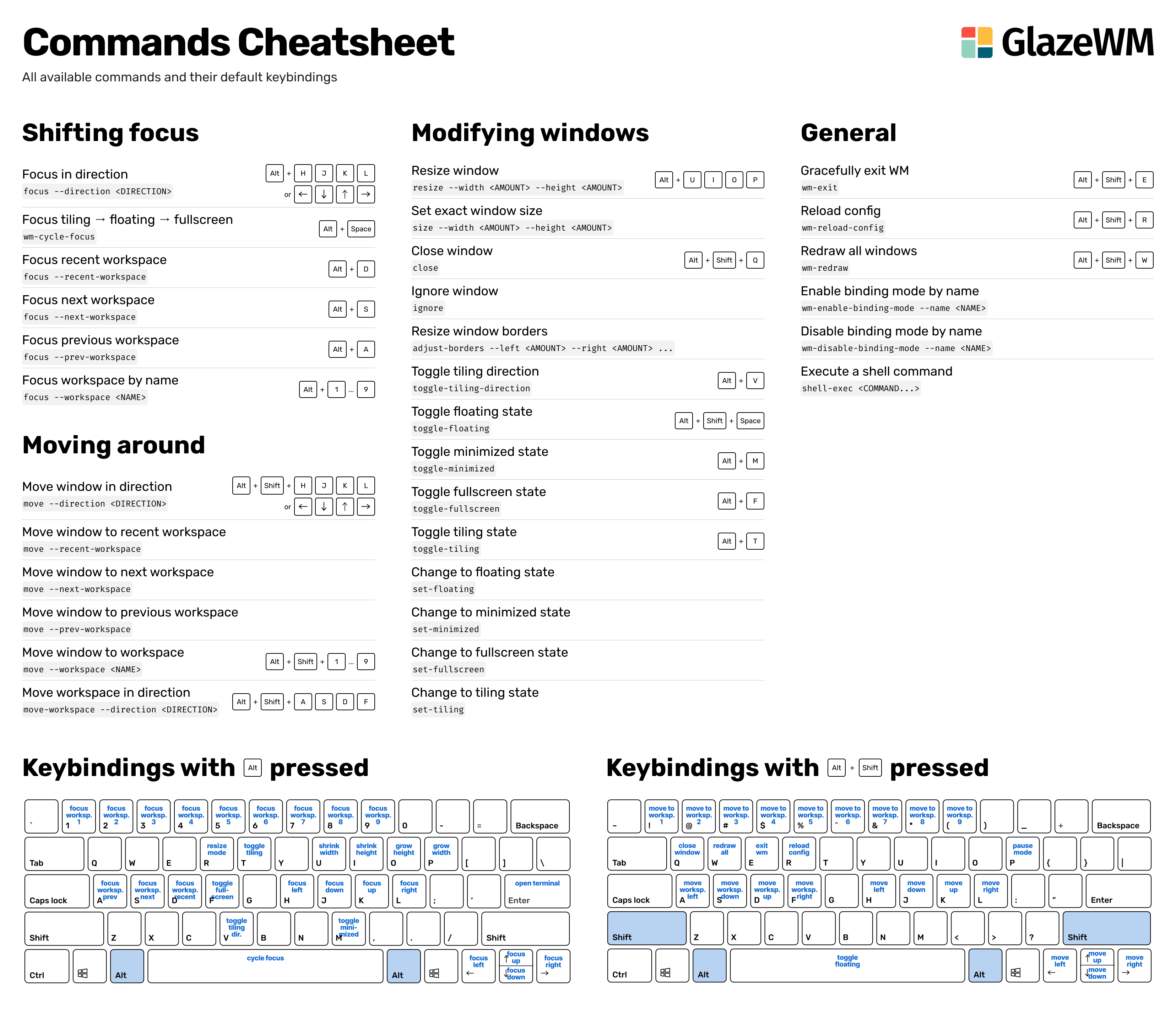
Config documentation
The default config file is generated at %userprofile%\.glzr\glazewm\config.yaml.
To use a different config file location, you can launch the GlazeWM executable with the CLI argument --config="...", like so:
./glazewm.exe start --config="C:\<PATH_TO_CONFIG>\config.yaml"
Or pass a value for the GLAZEWM_CONFIG_PATH environment variable:
setx GLAZEWM_CONFIG_PATH "C:\<PATH_TO_CONFIG>\config.yaml"
With the benefit of using a custom path being that you can choose a different name for the config file, such as glazewm.yaml.
Config: General
general:
  # Commands to run when the WM has started (e.g. to run a script or launch
  # another application).
  startup_commands: []

  # Commands to run just before the WM is shutdown.
  shutdown_commands: []

  # Commands to run after the WM config has reloaded.
  config_reload_commands: []

  # Whether to automatically focus windows underneath the cursor.
  focus_follows_cursor: false

  # Whether to switch back and forth between the previously focused
  # workspace when focusing the current workspace.
  toggle_workspace_on_refocus: false

  cursor_jump:
    # Whether to automatically move the cursor on the specified trigger.
    enabled: true

    # Trigger for cursor jump:
    # - 'monitor_focus': Jump when focus changes between monitors.
    # - 'window_focus': Jump when focus changes between windows.
    trigger: "monitor_focus"
Config: Keybindings
The available keyboard shortcuts can be customized via the keybindings option. A keybinding consists of one or more key combinations and one or more commands to run when pressed.
It's recommended to use the alt key for keybindings. The Windows key is unfortunately a pain to remap, since the OS reserves certain keybindings (e.g. lwin+l).
keybindings:
  # Command(s) to run.
  - commands: ["focus --workspace 1"]

    # Key combination(s) to trigger the keybinding.
    bindings: ["alt+1"]

  # Multiple commands can be run in a sequence (e.g. to move a window to a
  # workspace + focus workspace).
  - commands: ["move --workspace 1", "focus --workspace 1"]
    bindings: ["alt+shift+1"]
Full list of keys that can be used for keybindings:
Keys list
| Key |
Description |
a - z |
Alphabetical letter keys |
0 - 9 |
Number keys |
numpad0 - numpad9 |
Numerical keypad keys |
f1 - f24 |
Function keys |
shift |
Either left or right SHIFT key |
lshift |
The left SHIFT key |
rshift |
The right SHIFT key |
control |
Either left or right CTRL key |
lctrl |
The left CTRL key |
rctrl |
The right CTRL key |
alt |
Either left or right ALT key |
lalt |
The left ALT key |
ralt |
The right ALT key |
lwin |
The left ⊞ Windows logo key |
rwin |
The right ⊞ Windows logo key |
space |
The spacebar key |
escape |
The ESCAPE key |
back |
The BACKSPACE key |
tab |
The TAB key |
enter |
The ENTER key |
left |
The ← arrow key |
right |
The → arrow key |
up |
The ↑ arrow key |
down |
The ↓ arrow key |
num_lock |
The NUM LOCK key |
scroll_lock |
The SCROLL LOCK key |
caps_lock |
The CAPS LOCK key |
page_up |
The PAGE UP key |
page_down |
The PAGE DOWN key |
insert |
The INSERT key |
delete |
The DELETE key |
end |
The END key |
home |
The HOME key |
print_screen |
The PRINT SCREEN key |
multiply |
The * key (only on numpad) |
add |
The + key (only on numpad) |
subtract |
The - key (only on numpad) |
decimal |
The DEL key (only on numpad) |
divide |
The / key (only on numpad) |
volume_up |
The volume up key |
volume_down |
The volume down key |
volume_mute |
The volume mute key |
media_next_track |
The media next track key |
media_prev_track |
The media prev track key |
media_stop |
The media stop key |
media_play_pause |
The media play/pause key |
oem_semicolon |
The ;/: key on a US standard keyboard (varies by keyboard) |
oem_question |
The //? key on a US standard keyboard (varies by keyboard) |
oem_tilde |
The `/~ key on a US standard keyboard (varies by keyboard) |
oem_open_brackets |
The [/{ key on a US standard keyboard (varies by keyboard) |
oem_pipe |
The \/| key on a US standard keyboard (varies by keyboard) |
oem_close_brackets |
The ]/} key on a US standard keyboard (varies by keyboard) |
oem_quotes |
The '/" key on a US standard keyboard (varies by keyboard) |
oem_8 |
The `/¬ key on a UK keyboard (varies by keyboard) |
oem_102 |
The \/| key next to left Shift on ISO keyboards (varies by keyboard) |
oem_plus |
The =/+ key on a US standard keyboard (varies by keyboard) |
oem_comma |
The ,/< key on a US standard keyboard (varies by keyboard) |
oem_minus |
The -/_ key on a US standard keyboard (varies by keyboard) |
oem_period |
The ./> key on a US standard keyboard (varies by keyboard) |
muhenkan |
The 無変換 (non-convert) key for Japanese keyboard layouts |
henkan |
The 変換 (convert) key for Japanese keyboard layouts |
If a key is not in the list above, it is likely still supported if you use its character in a keybinding (e.g. alt+å for the Norwegian Å character).
German and US international keyboards treat the right-side alt key differently. For these keyboard layouts, use ralt+ctrl instead of ralt to bind the right-side alt key.
Config: Gaps
The gaps between windows can be changed via the gaps property in the config file. Inner and outer gaps are set separately.
gaps:
  # Gap between adjacent windows.
  inner_gap: "20px"

  # Gap between windows and the screen edge.
  outer_gap:
    top: "20px"
    right: "20px"
    bottom: "20px"
    left: "20px"
Config: Workspaces
Workspaces need to be predefined via the workspaces property in the config file. A workspace is automatically assigned to each monitor on startup.
workspaces:
  # This is the unique ID for the workspace. It's used in keybinding
  # commands, and is also the label shown in 3rd-party apps (e.g. Zebar) if
  # `display_name` is not provided.
  - name: "1"

    # Optional override for the workspace label used in 3rd-party apps.
    # Does not need to be unique.
    display_name: "Work"

    # Optionally force the workspace on a specific monitor if it exists.
    # 0 is your leftmost screen, 1 is the next one to the right, and so on.
    bind_to_monitor: 0

    # Optionally prevent workspace from being deactivated when empty.
    keep_alive: false
Config: Window rules
Commands can be run when a window is first launched. This is useful for adding window-specific behaviors like always starting a window as fullscreen or assigning to a specific workspace.
Windows can be targeted by their process, class, and title. Multiple matching criteria can be used together to target a window more precisely.
window_rules:
  - commands: ["move --workspace 1"]
    match:
      # Move browsers to workspace 1.
      - window_process: { regex: "msedge|brave|chrome" }

  - commands: ["ignore"]
    match:
      # Ignores any Zebar windows.
      - window_process: { equals: "zebar" }

      # Ignores picture-in-picture windows for browsers.
      # Note that *both* the title and class must match for the rule to run.
      - window_title: { regex: "[Pp]icture.in.[Pp]icture" }
        window_class: { regex: "Chrome_WidgetWin_1|MozillaDialogClass" }
Config: Window effects
Visual effects can be applied to windows via the window_effects option. Currently, colored borders are the only effect available with more to come in the future.
Note: Window effects are exclusive to Windows 11.
window_effects:
  # Visual effects to apply to the focused window.
  focused_window:
    # Highlight the window with a colored border.
    border:
      enabled: true
      color: "#0000ff"

  # Visual effects to apply to non-focused windows.
  other_windows:
    border:
      enabled: false
      color: "#d3d3d3"
Config: Window behavior
The window_behavior config option exists to customize the states that a window can be in (tiling, floating, minimized, and fullscreen).
window_behavior:
  # New windows are created in this state whenever possible.
  # Allowed values: 'tiling', 'floating'.
  initial_state: "tiling"

  # Sets the default options for when a new window is created. This also
  # changes the defaults for when the state change commands, like
  # `set-floating`, are used without any flags.
  state_defaults:
    floating:
      # Whether to center floating windows by default.
      centered: true

      # Whether to show floating windows as always on top.
      shown_on_top: false

    fullscreen:
      # Maximize the window if possible. If the window doesn't have a
      # maximize button, then it'll be made fullscreen normally instead.
      maximized: false
Config: Binding modes
Binding modes are used to modify keybindings while GlazeWM is running.
A binding mode can be enabled with wm-enable-binding-mode --name <NAME> and disabled with wm-disable-binding-mode --name <NAME>.
binding_modes:
  # When enabled, the focused window can be resized via arrow keys or HJKL.
  - name: "resize"
    keybindings:
      - commands: ["resize --width -2%"]
        bindings: ["h", "left"]
      - commands: ["resize --width +2%"]
        bindings: ["l", "right"]
      - commands: ["resize --height +2%"]
        bindings: ["k", "up"]
      - commands: ["resize --height -2%"]
        bindings: ["j", "down"]
      # Press enter/escape to return to default keybindings.
      - commands: ["wm-disable-binding-mode --name resize"]
        bindings: ["escape", "enter"]
FAQ
Q: How do I run GlazeWM on startup?
Right-click the GlazeWM icon in the system tray and select "Run on system startup".
Q: How can I create <insert layout>?
You can create custom layouts by changing the tiling direction with alt+v. This changes where the next window is placed in relation to the current window. If the current window's direction is horizontal, the new window will be placed to the right of it. If it is vertical, it will be placed below it. This also applies when moving windows; the tiling direction of the stationary window will affect where the moved window will be placed.
Community-made scripts like Dutch-Raptor/GAT-GWM and burgr033/GlazeWM-autotiling-python can be used to automatically change the tiling direction. Native support for automatic layouts isn't currently supported.
Q: How do I create a rule for <insert application>?
To match a specific application, you need a command to execute and either the window's process name, title, or class name. For example, if you use Flow-Launcher and want to make the settings window float, you can do the following:
window_rules:
  - commands: ["set-floating"]
    match:
      - window_process: { equals: "Flow.Launcher" }
        window_title: { equals: "Settings" }
Programs like Winlister or AutoHotkey's Window Spy can be useful for getting info about a window.
Q: How can I ignore GlazeWM's keybindings when <insert application> is focused?
This isn't currently supported, however, the keybinding alt+shift+p in the default config is used to disable all other keybindings until alt+shift+p is pressed again.






 GlazeWM — это тайловый менеджер окон, вдохновлённый i3wm. Он позволяет упорядочивать окна и на лету менять их расположение с помощью команд с клавиатуры, вместо того чтобы перетаскивать окна вручную.