OpenScreen
Make a demo video with one sentence in your AI agent:
Install the OpenScreen demo skill with `npx skills add getopenscreen/openscreen --skill openscreen-demo -y`, then follow it to make a demo video of this feature.
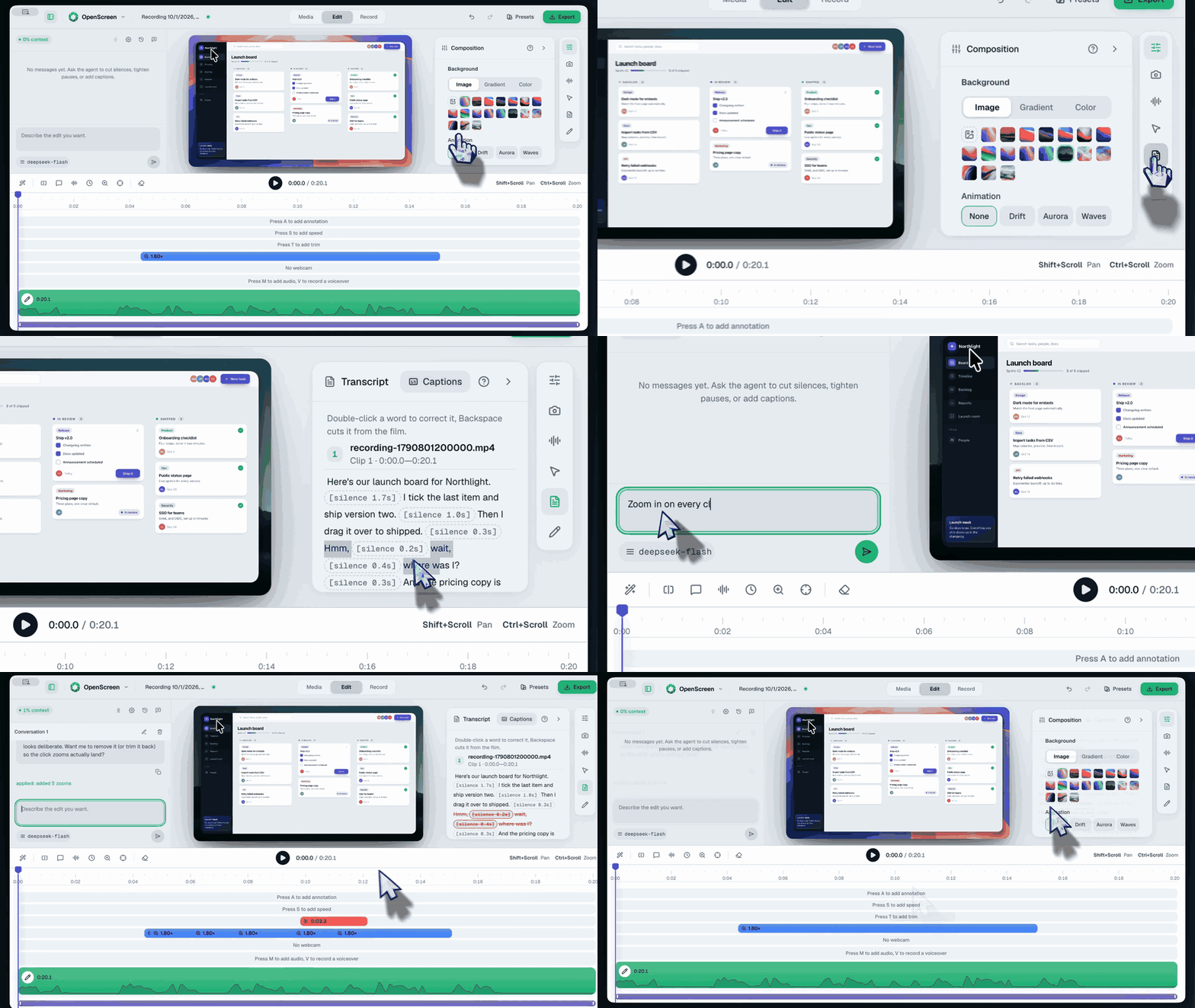
A free, open-source desktop app for recording your screen and turning the result into polished product demos and walkthroughs.







[!NOTE]
This is OpenScreen, continued. Siddharth Vaddem created the project and archived the original repository after v1.5.0. Development moved here with his approval, under the same name and the same MIT license.
A raw capture goes in and comes out ready to post — on X, Reddit, YouTube, a docs page, or a landing page. That is the category Screen Studio defined; OpenScreen is the open-source entry in it, and not a clone.
100% free for personal and commercial use, with nothing held behind a paywall.
Project status. OpenScreen is under active development — expect rough edges and occasional breaking changes, including to the .openscreen project format and the CLI. Bug reports are welcome: open an issue.
Core Features
- Record a specific window, or your whole screen.
- Record microphone and system audio.
- Webcam overlay with picture-in-picture, eight snap positions, adjustable roundness, mirroring, and shape options.
- Auto or manual zooms with adjustable depth, duration, easing, and pixel-precise position; auto-zoom follows your cursor as you work.
- Custom cursor size, smoothing, and click effects, with post-recording path smoothing.
- Automatic captions for voiceovers, transcribed on-device with no upload (works offline), with an editable transcript you can cut from and optional subtitle translation.
- AI editing assistant: describe the edit you want in chat and it applies to the timeline — cuts, zooms, speed ramps, annotations, camera framing. Bring your own key (Claude, OpenAI, Gemini, Mistral, OpenRouter, MiniMax, or any OpenAI-compatible endpoint); nothing is enabled by default.
- Wallpapers, solid colors, gradients, or your own background image.
- Motion blur.
- Crop, trim, and per-segment speed control on the timeline.
- Text, arrow, and image annotations, with text animation presets.
- Timeline snapping guides and an audio waveform to make trimming easier.
- Customizable keyboard shortcuts.
- Export to MP4 or GIF in multiple aspect ratios and resolutions, rendered and encoded on the GPU (Metal on macOS, D3D11 on Windows, Vulkan on Linux) with an automatic CPU fallback.
- Languages supported: Arabic, Czech, English, Spanish, French, German, Italian, Japanese, Korean, Dutch, Polish, Portuguese (Brazil), Russian, Turkish, Vietnamese, Simplified Chinese, and Traditional Chinese.
Command-line interface (headless)
OpenScreen ships a CLI for scripts, CI, and AI coding agents: record the screen
headlessly, edit the .openscreen project JSON programmatically (zooms,
annotations, trims), and render MP4/GIF with the full export pipeline — no
visible windows, NDJSON output with --json.
openscreen record --duration 20 --project demo.openscreen --json
openscreen export demo.openscreen -o demo.mp4 --json
See the CLI reference.
Let your AI agent ship the feature with its video
Paste this into your AI agent (Claude Code, Codex, Cursor…):
Install the OpenScreen demo skill with `npx skills add getopenscreen/openscreen --skill openscreen-demo -y`, then follow it to add a video of this change to the PR.
The skill sets everything up: it installs OpenScreen if it is missing (once you
agree), connects its MCP server, then asks you to open a new session and say
"continue the OpenScreen demo", the one step an agent cannot do for itself.
By hand, in Claude Code, it is these two commands, where <executable> is the app's executable
on your system (where to find it):
claude mcp add openscreen -- "<executable>" mcp
npx skills add getopenscreen/openscreen --skill openscreen-demo
From then on, ask: "Add a video of this change to the PR." The agent plans the
storyboard, records the app, edits the take with OpenScreen's own editing tools,
exports the MP4, checks it frame by frame, and attaches it to the pull request,
where reviewers watch it in place. Ask for a launch demo instead and it drafts a
post for X, which it publishes only once you say yes. Codex and the other clients
are in AI editing.
Installation
Every platform has a recommended route below. On Windows that is the Microsoft Store; everywhere else it is the installer from the GitHub Releases page.
System requirements
- Windows: version 1903+ (build 18362) with Intel 8th Gen / AMD Ryzen 2000 series or newer minimum; Windows 11 with Intel 12th Gen / Ryzen 4000 series or newer recommended
- macOS: 13 (Ventura) or later — required by ScreenCaptureKit for capture
- Linux: native X11 capture needs no ScreenCast portal; Wayland capture needs
xdg-desktop-portal and PipeWire, and system audio needs PipeWire; recording still works without them through the browser-capture fallback, with fewer capabilities (see Platform differences)
- RAM: 8 GB minimum, 16 GB recommended
Full table and notes on older integrated graphics: system requirements.
macOS
Install with Homebrew:
brew install --cask openscreen
Or download the .dmg installer directly from the Releases page and drag OpenScreen into your Applications folder. Builds from 1.9.0 onward are signed with a Developer ID certificate and notarized by Apple, so Gatekeeper does not block them and no terminal step is needed.
On first launch, open System Settings > Privacy & Security and grant the two permissions OpenScreen needs: Screen Recording and Accessibility. Recording cannot start until both are granted.
[!NOTE]
macOS 15 and later re-ask for screen-recording permission periodically. That prompt comes from macOS itself and applies to every third-party screen recorder — it is not a sign that anything is wrong with your install or that an update broke something. Grant it again when asked.
[!NOTE]
Upgrading from a version older than 1.9.0? Those builds were not signed with a Developer ID certificate, and macOS ties Screen Recording and Accessibility grants to an app's signature — so it cannot tell the new build is the same app, and the permissions you granted the old one do not carry over. If the new version won't record even after you grant them, remove OpenScreen's existing entries under System Settings > Privacy & Security (both Screen Recording and Accessibility), then launch it again and grant them when prompted.
[!NOTE]
OpenScreen quits as soon as you pick what to record, or when the countdown starts? It is most likely a utility that quits apps once their last window closes, such as the Quit on close option of Vorssaint. It does not count OpenScreen's recording bar, which floats above other windows, so it quits OpenScreen whenever the bar hides or a source window closes. Add OpenScreen to that utility's exceptions, or turn the option off. The FAQ shows how to check which app asked OpenScreen to quit.
Windows
Recommended — Microsoft Store
Get OpenScreen from the Microsoft Store, or from a terminal:
winget install --source msstore OpenScreen
Microsoft signs the Store package during certification, so it installs with no security warning and updates itself.
Alternative — standalone installer
Download the .exe from the Releases page. Installers are provided for both x64 (Openscreen.Setup.<version>-x64.exe) and ARM64 (Openscreen.Setup.<version>-arm64.exe) — on an ARM64 device the x64 build runs under emulation and records poorly, so take the ARM64 one. Use this if you can't reach the Store — Windows LTSC, a locked-down work machine, an offline install, or if you want a specific older version.
[!NOTE]
The .exe is not code-signed, so Windows SmartScreen shows "Windows protected your PC" and reports an unknown publisher. Choose More info → Run anyway to continue.
This is not a sign that something is wrong with the download: an unsigned installer earns SmartScreen's trust per file, so a brand-new build always starts out untrusted no matter how many people installed the previous one. Verifying the signature isn't an option here — there is nothing to verify. If you want the checked path, use the Store build above. If you use the .exe, download it only from the Releases page linked here.
[!NOTE]
Recording bar not clickable in OpenScreen 2.0.0 on Windows 10? Run setx OPENSCREEN_DISABLE_CONTENT_PROTECTION 1, quit OpenScreen from its tray icon, then start it again. The bar can then appear in your recordings. The FAQ explains how to undo it once the fix ships.
Linux
Four packages are published to the Releases page for each version. Pick the one that matches your distro:
Debian / Ubuntu / Pop!_OS (.deb)
sudo apt install ./Openscreen-Linux-*.deb
Fedora / RHEL / CentOS (.rpm)
sudo dnf install ./Openscreen-Linux-*.rpm
Arch / Manjaro (.pacman)
sudo pacman -U Openscreen-Linux-*.pacman
Any distro (.AppImage)
chmod +x Openscreen-Linux-*.AppImage
./Openscreen-Linux-*.AppImage
NixOS / Nix (flake)
Try without installing:
nix run github:getopenscreen/openscreen
Install into your user profile:
nix profile install github:getopenscreen/openscreen
For a NixOS system config (flake):
{
  inputs.openscreen.url = "github:getopenscreen/openscreen";

  outputs = { nixpkgs, openscreen, ... }: {
    nixosConfigurations.<host> = nixpkgs.lib.nixosSystem {
      modules = [
        openscreen.nixosModules.default
        { programs.openscreen.enable = true; }
      ];
    };
  };
}
For Home Manager, use openscreen.homeManagerModules.default with the same programs.openscreen.enable = true;.
You may need to grant screen recording permissions depending on your desktop environment.
Sandbox error: If the AppImage fails to launch with a "sandbox" error, run it with --no-sandbox:
./Openscreen-Linux-*.AppImage --no-sandbox
Everything in the editor and export is the same on macOS, Windows, and Linux: zooms, backgrounds, motion blur, crop/trim/speed, blur regions, annotations, auto-captions, AI editing, projects, export, and all languages. All three now record through a native capture pipeline; the remaining differences are narrower than they used to be:
- Native recording: macOS (ScreenCaptureKit), Windows (Windows Graphics Capture), and Linux (PipeWire via the ScreenCast portal, or direct X11 capture on an X11 desktop without one) all record through a native pipeline for higher quality and clean window-level capture. On Linux the browser pipeline stays as an automatic fallback if the helper isn't available.
- Custom cursors: on macOS and Windows the real cursor is captured with shape, type, and clicks. On X11, the helper captures cursor shape through XFixes and mouse buttons through XInput2, without access to
/dev/input. On Wayland, Linux captures position and cursor shape through the portal, so the editable cursor overlay works there too. Click effects work on Wayland as well, but not through the portal — Wayland exposes no portal for mouse buttons, so the capture helper reads the left button from evdev, which needs read access to your mouse: a udev rule for pointer devices (recommended) or the input group, set up as Mouse clicks on Wayland shows. Without that, recording is unaffected and every cursor sample is simply a move.
- Webcam: every platform saves the webcam as a separate file next to the screen recording. Windows captures it natively in the recording helper; macOS and Linux record it in the app. It works as a picture-in-picture overlay on all three.
- System audio support varies by OS:
- macOS: works on every supported version. On macOS 14.2+ you'll be prompted to grant audio capture permission.
- Windows: works out of the box.
- Linux: needs PipeWire (default on Ubuntu 22.04+, Fedora 34+). Older PulseAudio-only setups may not capture system audio (mic should still work).
Official links
This repository is the community-maintained continuation of OpenScreen.
Official / trusted links:
For safety, install OpenScreen only from the official GitHub Releases linked from this repository, the Microsoft Store listing above, or the official Homebrew cask. Forks on GitHub and third-party websites using the OpenScreen name are not affiliated with this continuation unless explicitly listed here. There is no getopenscreen/tap Homebrew tap.
OpenScreen is community-driven. If you need help, want to report a bug, or just want to chat with other users and contributors:
License
This project is licensed under the MIT License. By using this software, you agree that the authors are not liable for any issues, damages, or claims arising from its use.

 OpenScreen 是一款免费、开源的桌面应用,可以录制屏幕,并在编辑器中添加缩放、字幕、背景和标注,把录屏变成精致的产品演示或操作讲解视频。