Fastfetch is a neofetch-like tool for fetching system information and displaying it in a visually appealing way. It is written mainly in C, with a focus on performance and customizability. Currently, it supports Linux, macOS, Windows 8.1+, Android, FreeBSD, OpenBSD, NetBSD, DragonFly, Haiku and SunOS (illumos, Solaris).
Note: Fastfetch is only actively tested on x86-64 and aarch64 platforms. It may work on other platforms but is not guaranteed to do so.
According configuration files for examples are located here.
Debian / Ubuntu: apt install fastfetch (Debian 13 or newer; Ubuntu 25.04 or newer)
Debian / Ubuntu: Download fastfetch-linux-<proper architecture>.deb from Github release page and double-click it (for Ubuntu 20.04 or newer and Debian 11 or newer).
Fastfetch uses JSONC (JSON with comments) for configuration. See the Wiki for details. There are some premade config files in the presets directory, including those used for the screenshots above. You can load them using -c <filename>. These files can serve as examples of the configuration syntax.
Logos can also be heavily customized; see the logo documentation for more information.
WARNING
Fastfetch supports a Command module that can run arbitrary shell commands. If you copy-paste a config file from an untrusted source, it may contain malicious commands that can harm your system or compromise your privacy. Please always review the config file before using it.
FAQ
Q: Neofetch is good enough. Why do I need fastfetch?
Fastfetch is actively maintained.
Fastfetch is faster, as the name suggests.
Fastfetch has a greater number of features, though by default it only has a few modules enabled; use fastfetch -c all to discover what you want.
Fastfetch is more polished. For example, neofetch prints 555 MiB in the Memory module and 23 G in the Disk module, whereas fastfetch prints 555.00 MiB and 22.97 GiB respectively.
Q: Fastfetch shows my local IP address. Does it leak my privacy?
A local IP address (10.x.x.x, 172.x.x.x, 192.168.x.x) has nothing to do with privacy. It only has meaning if you are on the same network, for example, if you connect to the same Wi-Fi network.
Actually, the Local IP module is the most useful module for me personally. I (@CarterLi) have several VMs installed to test fastfetch and often need to SSH into them. With fastfetch running on shell startup, I never need to type ip addr manually.
If you really don't like it, you can disable the Local IP module in config.jsonc.
Q: Where is the config file? I can't find it.
Fastfetch does not generate a config file automatically. You can use fastfetch --gen-config to generate one. The config file will be saved in ~/.config/fastfetch/config.jsonc by default. See the Wiki for details.
Q: The configuration is so complex. Where is the documentation?
Fastfetch uses JSON (with comments) for configuration. I suggest using an IDE with JSON schema support (like VSCode) to edit it.
Alternatively, you can refer to the presets in the presets directory.
Fastfetch uses format to generate output. For example, to make the GPU module show only the GPU name (leaving other information undisplayed), you can use:
{
    "modules": [
        {
            "type": "gpu",
            "format": "{name}" // See `fastfetch -h gpu-format` for details
        }
    ]
}
...which is equivalent to fastfetch -s gpu --gpu-format '{name}'
See fastfetch -h format for information on basic usage. For module-specific formatting, see fastfetch -h <module>-format
Q: I have my own ASCII art / image file. How can I show it with fastfetch?
Q: Fastfetch runs in black and white on shell startup. Why?
This issue usually occurs when using fastfetch with p10k. There are known incompatibilities between fastfetch and p10k instant prompt.
The p10k documentation clearly states that you should NOT print anything to stdout after p10k-instant-prompt is initialized. You should put fastfetch before the initialization of p10k-instant-prompt (recommended).
You can always use fastfetch --pipe false to force fastfetch to run in colorful mode.
Q: Why do fastfetch and neofetch show different memory usage results?
Neofetch incorrectly counts gpg-pubkey as packages for rpm. You may check the results of dnf list --installed | wc -l and rpm -qa | wc -l to see the difference.
Q: I use Debian / Ubuntu / Debian-derived distro. My GPU is detected as XXXX Device XXXX (VGA compatible). Is this a bug?
{
  "logo": {
    "type": "sixel", // DO NOT USE "auto"
    "source": "C:/path/to/image.png", // Do NOT use `~` as fastfetch is a native Windows program and doesn't apply cygwin path conversion
    "width": <image-width-in-chars>, // Optional
    "height": <image-height-in-chars> // Optional
  }
}
If you installed fastfetch via scoop or downloaded the binary directly from the GitHub Releases page:
{
  "logo": {
    "type": "raw", // DO NOT USE "auto"
    "source": "C:/path/to/image.sixel",
    "width": <image-width-in-chars>, // Required
    "height": <image-height-in-chars> // Required
  }
}
Q: I want feature A / B / C. Will fastfetch support it?
Fastfetch is a system information tool. We only accept hardware or system-level software feature requests. For most personal uses, I recommend using the Command module to implement custom functionality, which can be used to grab output from a custom shell script:
// This module shows the default editor
{
    "modules": [
        {
            "type": "command",
            "text": "$EDITOR --version | head -1",
            "key": "Editor"
        }
    ]
}
Otherwise, please open a feature request in GitHub Issues.
This program will not transfer any information to other networked systems unless specifically requested by the user or the person installing or operating it
Star History
Give us a star to show your support!
fastfetch (fastfetch-cli/fastfetch)
Choose a tag and it will appear here. With no tags selected, all catalog projects are shown.
Searching Database…
Choose a tag and it will appear here. With no tags selected, all catalog projects are shown.
Что это такое?Консольная утилита в духе neofetch, которая показывает информацию о вашей системе (ОС, железо и т.д.) рядом с логотипом в терминале. Написана в основном на C с упором на производительность и настраиваемость.
У меня уже стоит neofetch — зачем переходить на fastfetch?По словам самих разработчиков: fastfetch активно поддерживается, работает быстрее (отсюда и название), обладает большими возможностями и лучше настраивается, чем neofetch. По умолчанию включено лишь несколько модулей — выполните 'fastfetch -c all', чтобы увидеть всё, что он умеет показывать.
Я нашёл конфиг в интернете — можно ли его просто загрузить?Не обязательно. Модуль Command умеет запускать любые команды shell, поэтому конфиг из непроверенного источника может содержать вредоносный код — всегда просматривайте пресет перед загрузкой.
На каких системах он работает и важна ли архитектура моего процессора?Linux, macOS, Windows 8.1+, Android, FreeBSD/OpenBSD/NetBSD/DragonFly, Haiku и SunOS (illumos, Solaris). Учтите, что активно тестируются только x86-64 и aarch64 — на других архитектурах процессора программа может работать, но без гарантий.
fastfetch отправляет куда-то информацию о моей системе?Нет. В README сказано, что она ничего не передаёт по сети, если пользователь сам этого специально не попросит, а сборки для Windows подписаны кодом через SignPath.io.
Можно ли настроить, что и как он показывает?Да. Конфиг — это JSONC (JSON с комментариями): выполните 'fastfetch --gen-config' для минимального файла, воспользуйтесь онлайн-генератором конфигурации для полного или загрузите готовый пресет через '-c' — в каталоге пресетов лежат даже конфиги, с которых сделаны скриншоты в README. Логотип тоже можно настраивать очень гибко.
Можно ли использовать свой ASCII-арт или картинку в качестве логотипа?Да — 'fastfetch -l /path/to/logo' покажет ваш собственный файл. Поддержка картинок зависит от терминала: в Windows mintty и WezTerm поддерживают протокол iTerm, а Windows Terminal умеет только sixel (используйте сборку из MSYS2 с ImageMagick или вручную конвертируйте картинку в sixel).
Разработчики добавят любую фичу, о которой я попрошу?Не обязательно — в README сказано, что принимаются только пожелания, связанные с железом или системным ПО, потому что fastfetch — это инструмент для информации о системе. Для личных настроек предлагается взять вывод из собственного скрипта shell и показать его через модуль Command.













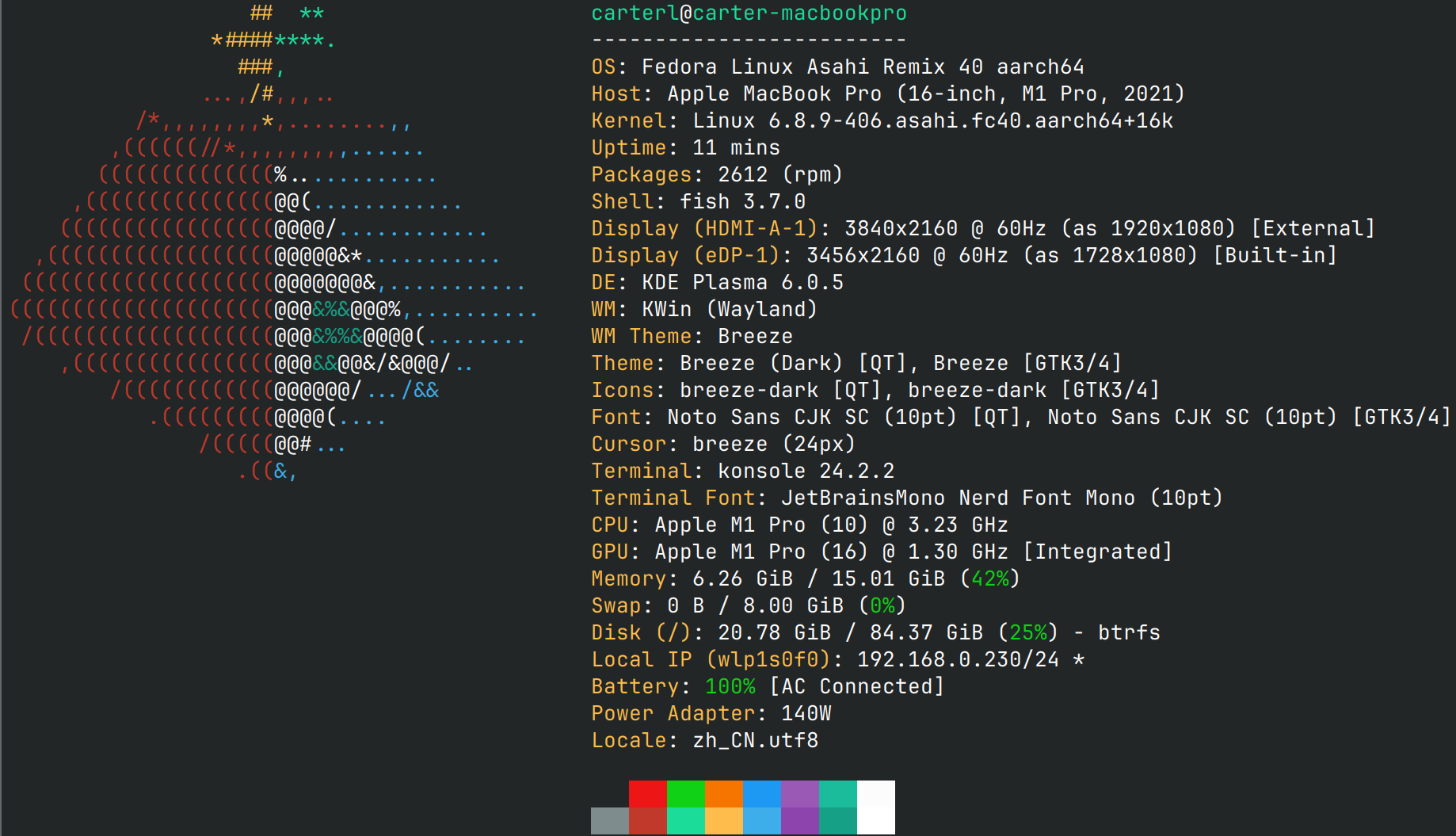

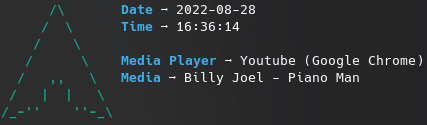
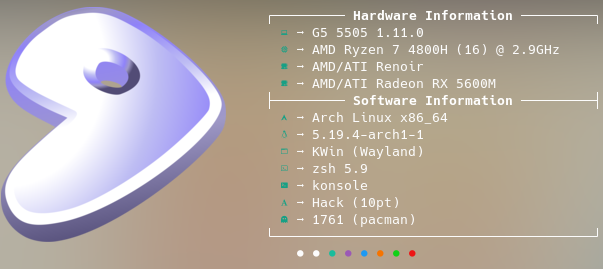
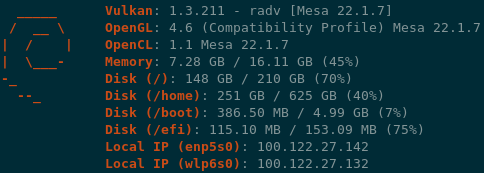


 Консольная утилита в духе neofetch, которая показывает информацию о вашей системе (ОС, железо и т.д.) рядом с логотипом в терминале. Написана в основном на C с упором на производительность и настраиваемость.