TTT Editor: Terminal Text Tool
The IDE that lives in your terminal. A TUI that feels like GUI. A real alternative to VS Code, Zed, and Sublime that happens to run in your terminal. Single Go binary, zero config.
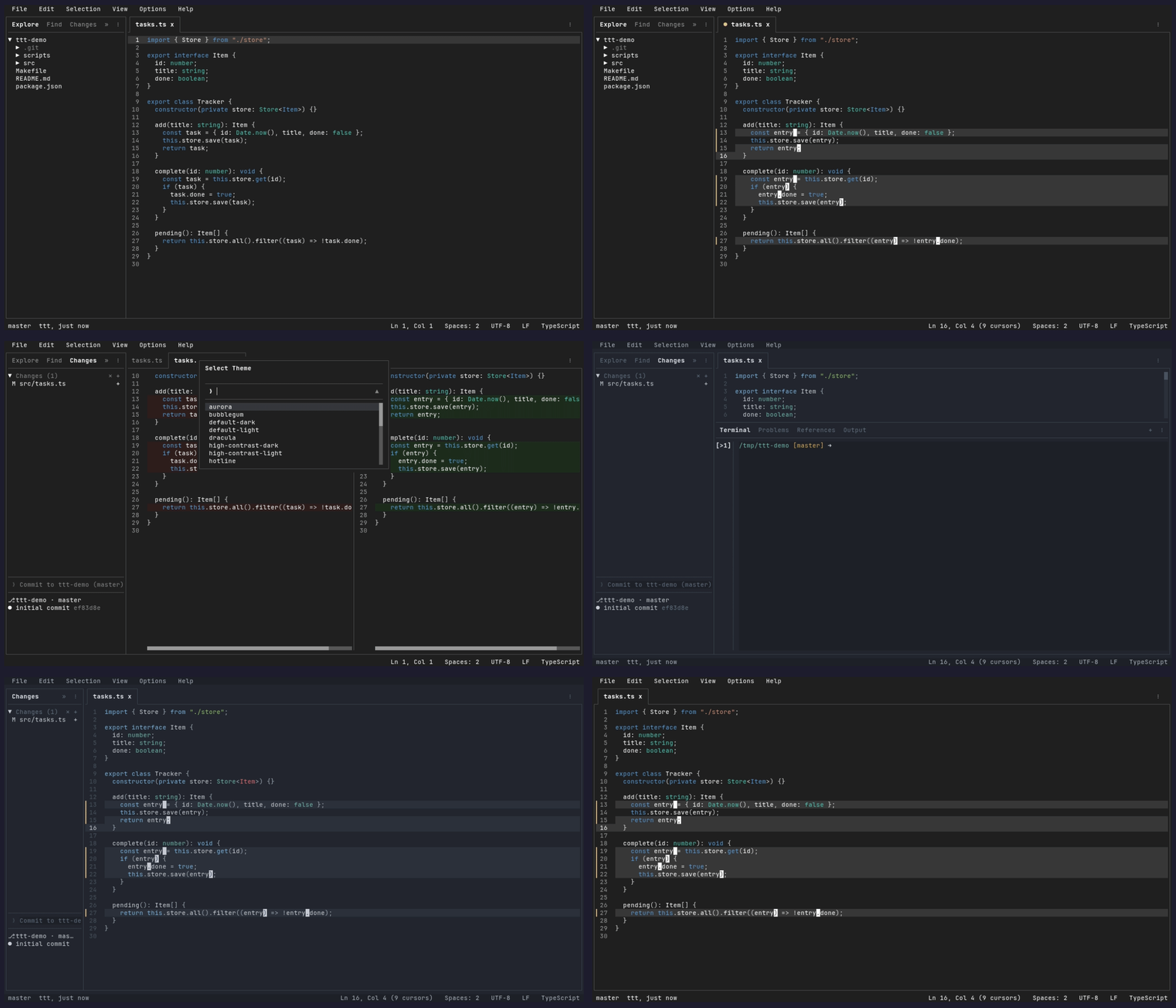
Full documentation lives in docs-web/src/content/docs/ (published at tttedit.dev).
Installation
Optional dependencies
Neither tool is required to install or use ttt for basic editing. They enable additional functionality:
- Git — enables source control features
- ripgrep (
rg) — enables workspace search
Quick Install MacOS (brew)
brew tap eugenioenko/ttt
brew trust eugenioenko/ttt
brew install ttt
Quick Install Linux, macOS, FreeBSD, & Android (Termux)
curl -sSfL https://raw.githubusercontent.com/eugenioenko/ttt/main/install.sh | sh
The script downloads the latest release binary for your OS/architecture and installs it to ~/.local/bin on Linux, /usr/local/bin on macOS and FreeBSD, or $PREFIX/bin in Android Termux (arm64). To install elsewhere:
curl -sSfL https://raw.githubusercontent.com/eugenioenko/ttt/main/install.sh | INSTALL_DIR="$HOME/bin" sh
Set INSTALL_DIR on sh so the installer receives it.
Arch Linux (AUR)
ttt-bin installs the prebuilt release binary:
yay -S ttt-bin
Or build from source with ttt:
yay -S ttt
NixOS
Available in nixpkgs:
environment.systemPackages = [ pkgs.ttt ];
Or install directly from the repo flake (tracks the development branch):
nix run github:eugenioenko/ttt
Quick Install Windows (scoop)
scoop install ttt
Go Install
Requires Go 1.25 or newer:
go install github.com/eugenioenko/ttt/cmd/ttt@latest
This installs the ttt binary to your $GOPATH/bin (or $HOME/go/bin by default). Make sure that directory is in your PATH.
Download Binary
Pre-built binaries for Linux, macOS, FreeBSD, Android (arm64), and Windows are available on the Releases page. Windows downloads include ttt-windows-amd64.exe for Intel/AMD PCs and ttt-windows-arm64.exe for ARM PCs. Download the one for your platform, make it executable, and put it in your PATH.
From Source
Note: Building from source compiles the latest development code, which may include work-in-progress features and could be less stable than official releases.
git clone https://github.com/eugenioenko/ttt.git
cd ttt
make build
This produces an optimized binary at bin/ttt. Add it to your PATH or copy it somewhere convenient:
cp bin/ttt ~/.local/bin/
Herdr
TTT is available as a Herdr plugin, so you can open it as a pane inside your Herdr terminal workspace.
herdr plugin install eugenioenko/ttt/herdr-plugin
Once installed, bind it to a key (e.g. Ctrl+b e) to launch TTT in the active worktree with a single keystroke. See the Herdr plugin README for setup and configuration details.
Features
Editor
- Syntax highlighting powered by textmate-go, our pure Go port of VS Code's TextMate engine: 124 languages, with multi-line constructs handled correctly
- Bracket matching with highlighted pairs
- Find and Replace — inline find bar (Ctrl+F) with match navigation, replace bar (Ctrl+R) with replace-one and replace-all
- Go to Line (Ctrl+G)
- Selection, copy/cut/paste (Ctrl+C/X/V) with system clipboard support
- Undo/redo (Ctrl+Z/Y) via a command-pattern undo stack
- Code folding — toggle folds (Ctrl+K [), fold/unfold all, fold-aware search and navigation
- Line operations — toggle line comment, move/duplicate/delete line, join lines, sort lines, split selection into lines
- Multi-cursor editing — Alt+Shift+Up/Down to add a cursor above/below, Ctrl+D to select next occurrence, Ctrl+K L to select all occurrences, Alt+Click to add cursors; typing, backspace, delete, and enter work at all positions simultaneously
.editorconfig support and indent detection — indentation is picked up automatically per file; manual override via the status bar indent picker- Mouse support — click to position cursor, click tabs, drag sidebar/panel dividers, right-click context menus
- Auto-completion — LSP-powered completions with live filtering, debounce, and auto-import support
- Signature help — parameter hints shown automatically on
( and ,
- Diagnostics — inline curly underline squiggles, problems panel, hover popup, and status bar counts
- Document formatting — format document, format selection, and format-on-save via LSP or external formatters
- Git blame — inline blame info for the current line shown in the status bar (author, relative time, summary)
- Line numbers with current-line highlighting
- Diff-based renderer for efficient terminal updates (double-buffered cell grid)
Multi-Folder Workspaces
Open multiple project directories in a single session. Each root appears as a collapsible group in the explorer, search, and changes panels.
ttt                             # opens the current directory
ttt .                           # also opens the current directory
ttt /path/to/dir                # opens that directory as the workspace
ttt /path/to/file.go            # opens just the file — no workspace folder
ttt /path/to/file.go:42:5       # opens the file at line 42, column 5
ttt /path/to/repo/subdir        # opens that folder; git features (changes,
                                # branch) use the enclosing git repo root
ttt dir1 dir2                   # opens multiple folders as a multi-root workspace
ttt --workspace project.ttt     # loads a saved workspace file
ttt https://github.com/owner/repo/pull/123 # opens pull request review
git diff | ttt                  # opens piped output in an unsaved tab (or: ttt -)
Set "reuseWindow": true in settings.json (off by default; restart required) to open command-line files and add folders in a running editor using the same config directory. The integrated terminal sets TTT_FORWARD_SOCKET to prefer its parent editor; otherwise, or if that socket is unavailable, the newest reachable editor receives the files and folders. If none is reachable, ttt starts normally. Once connected, open errors or timeouts exit with status 1 without trying another editor. Successful forwarding prints opened in running editor (pid N) to stderr (without the PID when unavailable). Use ttt --new-window file to start a separate editor. With reuse enabled, EDITOR=ttt returns immediately; use EDITOR="ttt --new-window" for commands that wait for editing.
Folder arguments add workspace roots without closing existing tabs; folders already in the workspace are ignored using the same rules as Add Folder to Workspace. For example, ttt . adds the current directory, and ttt dirA file.go adds the folder and opens the file. Bare ttt and ttt --workspace project.ttt still start a new editor. To forward folders after upgrading, restart the running editor with the updated binary, or use --new-window to start a separate editor.
Workspace files use the .ttt extension and store a list of folders as relative paths:
{
  "folders": [
    { "path": "." },
    { "path": "../other-project" }
  ]
}
- Save Workspace As... from the File menu to create a workspace file
- Add Folder to Workspace and Remove Folder from Workspace via the command palette
- The git branch in the status bar switches automatically based on which workspace folder the active file belongs to
See File Explorer & Workspaces.
File Explorer
Multi-root file tree in the sidebar (Ctrl+K E). When multiple folders are open, each root is shown as a collapsible group.
- Directories sorted before files, both alphabetically
- Expand/collapse with Enter or arrow keys
- Press / in the explorer or choose Search in Folders from its More menu (
explorer.find) to focus a filter input. It searches loaded file and folder names across all roots and keeps parent folders visible for context. Up/Down navigate matches, Enter opens the selection, and Esc or ✕ clears the filter and hides the input; use quick open to search the whole workspace
- Right-click context menu: New File, New Folder, Rename, Delete
- Deleted files and folders go to system Trash by default. Turn off
explorer.useTrash in Settings > Explorer > Files for permanent deletion
- Sidebar actions button for Refresh and New File
- Explorer: Reveal Active File expands the tree to the active file and selects it; set
explorer.autoReveal to do it on every tab switch
- File-type icons, colored by the theme (glyph mappings from nvim-web-devicons). They need a Nerd Font in your terminal, so they default off; turn them on with
"appearance": { "icons": "nerd-font" } or Options > Appearance > Font Icons
Search
Sidebar search panel (Ctrl+K F) powered by ripgrep. Results are grouped by file with match counts.
- Smart-case matching by default
- Include/Exclude glob filters — click the toggle arrow to reveal filter inputs (e.g.
*.go, vendor/**)
- Tab between search, include, and exclude inputs
- Searches across all workspace folders simultaneously
- Click a result to jump to the file and line
See Search.
Git Integration
Changes panel in the sidebar (Ctrl+K C) with full staging workflow.
Working-tree files and files under expanded commits can be shown as a compact directory Tree or a full-path List (the default). The choice persists in git.fileView. File-type icons sit between the status letter and the file name; like the Explorer's, they follow the shared appearance.icons setting, need a Nerd Font, and default off — Options > Appearance > Font Icons toggles them. Changes, commit details, and Explorer expose safe Expand All and Collapse All actions in their relevant menus.
Staging:
- Spacebar — toggle stage/unstage on the selected file
a — stage all unstaged filesu — unstage all staged files+ / - buttons on the section headers — stage/unstage all files in that section
Committing:
- Inline commit message input below the file list (Tab from the tree to focus it)
- Type a message and press Enter to commit all staged files
- Commit History starts with the 10 most recent commits; activate Load older commits… to append bounded pages from the same HEAD snapshot
Remote operations:
- Pull, Push, Sync (pull then push) from the sidebar actions button
- Per-repo actions via the group header menu button in multi-root workspaces
Diff view:
- Select a changed file to open a split or unified diff with syntax highlighting layered on diff backgrounds
- Working-tree changes open in the file's own editor tab in diff mode, so you can edit and save there; the diff updates as you type. Git: Toggle Inline Diff turns diff mode on or off for any tracked file
- Set the global view mode, context, wrapping, and high-contrast presentation under Options; the Changes panel menu provides the same contextual controls
- Changes-only views show quiet collapsed-context rows that can be expanded in place; full-file context remains available globally or per diff
- Untracked files open directly in the editor
Multi-root:
- Changes are grouped by repository, each with its own collapsible Staged/Changes sections and commit input
- File status badges: M (modified), A (added), D (deleted), R (renamed), U (untracked)
GitHub pull request review:
ttt https://github.com/owner/repo/pull/123      # review a PR
ttt . https://github.com/owner/repo/pull/123    # review a PR with the repo tree open
Opens the PR as a review surface — commit-by-commit history detail, a live view of the current changes, and the same unified presentation controls as local diffs.
See Git Integration.
Command Palette
- Ctrl+P — opens the command palette with all available commands
- The last 10 commands run from the palette are listed first, most recent first
- Ctrl+K P — opens quick file open (searches all files across workspace folders)
- Type
> in quick-open mode to switch to command mode; delete the > to switch back
- Type
? to browse searchable help for panels, navigation, and key chords
- Menu shortcuts resolve dynamically from your keybindings
Integrated Terminal
Built-in terminal emulator. Press Ctrl+T to toggle the terminal panel, or Alt+T for fullscreen.
- Ctrl+K T to spawn a new terminal tab; multiple tabs with a vertical inner tab bar on the left edge
- Full VT escape sequence support via
eugenioenko/xterm-go (a maintained fork of gitpod-io/xterm-go) and PTY management via aymanbagabas/go-pty
- True color (24-bit) and 256-color rendering
- Reserved TTT shortcuts and chords work while the terminal is focused. Ctrl+K P opens Quick Open; Ctrl+K Ctrl+P sends Ctrl+P to the terminal. Ctrl+K Ctrl+K sends Ctrl+K for shell kill-line.
- Terminal: Send Next Key is bound to Ctrl+K and can be rebound in Settings → General → Keyboard, beside the modifier preference. Plain or Shift-only continuations complete TTT chords; a Ctrl/Alt/Super combination goes directly to the terminal, bypassing TTT shortcuts and local clipboard handling. Clicking, changing focus, or closing the terminal cancels forwarding.
- Enable Forward shortcuts to terminal in that same Keyboard section (
terminal.forwardShortcuts, default false) to pass reserved shortcuts and chord prefixes directly to terminal programs. Terminal-local copy/paste behavior keeps its existing settings.
- Ctrl+F6 (Terminal: Toggle Shortcut Forwarding) changes the mode for the current TTT session without saving a new default and shows a short status notification. It is also available from the command palette.
- Terminal shell and scrollback are configurable in
settings.json; ANSI colors are theme-configurable via the terminal field in theme.json
See Integrated Terminal.
LSP (Language Server Protocol)
TTT has built-in LSP support for language-aware editing: autocomplete, signature help, go to definition/implementation/type definition, find references, rename symbol, hover, document/selection formatting, format-on-save, and diagnostics.
Language servers are configured via plugins — install the LSP plugin for your language and the corresponding server binary from the Plugins panel or command palette.
You can also add custom servers manually in ~/.config/ttt/settings.json. To disable LSP entirely: "lsp": { "enabled": false }.
The language segment in the status bar shows server state for the current file: ◉ connected, ◌ starting, ⚠ failed. Click it to open the OUTPUT panel, where each server logs its startup command and stderr under lsp:<server>.
See the LSP guide and LSP feature reference for keybindings, configuration, and per-feature detail.
Theming
TTT supports fully customizable themes via JSON files. Every color is themeable — syntax highlighting, diff backgrounds, sidebar, tabs, status bar, terminal ANSI colors, borders, and semantic colors (success, danger, warning).
Built-in themes ship with the binary, and extra themes are available for download from the repo.
Switch themes via Options > Theme (or the command palette) for a live preview. To create a custom theme, copy a built-in file to ~/.config/ttt/themes/ and set "theme" in settings.json. To use your terminal's native colors, set foreground/background to empty strings in your theme file.
See Themes.
Plugins
TTT supports Lua plugins that add sidebar panels, bottom panel tabs, commands, and keybindings. Plugins run in a sandboxed Lua VM with a permission system — users approve each plugin's capabilities on first load.
Editor emulation — prefer modal or Emacs-style editing? Install Vim Mode or Emacs Mode from the Plugins sidebar tab. Both require ttt 1.1.0 or newer.
Installing — open the Plugins sidebar tab to browse and install from the community registry, or use Plugins: Install from URL to install from any git repository. Browse the available utilities, formatters, and language servers at ttt-plugins.
Managing — click an installed plugin to enable/disable it; ↑ to update, × to uninstall, Plugins: Reload for live reload during development. To disable the plugin system entirely: "plugins": { "enabled": false }.
Creating — plugins are Lua scripts with a plugin.ttt.json manifest. See the Plugin Authoring Guide.
The optional terminal.palette plugin permission exposes ttt.terminal.request_palette() to start an asynchronous terminal-color query and ttt.terminal.palette() to read its snapshot. TTT does not poll the terminal at startup or periodically. Since the TTY API cannot cancel a blocked write, shutdown does not wait for an in-flight palette query; in the rare case that the operating system leaves that write blocked, its goroutine may remain until the write returns.
See Plugins.
Configuration
Config files are loaded from <exe-dir>/config/ (bundled defaults) or ~/.config/ttt/ (user overrides):
| File |
Purpose |
settings.json |
Editor settings (tabSize, wordWrap, theme, lsp, autocomplete, etc.) |
keybindings.json |
Custom keybindings (VS Code key format) |
themes/*.json |
Custom color themes |
Most settings can be edited from a form: View → Settings, Ctrl+K ,, or Settings: Open Editor Settings from the command palette. Changes are held until you press Apply; Cancel drops them. Settings marked (restart) take effect on next launch. LSP settings and external formatters are JSON-only — use Settings: Open settings.json.
See Settings reference for every key, its type, default, and description.
Keybindings
All keybindings are customizable via keybindings.json. Chord sequences (e.g. ctrl+k e) are supported. Open your keybindings file with Ctrl+K Y, or press Ctrl+P and type ? to browse shortcuts in-app.
Set keyboard.modifierKey to "control+super" to also accept Super/Cmd for Ctrl shortcuts, or "super" to use Super/Cmd instead. The default is "control". Binding definitions stay unchanged, and the terminal must forward the shortcuts.
Use the editor tab bar’s More menu to split right or down (up to four groups), or close a split. Each new group starts with an independent, numbered untitled document; opening a file replaces the untouched placeholder. The command palette groups split actions under Split:, including Split: Equalize Sizes. Views of the same document share text and undo history, with independent cursors and scrolling. Ctrl+K Left/Right/Up/Down focuses the group in that direction; F6 and Shift+F6 cycle groups, the sidebar, and the panel. Drag tabs between groups, or use Open to the Side in a text-tab or Explorer context menu. Split: Move to Other Group is available in the command palette. Closing the last tab removes its group; Close Split merges its remaining tabs into a neighbor.
Choose Extended, Hidden, or Auto-hide tab bars in Settings > Appearance > Window or Options > Appearance > Tab Bar Style. Hidden keeps a one-row divider; tab commands remain available. Auto-hide reveals the strip when the pointer reaches the editor’s top edge.
The full default keybinding list is in docs-web/src/content/docs/reference/keybindings.md.
Testing
TTT uses deterministic tests at several boundaries, from core data structures to real-binary and live-PTY workflows.
Unit Tests (Go)
Core algorithms such as buffer operations, cursor math, and undo/redo have focused Go tests. Core packages are presentation-independent; syntax highlighting lives in the presentation-owned internal/highlight package.
make test                            # run all unit tests
go test ./internal/core/buffer/      # test a single package
E2E Tests (Go + SimScreen)
These wire the complete App to an in-memory term.SimScreen and exercise editor state, commands, event dispatch, and rendered output without starting a real terminal.
go test ./tests/e2e/
Functional Tests (vitest + --exec)
These launch the real ttt binary via the built-in --exec debug harness, run scripted commands in batch, and assert on screenshots and file contents. No external dependencies beyond vitest. Coverage includes:
- File operations — open, edit, save, Save As, new file, dirty indicator
- Editing — undo/redo, select all + overwrite, line delete/move/duplicate, word delete, sort, case transform
- Unicode — accented characters, CJK, emoji, stress tests
- Find & Replace — search, match navigation, single/all replace, save verification
- Navigation — go to line, tab switching, code folding, matching brackets
- UI panels — sidebar toggle, terminal toggle, command palette, word wrap
- Tab management — multi-tab state isolation, close, unsaved changes dialog
- Multi-cursor — add cursor, select occurrences, type with multiple cursors
cd tests/functional
pnpm install
pnpm test              # run all functional tests
The harness acknowledges scripted input and commands after main-thread handling and redraw. Tests should wait only for genuine asynchronous work, using a unique visible post-transition state; raw elapsed waits belong only in tests whose invariant is timing or delayed lifecycle behavior.
Integration Tests (vitest + tui-use)
Tests that require live PTY interaction or a real external process boundary. Built with vitest and tui-use, they cover real language servers, external file changes, settings roundtrips, and bracketed paste.
cd tests/integration
pnpm install
pnpm test
To run the pinned LSP tests independently in GitHub Actions, open Actions → LSP Tests → Run workflow, select a branch, and choose all, c, go, or typescript. The same workflow runs in CI. With the GitHub CLI:
gh workflow run lsp-tests.yml --ref main -f language=go
The LSP Latest Canary workflow can also be triggered manually to test the broader set of servers at their latest versions.
Use the smallest deterministic layer that proves an invariant. Functional tests are a compact real-binary contract, not a mandatory copy of lower-layer coverage. Add a broader test only when it establishes behavior unique to that boundary. CI runs the broad regression lanes on pull requests.
Chaos Monkey (Fuzz Testing)
A randomized fuzz tester that hammers the editor with thousands of random events — keypresses, mouse clicks, resizes, clipboard operations, and command palette commands — to find panics and crashes that normal testing misses. It runs against an in-memory simulated screen (term.SimScreen) so no real terminal is needed.
All chaos targets run in Docker: the random command stream can write files, persist settings, and open browser tabs, so the harness refuses to run unsandboxed (set CHAOS_ALLOW_HOST=1 to force a host run, e.g. under a debugger).
# Quick run (50 iterations x 500 events)
make chaos

# Run continuously (crash logs saved to chaos-output/)
make chaos-docker

# Reproduce a specific crash deterministically
CHAOS_REPLAY=chaos-output/crash-<seed>-<iter>.json make chaos-replay
Each crash is saved as a JSON report with the random seed and full event log, so any panic can be replayed and debugged deterministically.
Debug & Testing CLI Flags
TTT includes a built-in scripted interaction system designed for AI agent interactivity and automated debugging. Think of --exec as a fast Playwright for the terminal — full click, keyboard, and command simulation with screenshot and state dump capture, all without the overhead of a terminal emulation layer.
| Flag |
Description |
--exec "commands" |
Execute semicolon-separated commands after startup |
--listen |
Start an HTTP command server on 127.0.0.1:4242 (POST /exec accepts the same script format as --exec, against an already-running editor) |
--plugin FILE |
Load a Lua plugin file on startup without approval, using the name and permissions of a plugin.ttt.json next to it (without one: every permission except system.exec) |
--size WxH |
Force screen dimensions (e.g. 120x40) for deterministic layout |
--debug |
Enable debug mode regardless of config |
The TTT_CONFIG_DIR environment variable overrides the config directory (~/.config/ttt) entirely — settings, keybindings, themes, and plugins are read from and written to that directory instead. Use it to run scripted sessions isolated from your real configuration. Headless --exec sessions also use a process-local clipboard so concurrent automation cannot overwrite the desktop clipboard; interactive sessions, including --listen, keep the system clipboard.
--exec Commands
The --exec flag accepts a semicolon-separated string of commands that run sequentially after the editor starts. AI agents (like Claude Code) can use this to interact with the editor, inspect UI state, and verify behavior programmatically — no manual interaction needed:
| Command |
Description |
click X Y |
Simulate a mouse click at screen coordinates |
key COMBO |
Simulate a key press (e.g. key ctrl+p, key enter) |
type TEXT |
Type a string of text character by character |
exec "Command Name" |
Run a command palette command by title |
screenshot PATH |
Save the current screen text to a file |
debug PATH |
Save the editor's debug state as JSON to a file |
wait MS |
Wait for the given number of milliseconds |
wait-for TEXT [timeout=MS] |
Wait until text appears on the visible screen (default timeout: 5000ms) |
quit / shutdown |
Exit the editor |
Quote wait-for text when it contains leading/trailing whitespace or escapes, for example wait-for "Indexing complete" timeout=10000. Scripted input and commands are acknowledged only after the main event loop handles and redraws them, so a following wait-for, screenshot, or debug observes their completed visible state. Invalid actions, missing commands/panels, capture failures, and wait timeouts stop the script: CLI --exec writes the error to stderr and exits nonzero; POST /exec returns a non-2xx response with the same detail.
Example — capture a screenshot and debug state, then quit:
ttt --size 120x40 --exec "wait-for Explore; screenshot /tmp/screen.txt; debug /tmp/state.json; quit"
Example — drive an already-running editor over --listen instead of scripting in advance:
ttt --listen &
curl -X POST --data "type hi; wait-for hi; screenshot /tmp/screen.txt" http://127.0.0.1:4242/exec
curl -X POST --data "shutdown" http://127.0.0.1:4242/exec
Architecture
See ARCHITECTURE.md for the package structure, dependency boundaries, and architecture convergence plan.
Contributing
Bug reports, feature requests, and pull requests are all welcome — open an issue or a PR. See CONTRIBUTING.md before opening one.
Contributors & Acknowledgments
TTT is better because of the people who took the time to try it, report bugs, request features, and contribute code. Thank you. This project grows because of you. 🙏


Want to help? Bug reports, feature requests, and pull requests are all welcome — open an issue or a PR.
License
MIT

 TTT(Terminal Text Tool)是一款运行在终端里的完整代码编辑器,目标是成为 VS Code、Zed 或 Sublime 的真正替代品,而不只是一个轻量级文本编辑器。